- Dates
- Guest name
- Reservation state
- Channel
- Room number
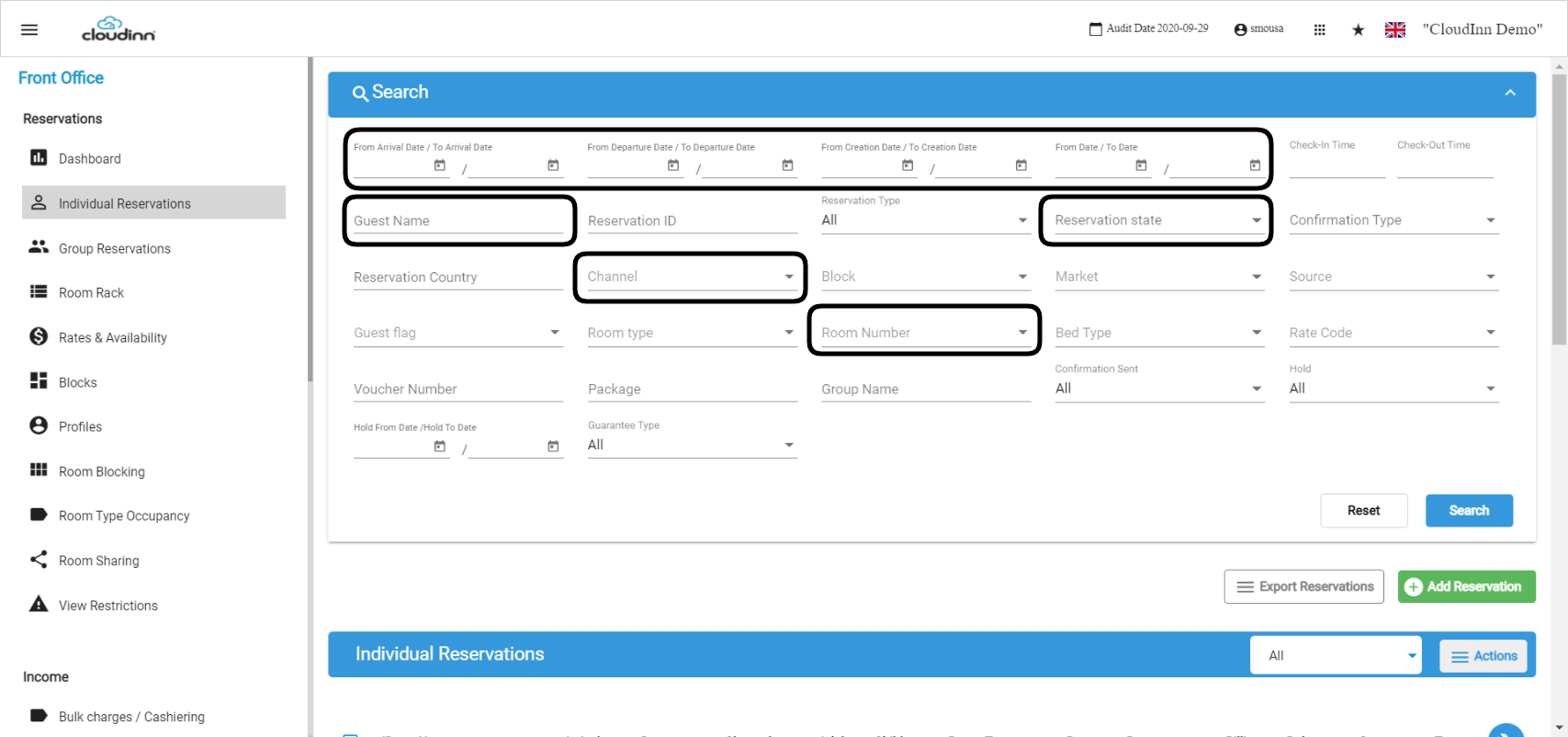 Alternatively, you can search for a group of reservations all at once using the reservation filters as shown below:
- Expected Arrival: are the reservations that are expected to arrive today.
- Expected Departure: are the reservations that are expected to check-out today.
- In-House: are the reservations checked in on the system and still staying through today’s night.
- Actual Arrival: these are the reservations that were expected to arrive today and the check-in procedure already took place for them.
- Actual Departure: these are the reservations that were expected to check out today and the check-out procedure already took place for them.
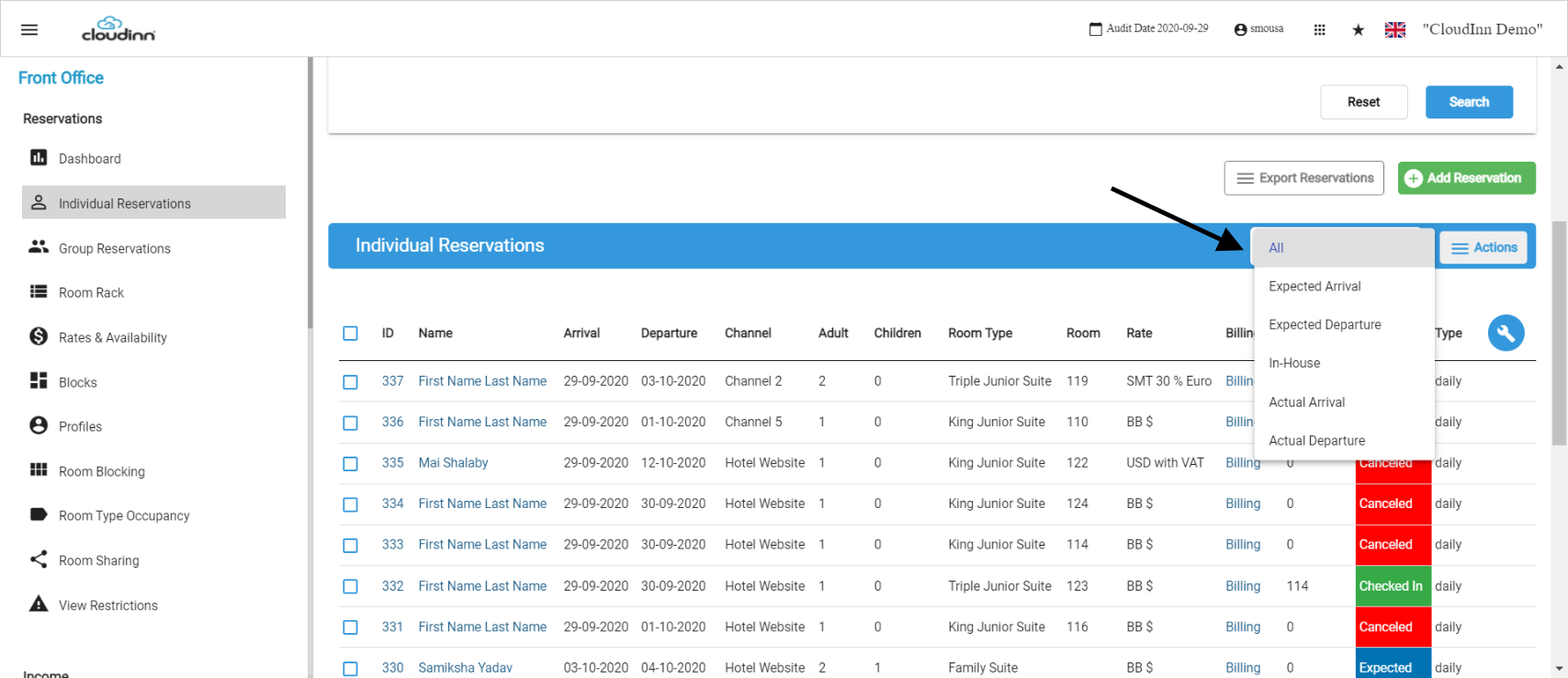 Clicking on any reservation will trigger opening it to take further actions on them.
Update: 10th of March, 2022
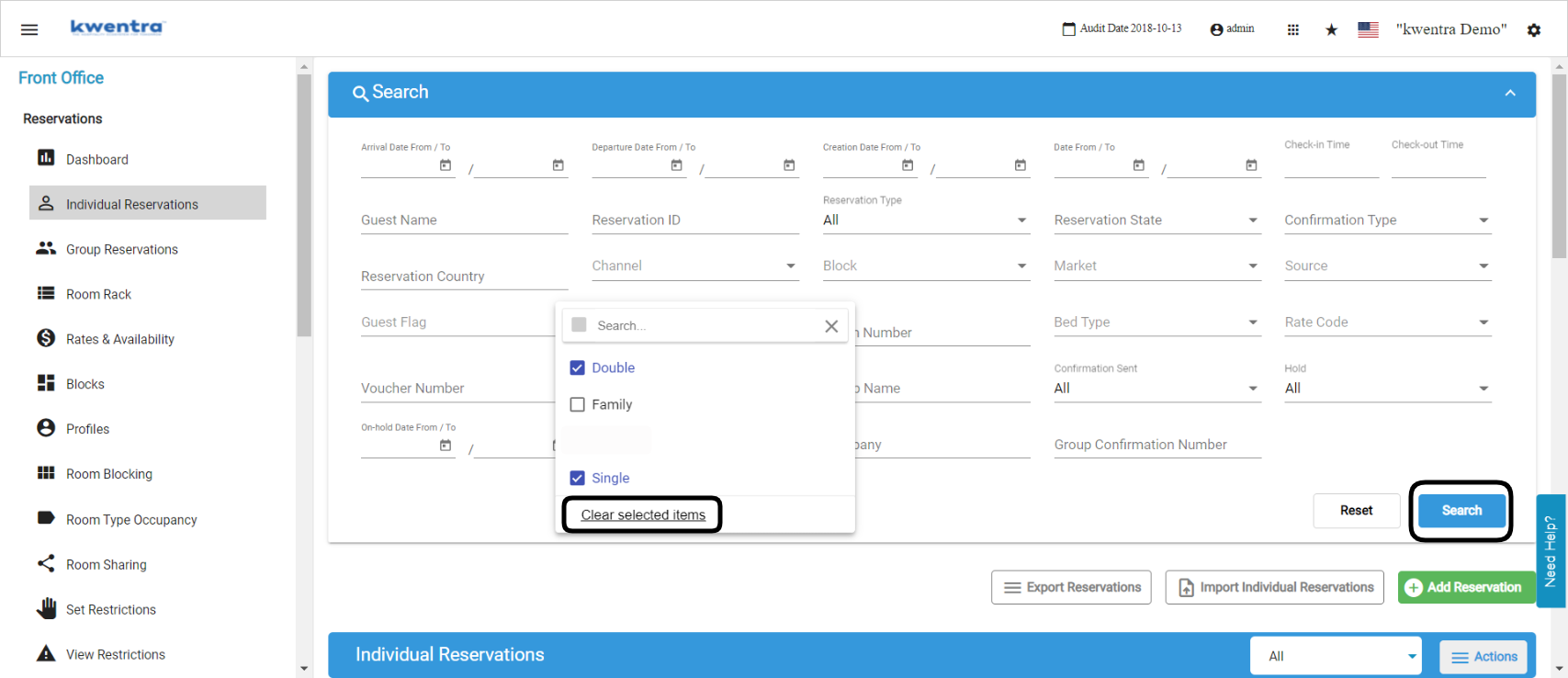
You can easily search for multiple room types to return all reservations that are created on one or more room type.
Front Office → Individual Reservations → Search
You can select multiple room types like below, you can also clear the search inputs once you are done by using Clear Selected Items.
You need to click Search in order to view the reservations based on your search inputs.
Clicking on any reservation will trigger opening it to take further actions on them.
Update: 10th of March, 2022
You can easily search for multiple room types to return all reservations that are created on one or more room type.
Front Office → Individual Reservations → Search
You can select multiple room types like below, you can also clear the search inputs once you are done by using Clear Selected Items.
You need to click Search in order to view the reservations based on your search inputs.
 Update: 29th of March, 2022
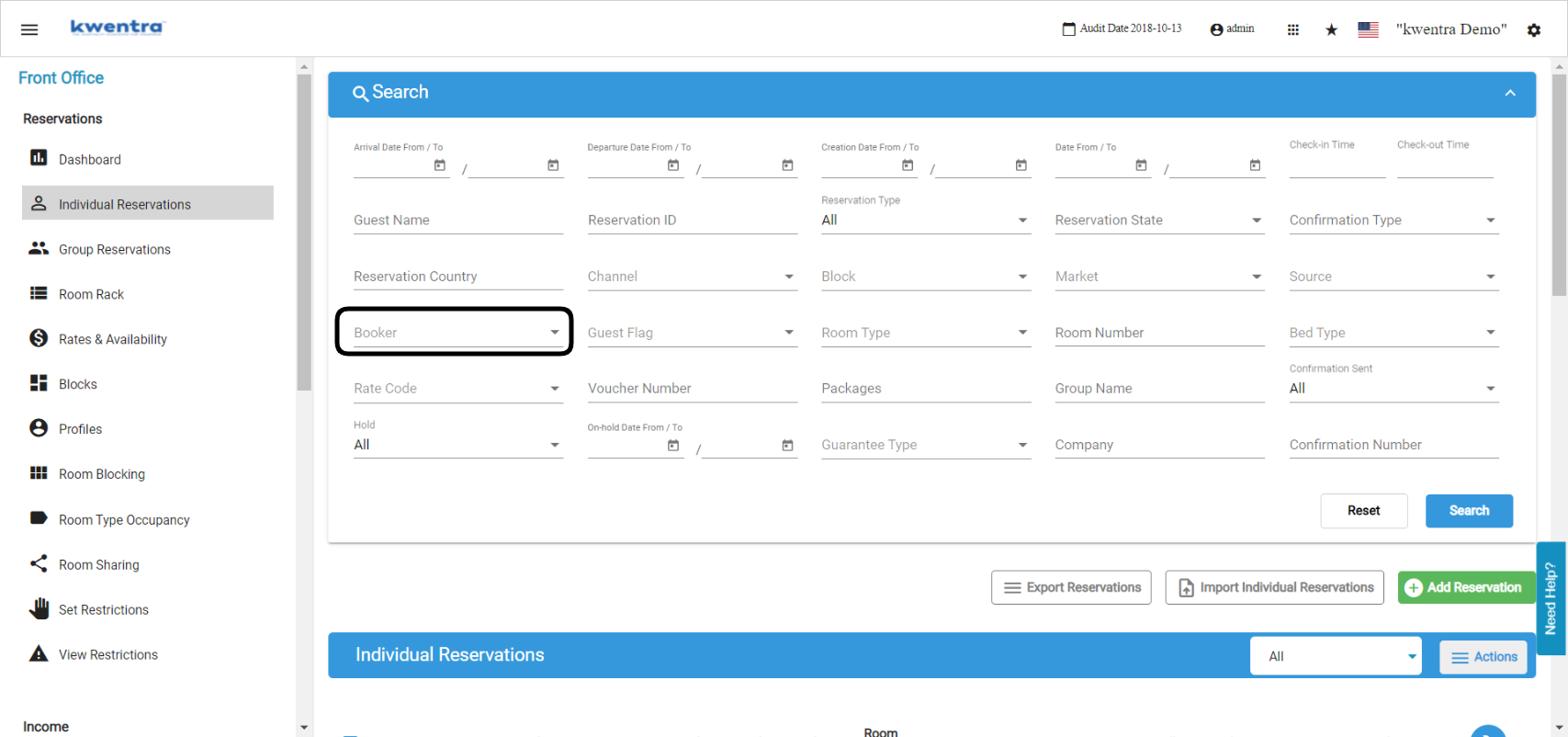
You can easily search for the reservations created under a certain booker using this new field in the search form.
Front Office → Individual Reservations → Search
This field accepts multiple selections to allow you to search for reservations created under multiple bookers.
Update: 29th of March, 2022
You can easily search for the reservations created under a certain booker using this new field in the search form.
Front Office → Individual Reservations → Search
This field accepts multiple selections to allow you to search for reservations created under multiple bookers.
 Update: 20th of June, 2022
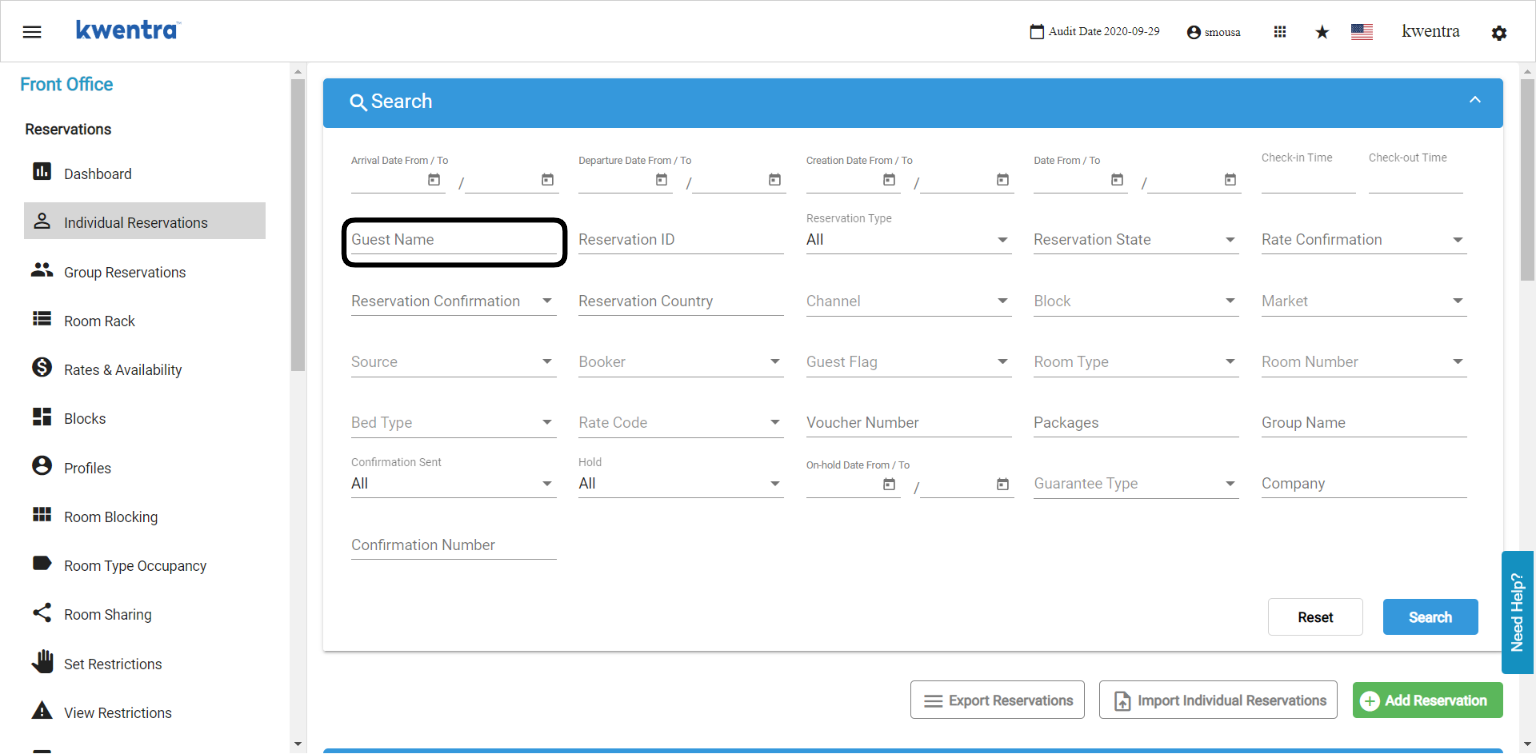
You can now easily search for a reservation using the secondary “other” guests profiles from the Guest Name field
Update: 20th of June, 2022
You can now easily search for a reservation using the secondary “other” guests profiles from the Guest Name field
 Update: 6th of Novemeber, 2022
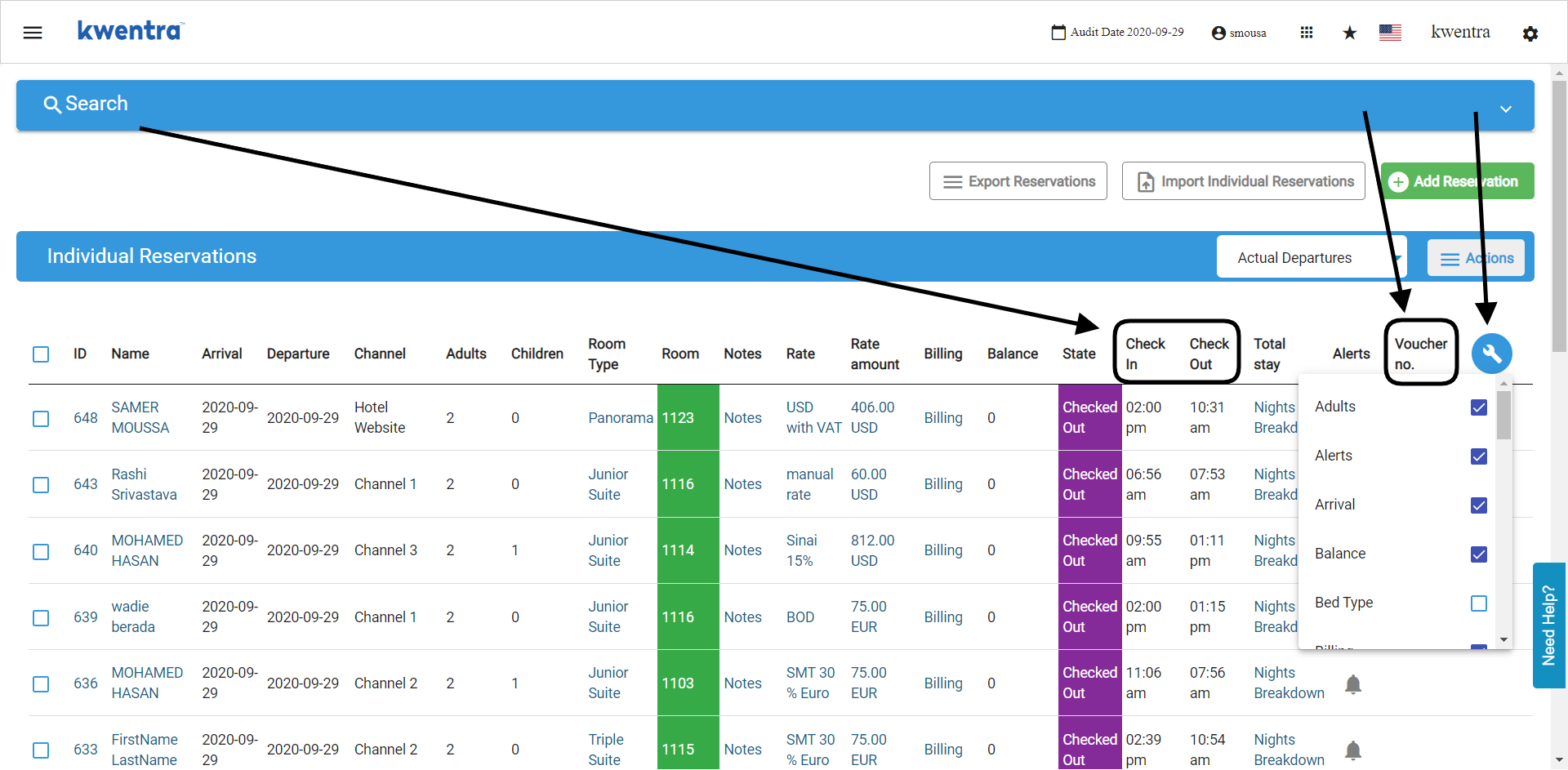
The below columns have been added to the reservation listing screen:
Update: 6th of Novemeber, 2022
The below columns have been added to the reservation listing screen:
- Check In Time
- Check Out Time
- Voucher Number
 Update: 20th of November, 2022
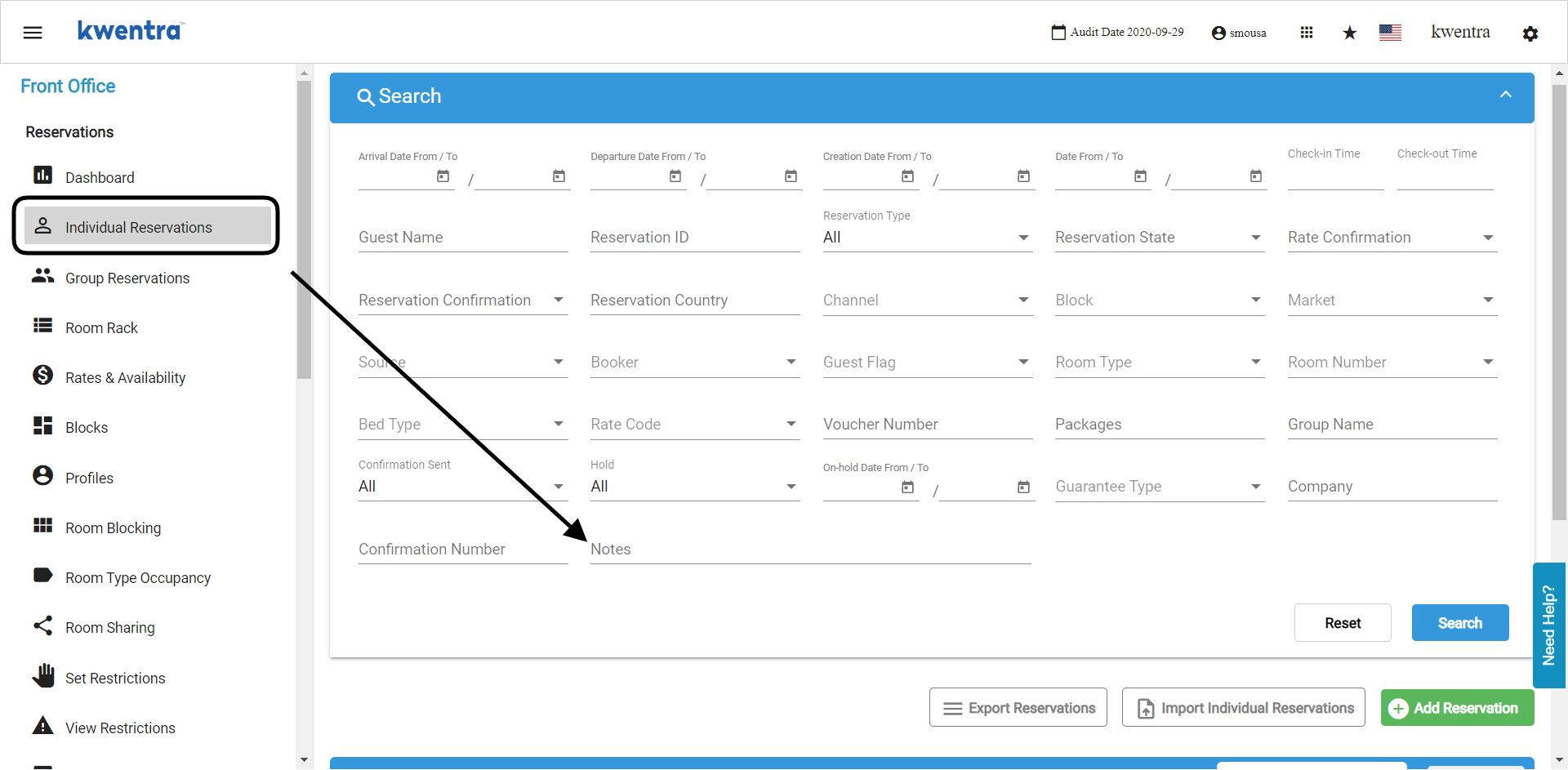
You can now search for reservations that contain certain notes or fragments from a word to lookup all reservations that has the same note.
Example: if you searched with the word “to” you will get all the reservations that has notes with words that include those 2 letters, like the word elevator.
Update: 20th of November, 2022
You can now search for reservations that contain certain notes or fragments from a word to lookup all reservations that has the same note.
Example: if you searched with the word “to” you will get all the reservations that has notes with words that include those 2 letters, like the word elevator.
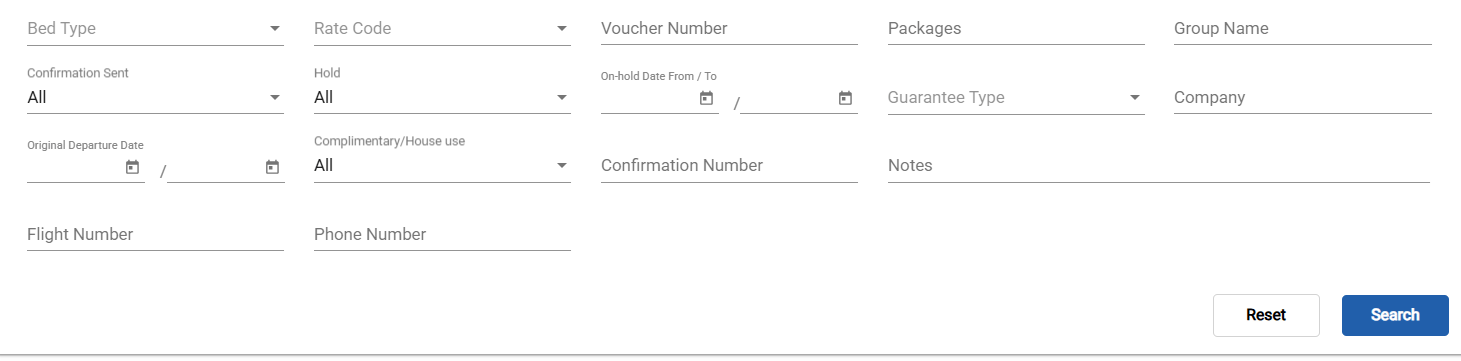
Update 12 March, 2026 - Flight Number and Mobile Number Search
Reservations can now be searched by flight number or guest mobile number from the listing screen.
How It Works New Search Fields
Two new search fields have been added to the Individual Reservations listing screen filters:
- Flight Number — searches both the arrival flight number and departure flight number fields stored on the reservation.
- Mobile Number — searches the guest profile’s mobile number field.