

Business Value
- Shows only the columns you need, so the list is clearer.
- Saves your choice for every hotel you work in.
- Shows payments, balances and confirmation numbers without opening each reservation.
- Sorts by any column on screen, with no Excel export.
Use Cases
- A front desk agent shows arrivals, room types and billing details only.
- A manager sees balance, channel and notes at a glance.
- An accountant audits open balances on group bookings.
- A front desk agent sorts by Balance to see the highest amounts first.
- A receptionist finds a caller’s confirmation number straight from the list.
How It Works
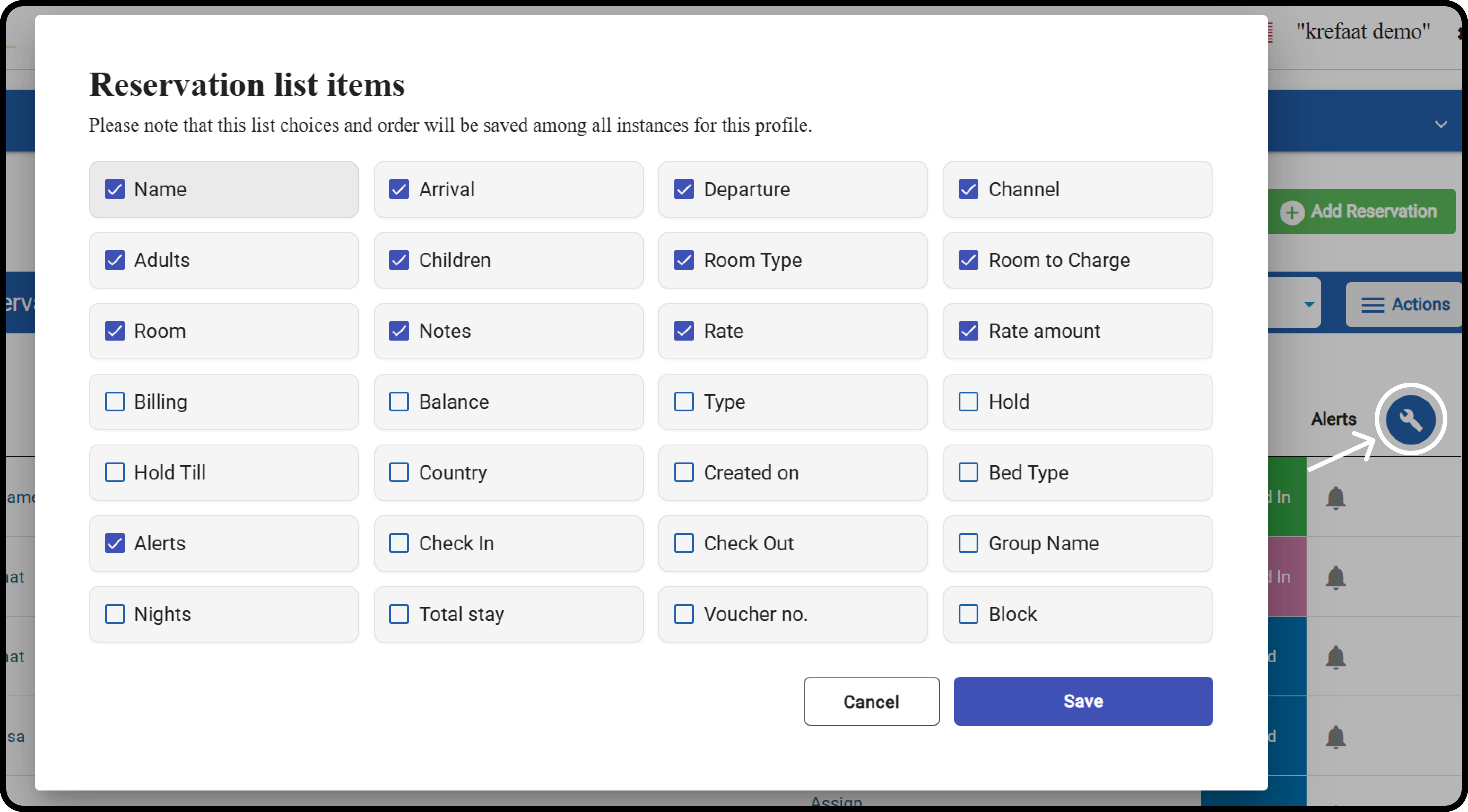
- Click the tool icon above the list.
- Tick the columns you want. Untick the ones you do not need.
- Click Save.
- Your choice is saved against your own user. It does not change what others see.
- It applies to every property you have access to.
- It stays after a refresh, a sign-out and on any browser.
Paid Amount and Remaining Projected Balance
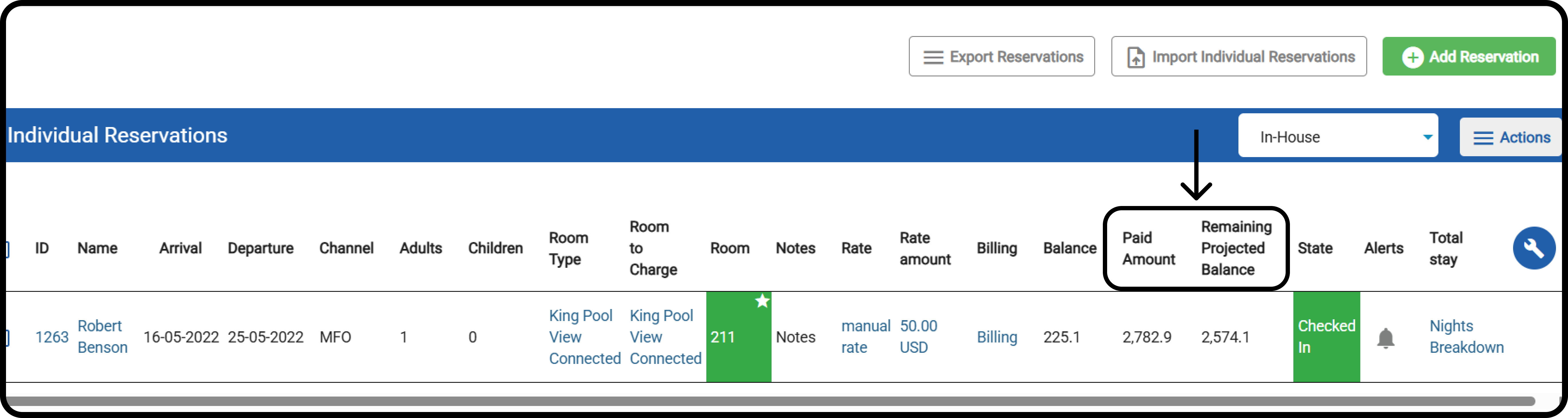
Tick Paid Amount and Remaining Projected Balance to track payments and open balances.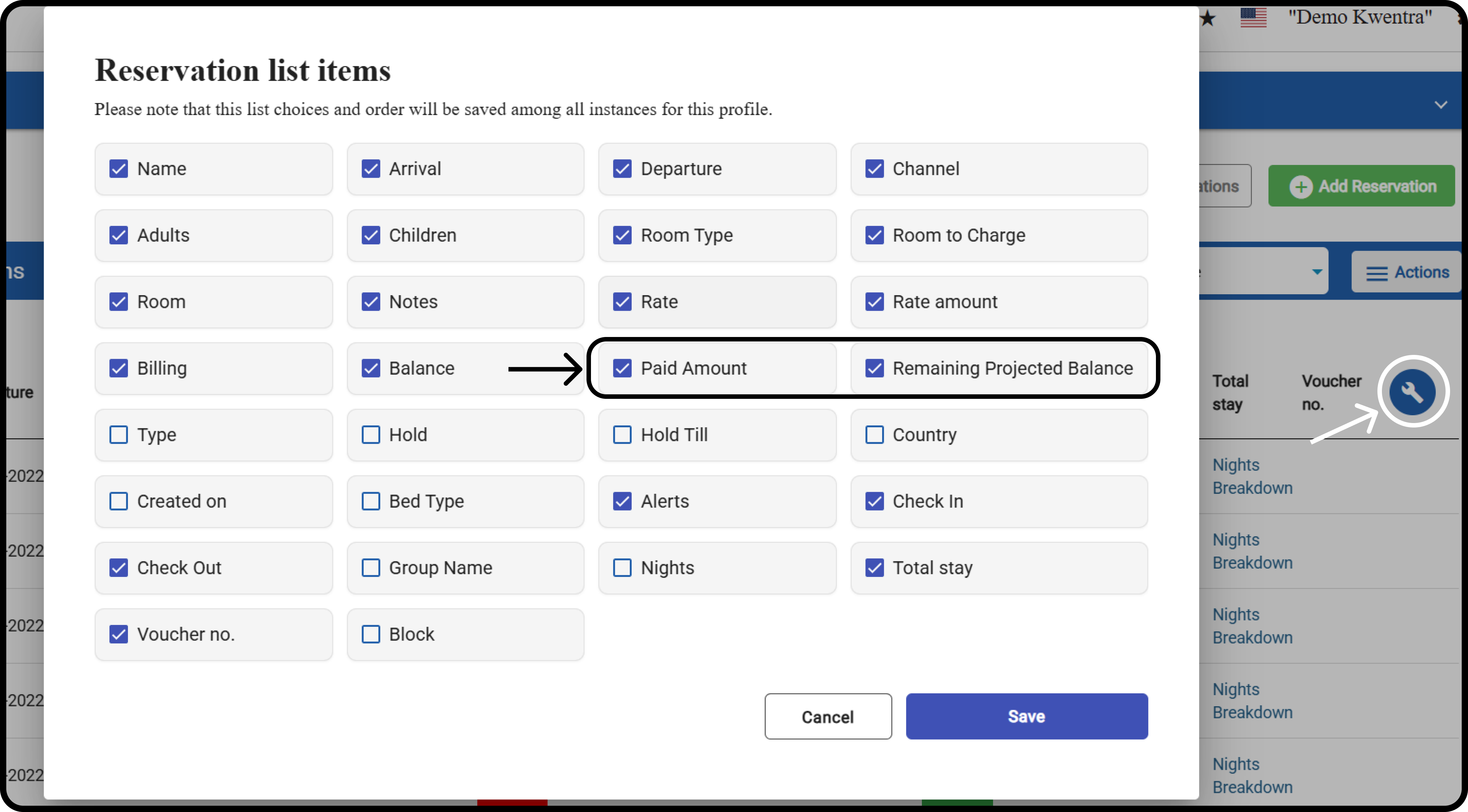
- Projected debits are all projected debit postings from this reservation.
- They include reservations linked by billing instructions. Duplicates count once.
Confirmation Number Column
Tick Confirmation no. to show each reservation’s confirmation number. The column is off by default.- A reservation with no confirmation number shows an empty cell.
- Sorting groups reservations with no confirmation number together.
Sortable Columns
- Click a column header to sort ascending.
- Click it again to sort descending.
- An arrow shows the active sort column and direction.
- Sorting works with your search filters.
- You can sort by one column at a time.
- Room to Charge
- Balance
- Paid Amount
- Remaining Projected Balance
- Nights. Day-use reservations always count as 1.
Update: September, 2026
The Individual Reservations export now includes the confirmation number.
Before, the exported file ended at Voucher no. The Confirmation no. column showed on screen only.
- Confirmation no. is the last column, right after Voucher no.
- It shows the same value as the on-screen column.
- A reservation with no confirmation number exports an empty cell.
- Both XLSX and CSV exports include it.
- The export follows the listing’s active filters and sorting.
Only users allowed to export reservations can export.