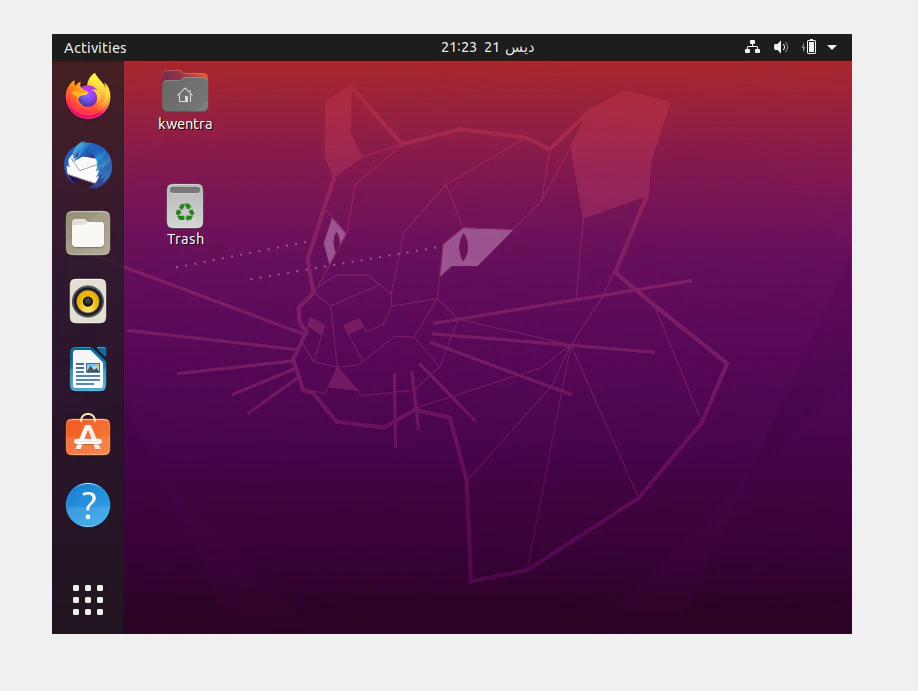
1. Download the Software
VirtualBox
Download VirtualBox. Run the file and install it.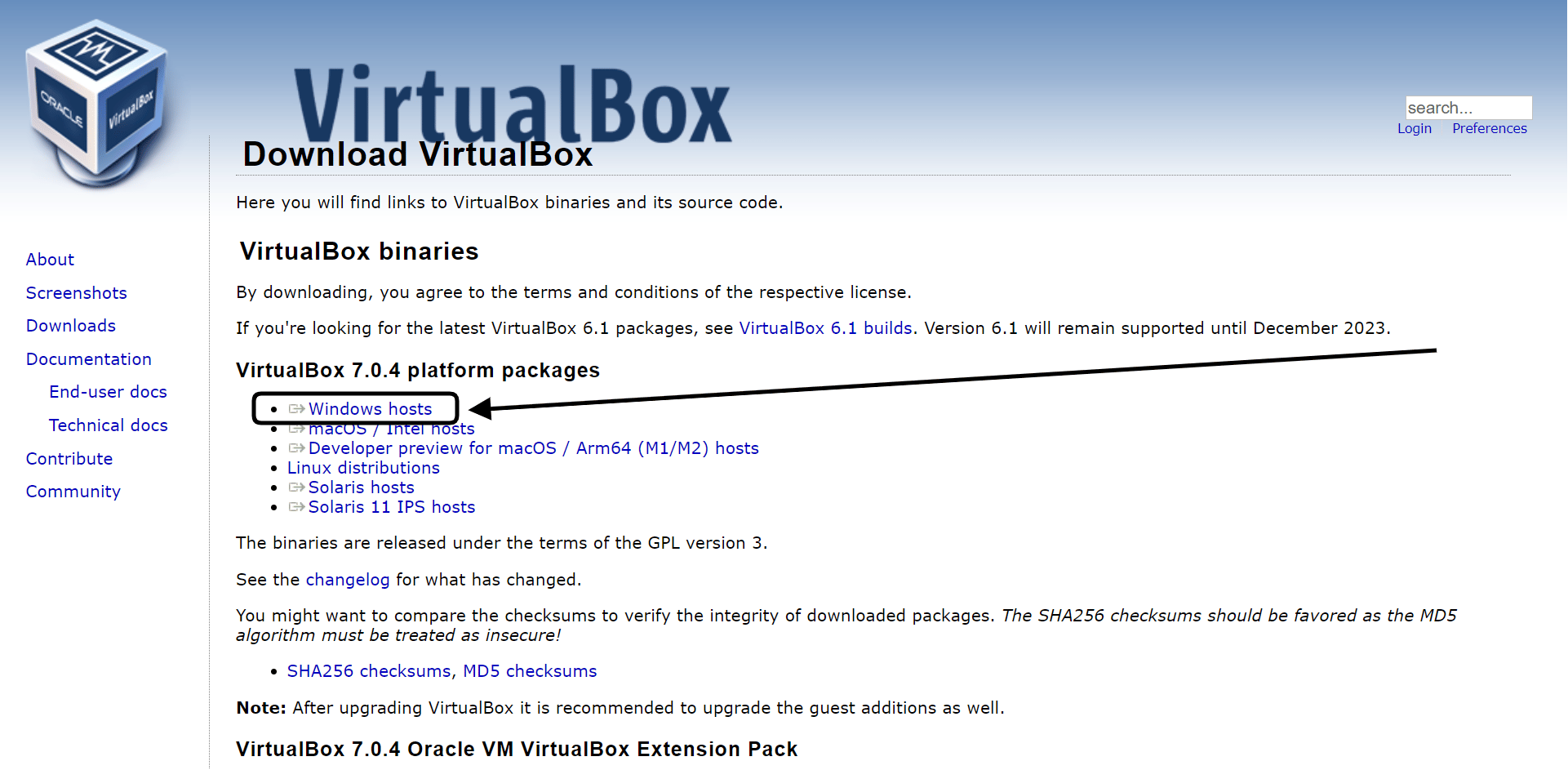
Ubuntu
You also need Ubuntu. It works as a virtual disc in VirtualBox. The best version is Ubuntu 20.04.6 Desktop (64-bit).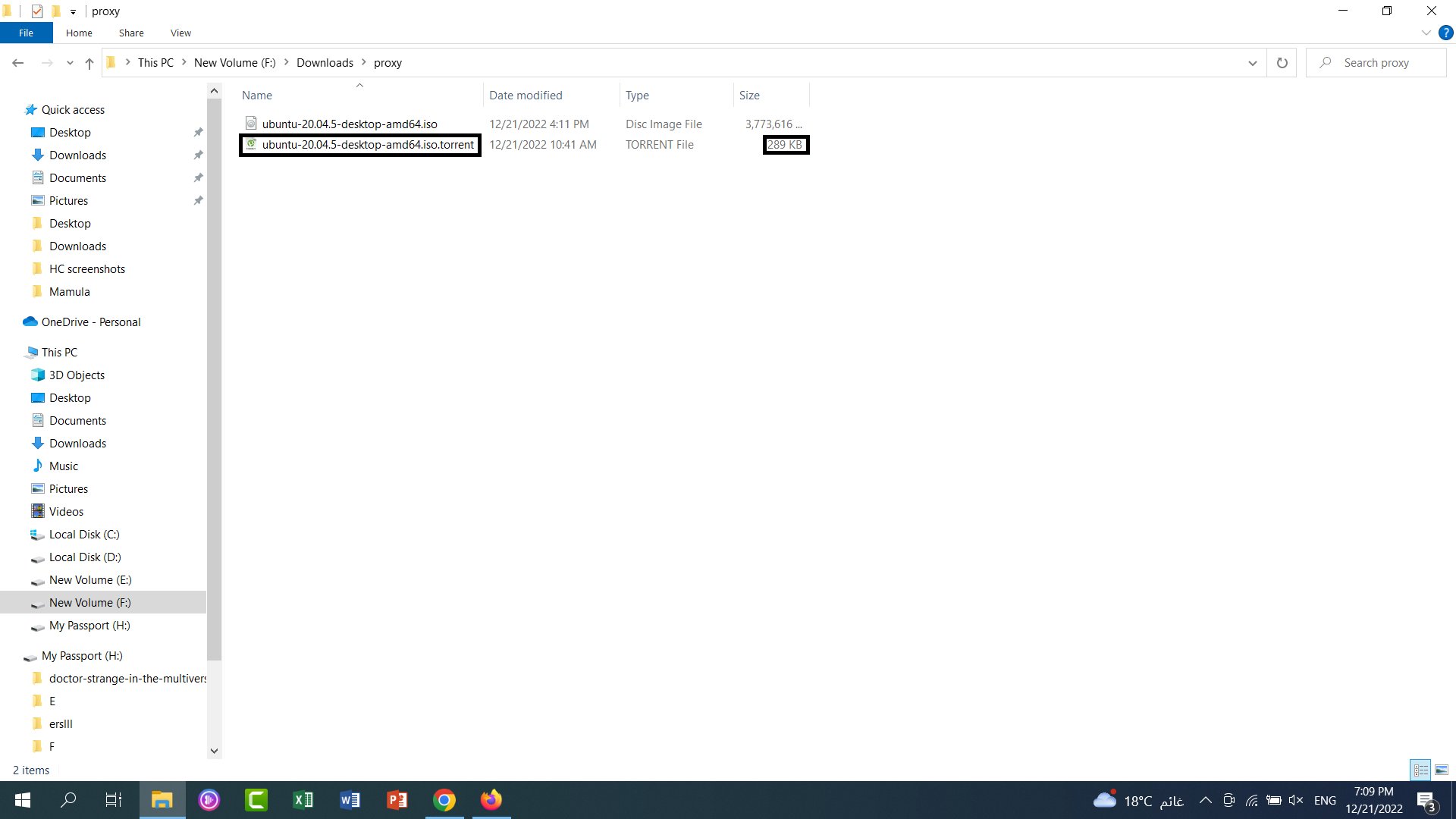
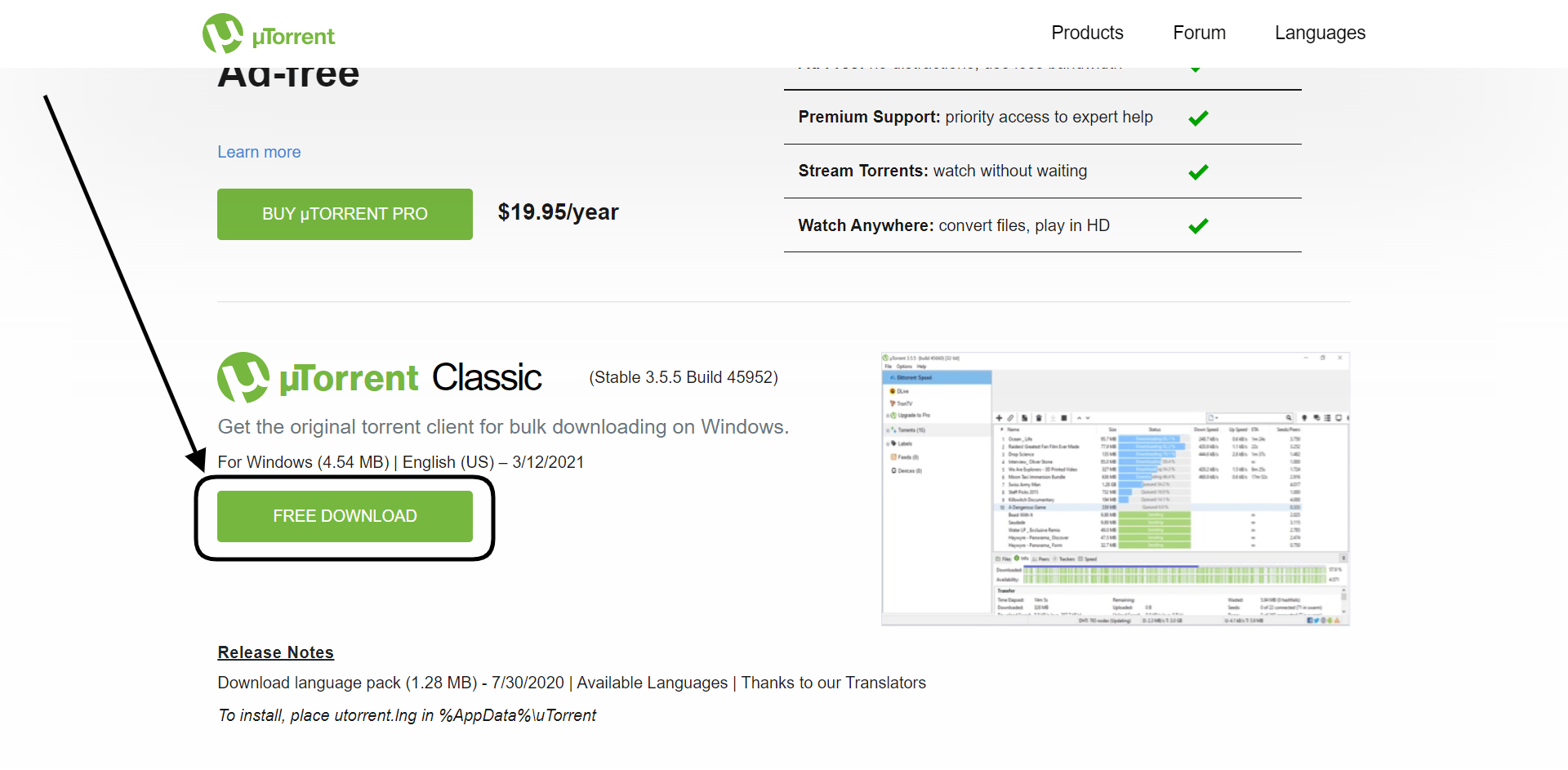
- Install uTorrent.
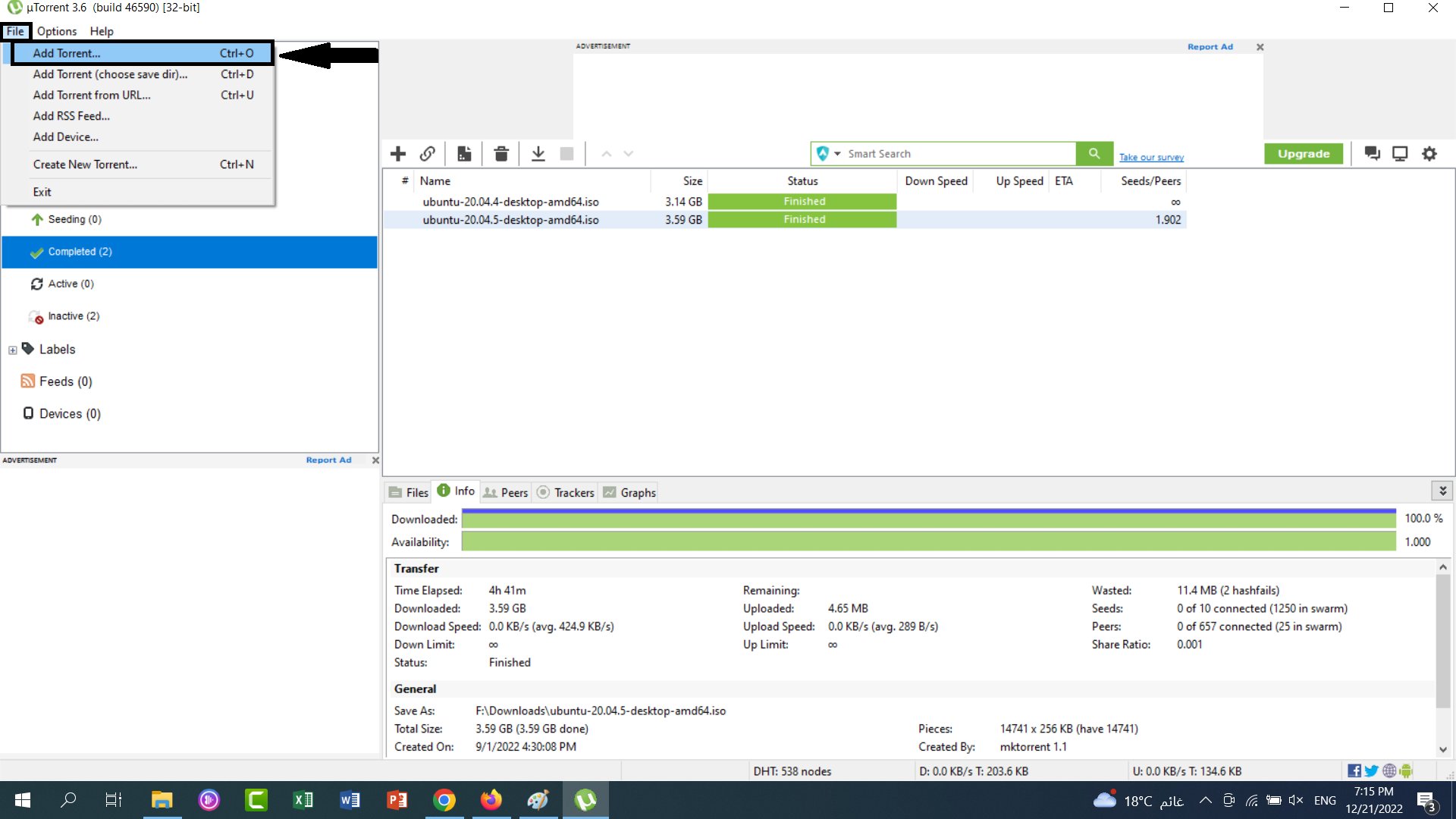
- Click File.
- Click Add Torrent.
- Select the torrent file you downloaded.
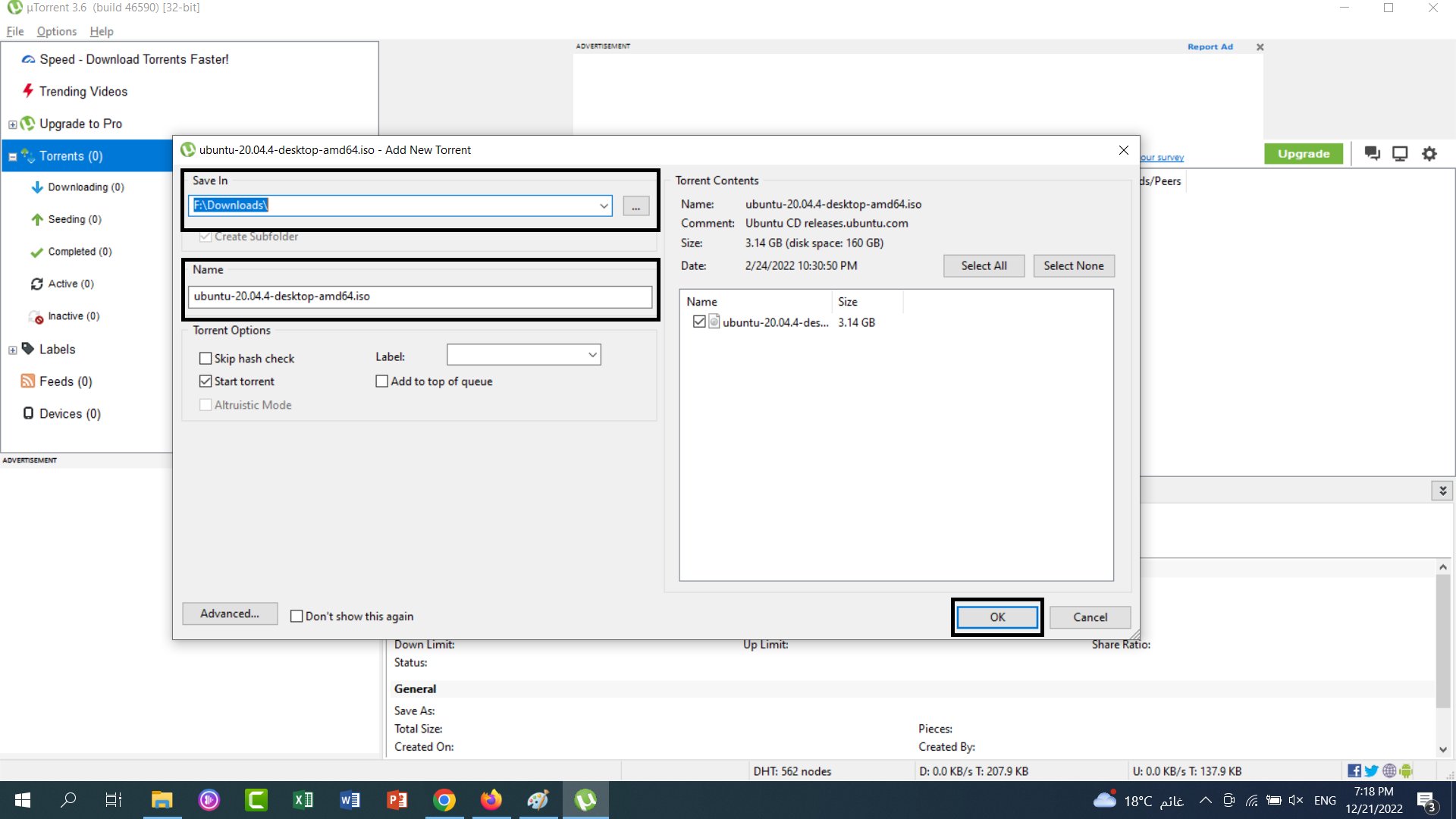
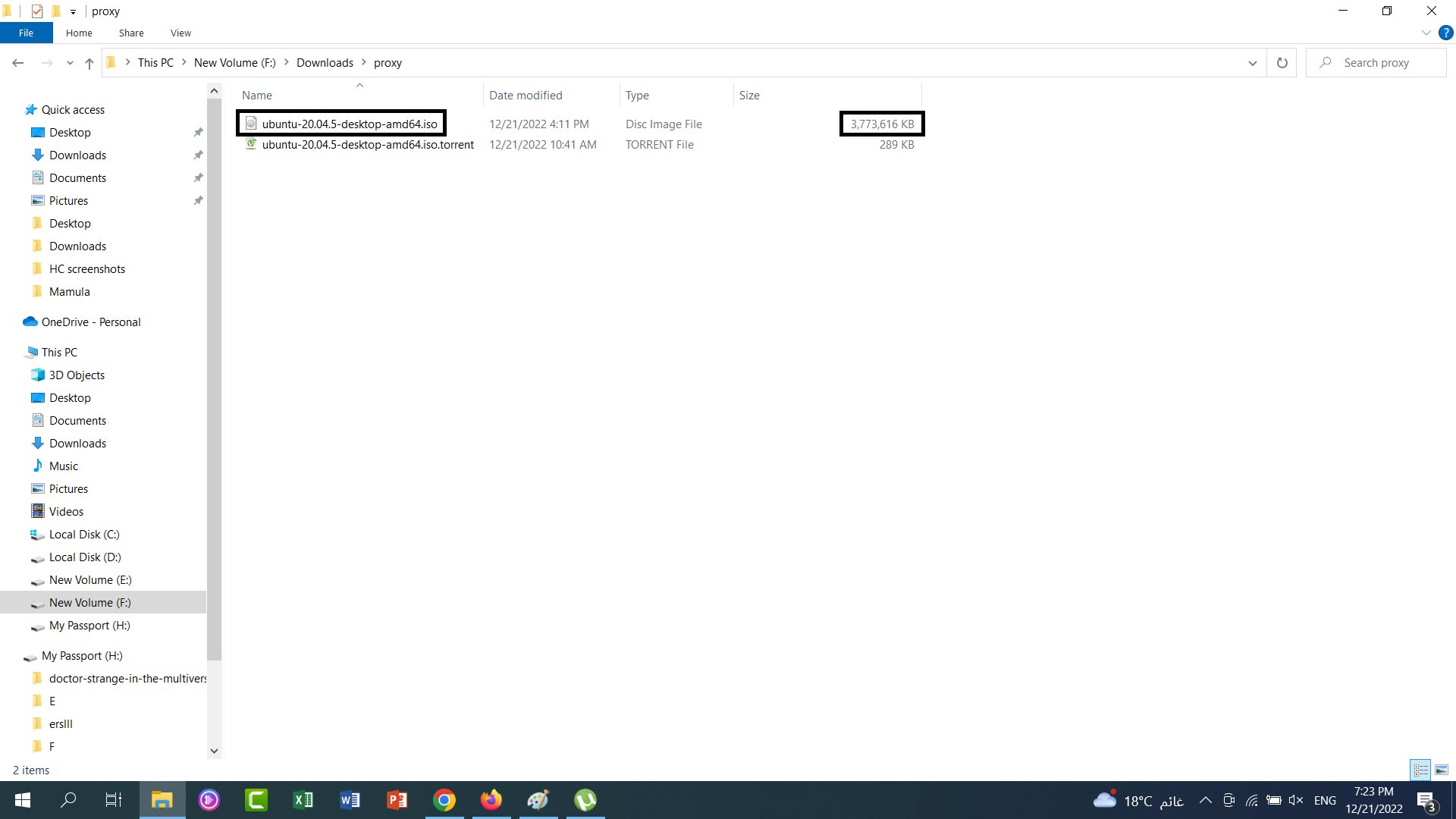
- Choose where to save the ISO file.
- Enter a new name for the ISO file, or keep the name.
- Click OK.
2. Create the Virtual Machine
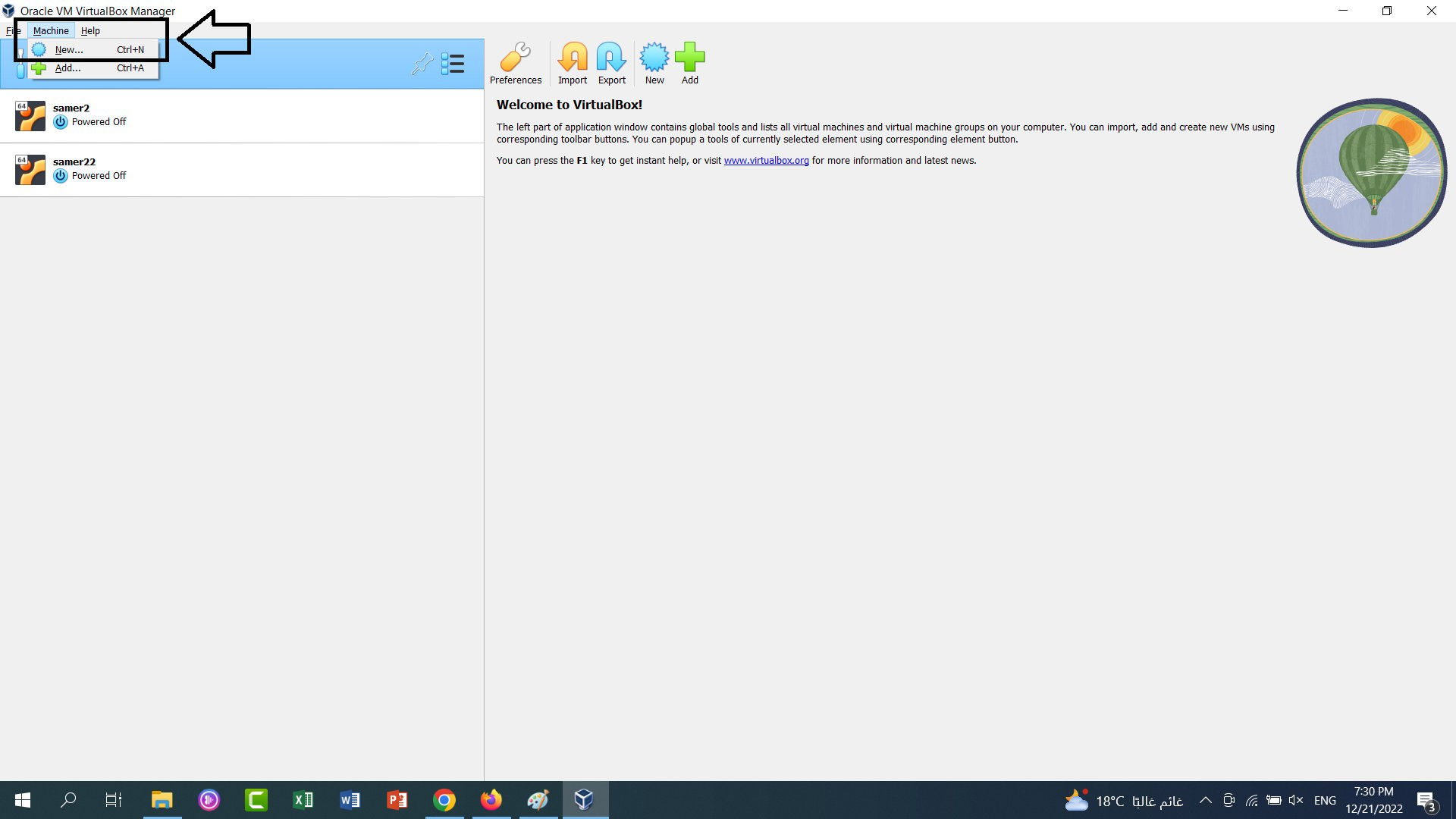
- Open VirtualBox. On the welcome screen, click Machine, then New.
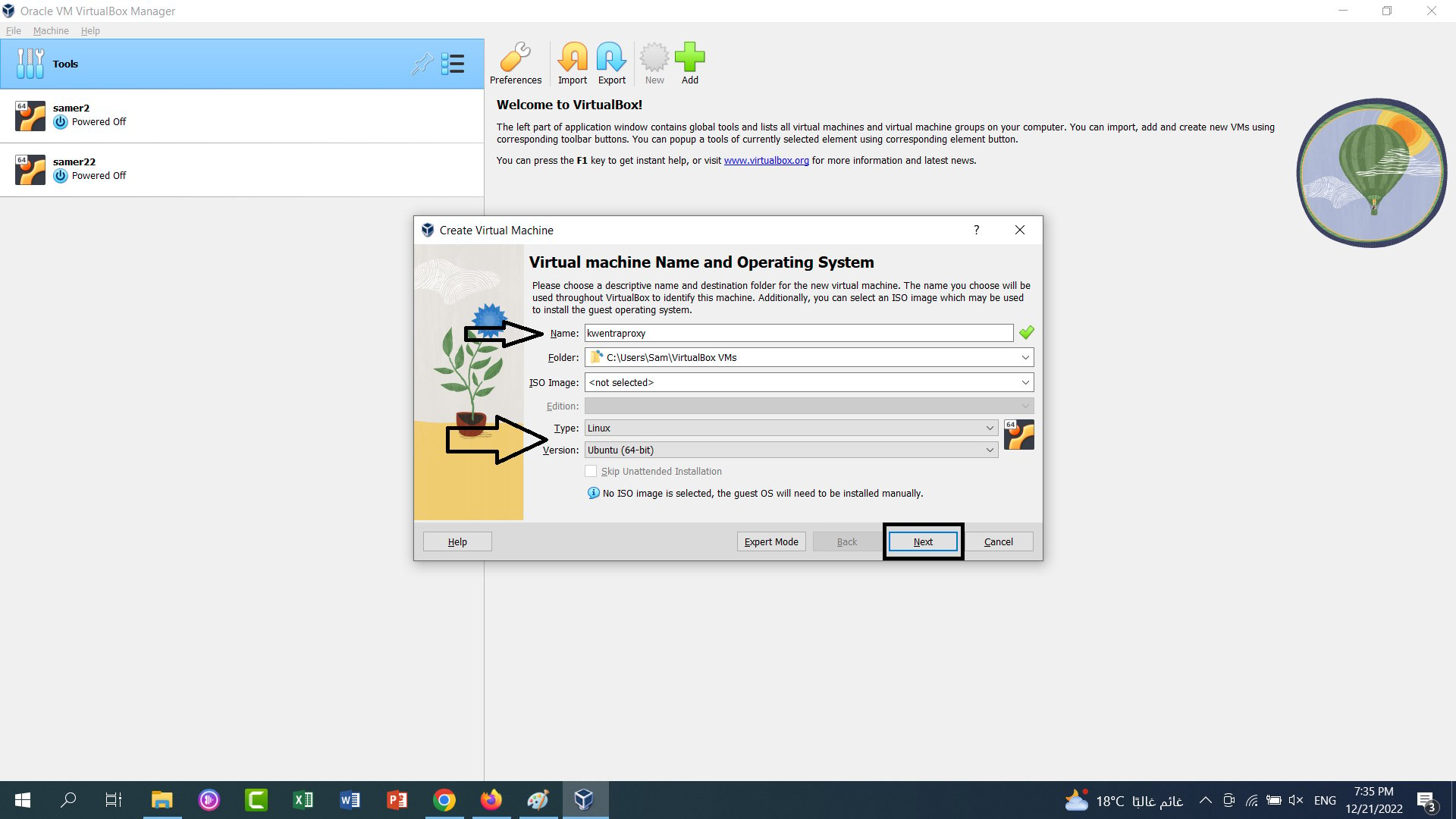
- Fill in the fields:
- Enter a name for the machine.
- Set Type to Linux.
- Set Version to Ubuntu (64-bit).
- Do not select the ISO file yet. You add it later.
- Click Next.
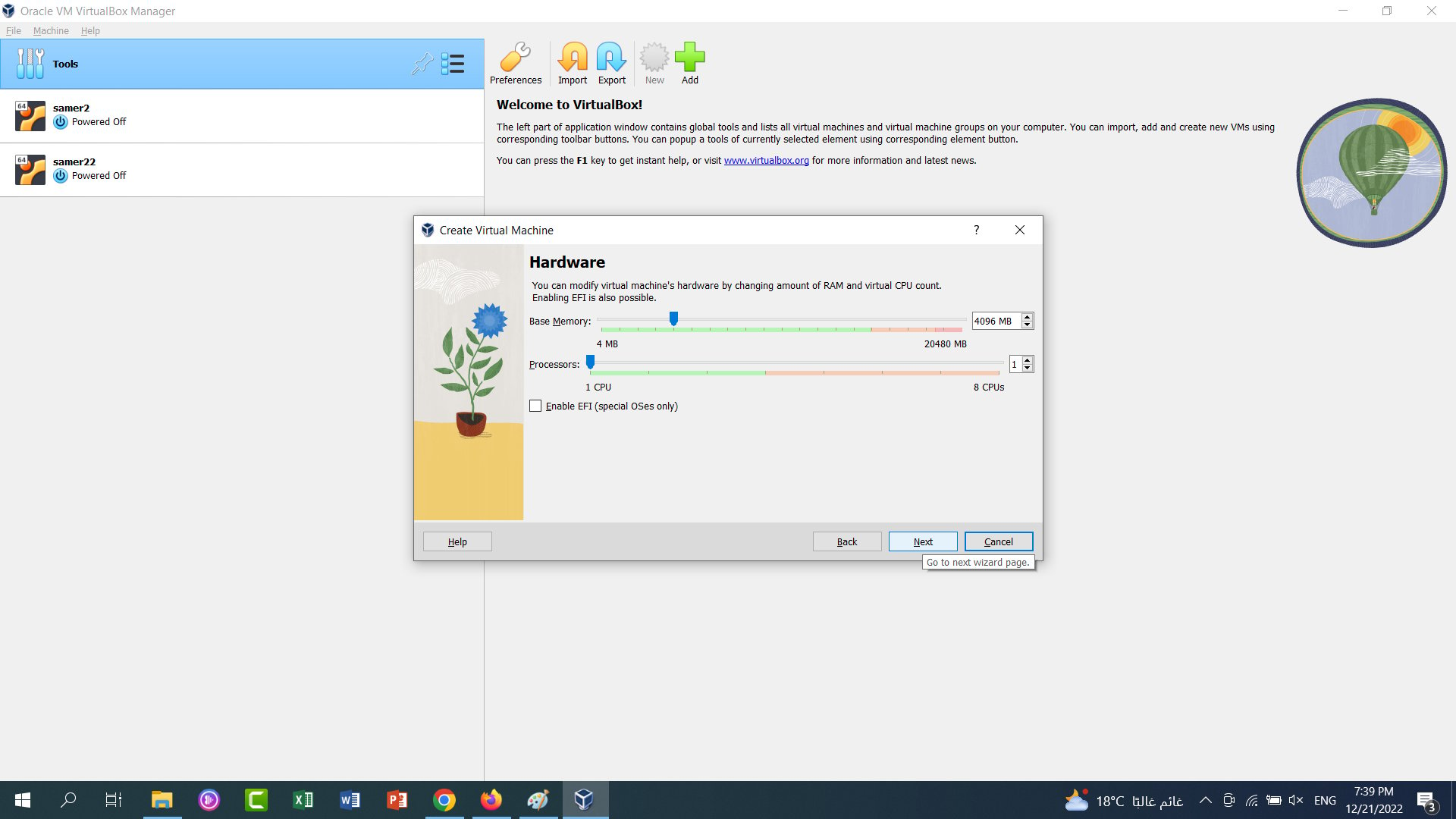
- In Hardware, set the memory between 2048 MB and 4096 MB. Set 1 CPU. Click Next.
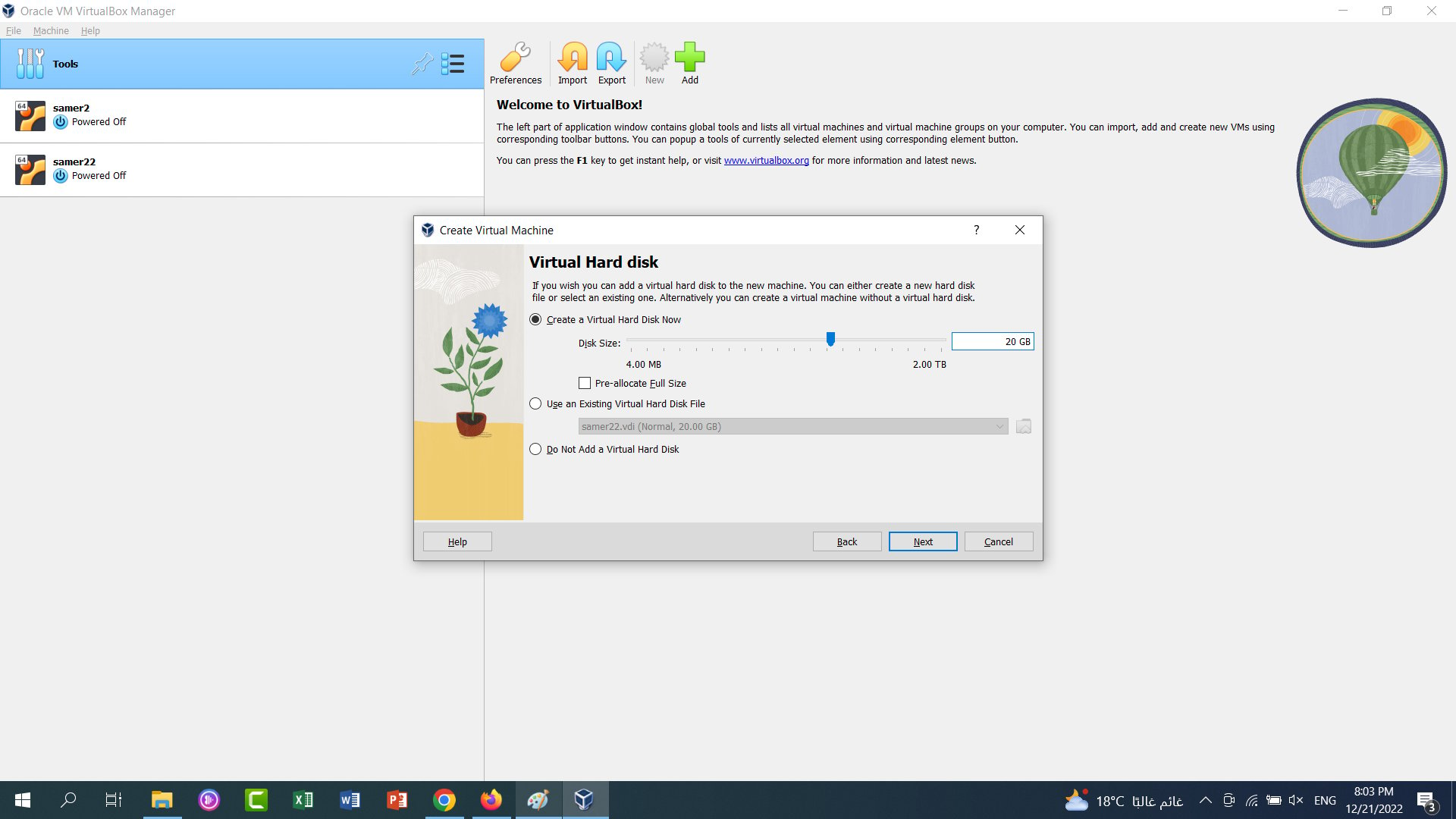
- Create a virtual hard disk of 10 GB to 20 GB. Click Next.
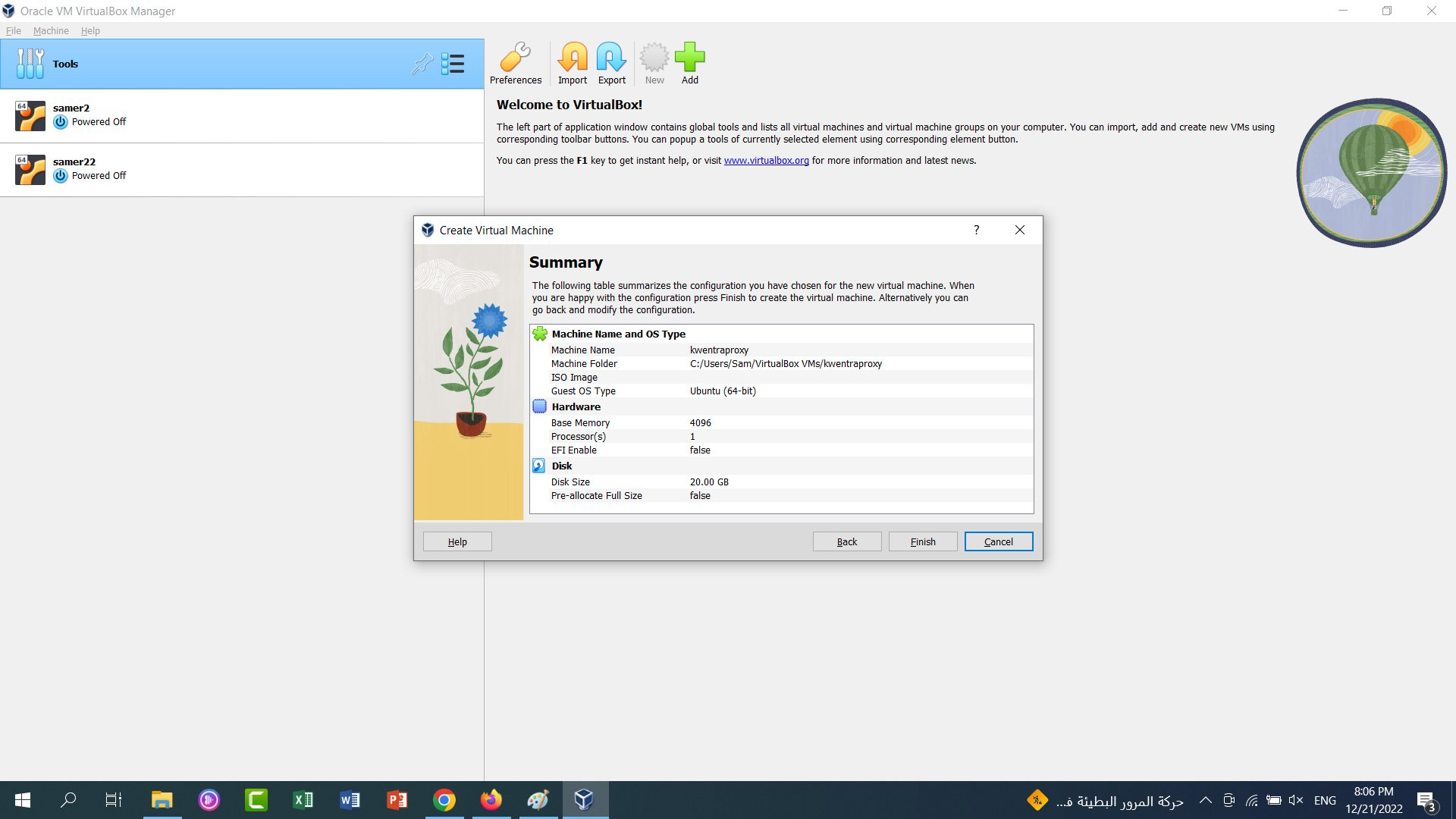
- Check the summary. Click Finish to create the VM.
3. Set Up the Virtual Machine
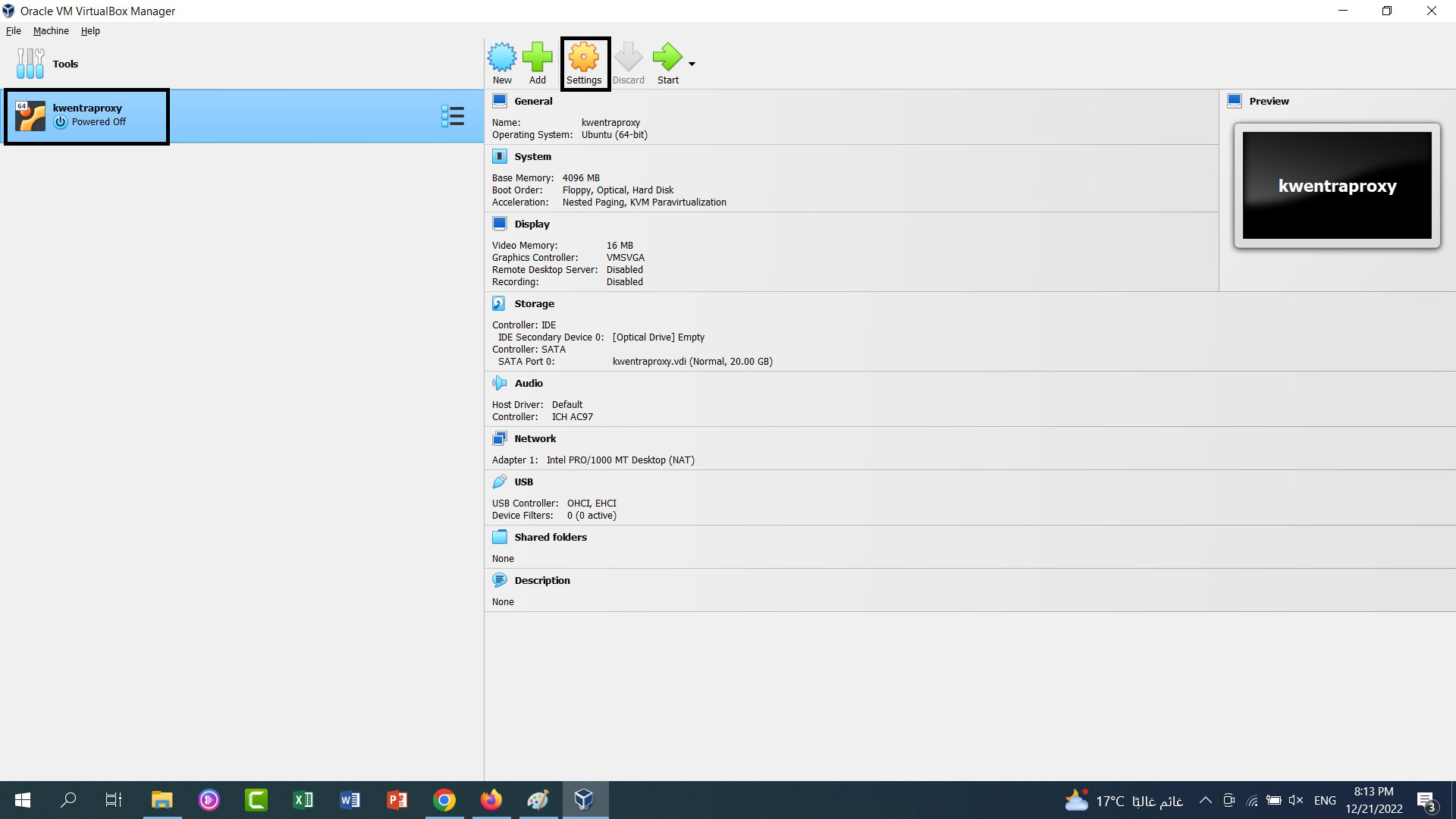
- The VM is created and powered off. Open its Settings.
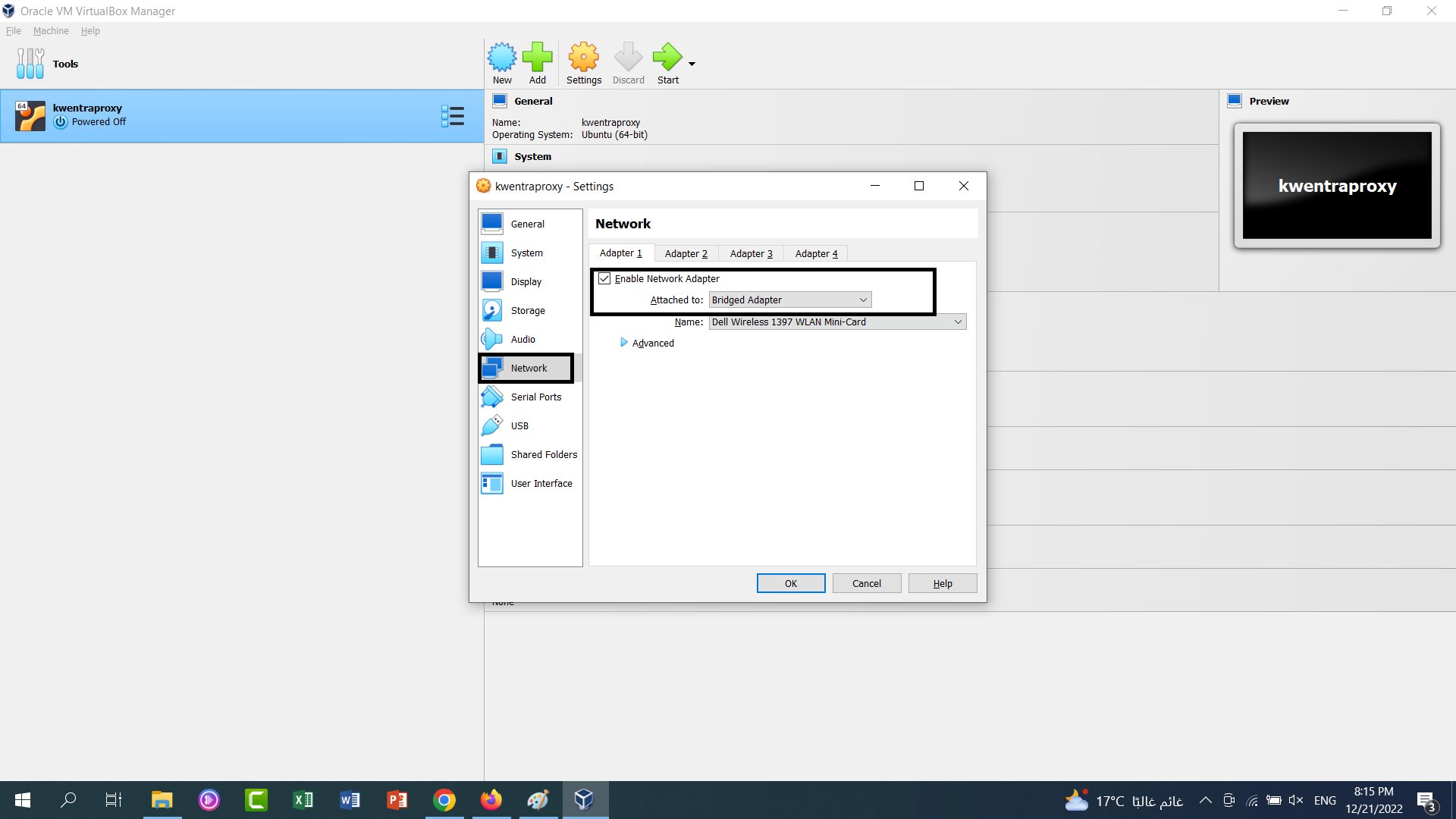
- In Network, set Attached to to Bridged Adapter. Click OK.
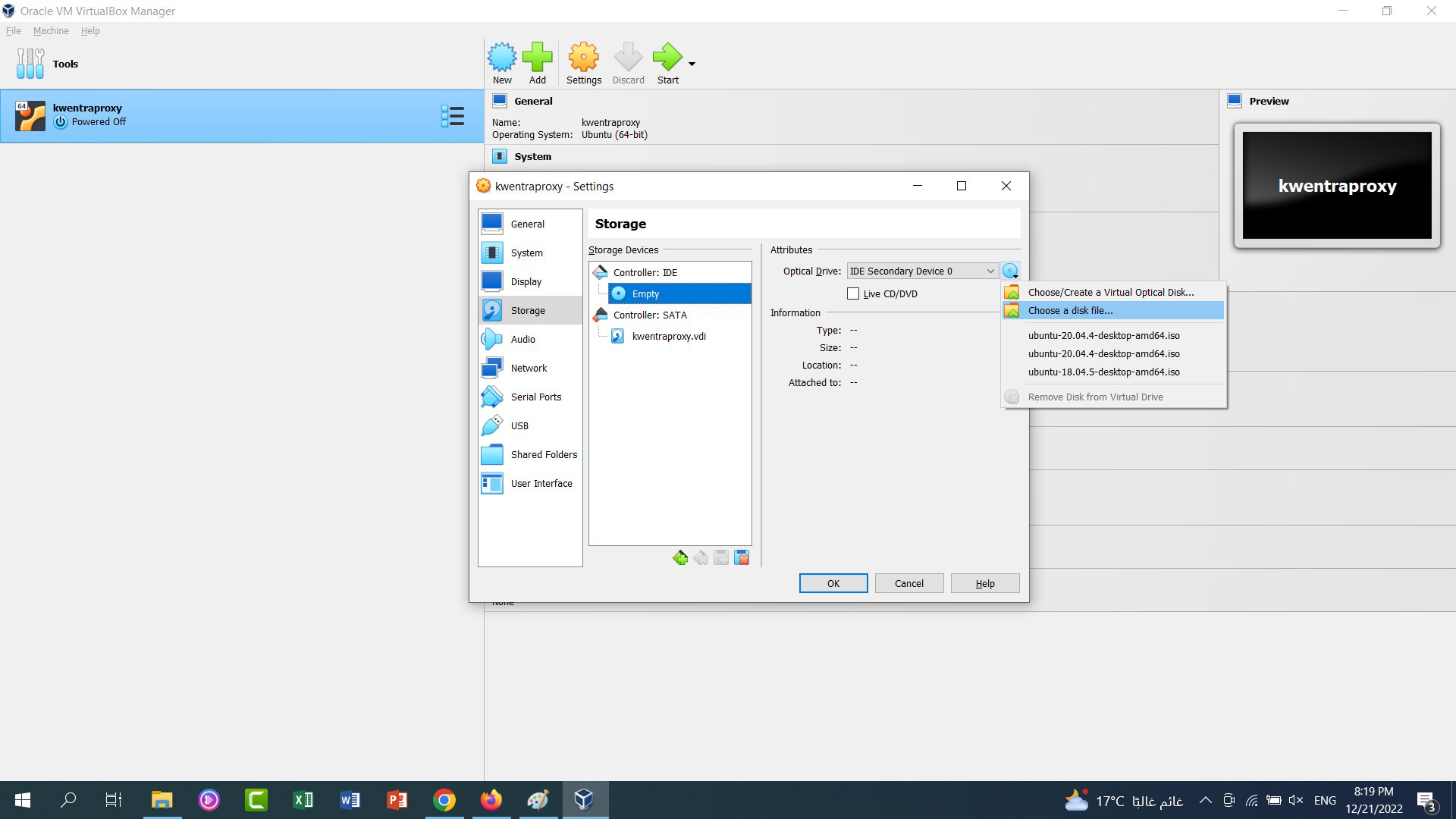
- In Storage, select Controller: IDE and the disc under it.
- Click the optical disc icon. Select the Ubuntu ISO file you downloaded.
- Click OK.
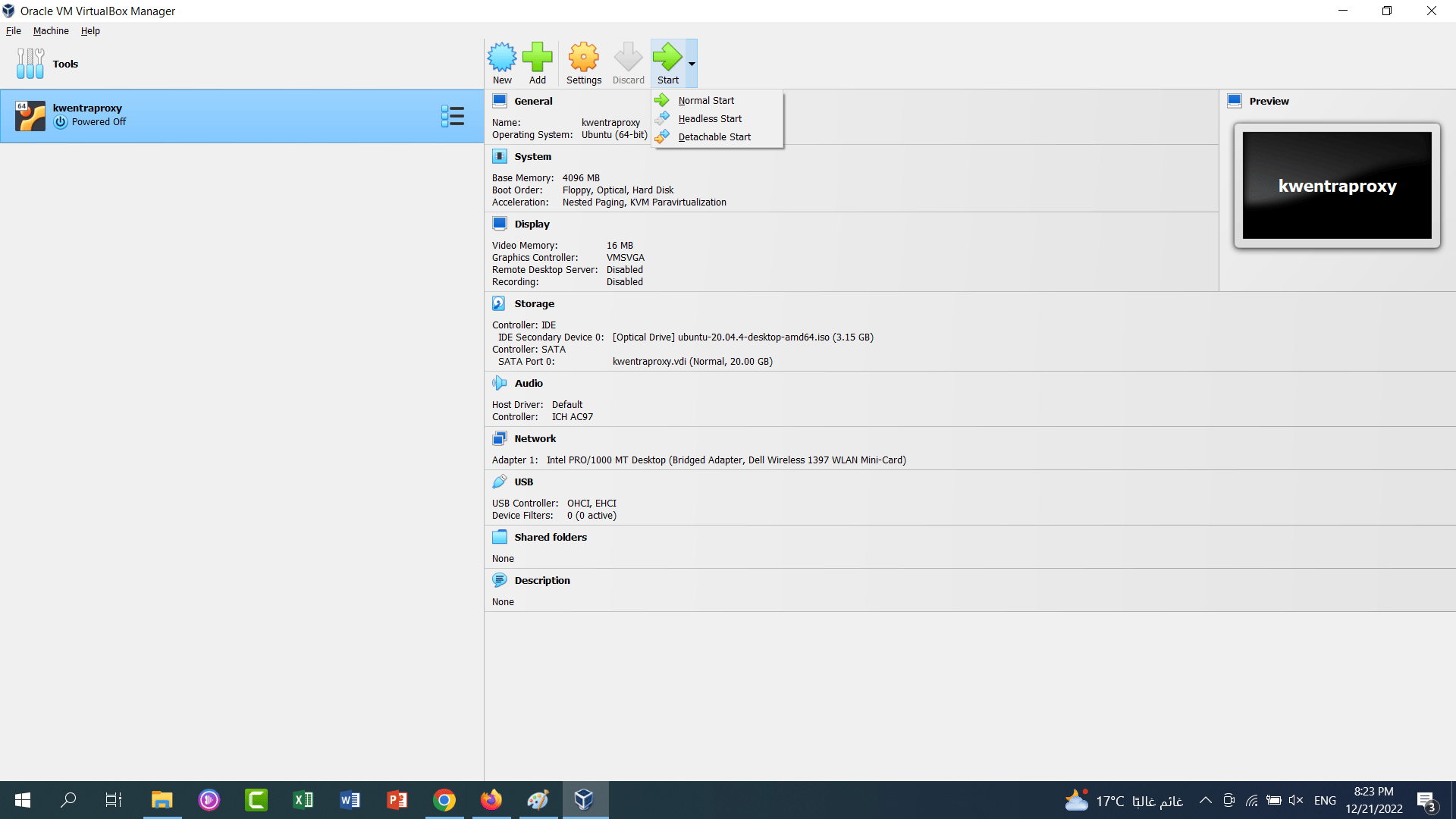
- Click Normal Start.
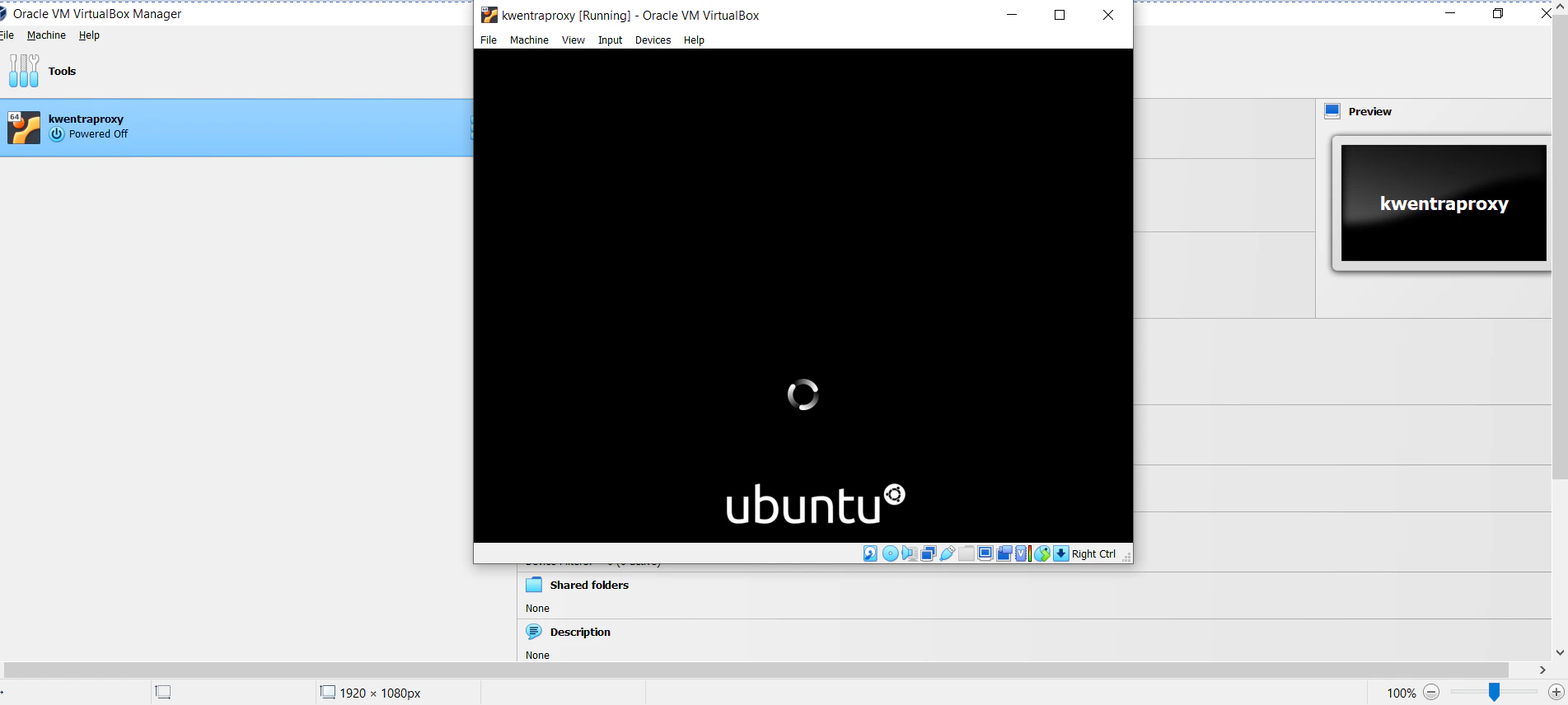
4. Install Ubuntu
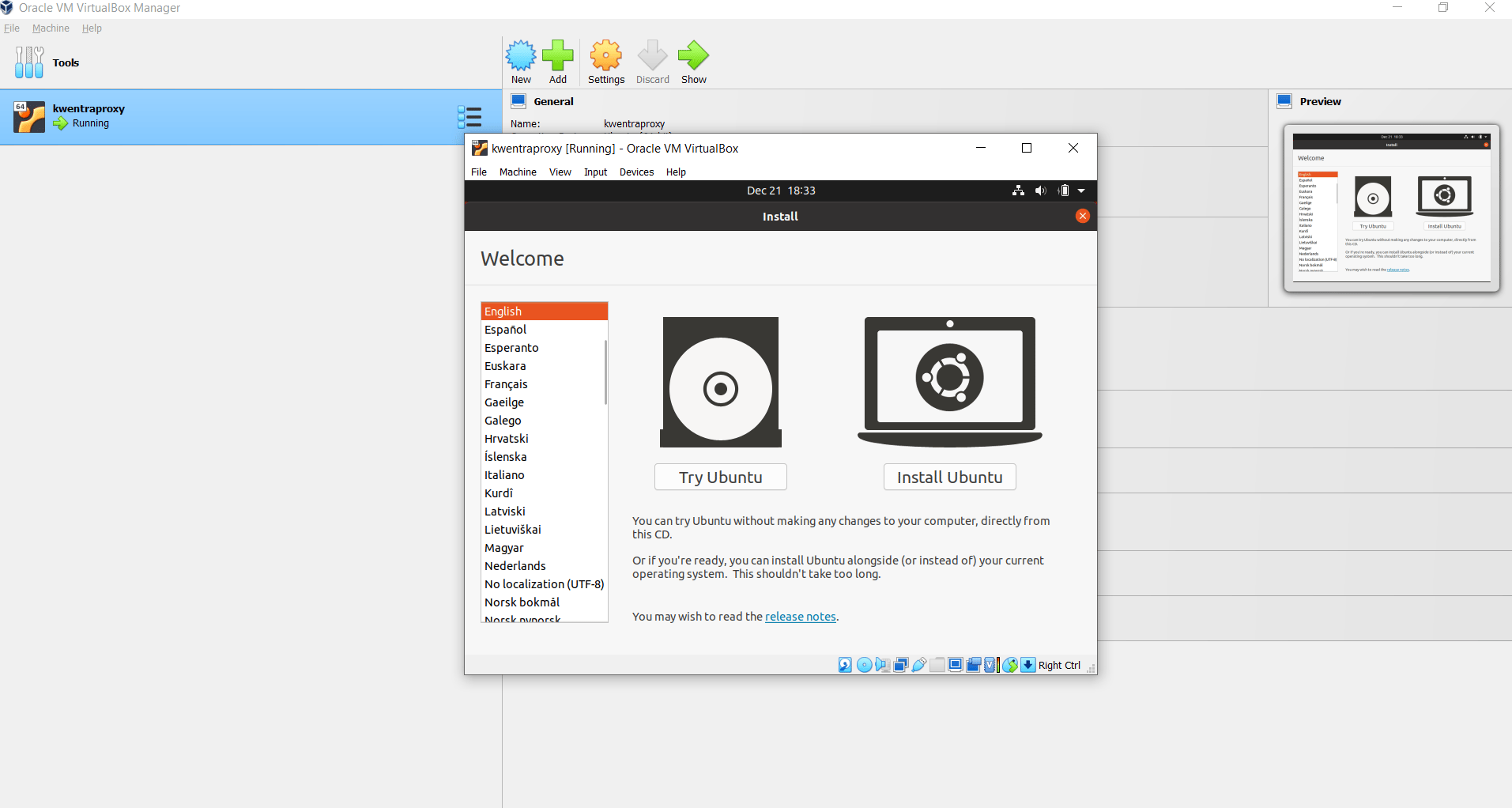
- After about 5 minutes, the install screen opens. Select the language and click Install Ubuntu.
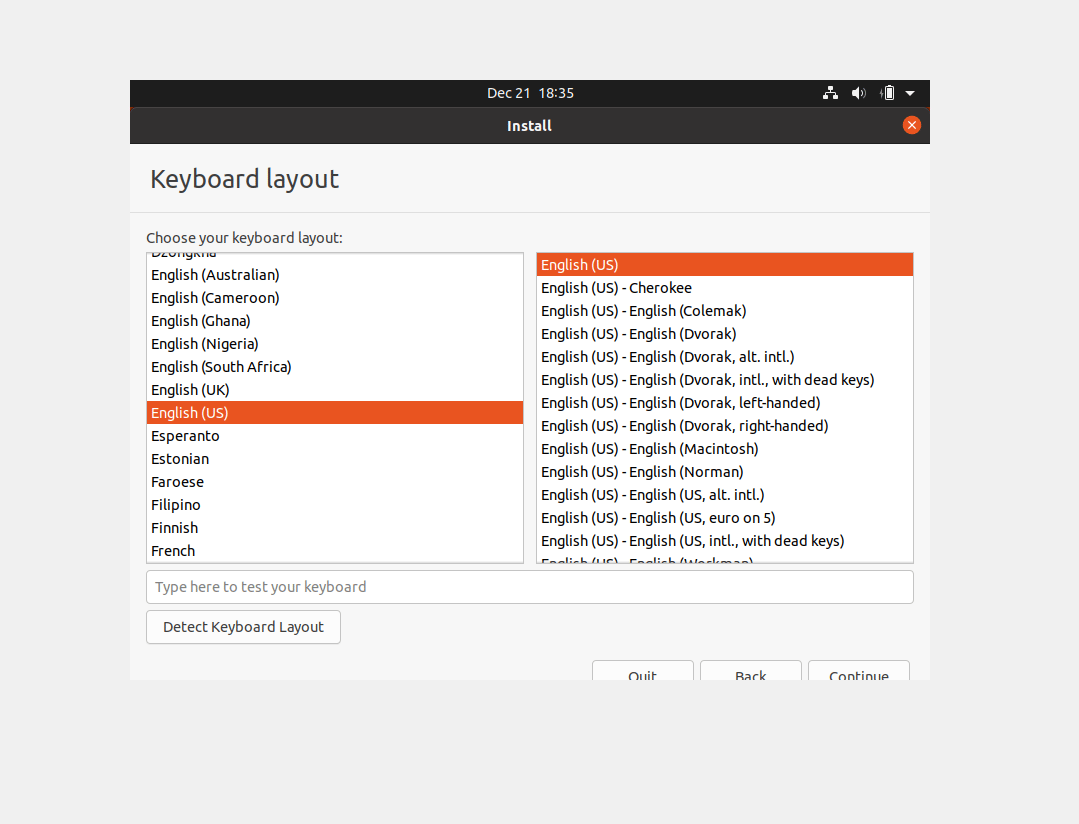
- Select the keyboard layout. We recommend English (US). Click Continue.
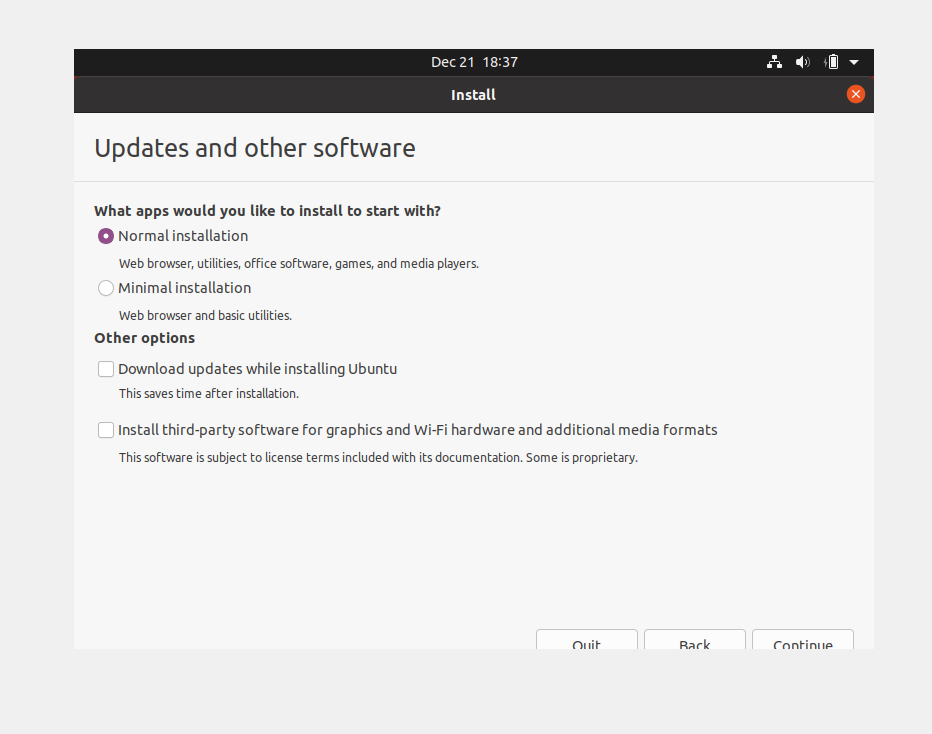
- Tick only the boxes shown below. Click Continue.
- This is a new disc, so keep the selection shown below. Click Install Now.
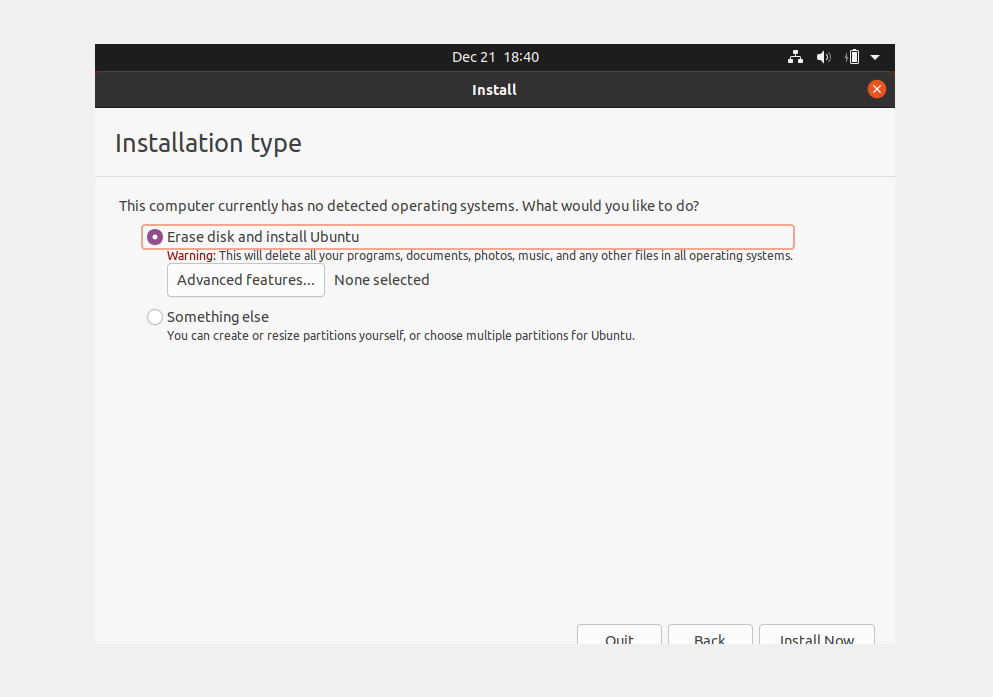
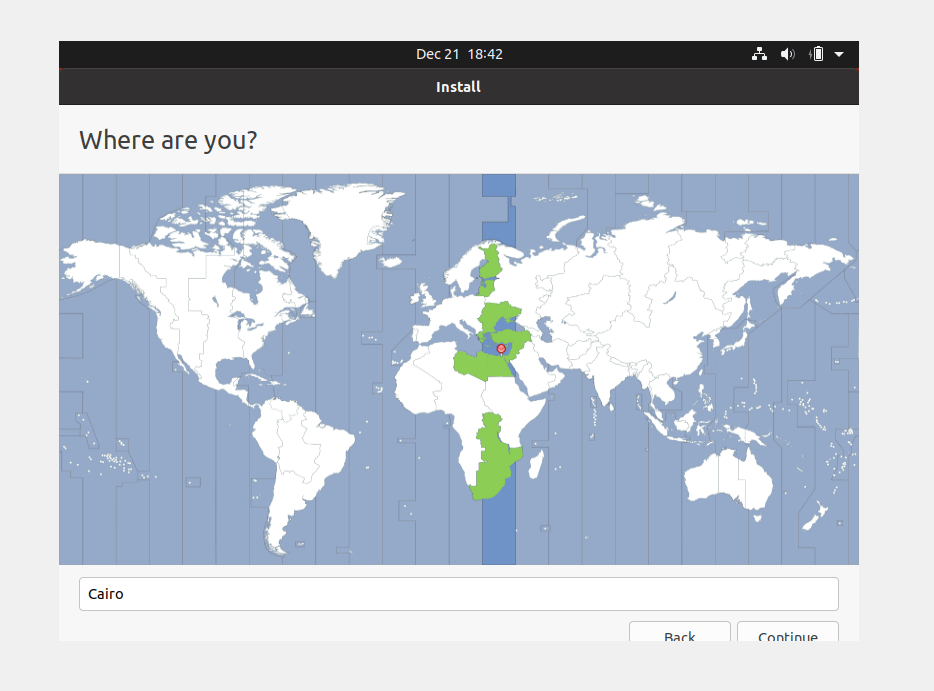
- Click your city on the map. Click Continue.
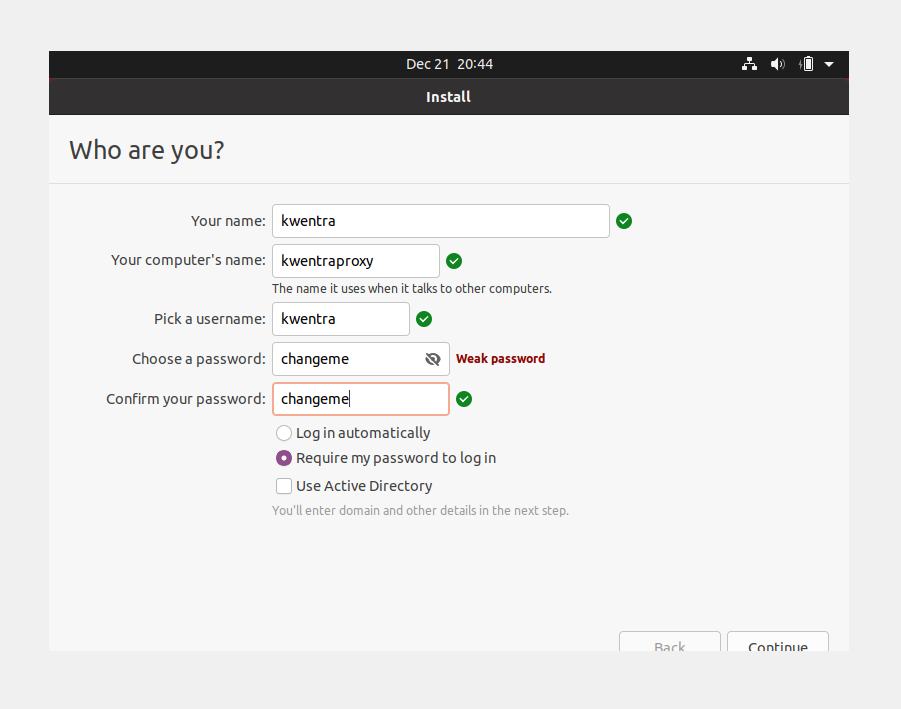
- Enter your name, the computer name, a username and a password, as in the example. Click Continue.
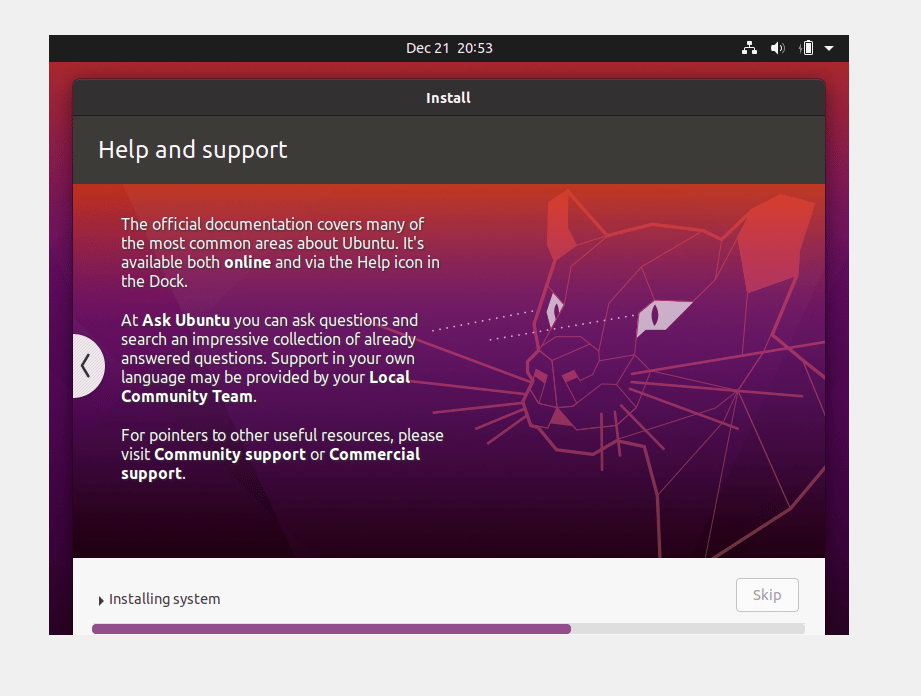
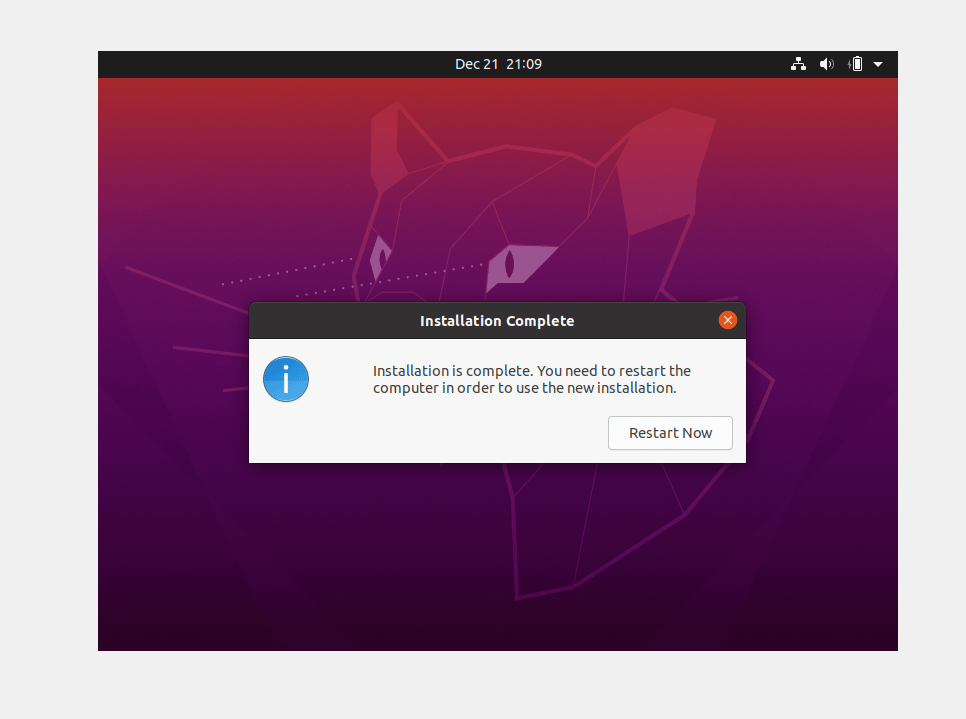
- Ubuntu takes about 20–30 minutes to install. At the end, it asks you to restart.
- Click Restart Now.
Next Step
The VM is ready for the proxy server. Contact your account manager or support@kwentra.com to install the proxy.