

Business Value
- Protects system-created entries from changes by mistake.
- Clears unposted JVs you do not need, without deleting them.
- Shows at once which JVs are reconciled before period close.
- Gives auditors PDF vouchers instead of editable spreadsheets.
Use Cases
- A finance controller hides hundreds of duplicate unposted JVs at once.
- The finance team reconciles all posted JVs in one step after the period review.
- A financial controller prints a period’s vouchers as PDF for the external auditors.
How It Works
To create a JV, see Create Journal Vouchers.
System-Generated JVs Are Read-Only
JVs created by these modules cannot be edited in the General Ledger:- Income
- POS
- Receivable
- Payable
Hide and Unhide JVs
Hidden JVs do not show in the list or in exports. They stay in the system for audit.
Hide several JVs:
- Tick one or more unposted JVs.
- Open Tools and choose Hide JVs.
- Click Confirm on the message: “Are you sure you want to perform the Hide JVs action for the selected JVs? This will hide them from the list and the Export.”
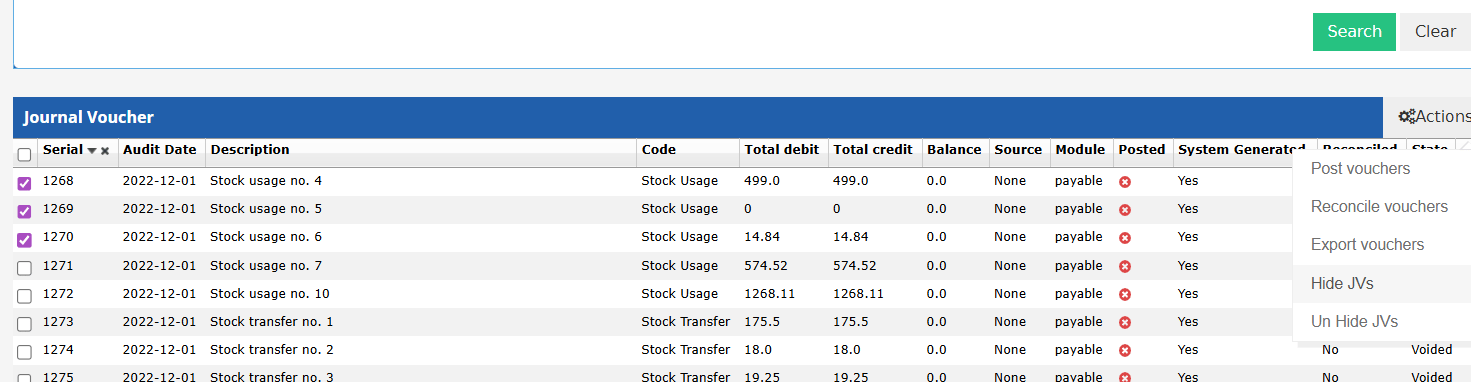
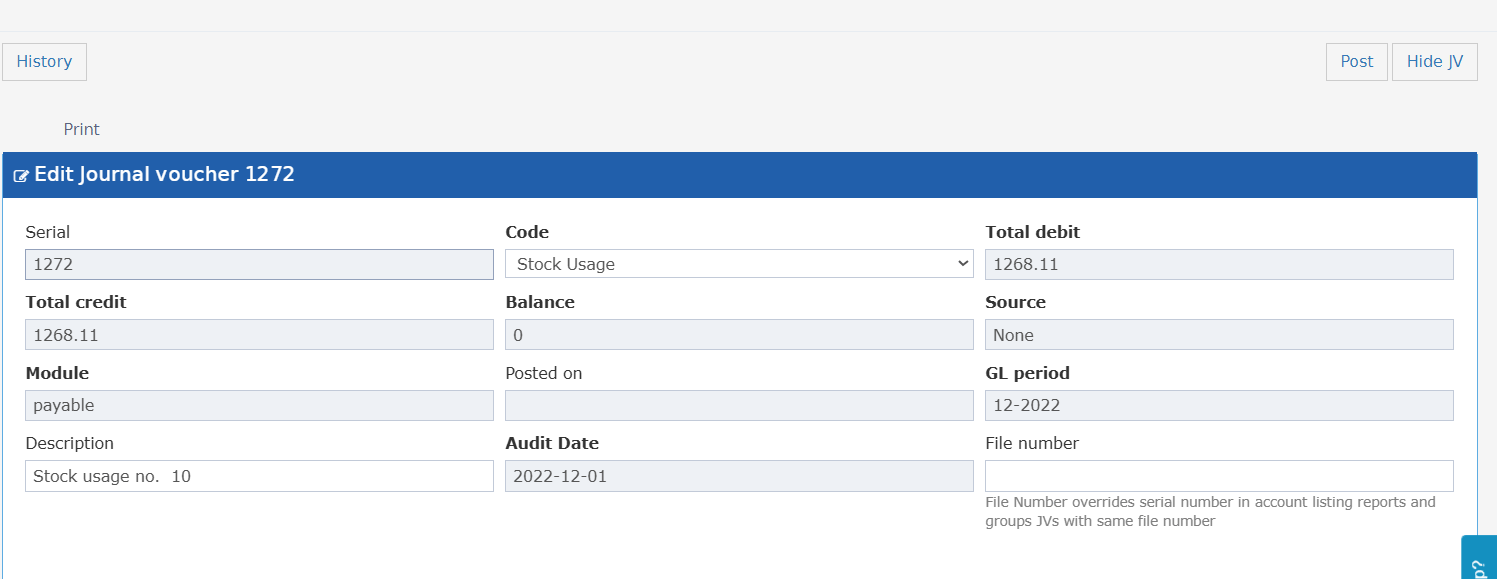
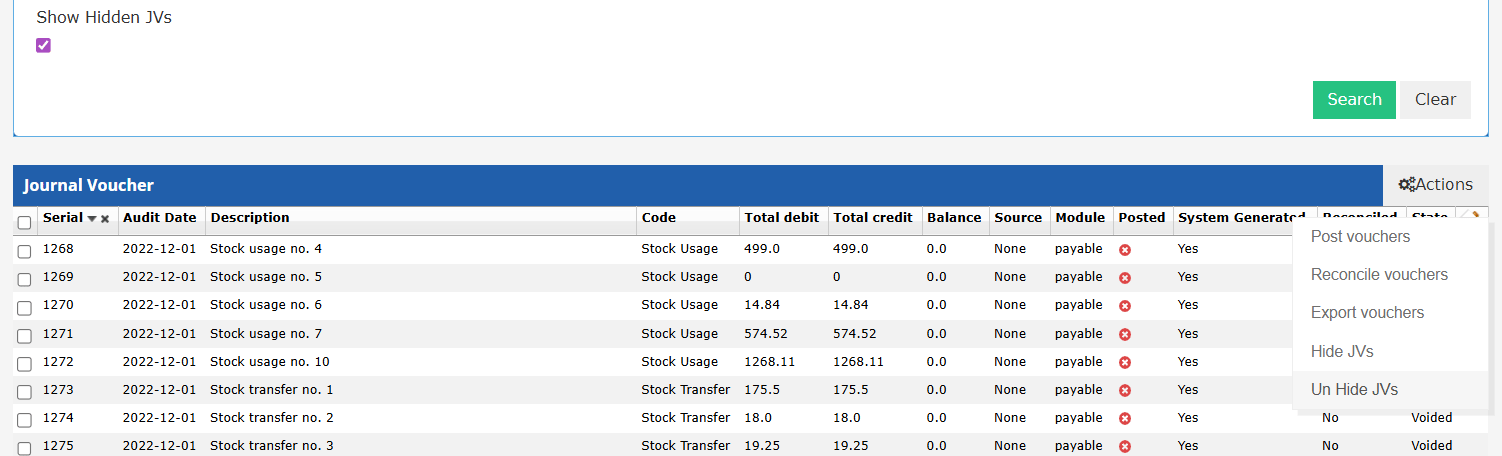
- Tick Show Hidden JVs in the search filters. It is off by default.
- Hidden JVs now show in the results.
- Tick them and choose Un Hide JVs from Tools.
Reconcile JVs
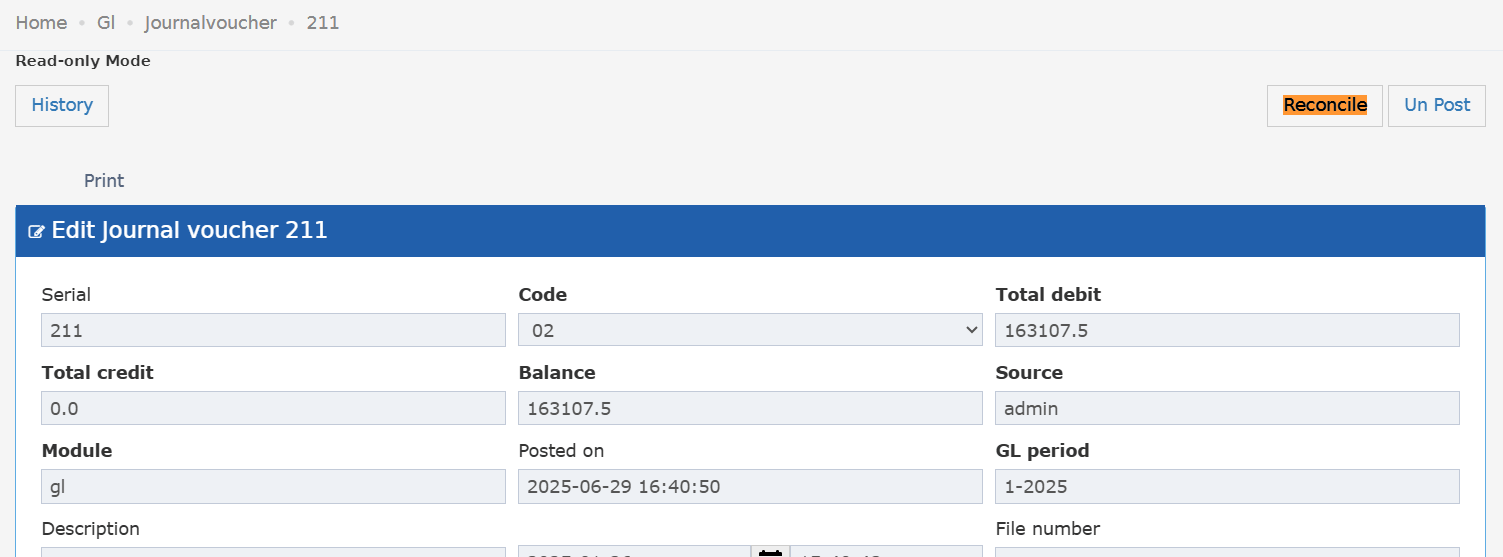
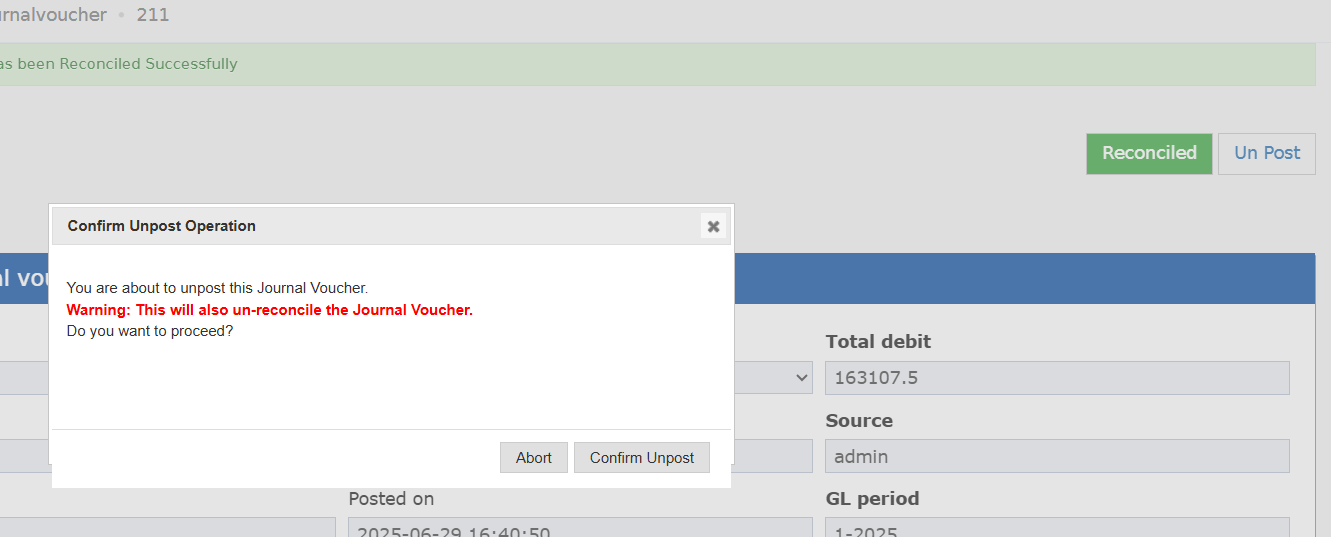
One JV: open the JV and click Reconcile.- The JV is marked Reconciled. The button turns green and reads Reconciled.
- Click it again to unmark it.
- Each mark and unmark is saved in the JV history, with the user, date and action.
- BackOffice and all its subtypes
- Chief Acc, Financial Controller, Financial Manager, General Manager
- Income Auditor, Payable, Purchasing Manager
- The “No Settings” and “No Reports” versions of these roles
Bulk Reconcile
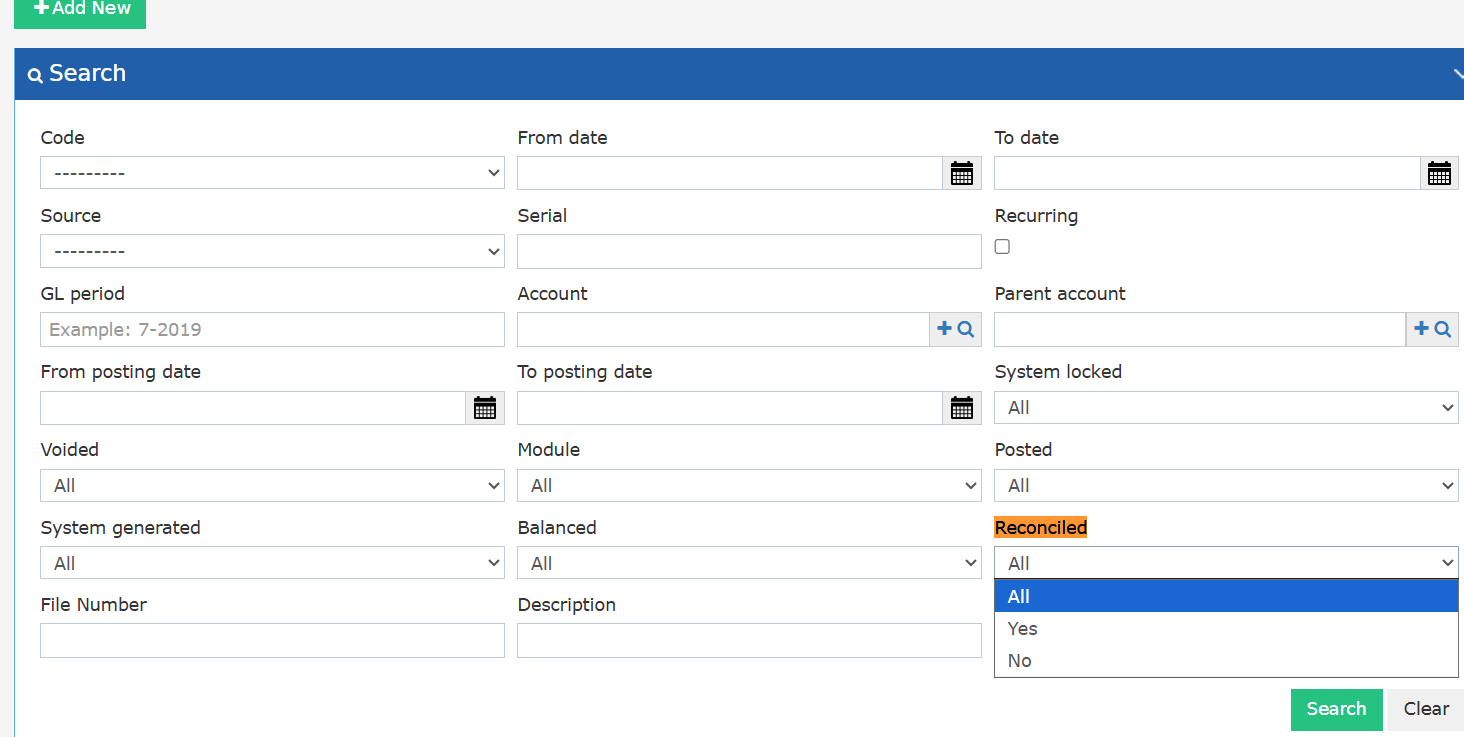
- Search for not reconciled JVs.
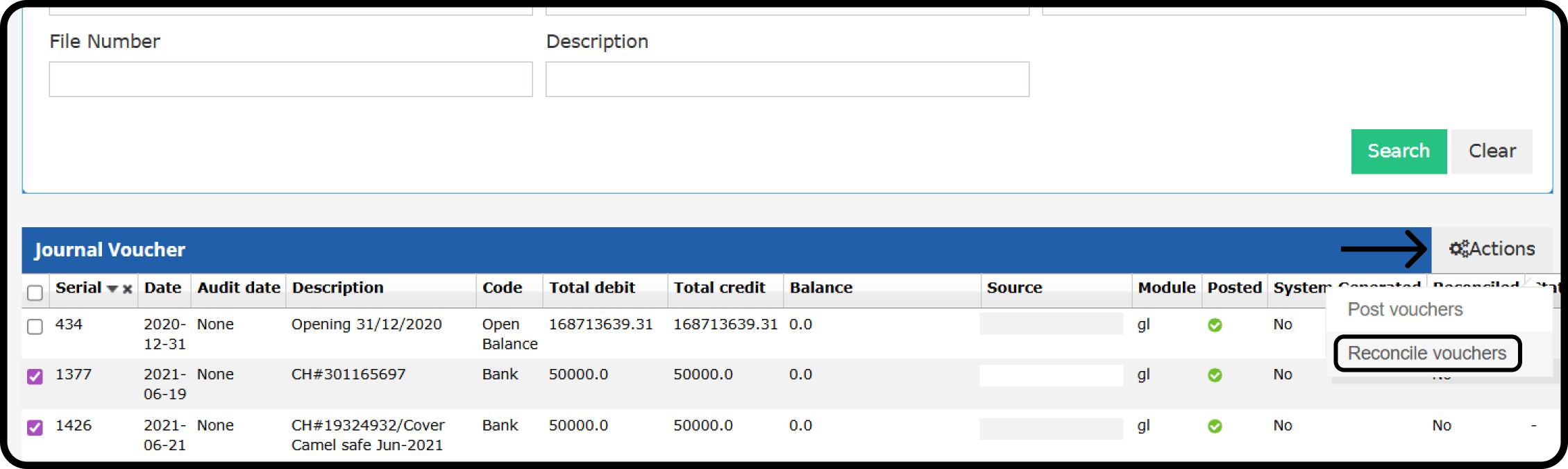
- Tick the JVs.
- Choose Actions → Reconcile Vouchers.
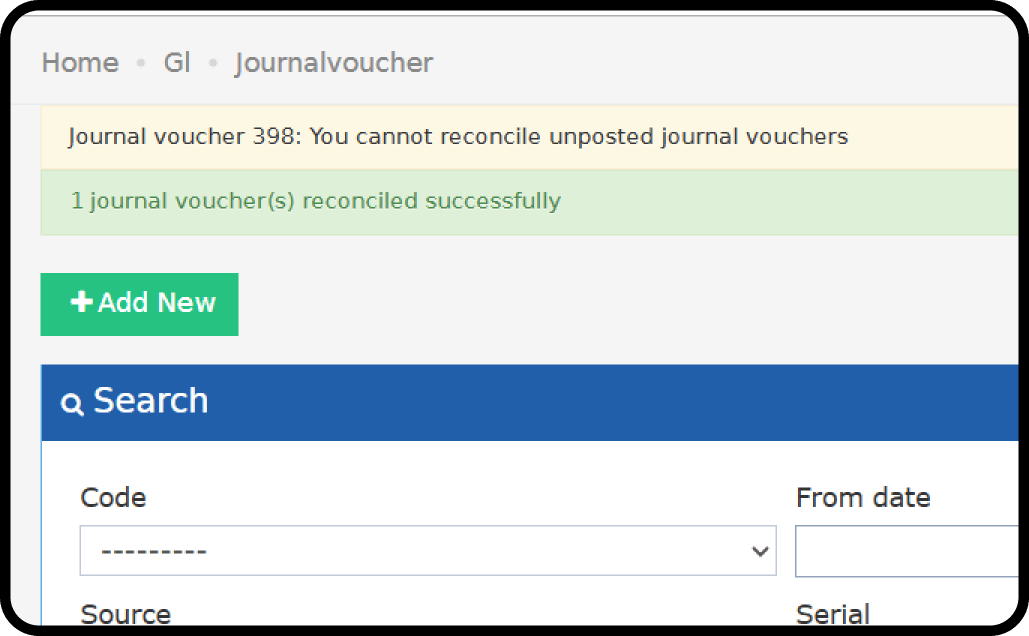
- Posted JVs are reconciled. Unposted JVs stay not reconciled.
Print JVs as PDF
Export Vouchers gives a CSV file. Auditors reject it because it can be edited, and Arabic text breaks in Excel. Print Vouchers as PDF prints the vouchers instead.- Apply at least one search filter and run the search.
- Choose Print Vouchers as PDF.
- It prints every JV in your current search results. There is no row selection.
- Each voucher has the same layout as the single-voucher print, including T-code analysis where it applies.
- It runs in the background. You get a download link named
jv_print_{timestamp}.pdf. - A very large run is split into numbered files, such as
jv_print_{timestamp}_part1.pdf.