

Business Value
- Saves unfinished requests as drafts, so no one approves them by mistake.
- Shows the value of a request before anyone approves it.
- Lets the store manager approve a full case instead of loose bottles.
- Sorts every list column, with no Excel export.
- Links each transfer to the department that asked for it.
Use Cases
- A storekeeper enters many usage lines and submits them only after a stock count.
- A store manager checks a transfer’s total requested value against the department budget.
- A store manager approves 24 bottles when the bar asked for 20.
How It Works
To set how many approvals each one needs, see Store Transfers — Multi-Level Approval Workflow and Store Usage — Up to Four Approvals.
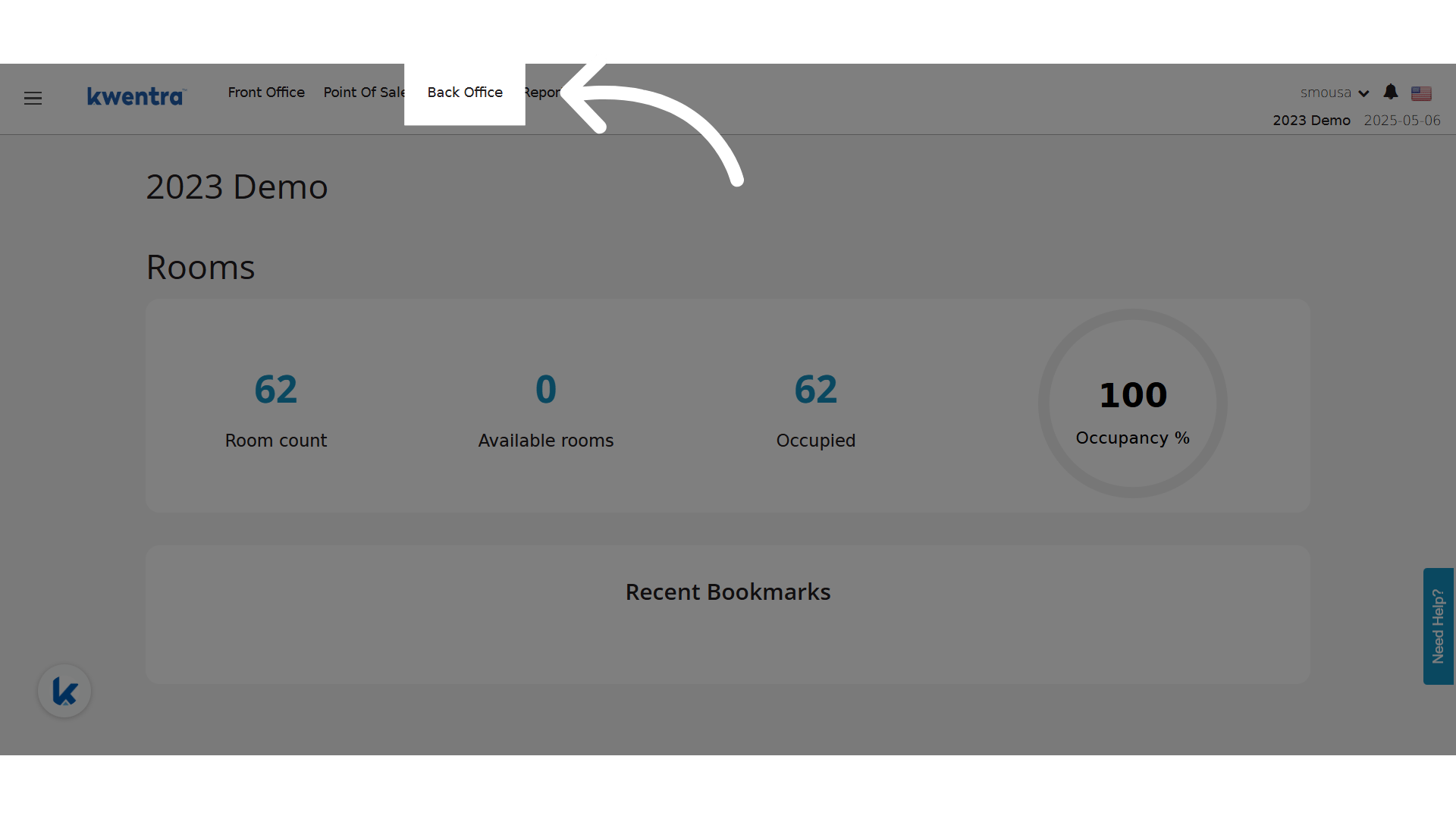
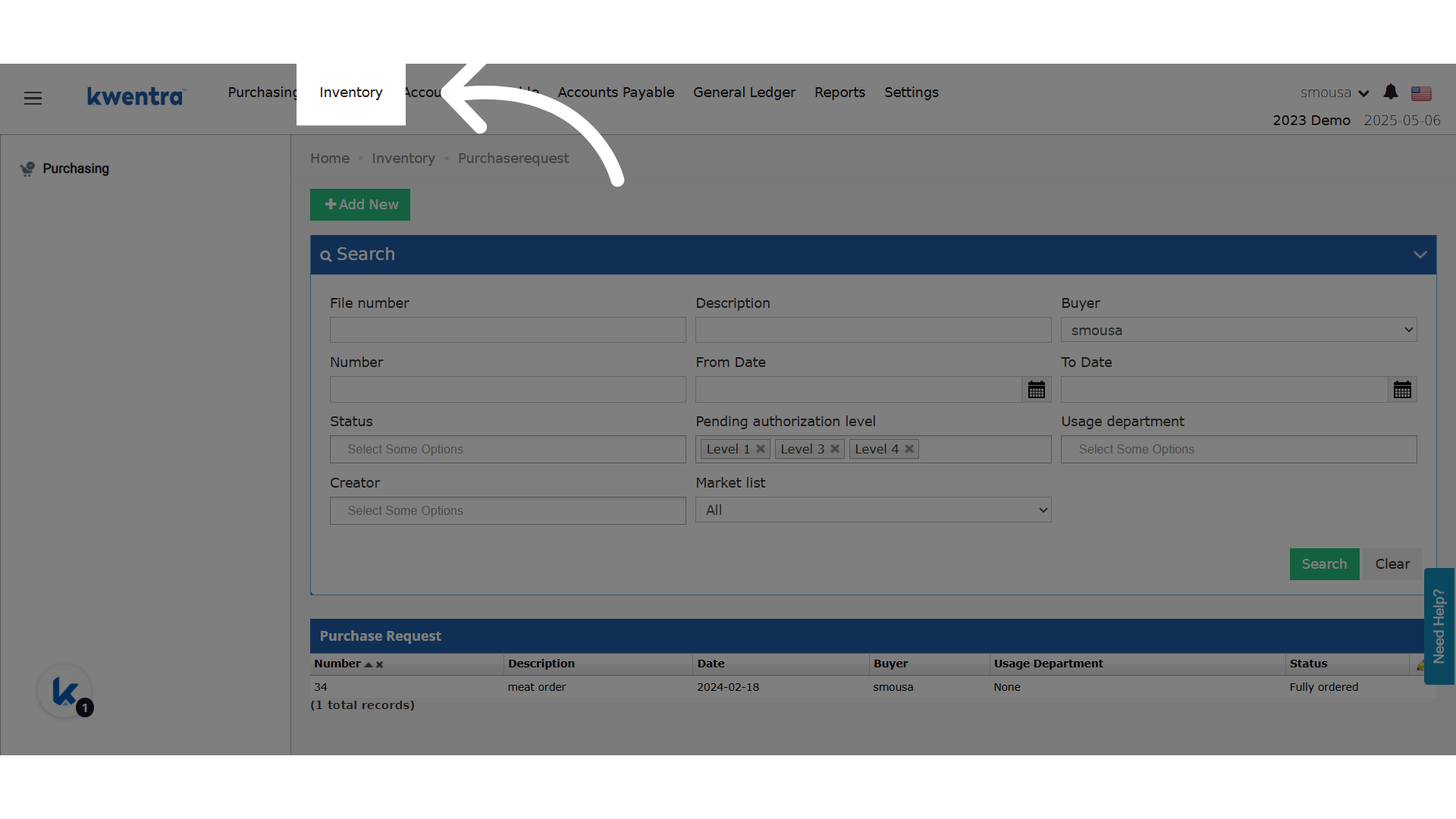
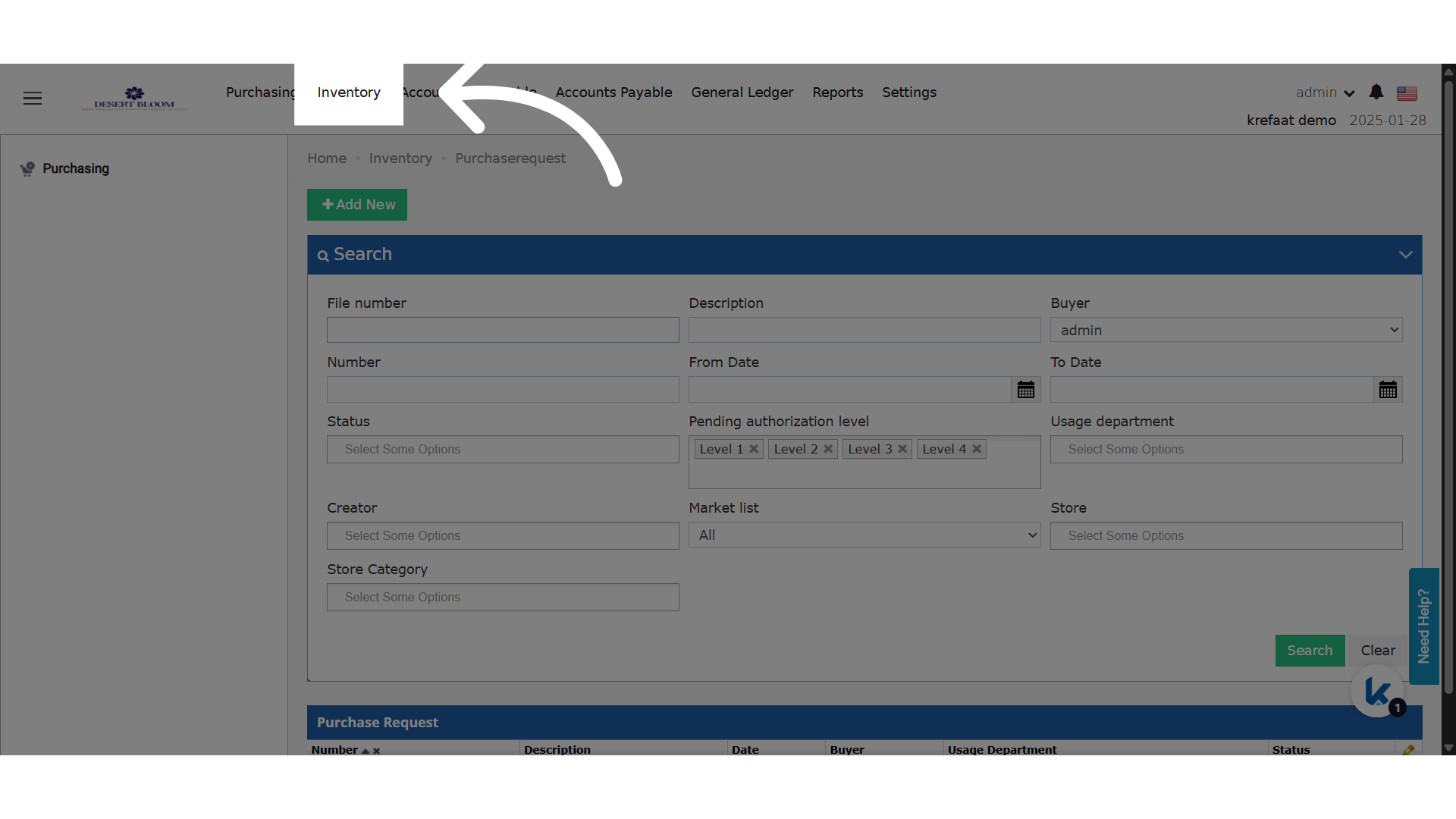
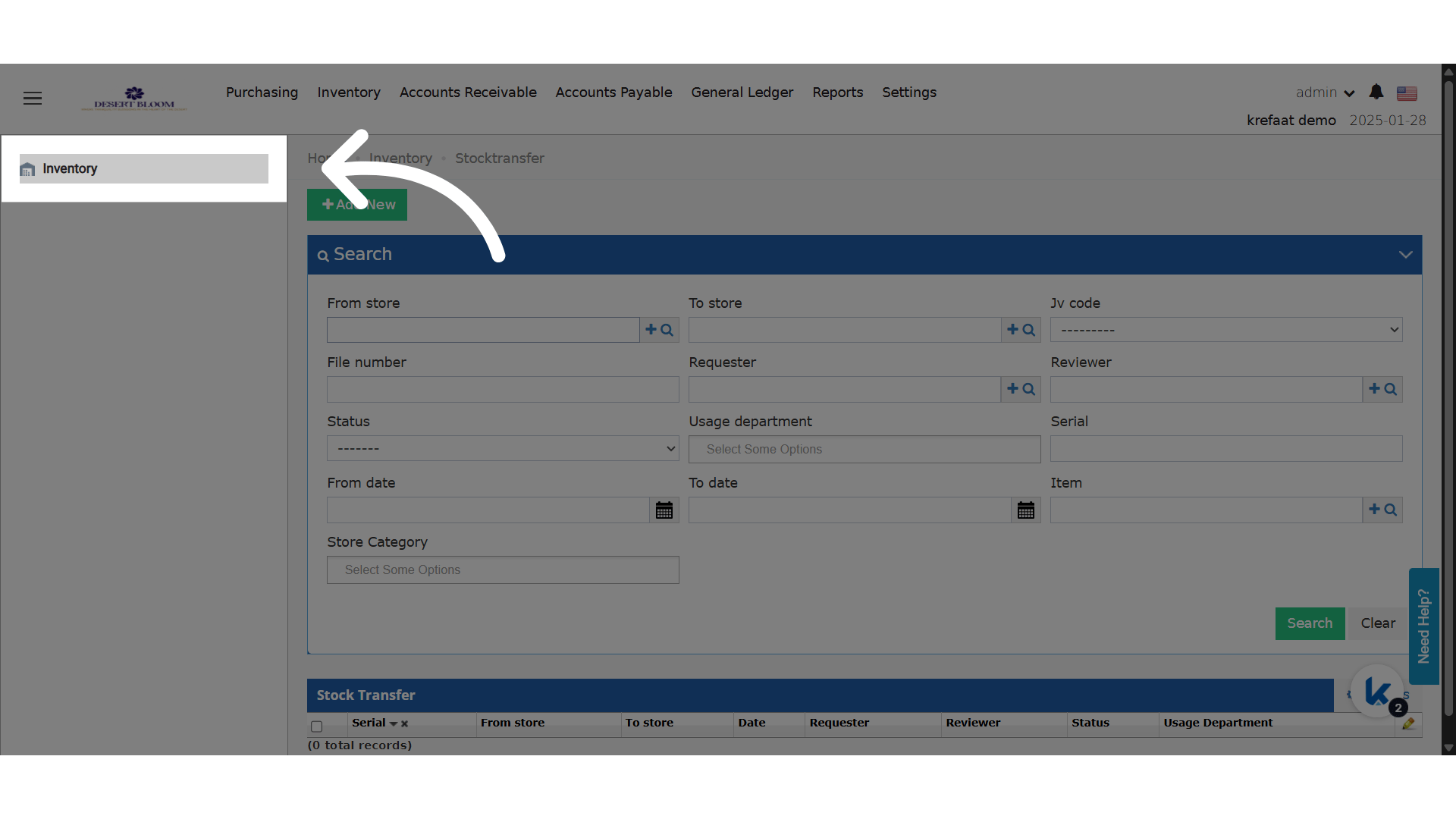
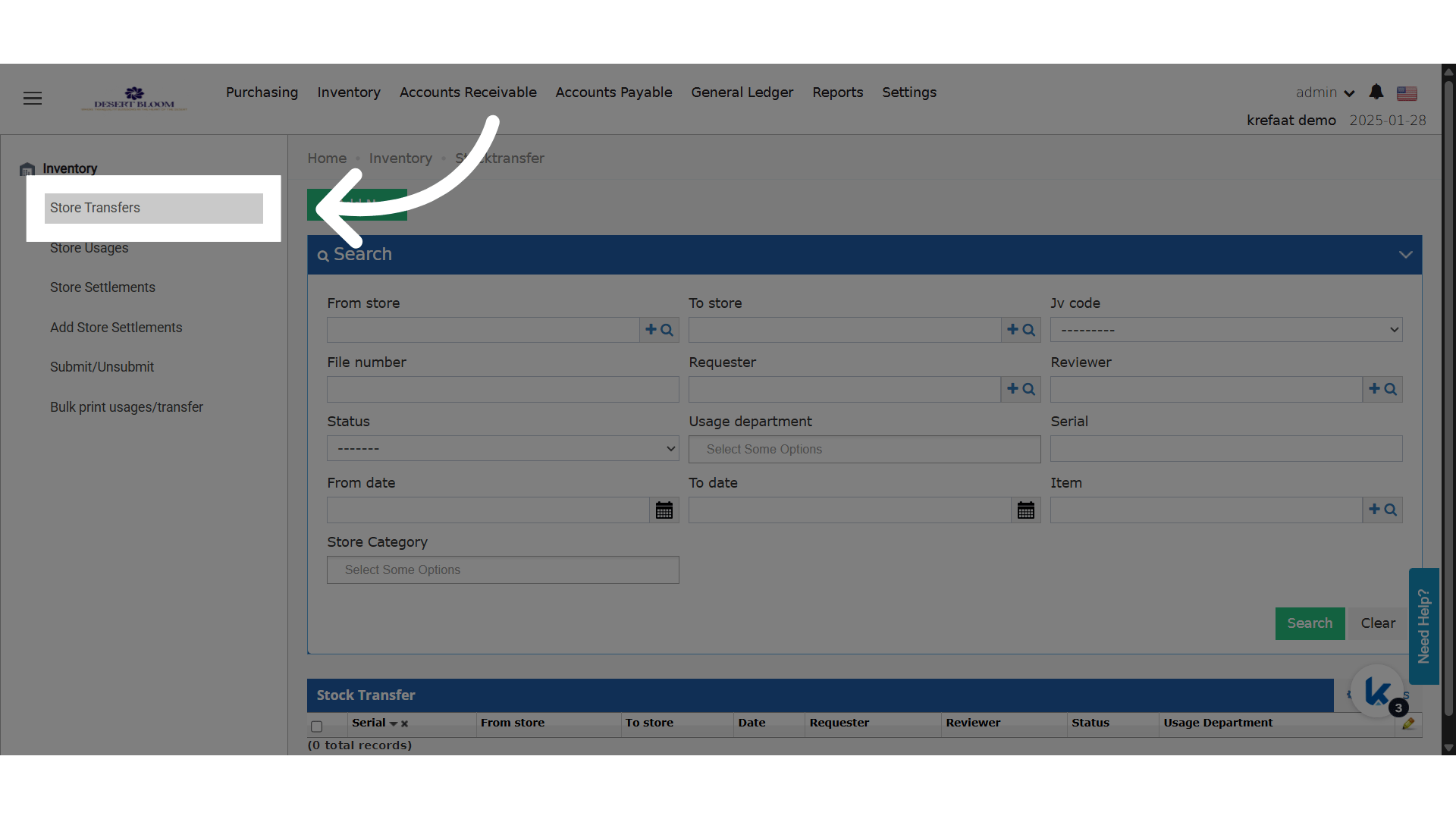
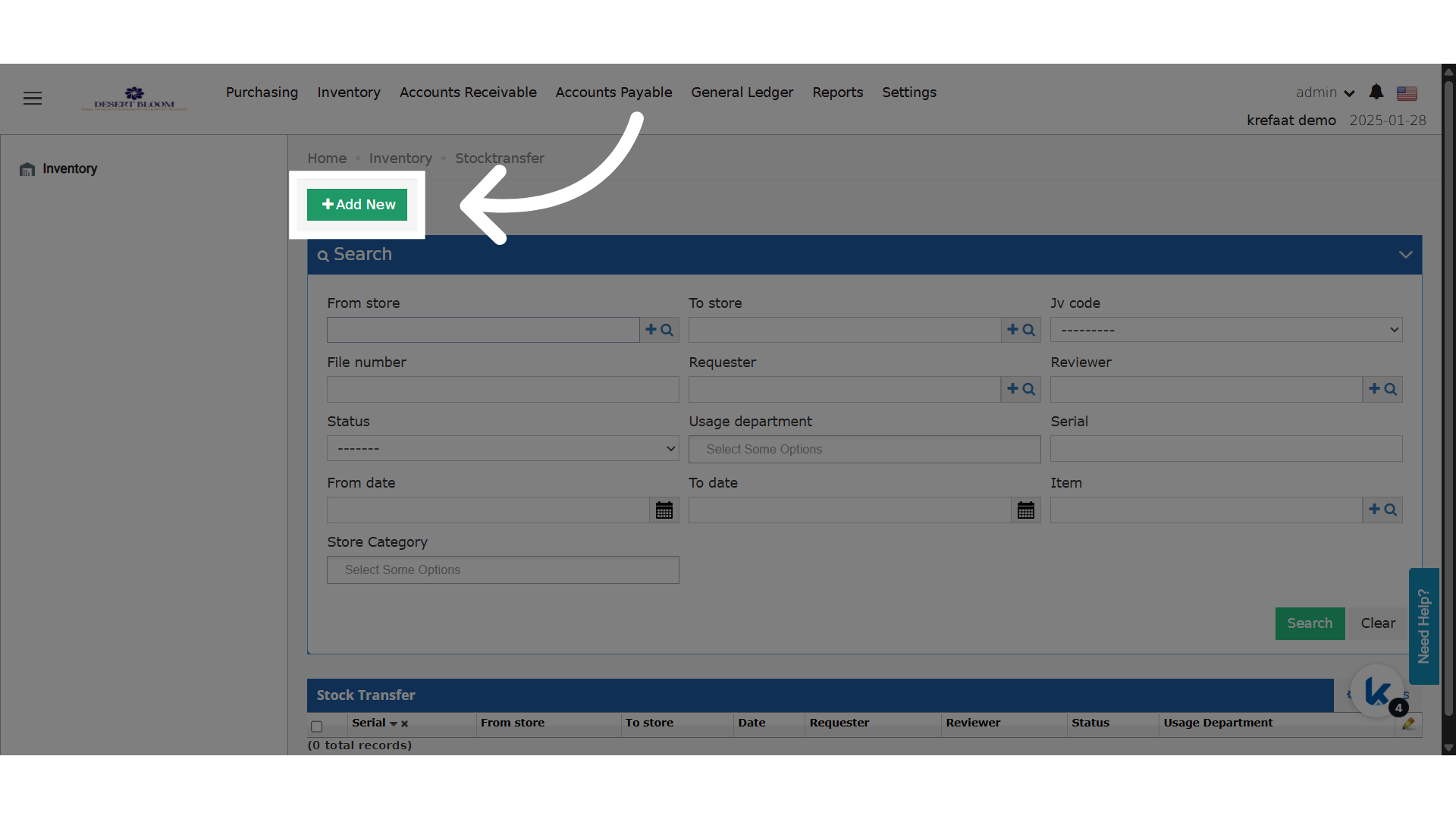
Create a Store Transfer
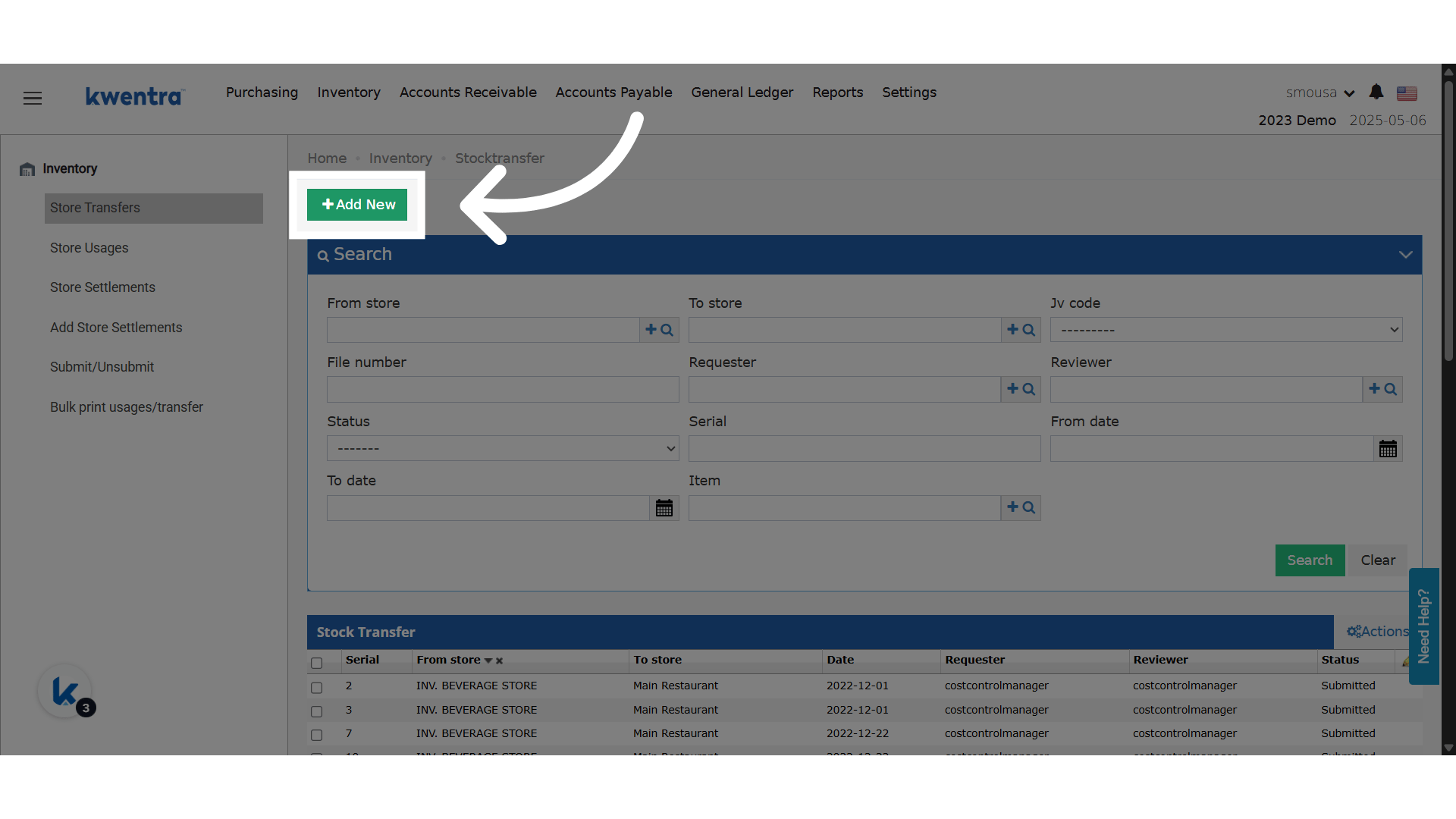
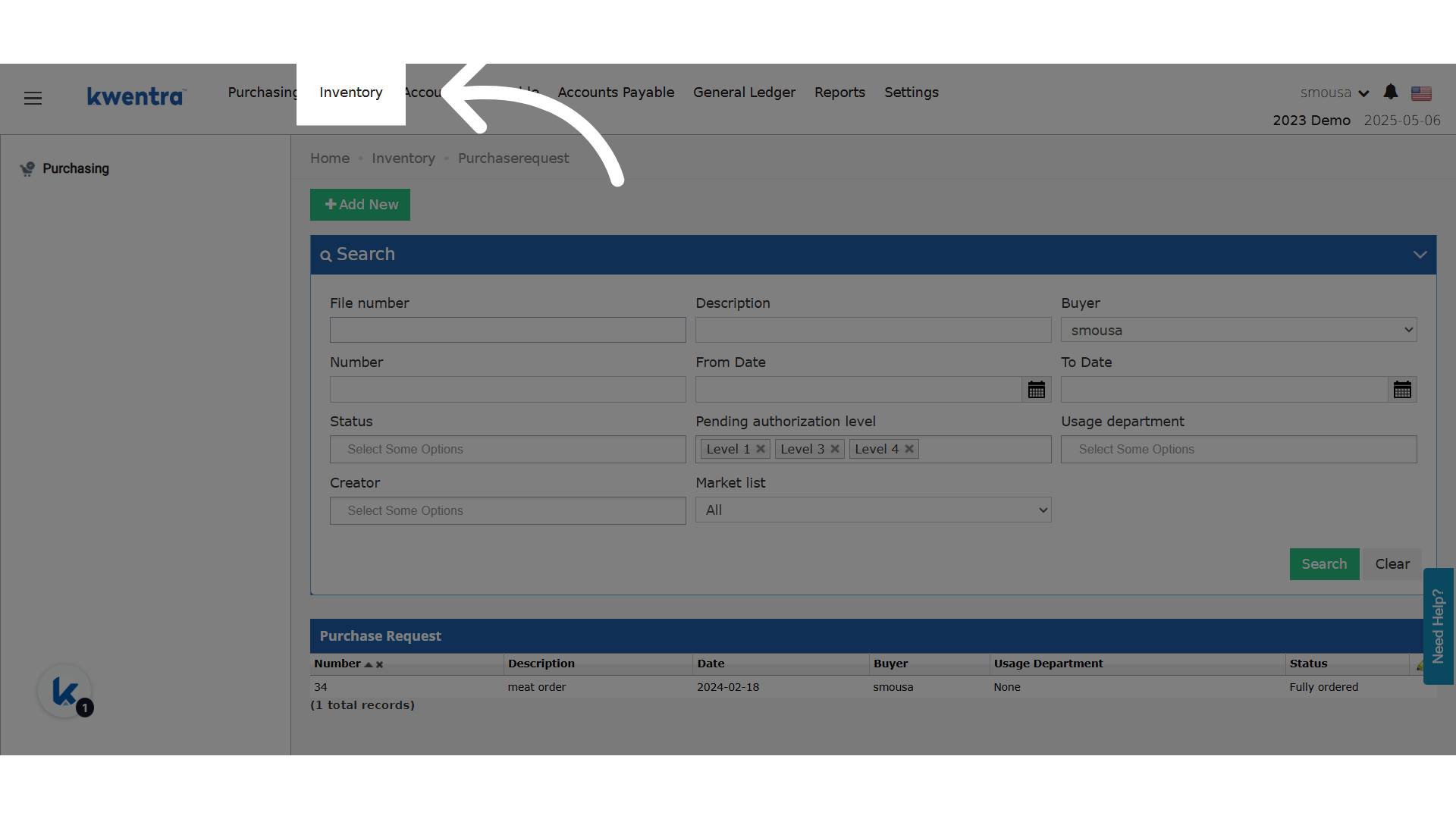
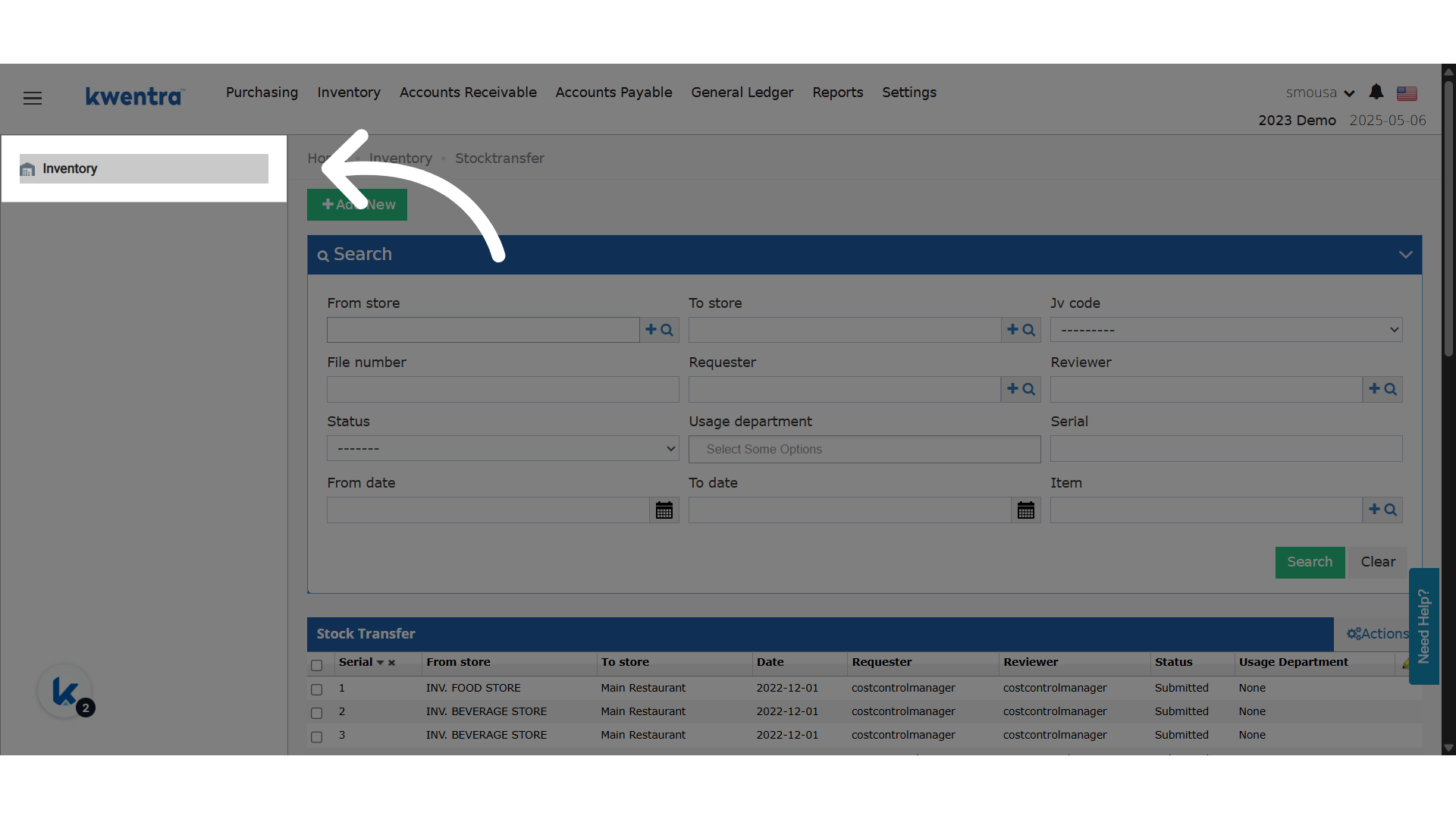
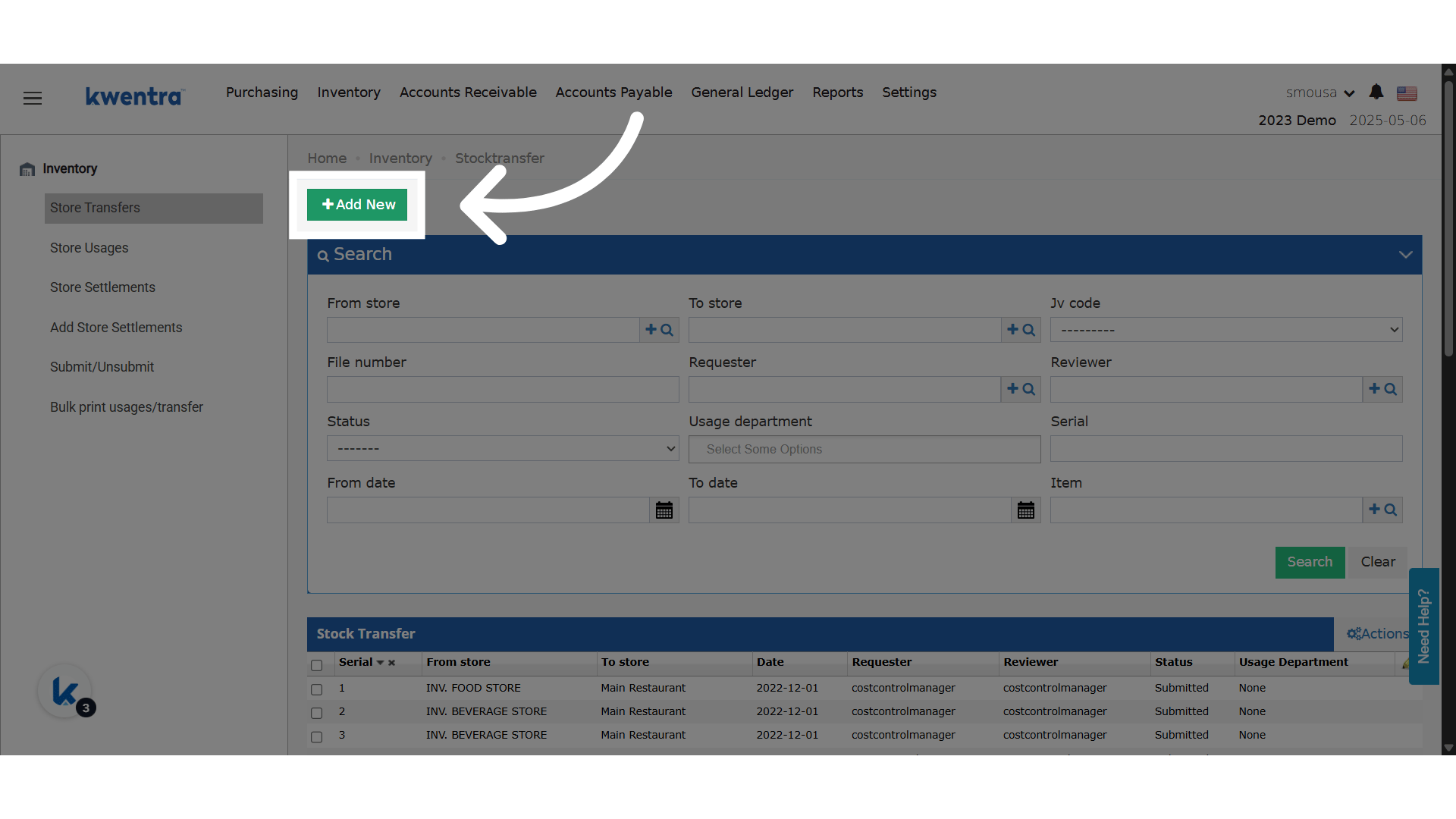
- Add a new store transfer.
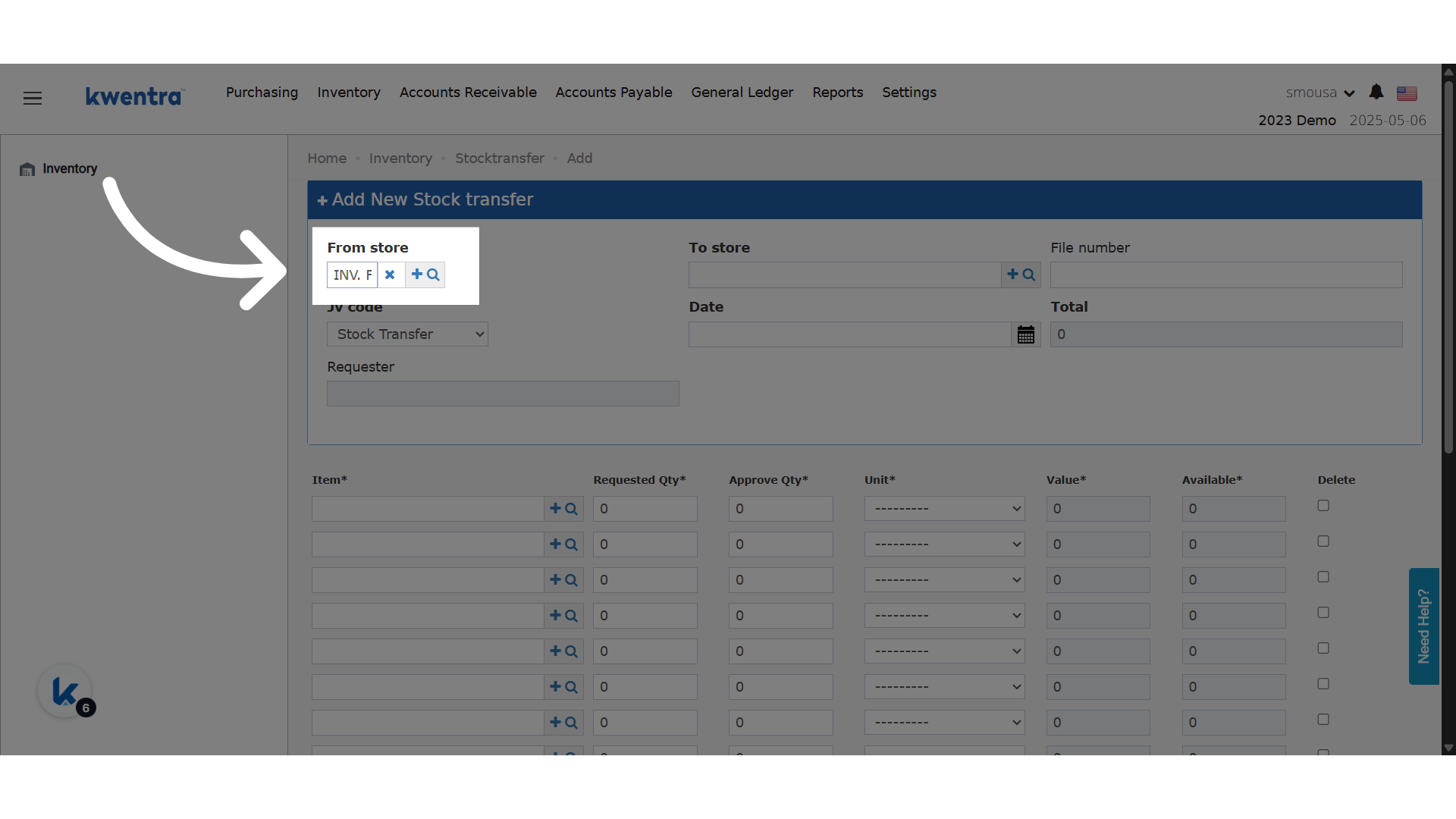
- Select the From Store.
- Select the To Store.
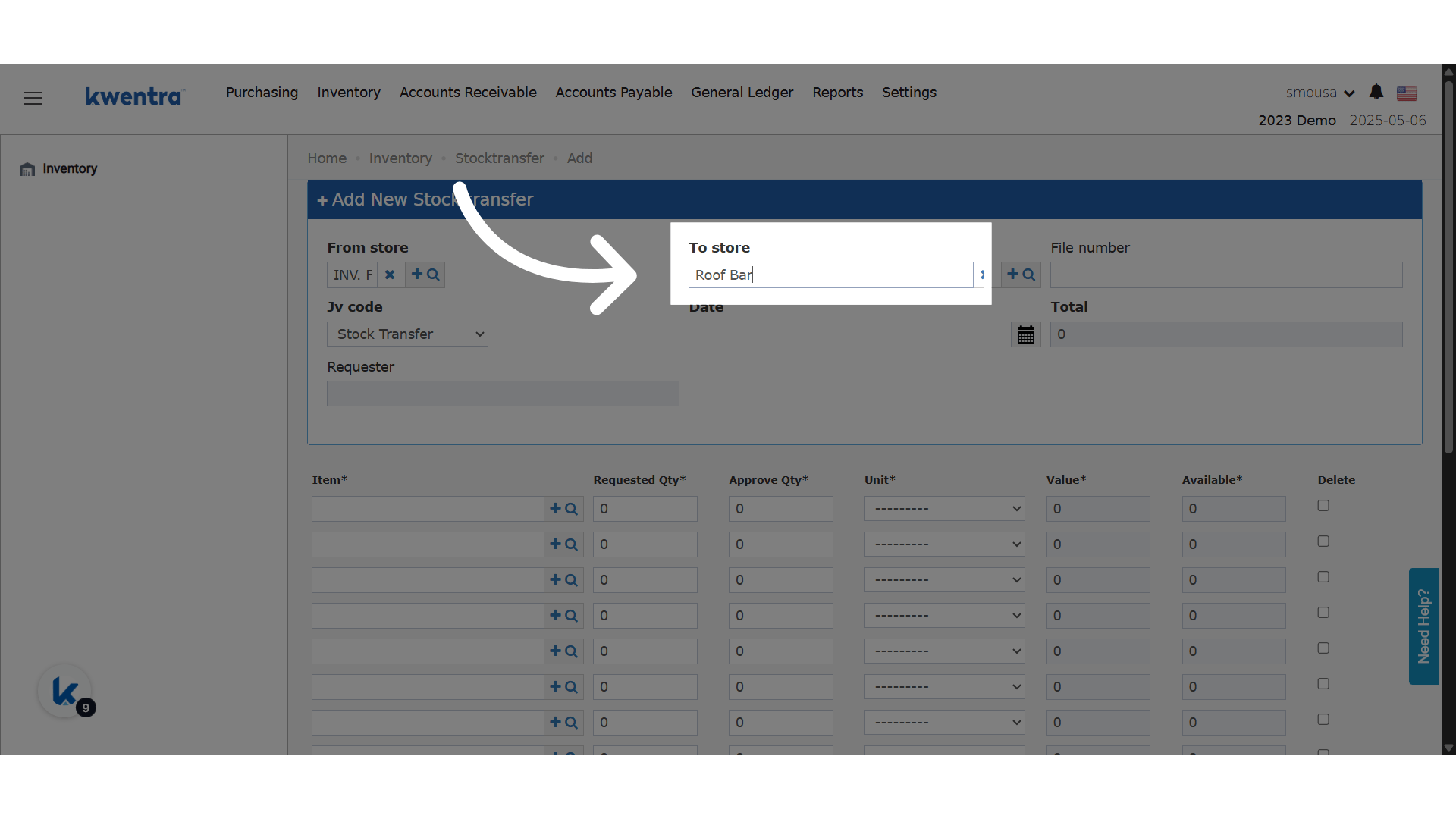
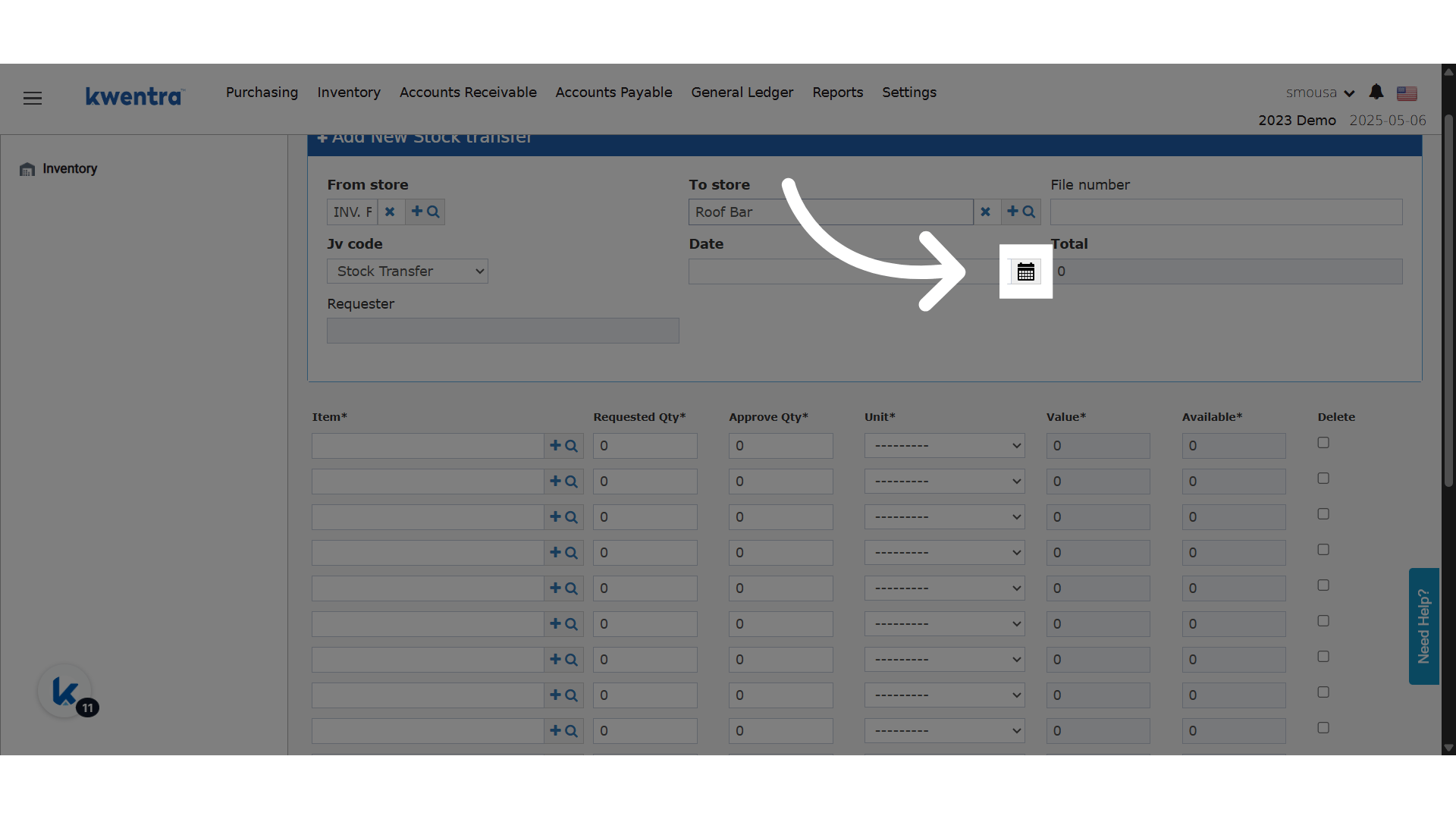
- Choose the transfer date.
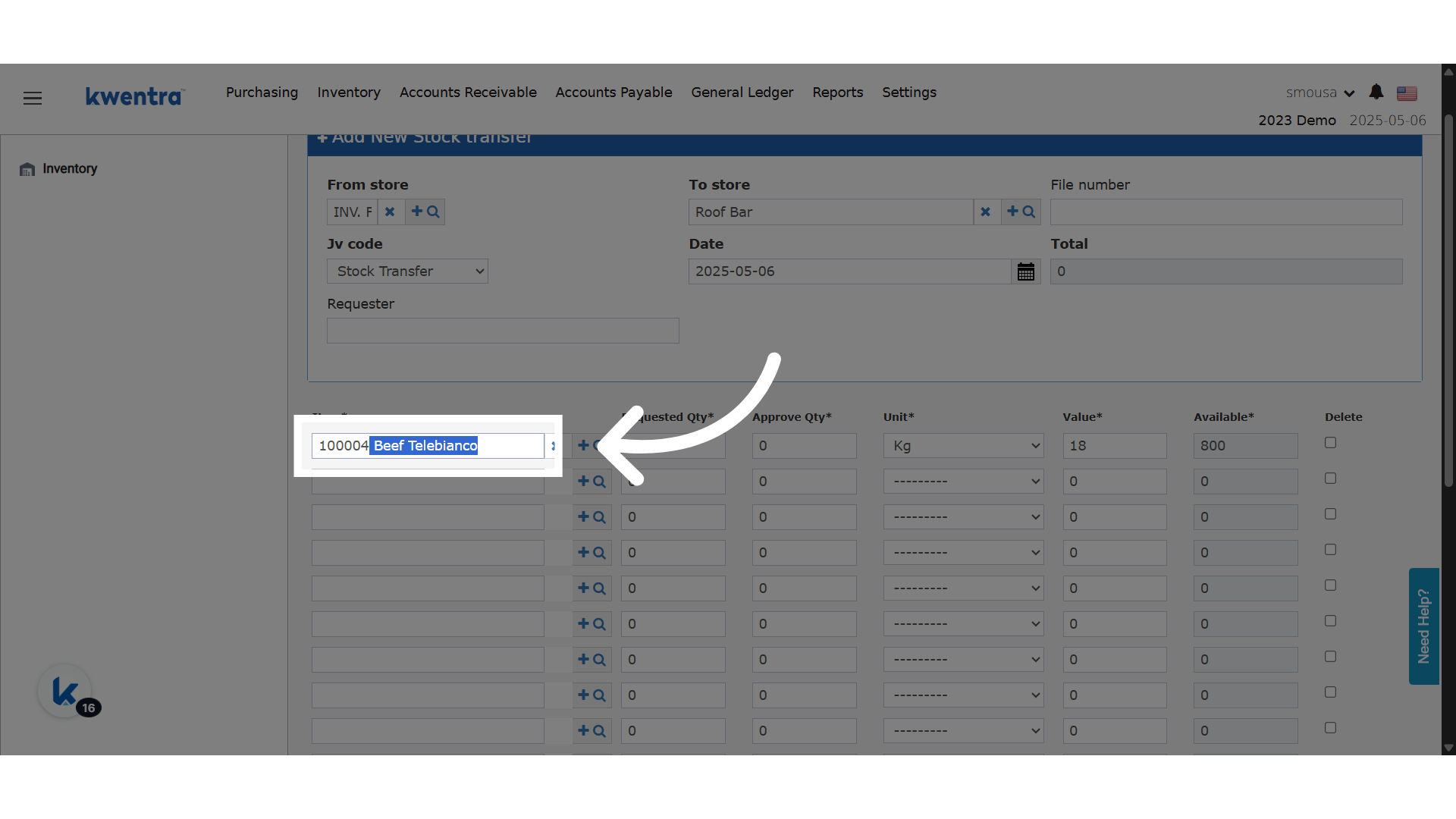
- Choose the item.
- Enter the requested quantity.
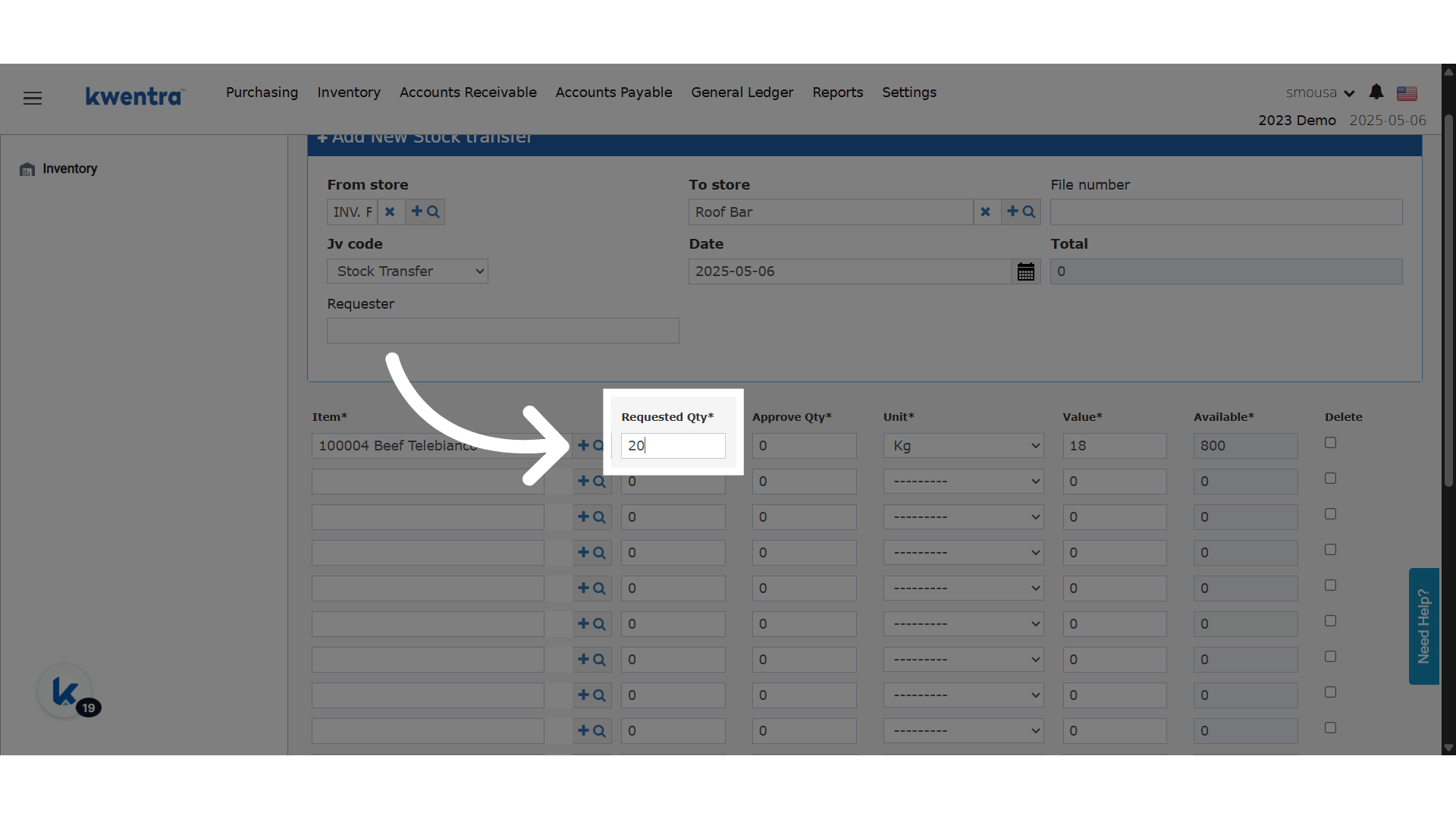
- Check that you have stock on hand.
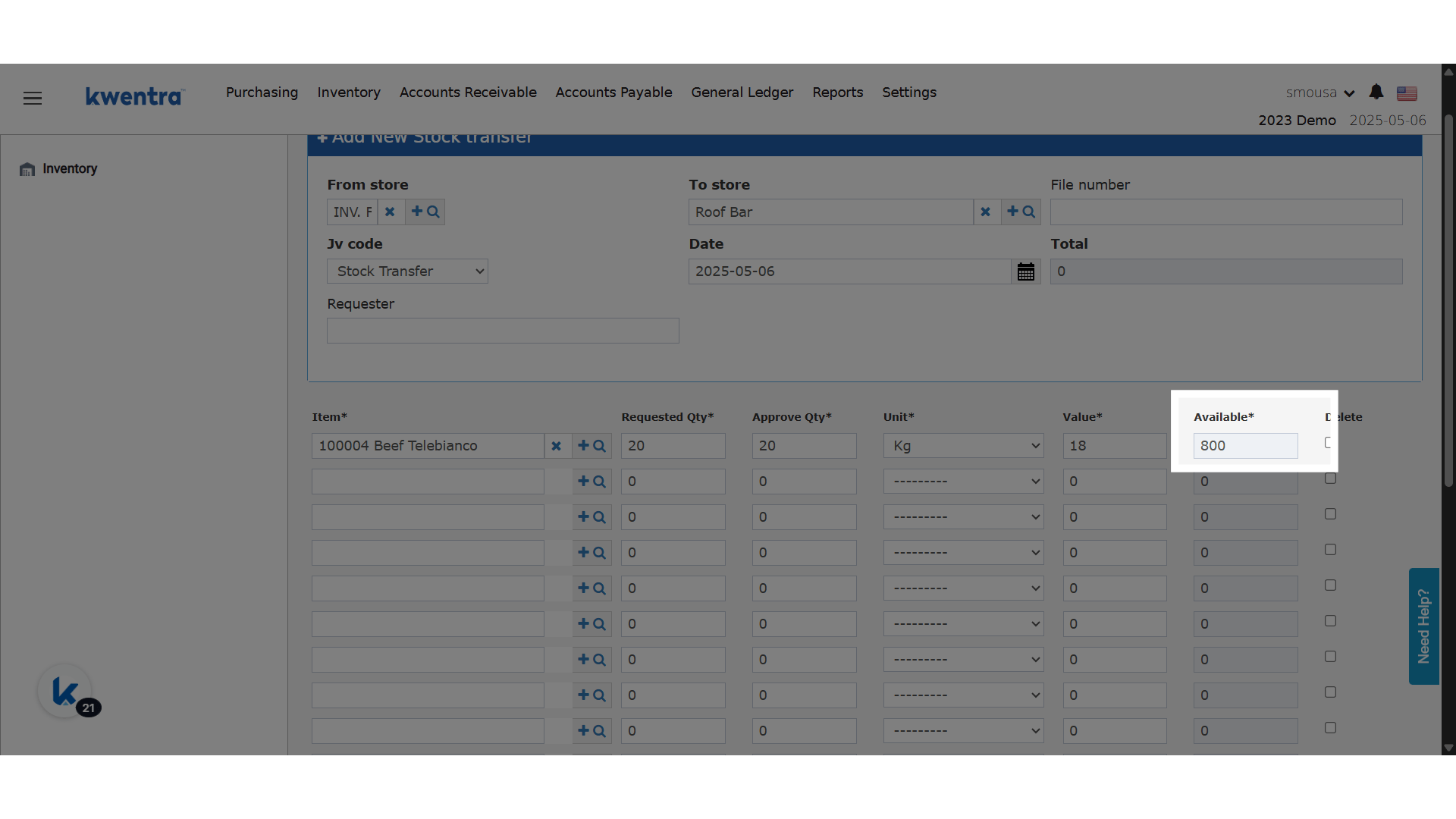
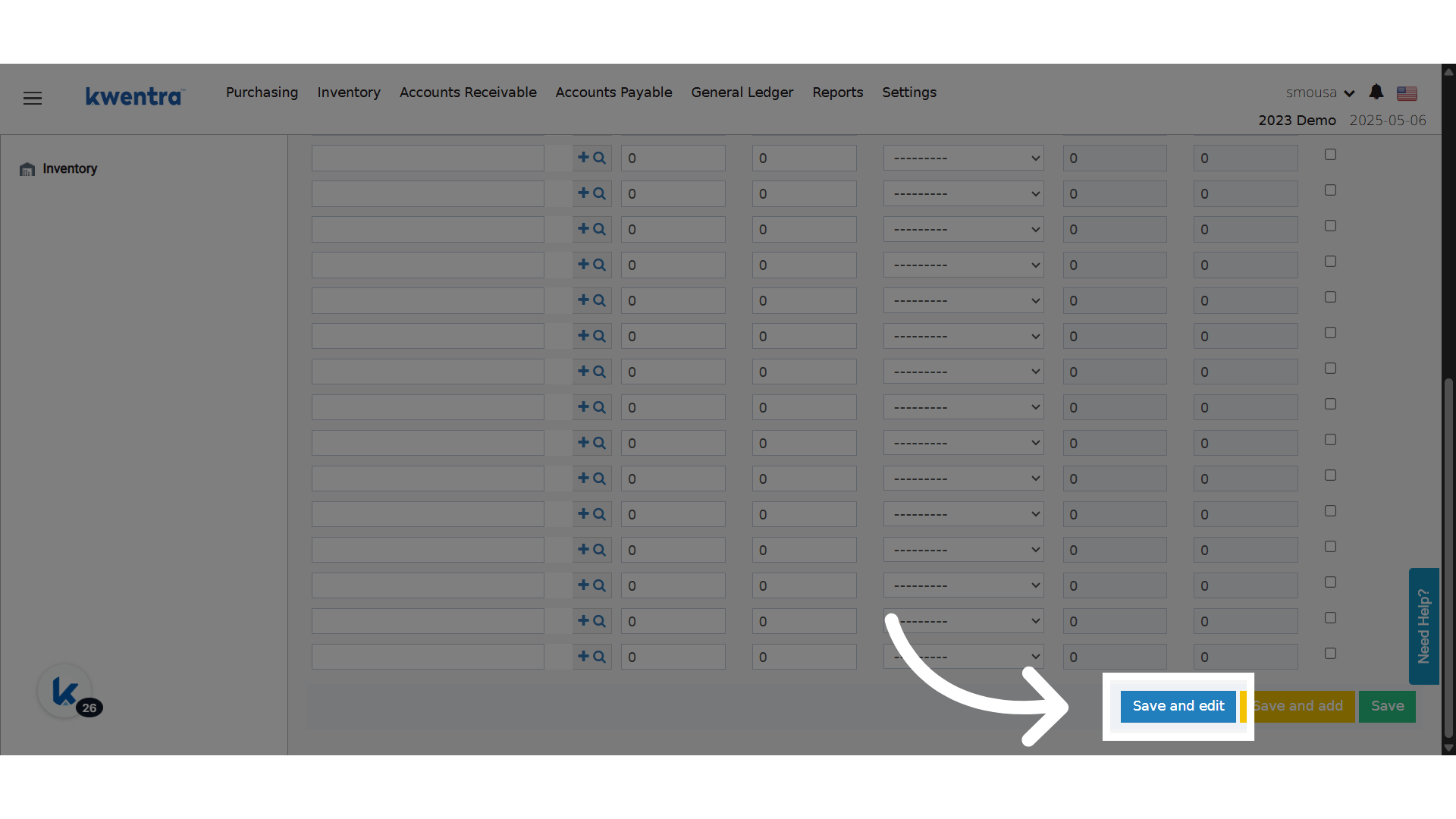
- Click Save and edit. The transfer is saved as a draft.
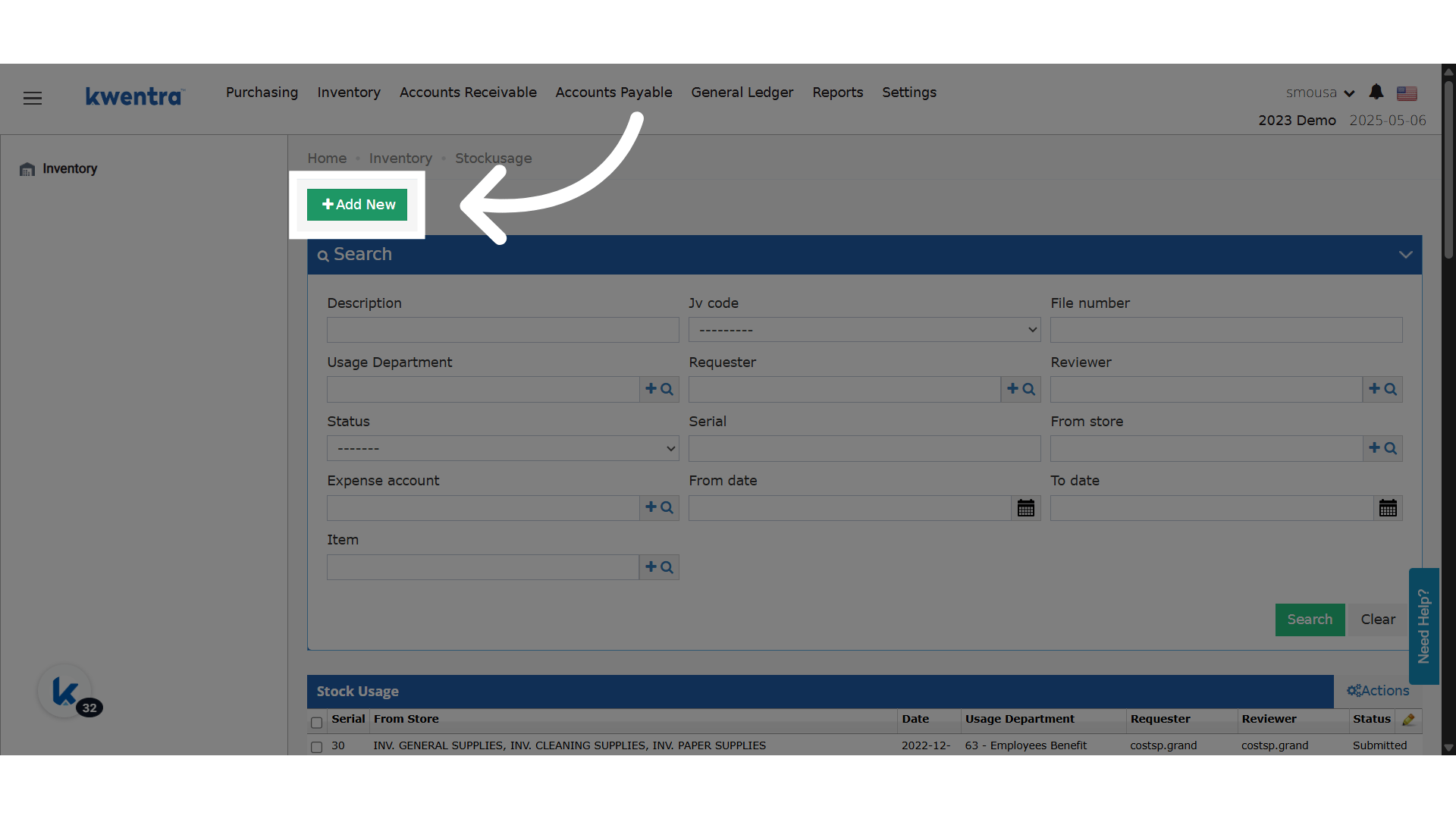
Create a Store Usage
A store usage records the items used from a store. When it is approved, the cost goes to your expense account.
Draft and Submit
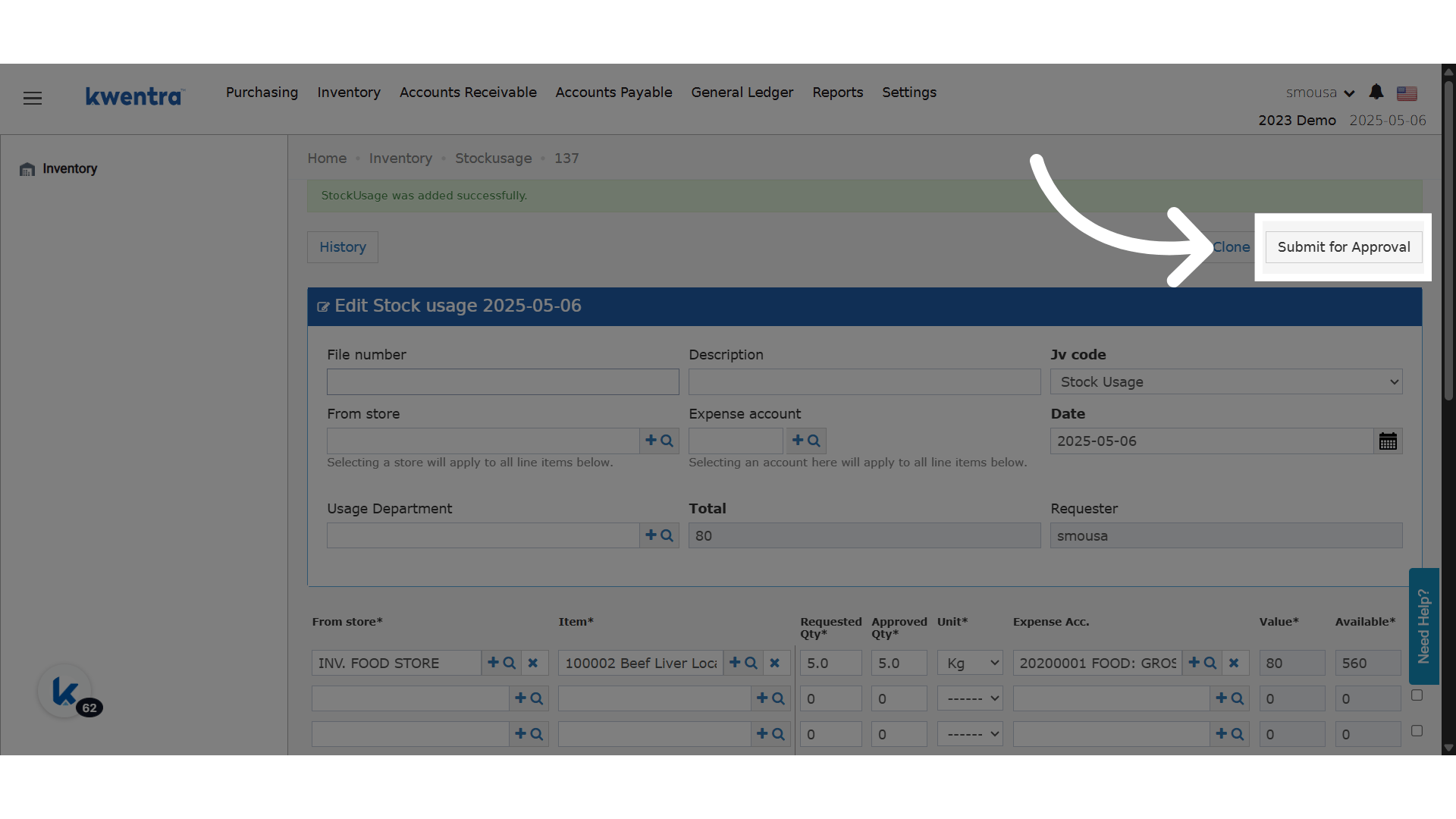
A saved transfer or usage starts as Draft.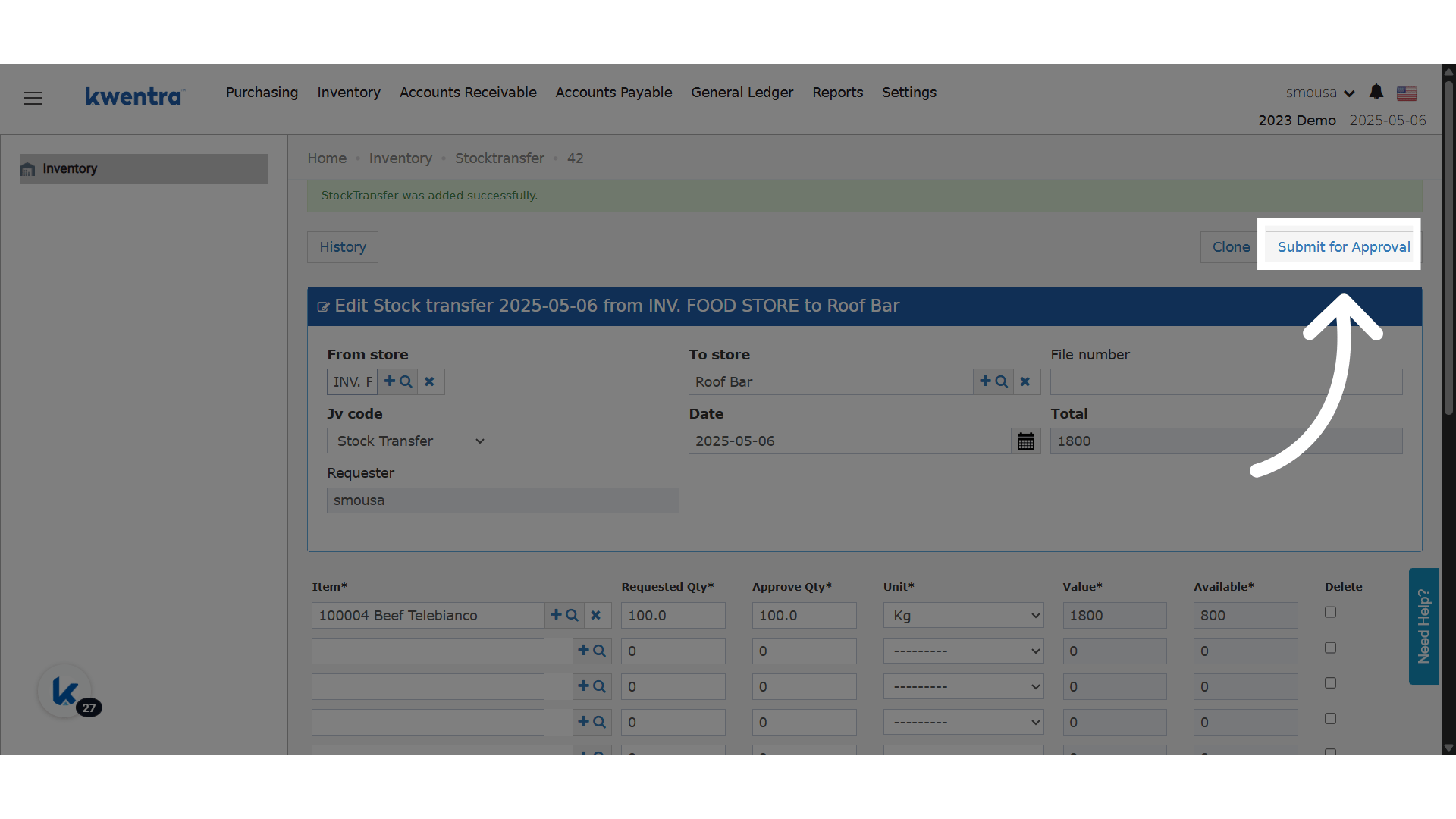
- Approve and Reject are hidden. Submit for Approval shows instead.
- Only the creator can edit it.
- Creator shows as a read-only field.
- The state changes to Pending.
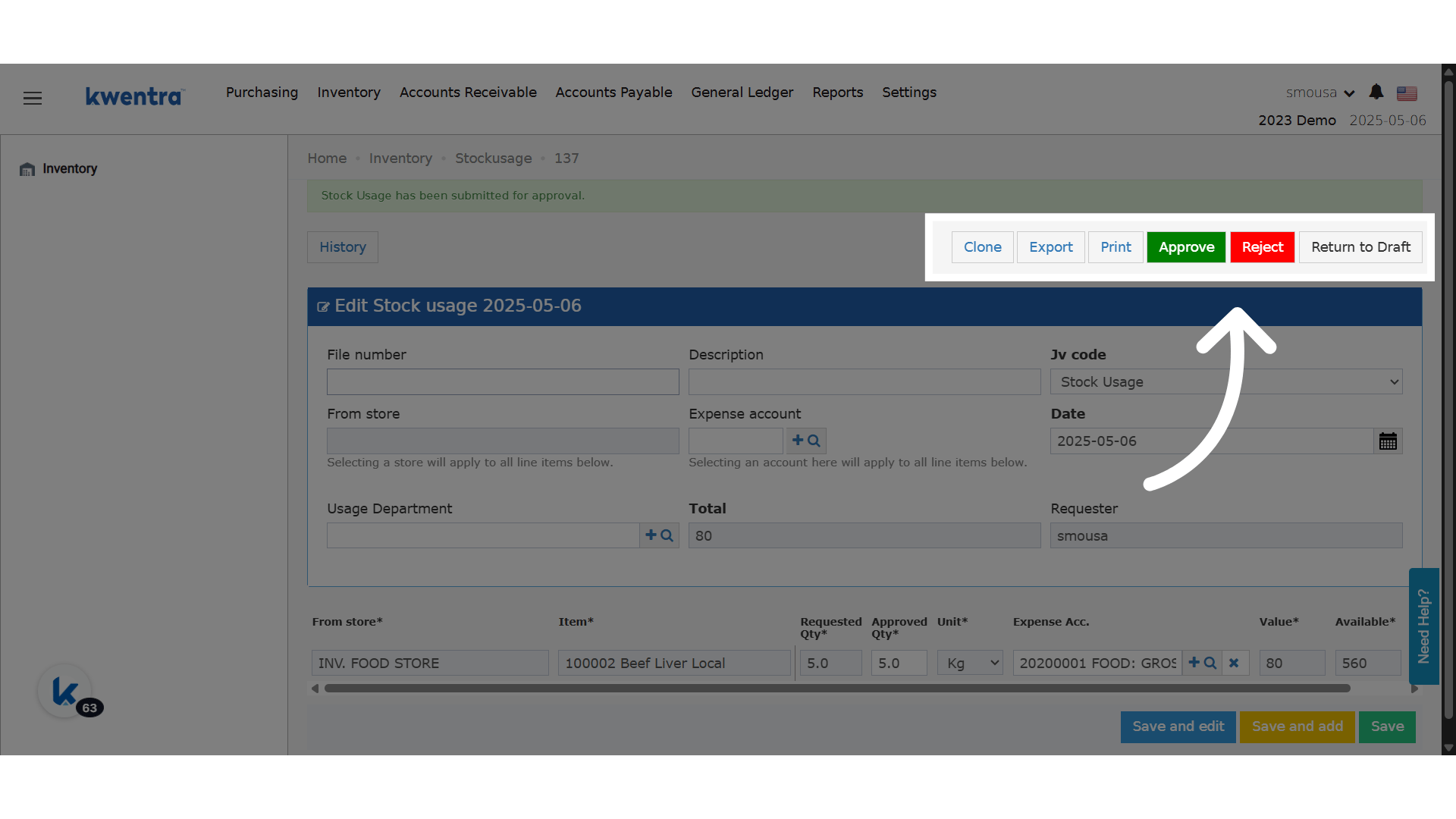
- Approve and Reject show again.
- These line fields stay read-only:
- Only the creator can use it.
- It works only if no one has approved or rejected yet.
- You cannot return to Draft if the request has approved items.
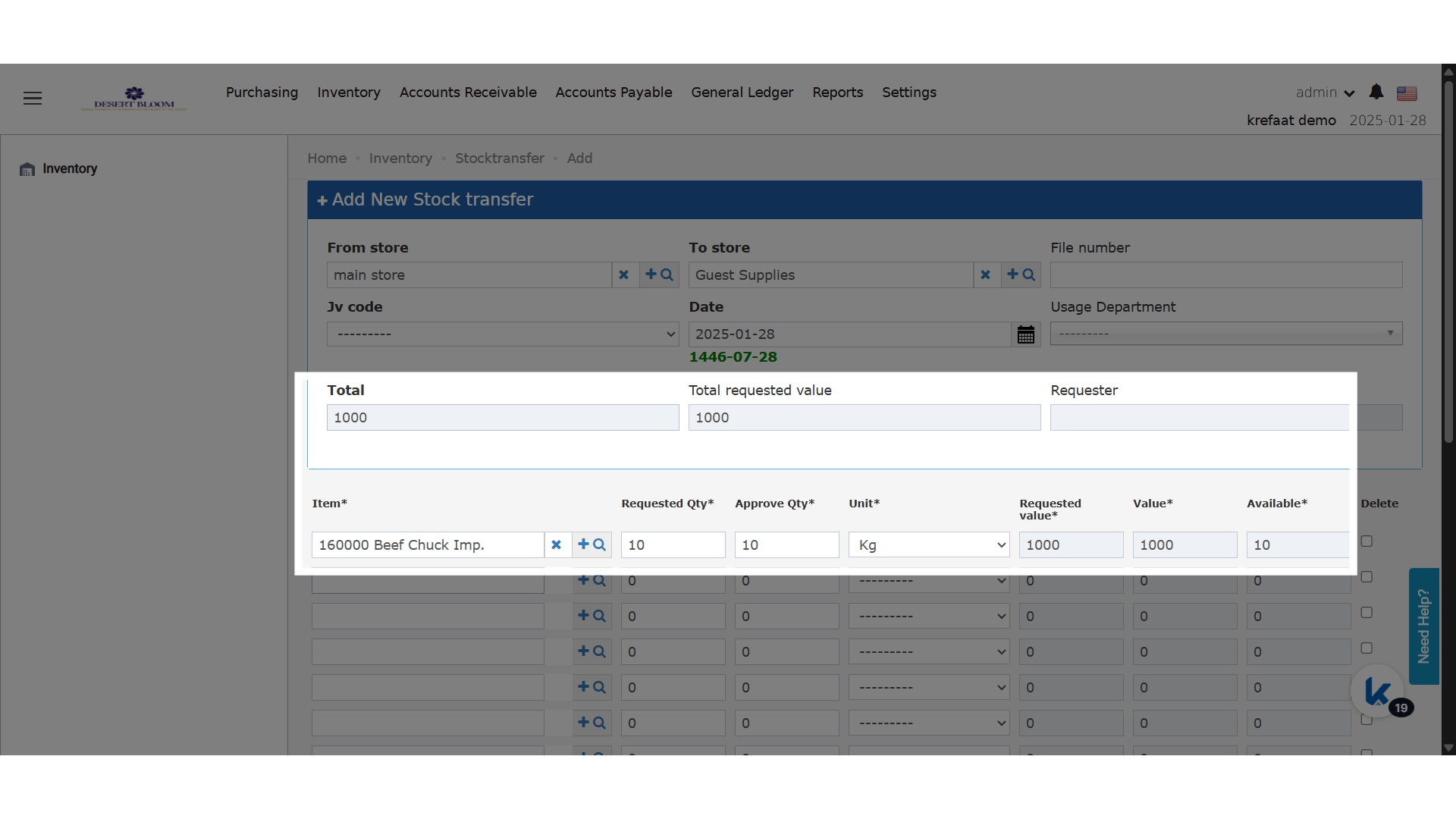
Requested Value
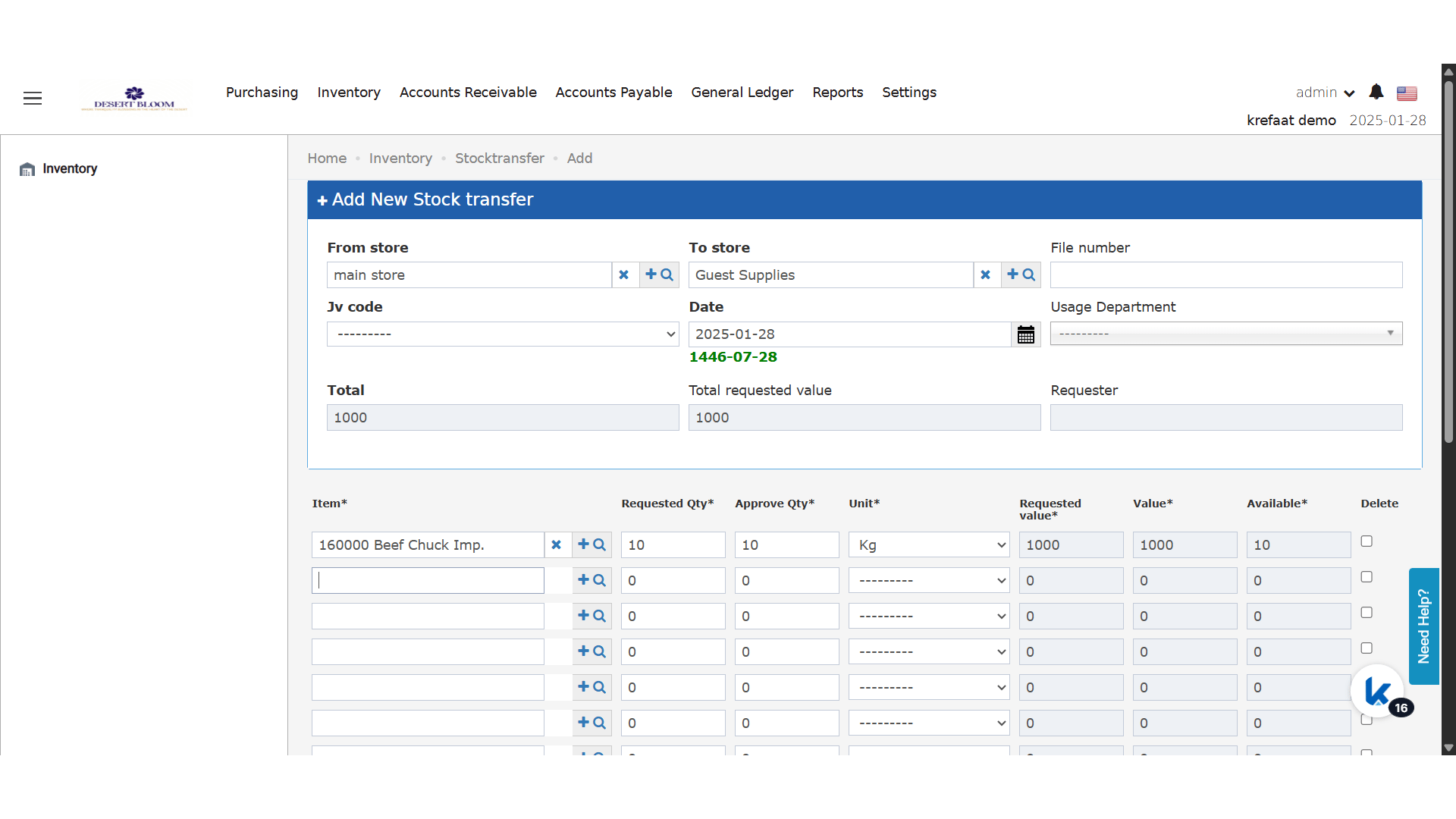
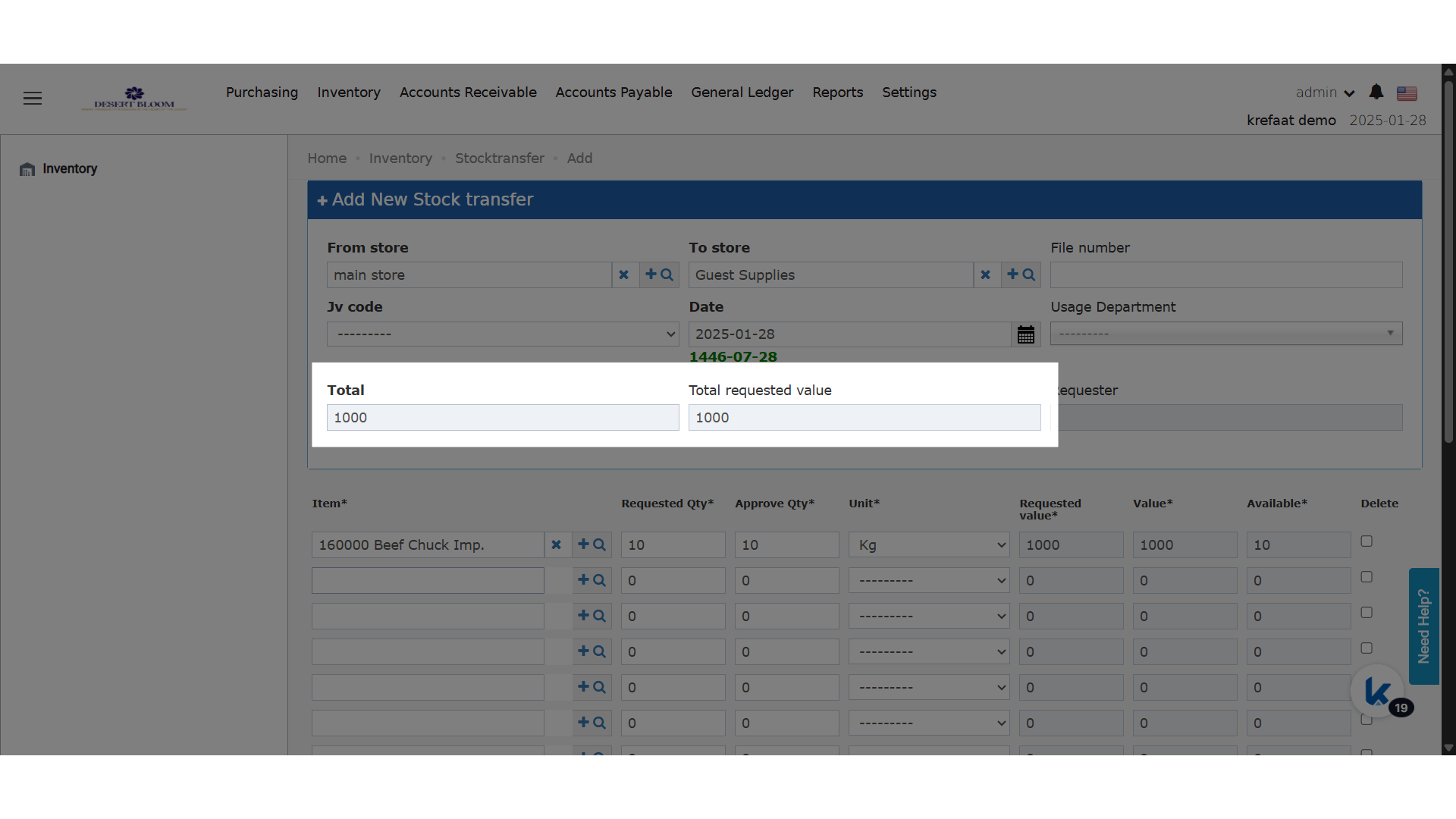
Both screens show what a request is worth before approval.- Approvers see the total at once, before stock moves.
- Compare requested and approved values to control costs.
Approve More Than Requested
You can approve a higher quantity than the request asked for. Example: you store Coca Cola per bottle, but it arrives in cases of 24. The bar supervisor asks for 20 bottles. You approve 24 to hand over the whole case.- Open the transfer or usage.
- Change the approved quantity.
- Approve it. The item stock updates.
Store transfer:
Store usage: the cost of the used items goes to your expense account.
Sortable Columns
- Click a column header to sort the list by that column, ascending.
- Click it again to sort descending.
- The header shows the sort column and direction.
- The sort stays when you change pages or filters.
- You can sort by one column at a time.
Store Transfers Only
Last Received Price
Each transfer line shows a read-only Last Received Price column. It is the last price the item was received at, in a receiving order for the from-store. There is nothing to set up.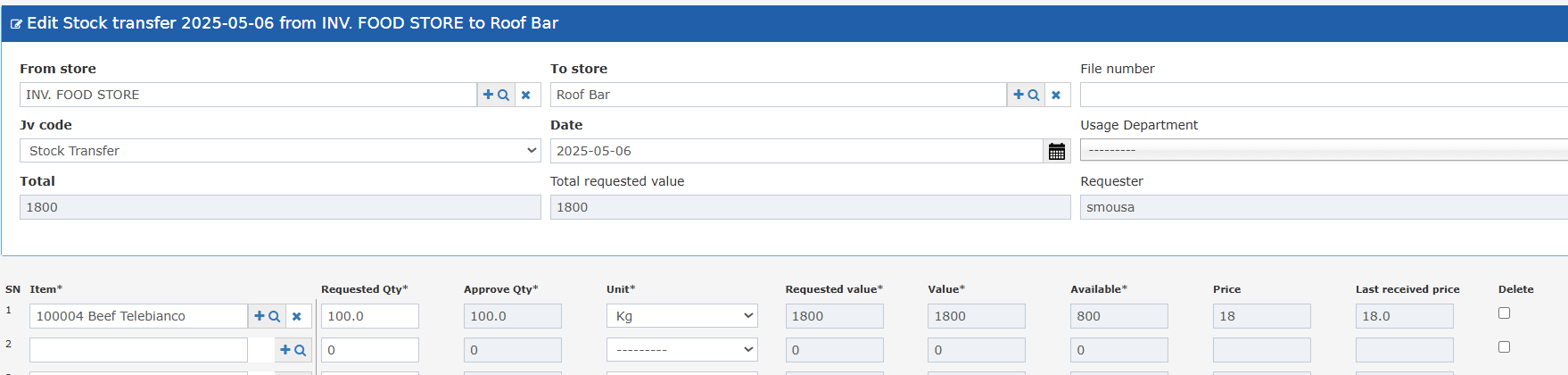
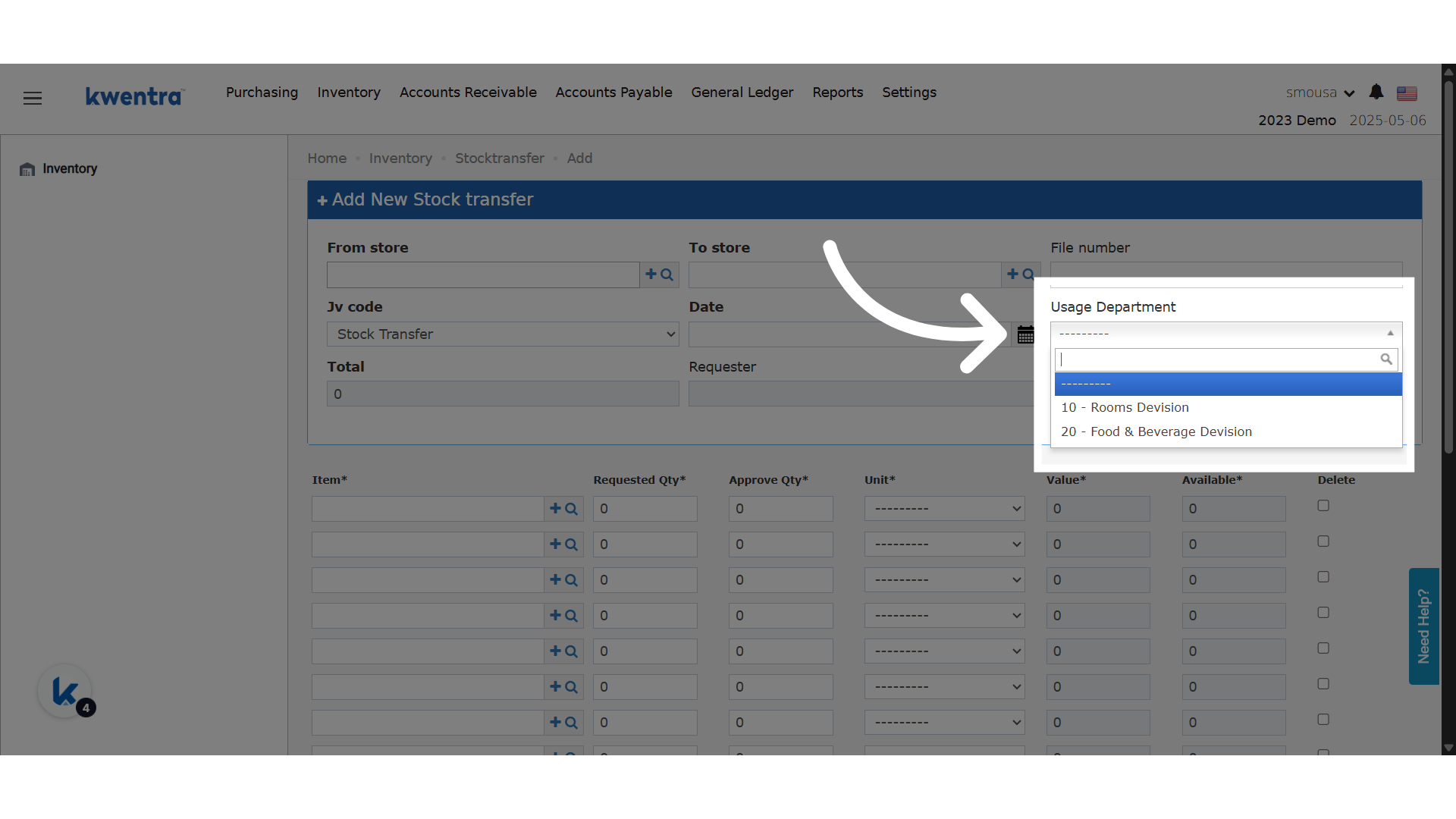
Usage Department
A store transfer has a Usage Department field.- Each transfer is linked to the department that asked for it.
- You can pick only the departments linked to your division.
- For example, a Housekeeping user cannot pick a Kitchen usage department.
Store Usage Only
Apply From Store to All Lines
The From Store on a store usage applies to every line you add or change.- Set before adding lines: each item you add takes that store. This applies even if the item has a default usage store.
- Set or changed after adding lines: every line changes to that store right away.
Submit or Unsubmit Store Requests
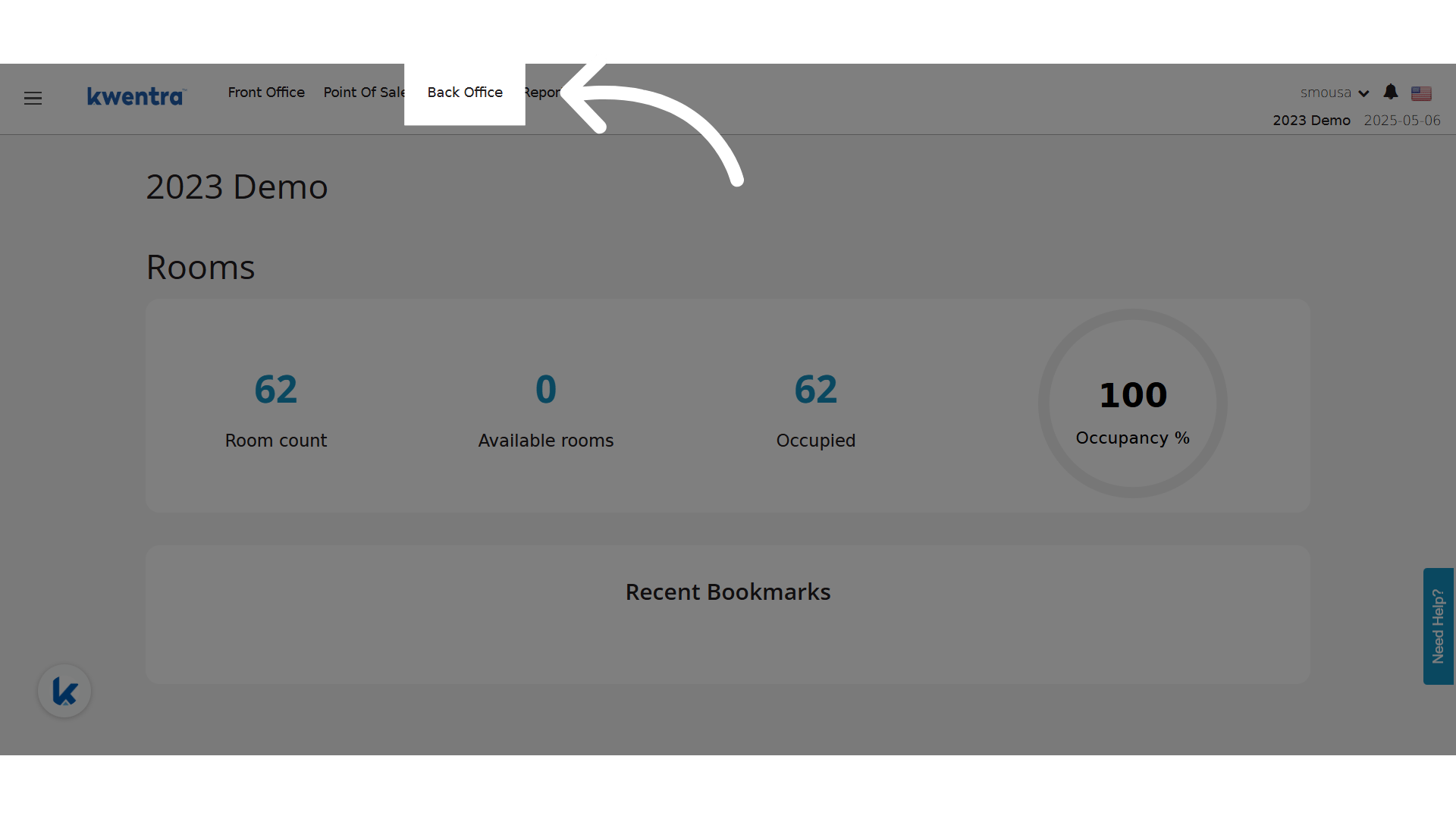
The video shows how to submit your store requests, and how to unsubmit them to make changes.