

Business Value
- Shares guest and billing information in writing, not by word of mouth.
- Shows the alert to the right division only.
- Alerts a whole group of reservations in one step.
- Keeps a full history of every change for audit.
- Lists every alert across all reservations on one screen.
Use Cases
- A receptionist warns the next shift that a guest pays by company letter.
- A front desk agent flags a 30-room group with one arrival instruction.
- A reservations manager adds a payment alert to a group before it splits.
- A duty manager searches every pending alert for today.
How It Works
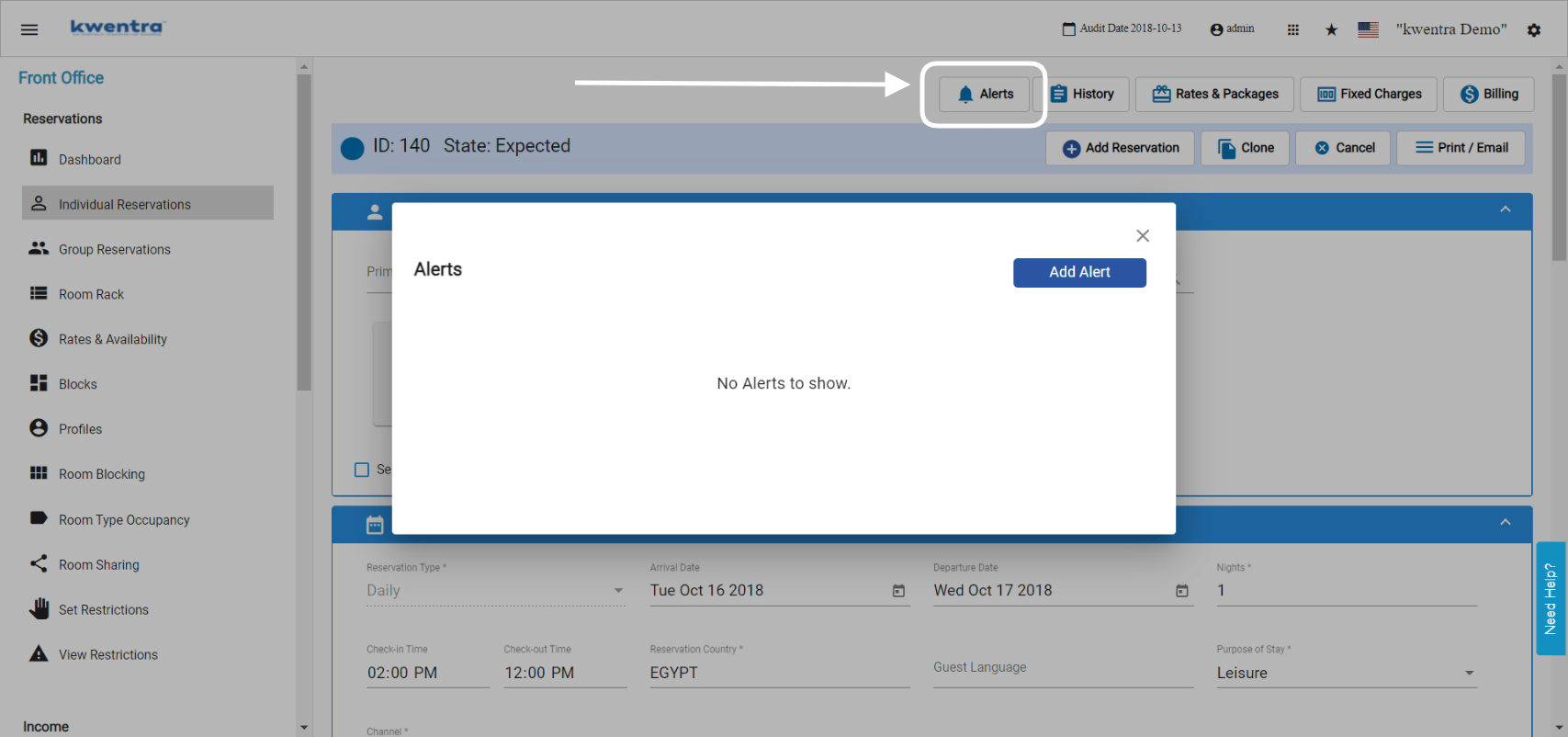
Add an Alert
- Click Alerts at the top of the reservation.
- Click Add Alert.
- Choose a start date. It can be before the system date.
- Choose an end date. It cannot be before the system date.
- Type the alert content.
- Choose whether the alert should Pop Up.
- Click Save.
- After saving, you can edit or delete the alert.
- Click Done to change its state from pending to done.
- The Alerts button counts pending alerts only.
- You cannot edit an ended alert or change its dates.
Where Alerts Pop Up
A pop-up alert shows when you open:- The reservation.
- The reservation’s billing screen.
- The reservation as a pop-up.
Assign an Alert to a Division
Assign the alert to one or more divisions. Only users in those divisions see it pop up.Alert History
The History tab in Alerts logs:- When the alert was created.
- Every change to its content, dates or division.
- When it was marked done.
- When it was deleted.
Bulk Add Alerts
Add one alert to every selected reservation. Bulk Alerts sits under Bulk Edit in the Actions menu.
- The action uses ticked rows only, not your whole search result.
- With nothing ticked you get:
Please select at least one reservation. - Any status works. There is no separate permission for alerts.
- One date range covers the whole batch. It does not follow each stay.
- Saving creates one alert per reservation, all identical, each Pending.
- Existing alerts do not change. Each reservation gains one more.
- Each new alert gets its own
Createdentry in the History.
Group Reservation Alerts
An alert on a group reservation shows on every individual reservation under it.
- Click the bell icon to see earlier alerts and add a new one.
- You can assign it to a division, like an individual alert.
- The History tab logs every change.
Alerts Screen
The Alerts screen lists the alerts on every reservation: pending, done and ended, pop-up or not. Group alerts show the group’s name as the guest name.
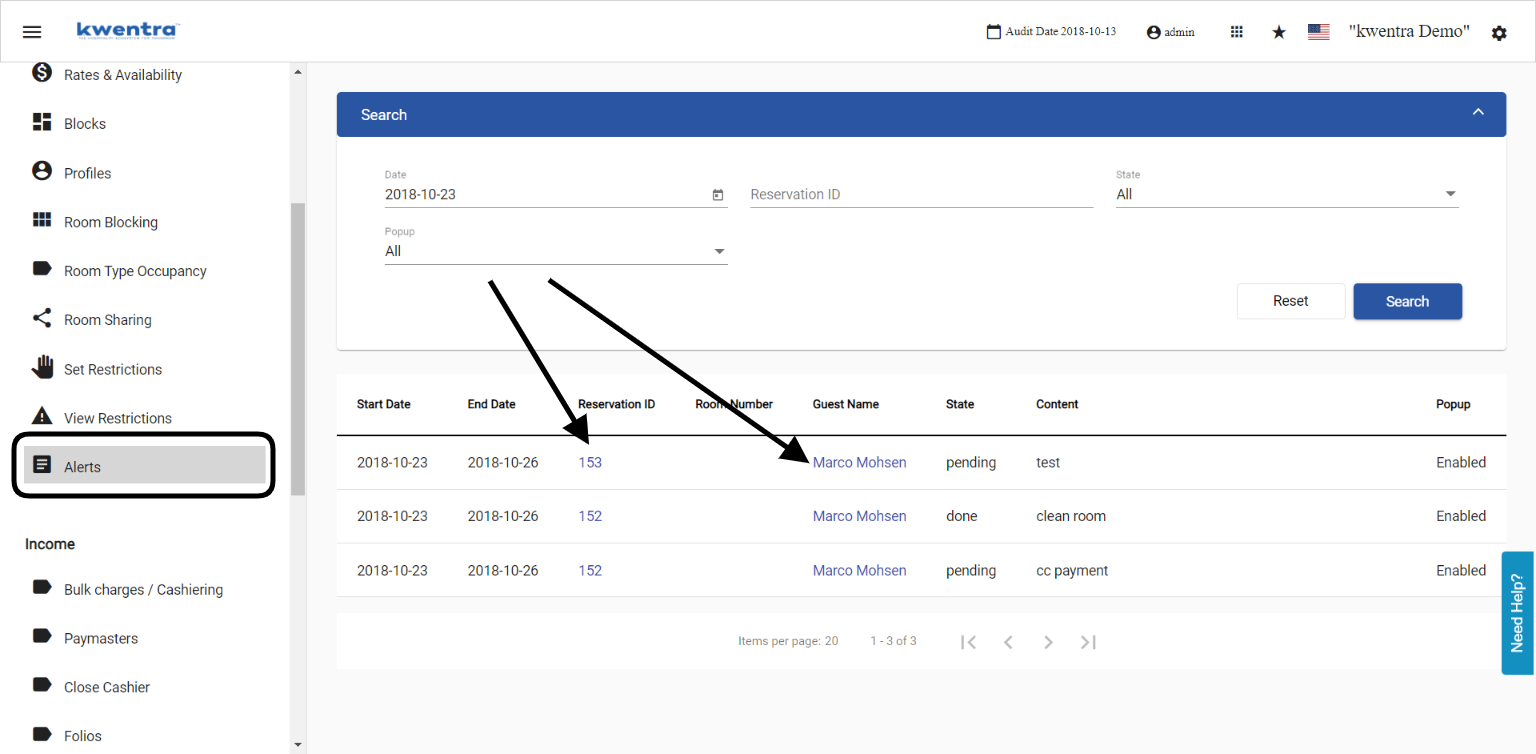
Search Alerts
- An alert from the 1st to the 10th shows when you search the 5th to the 6th.
- If Date To is before Date From, you see a message. The search does not run.
- Reset clears every field, dates included. It does not bring back the default dates.
- Export Data uses the same filters. The file always matches the screen.
- Click a Reservation ID to open the reservation. Click a Guest Name to open the guest profile.
General Alerts
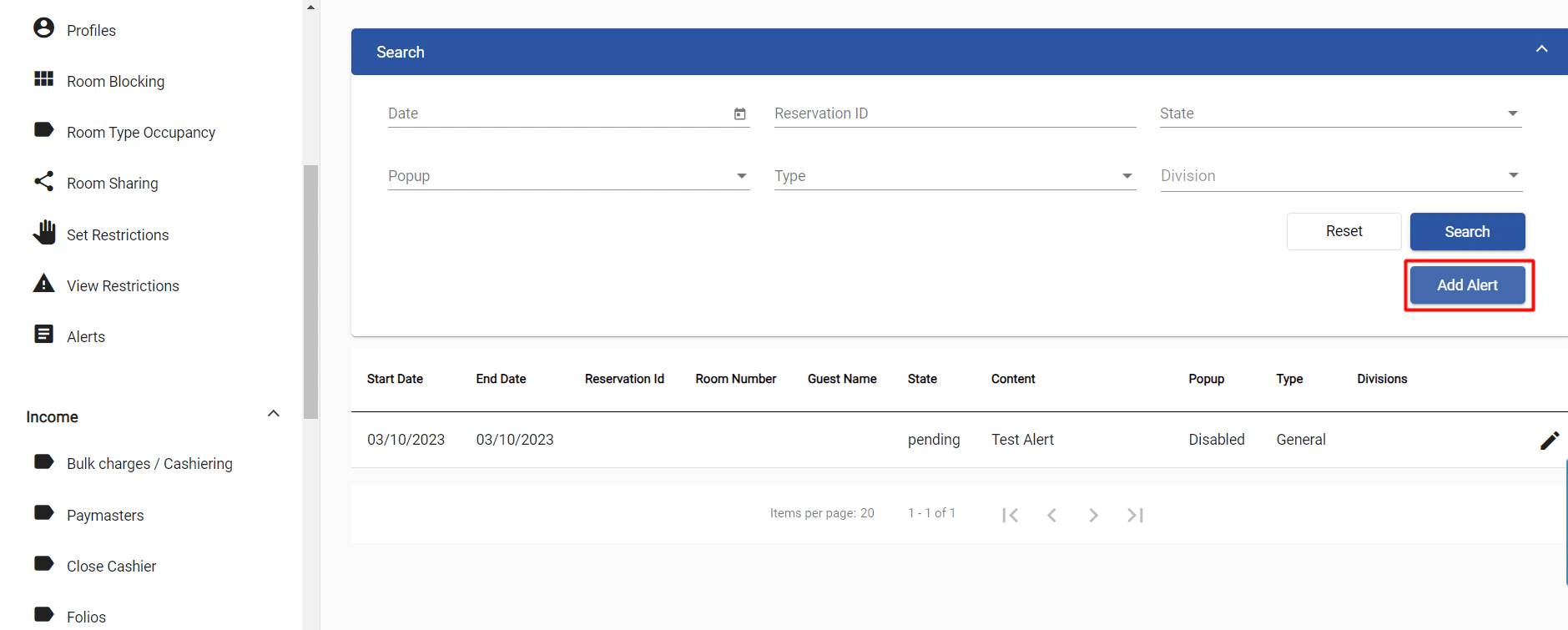
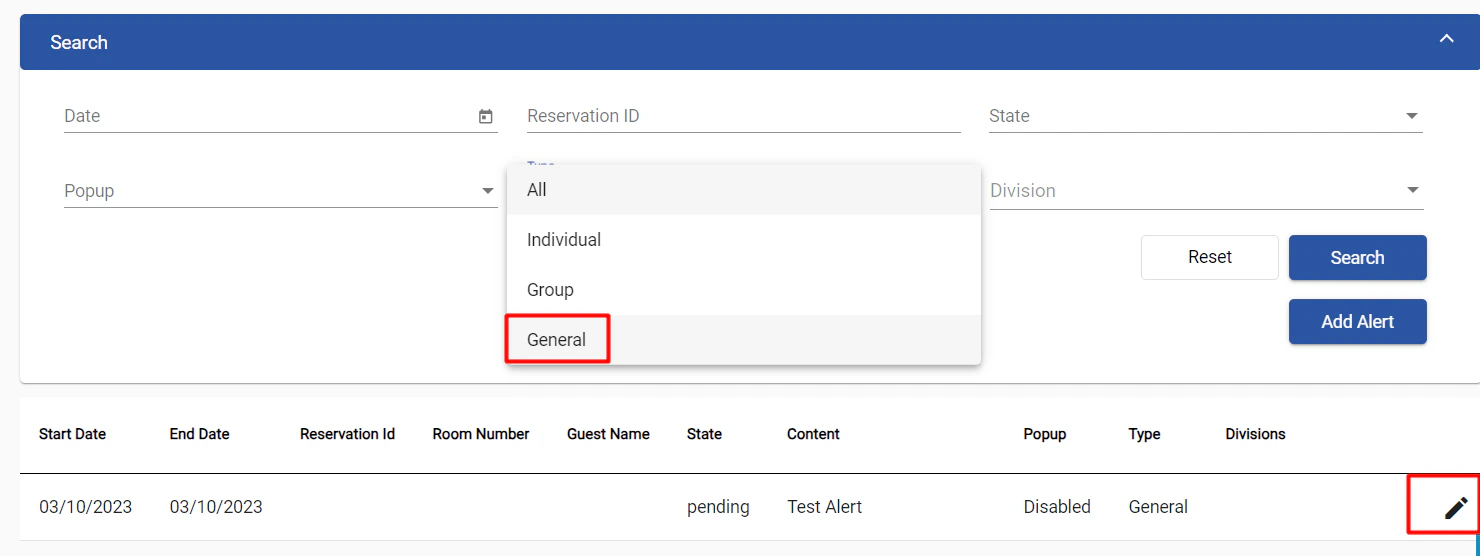
A general alert (trace) is not linked to any reservation. You can assign it to a division.- Open Front Office → Alerts.
- Click Add Alert.
Update: September 15, 2026
You can now search alerts over a date range, and by the alert text.- Date From and Date To replace the single Date field.
- Content is a new search field.