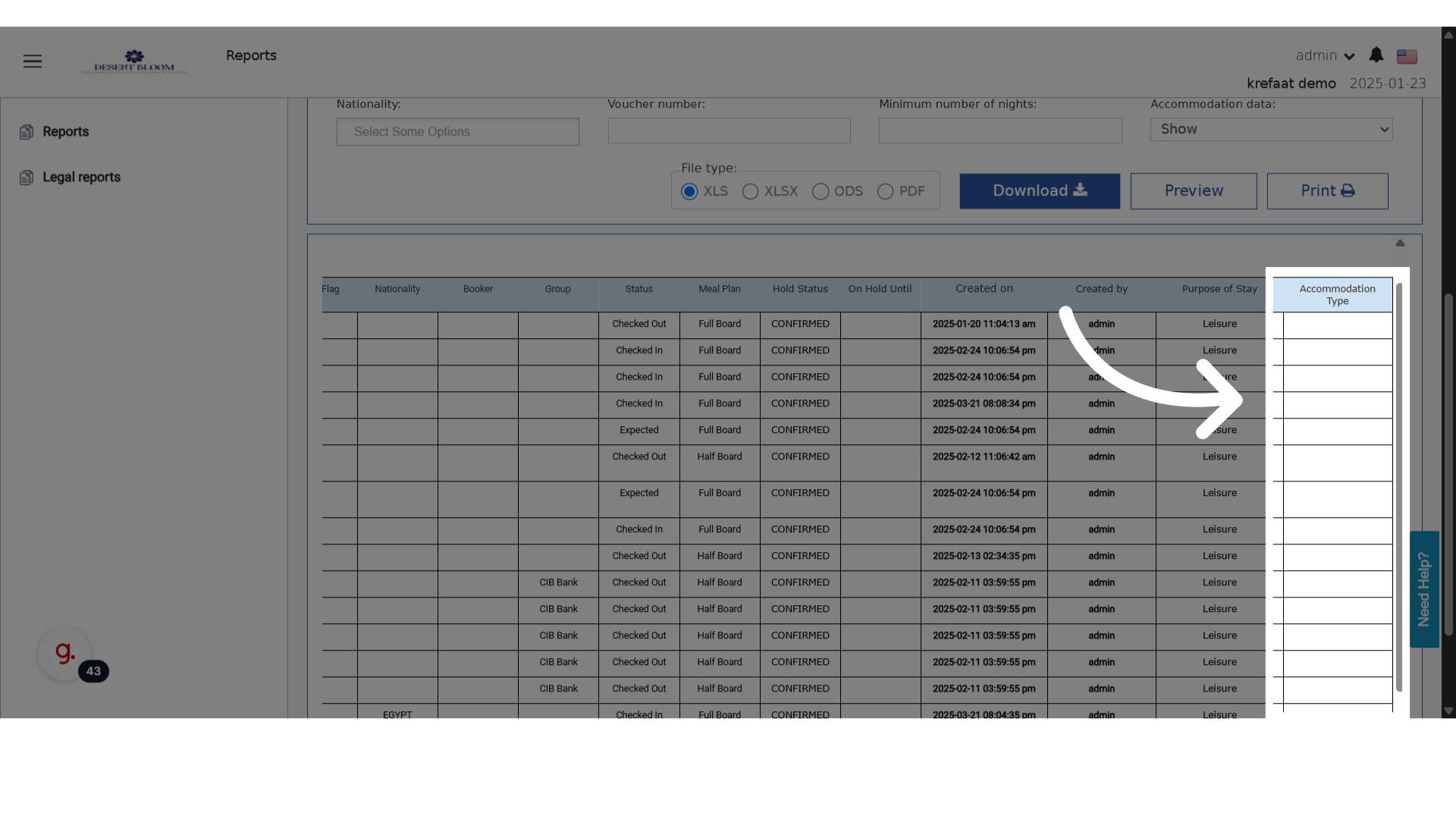
You can define and assign Accommodation Types to individual reservations, then optionally include this information in the Reservation List Report. This gives front office teams more flexibility in classifying guest stays and customizing reports. These updates help hotels:Documentation Index
Fetch the complete documentation index at: https://help.kwentra.com/llms.txt
Use this file to discover all available pages before exploring further.
- Customize how stays are categorized (e.g. long stay, corporate, staff housing).
- Track guest intent more clearly using Accommodation Type.
- Tailor reservation reporting with optional extra details.
- Support operational and audit needs through better data visibility.
- A receptionist creates a reservation and selects “Corporate Stay” from the accommodation types.
- A front office manager defines internal accommodation labels such as “Staff Housing”.
- A finance or audit team exports reservation reports including the accommodation type, or hides it when not needed.
Define accommodation types
Go to Settings → Front Office → Guests Settings → Accommodation Types on manage.kwentra.com.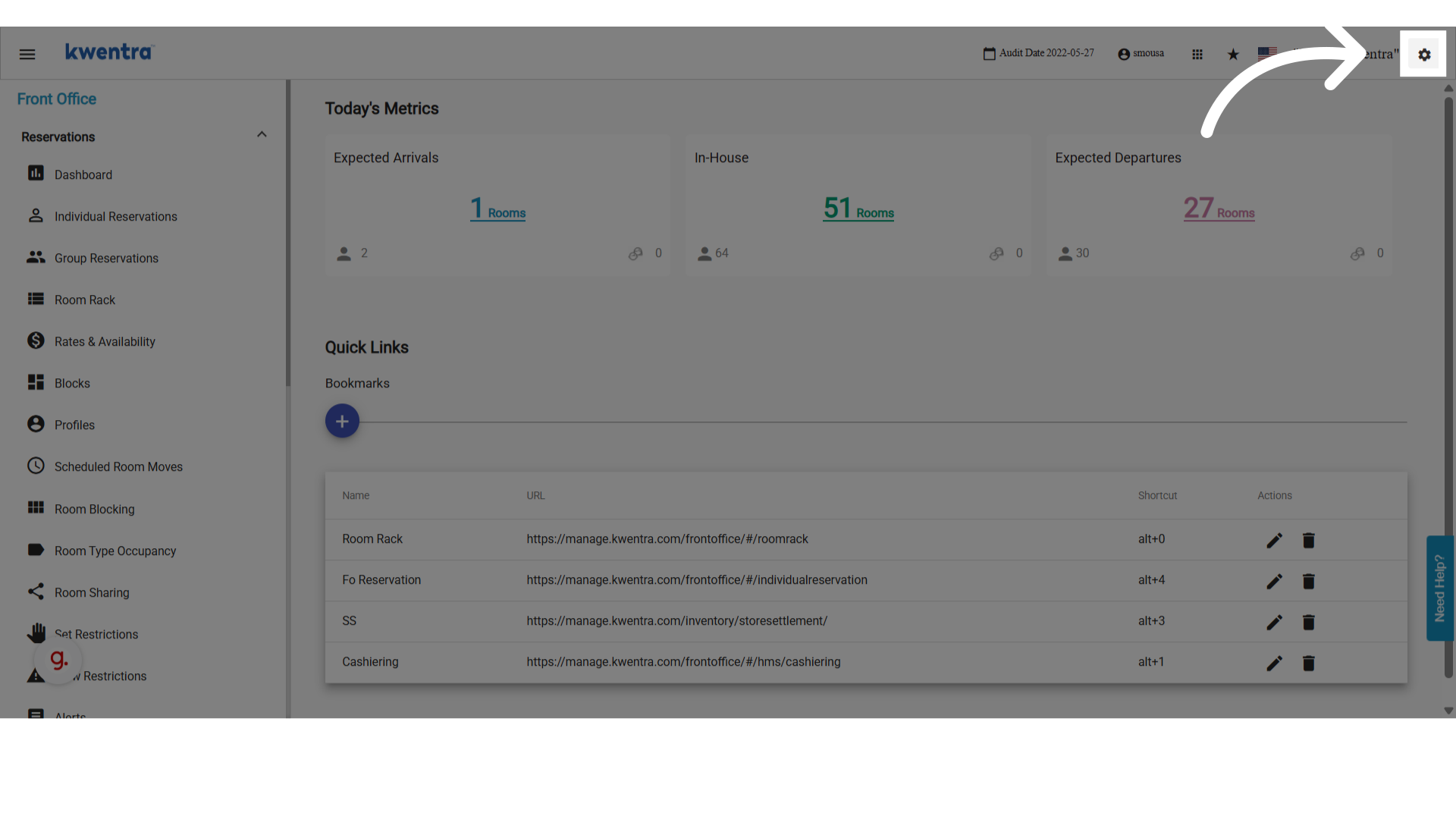
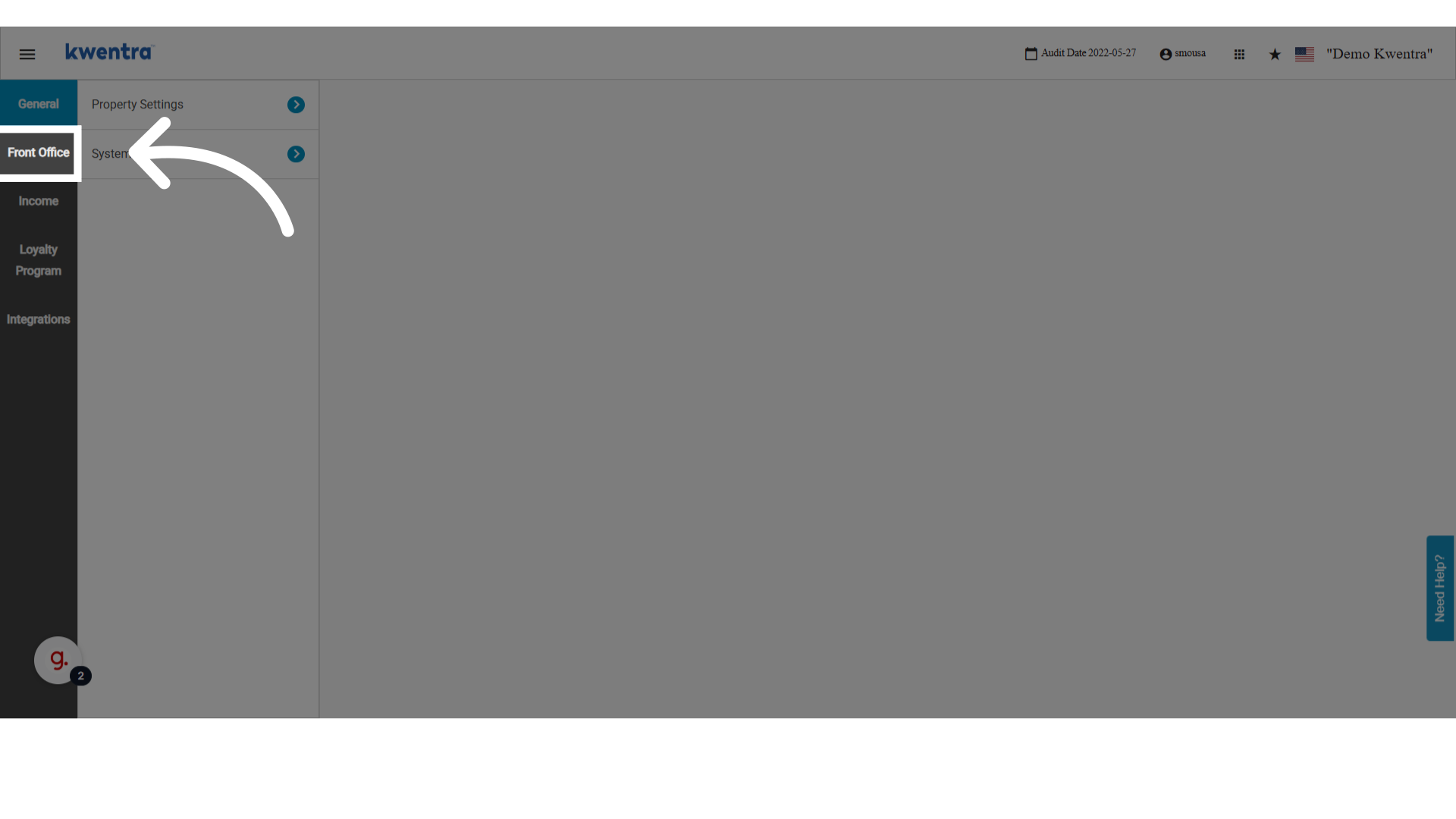
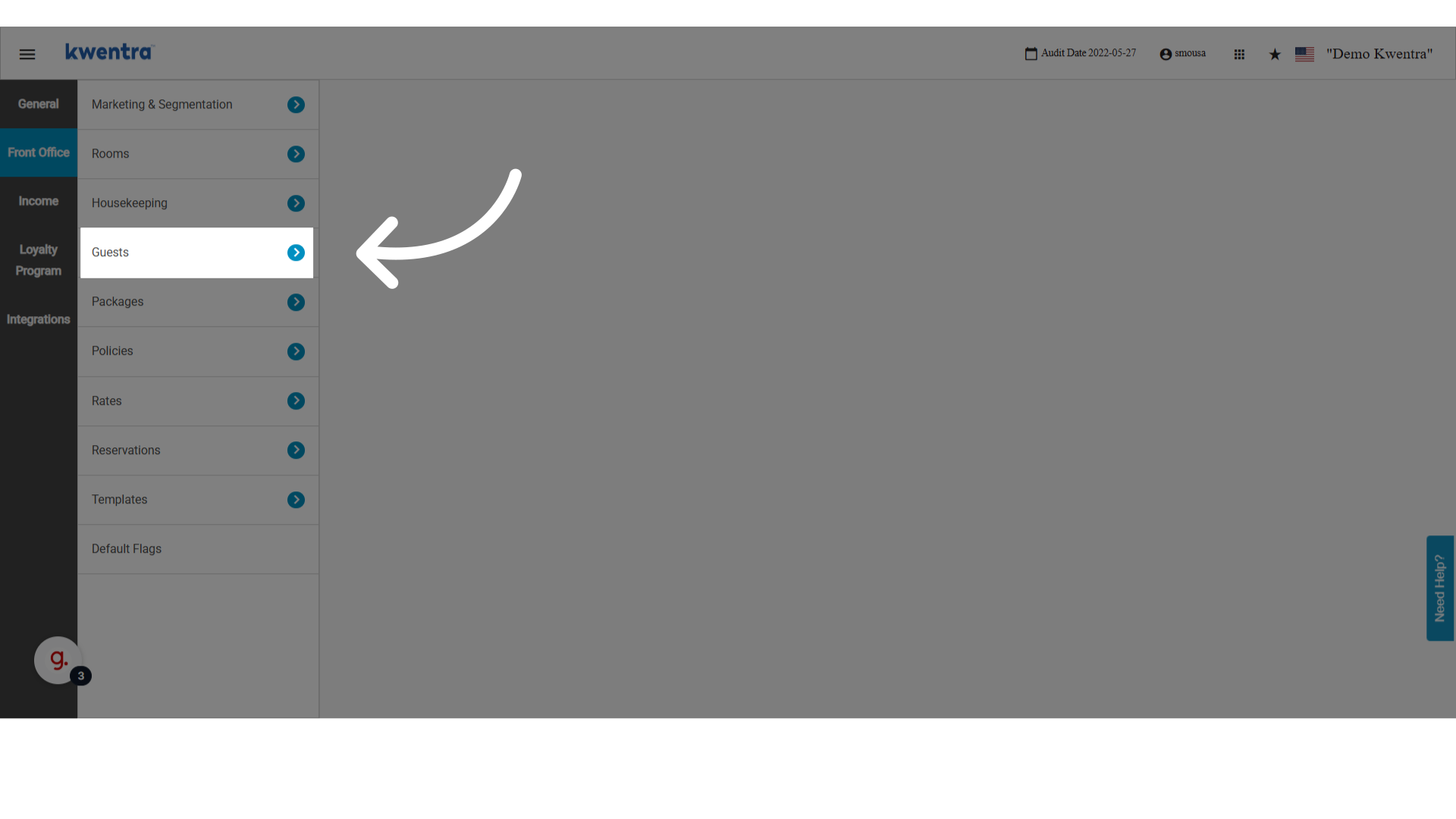
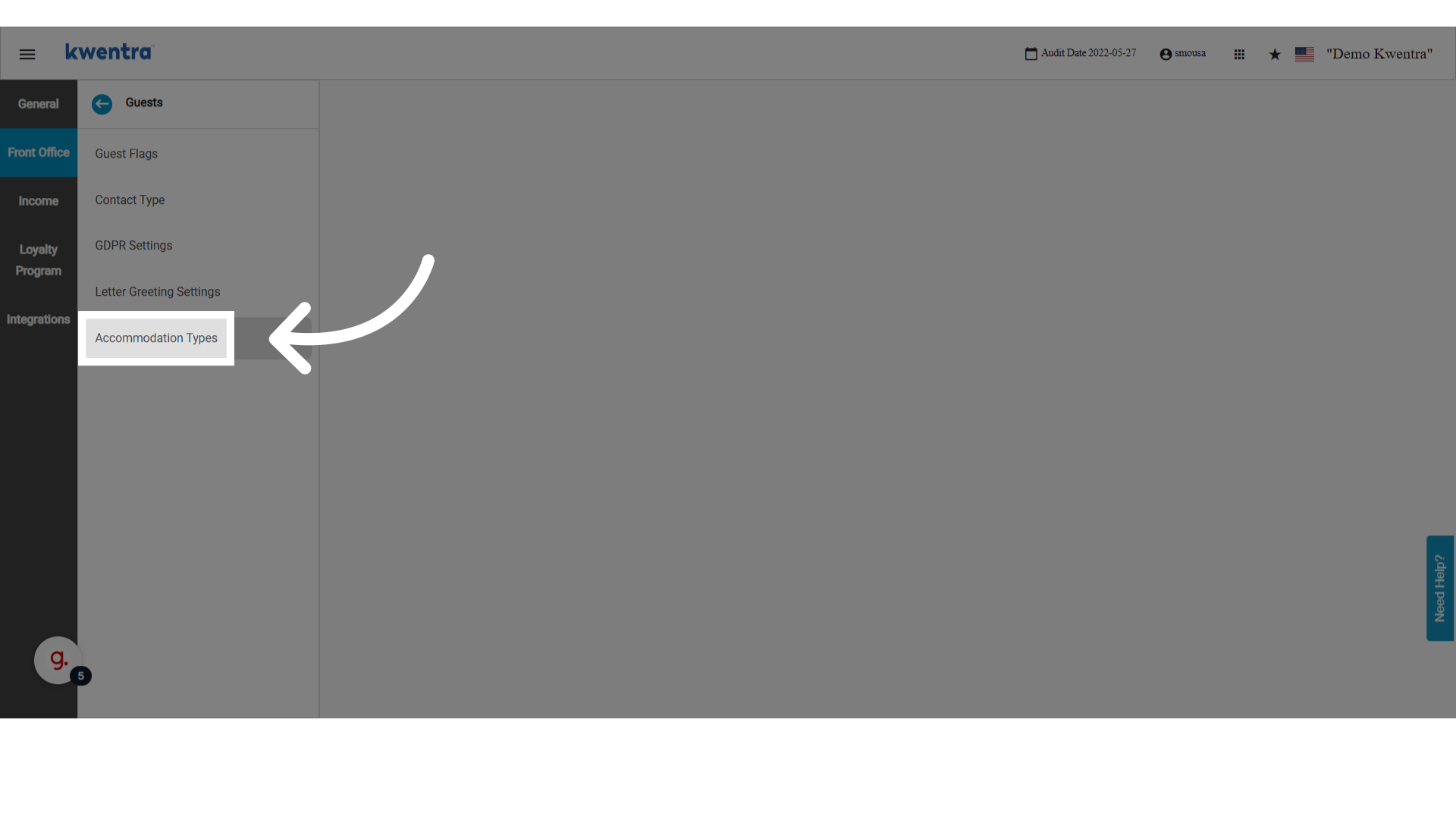
-
Review the existing custom accommodation types — any previously created entries are listed here.
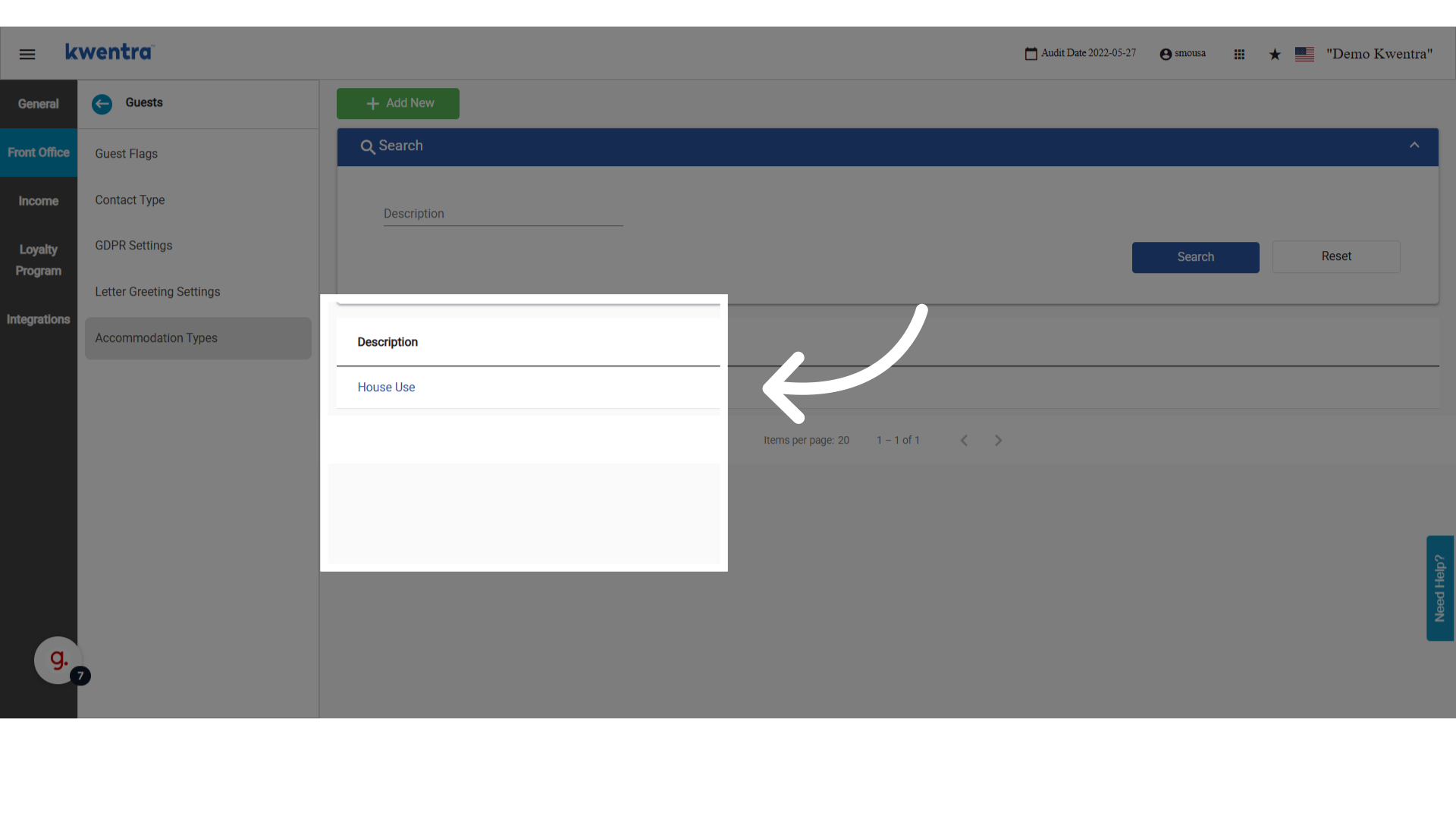
-
Click Add to create a new accommodation type.
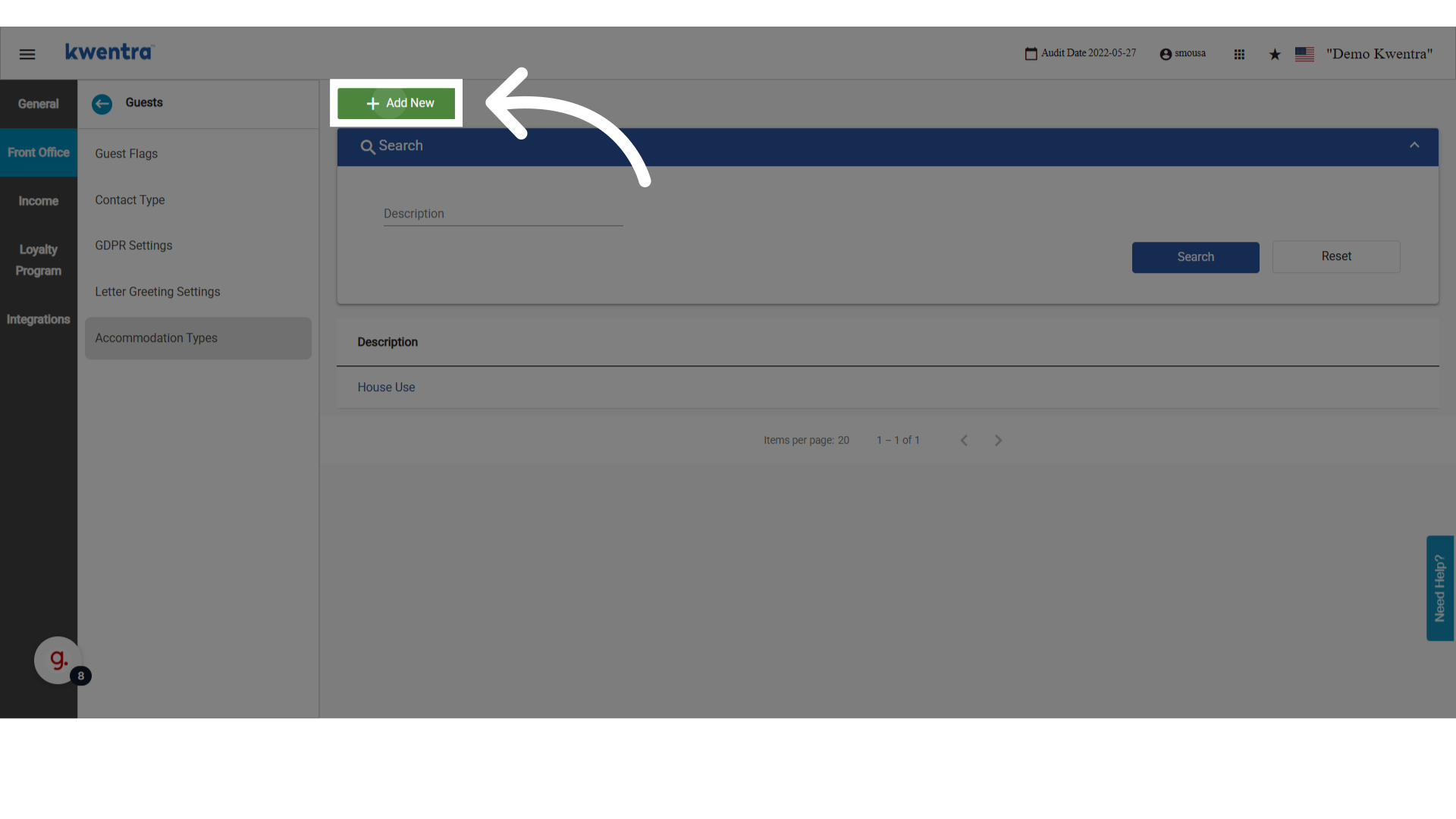
-
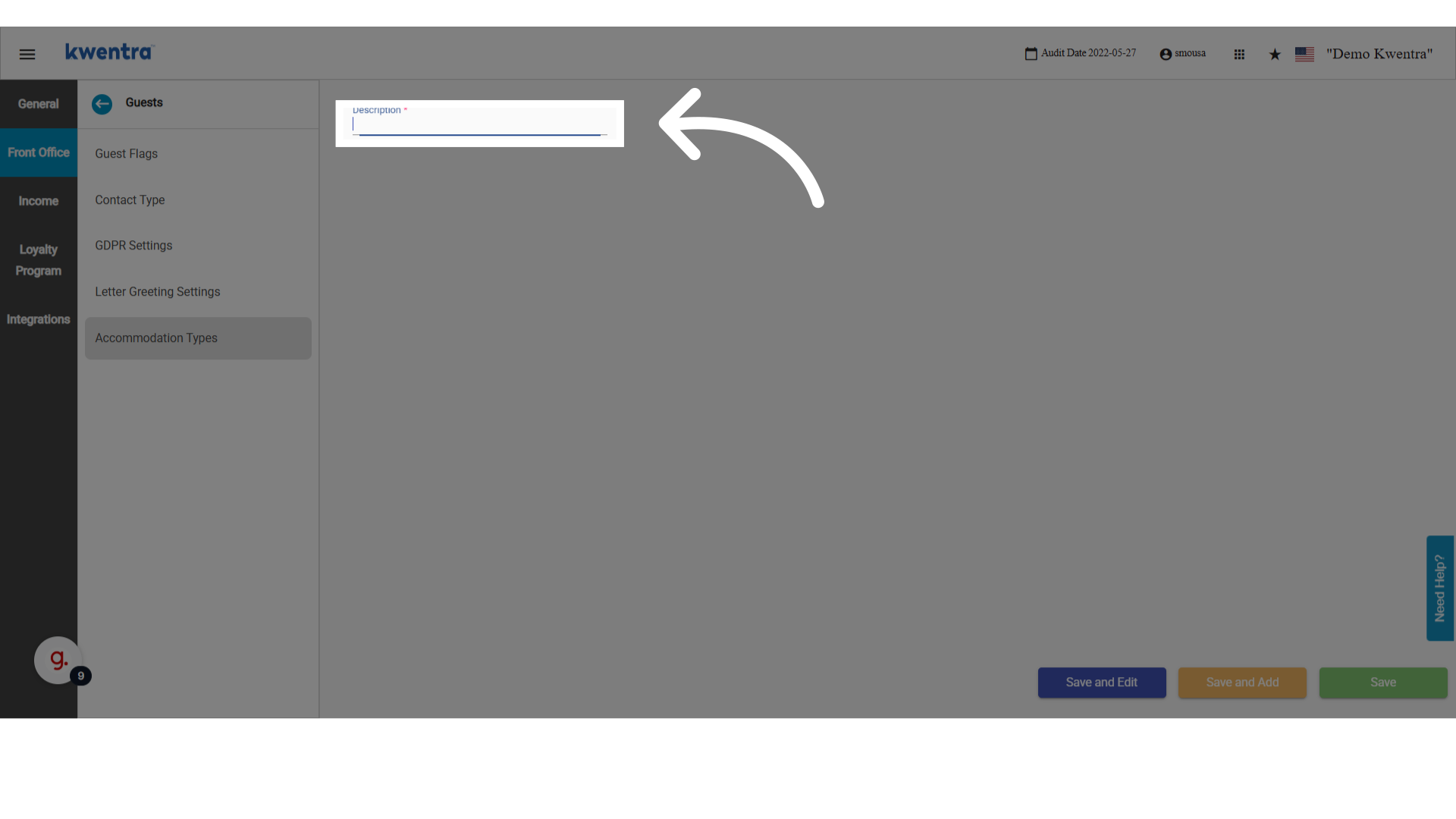
Enter a description for the new type (e.g. “Corporate Stay” or “Staff Housing”).
-
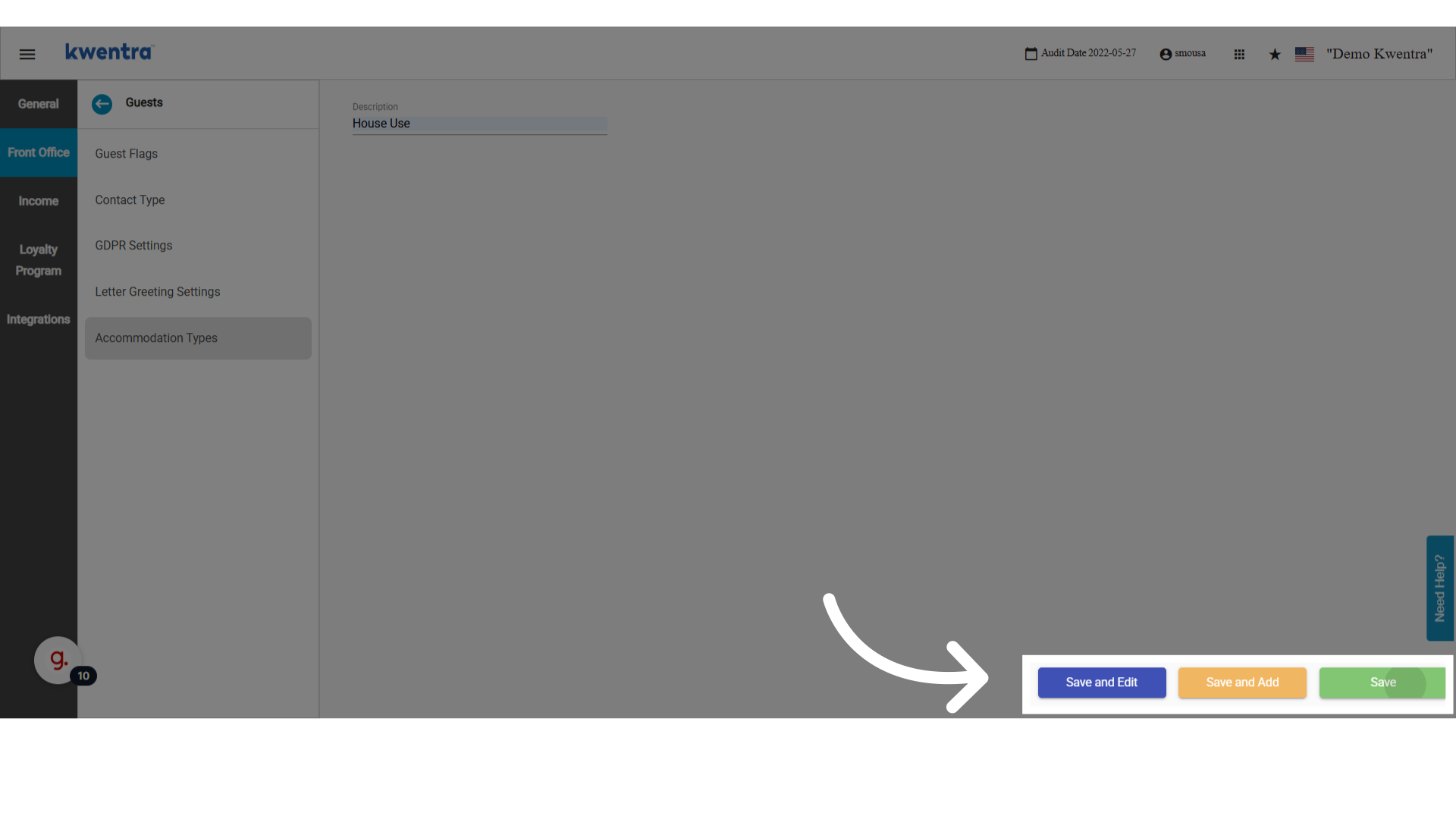
Save using one of the available save options.
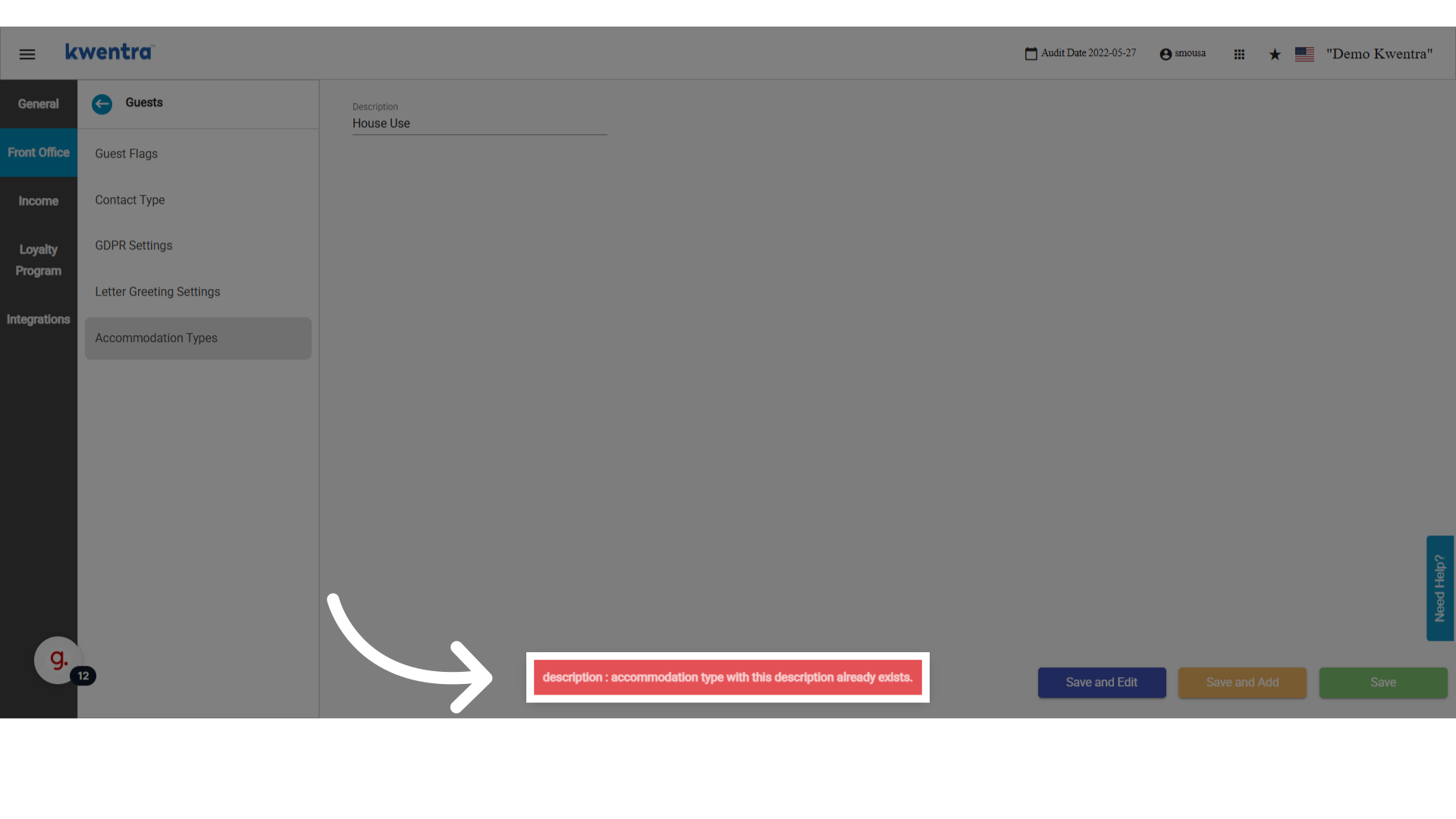
You cannot add the same description twice — duplicates are rejected on save.
Apply an accommodation type to a reservation
Go to Modules → Front Office → Individual Reservations.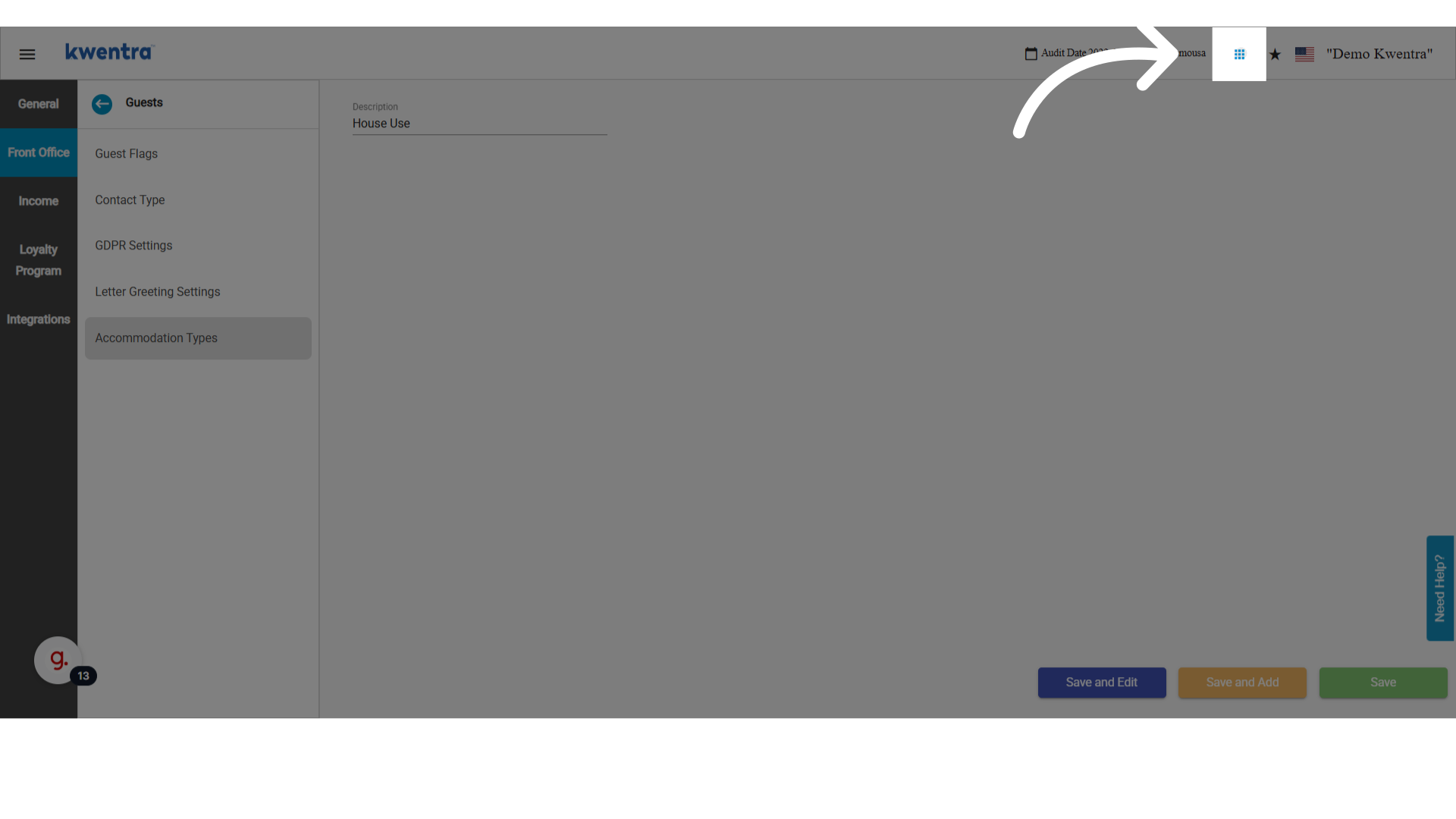
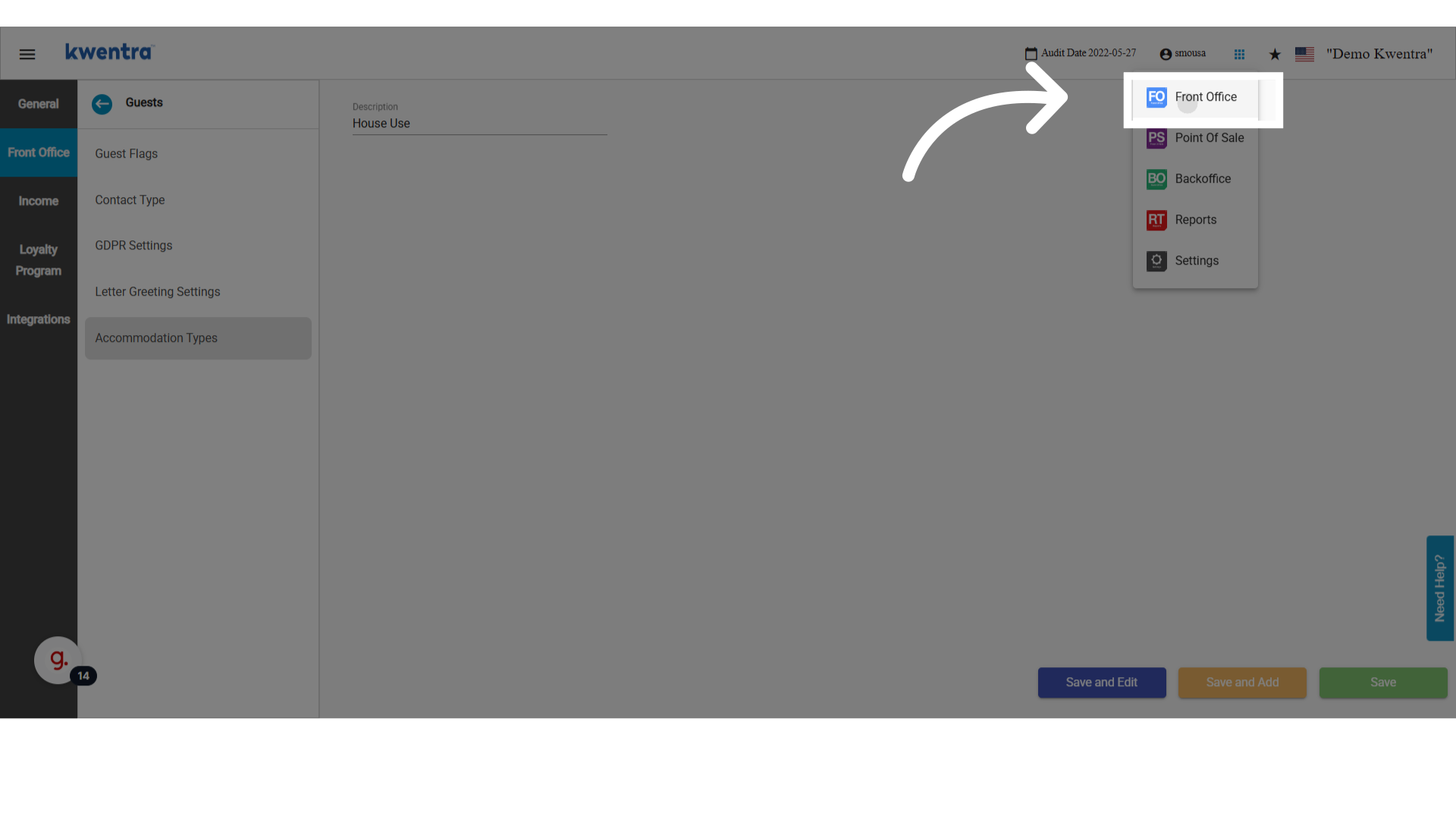
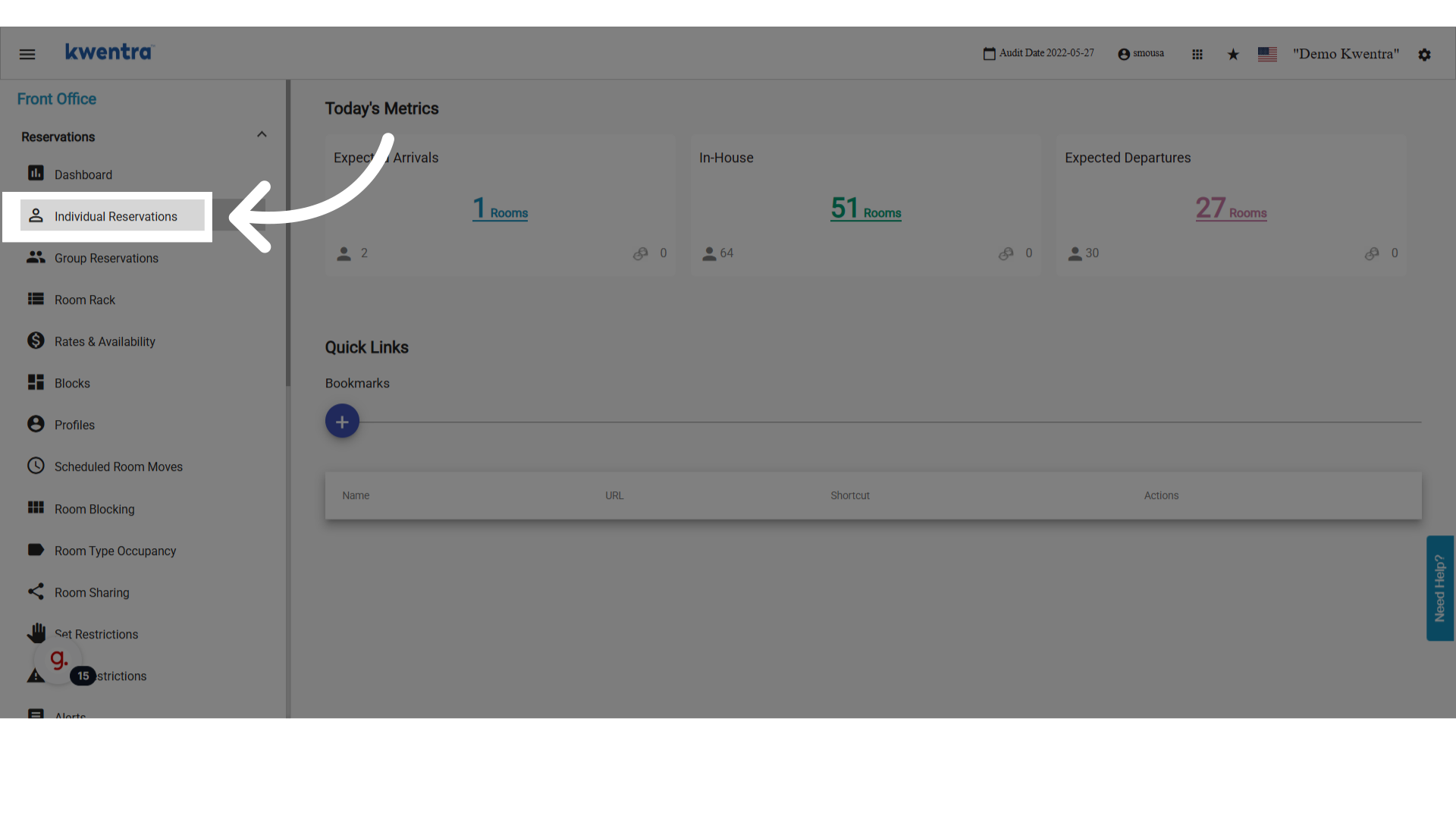
-
Click Add Reservation.
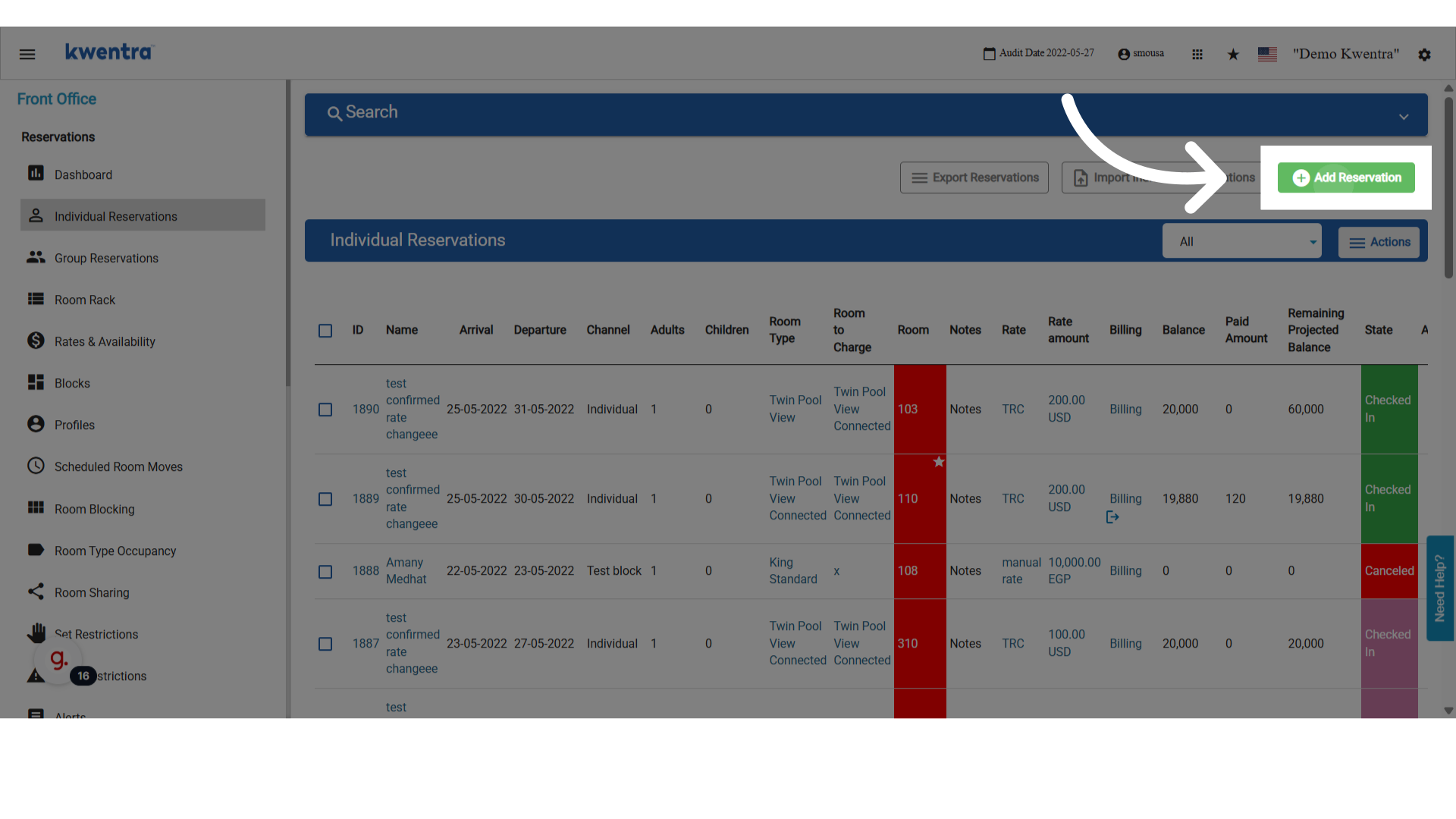
-
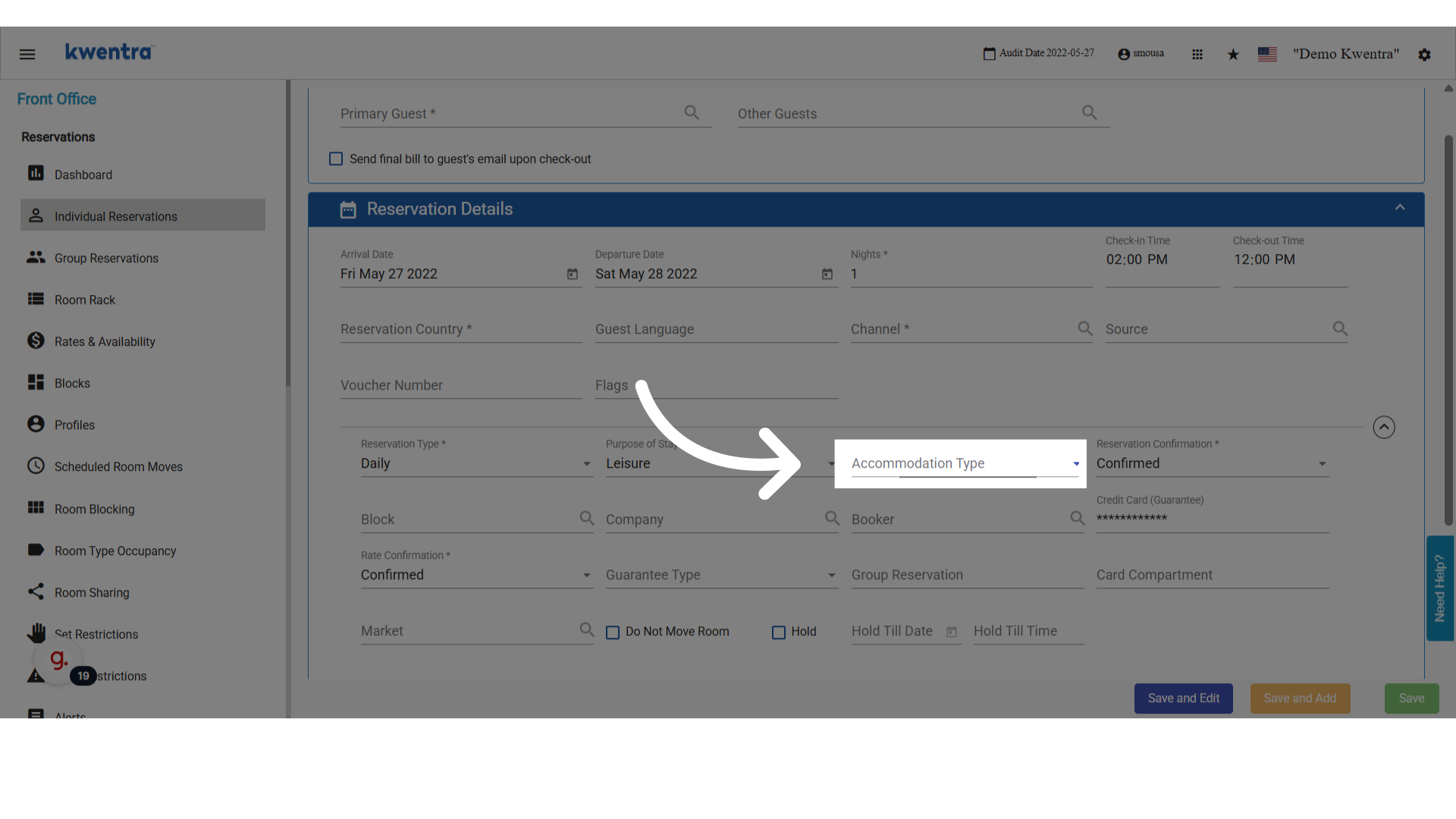
Unhide the extra fields to reveal the Accommodation Type selector.
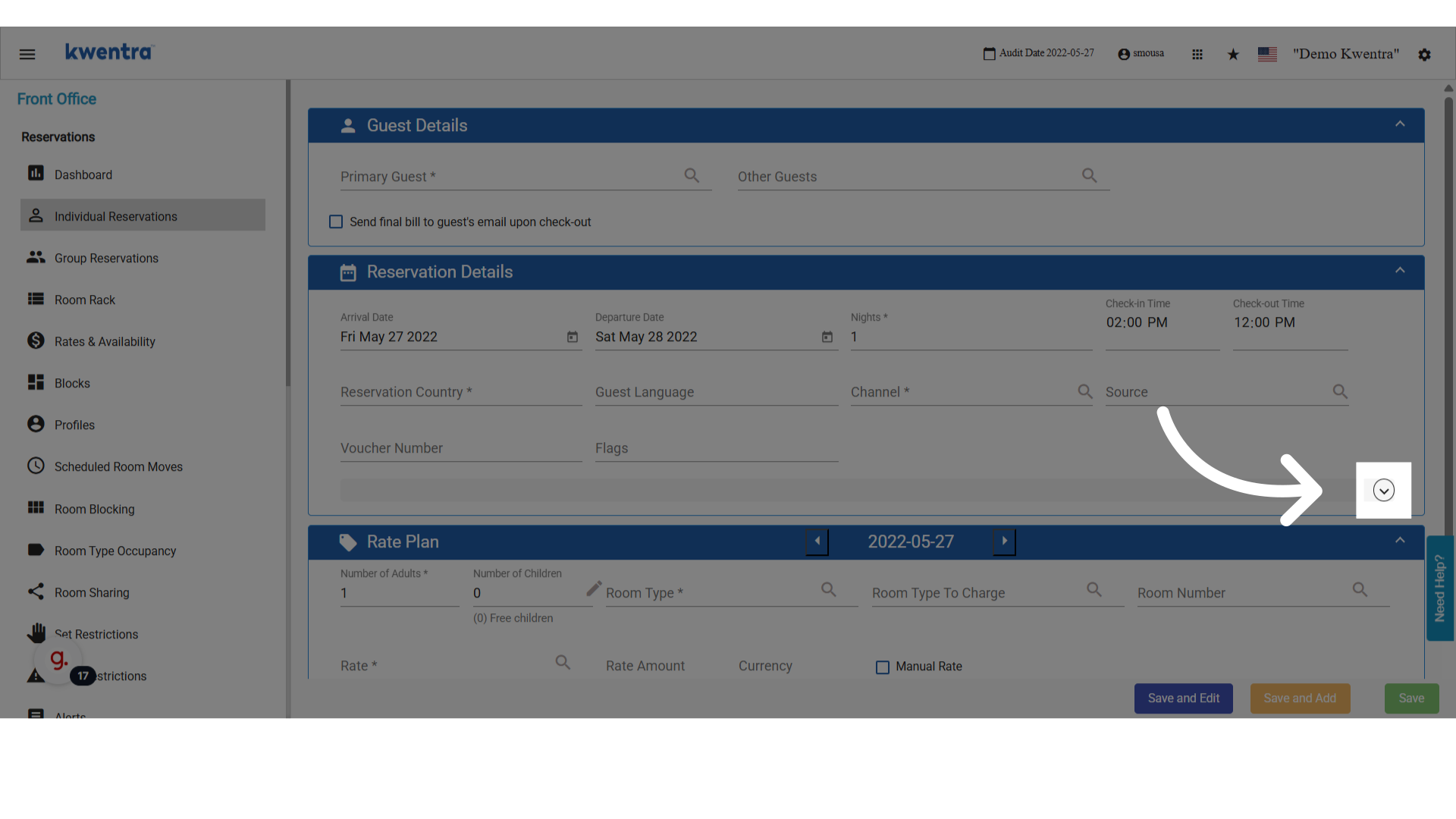
-
Select one of your custom accommodation types from the dropdown.
View accommodation types in the Reservation List Report
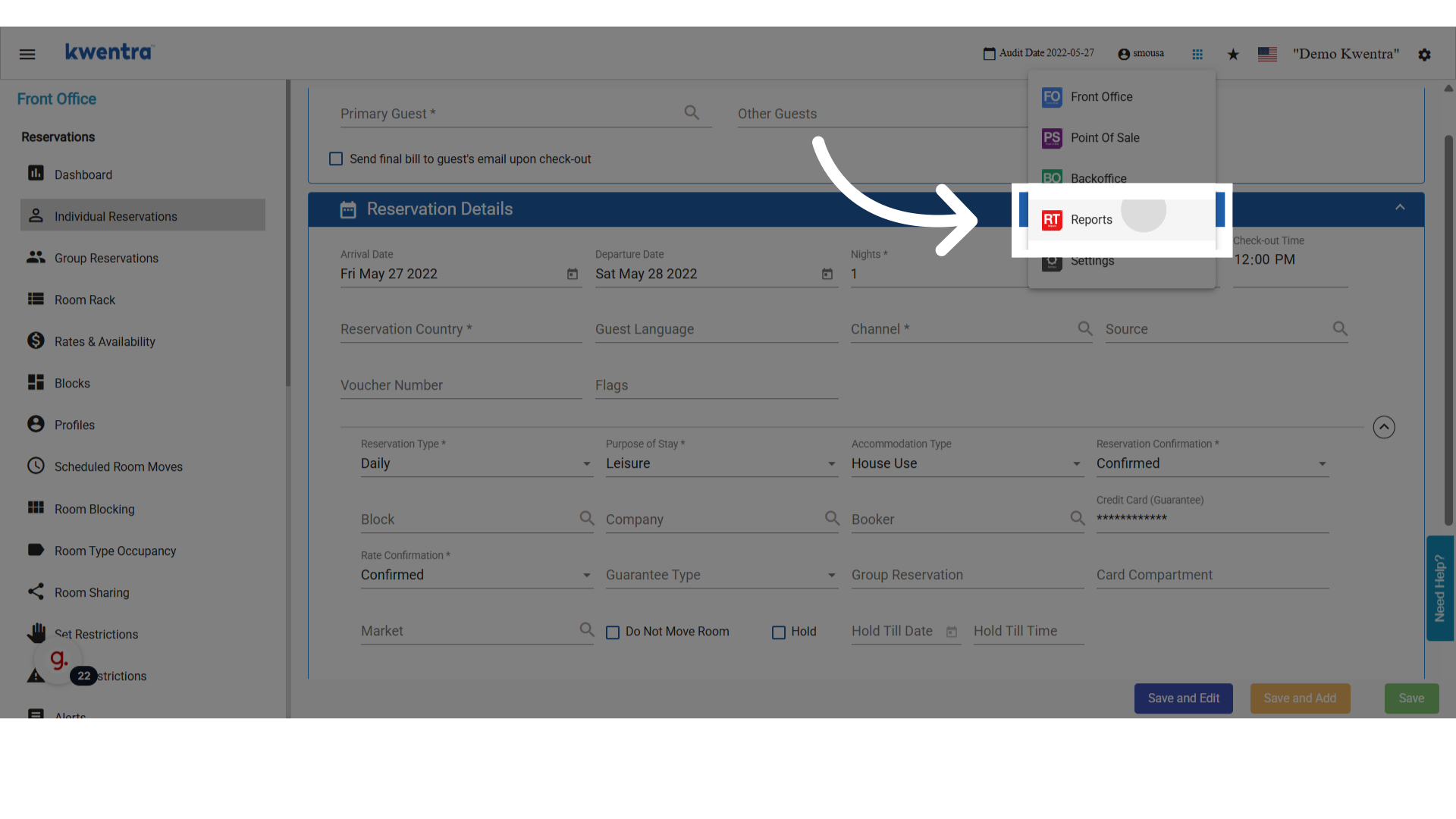
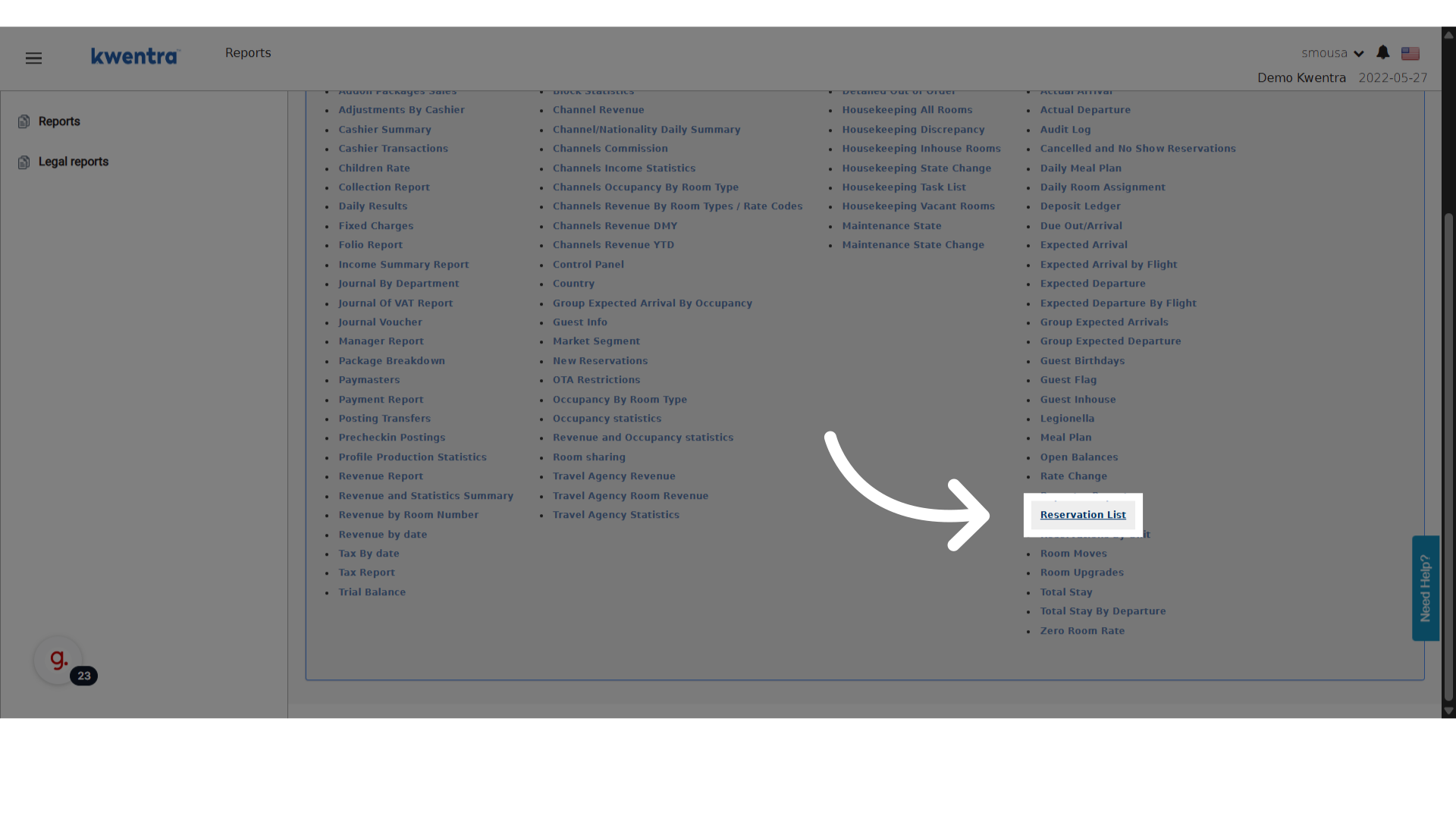
Go to Modules → Reports → Reservation List.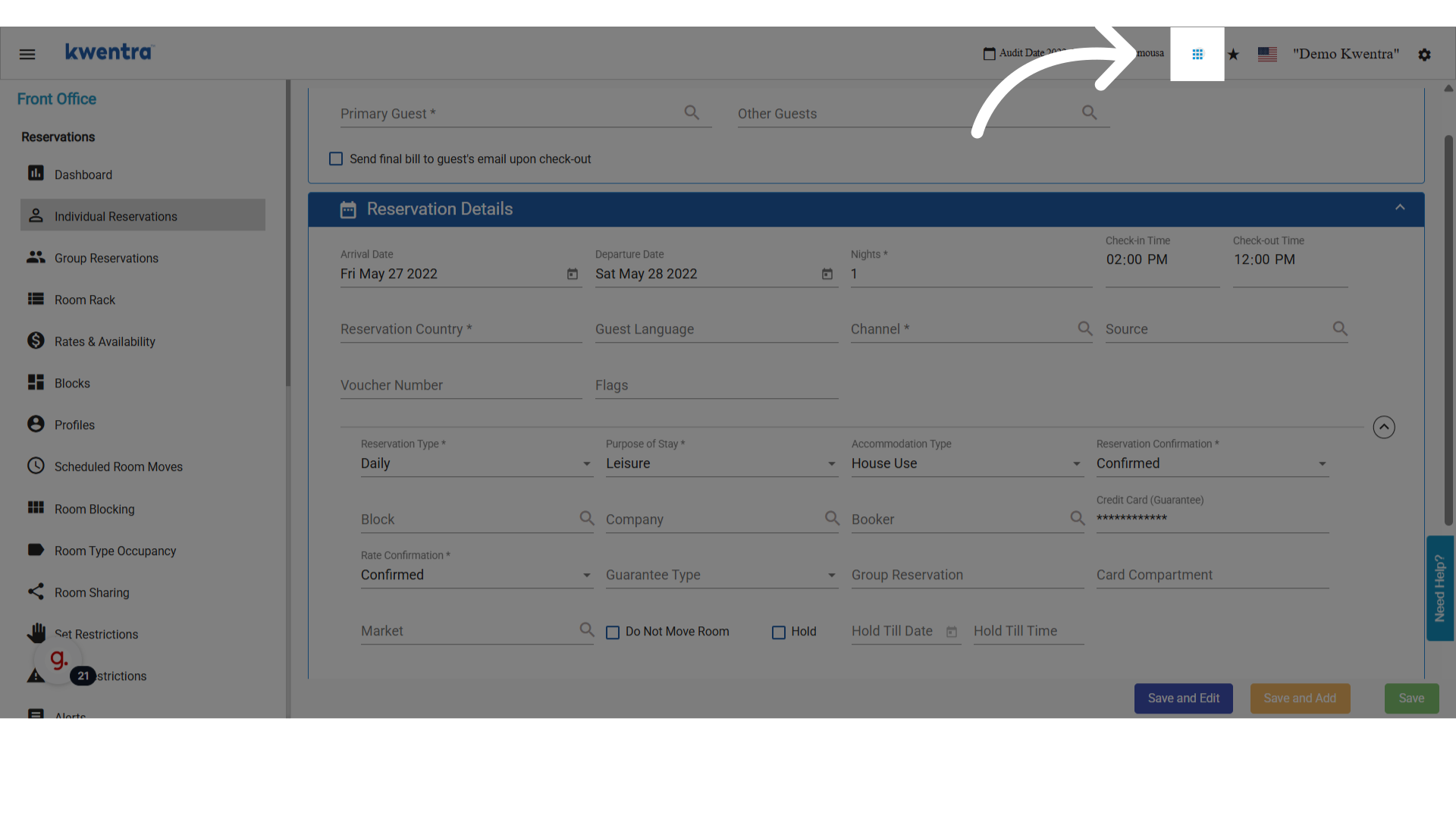
-
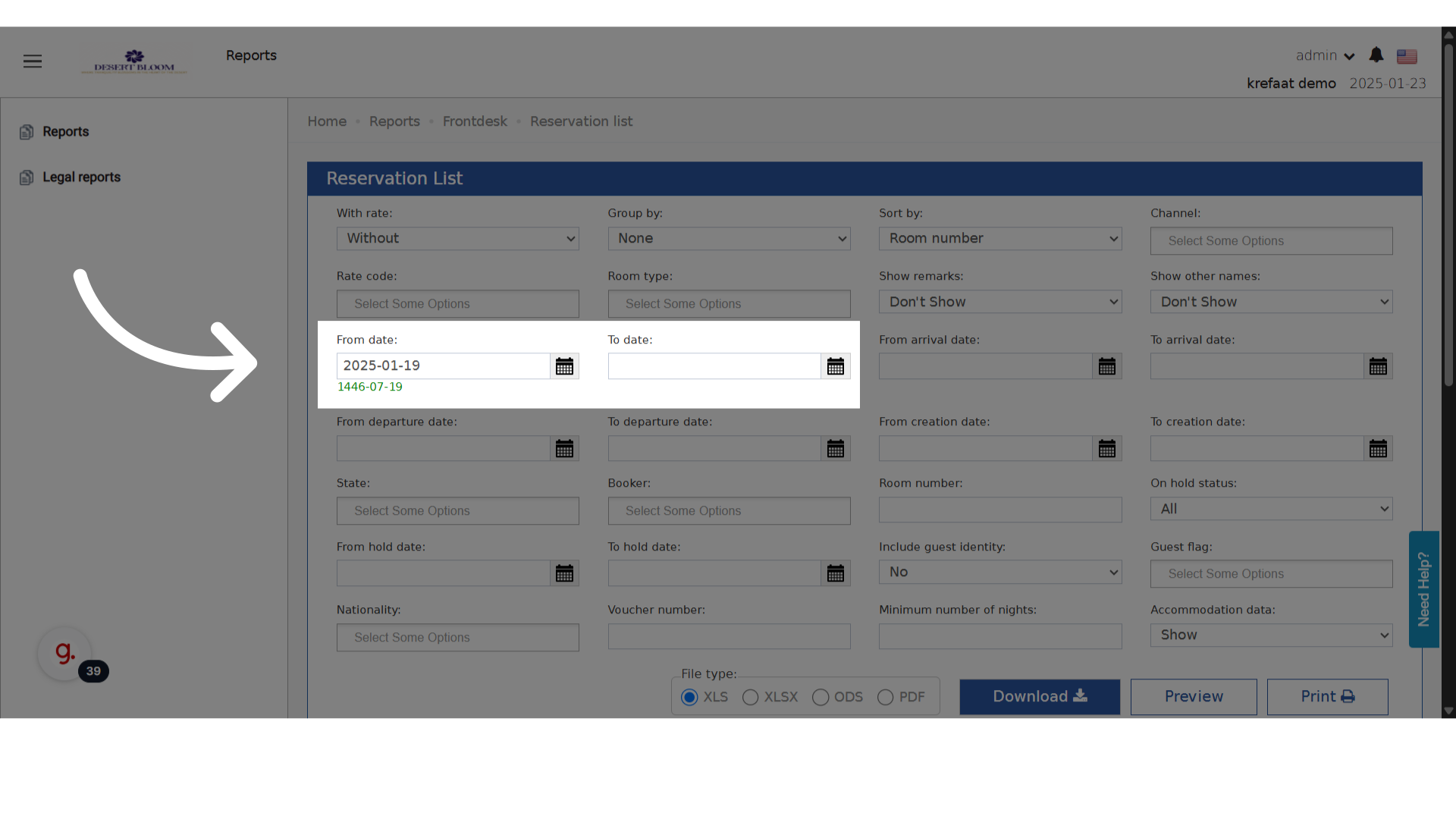
Choose your date range.
-
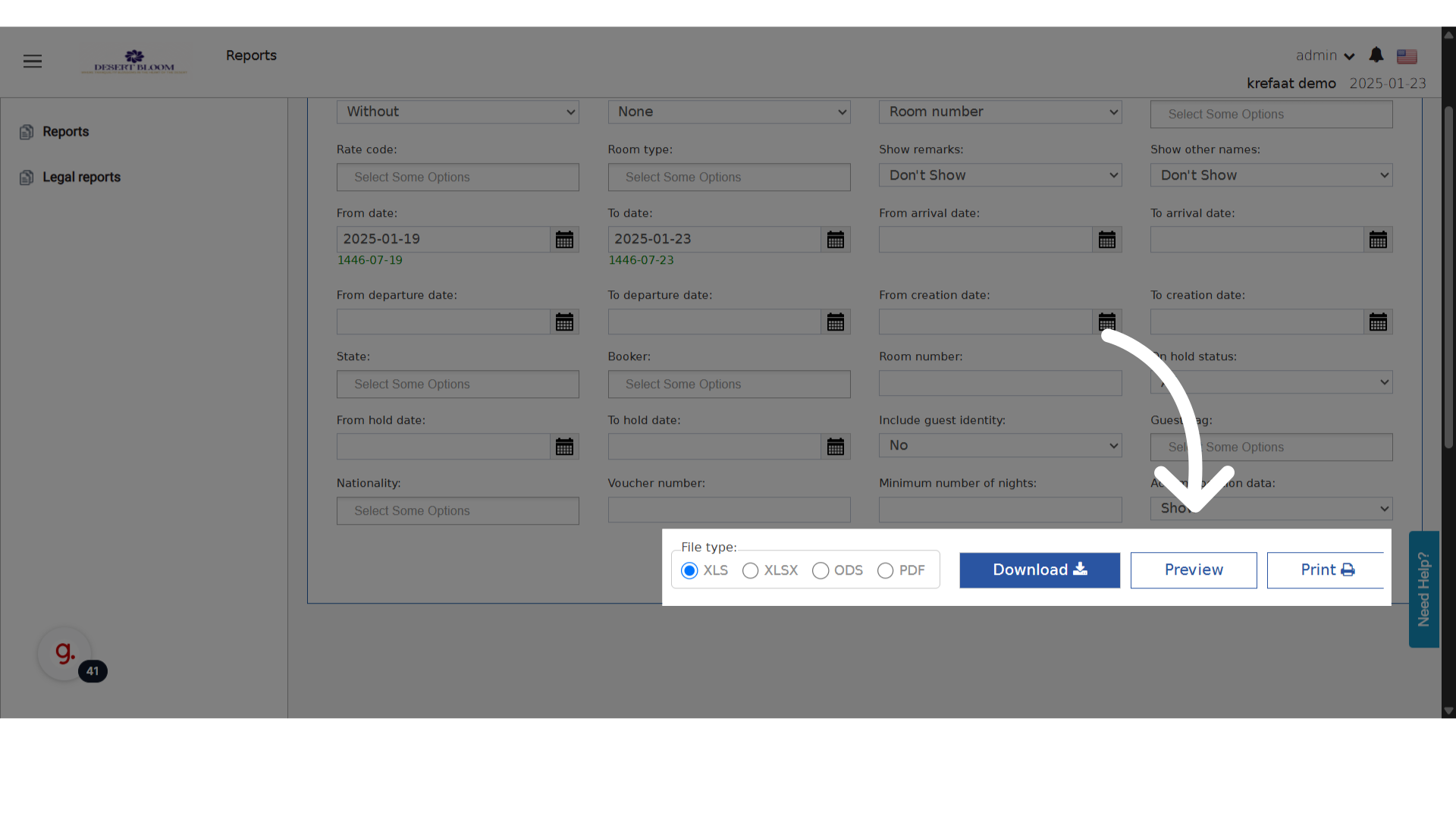
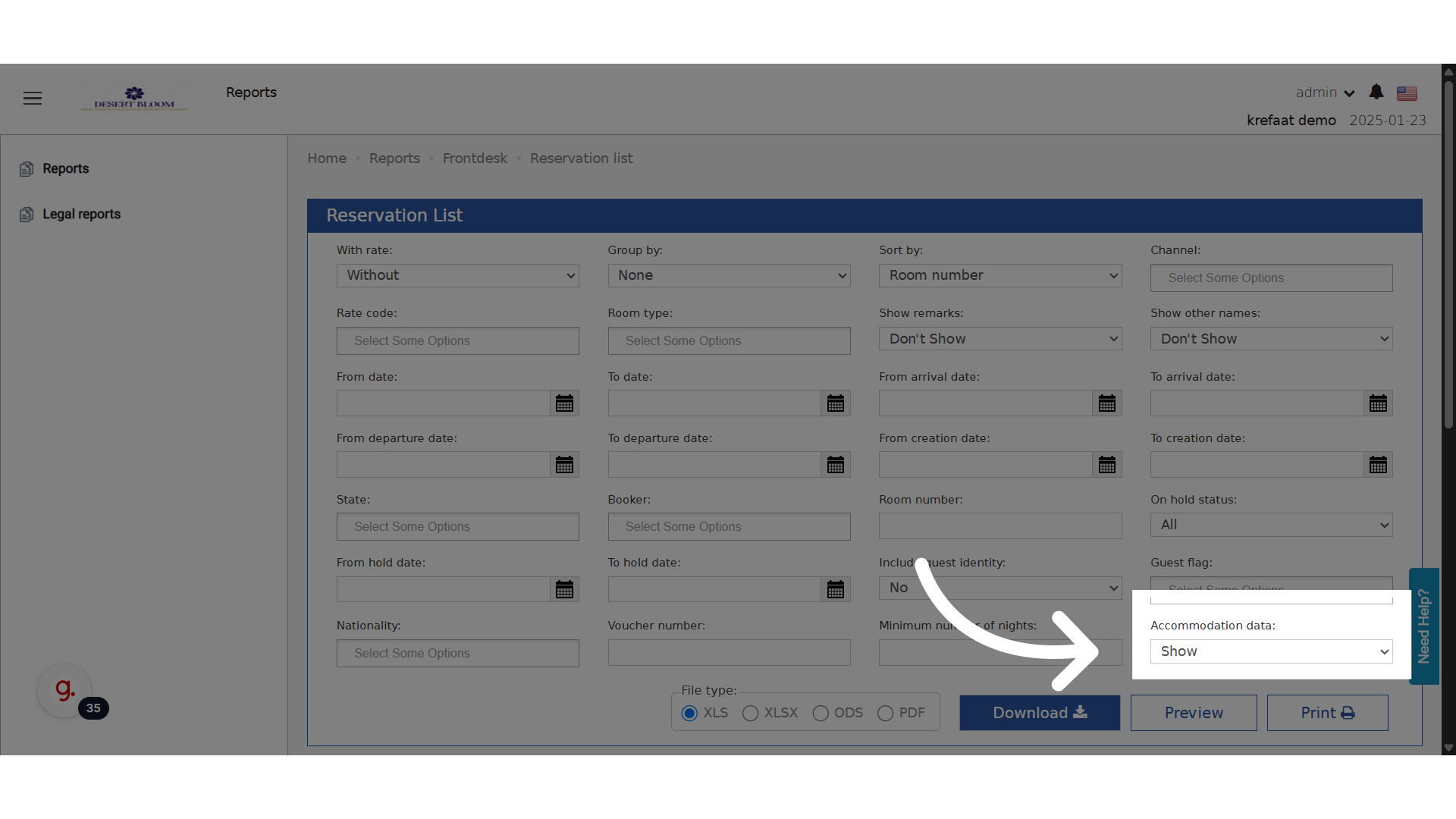
Enable Show Accommodation Data.
-
Generate the report preview.