

Business Value
- Speeds up guest communication by sending confirmation links instantly via WhatsApp.
- Reduces manual steps — no need to copy links and open WhatsApp separately.
- Validates and auto-corrects guest mobile numbers based on country code before sending.
- Supports custom confirmation templates, ensuring guests receive a branded confirmation.
- Works for both individual and group reservations from a single consistent flow.
Use Cases
- Front desk agent shares the confirmation link via WhatsApp after a reservation is made — the guest receives it instantly on their phone.
- Reservations manager copies the public confirmation link to paste into an email or messaging platform.
- Group coordinator enters the group contact’s mobile number to send the confirmation link for a group booking.
How It Works
| Where: Front Office → Individual Reservations → Select Reservation → Print → Confirmation |
|---|
| Also available at: Front Office → Group Reservations → Select Reservation → Confirmation |
|---|
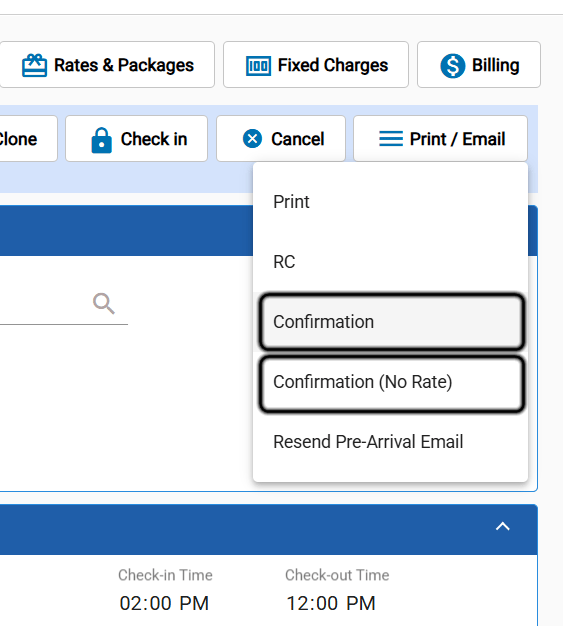
Copy Public Link
Click Copy Public Link to copy the confirmation’s public URL to your clipboard. You can then paste it into any channel — email, chat, or SMS.Share Via WhatsApp
Click Share Via WhatsApp to open a WhatsApp message pre-addressed to the guest’s mobile number with the confirmation link as the message text.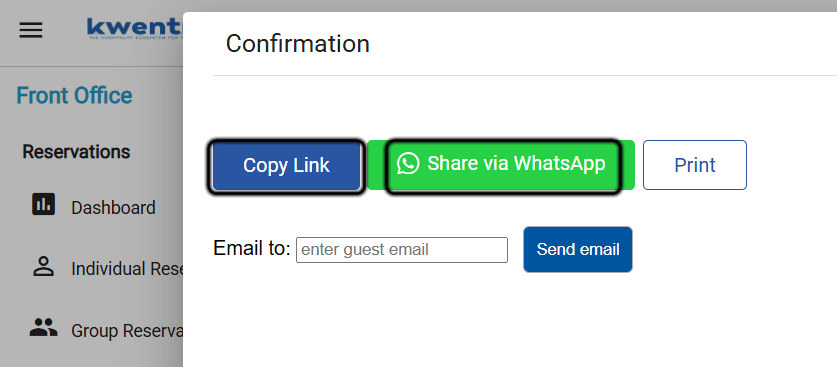
- If the guest profile has a Mobile number → uses it directly.
- If Mobile is empty → falls back to the Telephone field.
- If both are empty → displays a prompt with a Mobile Number field and a Save & Send button. Enter the number and click Save & Send to save it to the guest profile and send.
| Number format | Action |
|---|---|
Starts with 00 | Replaced with + (e.g., 0020 → +20) |
| Starts with a digit (no country code) | Country code added based on the guest’s nationality |
Starts with + | Used as-is |
| Note: If the instance has a custom confirmation template, the shared public link renders that custom template for the guest. |
|---|