Documentation Index

Fetch the complete documentation index at: https://help.kwentra.com/llms.txt

Use this file to discover all available pages before exploring further.

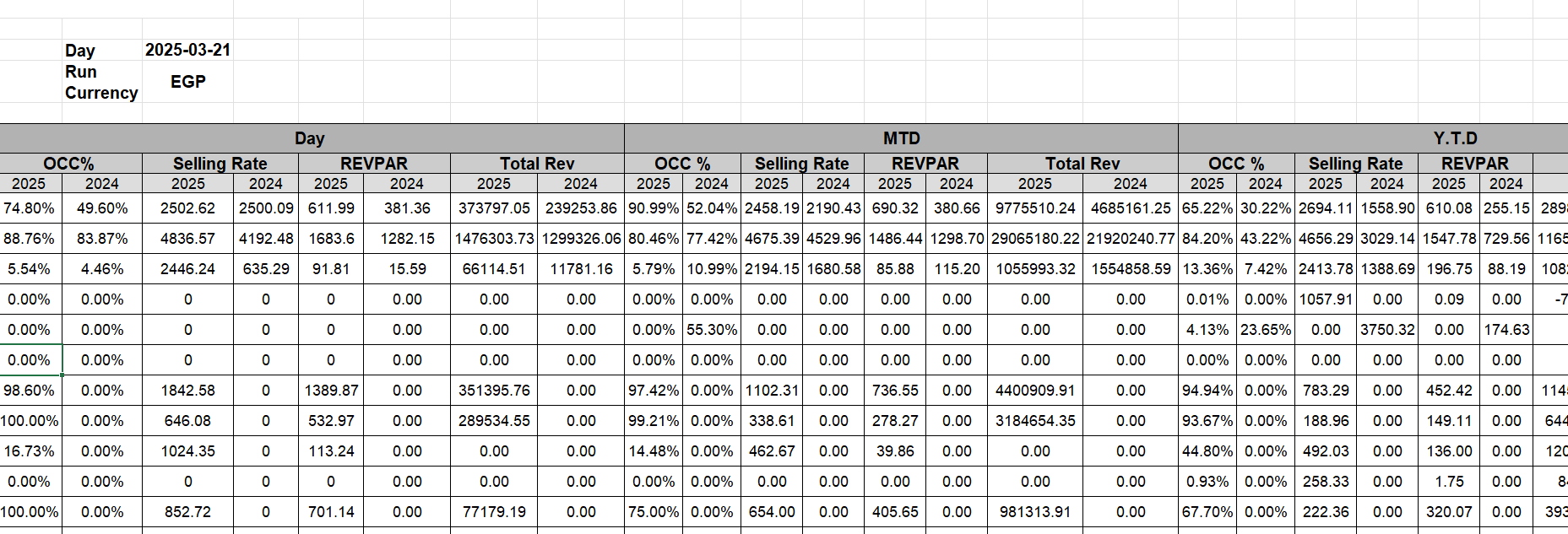
The Performance Report now includes Selling Rate alongside OCC%, TREVPAR, and Total Rev for a complete revenue picture. Business Value
  • See Selling Rate per property for Day, MTD, and YTD at a glance.
  • Compare current year vs. previous year Selling Rate directly in the report.
  • Total row aggregates Selling Rate across all accessible properties automatically.
  • No manual calculation — Selling Rate is computed from actual room nights.
  • Make faster rate decisions with a complete set of revenue KPIs.
Use Cases
  • Revenue manager opens the Performance Report and sees Selling Rate alongside OCC%, TREVPAR, and Total Rev for each property.
  • GM compares this month’s Selling Rate (CY vs PY) to measure rate performance against the same period last year.
  • Multi-property owner reviews the Total row to see aggregated Selling Rate across all properties in one view.
How It Works
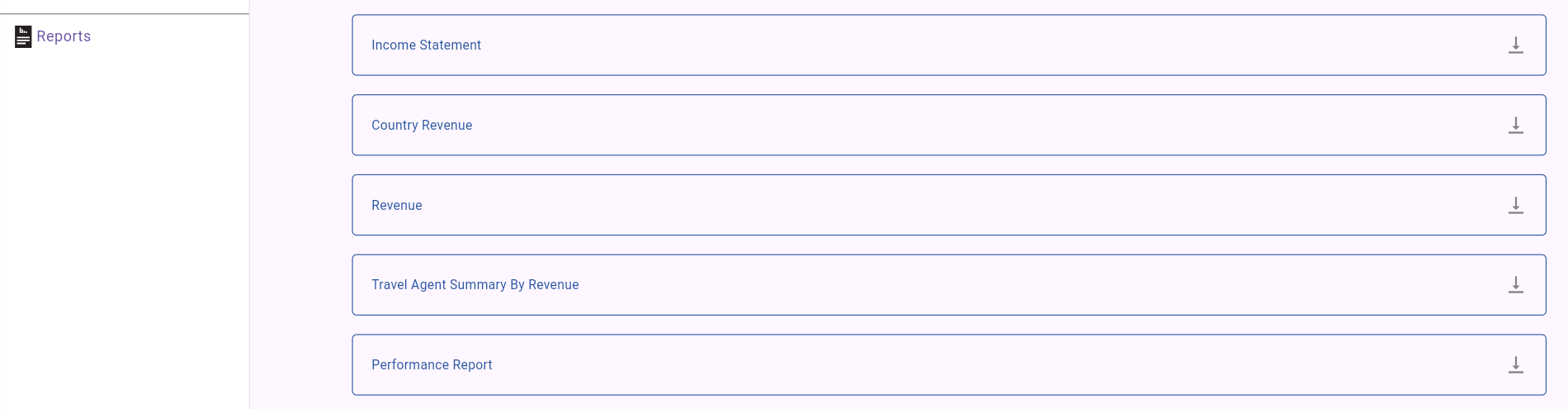
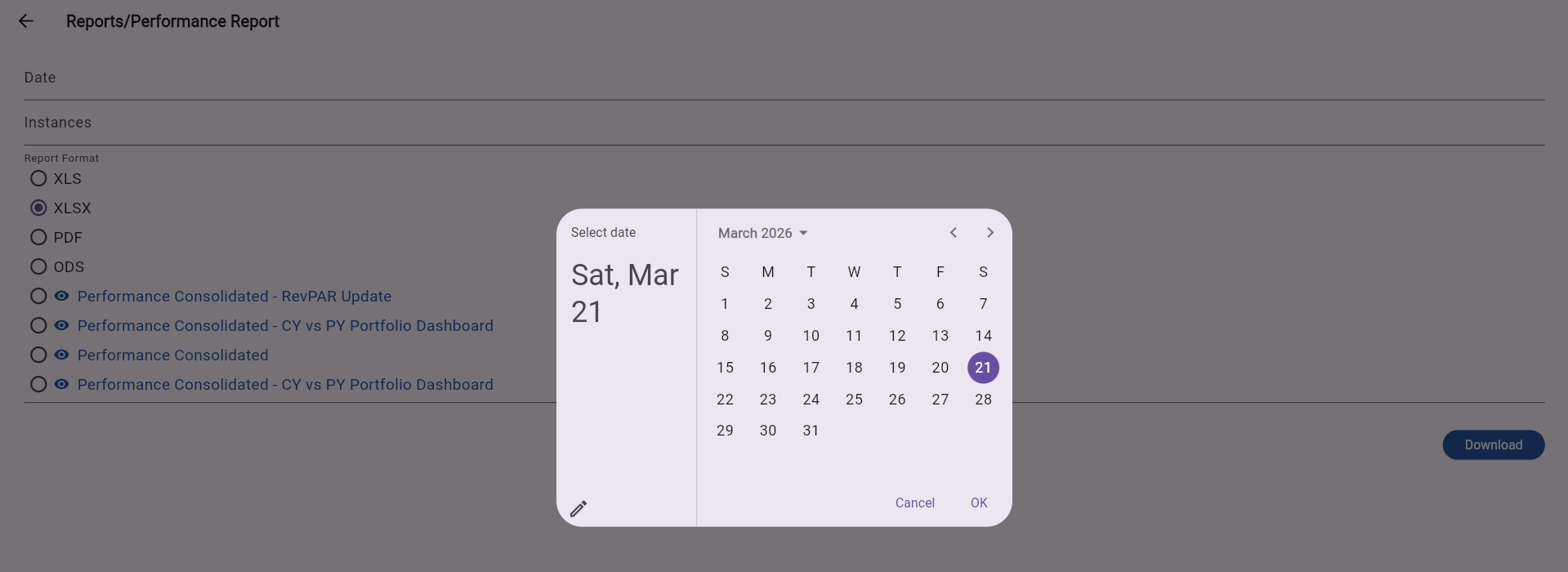
Where: Insights App → Reports → Performance Report Dashboard → Reports → Performance Report
The Performance Report now displays four KPIs: OCC%, TREVPAR, Total Rev, and Selling Rate. The report is organized into three time periods:
  • Day — today vs. the same day last year.
  • MTD (Month to Date) — current month vs. the same month last year.
  • YTD (Year to Date) — current year vs. the same year last year.
Each KPI shows CY (Current Year) and PY (Previous Year) values per property, with a Total row at the bottom that aggregates across all properties the user has access to. How Selling Rate Is Calculated
Selling Rate Formula: Selling Rate = Total Gross Rate Amount (packages + room rate) ÷ Occupied Room Nights • Includes reservations in Expected, Checked In, or Checked Out status only. • The Total row aggregates Selling Rate across all properties the logged-in user can access.
Report Example