

- Remove items added by mistake before submission — no void trace, no invoice clutter.
- Cancel previously submitted items without forcing an immediate invoice submission.
- Full control over the void process — nothing is auto-submitted, you decide when to submit.
- Waste, Discount %, and Discount Amount actions are limited to a single item for accuracy.
- Waiter adds the wrong dish before submitting — they void it and it disappears completely from the order, no void line left behind.
- Cashier needs to cancel a submitted item — a void line is created and held until they tap Submit, keeping control over when the kitchen receives the cancellation.
- Supervisor tries to apply a waste action on two items at once — the system blocks the action and requires selecting a single item.
- Select one or more items on the cashiering screen.
- Tap Void.
If the Item Was Not Yet Submitted
- The item is removed from the order immediately — no trace, no void line.
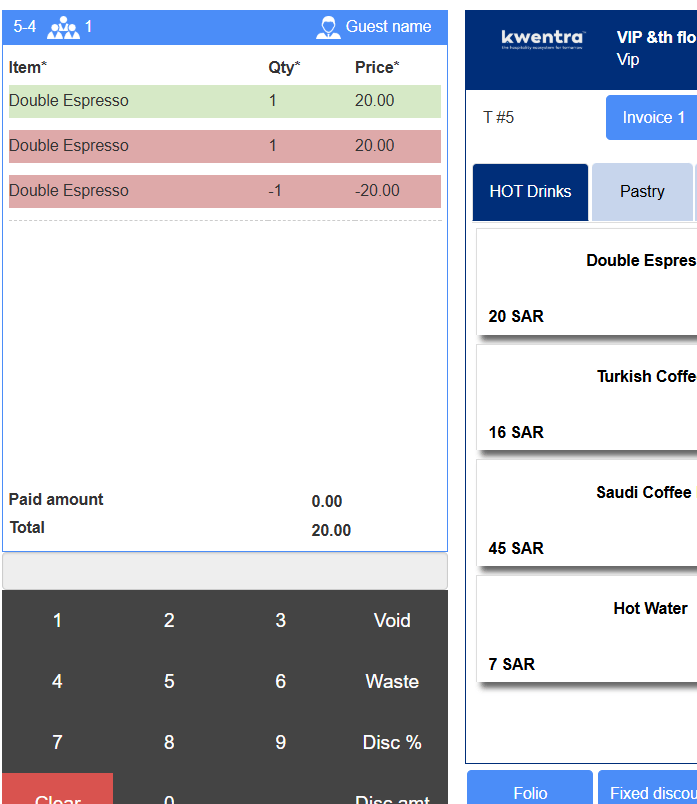
- A void line is added directly after the voided item.
- Both the voided item and the void line are shown with a reddish background so they stand out clearly.
- The void line is NOT submitted automatically — it is sent only when you tap Submit.
Single-Item Restriction for Waste, Discount %, and Discount Amount
The following actions are only allowed when exactly one item is selected:
- Waste
- Discount %
- Discount Amount