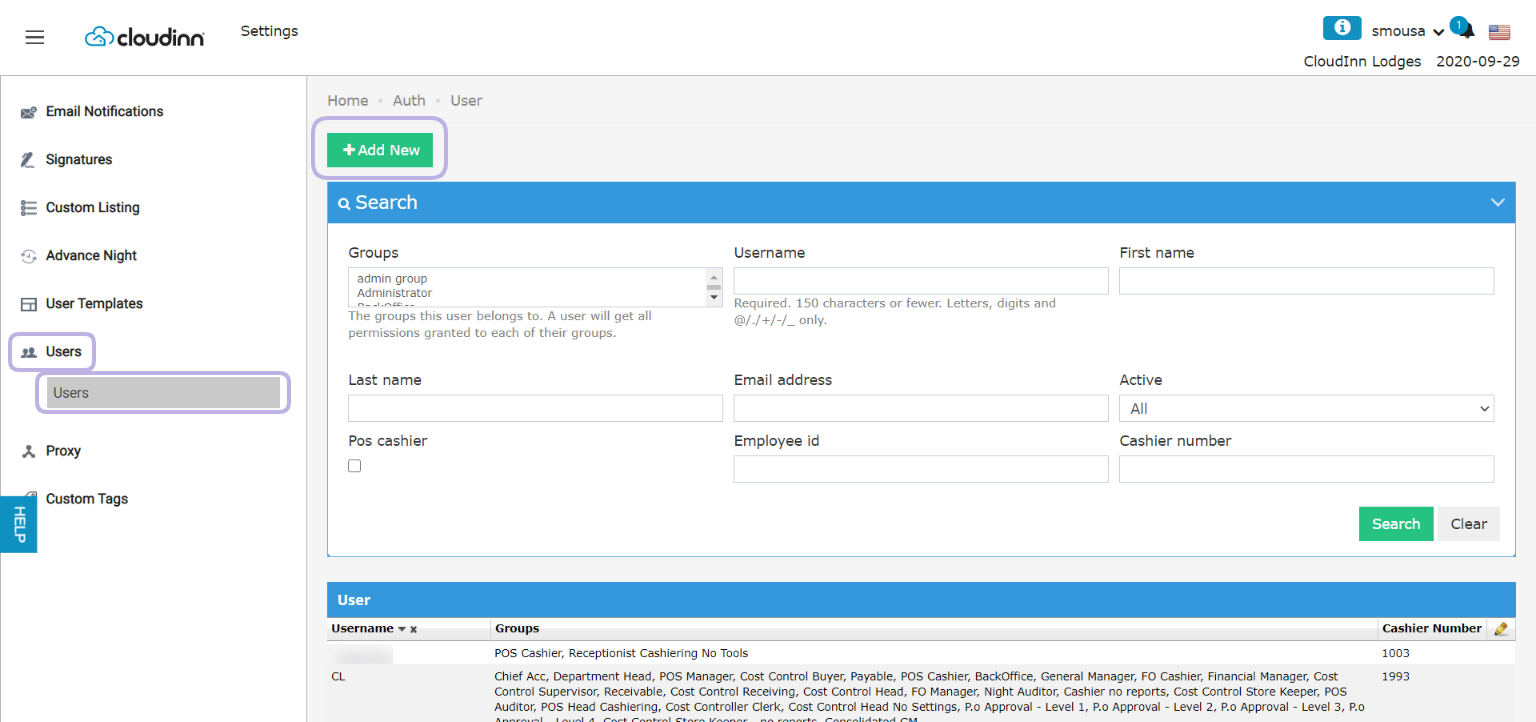
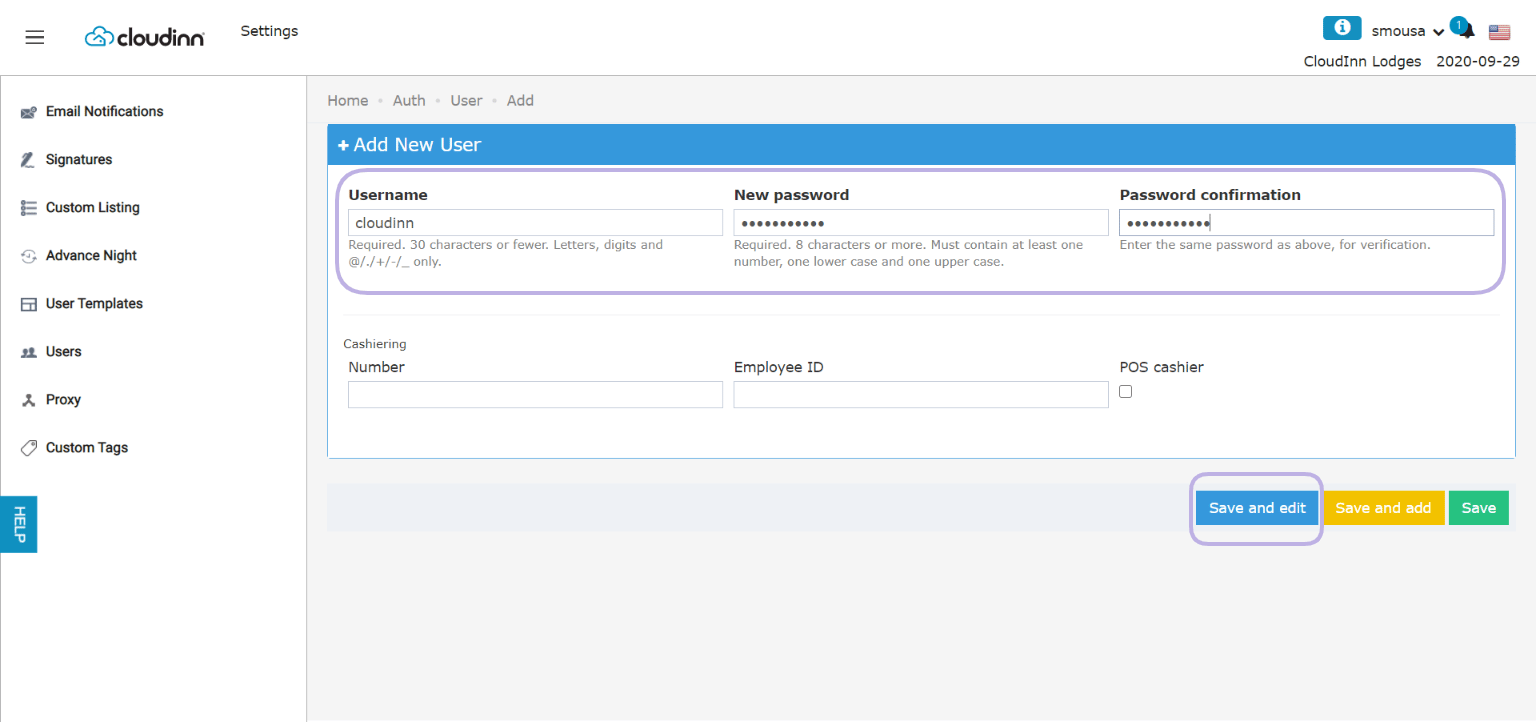
- Username: to provide to your new user to log in.
- New Password: 8 characters long, must contain 1 number, 1 lower case letter and 1 upper case letter.
- Password Confirmation: match the password and confirmation identically.
- Click Save and Edit.
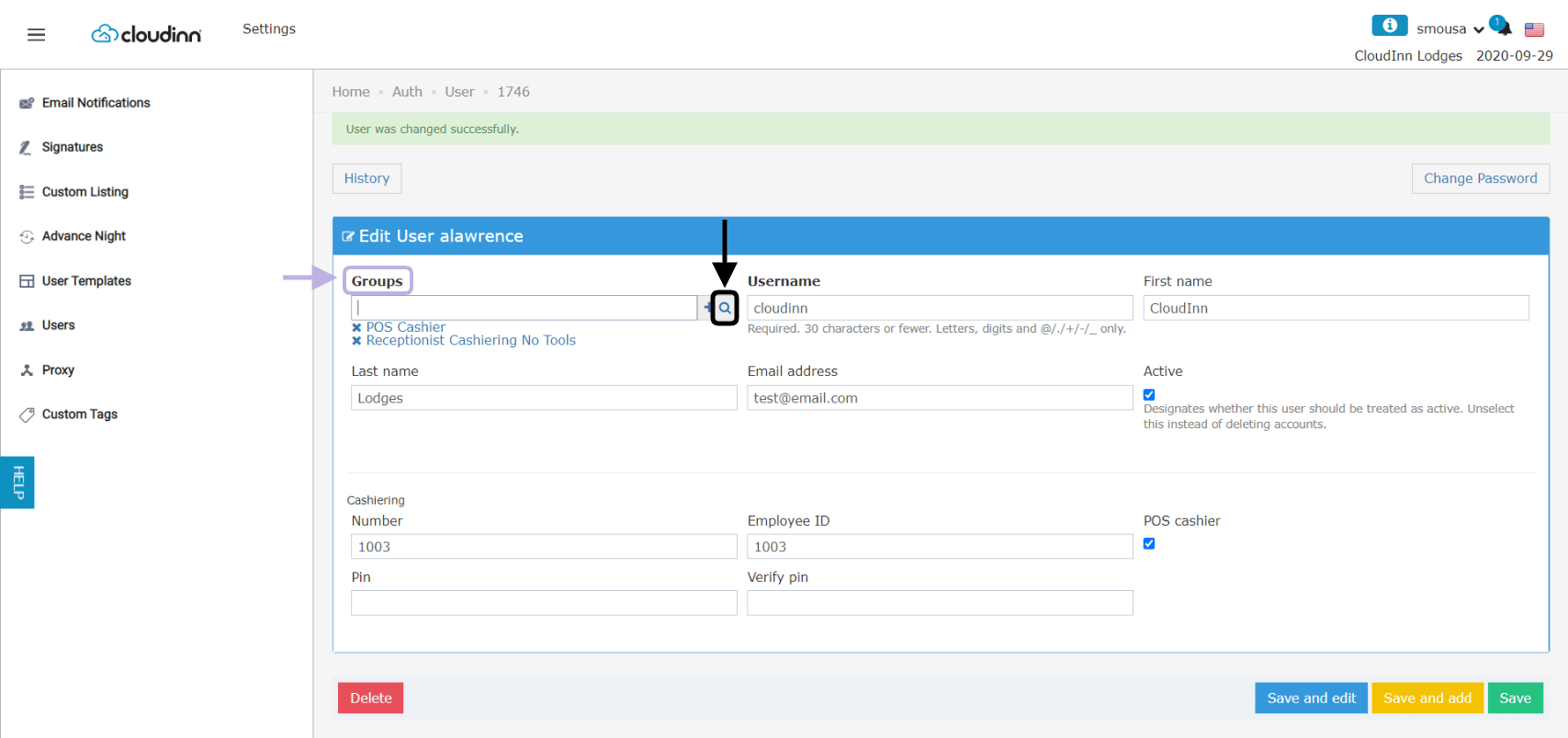
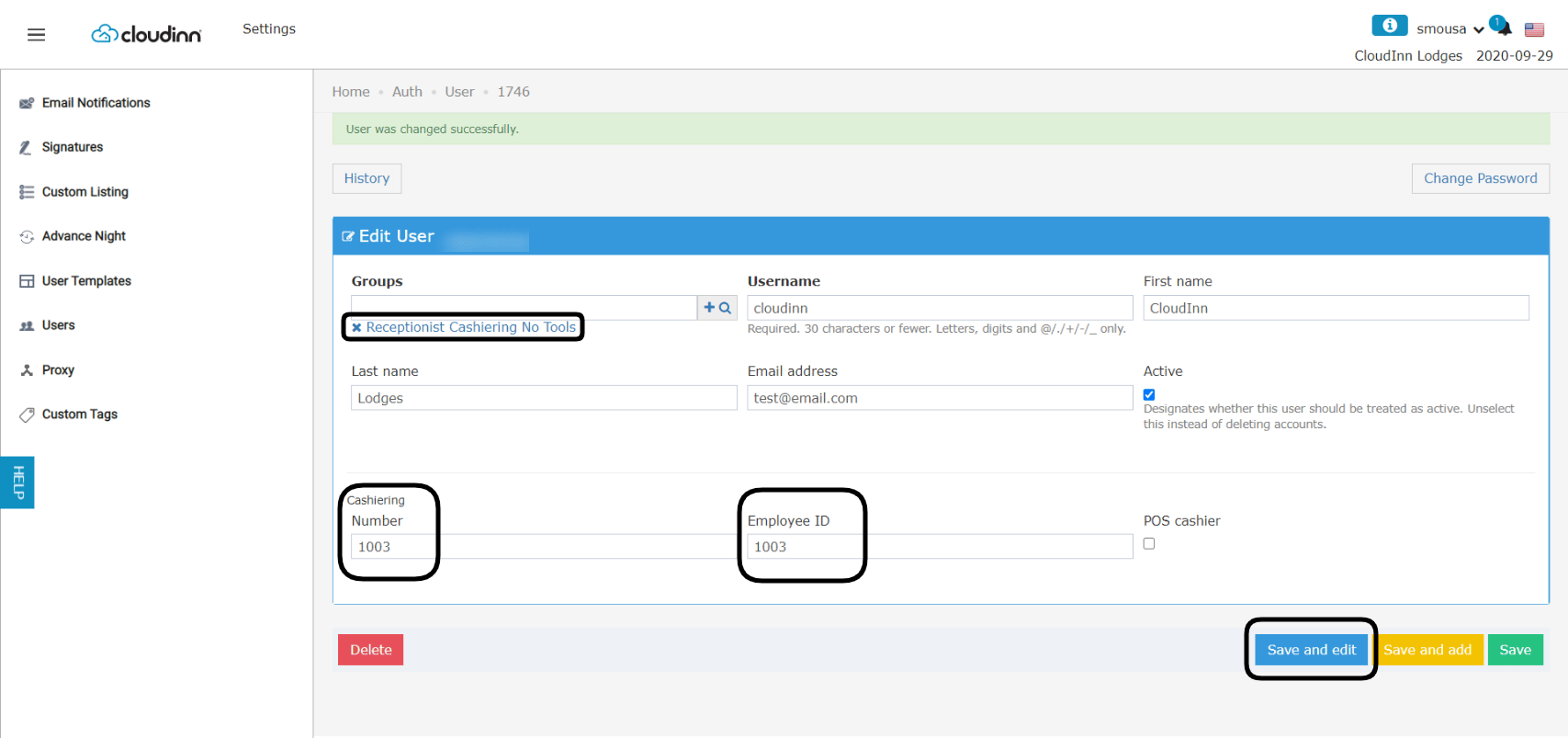
- First, you need to make sure the user is given the correct user groups for cashiers i.e. FO Cashier, Receptionist Cashiering.
- In order for a user to have a cashier access, user should have a cashier number “cash drawer number”.
- Click Save and edit.
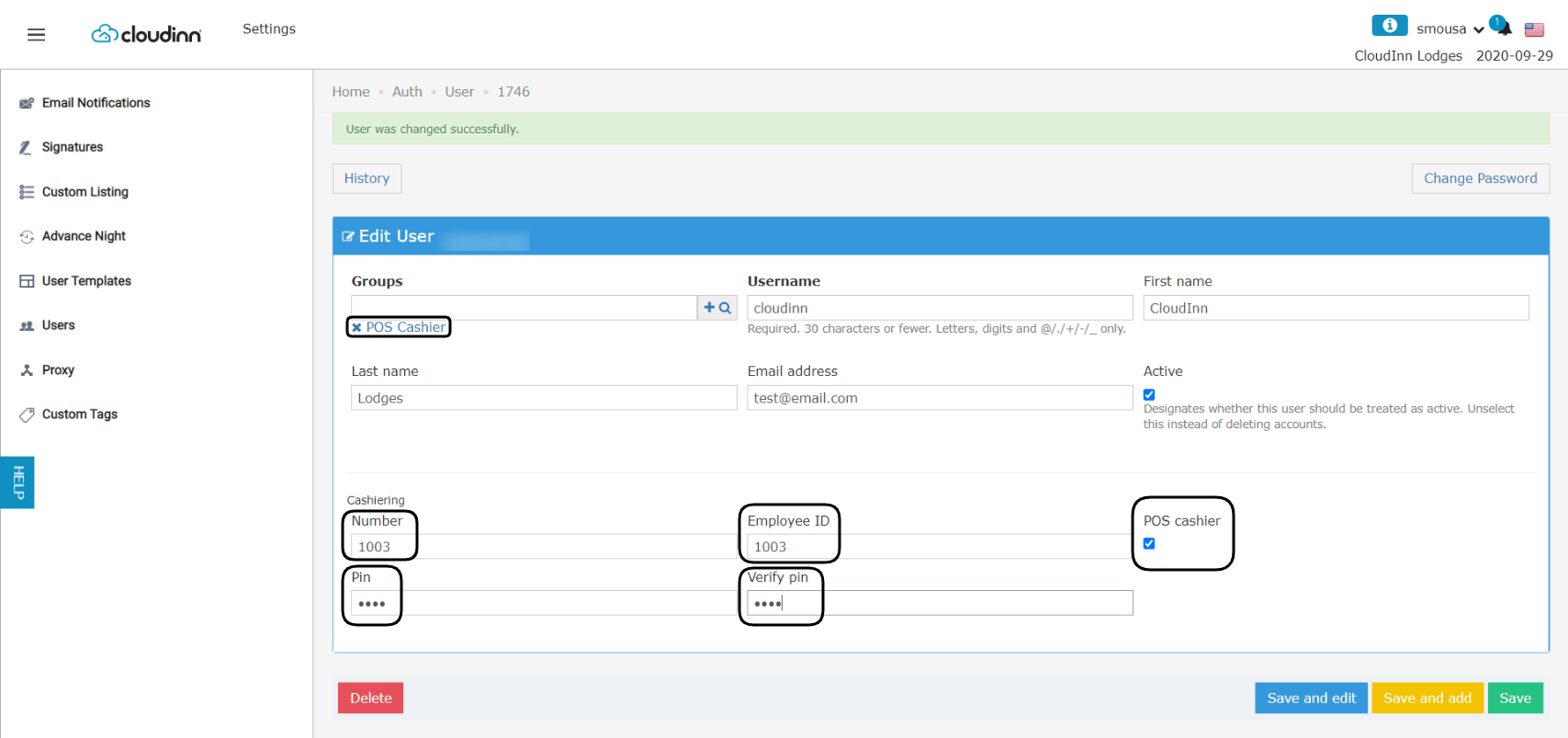
- First, you need to make sure the user is given the correct user groups for POS cashiers i.e. POS Cashier.
- In order for a user to have a cashier access, user should have a cashier number “cash drawer number”.
- POS Cashier check box should be checked.
- POS Cashier PIN is a 4 digit code that can be changed for the user from here.
- Click Save and edit.
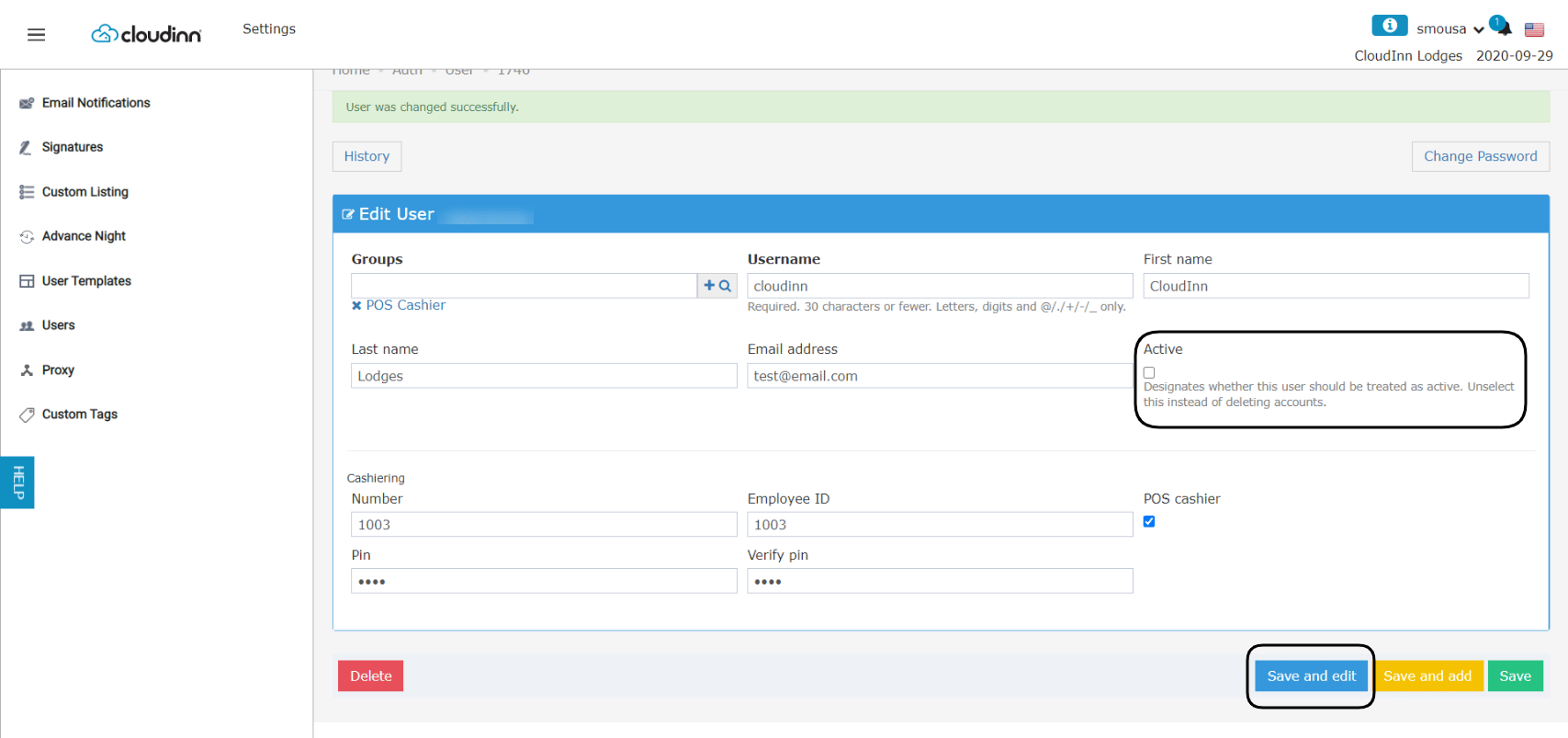
- Unmark the Active Status.
- Click Save and edit.