

Business Value
- Splits a rate into room and package revenue, such as breakfast.
- Sells extras like airport transfers on top of the rate.
- Posts package charges only on the nights you choose.
- Prices a package as a percentage of the night’s rate, kept in step with rate changes.
Use Cases
- A revenue manager includes breakfast in a rate, so 20 of every 100 goes to breakfast revenue.
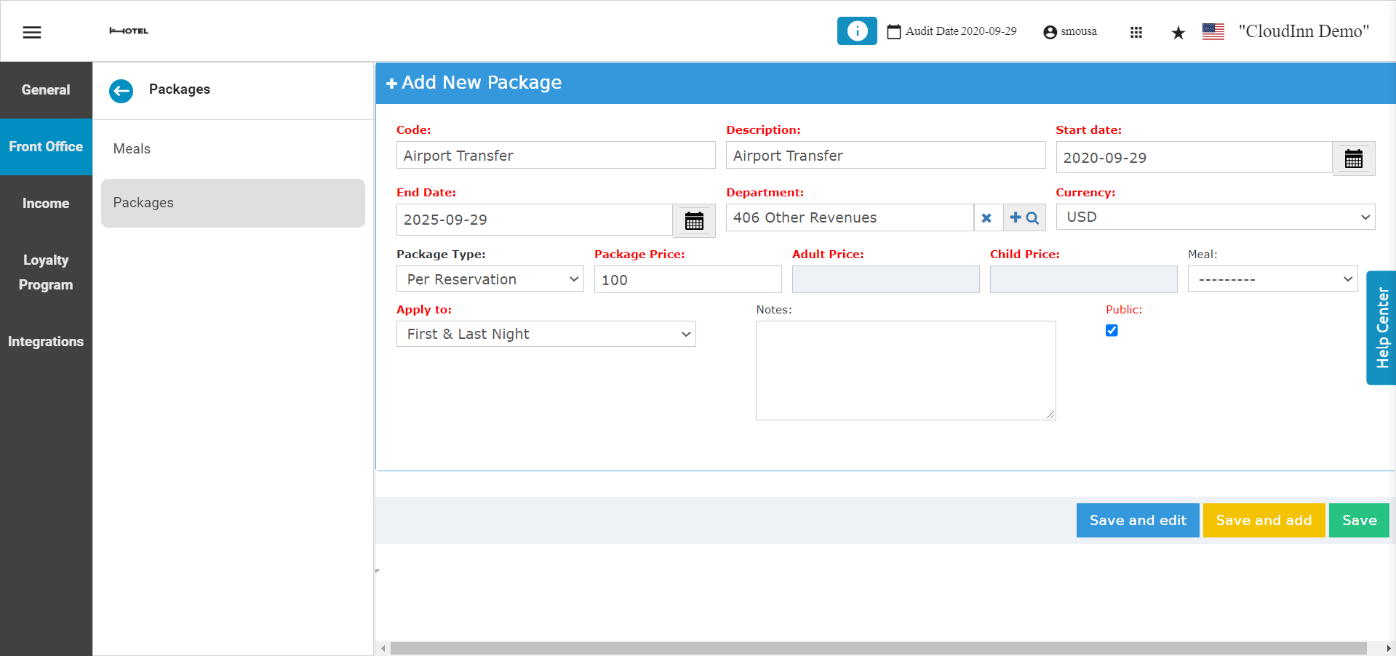
- A reservations agent sells an airport transfer as an add-on to any rate.
- A revenue manager sets a 7% service charge once, and every night is worked out from the rate.
How It Works
A package is separate from the rate. You add every package the same way, whether it is included in a rate or sold as an add-on.
Add a Package
The packages screen lets you Search for a package, click one to Edit it, or Add New.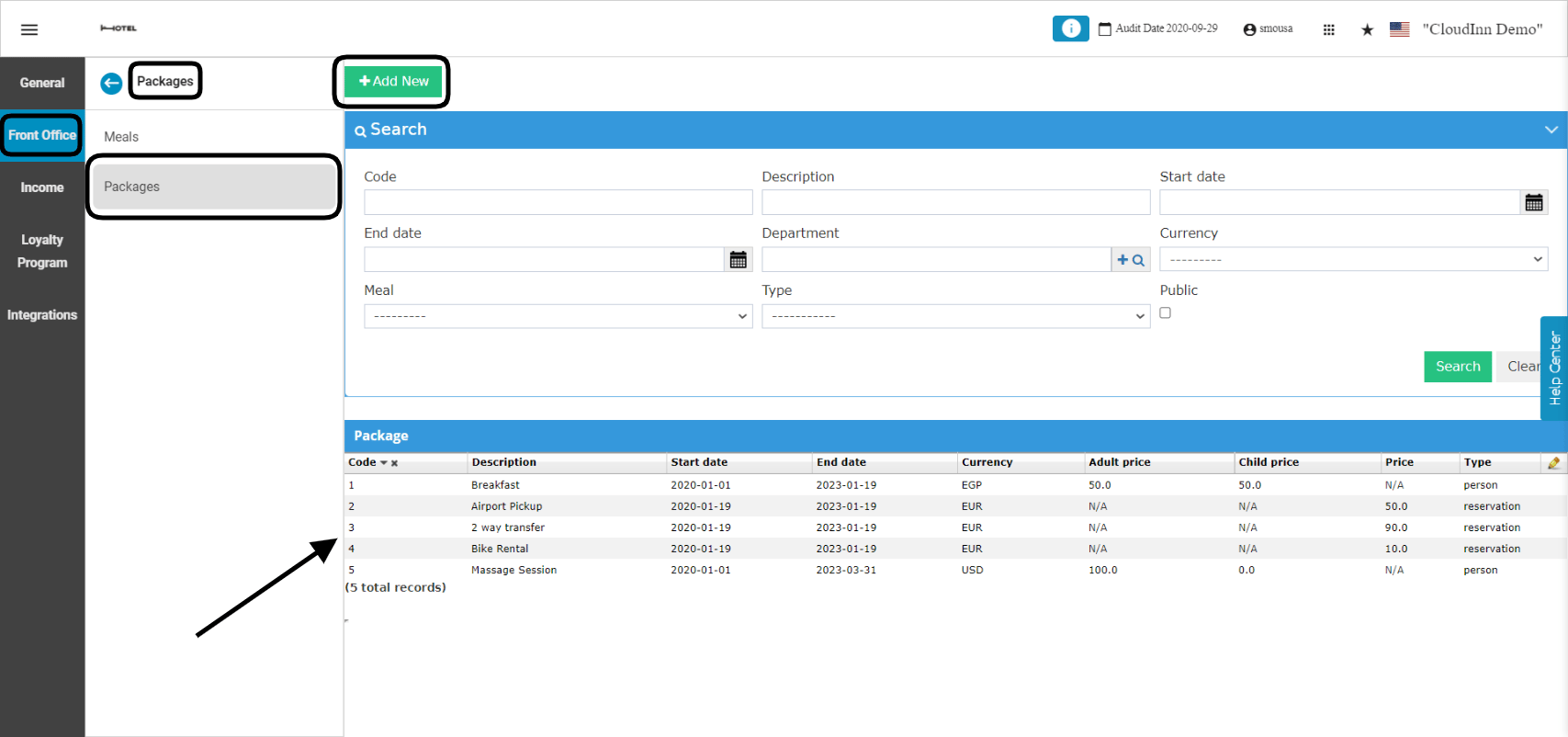
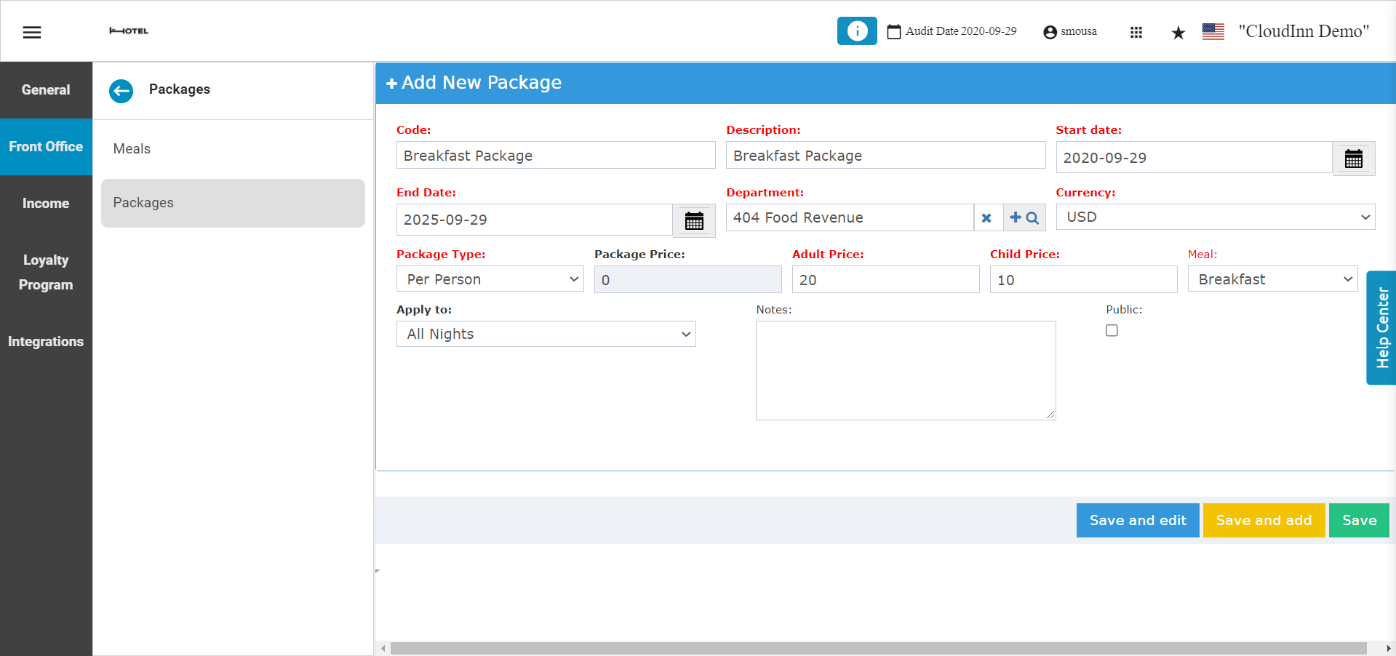
Example: a per person package on all nights:
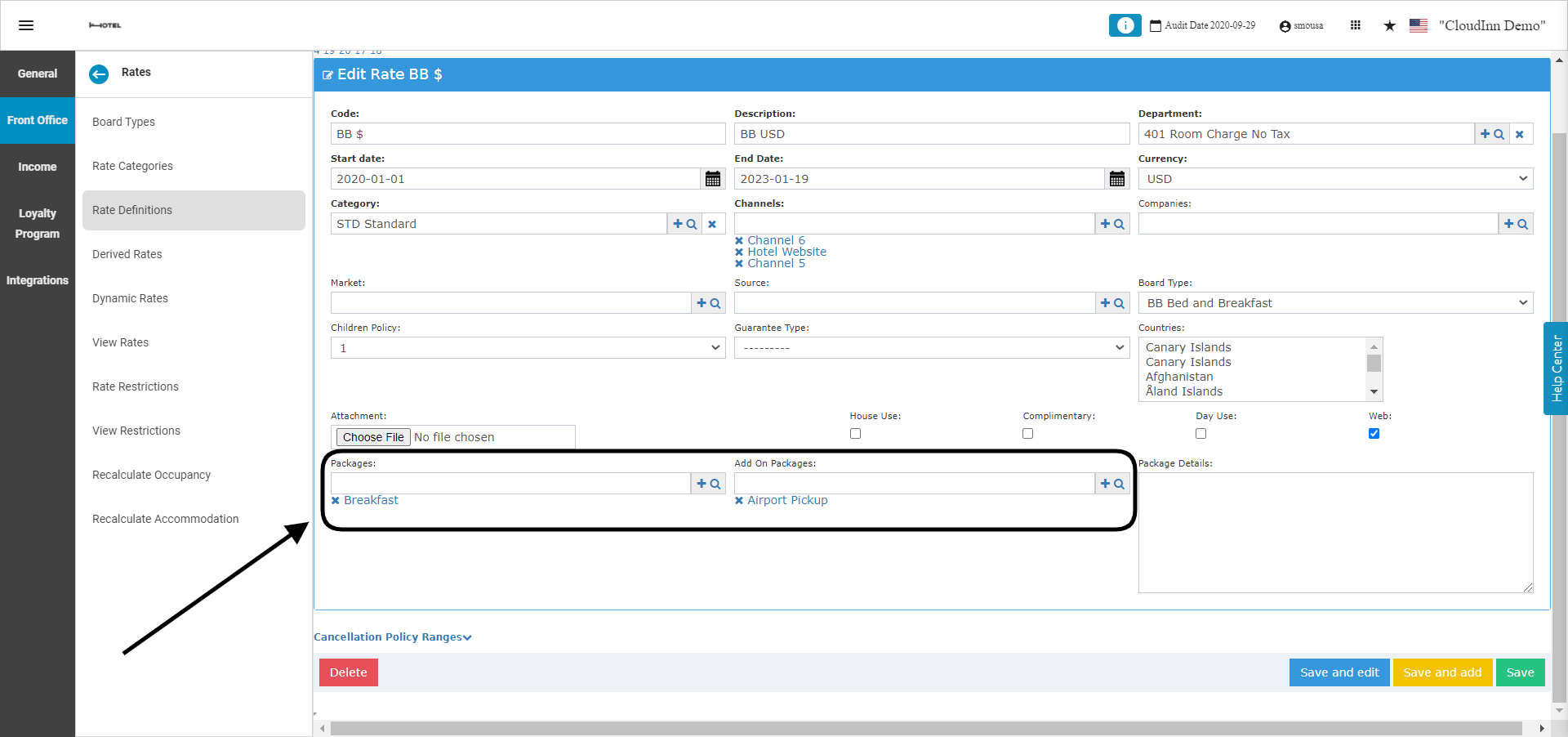
Link a Package to a Rate
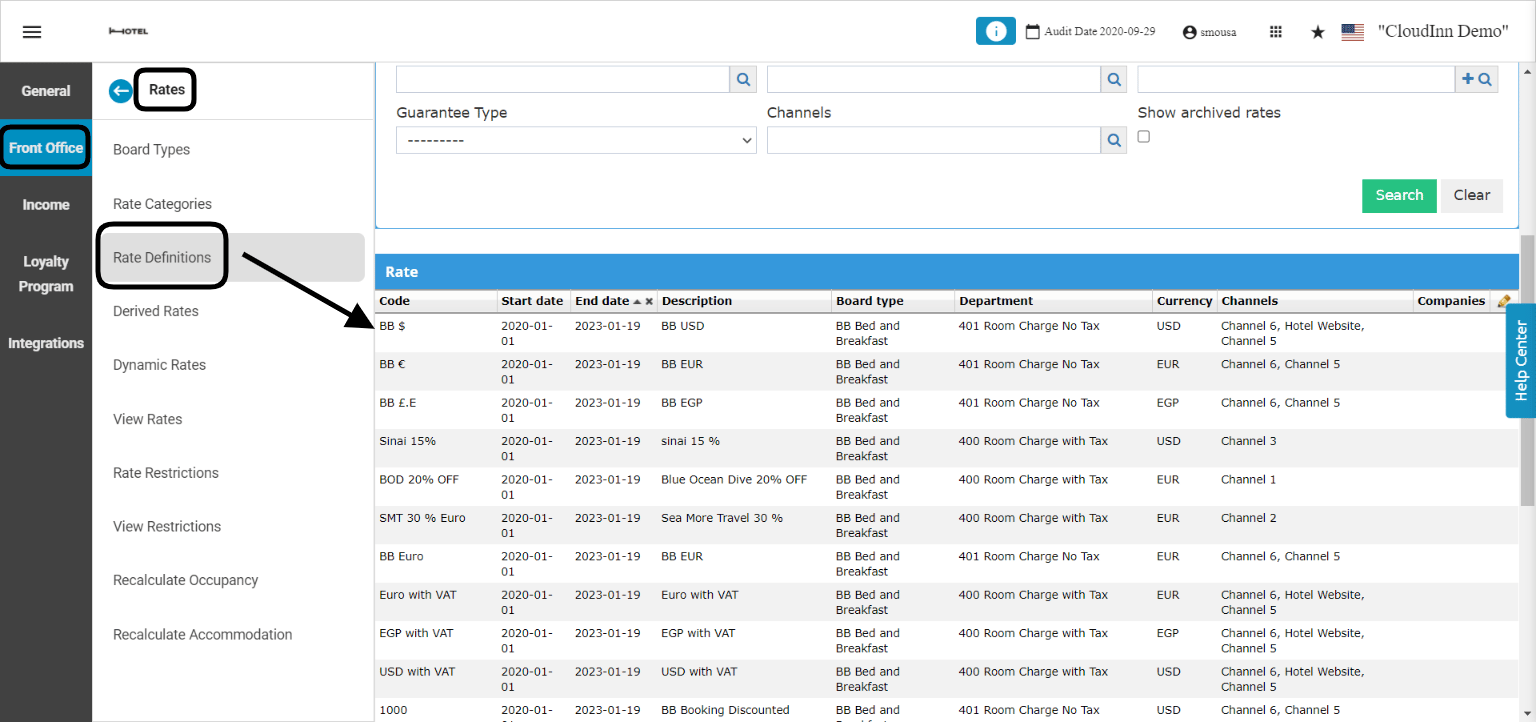
- Packages: included in the rate.
- Add On Packages: sold separately, on top of the rate.
Posting Rhythm
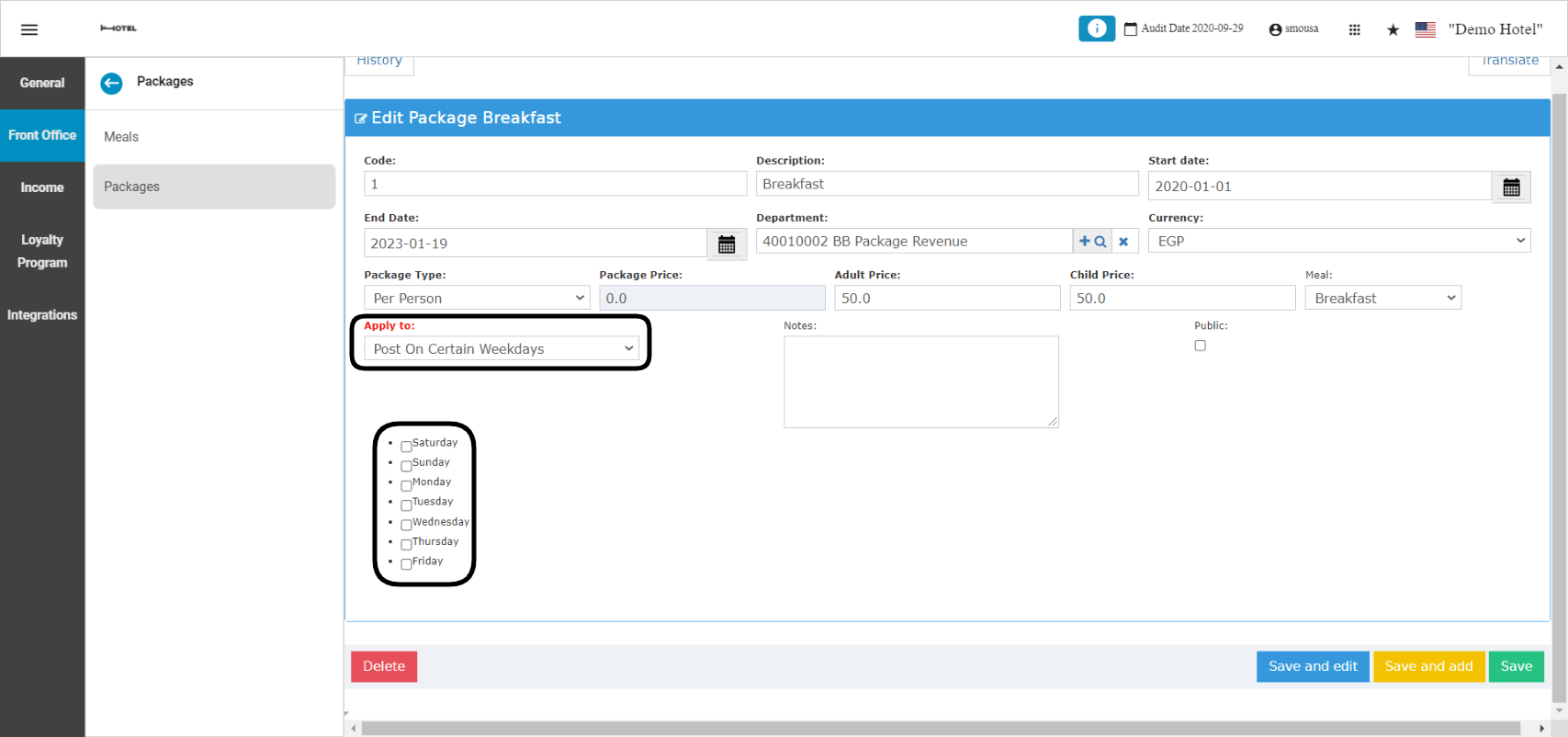
Apply to on a package sets which nights its charge posts on.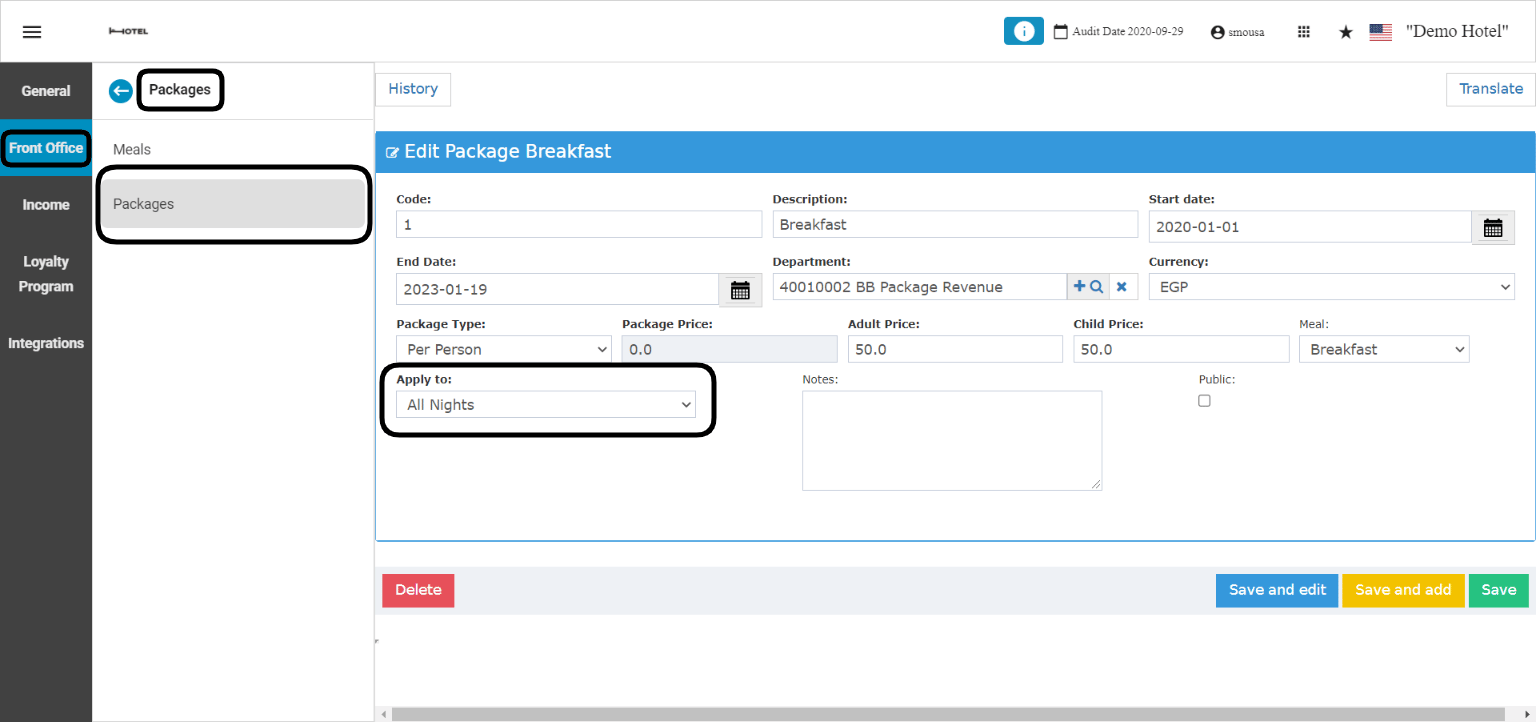
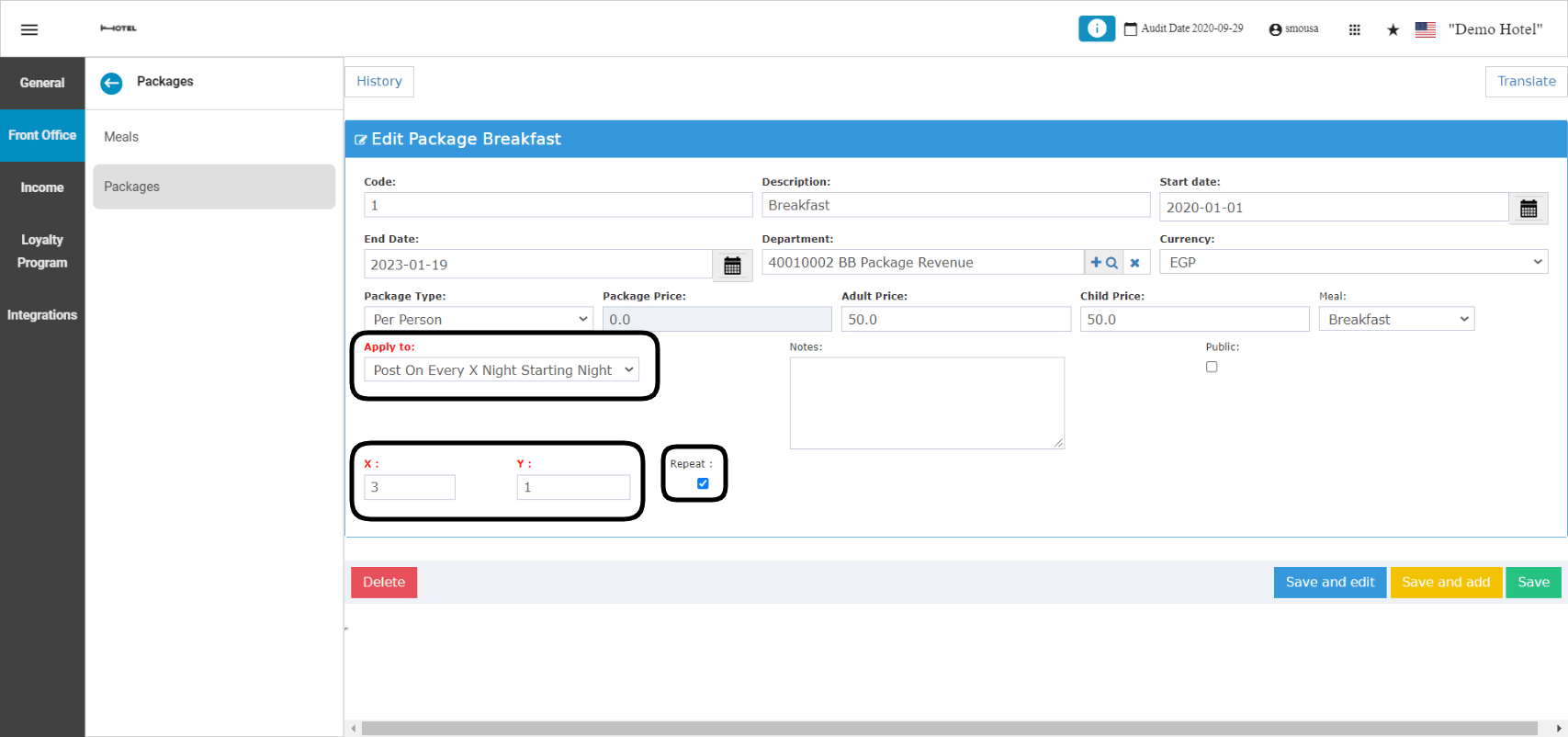
- Example: post every 3 nights, starting from night 1.
- Tick the repeat box to keep repeating it through the stay.
- Example: skip night 3, starting from night 1. The charge posts on every other night.
- Tick the repeat box to skip every 3 nights through the stay.
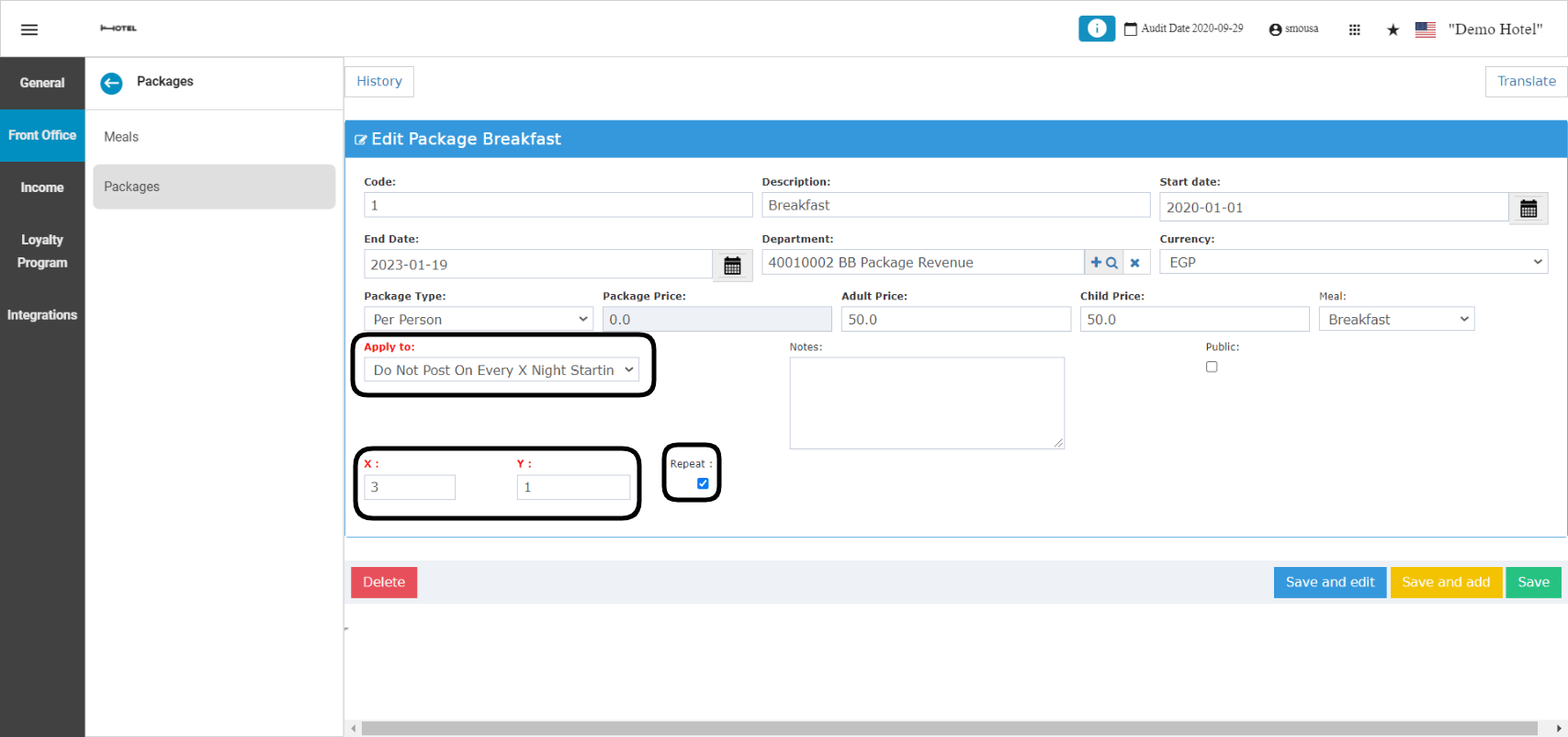
Pricing Types
- Per Person: Package Price is greyed out. You fill in Adult Price and Child Price.
- Per Reservation: Adult and Child Price are greyed out. You fill in Package Price.
- The default type for a new package is Per Person.
Per Person Percentage
The package amount is a percentage of the rate code’s nightly rate, set separately for adults and children.- Click Add New, or open a package.
- Set Package Type to Per Person Percentage.
- Adult Price and Child Price become Adult % and Child %. Both are required, from 0 to 100, decimals allowed.
- Click Save.
(Rate Amount × Adult Percentage × Number of Adults) + (Rate Amount × Child Percentage × Number of Charged Children)
- Rate Amount is the full nightly rate for that night’s occupancy. It already includes paid children.
- Only children marked as charged count. Free children never count.
- The amount posts on the night as an included package.
- The percentage is applied after any reservation-level discount.
- 2 adults:
150 × 7% × 2= 21 - 2 adults + 1 paid child: the rate becomes 200.
(200 × 7% × 2) + (200 × 4% × 1)= 36
These are checked on the form and on import.
On the package list, the percentages show in the Adult Amount and Child Amount columns.
Per Reservation Percentage
The package charges one percentage of the night’s rate after discount. The number of guests does not matter.- Open Packages. Click Add New, or open a package.
- Set the type to Per Reservation Percentage.
- Price becomes Price %:. Enter the percentage there.
- Adult and Child are disabled and cleared.
- Mandatory Package and Public are disabled and unticked.
- Click Save.
Night amount = (rate amount − discount) ÷ package currency factor × percentage ÷ 100
- The base is the rate after discount.
- Adults and charged children are not part of the formula.
- One posting per night, chosen by Apply to.
- The result is in the package’s currency. It may differ from the rate’s currency.
- The folio quantity is always 1.
The amount is the same for 1 adult, 4 adults, or 2 adults and a charged child.
Messages:
The same rules apply on the screen and through the API. A package already used as an add-on cannot be switched to this type.
Reports:
- The Packages sub-report in Daily Results counts the package once per night.
- Revenue and Occupancy Statistics values it at its percentage of the rate, using the room type’s default occupancy.
Rules for Percentage Packages
Both percentage types follow these rules:- A percentage package cannot take the night’s rate below zero. The system blocks it at reservation save, daily charge posting and night turn.
- Import and export support both types. Per Reservation Percentage needs one percentage, so the child column stays blank.