💼 Business Value
- Prevents premature approvals or rejections of incomplete entries.
- Allows team members to prepare and finalize documents at their own pace.
- Improves accuracy and audit readiness by introducing a controlled workflow.
- Reduces back-and-forth corrections post-approval.
🎯 Use Cases
- A cost controller starts a Store Transfer but needs stock count confirmation before submitting.
- A storekeeper enters multiple line items in Store Usage and requests that management review them before approval.
- A new employee saves incomplete usage data but ensures it doesn’t move forward for review or execution.
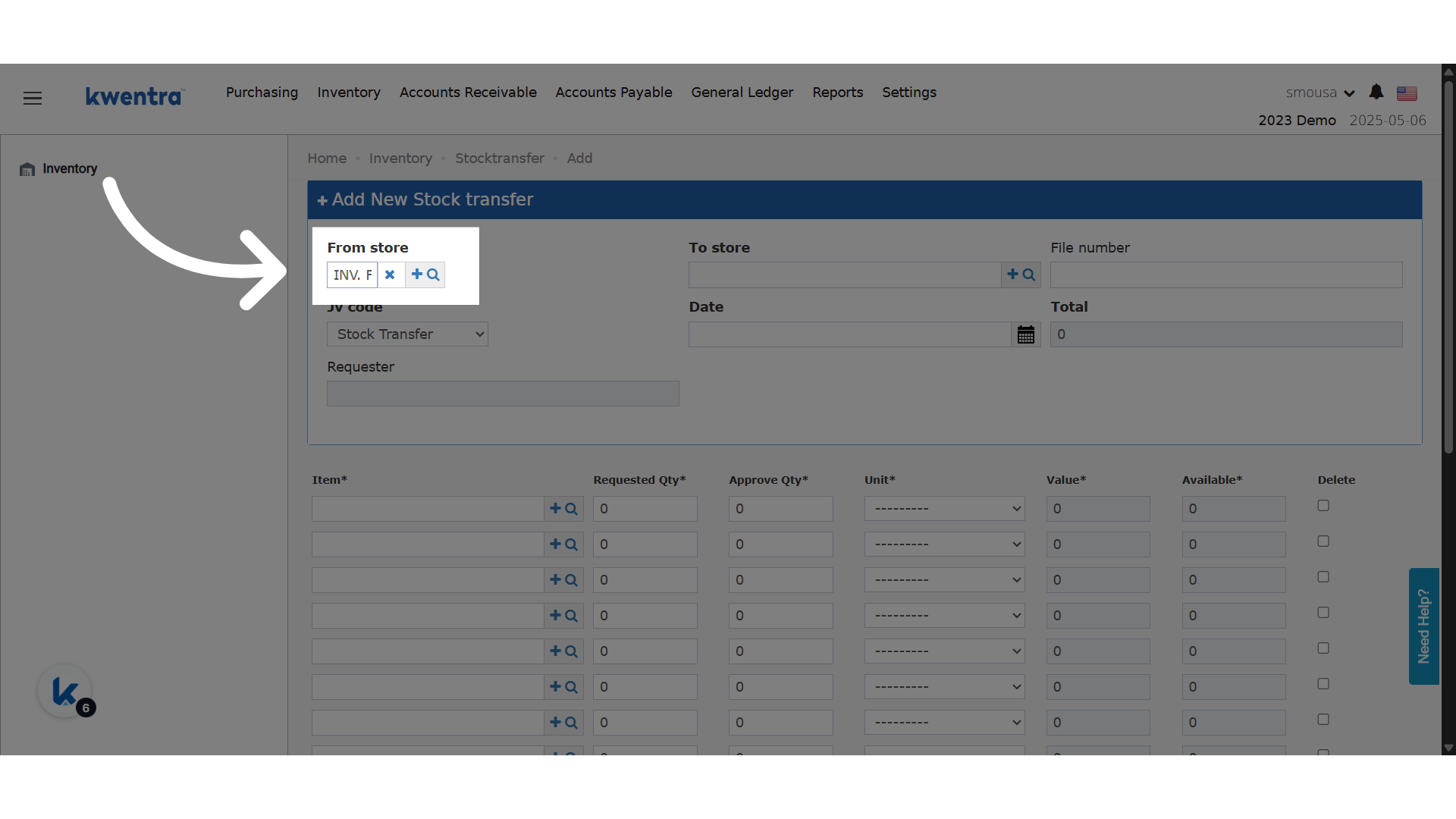
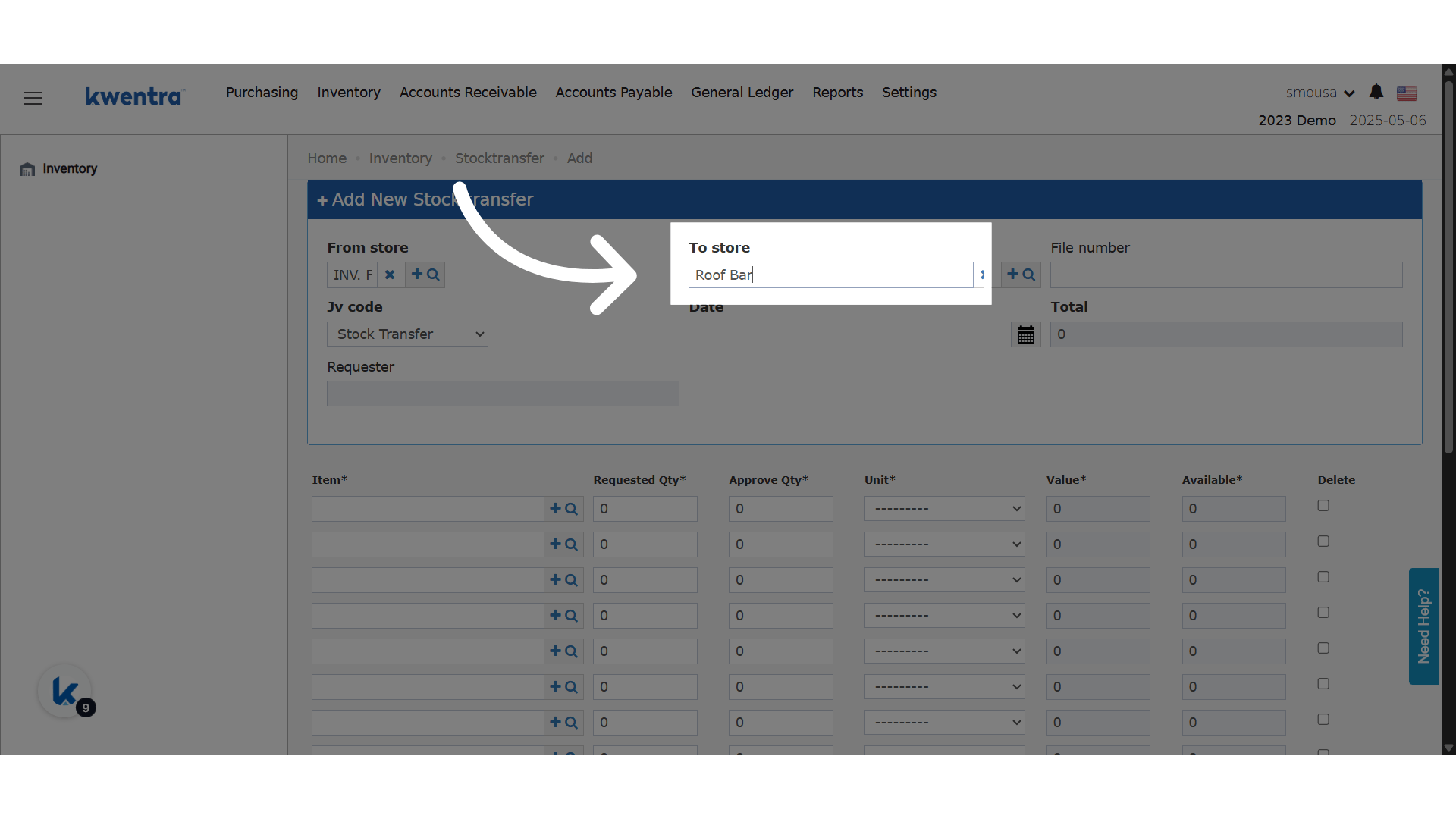
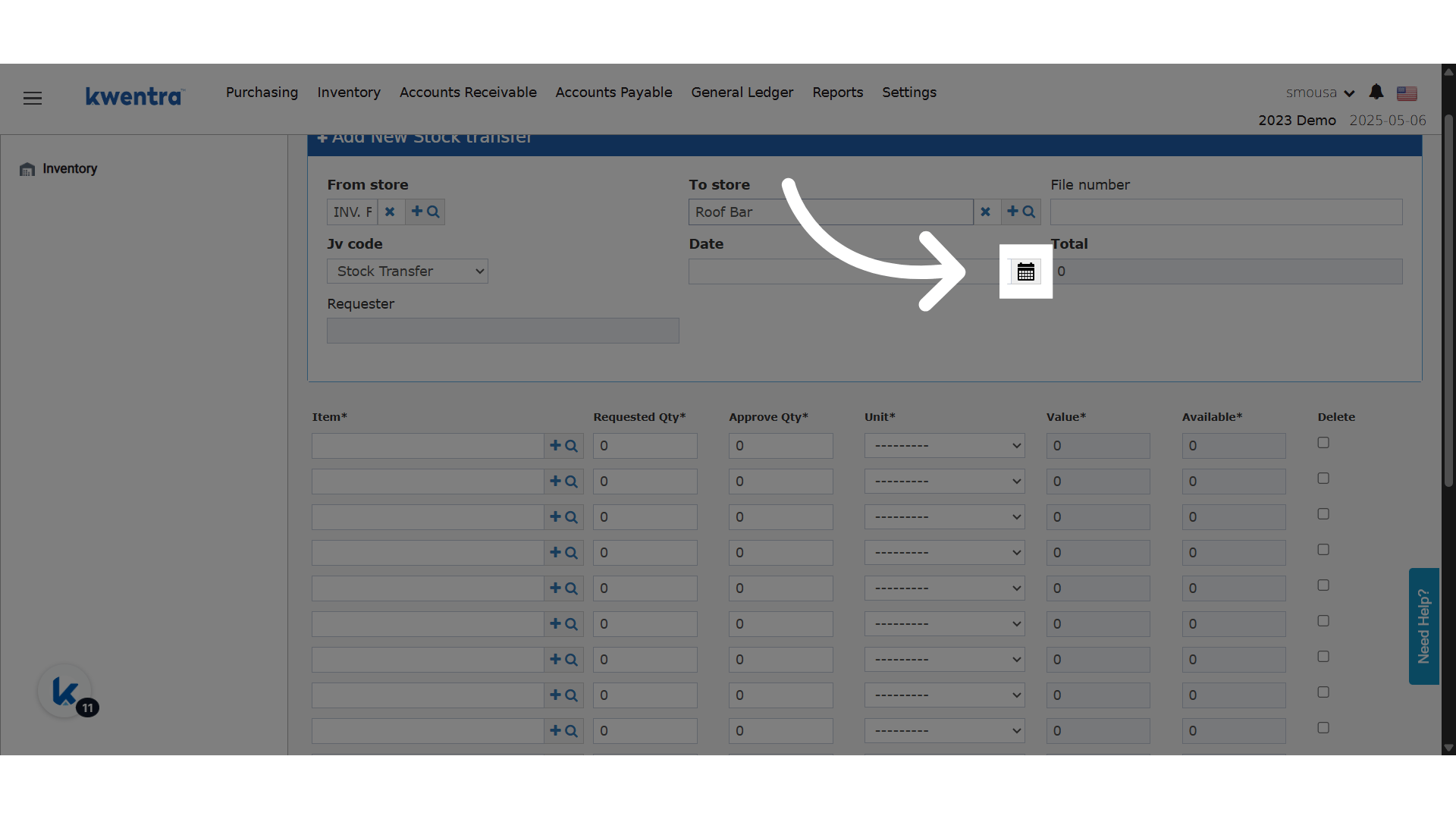
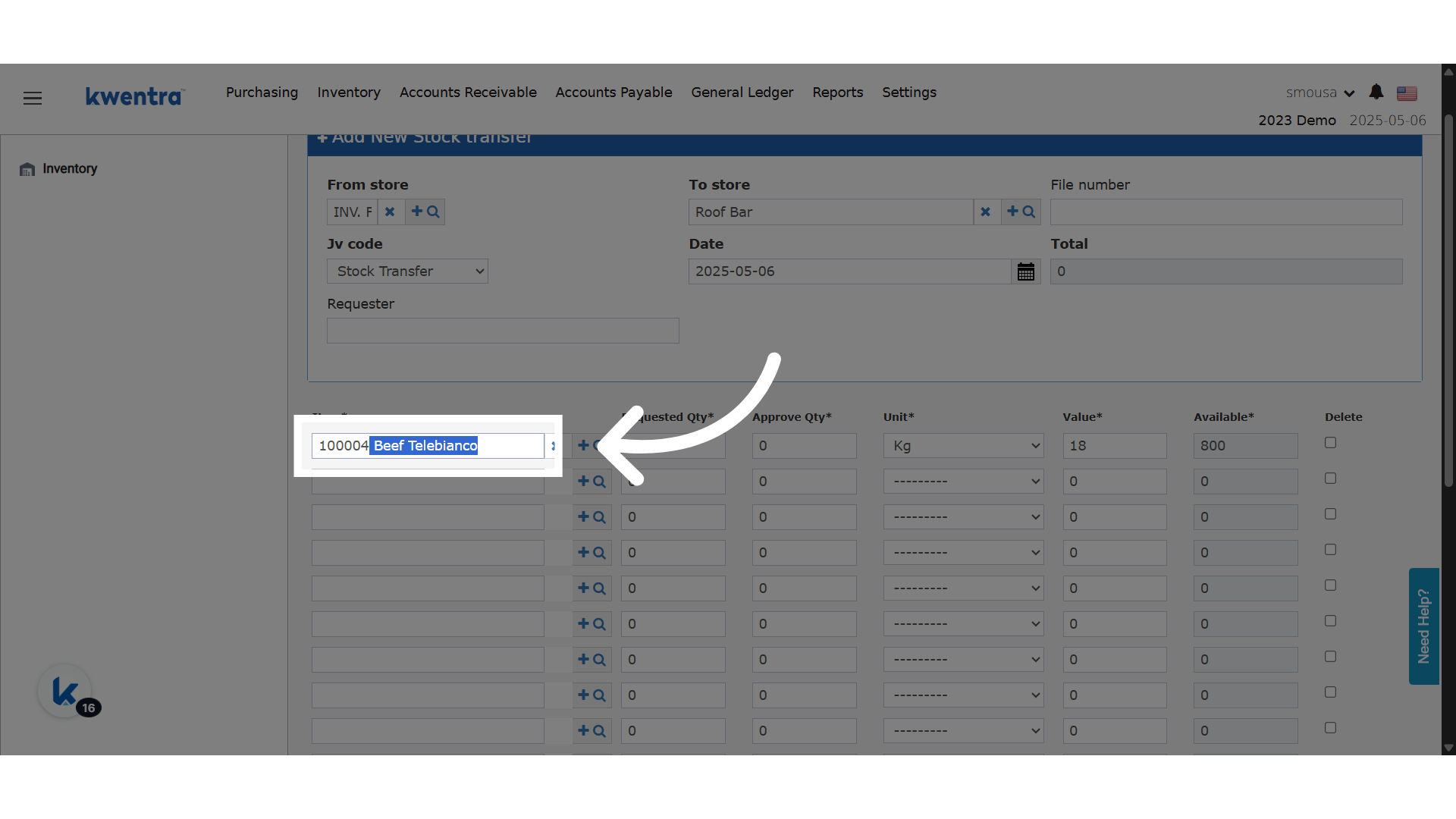
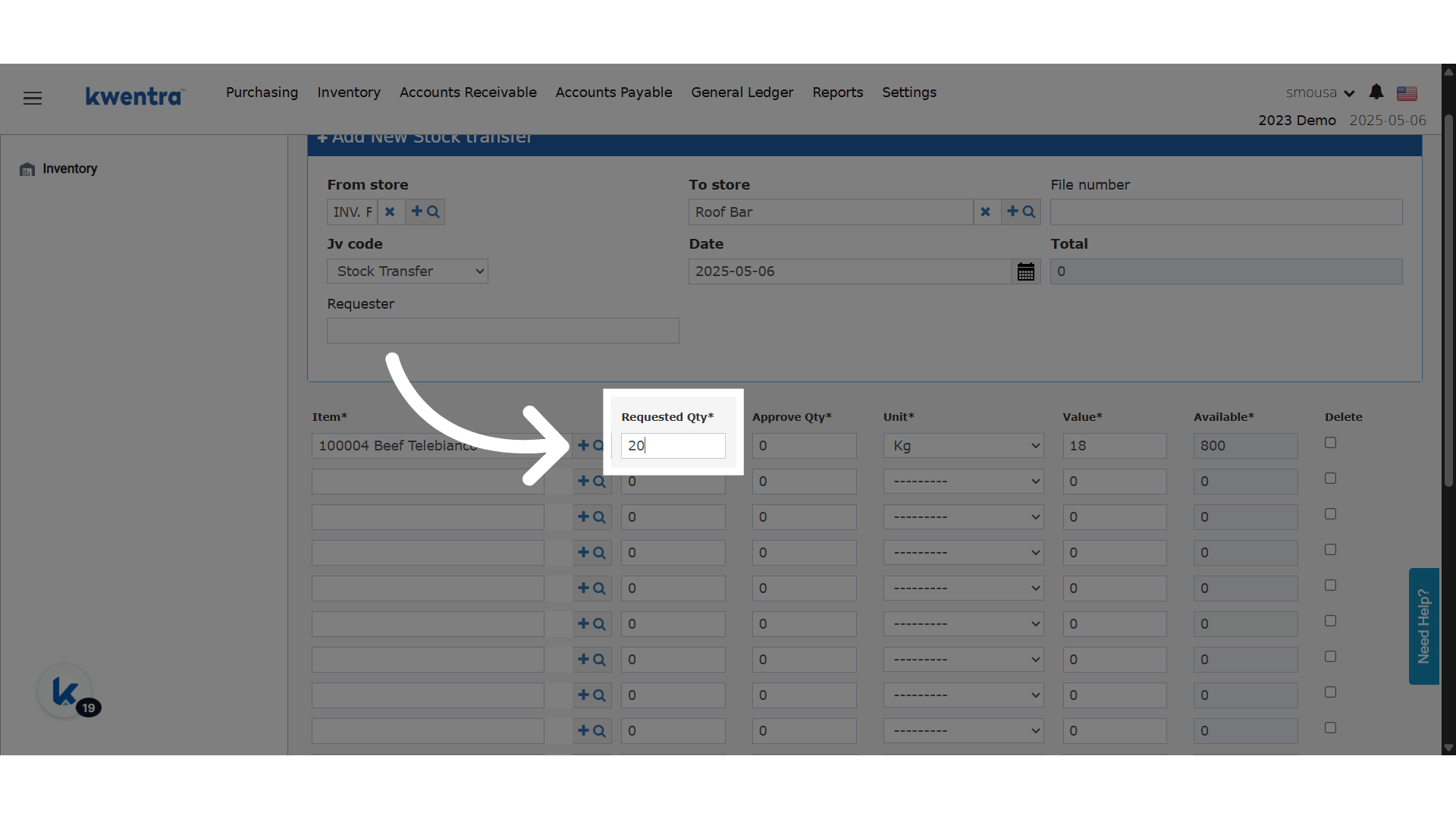
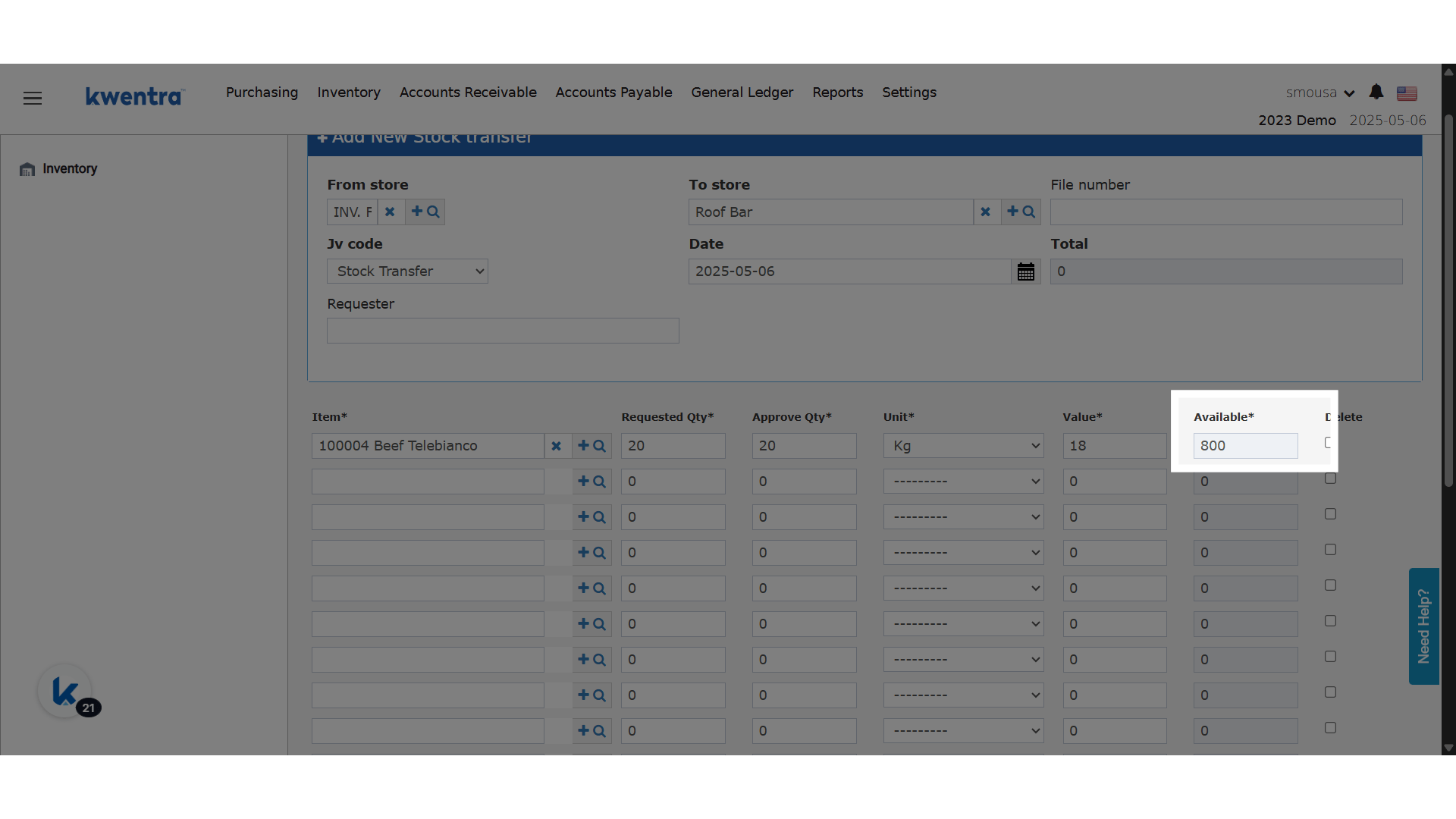
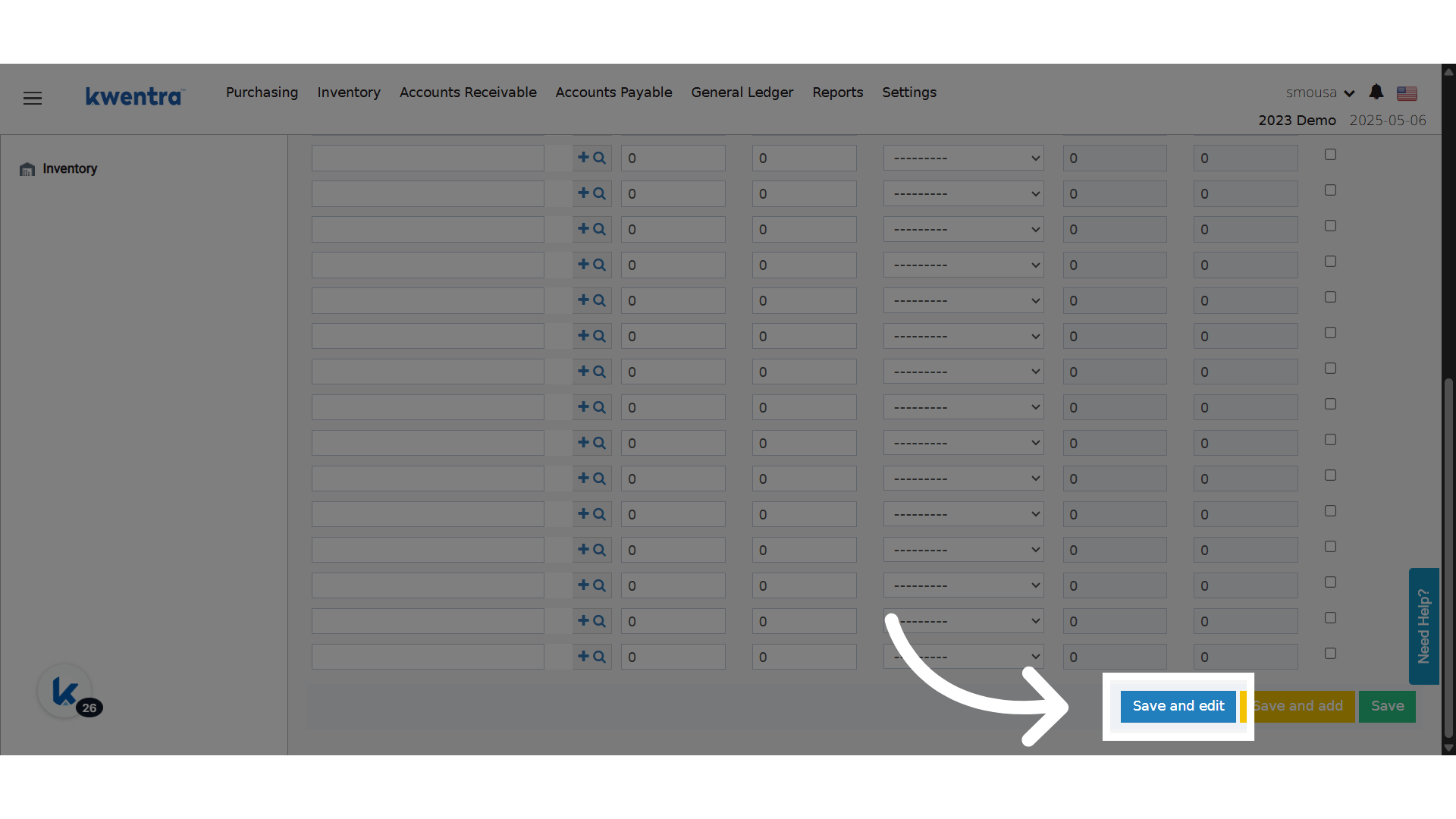
New Draft State
- Upon saving, the document enters the “Draft” state:
- Actions Approve / Reject are hidden.
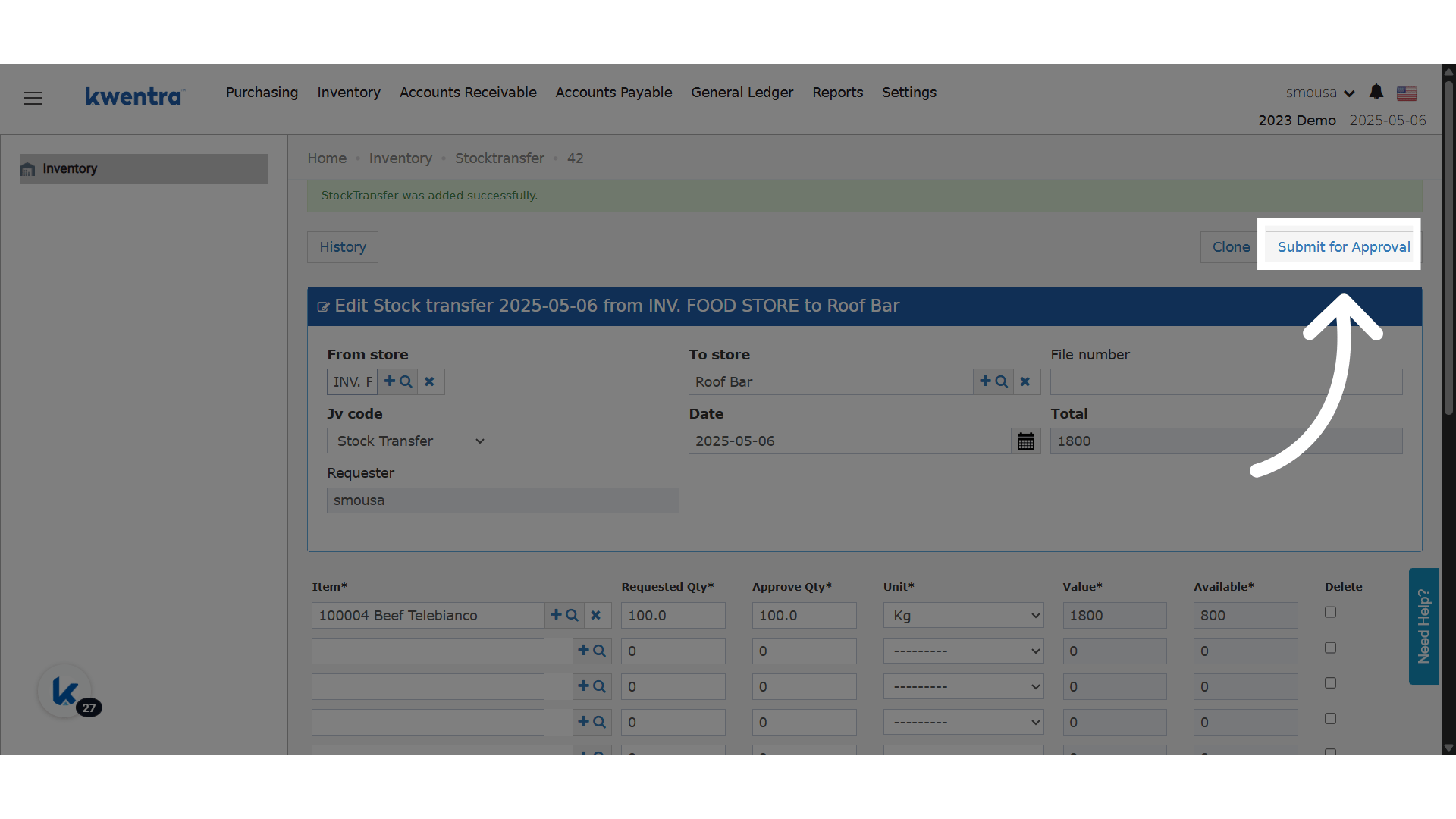
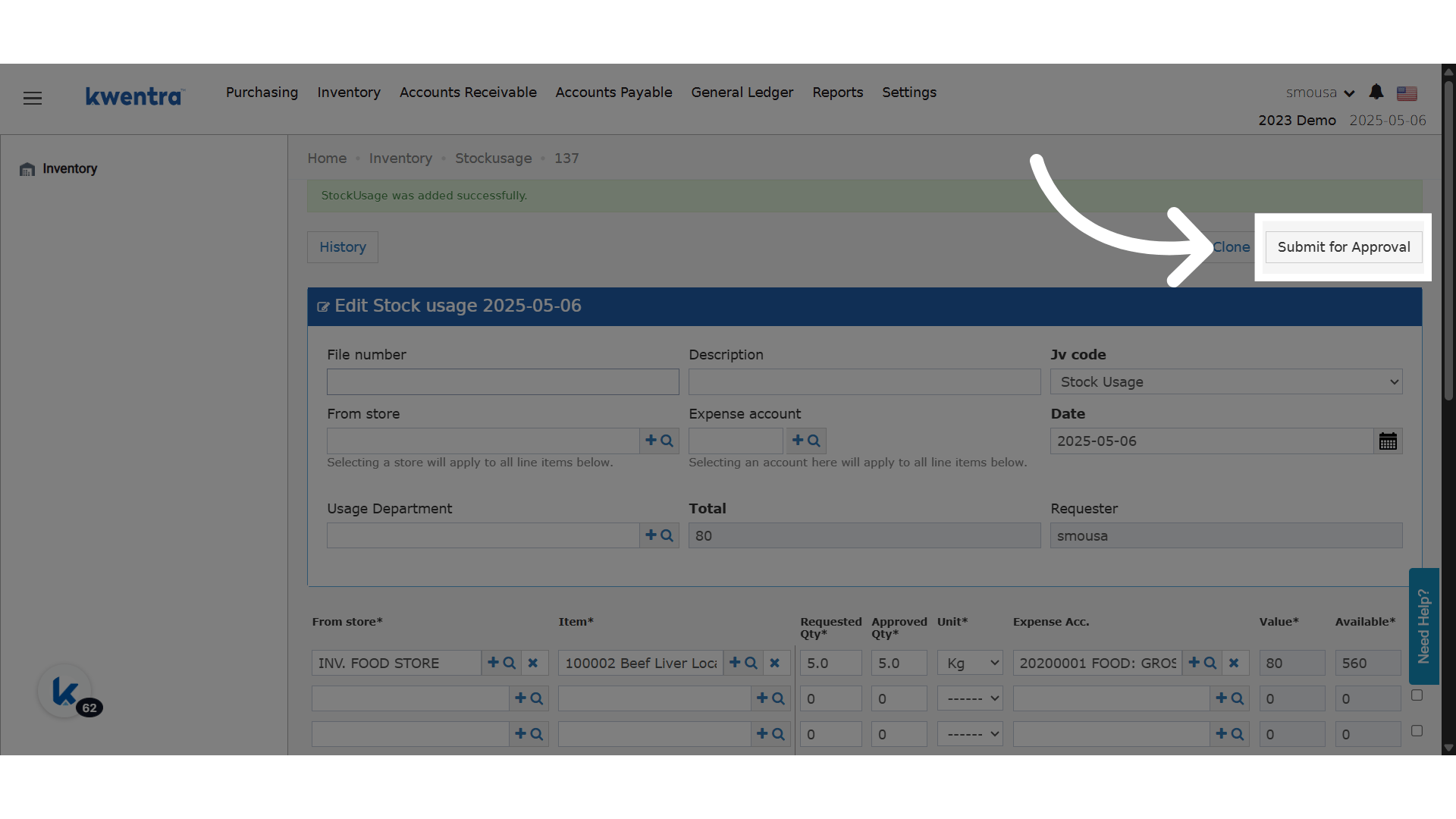
- The new action, “Submit for Approval,” is displayed.
- Editable by the creator only.
- Read-only line items: Item, Requested Qty, Unit.
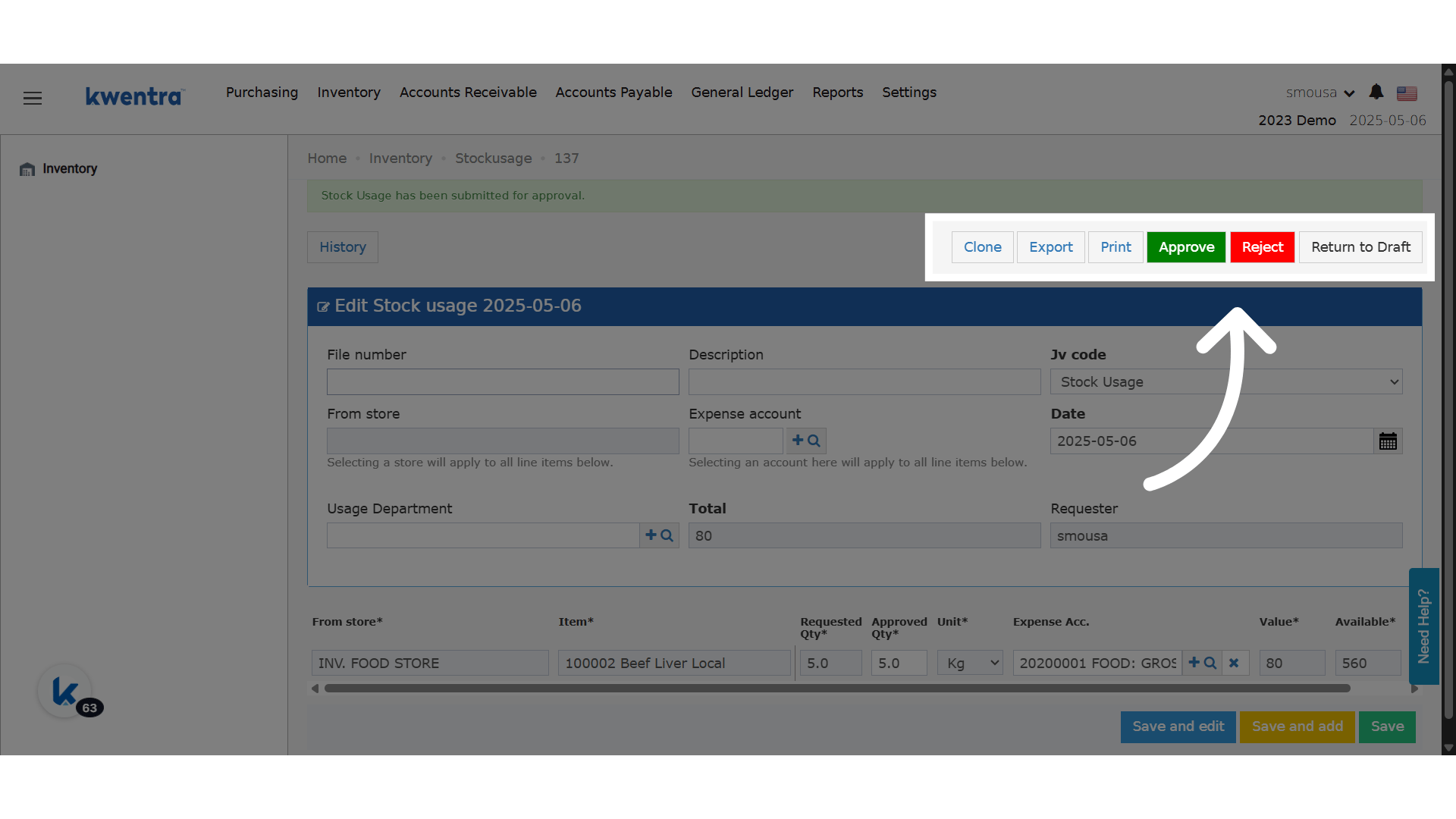
- Upon clicking “Submit for Approval”:
- State changes to Pending.
- Approve/Reject buttons reappear.
- Line items remain read-only.
- Return to Draft is available only if:
- No actions (Approve/Reject) have occurred.
- Only the Creator can perform this.
- Creator is now displayed as a read-only field.
- Drafts are validated against the submit period during Submit/Unsubmit actions.
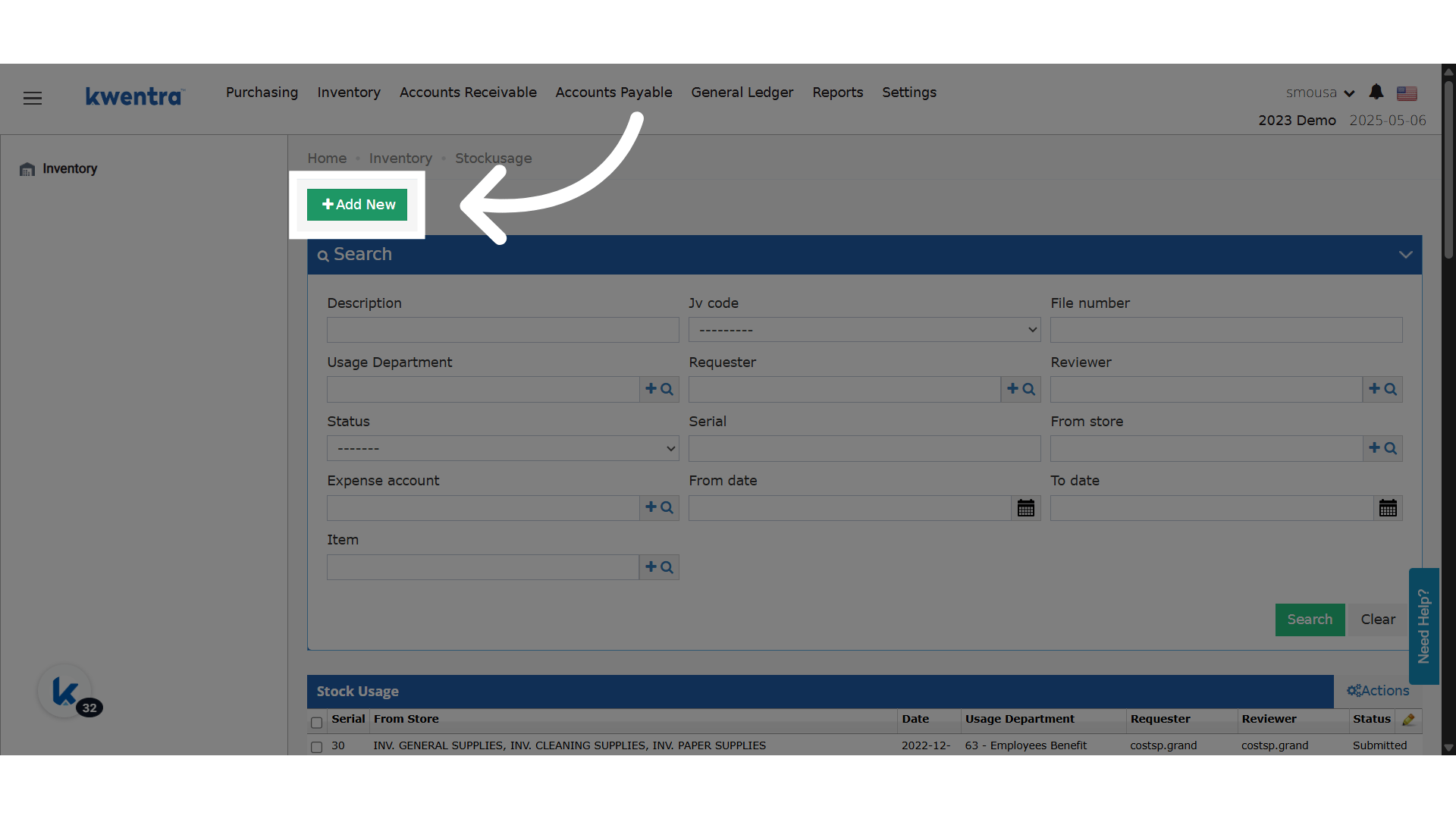
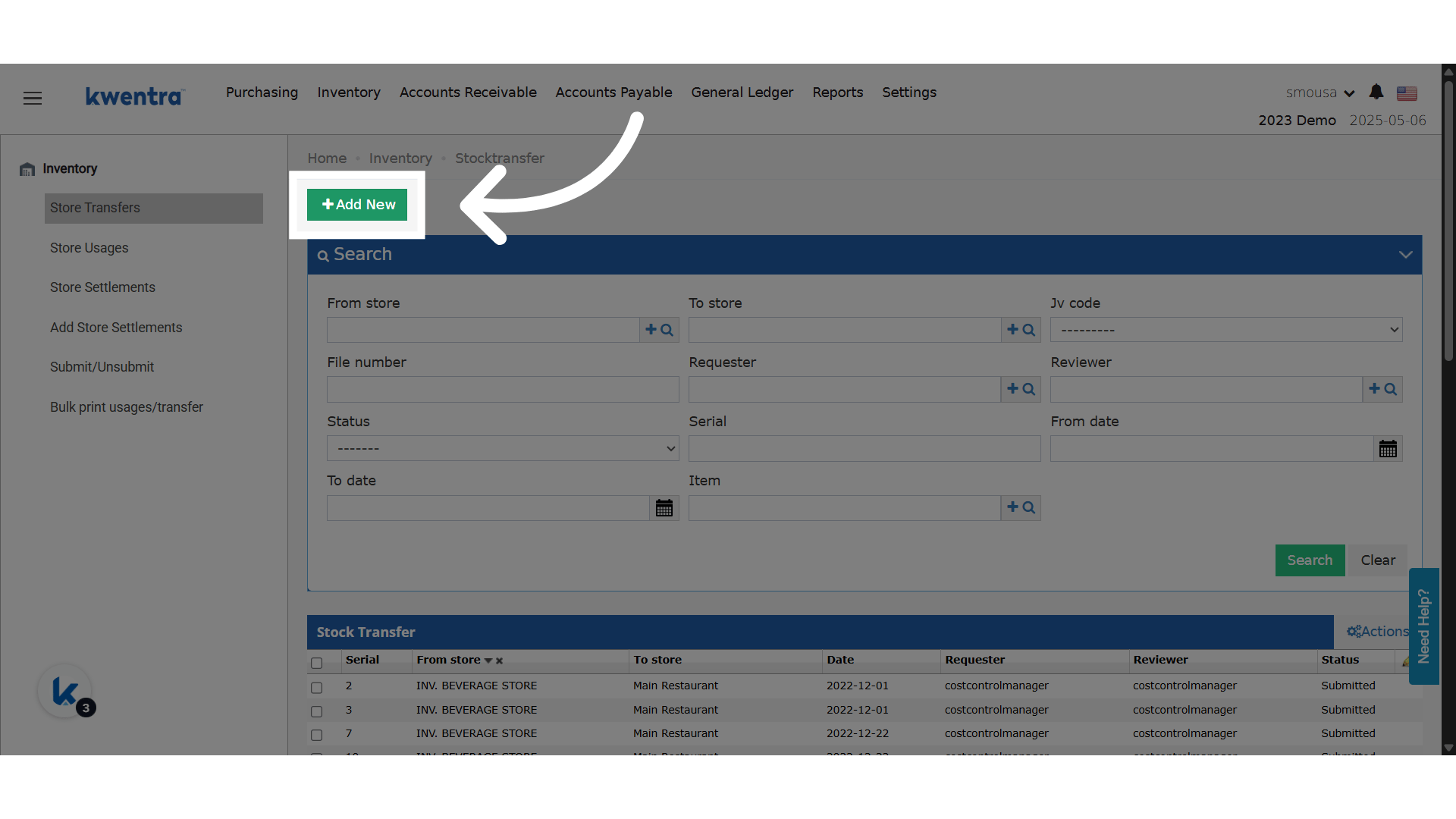
- Same Draft → Pending workflow as Store Transfers.
- Read-only line items: From Store, Item, Requested Qty, Unit.
- Creator-based access to Submit/Return to Draft actions.
- Validation against the submission period applies to drafts.
🔐 Permissions & Restrictions
- Only the document creator can:
- Submit for Approval
- Return to Draft