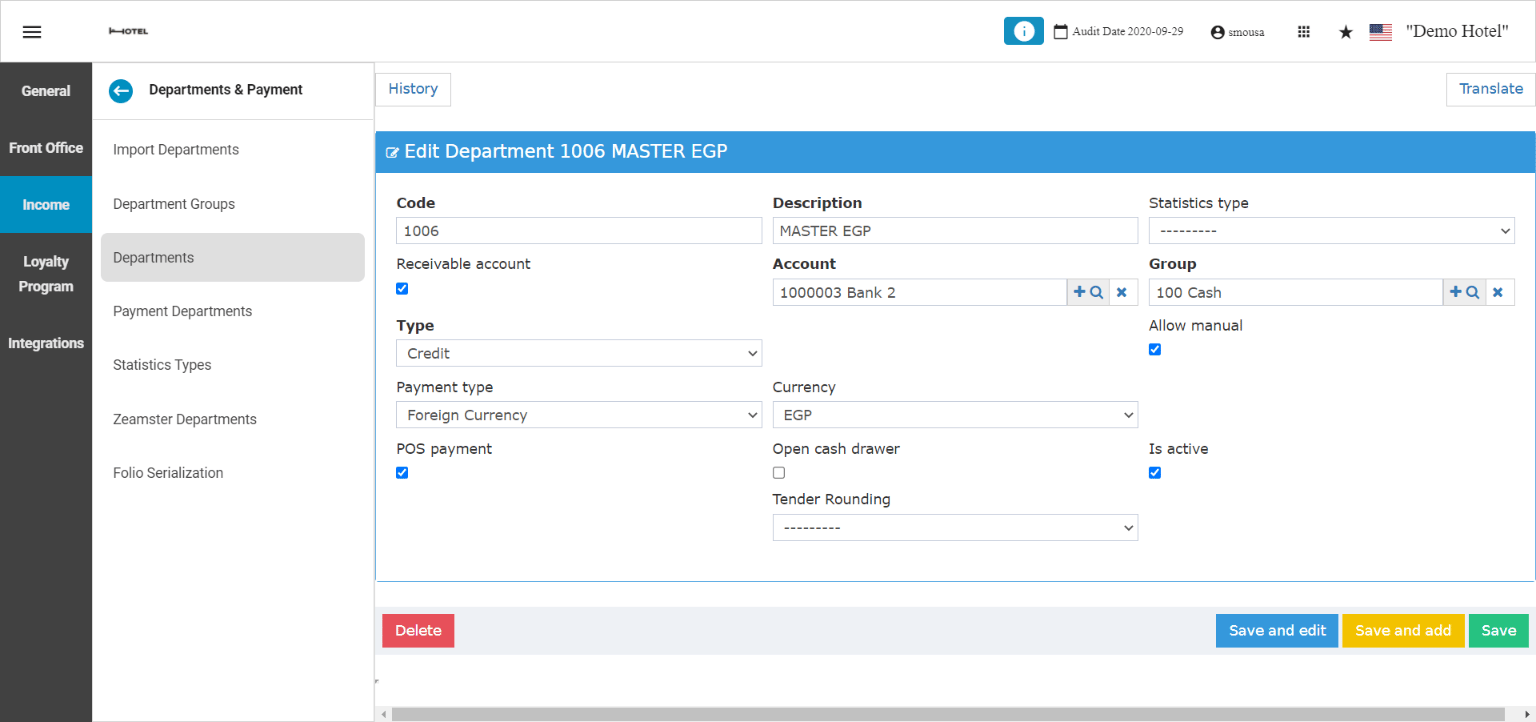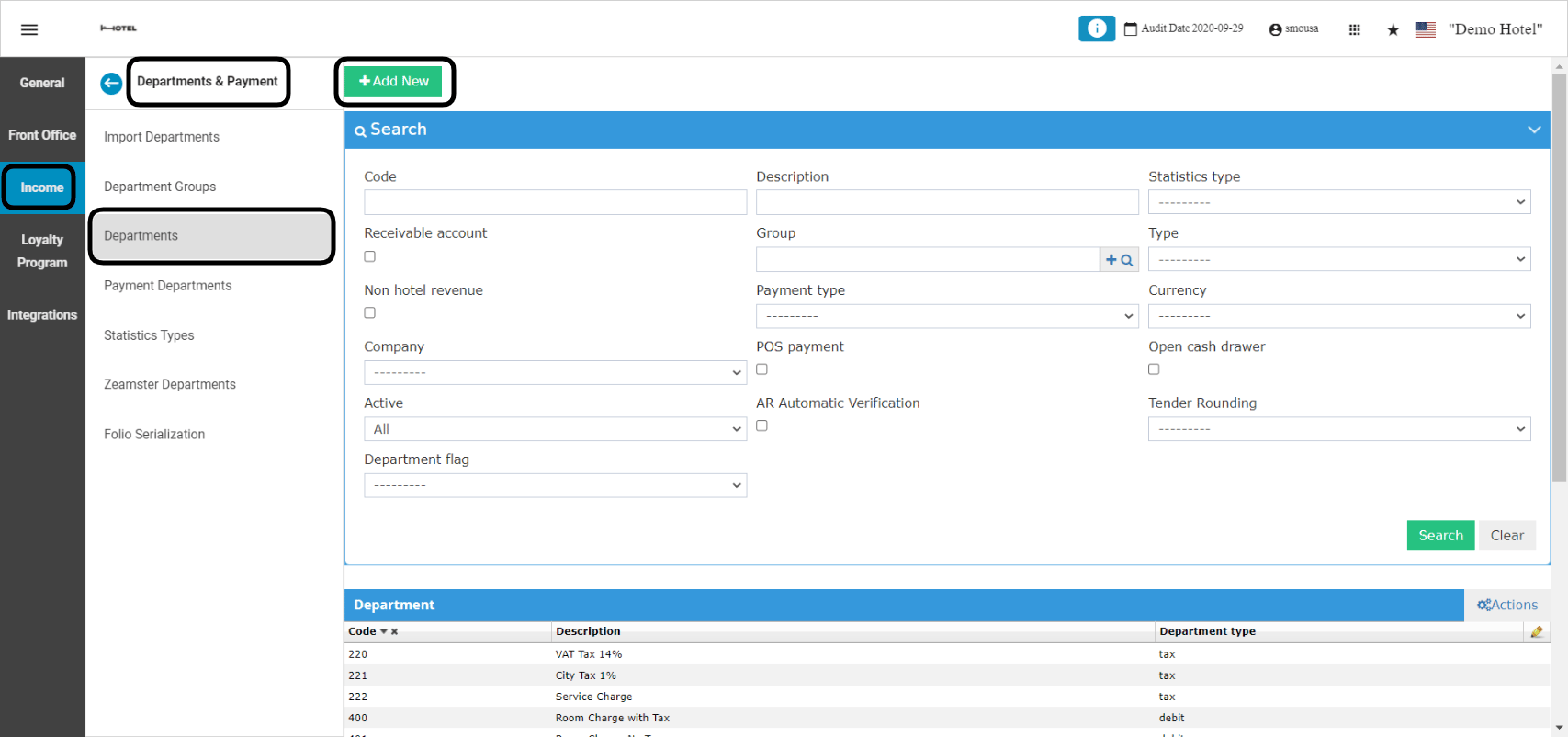
- Code: a serial number for the payment department, make sure to follow the serialization of your revenue payment methods in order to have everything organized correctly.
- Description: the name or the explanation for the new payment method that will appear on the guests’ billing screen and their printed out invoices. i.e. Cash USD, Credit cards etc.
- Statistic type:
- Receivable account: only use this option when the payment department will be used in your AR accounts sub-module from back office. i.e. City Ledger Payments.
- Account: linking your payment method to an Asset account from your chart of accounts is very important, credit departments are to be linked to asset accounts only.
- Group: select the asset account group that the account you selected belongs to in the chart of accounts.
- Type: department type should be always credit for your payment methods.
- Allow Manual: Should always be checked in order to be able to manually finalize payments from the billing screen.
- Payment type: should be left as dashes unless you are adding a city ledger payment method or a new payment method with a currency different than your default currency of the system.
- Currency: select the currency you desire for the new payment method.
- POS payment: this box should be checked if you would like this payment method to be used in your POS cashiering screens.
- Open Cash Drawer: use this option when there’s an integrated cash drawer at your POS terminal to automatically open your cash drawer when used.
- Active: since you cannot delete departments, you can activate or deactivate revenue departments when you desire.
- Tender rounding: