Documentation Index

Fetch the complete documentation index at: https://help.kwentra.com/llms.txt

Use this file to discover all available pages before exploring further.

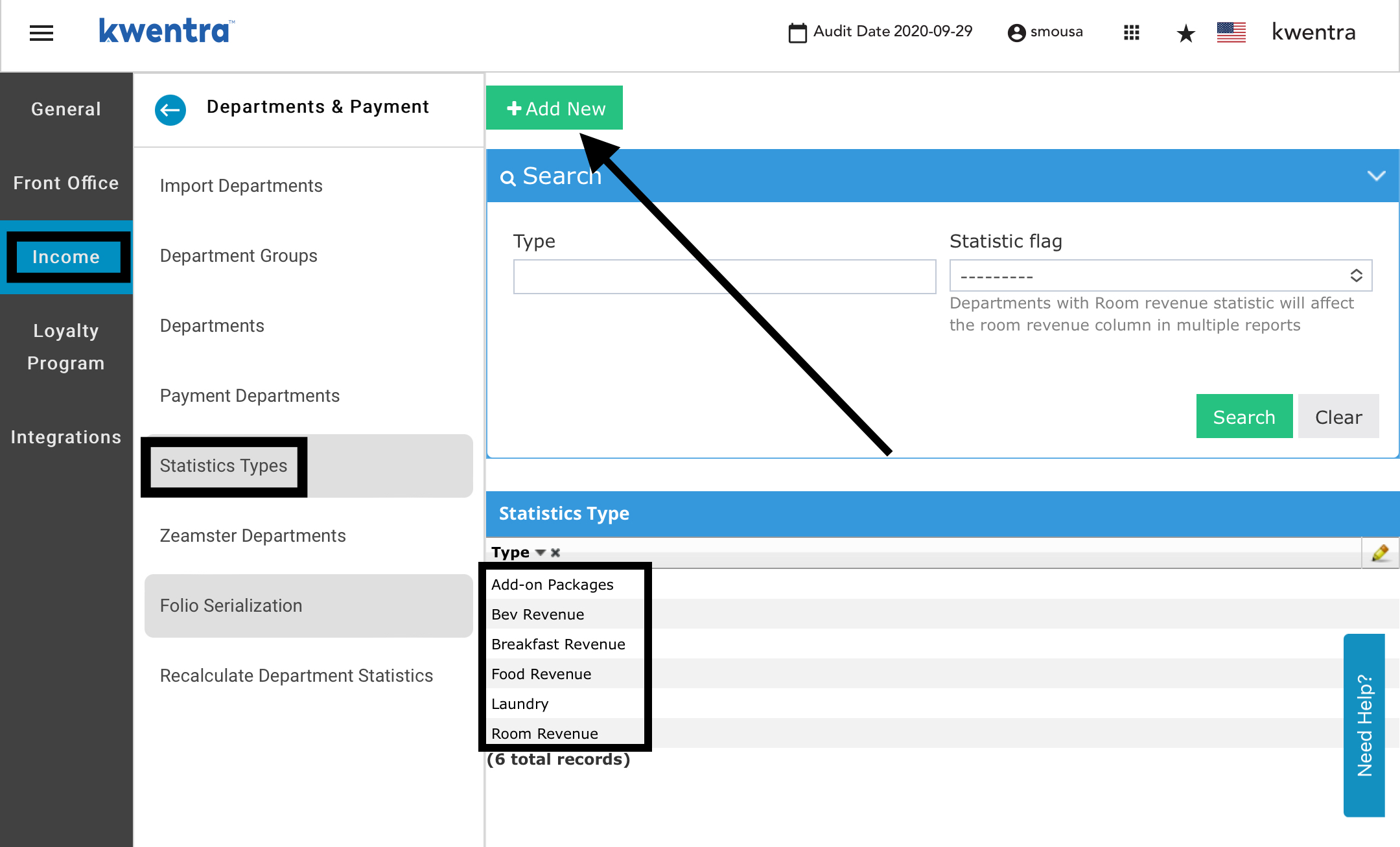
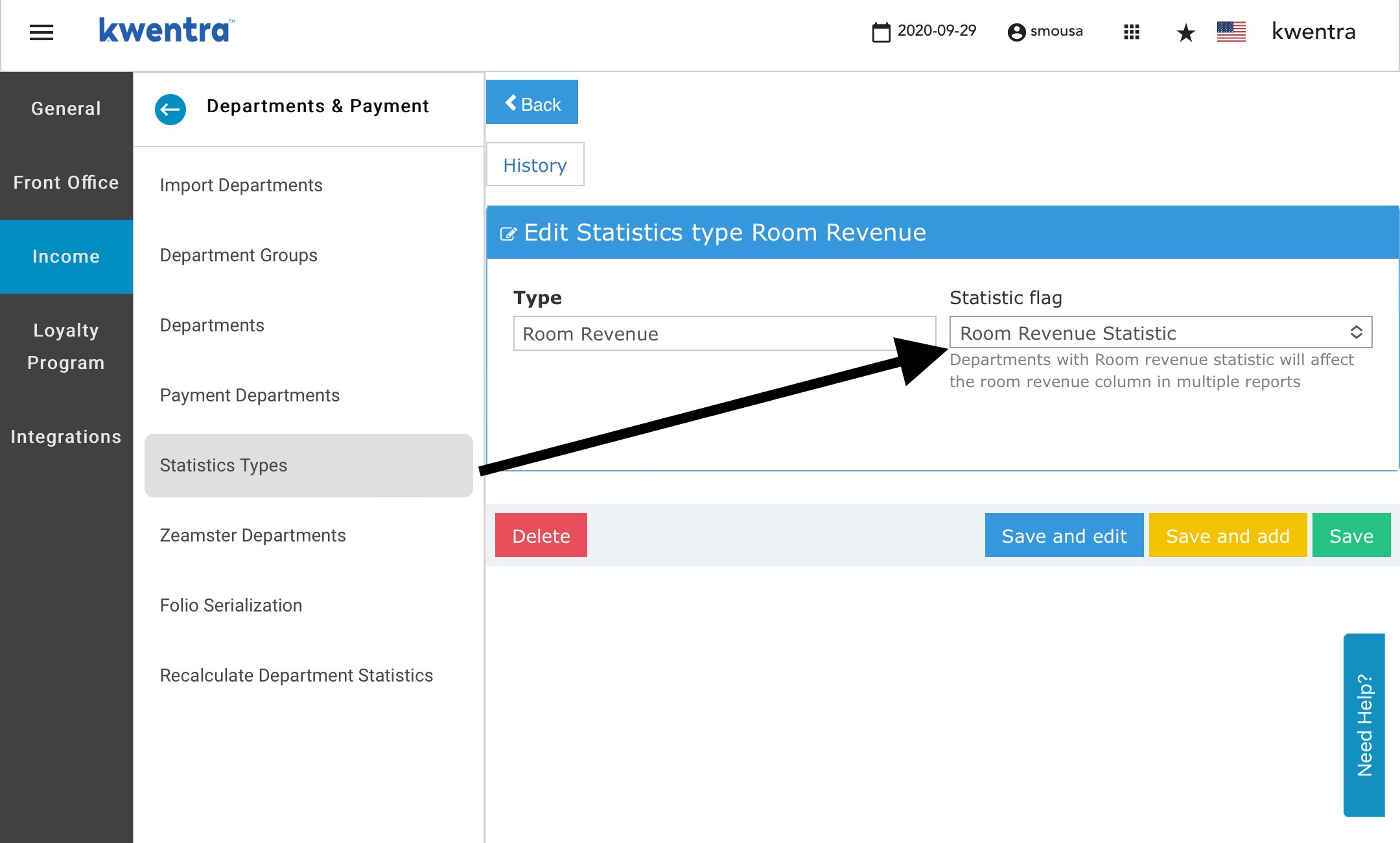
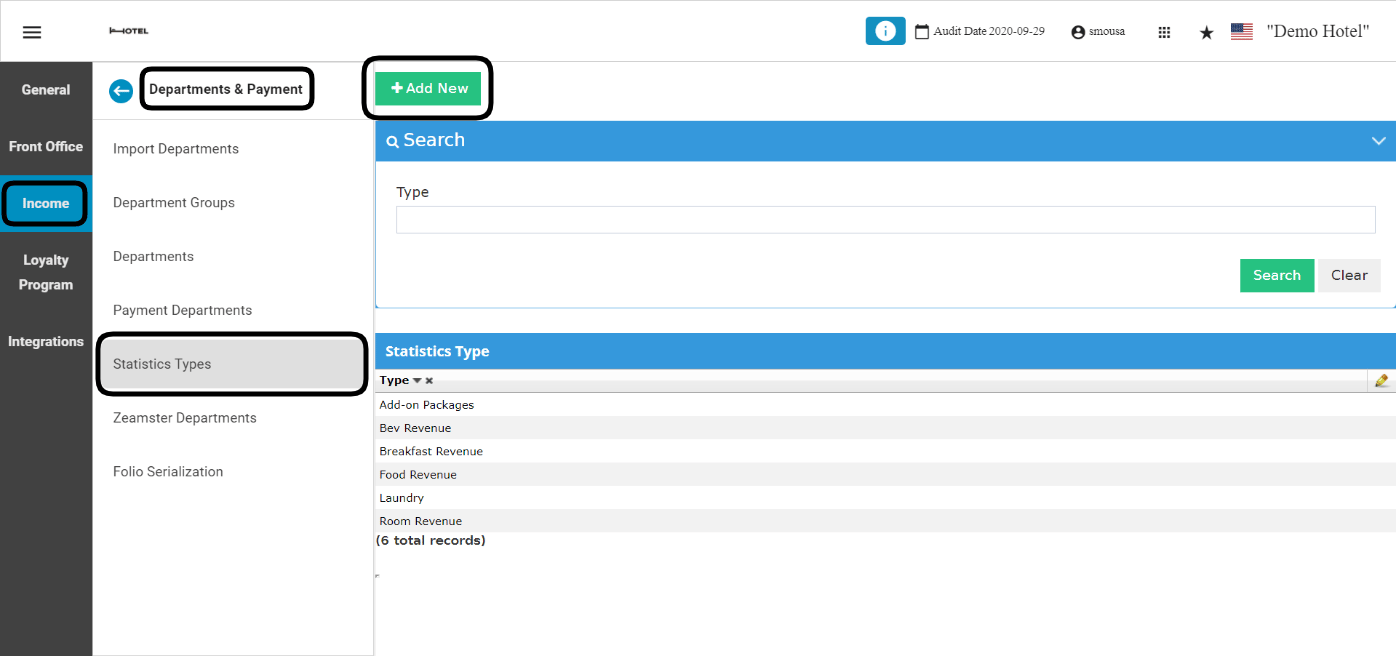
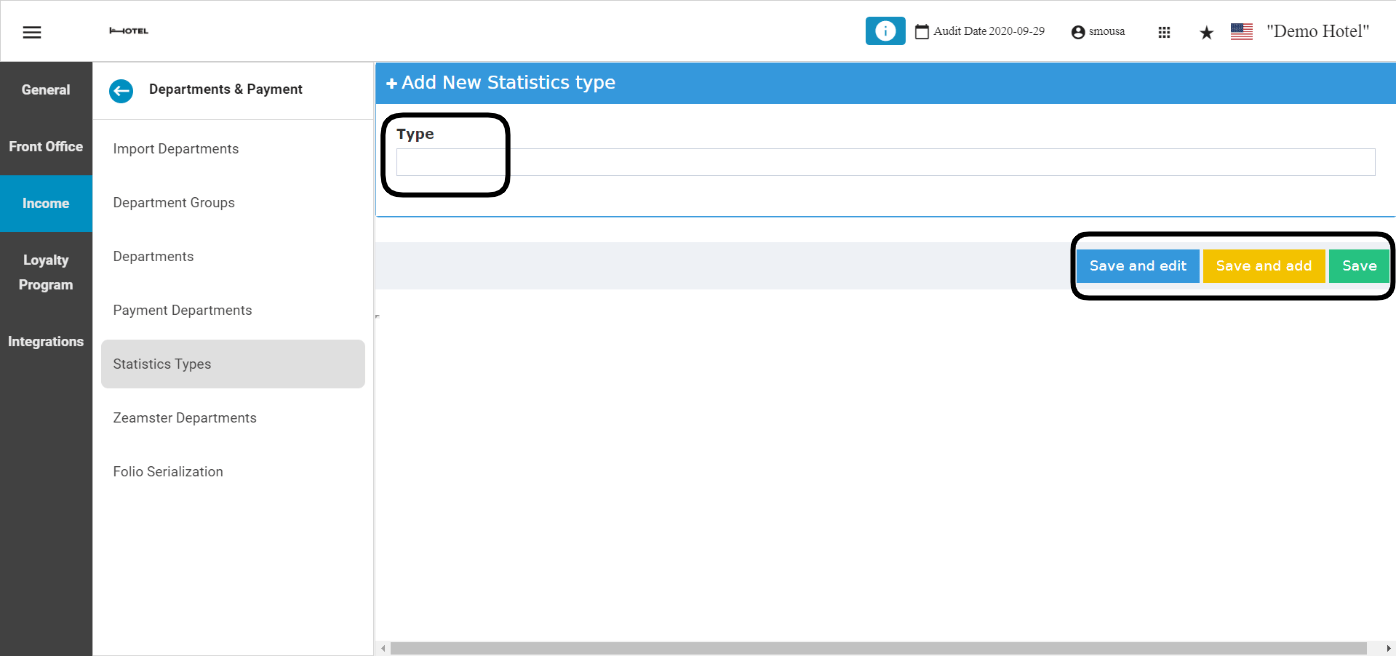
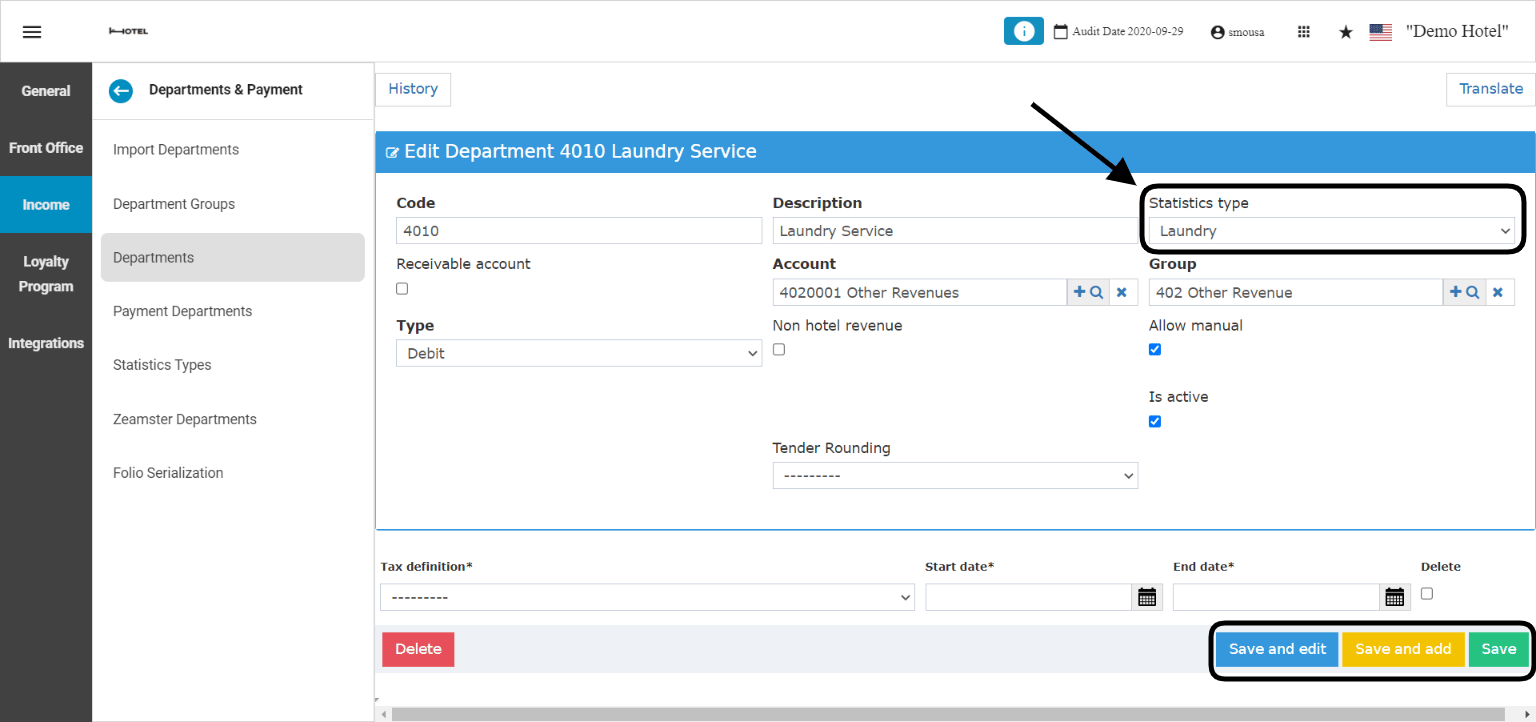
The Manager Report can be customized to show any statistics or reporting certain departments’ activities. To achieve this you need to add the statistic type you want to see in the report and link it to the department code you wish to see its activities. 1. Add a Statistic Type: Here you add the name you want to see on the report in which all charges related to its department appear under. Front Office → Settings Gear Sign → Income → Departments & Payment → Statistics Types All your statistics you see in the Manager Report will be here, to add more data click Add New. All you need to add a statistic type is the name for it. Don’t forget to Save. Now the naming has been added, all you need to do is link it to the Department Code you want their statistics and numbers to appear in the Manager Report. Front Office → Settings Gear Sign → Income → Departments & Payment → Departments → Select Department → Statistics Type From this dropdown you get to choose the statistics type you added earlier and link it to any department code you want to see on the Manager Report. Select the Statistics Type you want for The Department then click Save. In that way whenever you run your manager report you get to see the laundry service charges you applied on your guests’ invoices combined in the Manager Report. Update: 28th of August, 2022 When adding a new statistic type, a new flag has been introduced to mark statistic types as room revenue statistics and group them together to accurately report the correct room revenue and therefore the correct Average Daily Rate ADR. The new statistic type flag also helps in linking other department codes to your room revenue such as:
  • Early/late check out fees
  • Extra bed charges
With the new statistic type flag the below reports will get affected:
  • Manager Report
  • Revenue and Occupancy Statistics
  • Market Segment
  • Country Report
How to add the new statistic type flag? Front Office → Settings Gear Sign → Income → Departments & Payment → Statistics Types You can either select one of the previously added statistic types to add the new flag to, or add a new statistic type. Once you finish the above step you will get the option to select the new flag: