How It Works
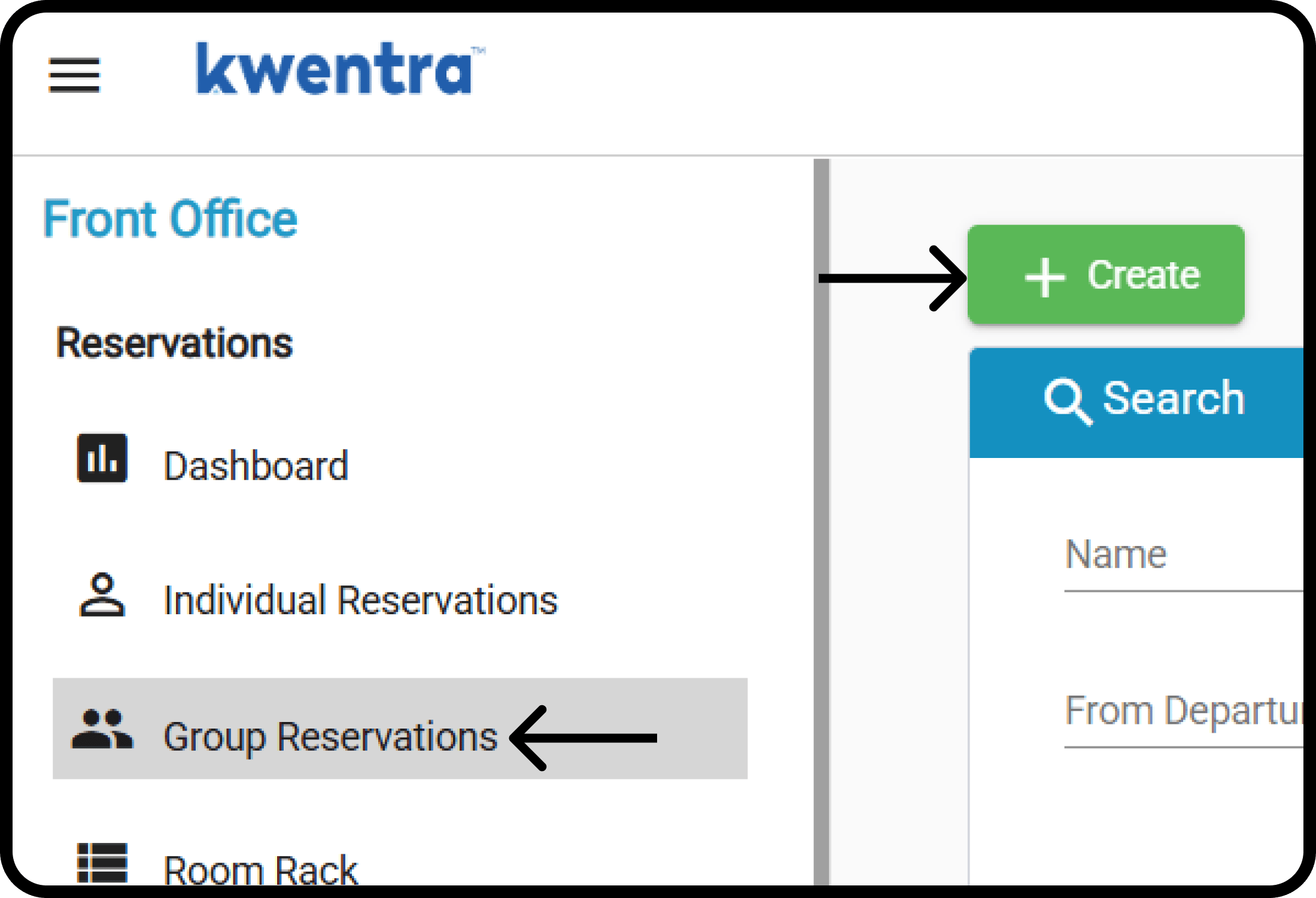
1. Create the Group
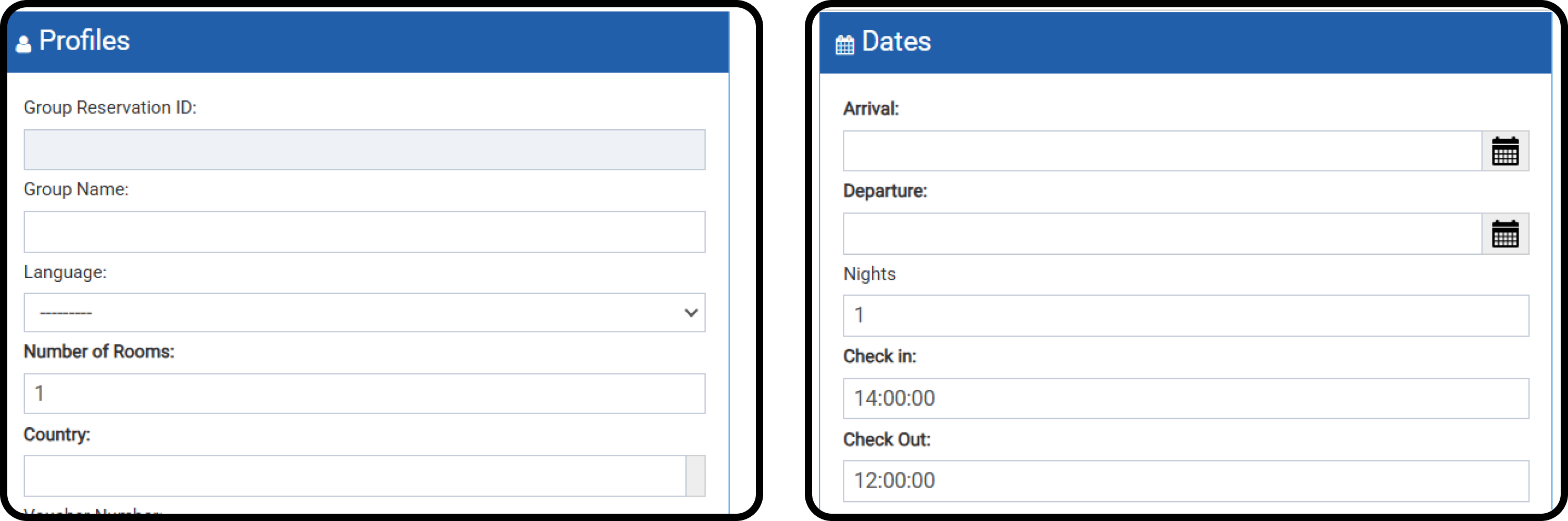
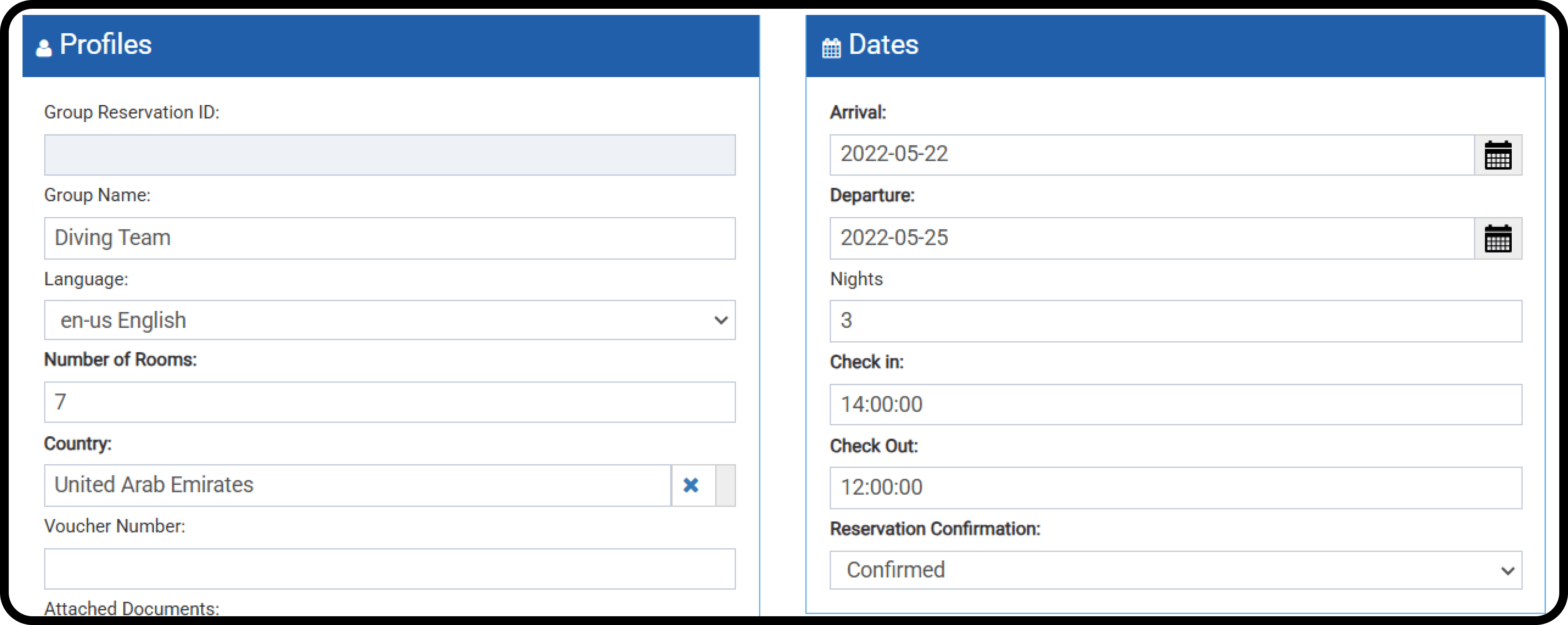
You need:- Group Name
- Number of rooms
- Country
- Arrival and departure dates
- Channel
- Number of adults in each room
- Rate Plan
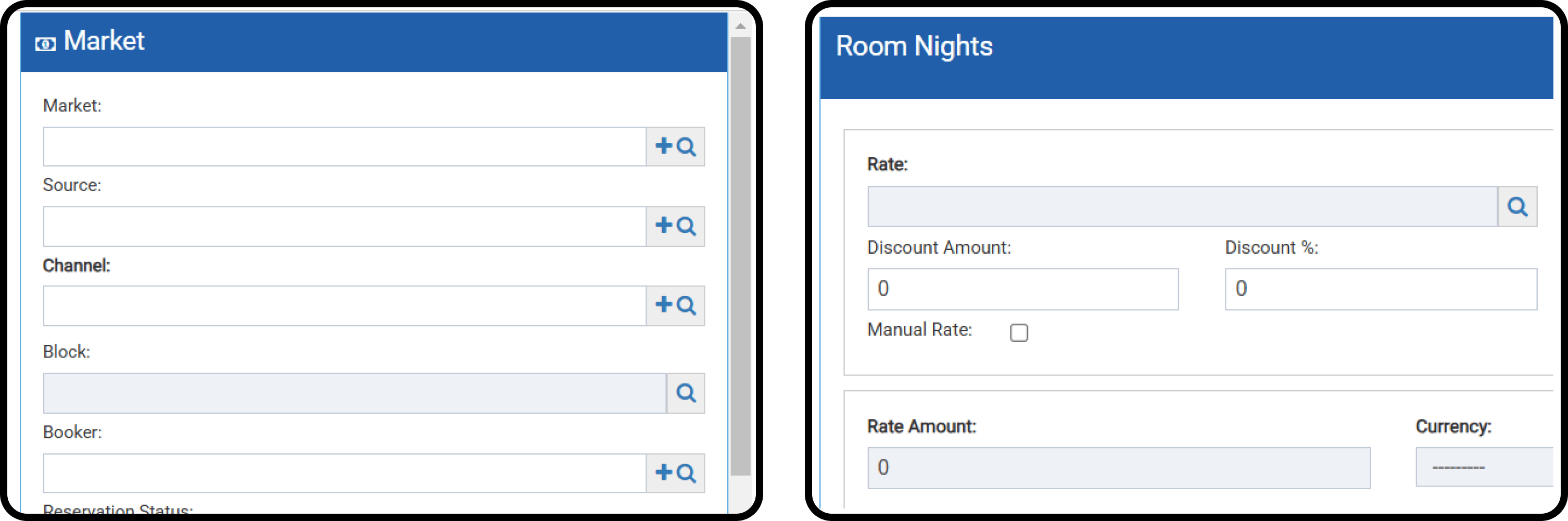
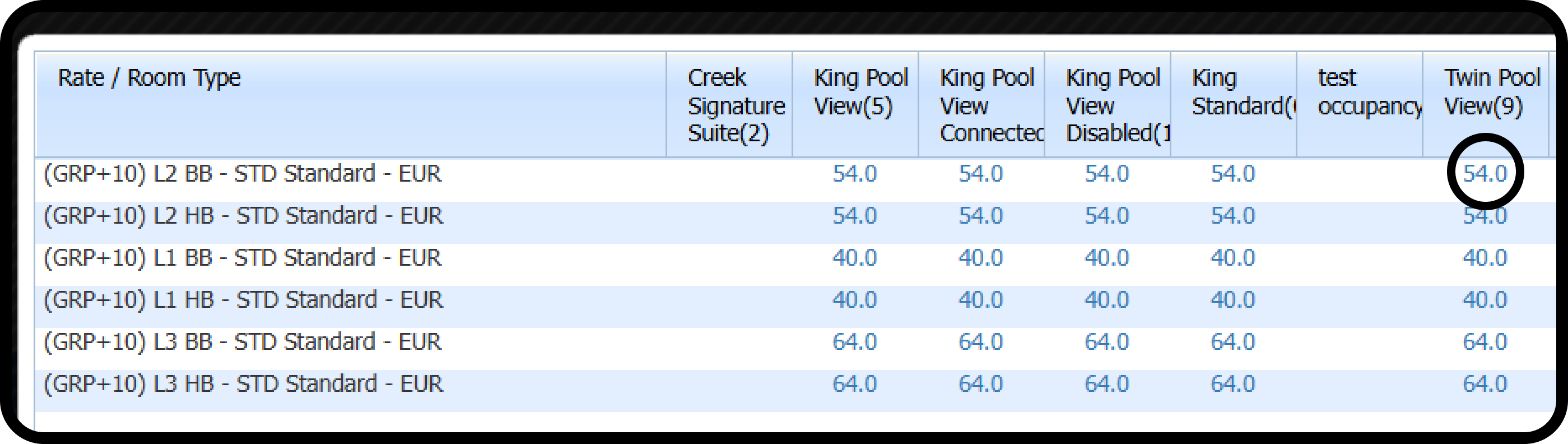
- Click the magnifying glass next to the rate. It shows the available room types and the rate per night.
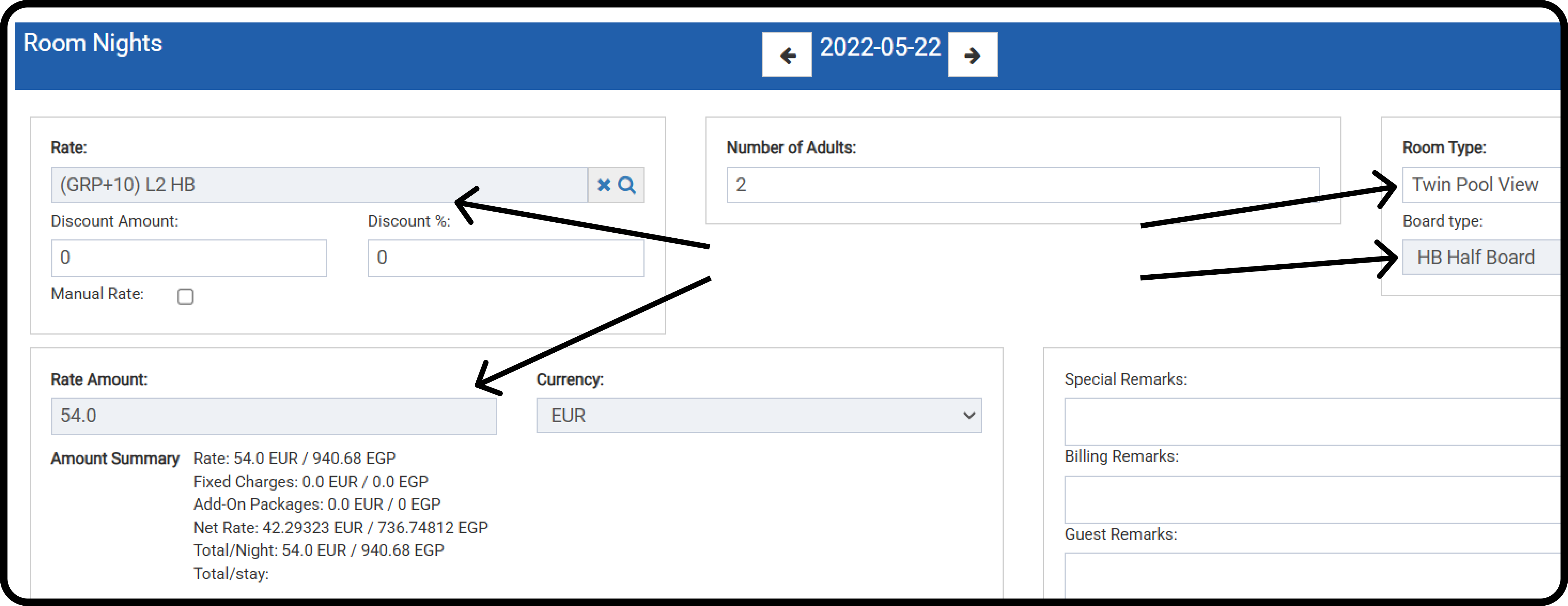
- Click the charge-per-night link to pick the rate and room type.
- Click Save and edit.
2. Add More Room Types
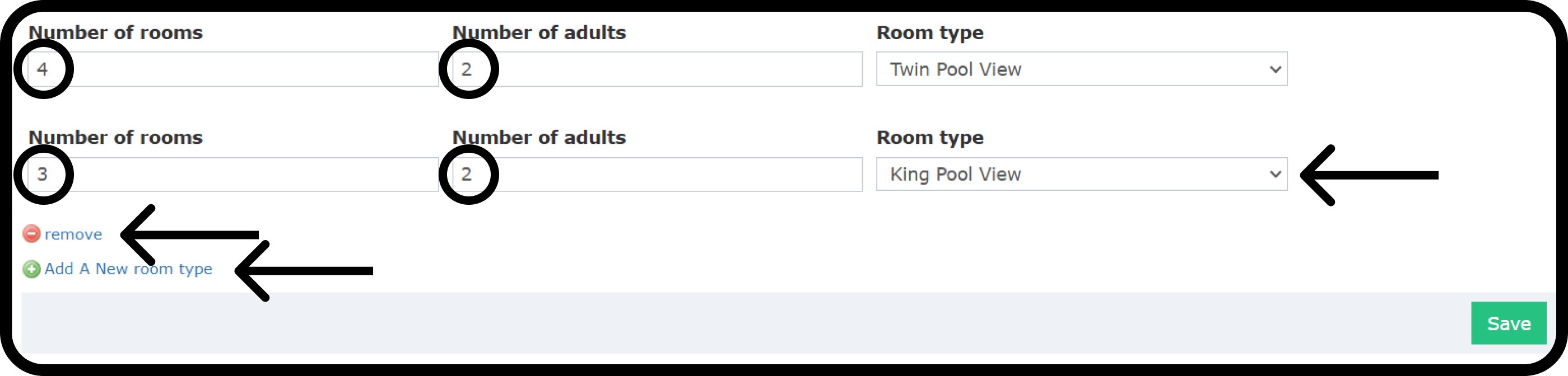
After Save and edit, click Add Room Types at the top right of the group screen.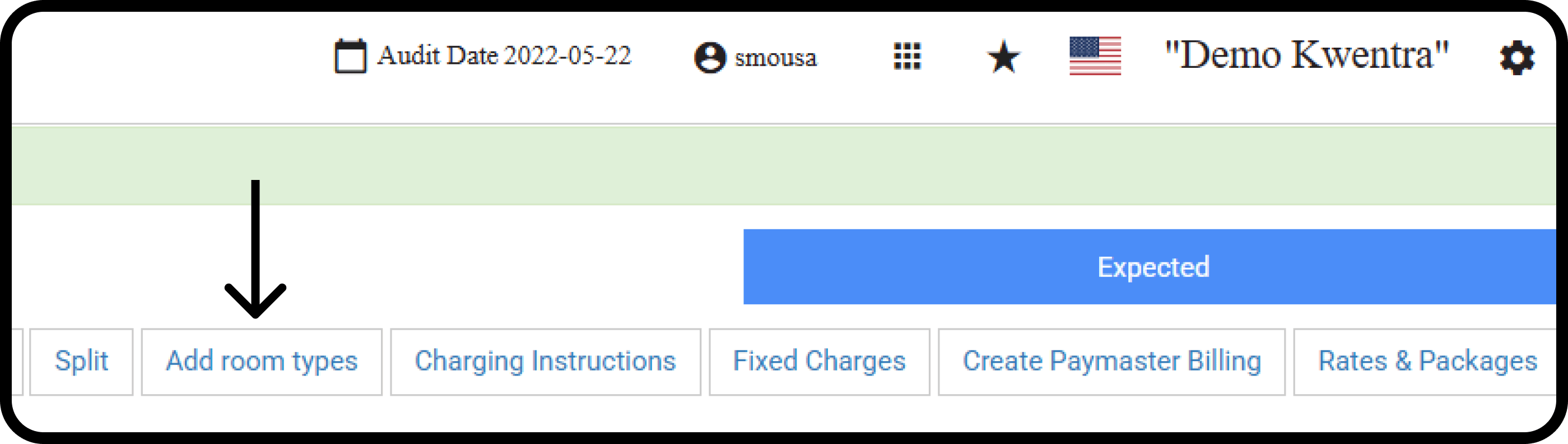
- The window lets you edit the group you just created.
- Add a line for each new room type, with its own number of adults and children.
- Click Save.
3. One Confirmation Number
- The added rooms are separate group reservations.
- They share one confirmation number, so they stay one group.
- All room types show in the same rooming list.
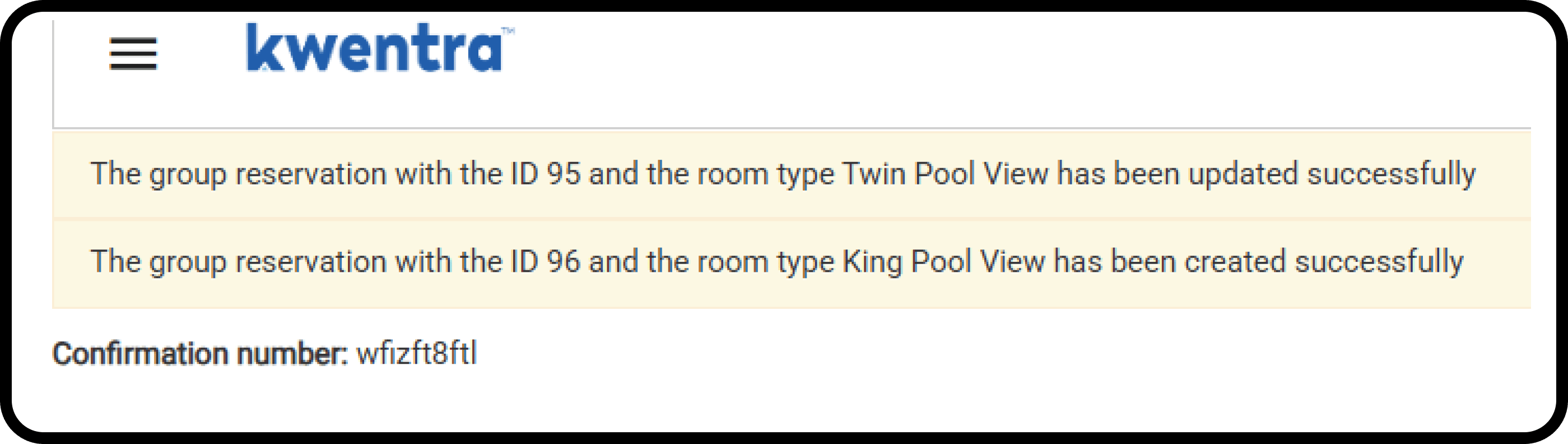
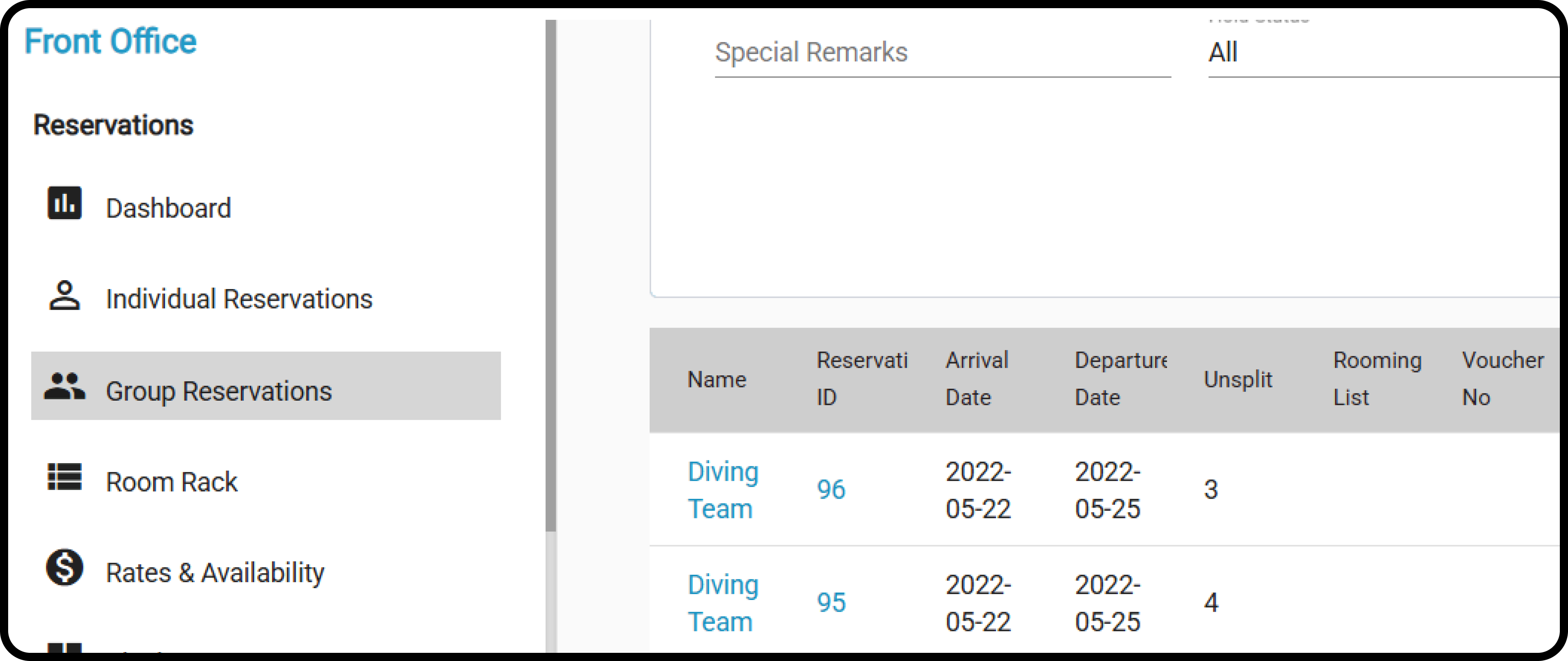
- A search shows both group reservations under the same group name and confirmation number.
- To split the whole group, open any of its group reservations and split it from there. See Split a Group Reservation.