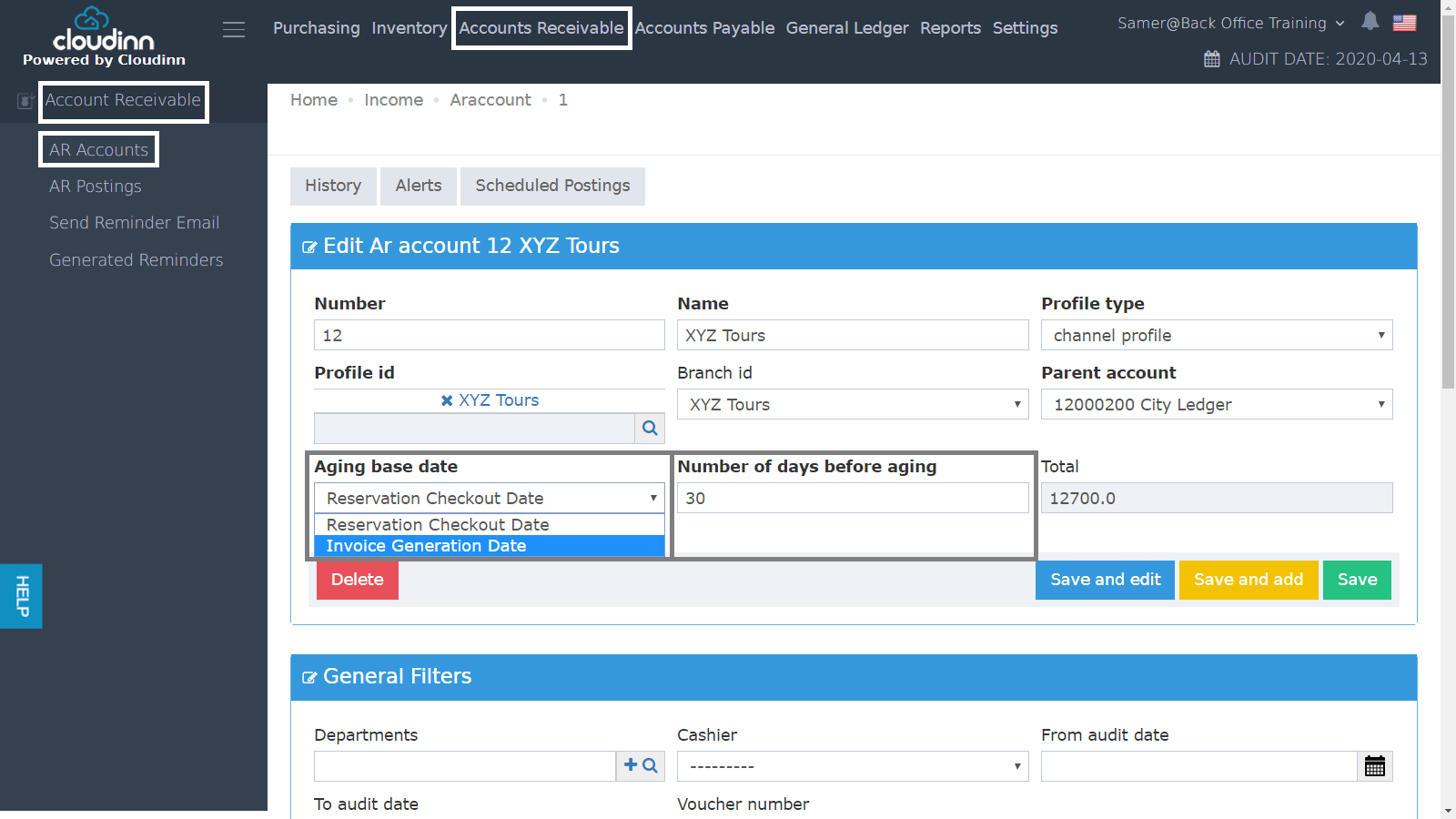
When you have multiple Tour Operators and Travel Agencies, it’s a challenge to make sure all of them to pay their bills on time as per your agreement. First, we need to set the Invoice Due Date for the AR Account. Back Office → Accounts Receivable → AR Accounts → Select AR Account Once you reach this screen you would get to adjust the settings for this AR Account.Documentation Index
Fetch the complete documentation index at: https://help.kwentra.com/llms.txt
Use this file to discover all available pages before exploring further.
- Aging Base Date: this AR Account’s invoice would start its aging cycle only when this condition is met, you have the choice for aging to start from the reservations checkout date or from the Invoice ID generation date.
- Number of days before aging: based on this setting, the invoice due date would be set and the invoice aging cycle and reporting would start after the mentioned days before aging.
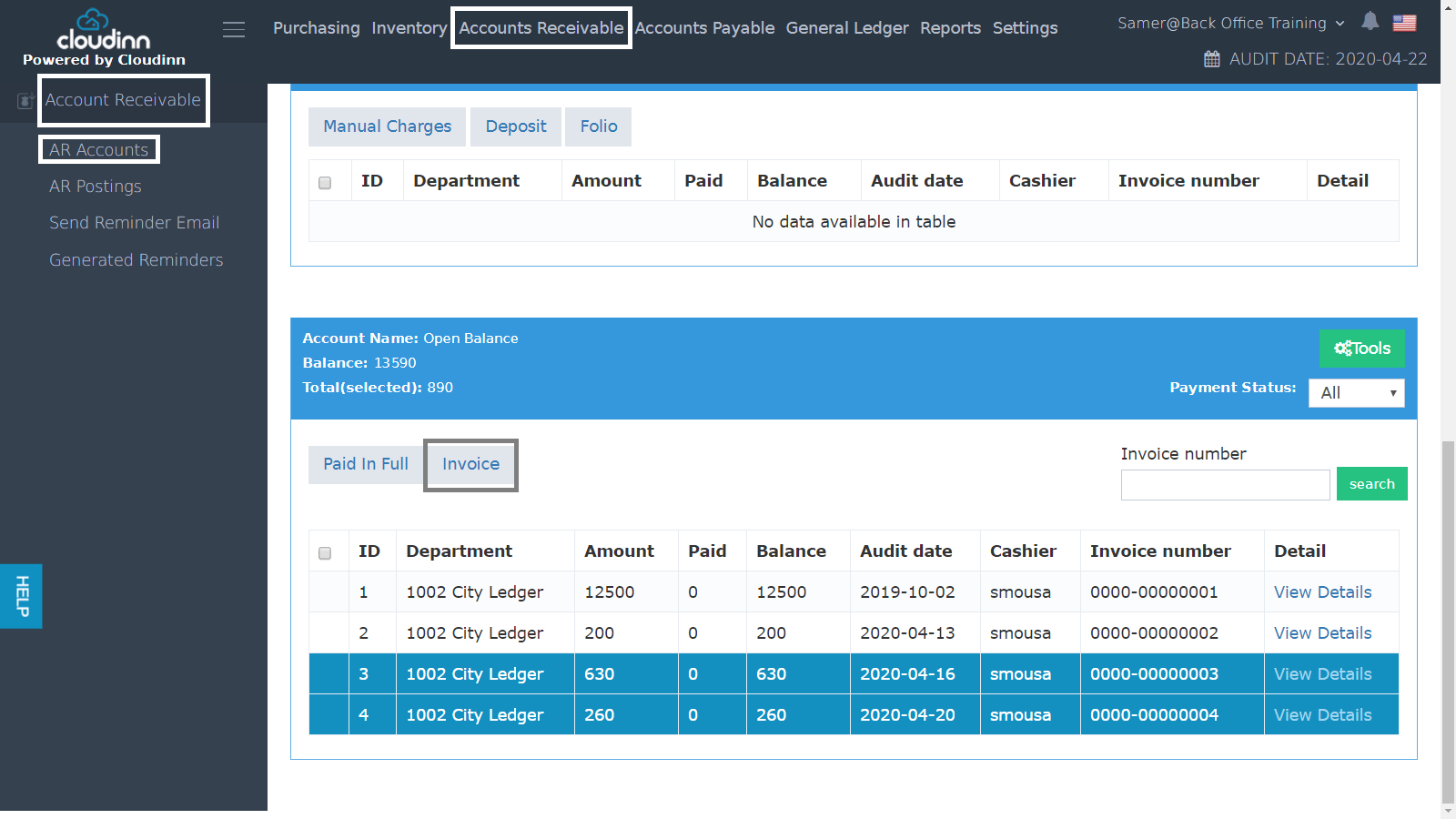
Running the helps you see all open balances for this TA/TO.
Back Office → Accounts Receivable → AR Accounts → Select AR Account → Select Invoice → Click Invoice
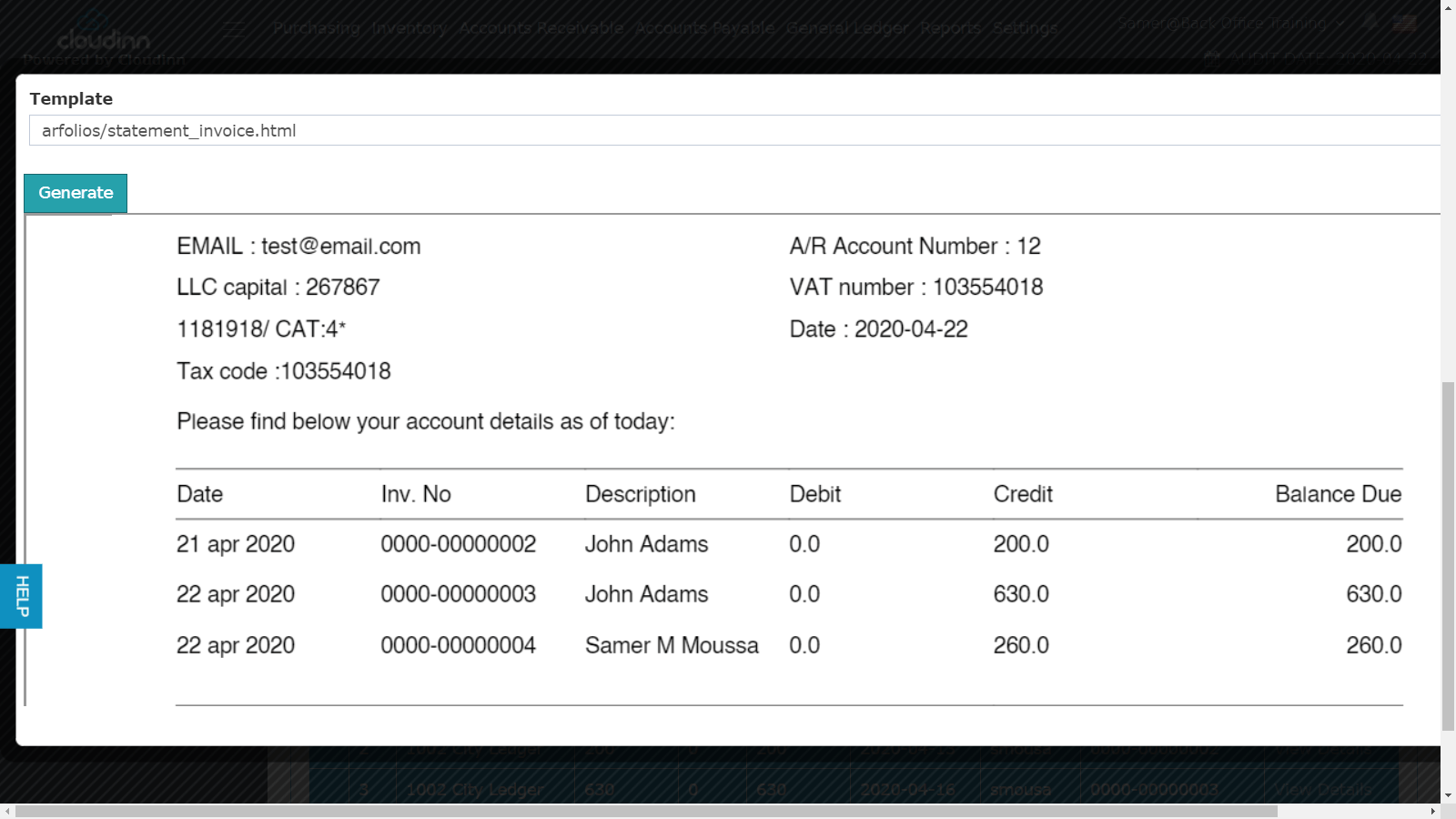
The first part contains the email/print option where it automatically takes the email in the AR Profile. Users can easily use other emails here to send them the invoice.
Following this are the AR Account and Hotel Information.
Account details show all invoices per guest name and how much is left to be paid.
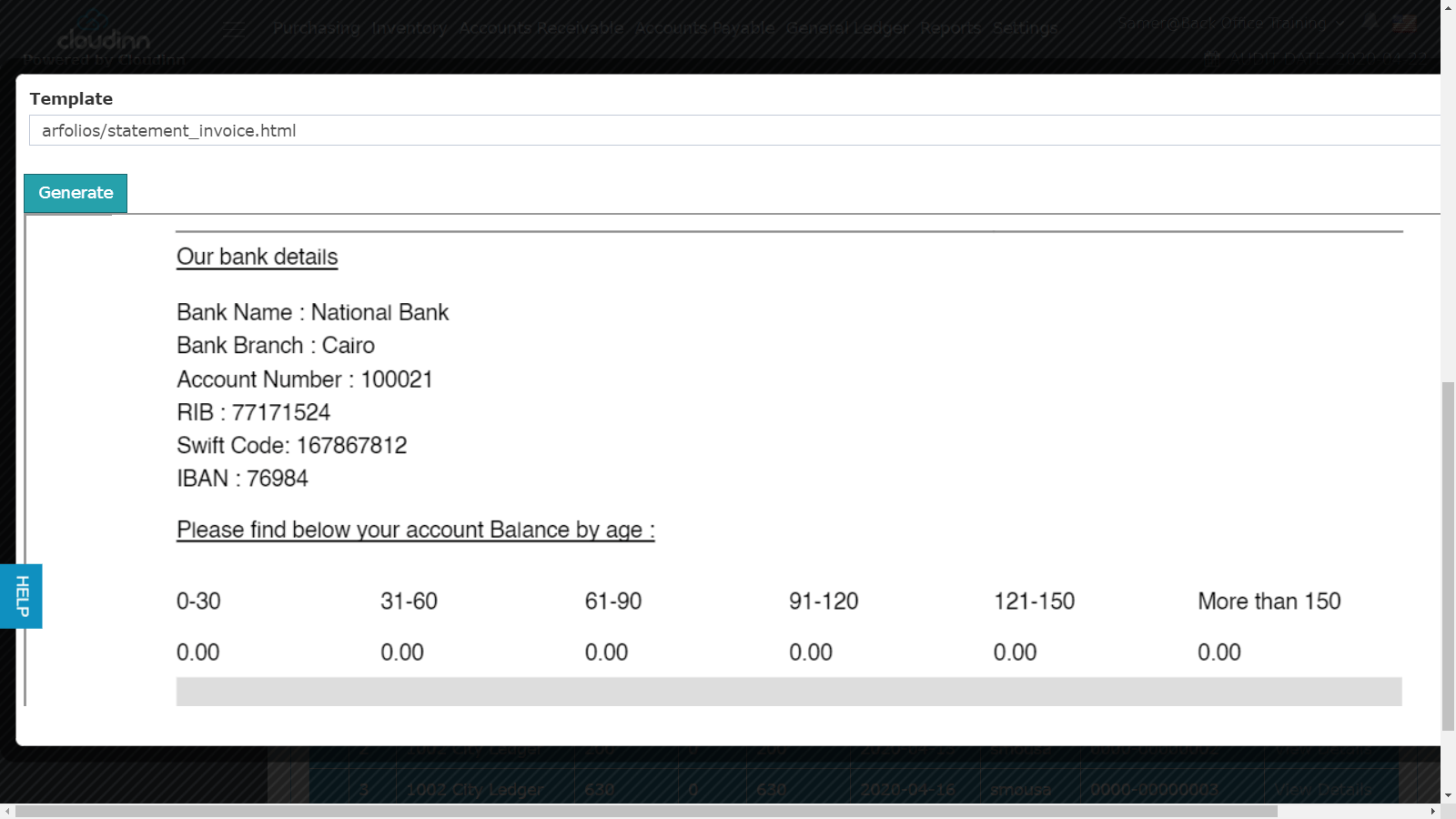
Bank details to make correspondence much easier.
The aging cycle would only start after the number of days before aging are over.
N.B: Invoice Due Date feature affects the below reports:
- AR Aging - Invoice Due Date: added a new columns for the amounts that are not yet within the aging cycle.
- AR Invoices: added a new column to show the due date of each invoice.