

Link Vendor to a single Account with type “Liabilities”:
This is the easier method wherein each vendor has his own Liabilities Account in your chart. Back Office → Settings → Vendors → Add New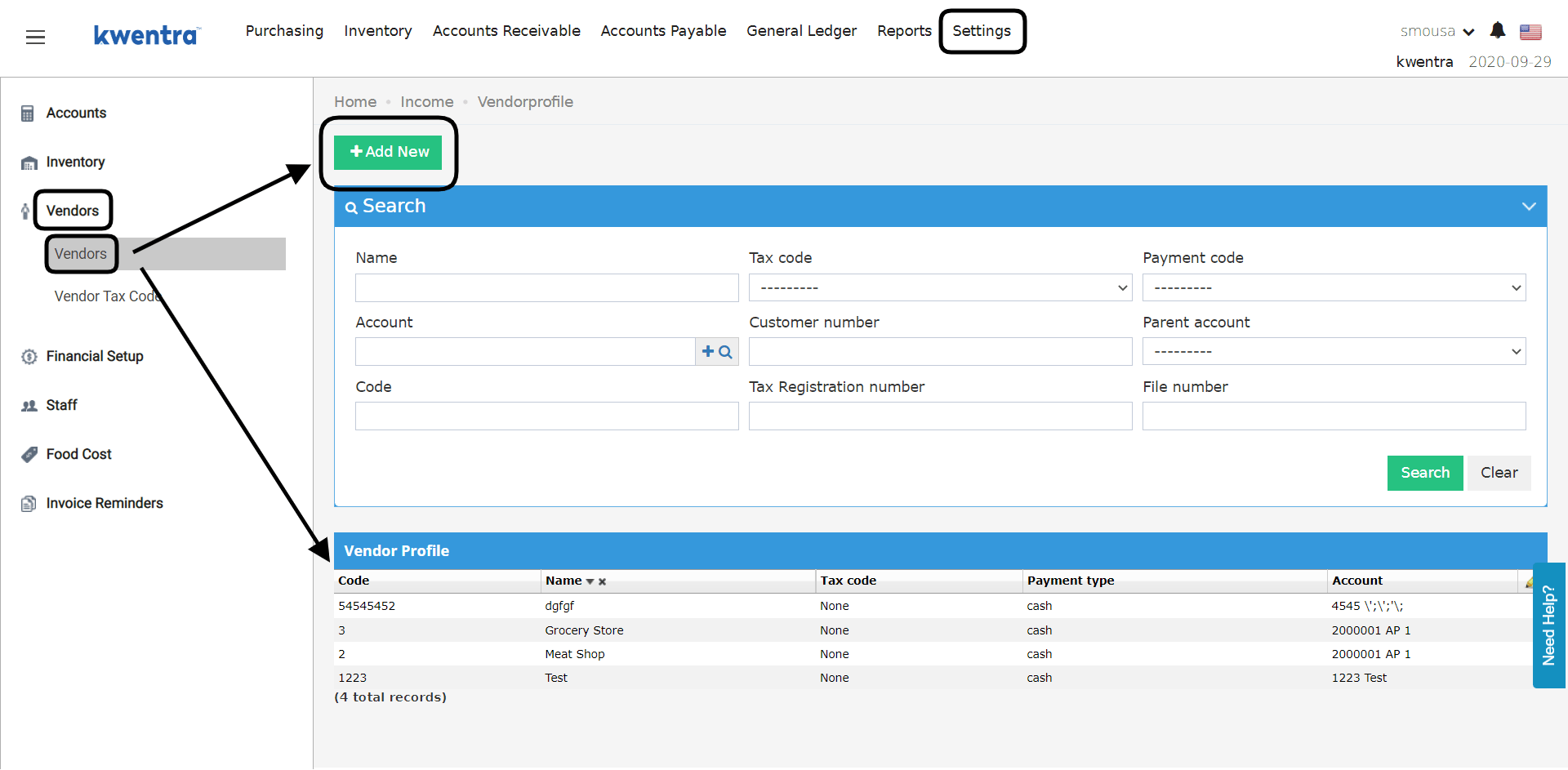
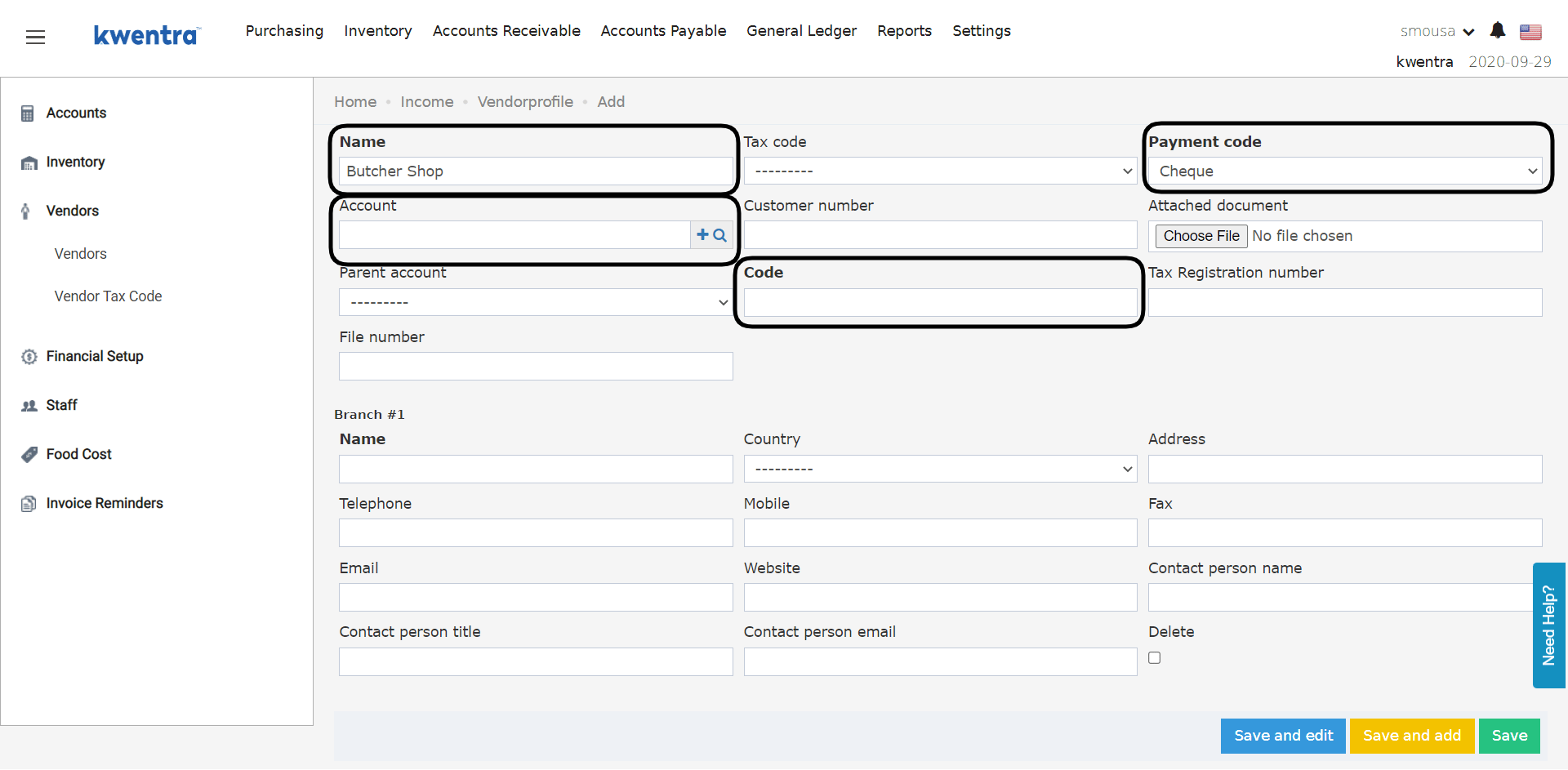
Link Multiple Vendors to a Parent Account with type “Liabilities”:
To use one parent account for all vendors, that account must appear in the parent account drop-down. Back Office → Settings → Accounts → Account → Search for Account with type Liabilities → Click on the account you desire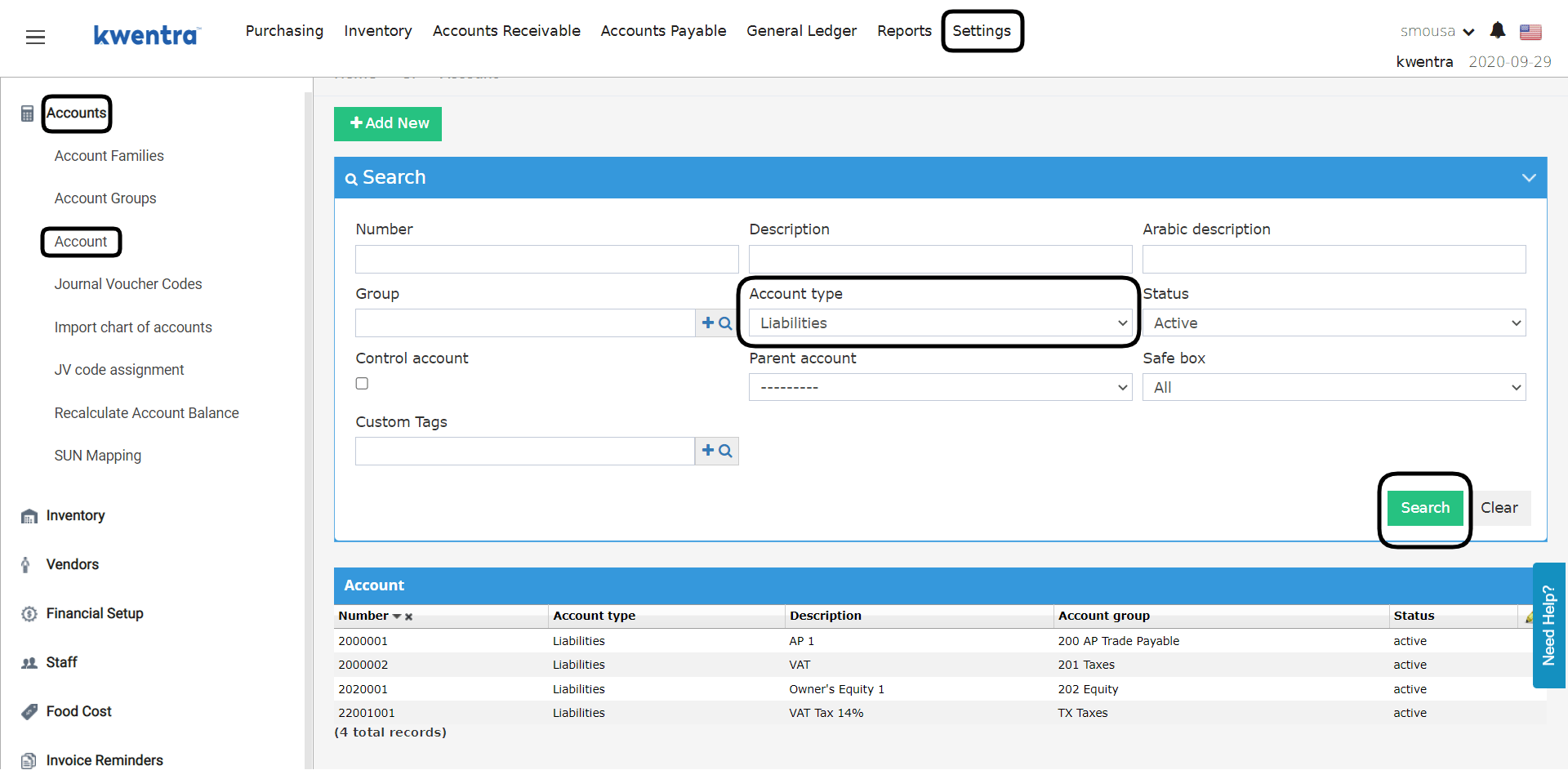
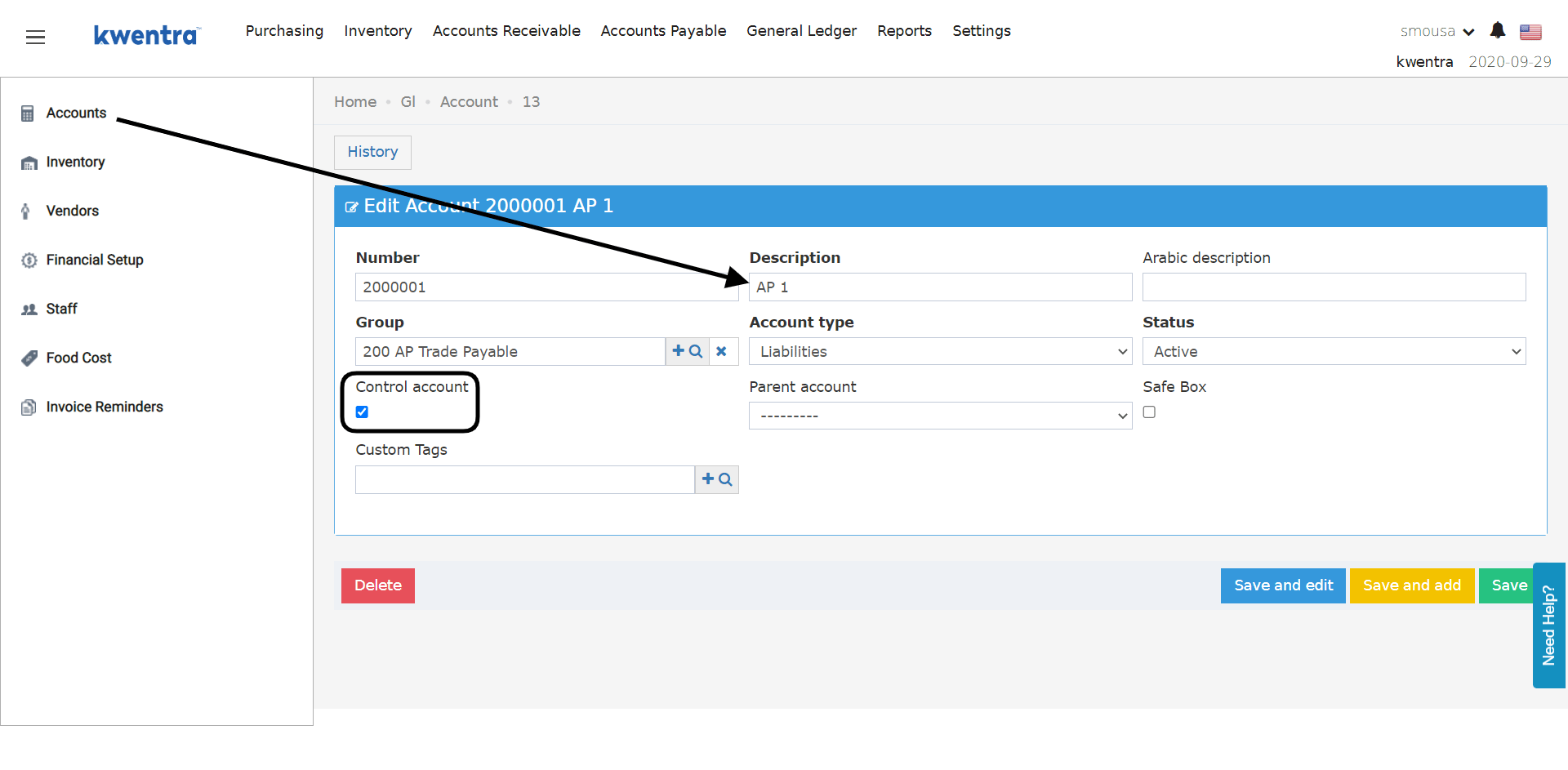
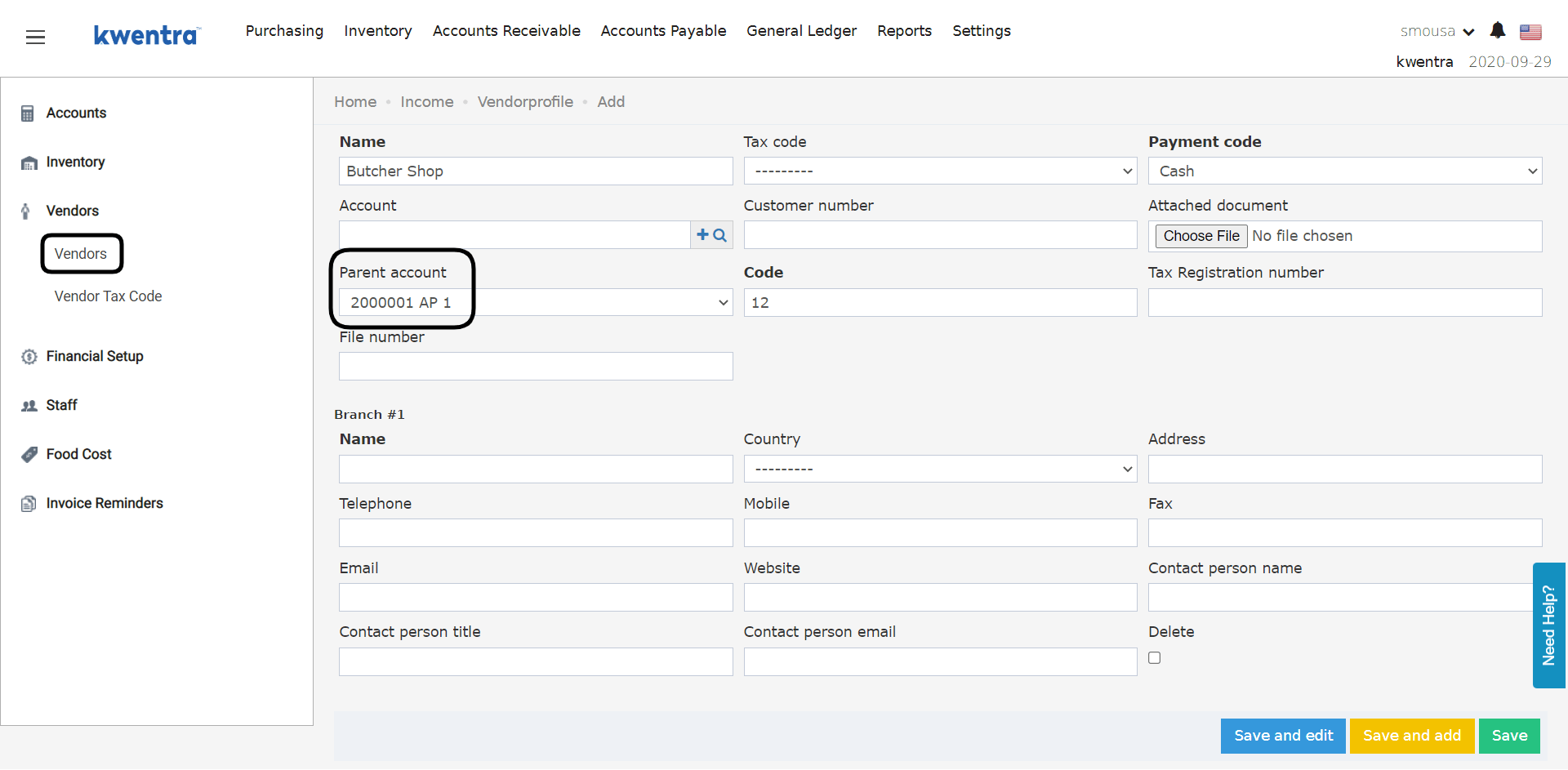
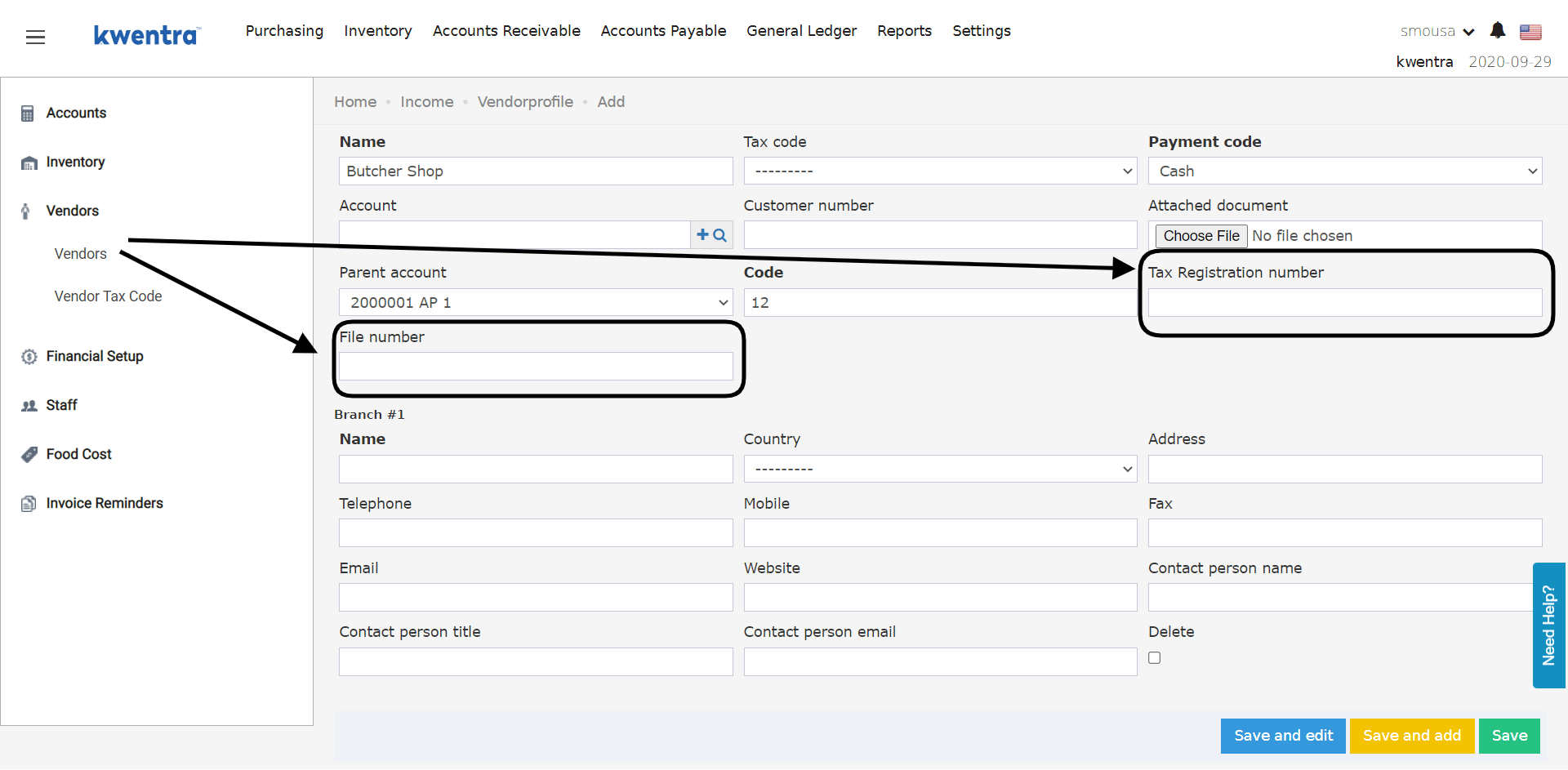
- Vendor Tax Registration number
- File number
Update: September 8, 2026
The vendor profile now holds Bank Name and Bank Account Number. Payment details live with the vendor, not in a spreadsheet.On the Vendor Data screen
Back Office → Settings → Vendors Both fields sit with the other vendor details and are saved the same way. Both are optional, so existing vendors stay valid. They are free text, so any account or IBAN format works.On printouts
Once filled in, both fields appear in the vendor details of these printouts:- Purchase Order
- Receiving Order
- Receive from Vendor
- Return Request
- Vendor Payment