

💡 Business Value
This update helps hotels and businesses:- Restrict item visibility and usage to the right departments
- Improve inventory control and reduce errors in purchasing
- Ensure that each division only interacts with relevant items
✅ Use Cases
- The F&B division should only see ingredients, not engineering items
- The Maintenance division should not request housekeeping supplies
- Storekeepers should avoid incorrect usage or receiving of restricted items
How do we create divisions?
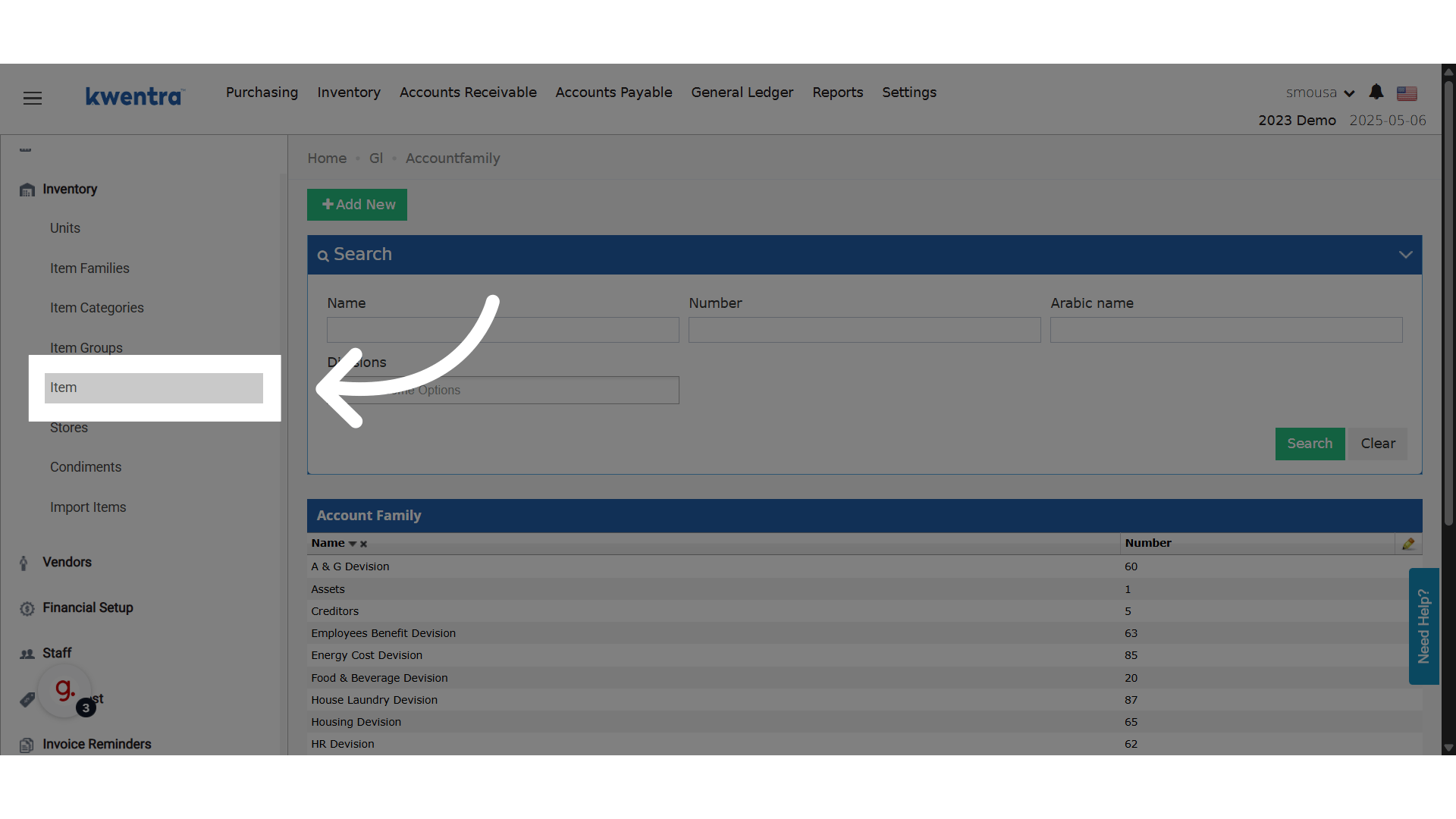
Front Office → Settings Gear Sign → General → System Users → Divisions All your divisions and the users under each one would be under this screen. To add a new division, click Add New.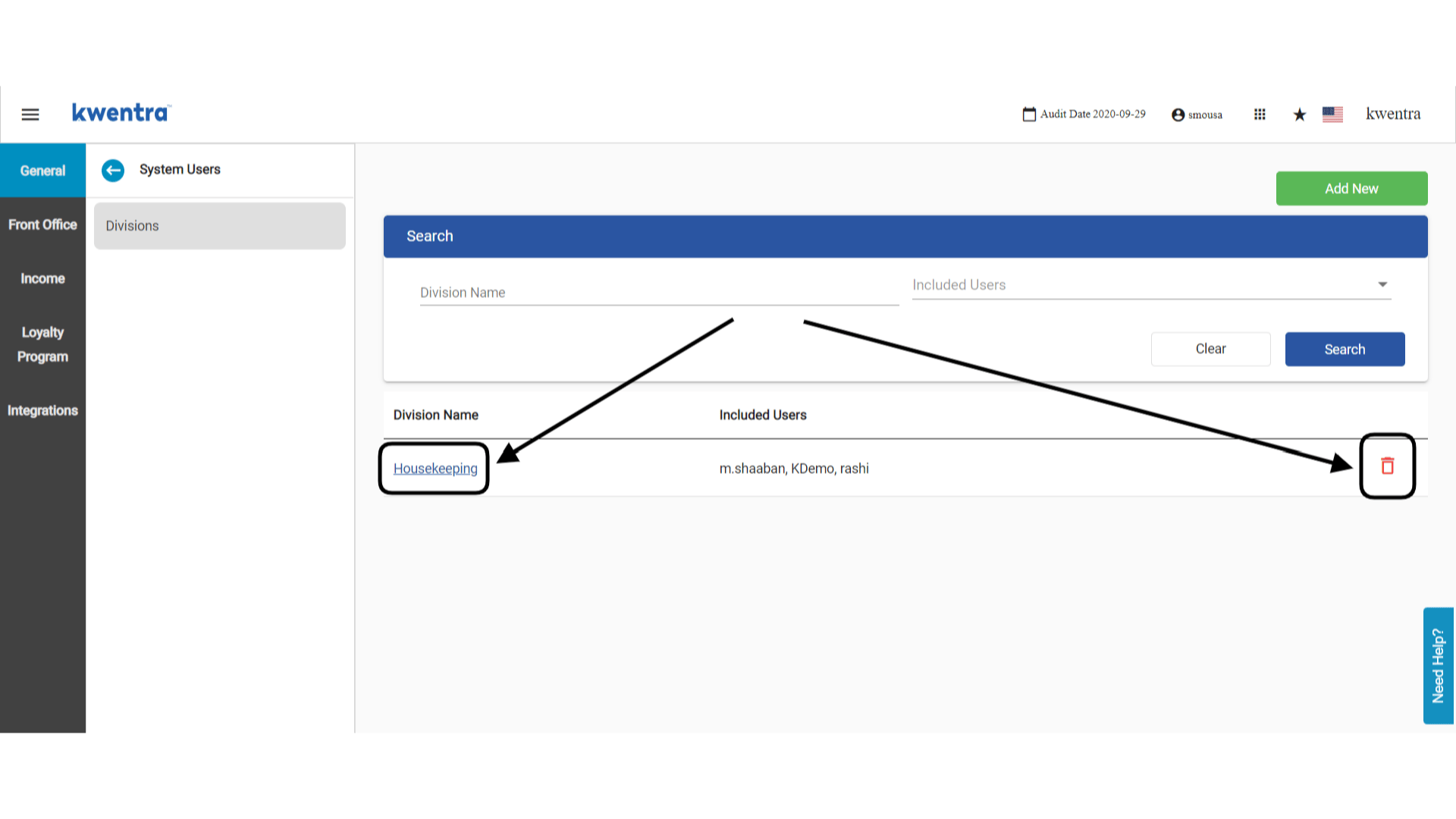
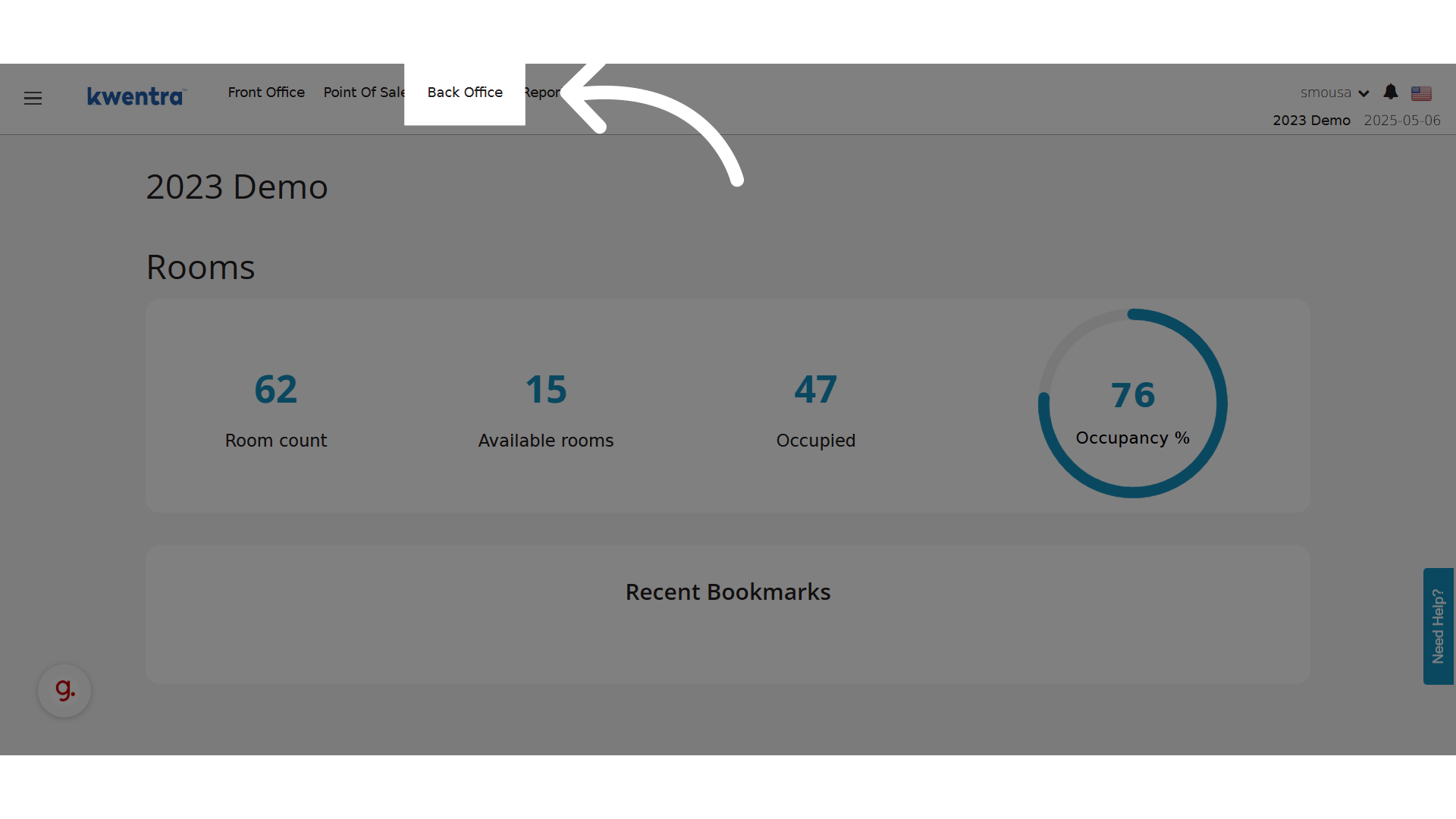
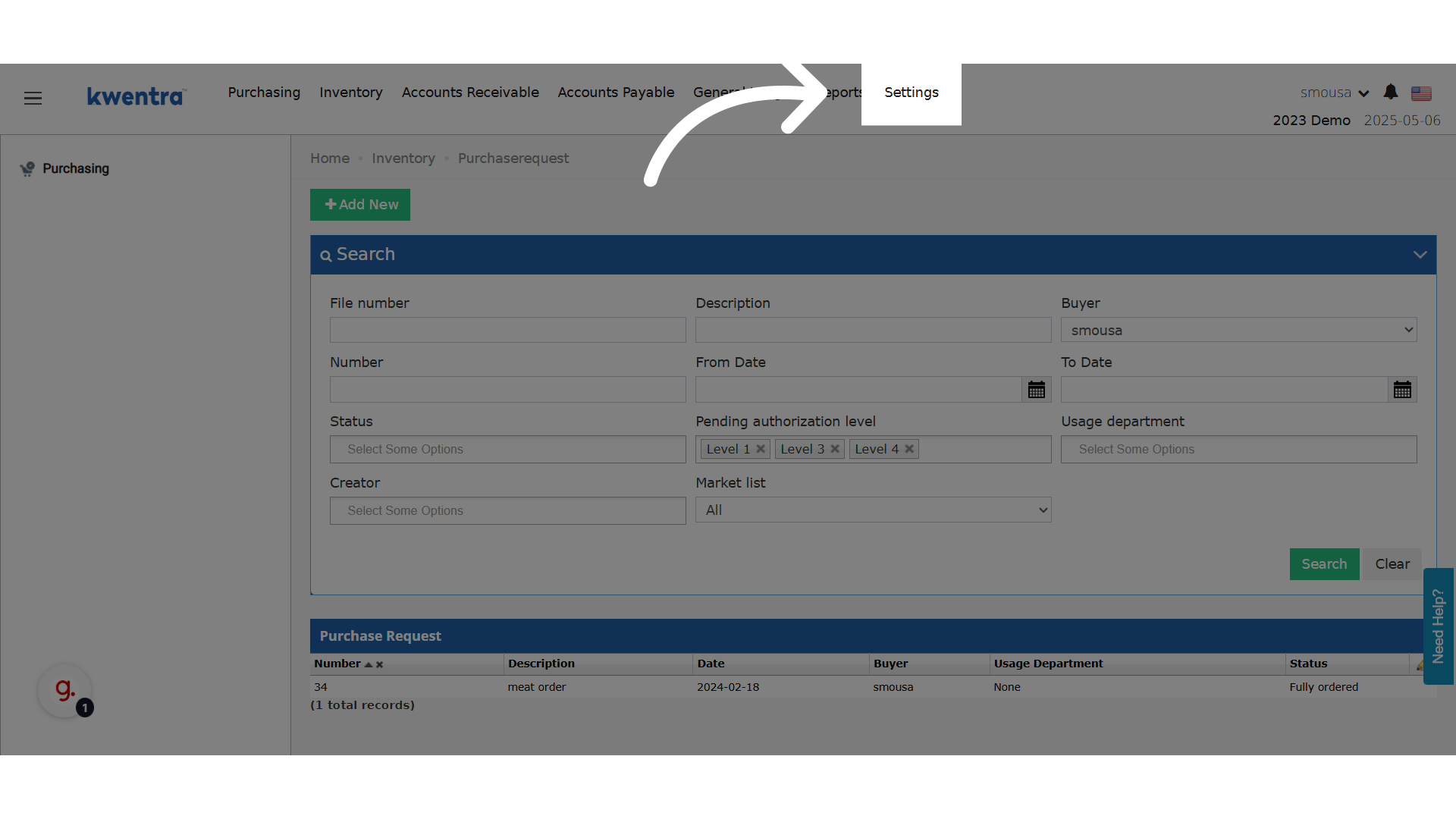
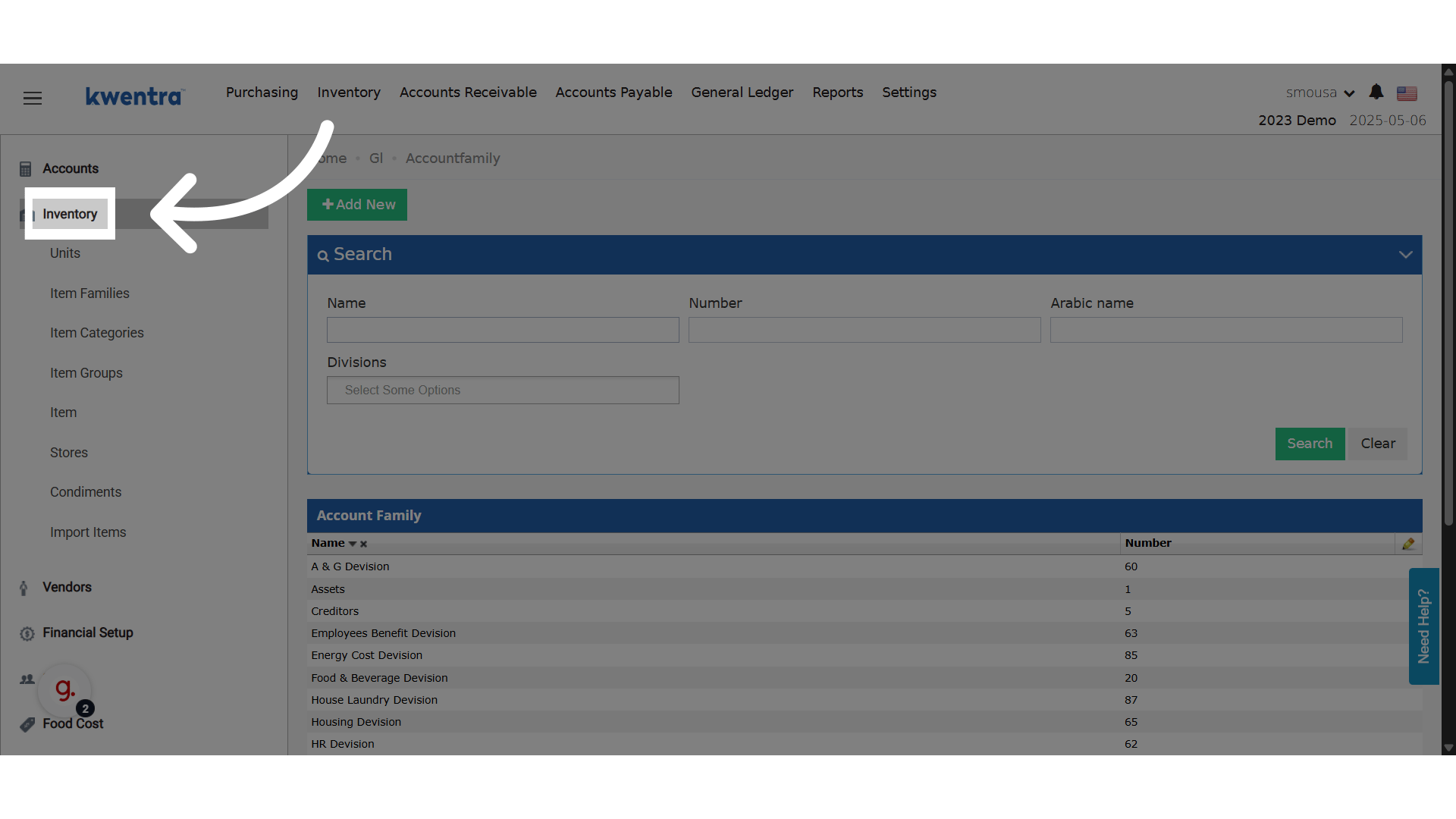
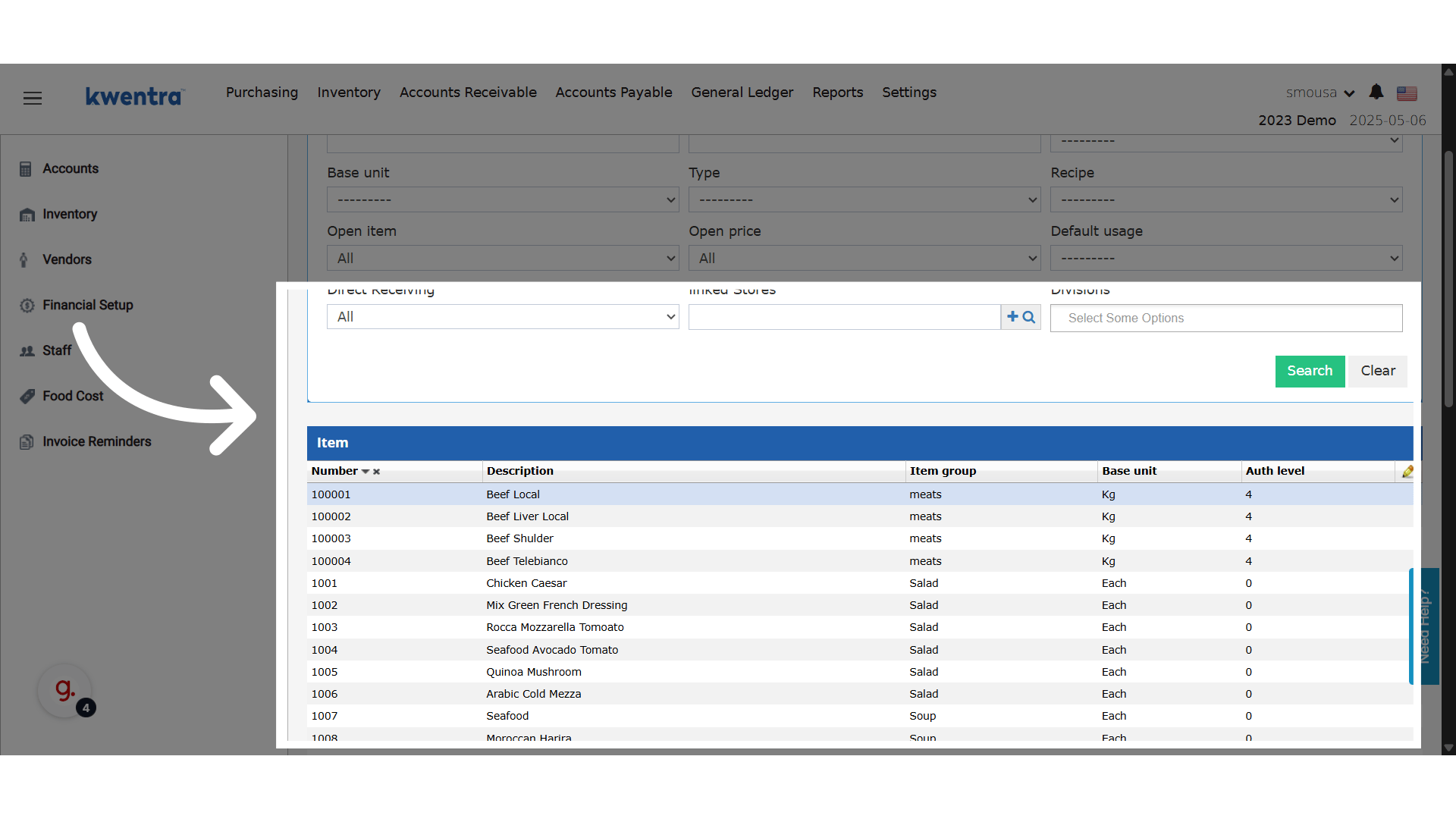
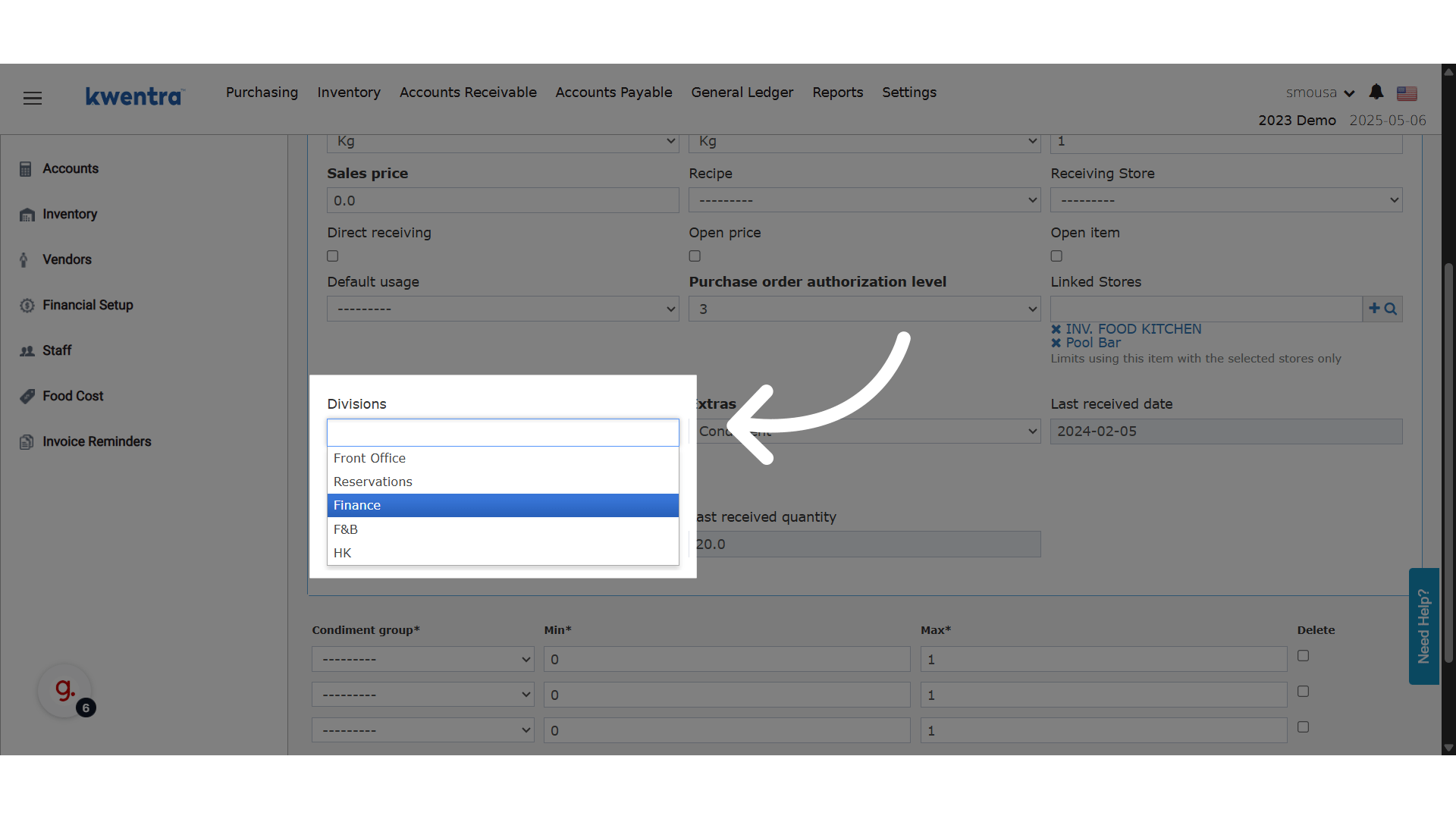
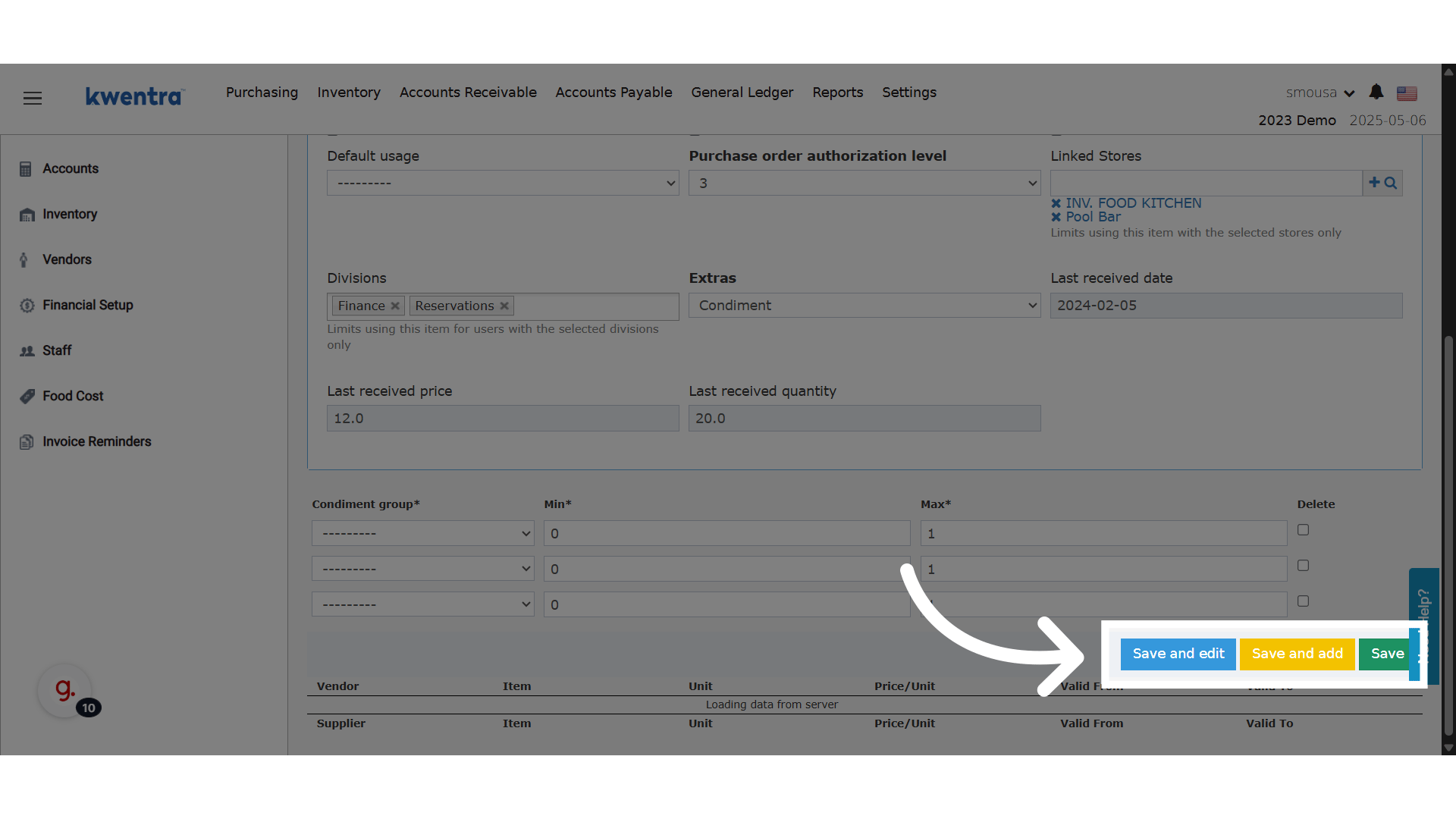
Behavior Based on Multi-Select Setup
- No divisions selected
- The item is usable by all users with proper permissions.
- One or more divisions selected
- The item is restricted to selected divisions only.
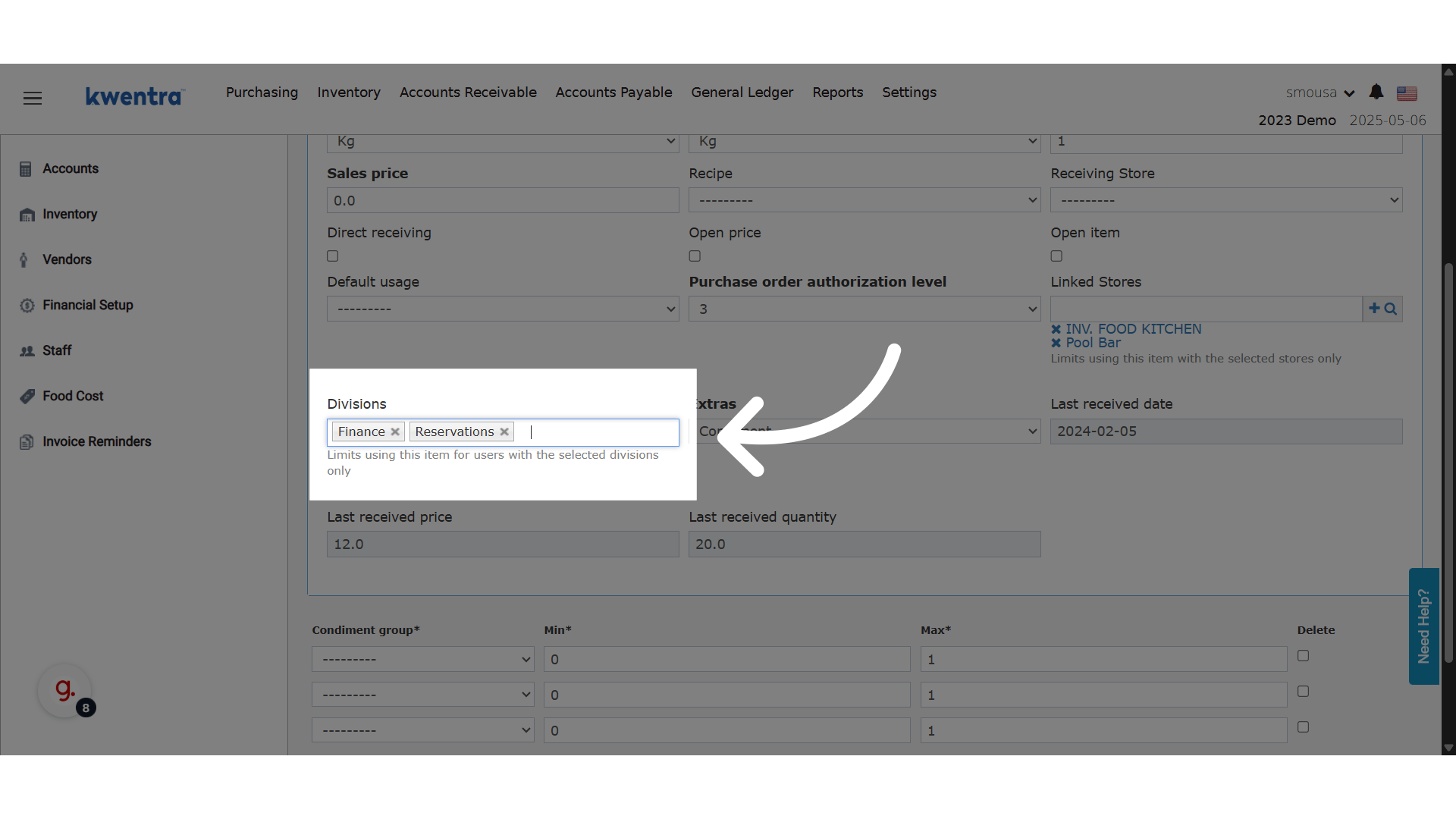
🚫 Restrictions on Item Usage
Once an item is linked to a division, it can only be used by users from those divisions in the following modules:- ✅ Purchase Requests
- ✅ Receiving Orders
- ✅ Return Requests
- ✅ Store Transfers
- ✅ Store Usage
🔍 Item Filtering for Users
When users open the item list in the above screens, they will only see items that are:- Either not linked to any division.
- Or explicitly linked to their division.
📥 Items Import/Export Updates
✅ New Column: Divisions- Included in both import and export templates