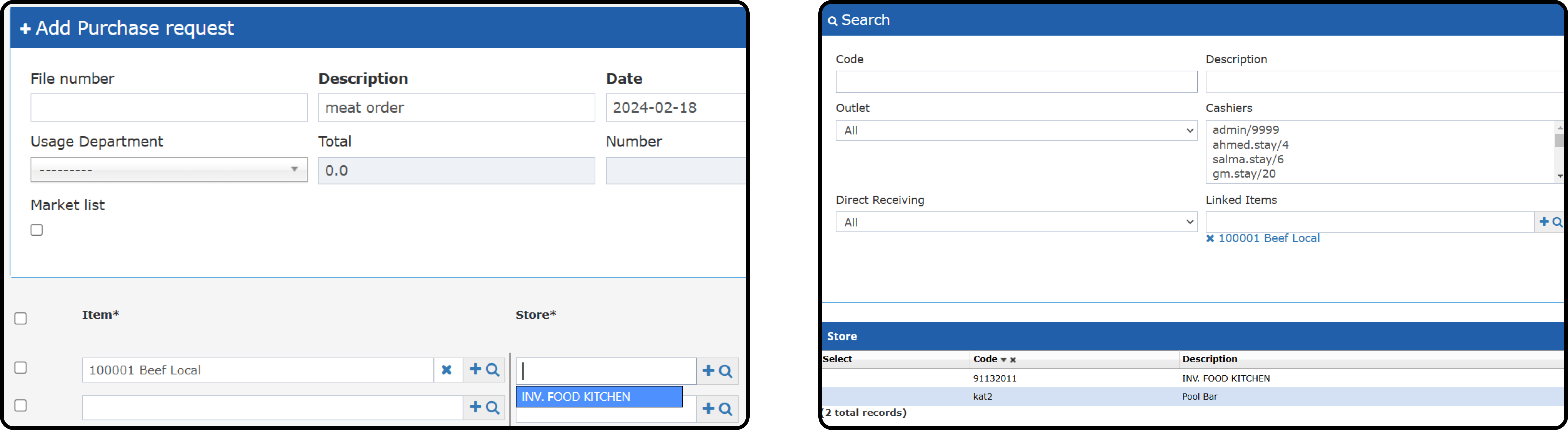
- Inventory control.
- Purchasing accuracy.
- Incorrect item usage in unauthorized stores.
- Reduce stock errors, mismatches, and unnecessary transfers.
- Maintain compliance with procurement policies.
- Ensure items are only available where needed.
- Streamline stock usage.
- Optimize purchasing decisions.
How do you link your stores with your items?
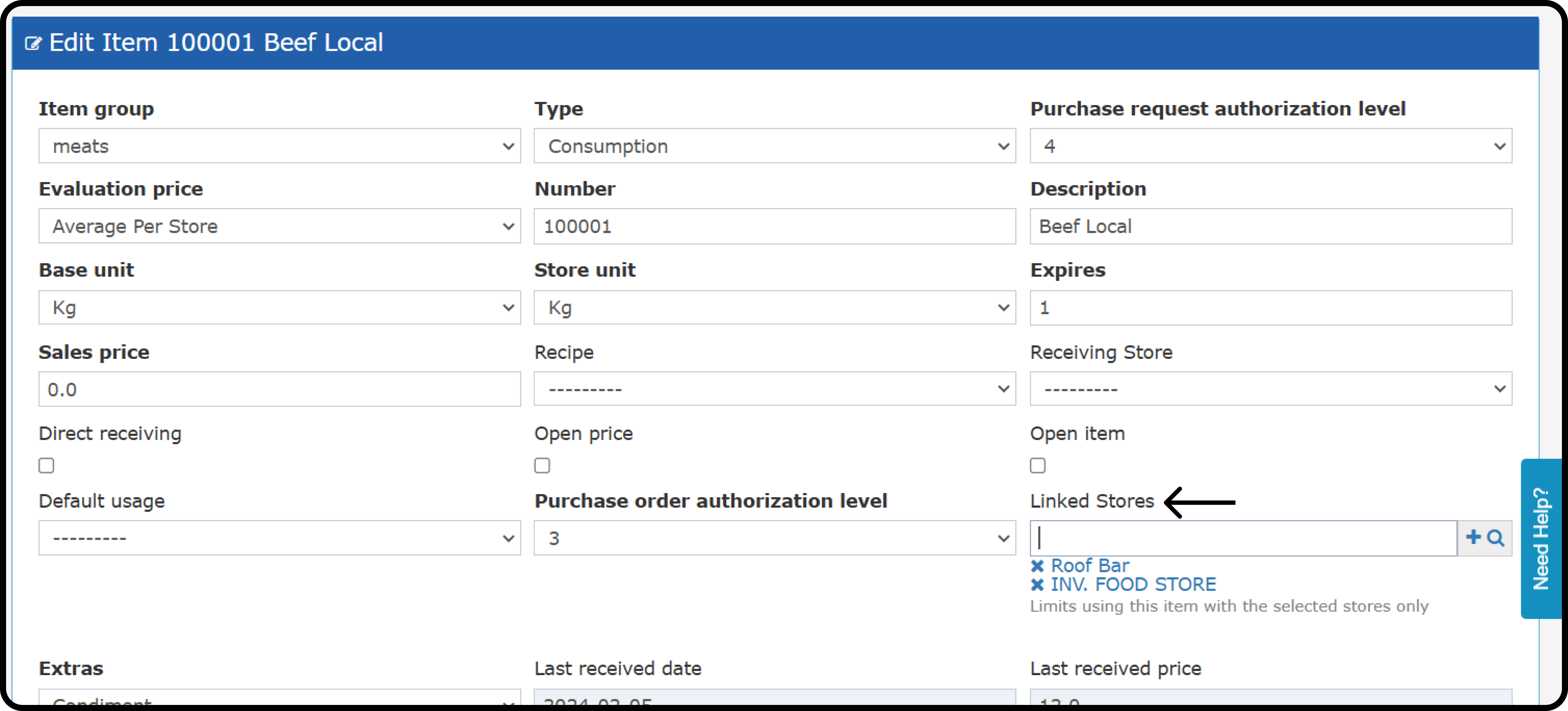
Back Office → Settings → Inventory → Item → Add/Open Item- Select the stores to which you would like to link this item.
- You can link more than one store to the same item.
How will this affect Purchasing and Inventory Cycles?
- The item can be used across all stores if no store is linked.
- If stores are linked, the item is restricted to selected stores only.
- Selecting the item number will restrict the stores to the ones in the item settings.
- Using the magnifying glass to select a store will only display the stores linked in the item settings.
- Selecting a store before selecting items will show only its linked items and any unlinked items to stores.
- Purchase Requests
- Receiving Orders
- Stock Transfer
- Stock Usage