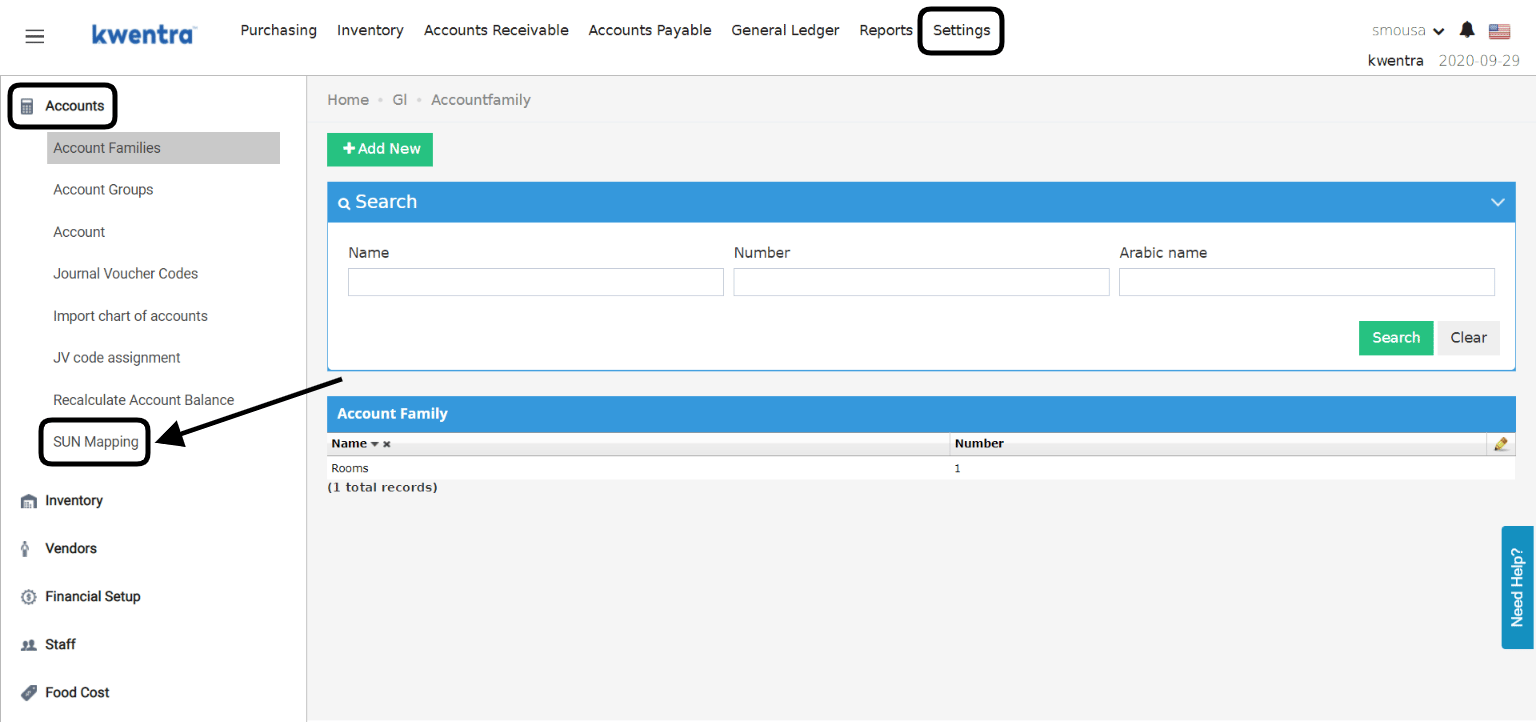
This article is to help you understand how to pass the income numbers and journal vouchers created by kwentra Front Office/Point of Sale and Import them directly into SunAccounts. The first step is to link your financial chart of accounts on kwentra with SunAccounts through the Mapping Screen. Back Office → Settings → Accounts → SUN MappingDocumentation Index
Fetch the complete documentation index at: https://help.kwentra.com/llms.txt
Use this file to discover all available pages before exploring further.
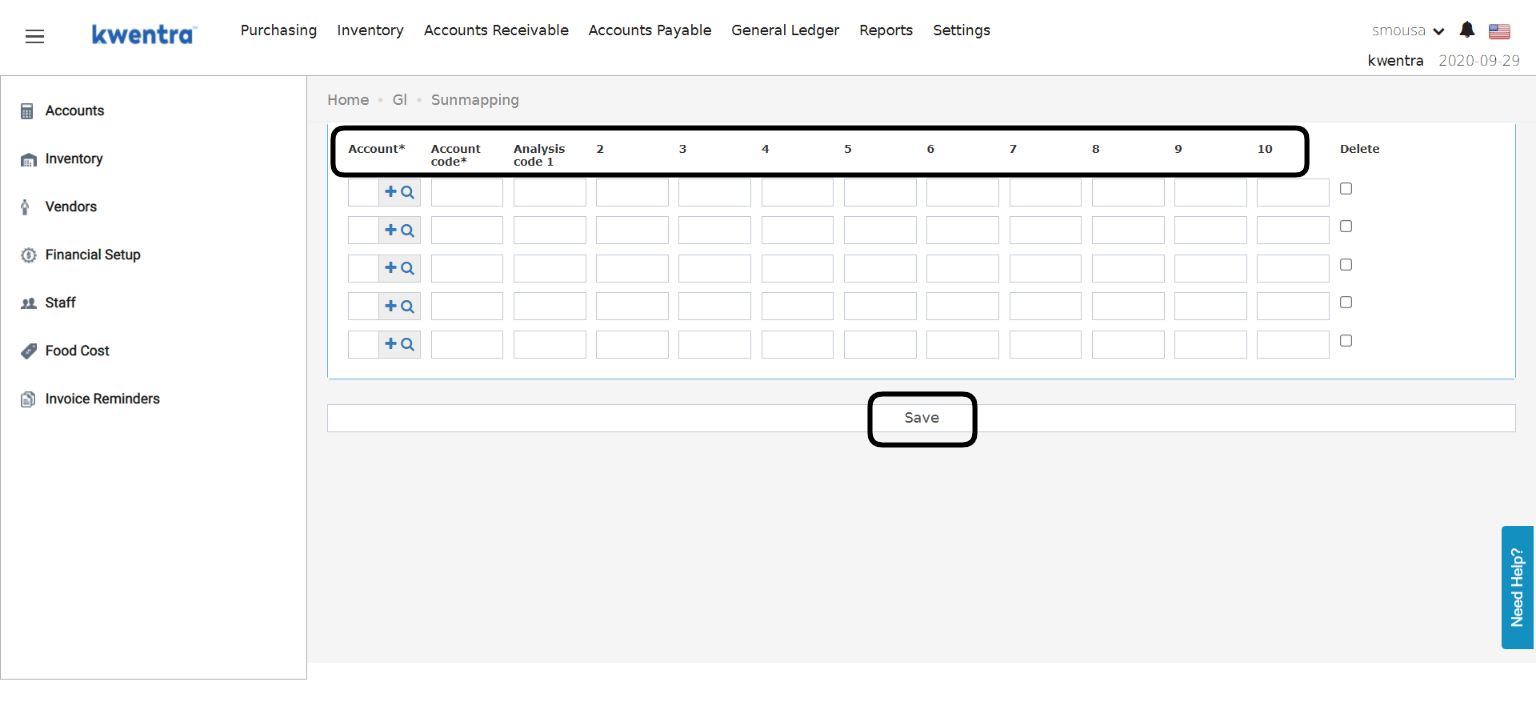
Once you reach the mapping screen you will need to link each kwentra account number with its corresponding account from SunAccount’s side.
- Search for kwentra account numbers and list them under the Account Column.
- Add Sun Account code that coresponds to it under the Account Code Column.
How do I download the export file to upload to SunAccounts?
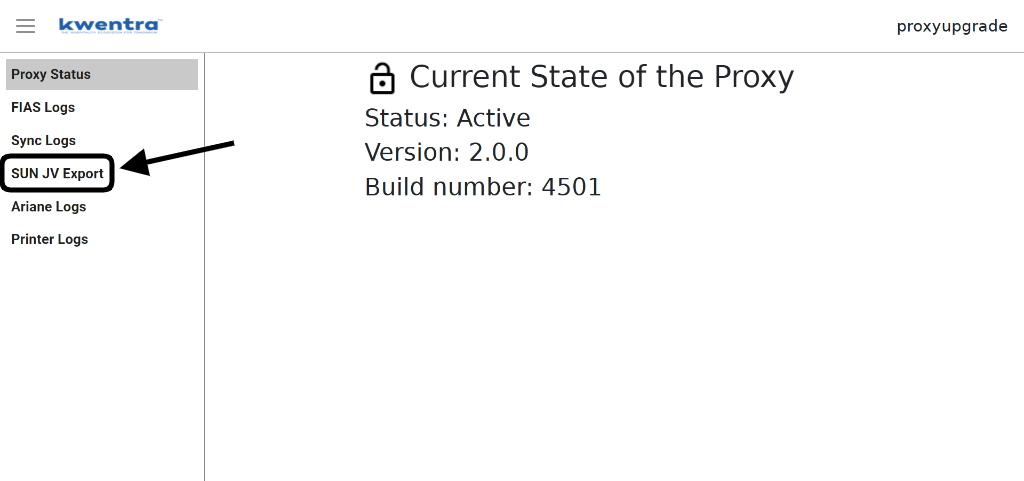
- Go to kwentra’s Proxy Dashboard.
- Click on SUN JV Export from the left side of the dashboard.
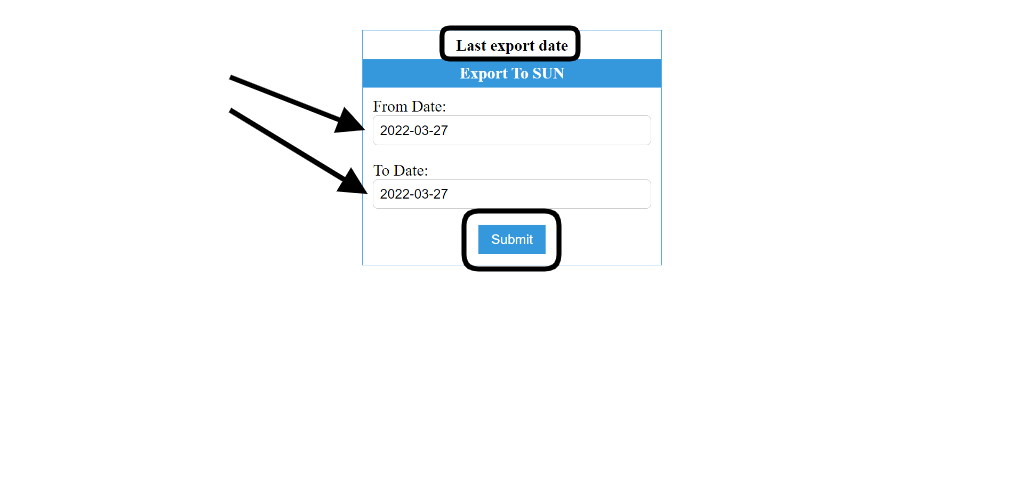
- Insert the start and end date you would like to export to SUN, the dashboard would tell you the last export date you did.
- Click Submit to download the export file.
When should I export the file?
Exporting the journal vouchers created by Front Office and POS is a daily task to be imported to SunAccounts, this should happen after kwentra’s Night Turn.
To export the previous day’s jounral vouchers only you should insert the date you want in both From Date & To Date fields.
Where can I find the exported file to import it to SunAccounts?
The downloaded file goes to your virtual machine/linux machine that has the proxy server set up on.
You should contact support@kwentra.com to help you create a folder on your virtual/linux machine with the below path.
Root/media/share
Once the folder is created and you export the file you will be able to use the downloaded file to import to SunAccounts.