Documentation Index

Fetch the complete documentation index at: https://help.kwentra.com/llms.txt

Use this file to discover all available pages before exploring further.

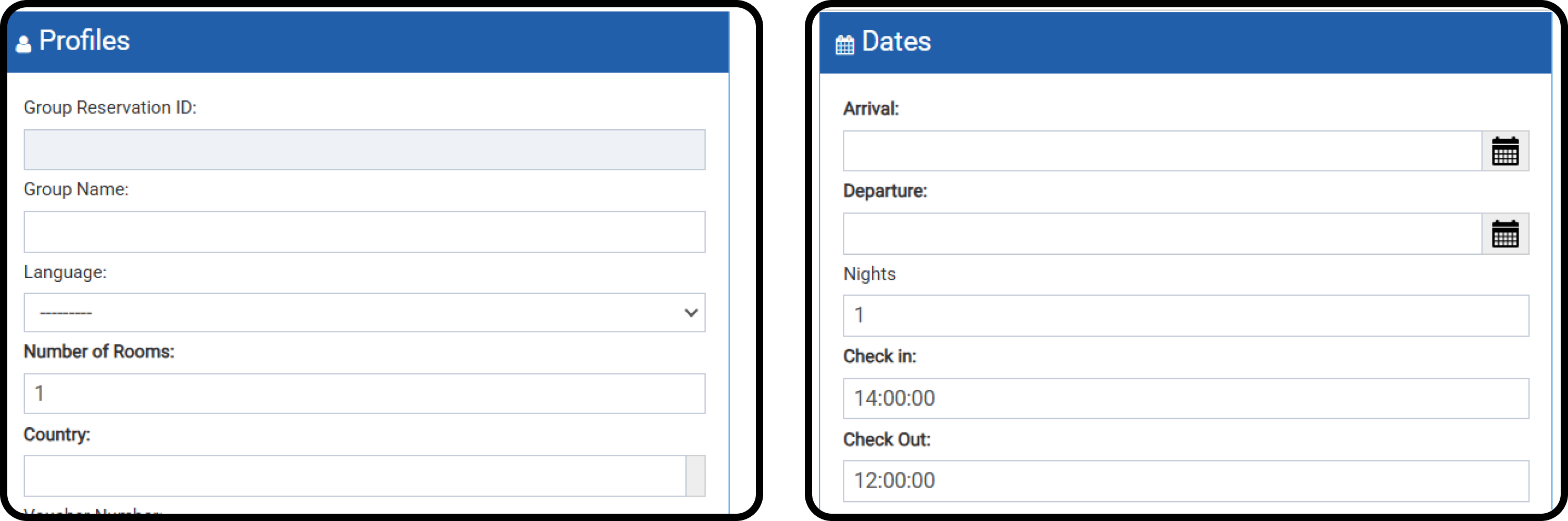
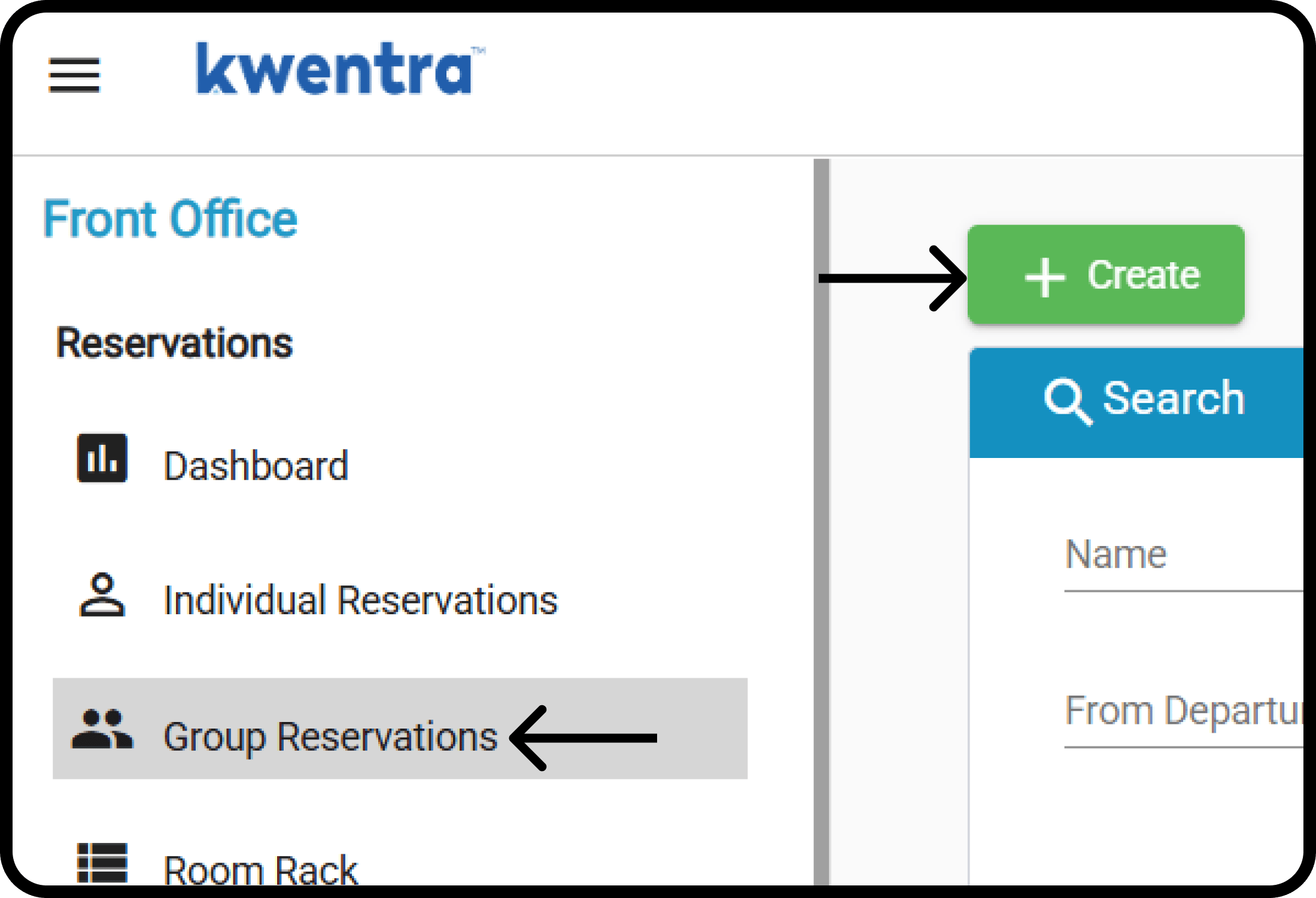
Adding a group reservation is similar to except that your are adding multiple rooms on a combined group reservation to ease the process of creation. How? Front Office → Group Reservations → Create You will need the below data to add a new group reservation:
  • Group Name
  • Number of rooms
  • Country
  • Arrival/Departure Dates
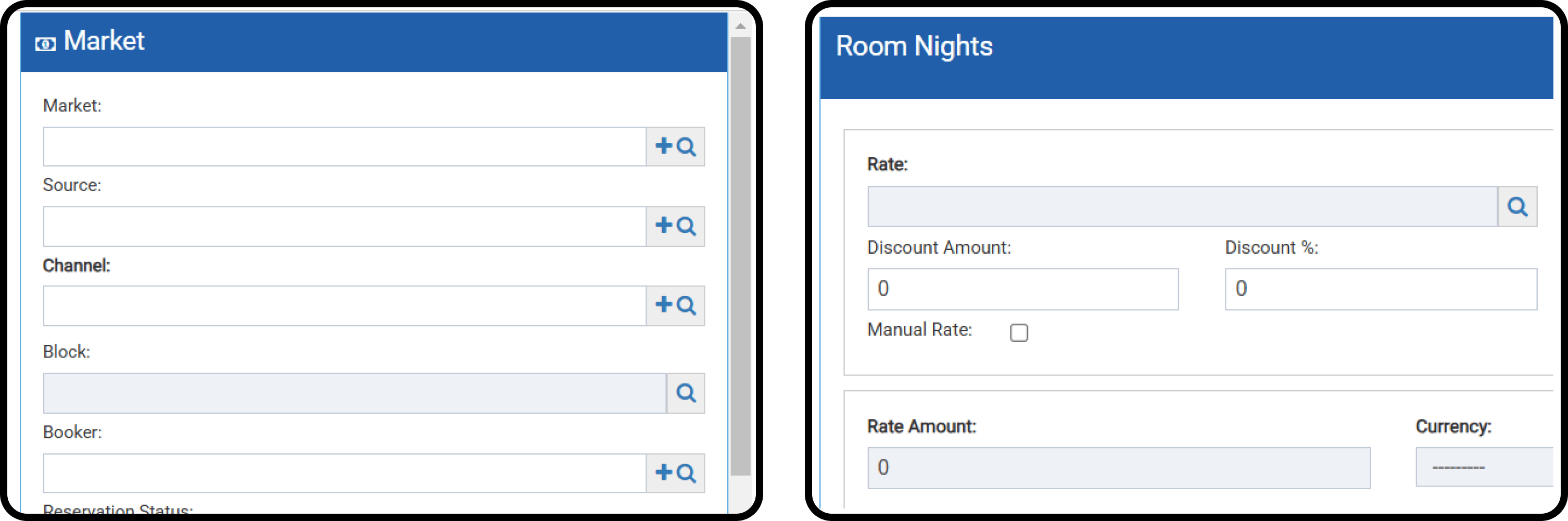
  • Channel
  • Number of adults in each room of the group
  • Rate Plan
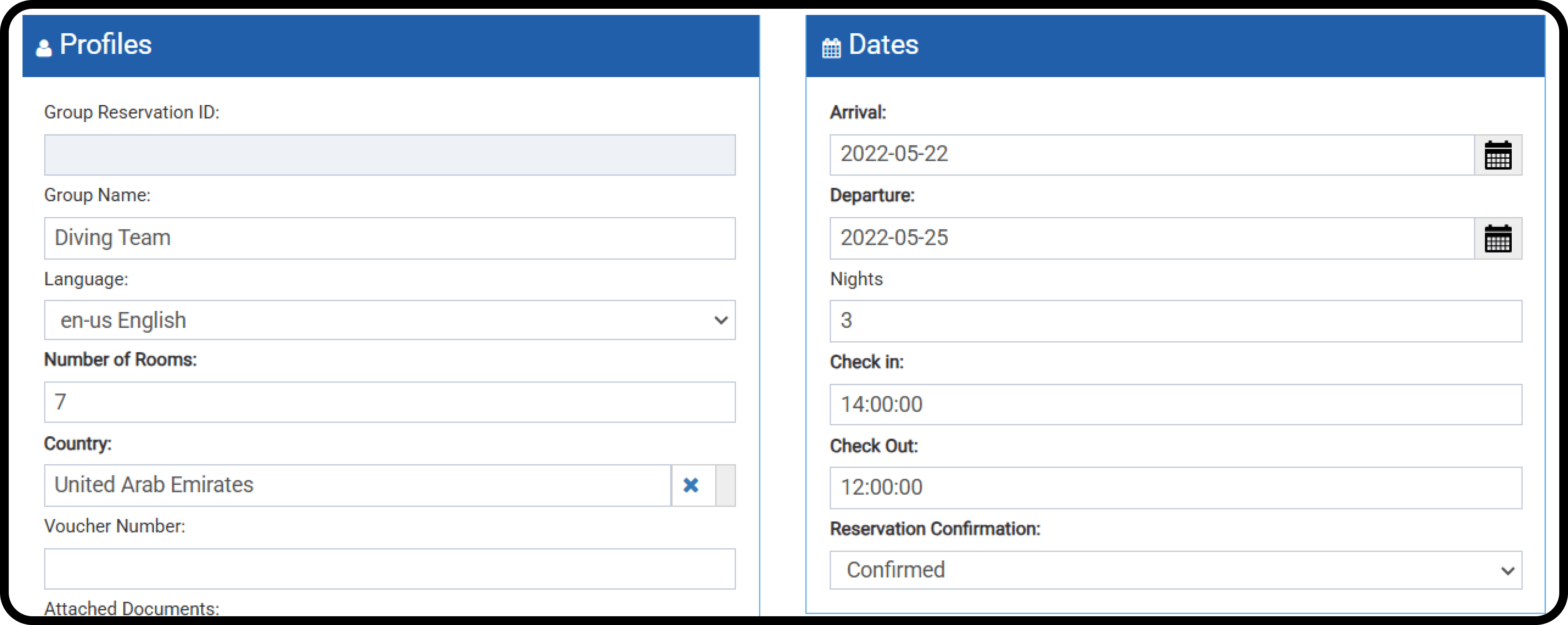
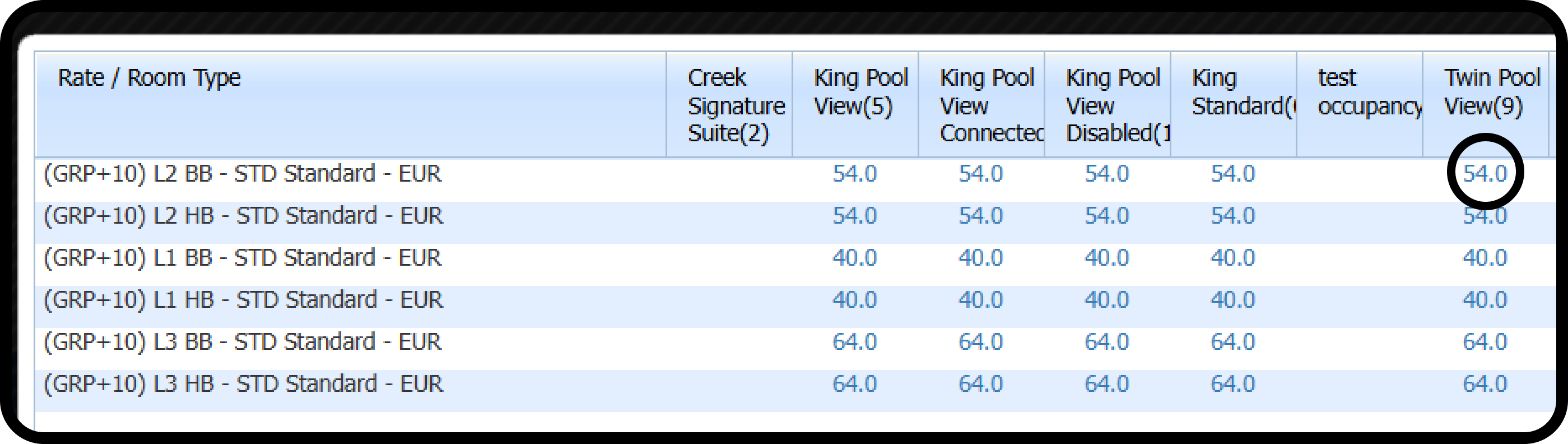
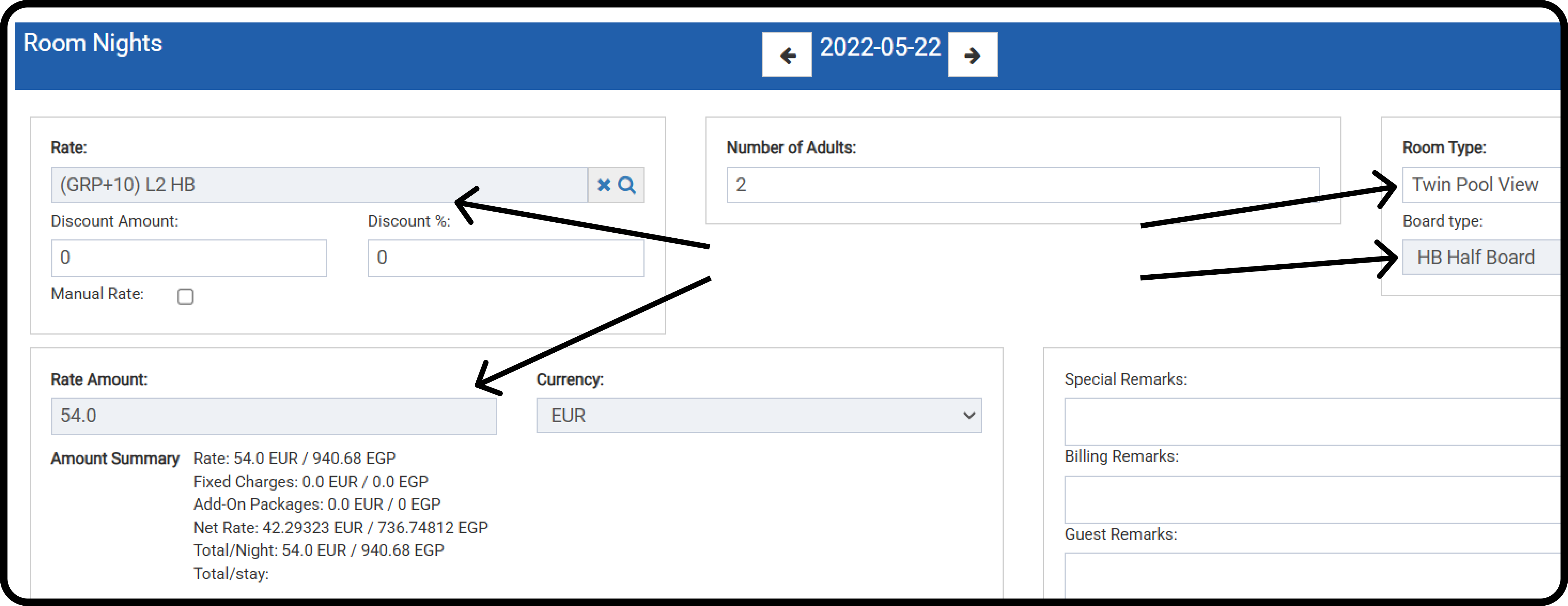
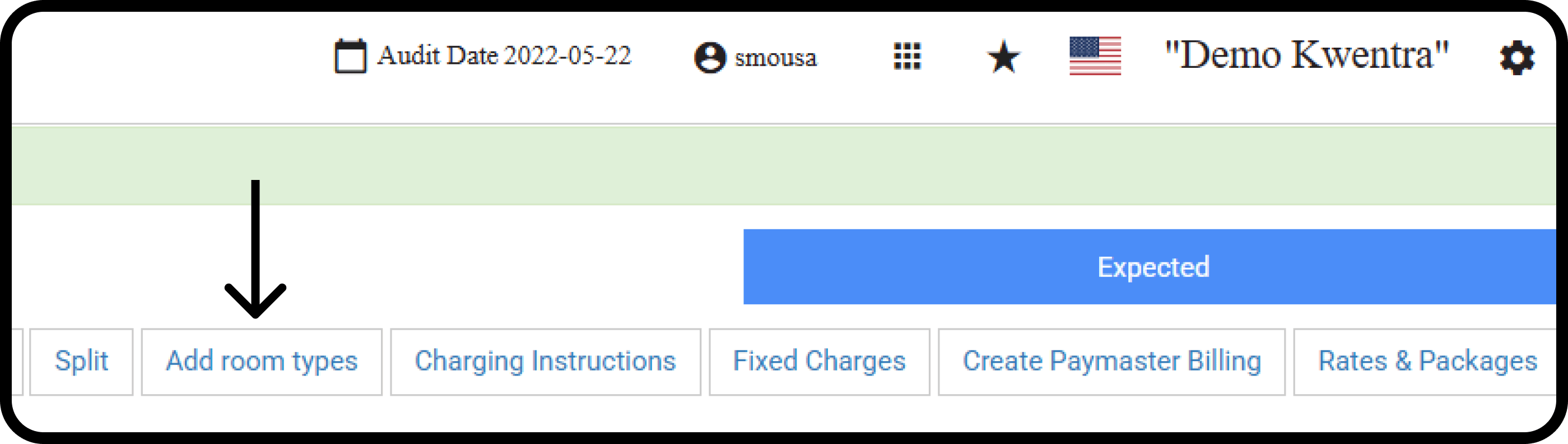
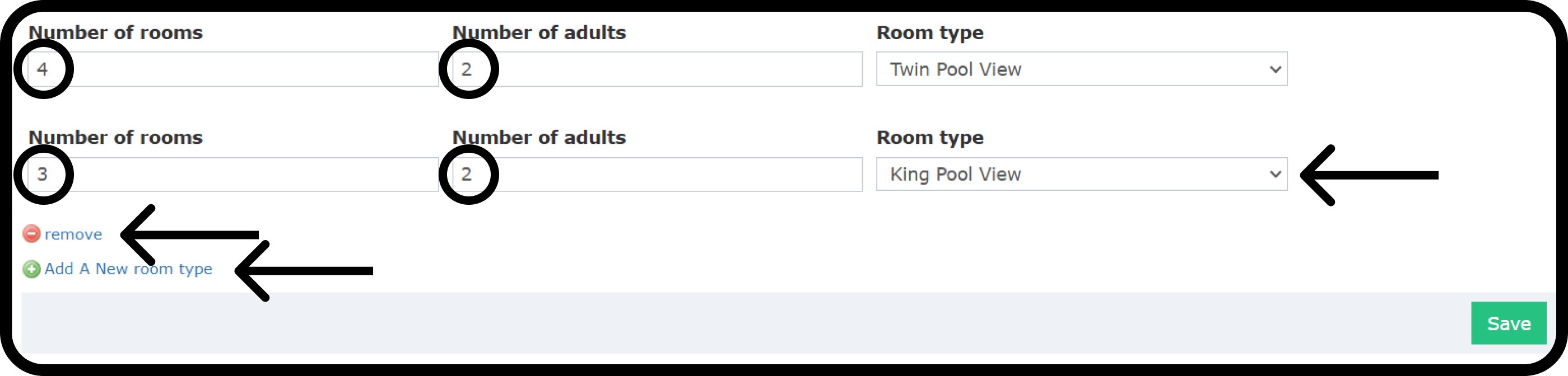
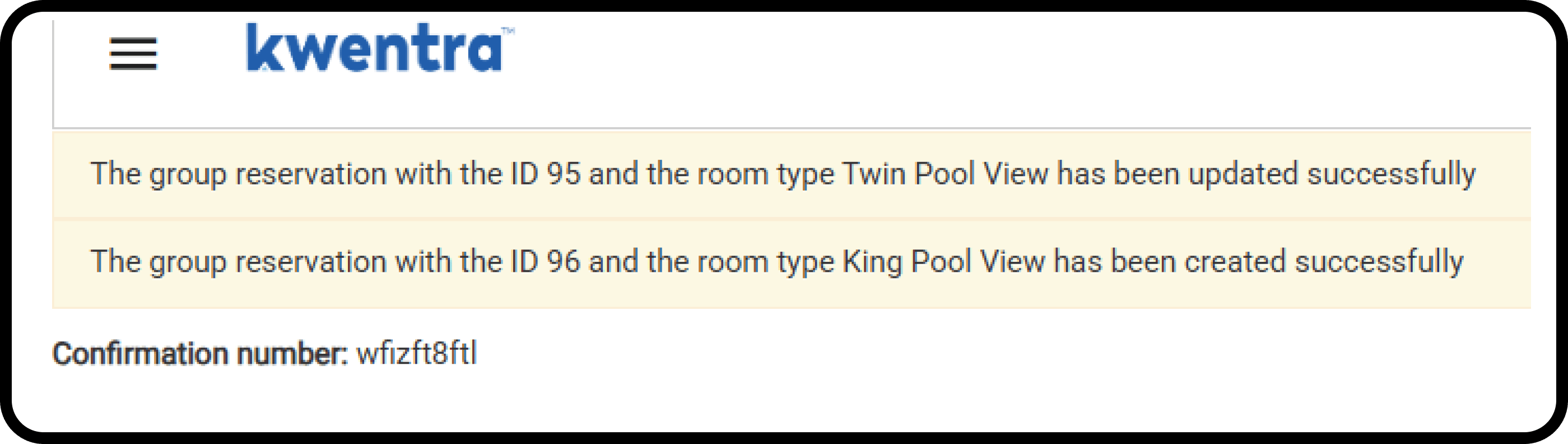
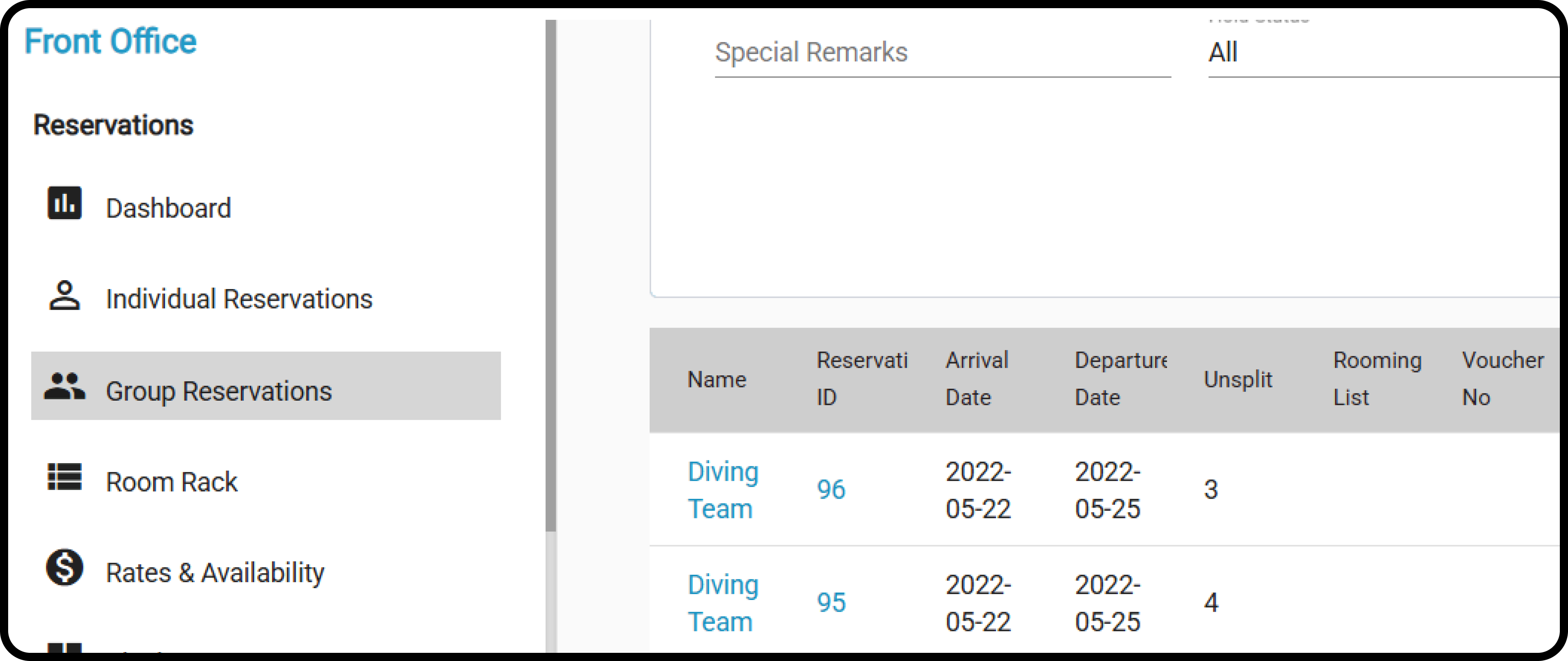
The initial group reservation will only allow you to select 1 room type for a certain number of adults in each room, after Save and edit you will get the option to add other room types with different number of adults and children in each room. Here we are adding the first 7 rooms for the diving team, where there will be 2 adults in each room of the 7. Select the rate by clicking on the magnifying glass to see which room types are available for the selected dates and the rate per night. Click on the hyperlink of the charge per night to select the rate and room type for the first 7 rooms. This is how the rate plan section would look like after selecting the initial 7 rooms of the group. Click Save and edit to continue adding rooms and complete the full group reservation. After Save and edit, you will get multiple options on the top right of the group screen, one of them is Add Room Types. Add Room Types allows you to increase the number of rooms on the same group reservation by adding them to their group and linking all groups under 1 single confirmation number. When you click on Add room types you will be given a dialogue to add more rooms to the same group reservation. The initial group that you just created will be available for you to edit from here. You can add multiple lines to add new rooms with different room types and different adults in each room. Click Save after you are done. The notification confirms that the added rooms are in separate group reservations but share the same confirmation number, keeping them under one group. When you will find all the room types under the same rooming list. When searching for the group reservation you will find the 2 group reservations under the same group name and confirmation number. You can split the whole group by simply going to any of the group reservations and perform from there.