

Business Value
- Keeps the agreed purchase order price on the receiving order.
- Shows the last price, quantity, vendor and date for each item.
- Charges received goods to the department that uses them.
- Records an extra delivered item without turning off purchasing control.
- Saves typing on repeat deliveries with Clone.
Use Cases
- A storekeeper receives a purchase order. The price matches the order and cannot be changed by mistake.
- A storekeeper adds a free case the vendor sent with the order, on the same receipt.
- A store team clones last week’s receiving order for the same vendor.
How It Works
A new receiving order starts as Pending. To approve or reject it, see Approve and Reject Receiving Orders.
You can create a receiving order in these ways:
- Receive on a purchase order screen.
- Add Receiving Order, then link one purchase order, or several from the same vendor.
- Direct receiving, with no purchase order, when the purchasing cycle is off. See Direct Receiving.
Link to a Purchase Order
Price and Discount Lock
When a receiving order is linked to a purchase order, Unit Price and Discount are locked. This is true either way you link it:- You click Receive on the purchase order screen.
- You create the receiving order first, then link a purchase order to it.
Users with it can edit the prices, no matter how the purchase order was linked.
Add Items Not on the Purchase Order
With the purchasing cycle on, every line had to come from the linked purchase order. Any other line failed the whole receipt with “You do not have permission to create receiving order without PO.” A permission now lets you add extra lines to a receipt linked to a purchase order.- Add them as normal: item, store, unit, quantity and price.
- Without the permission, nothing changes.
- It does not allow a receipt with no purchase order, including a clone. That stays with the receive without PO permission.
- They receive stock and post like any other line.
- They stay editable. Item and unit are not locked to a PO line.
- All the usual checks apply, including negative stock.
- Approval, posting and taxes work as normal.
Last Received Item Data
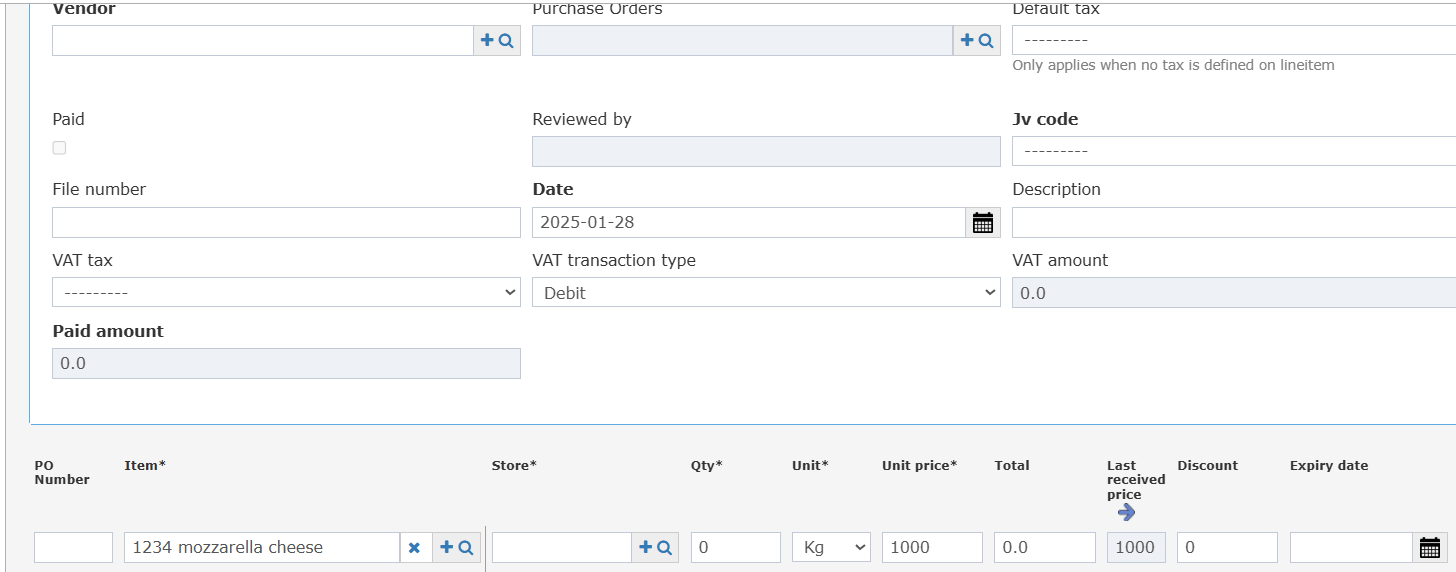
Each line shows four columns about the item’s last delivery:- Last Received Price
- Last Received Qty (collapsed)
- Last Received Vendor (collapsed)
- Last Received Date (collapsed)
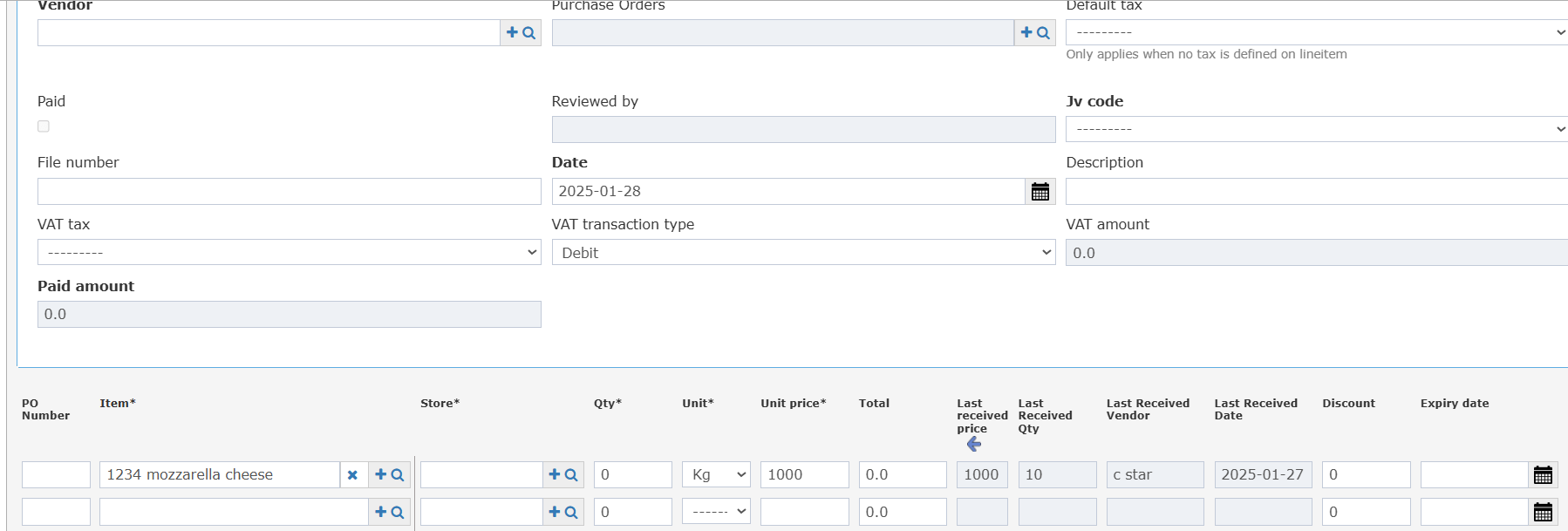
- The data comes from the latest receiving order for the same item, before this order’s date.
- The columns show right after the standard item columns.
- If the item was never received before, they stay blank.
- Purchase requests and purchase orders show the same columns.
Usage Department
Usage Department links the goods to the department that uses them, and to its expense account.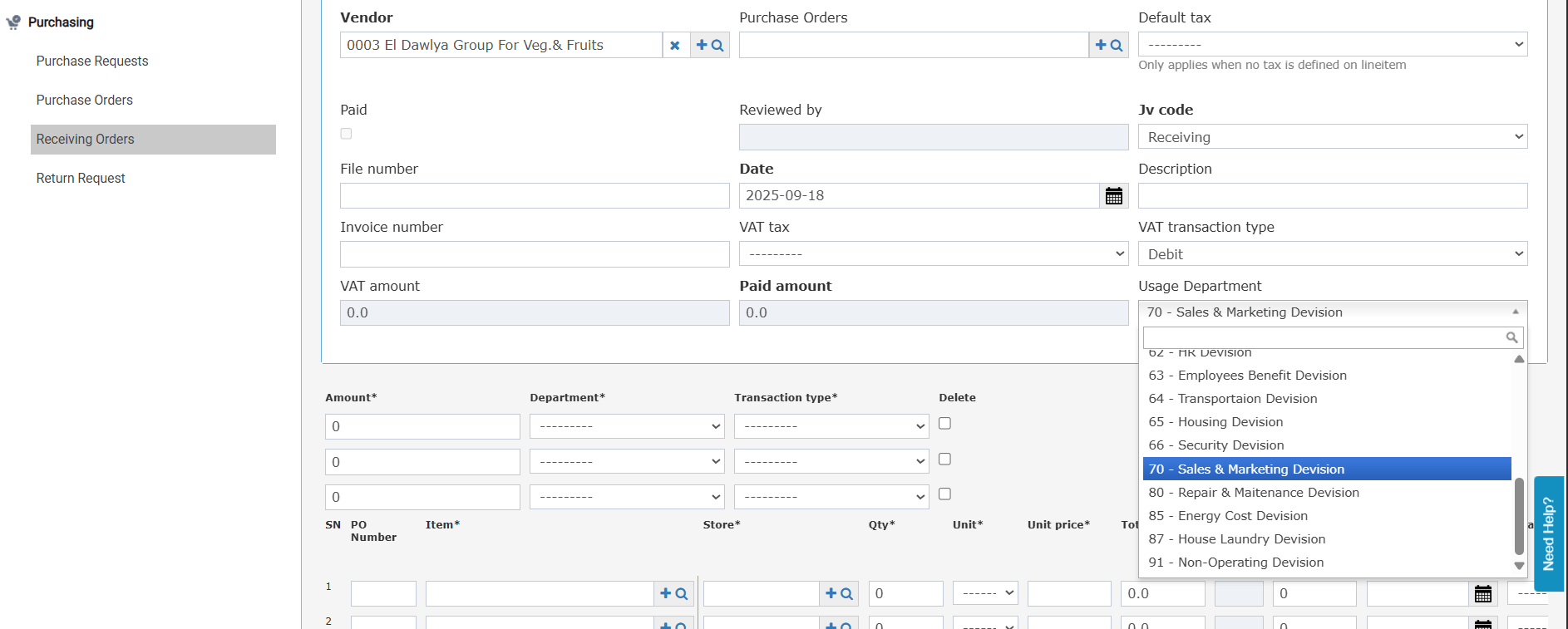
If the linked purchase orders have different usage departments, you cannot save. The message is “Linked POs need to have the same Usage Department.”
Direct receiving and Store Usage:
- When you submit a direct receiving order, its Usage Department is copied to the Store Usage screen.
- The expense account is also filled from the item’s expense account setup, if there is one.
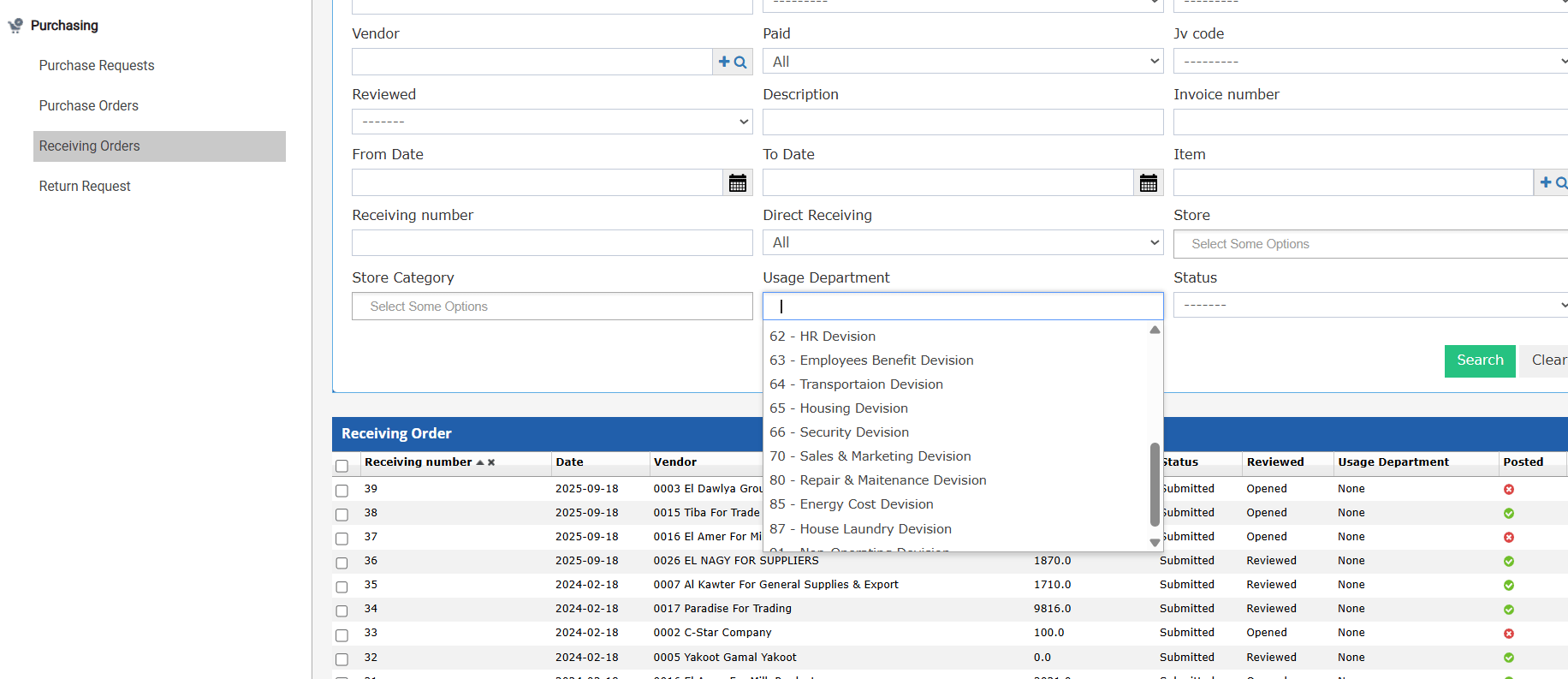
- The list has a Usage Department search field. You can pick more than one.
- By default, it shows the usage departments linked to you.
- If you clear the filter and open an order for another department, a message blocks access.
- Usage Department also shows on the receiving order printout.
Clone a Receiving Order
Open any receiving order and click Clone in the action toolbar. A new receiving order opens with the header and all lines copied.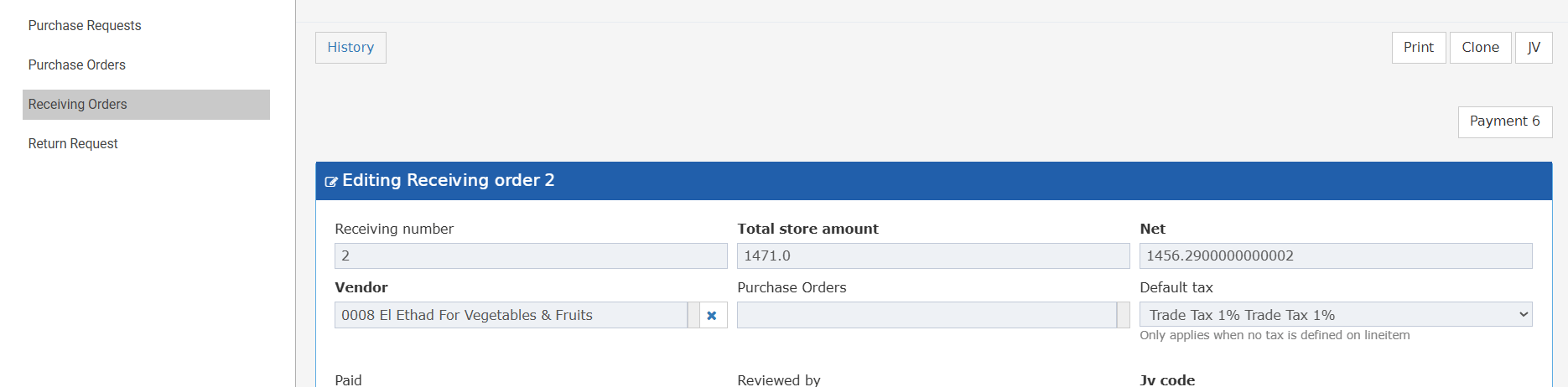
If the original order is linked to a purchase order, Clone is disabled. The tooltip says “You cannot clone RO with linked PO”.
These fields are not copied. Fill them in yourself:
- File number
- Date
- Invoice Number
- Usage Department