How do you set up direct receiving?
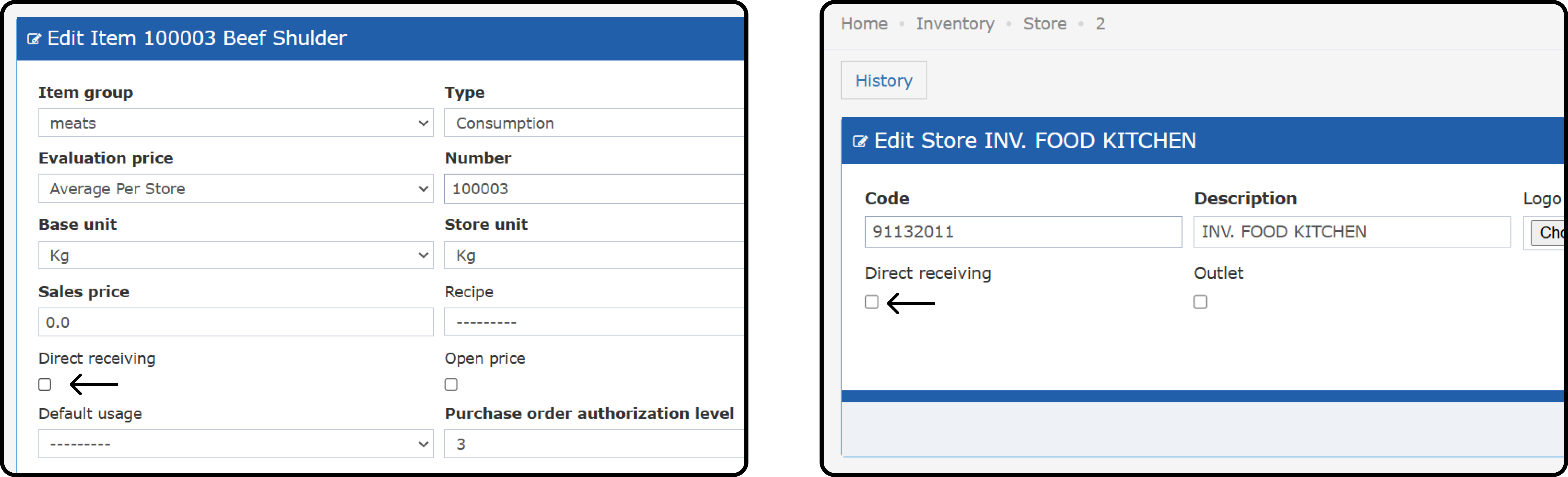
Back Office → Settings → Inventory → Item → Add/Open Item Back Office → Settings → Inventory → Store→ Add/Open Store- Mark both the store and the item as Direct Receiving.
- After you use them, you cannot change these items and stores back to normal.
How does direct receiving affect purchasing and inventory?
Purchase Requests and Purchase Orders:- Direct receiving items work only with direct receiving stores, and the other way around.
- A PR can have both direct receiving and normal items. The system then creates separate POs.
- A PO never has both kinds of items.
- You can create one from a PO or by hand.
- One receiving order can have both direct and normal items. Each line item is handled on its own.
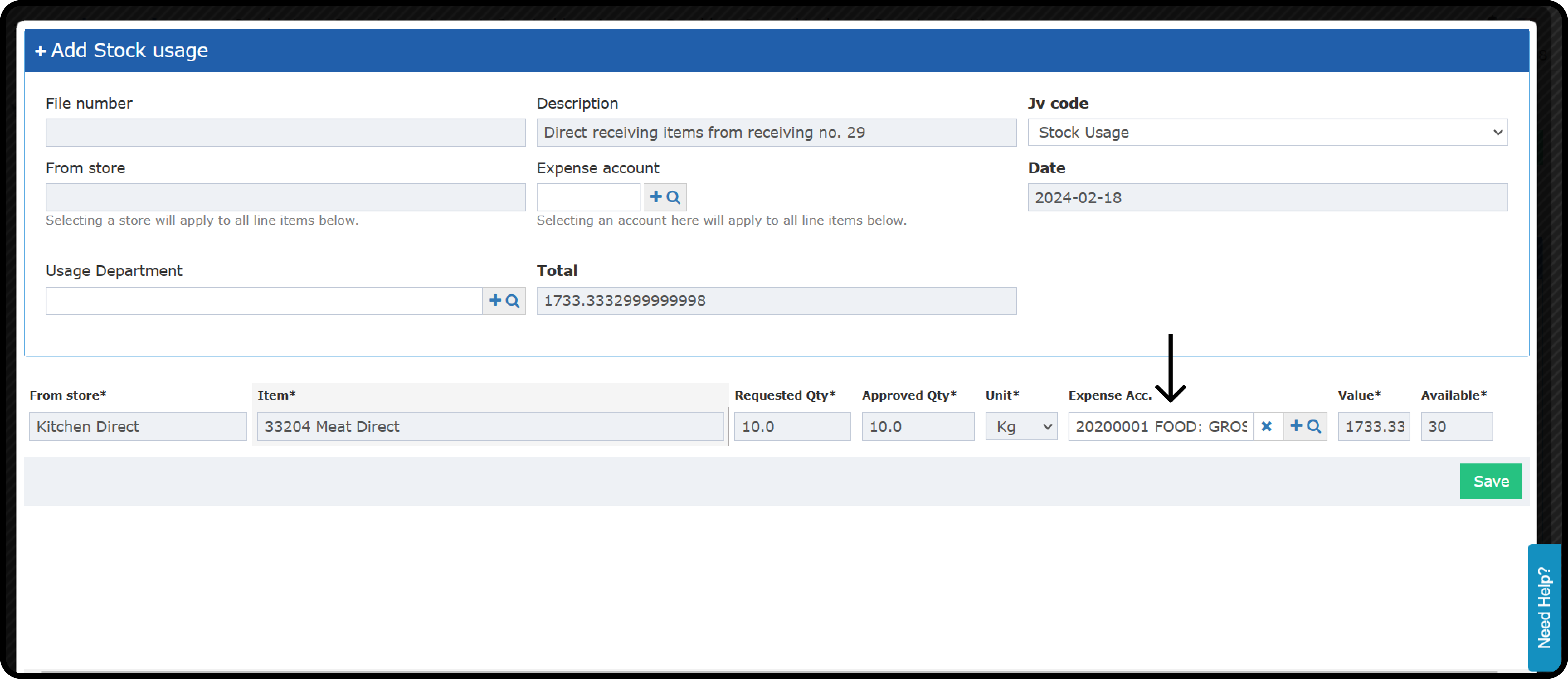
- You submit a Receiving Order with Direct Receiving Items. A popup asks you to create a Store Usage for those items only.
- Items, quantities, and values are filled in and cannot be edited. You can edit only Expense Account, or Usage Department to fill the expense accounts automatically.
 Store Transfers & Usages:
- You cannot use Direct Receiving stores and items in the Store Transfers or Store Usage screens.
- If you select them, you get an error. This stops stock moves that are not needed.
- You cannot create return requests for Direct Receiving items. They count as direct expenses.
May 2025 Update
💡 Business Value
- Faster flow: Direct receiving items no longer wait for the bulk submit.
- Exact cost: The Store Usage uses the exact purchase price, not the average price.
- Cleaner approvals & audits: Only the settlement handles its own Store Usages. Nothing is processed twice.
Update: 12th of October, 2025
Splitting Direct Receiving Items in Store Usage
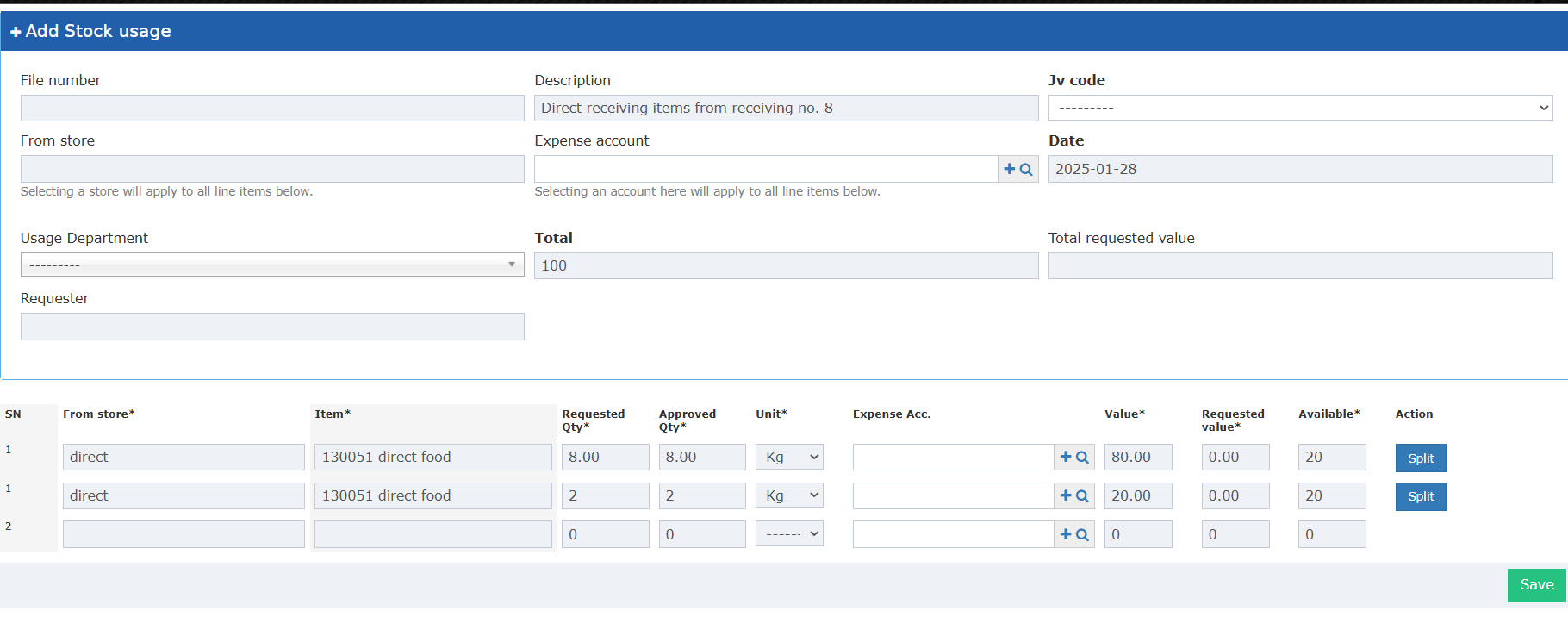
Split a direct receiving item in store usage to charge it to more than one expense account.Business Value
- Exact cost split: Split item quantities and give each part its own expense account.
- More flexible: Split items from the usage screen when receiving orders are created by hand.
- Easier audits: Each expense account keeps clear records.
Use Case
A user charges part of a direct receiving item to one expense account and the rest to another. For example, two departments share one single-use item.Technical Know-how
Back Office → Purchasing → Receiving Orders- A receiving order created from a PR and PO does not allow extra line items. You cannot add lines to give an item more than one expense account.
- Each direct receiving line in the linked store usage now has a “Split” button.
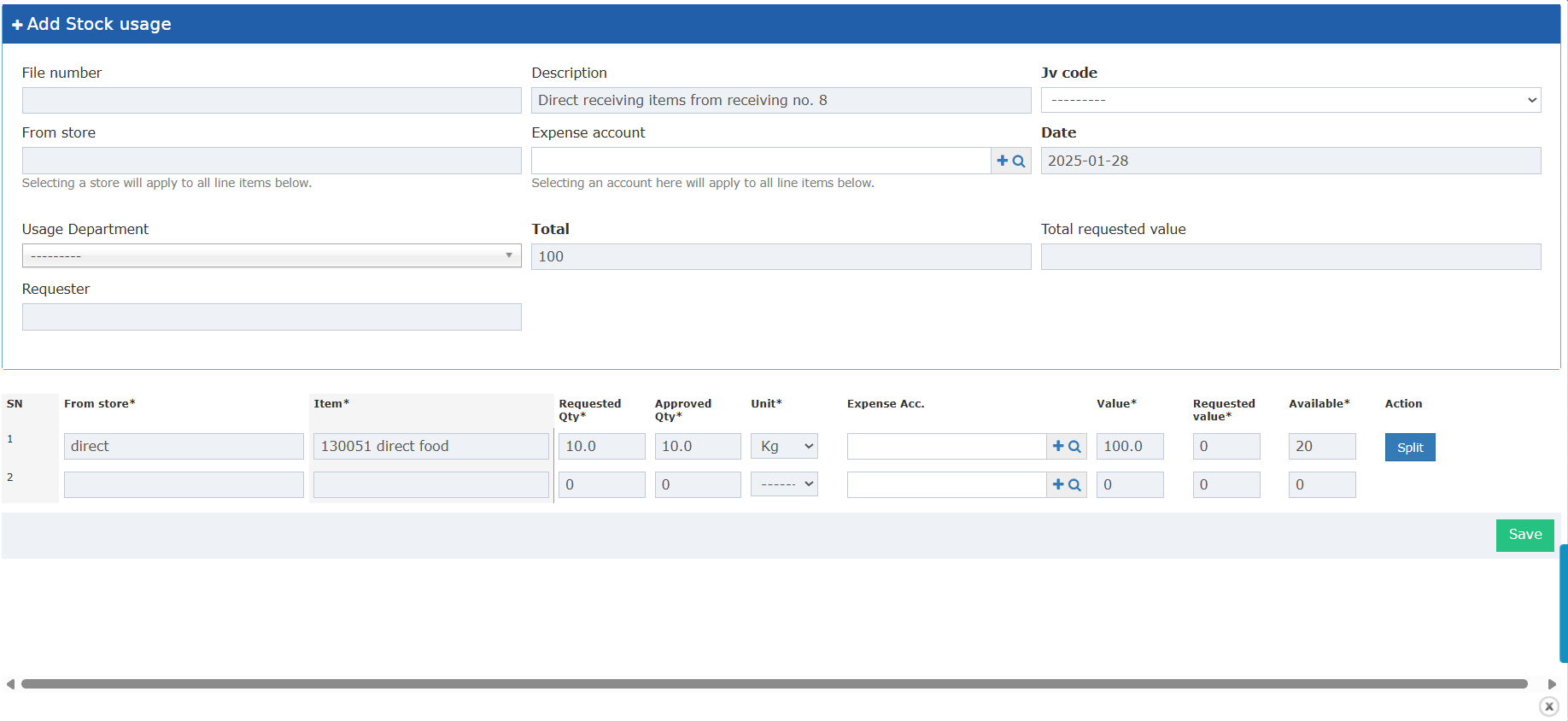
- Enter a “Splitting Quantity”.
- “Confirm” splits the line. “Cancel” closes the pop-up.
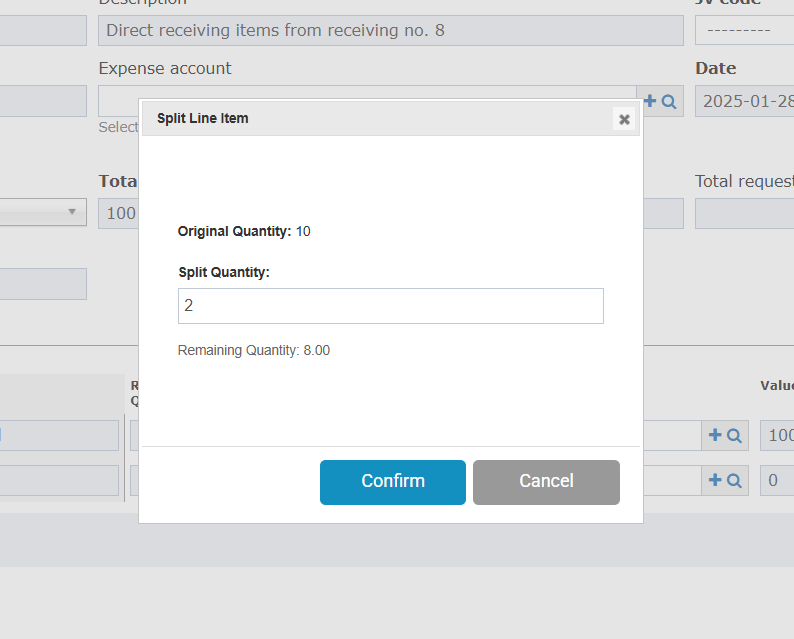
- The new line shows the split quantity. Both lines are read-only, except the “Expense Account” field.
- Splitting Rules:
- Splitting Qty must be less than the original quantity.
- It must be 0.1 or more (not zero or negative).
- Numbers only.