

Business Value
- Stops AP from submitting a receiving order no one has reviewed.
- Asks for up to four approvals, set per property.
- Adds stock to the store only after the last approval.
- Keeps rejected orders as read-only records for audits.
- Approves or rejects many orders in one action.
Use Cases
- A storekeeper gives the first approval, and the cost controller gives the last one.
- A cost controller rejects a wrong receiving order with a reason. The purchase order status updates.
- A cost controller selects a day’s pending orders and approves them all at once.
How It Works
To create a receiving order, see Create Receiving Orders.
Statuses
- Pending: new, waiting for approval. Submit is hidden.
- Approved: fully approved and ready for AP to submit. Stock is added at this point.
- Submitted: the JV is created. Un-Submit returns the order to Approved, not Pending.
- Rejected: final. The order is read-only. It is left out of the Receiving Orders and Received Items reports.
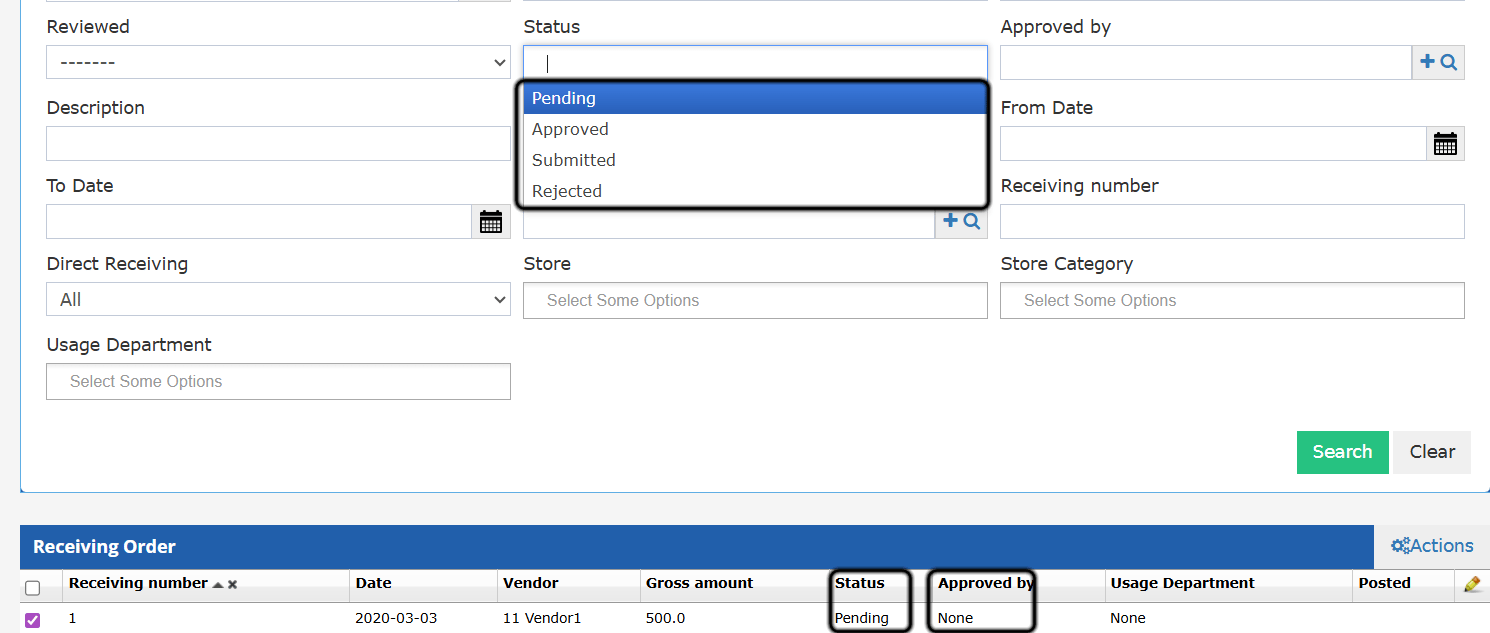
Approve
The green Approve button shows on Pending orders. The last approval:- Moves the order to Approved.
- Adds the line quantities to store stock. The goods can be issued before the JV is created.
- Saves the approver and the time in the order history.
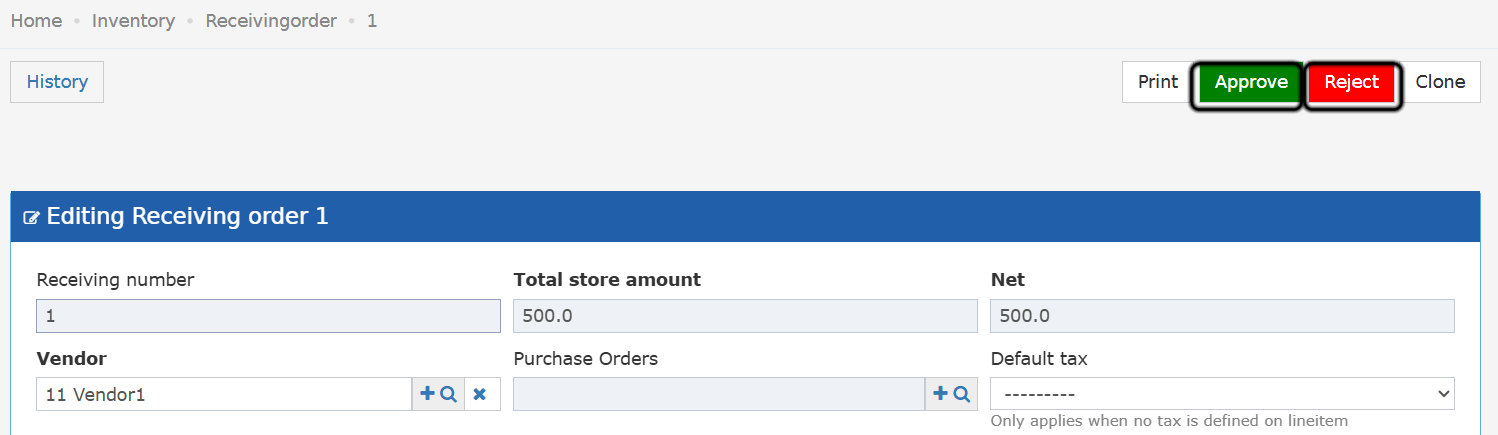
Approval Levels
A property can ask for 1, 2 or 3 approvals, in order. Store transfers and store usage work the same way. A fourth level was added later; see the update below.Set the Number of Approvals
- Go to Back Office → Settings → Inventory → Approval Levels.
- On the Receiving Order row, choose 1, 2 or 3.
- Click Save.
The Approval Steps
The number of approvals is fixed when you create the order. Changing the setting later does not affect existing orders. For an order that needs three approvals:- Create the order. The status is Pending.
- The Level 1 approver clicks Approve. The order stays Pending. No stock is added.
- The Level 2 approver clicks Approve. The order stays Pending. No stock is added.
- The Level 3 approver clicks Approve. The order becomes Approved, and the goods are added to the store.
- Approvals go in order: Level 1, then Level 2, then Level 3.
- Approve shows for anyone with any approval level.
- Approve is greyed out when it is not your turn. The tooltip shows Awaiting level 1 approval.
- A level that is already approved cannot be approved again.
- Approved by shows the person who gave the last approval.
The Approvals Block
- The order shows an Approvals block as soon as you create it.
- The block has one row for each required approval.
- Each row shows the level, its status, the approver and the date.
- Once an approval is recorded, the print shows the same block above the signatures row.
- The username counts as the signature.
Two Approvers at the Same Time
If two approvers click Approve on the same level at once, only one approval counts. The order moves up one level. The second approver gets a message that the level is already approved.Orders From Before Approval Levels
- Existing orders keep their status.
- An approved order shows a Level 1 approval with the name of the person who approved it.
- These approvers can still edit the orders they approved.
Reject
The red Reject button shows on Pending and Approved orders. You need the Can reject receiving order permission. There is no turn order for Reject. A pop-up asks for a Cancellation Reason (up to 150 characters). When you confirm:- The order moves to Rejected.
- Line quantities are set to 0.
- The linked purchase order status is worked out again.
- The reason, user and time are saved in the order history.
- Approvals already given stay on the order as history.
Edit Rules
- To change a quantity on an Approved order, you also need Can edit receiving order qty.
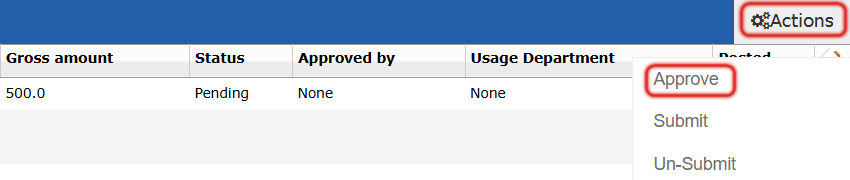
Bulk Approve
- Select one or more orders in the list.
- Open Actions at the start of the list and choose Approve.
- A pop-up asks “Approve the selected receiving orders?”. Yes approves them. No closes the pop-up with no changes.
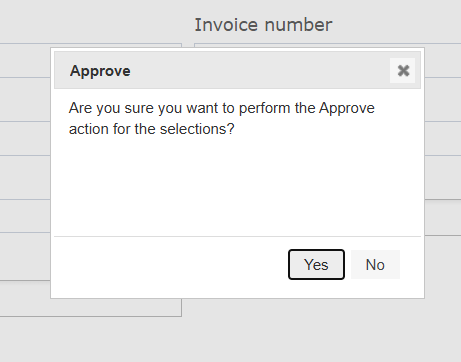
- It works only on Pending orders. Orders in other statuses do not change.
- Users without permission to approve do not see the action.
- Each selected order moves up one level.
- Only orders that reach their last level become Approved. Stock is added for these only.
- If you cannot approve the next level of an order, it is skipped. A message shows the order and the level.
- The other selected orders still move up.
Bulk Reject
- Select one or more orders in the list.
- Open Actions at the start of the list and choose Reject.
- A pop-up asks “Reject the selected receiving orders?”. No closes it with no changes.
- Yes opens a pop-up for the reason. Enter it and confirm. The same reason applies to all selected orders.
- It works only on Pending or Approved orders. Orders in other statuses do not change.
- Users without permission to reject do not see the action.
- A rejection may make an item’s store quantity negative. The action is then blocked with this message: “Receiving orders [IDs] have items that will cause negative stock when rejected.”
Update: October 6, 2026
You can now ask for a fourth approval on a receiving order.Choose Four Approvals
- Go to Back Office → Settings → Inventory → Approval Levels.
- On the Receiving Order row, choose 4.
The Level 4 Permission
- No existing group holds level 4. Give the group to your own approvers.
- A level 4 approver has the same rights as levels 1 to 3.
How the Fourth Approval Works
- Level 4 signs after level 3.
- With 4 approvals set, the order stays Pending until level 4 approves.
- The level 4 approval sets the order to Approved and moves the stock.
- Approve is greyed out while level 3 is still waiting. The tooltip shows Awaiting level 3 approval.
- The Approvals table and the print get a fourth row for level 4.