

Business Value
- Switches a folio between detailed and summarized views without changing its data.
- Prints a short folio per day or for the whole stay.
- Meets ZATCA rules with the KSA summarized templates.
- Marks the first folio as the original and every later print as a copy.
Use Cases
- A receptionist switches a corporate guest’s folio to a summarized view before printing.
- A KSA hotel prints a Summarized by Date folio with the VAT number and QR code.
- An accountant reprints a folio, and it is marked as a copy of the original.
How It Works
Select a Folio Template
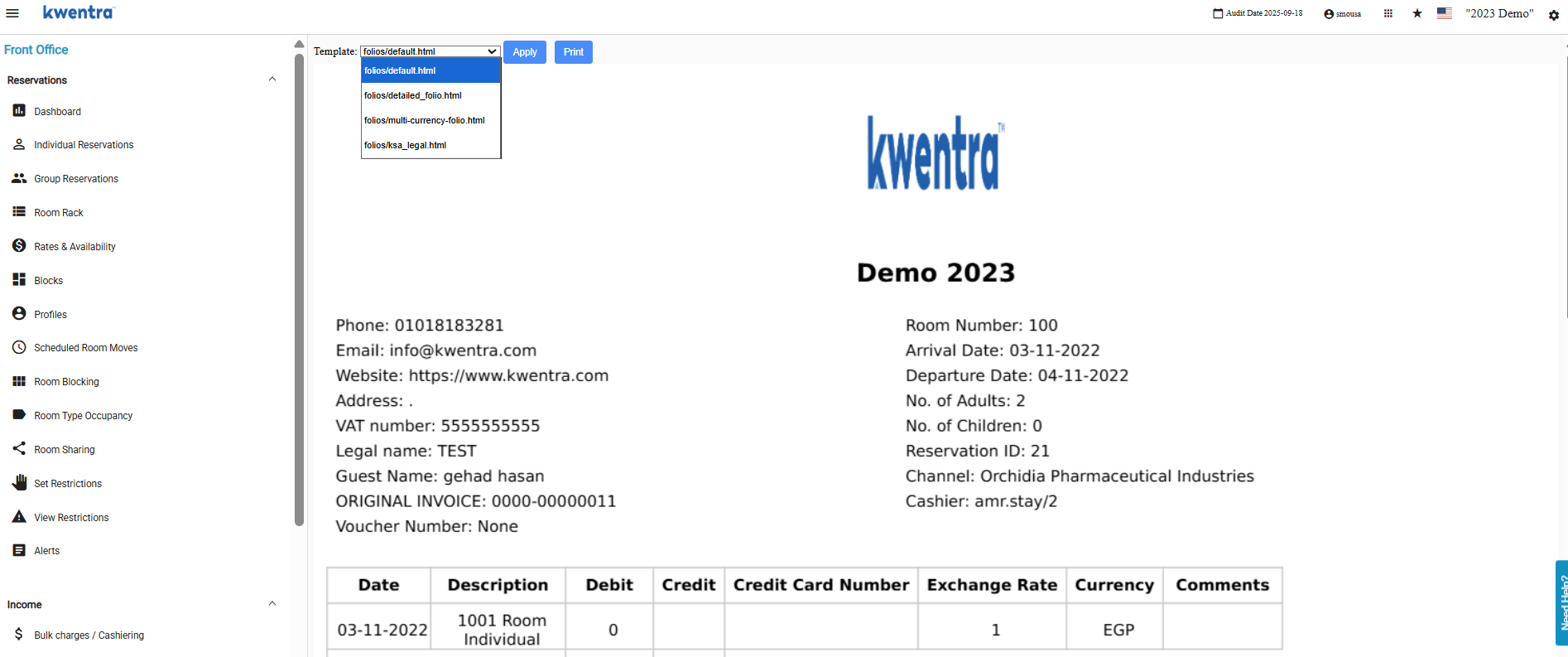
You can switch the display template when you open, print or download a folio. You do not need to create the folio again.- Open a folio from any of the screens above.
- A template list shows at the top. It starts on the template saved on the folio.
- Pick another template. The preview changes right away.
- Click Generate to save the new template. The folio opens with it from now on.
- Print and Download PDF use the template selected now. With no change, they use the saved template.
- It works on individual reservation, paymaster and AR folios.
Summarized Folio
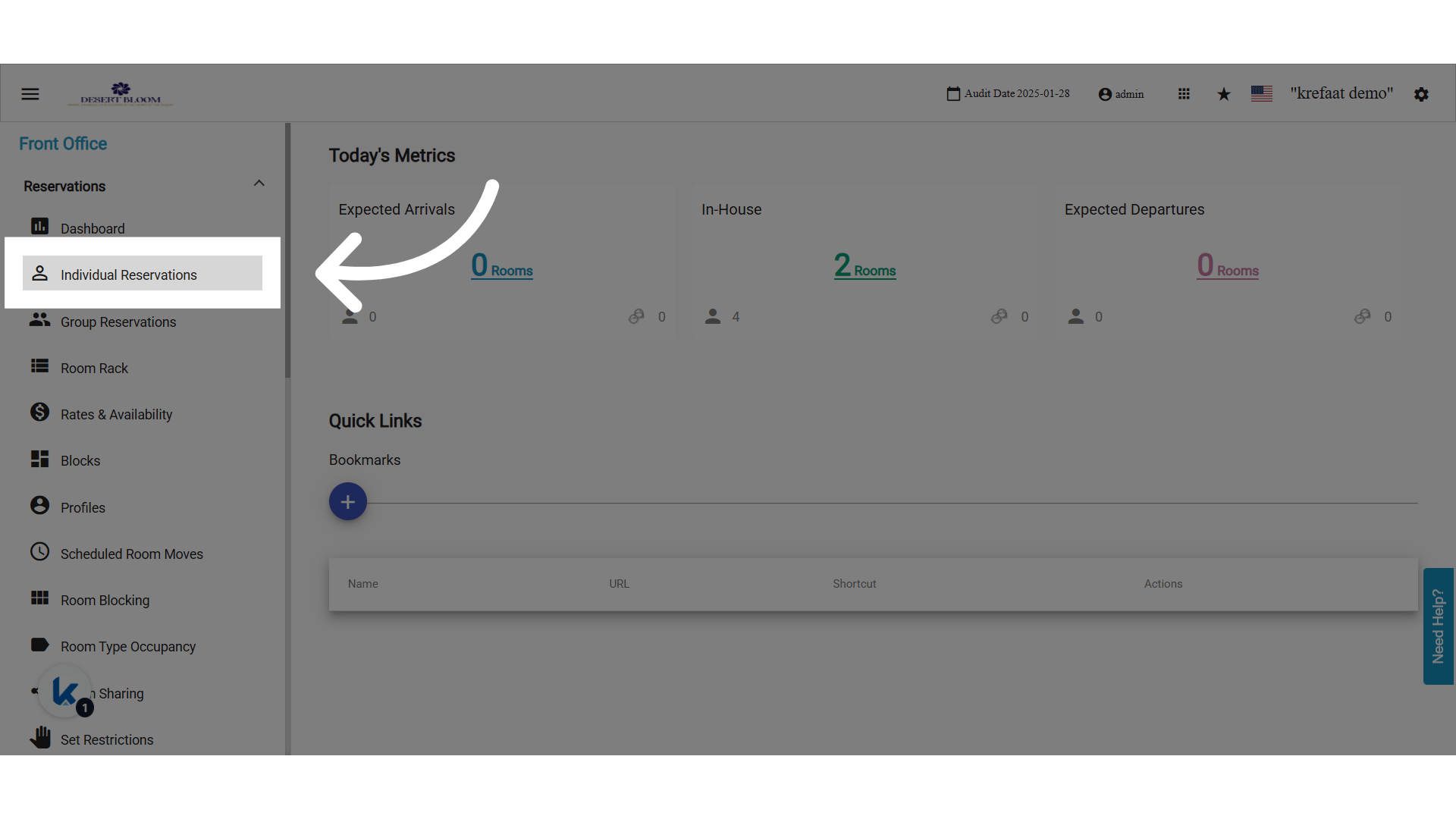
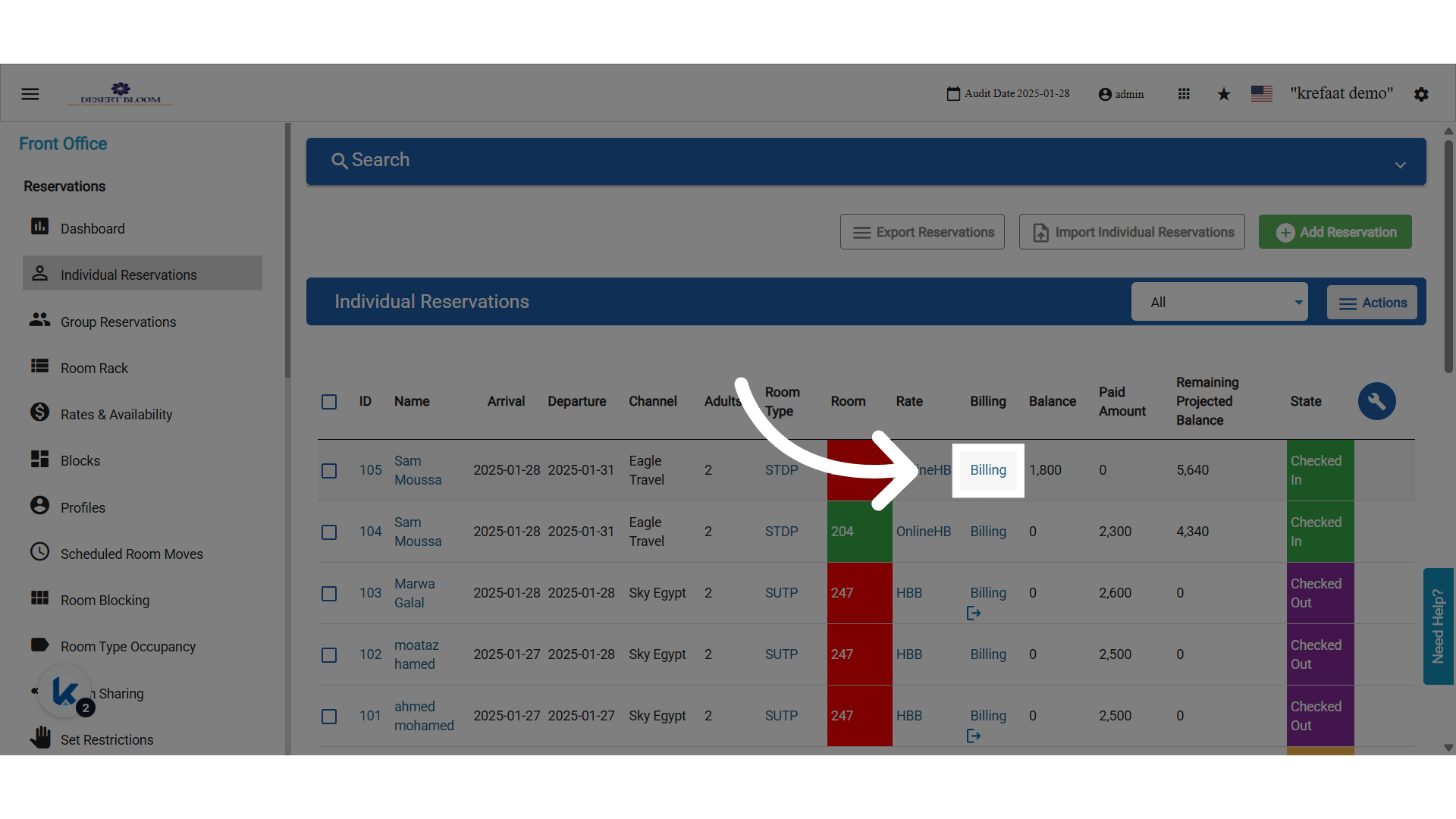
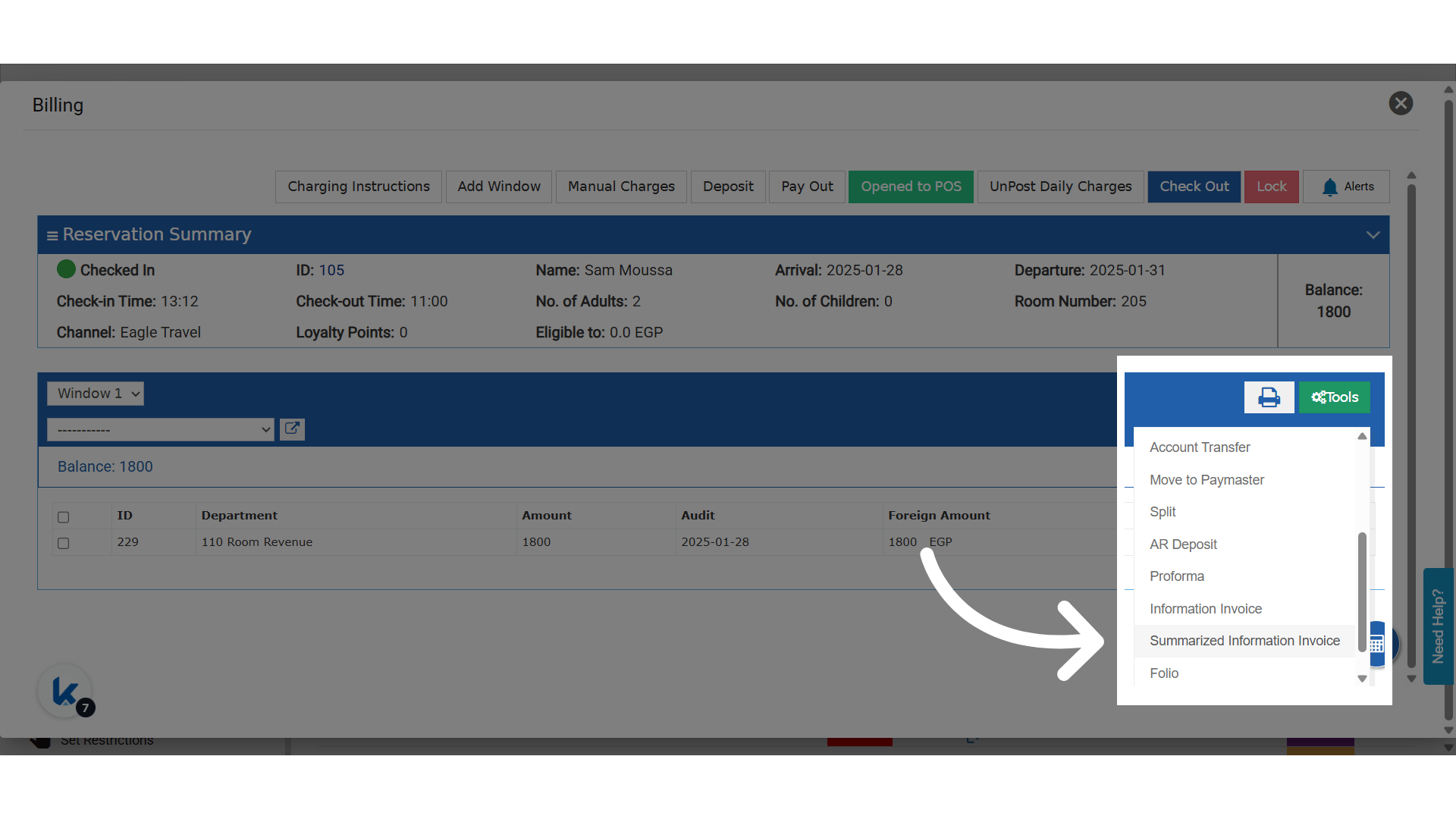
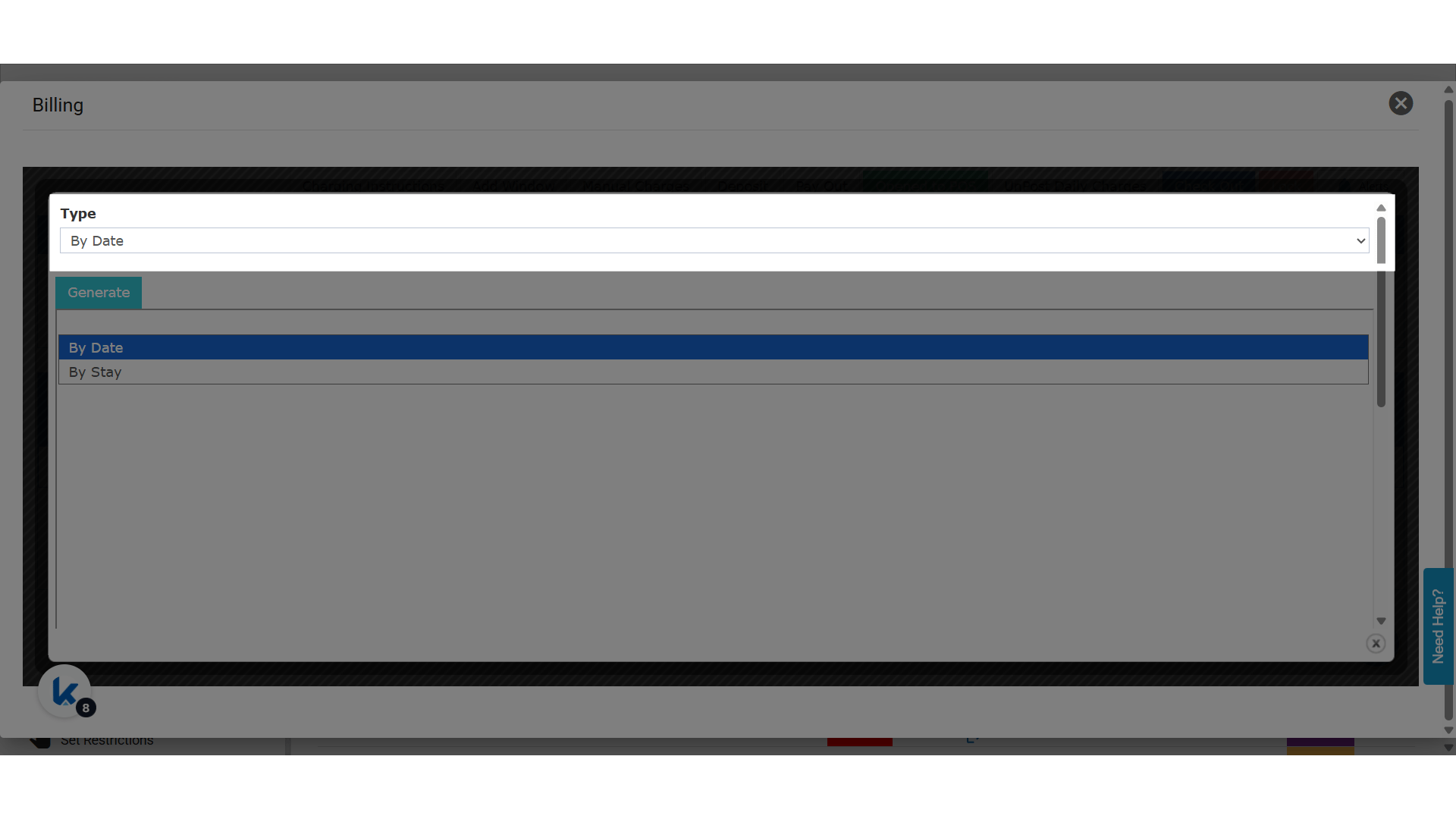
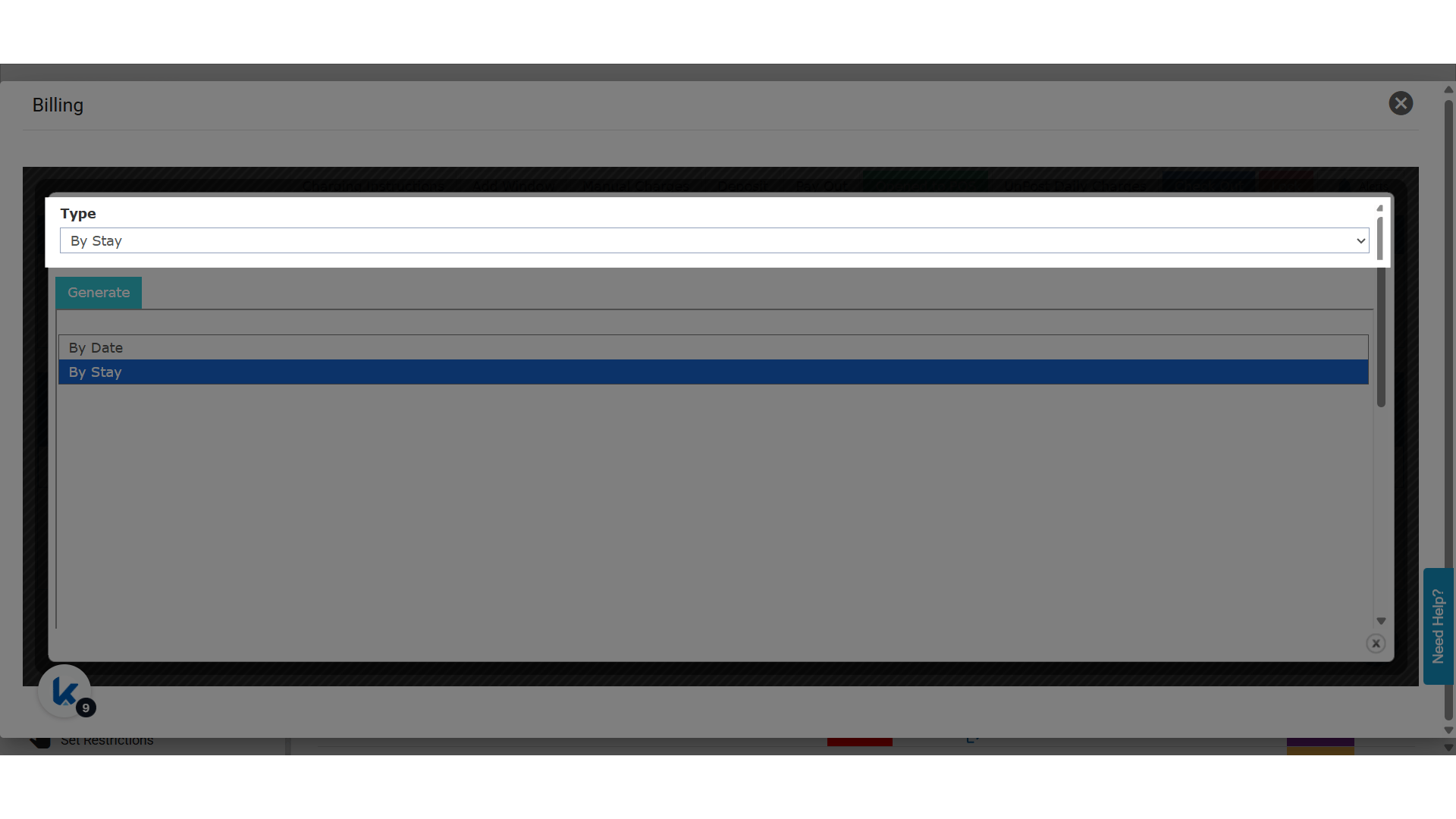
A summarized folio groups the guest’s charges by date or by stay, instead of listing every posting.- Open Front Office → Individual Reservations and open a reservation’s billing screen.
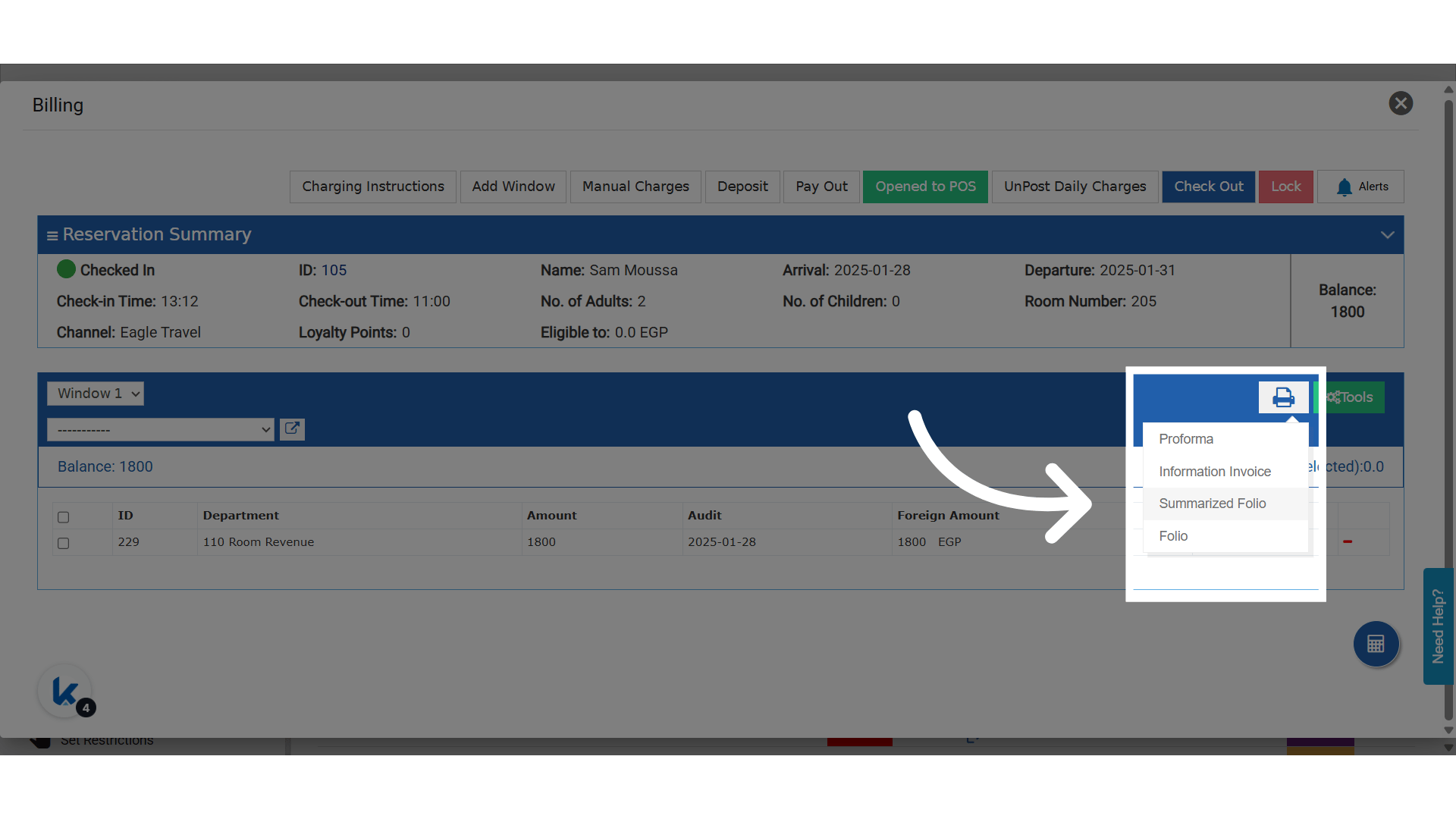
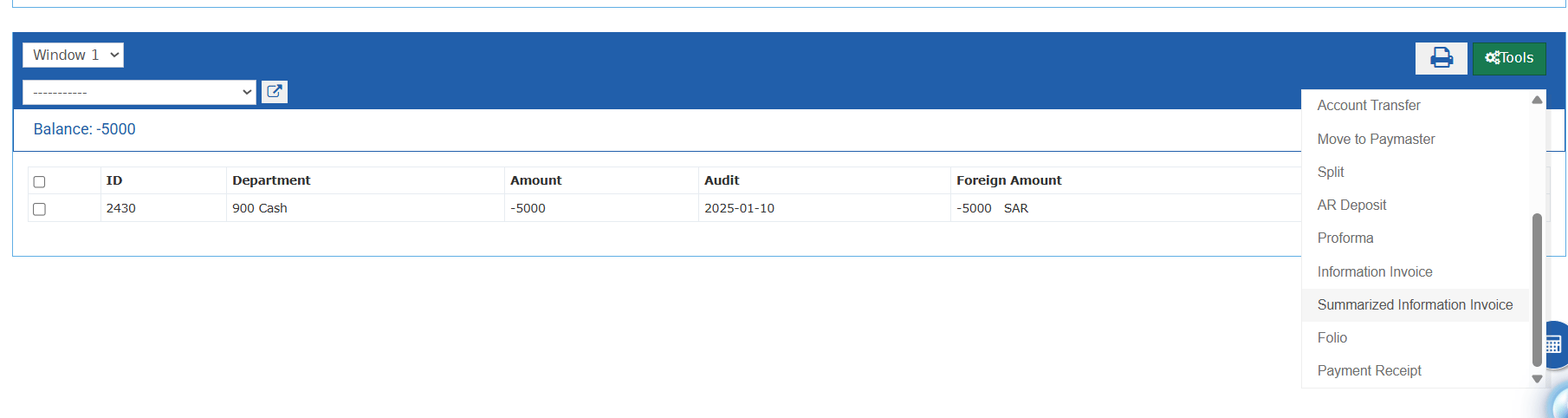
- Open the summarized folio from Quick Print, or from Tools.
- Choose By Date or By Stay.
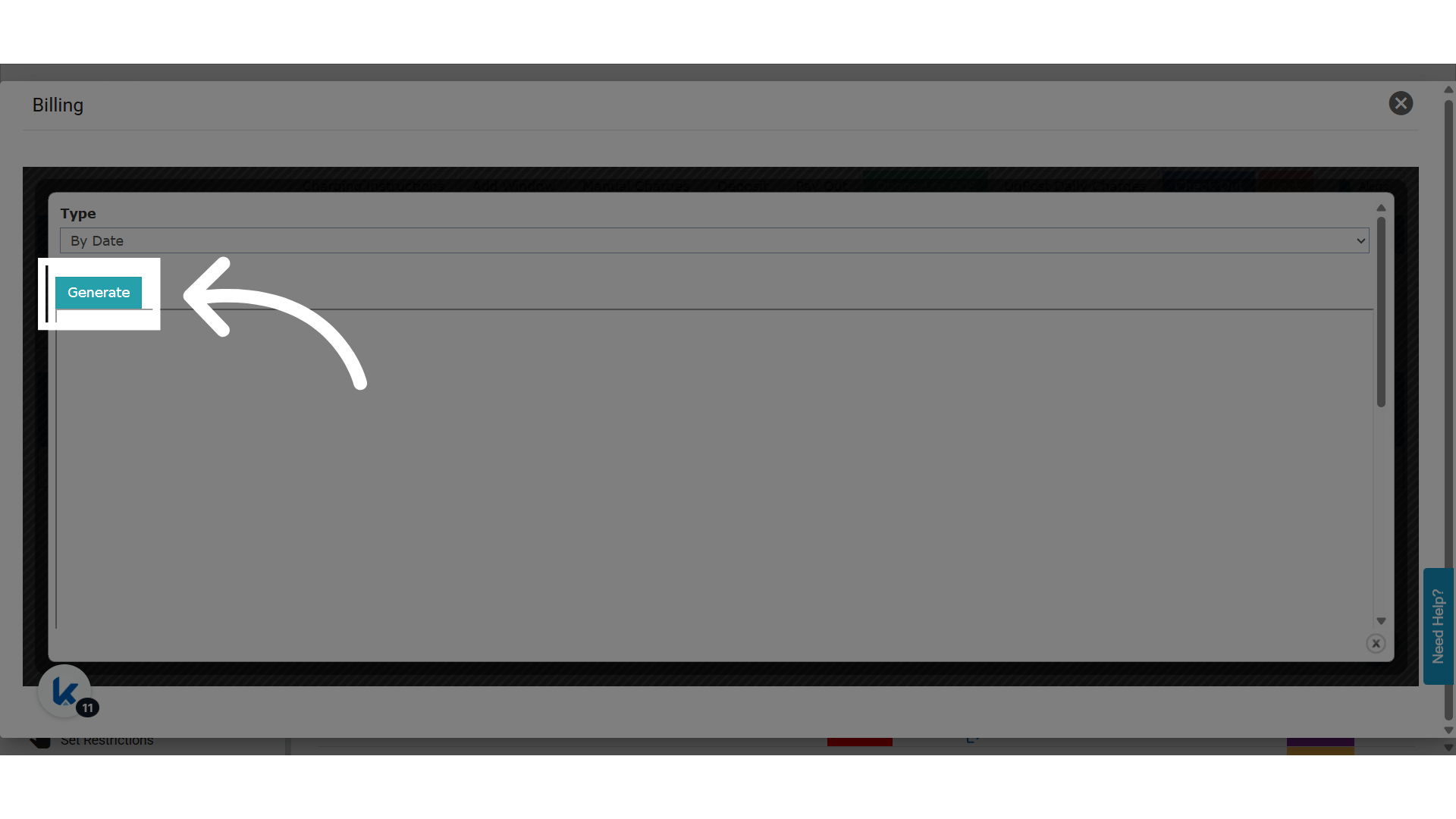
- Click Generate.
KSA Summarized Templates
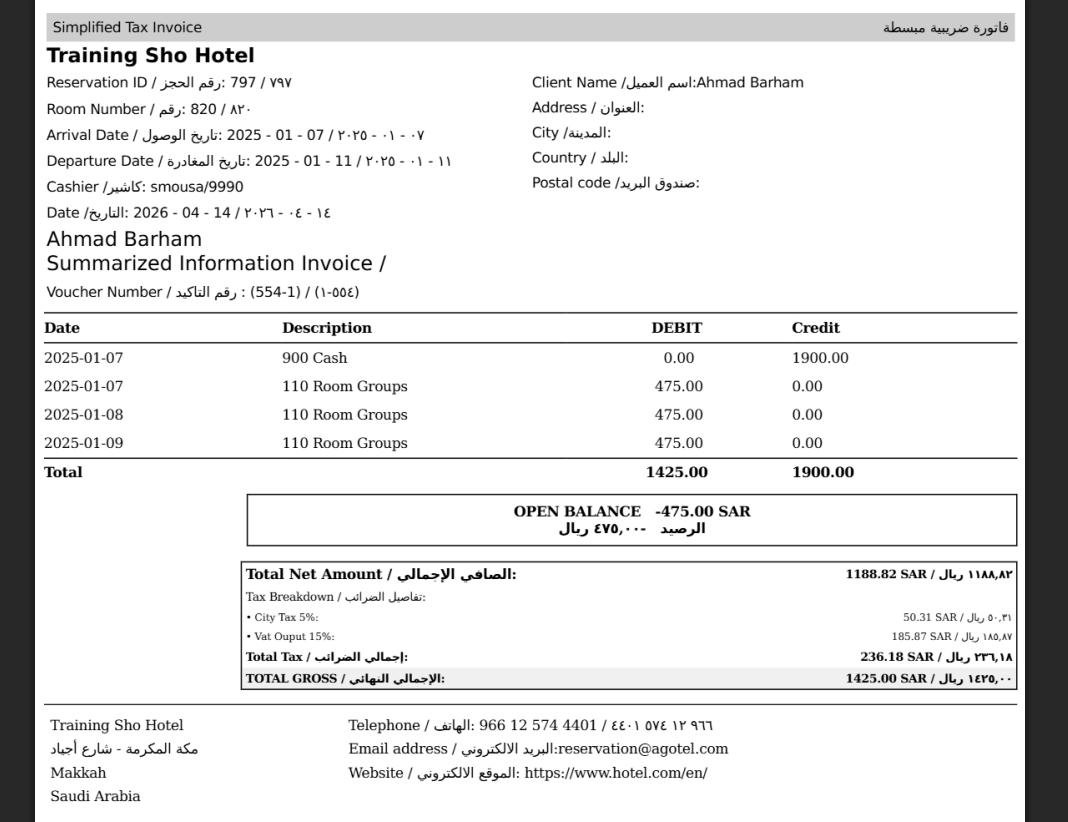
Two KSA folio templates are available on individual reservation and paymaster billing:- KSA Summarized by Date: charges grouped by date.
- KSA Summarized by Stay: charges grouped for the whole stay.
The summarized invoice section has a Template field:

- Open a folio from individual reservation or paymaster billing.
- Pick KSA Summarized by Date or KSA Summarized by Stay.
- In Template, choose KSA Legal.
- Click Generate.
- Print, preview or download it.
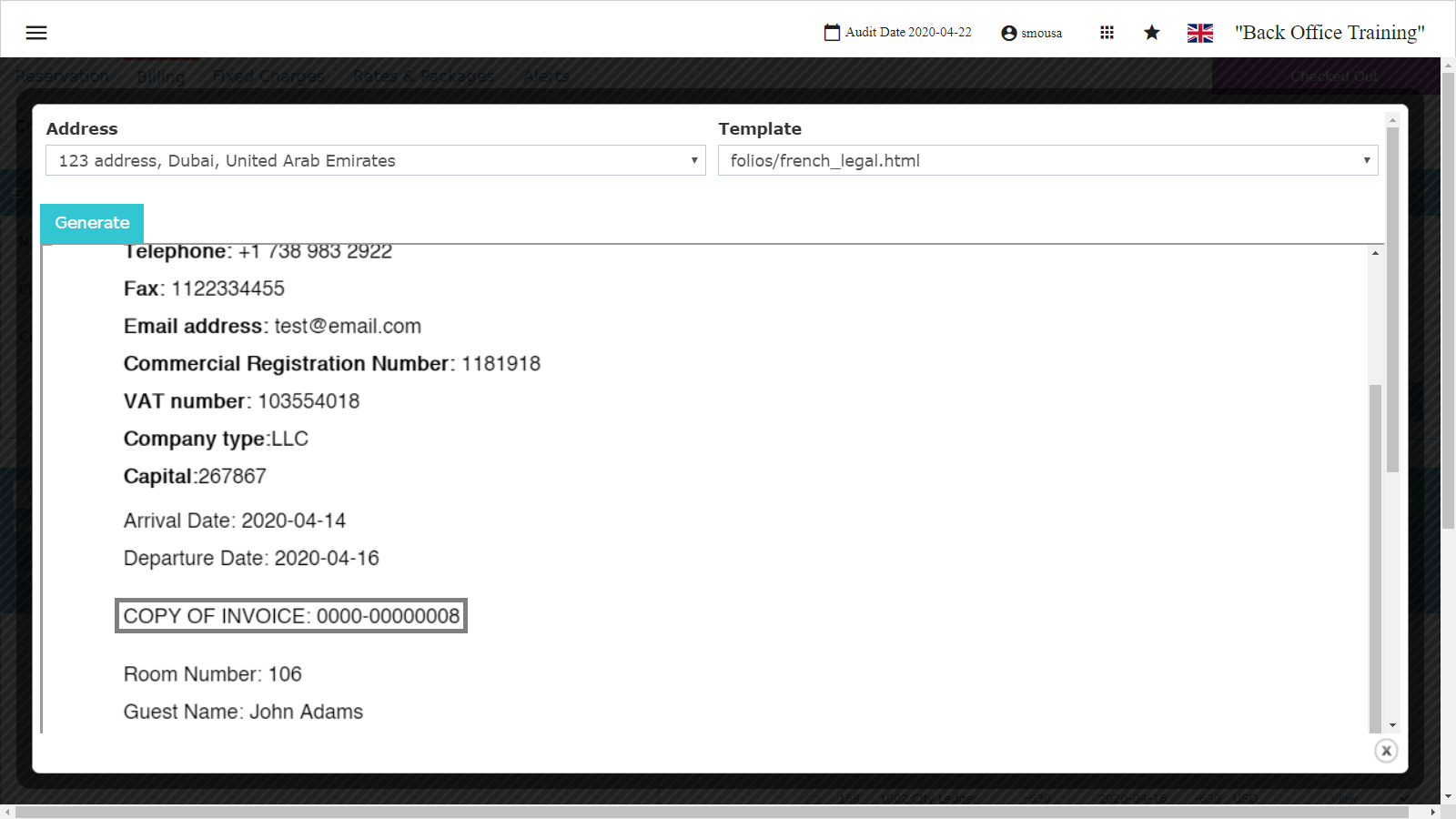
Original and Copy Marking
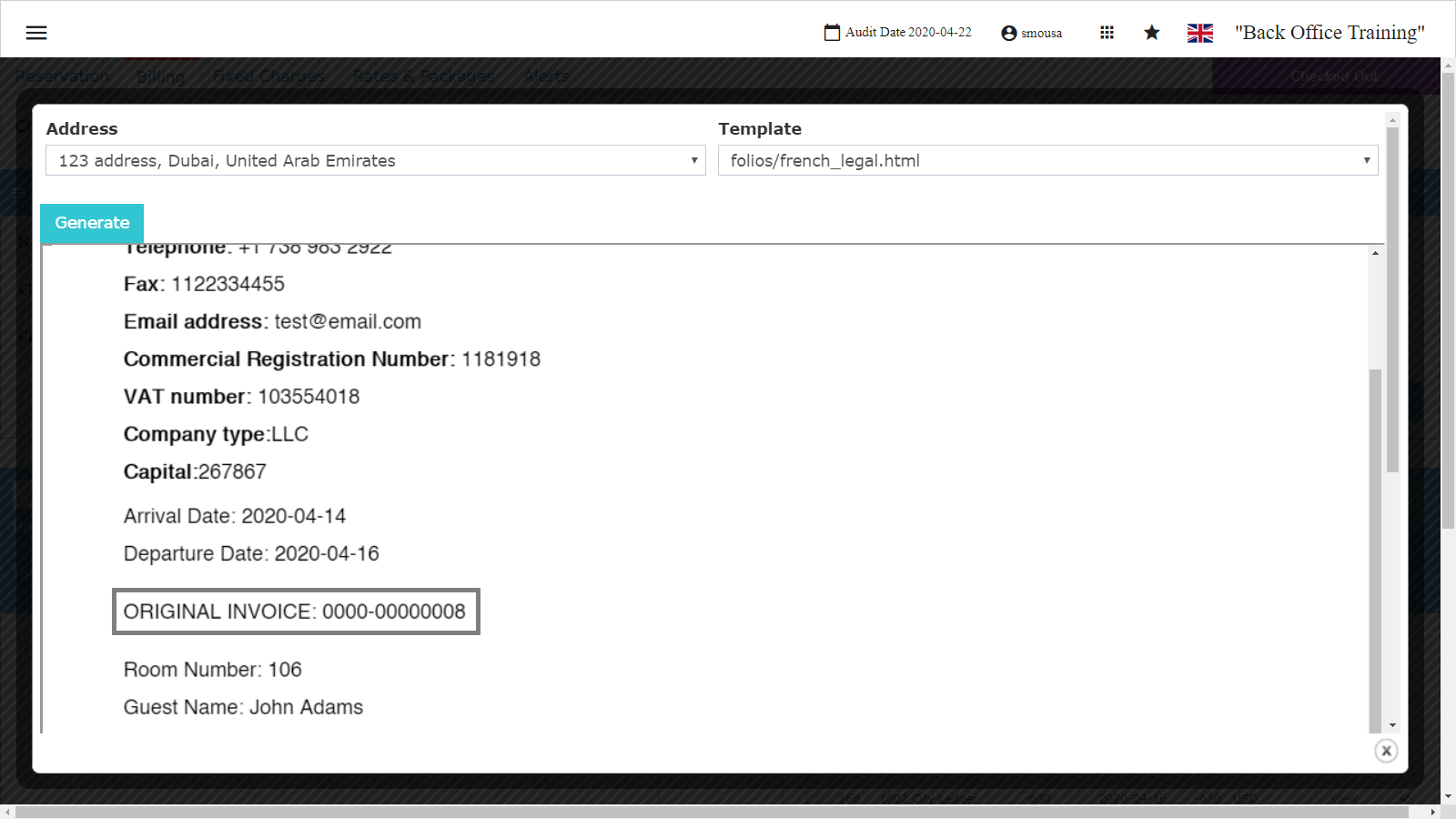
- The first folio created with this template is marked as the original.
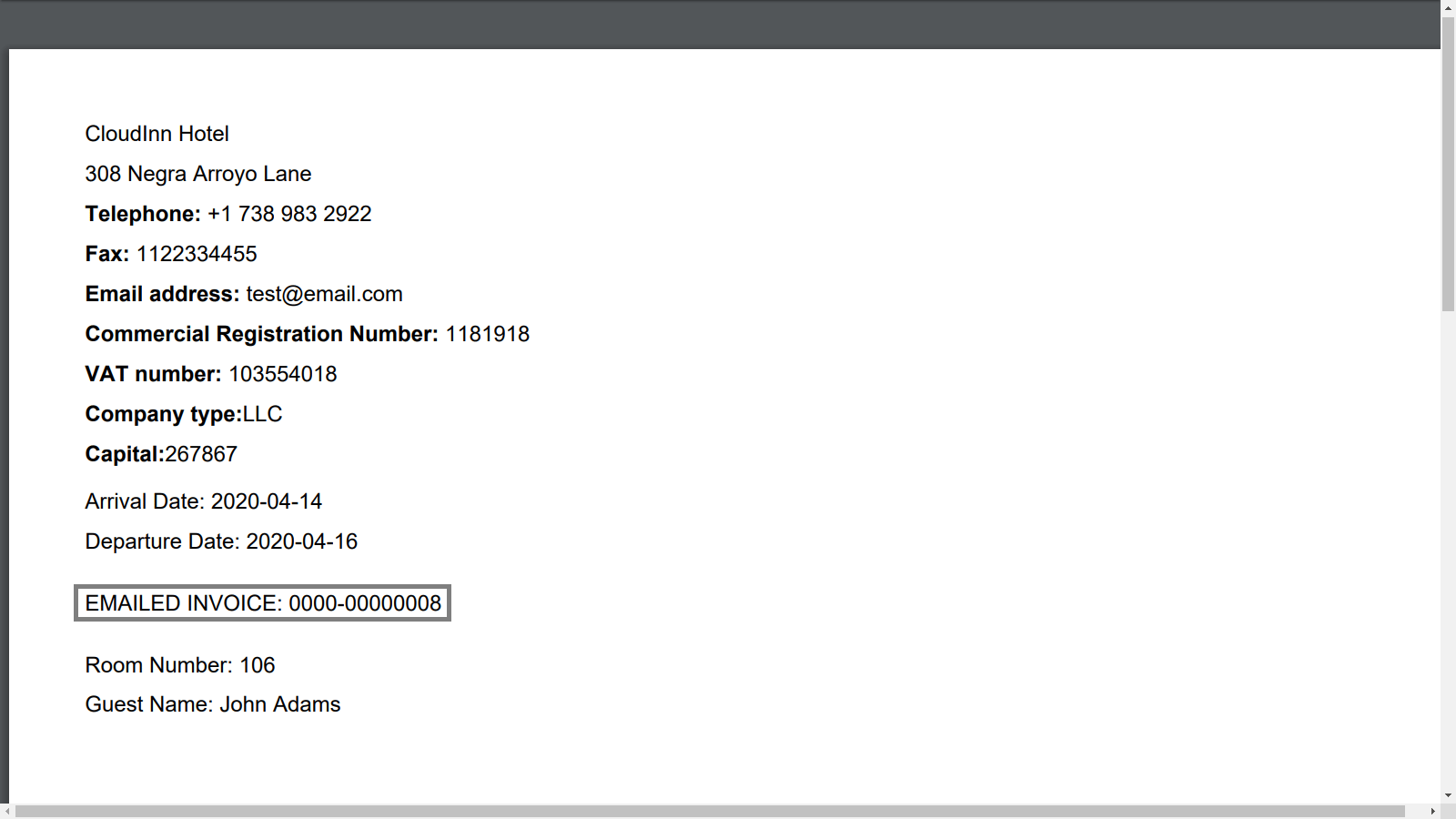
- When you email it, the guest’s copy says it is an electronic invoice.
- Every later print or email is marked as a copy of the original.
Update: August, 2026
Switch Templates Without Waiting for the Current Render
You can now apply a different template while the folio is still rendering.- Open a folio. Pick a different template while the current one is still rendering.
- Apply it straight away. The button no longer waits for the current render.
- The old render is cancelled. The folio re-renders with your new template.
Update: September, 2026
The Type field has two new options for monthly rentals: By Month and By Month & Department. Monthly rentals are still charged at daily rates. So one month shows on the folio as about 30 daily postings. By Date printed all 30 rows. By Stay printed one total for all months. Neither showed the month.The Four Type Options
Both new options are KSA Legal only. There is no Detailed version of either.
By Month
- One row per calendar month, with all departments in it.
- The row includes accommodation, F&B, laundry, taxes and payments.
- The row shows the month and year only, such as
January 2026. - Rows are in date order.
By Month & Department
- One row per department, per month.
- A Month column shows next to the department name.
- Rows are sorted by month, then by department.
- Each month ends with a subtotal. This is what the guest pays for that month.
Both New Options
- The year always prints with the month. So February 2026 and February 2027 are separate rows.
- A part month shows its dates, such as
February 2026 (01 Feb – 28 Feb). - The document title is Monthly Accommodation Invoice, not Summarized Information Invoice.
- Debit and Credit are separate columns. A payment shows in the month it was paid.
- The month comes from the posting’s audit date. Each posting belongs to one month only.
- Month names print in Arabic and English. Numbers print as ١ ٢ ٣.
- The tax breakdown box does not change.
- If you select some postings before you click Generate, only those postings are summarized.