

- View total revenue across all FO and POS departments grouped by department group.
- Compare Actual vs. Budget for Today, Month-to-Date, and Year-to-Date in one view.
- Benchmark this year’s performance against the same period last year.
- Filter by department to focus on specific revenue streams.
- Export as XLS, XLSX, ODS, or PDF for finance and operations teams.
- Night Auditor runs the report after posting to verify all revenue departments balanced correctly for the day.
- Finance Manager reviews Month-to-Date actual vs. budget at mid-month to flag departments falling behind.
- Revenue Manager exports the Year-to-Date view to compare this year’s Room Revenue against last year.
Available actions: Download — Preview — Print
Reading the Report
The report is grouped by department group. Each group shows its member departments as individual rows, followed by a bold Total row. The Grand Total row at the bottom consolidates all groups.
Column groups displayed in the report:
- Today — Actual and Budget for the selected Posting Audit Date.
- Month T.D — cumulative Actual and Budget from the 1st of the month to the selected date.
- Year T.D — cumulative Actual and Budget from 1 January to the selected date.
- Last Year — Day, Month, and Year comparisons (Actual and Budget) from the previous year.
Note: All values use the base currency of the system. Currency conversion is applied automatically when needed.
Update: 19 Feb 2026
The Revenue Report now reflects Hijri daily budgets — showing accurate Today, Month T.D, and Year T.D budget figures per department. Hijri Daily Budget — Budget Column Behaviour When a Hijri daily budget is imported for a month, the Budget columns (Today, Month T.D, Year T.D) update their calculation as follows: When only a monthly budget is imported:- Today (Budget) = monthly budget ÷ number of days in the month
- Month T.D (Budget) = total imported monthly budget
- Year T.D (Budget) = sum of all months + days from 1 January to the selected date
- Today (Budget) = the imported budget for that specific day
- Month T.D (Budget) = sum of all imported daily budgets for that month
- Year T.D (Budget) = cumulative sum from 1 January, using Hijri daily budgets where available
Update: 27 Apr, 2026
Multi Currency Support
The Revenue Report now supports multi-currency output, converting all department amounts to any configured currency at the current exchange rate. Business Value- View revenue totals in any currency configured on the system — not just base currency.
- Speeds up reporting for multi-currency properties and international ownership groups.
- Includes Exchange Factor in the report output for full transparency on conversion rates used.
- Applies in both the standard Revenue Report and the Insights App Revenue Report.
- Single-select dropdown listing all currencies configured on the system.
- Defaults to the property’s base currency — no change to existing behavior unless a different currency is selected.
- Help text displayed below the field: “Currency selected will be based on current exchange rate at time of report generation.”
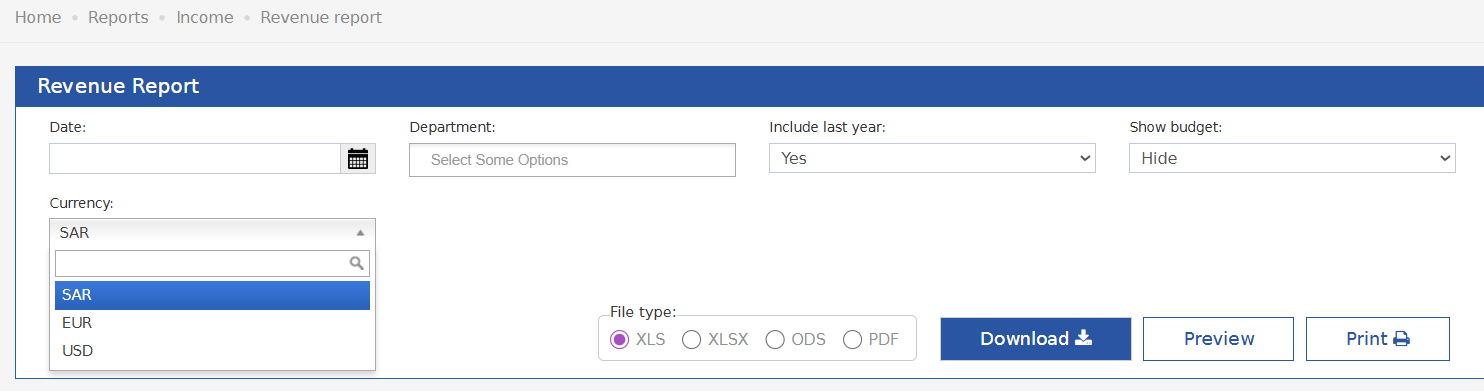
- All department amounts — Today, Month T.D, Year T.D, Last Year — are converted to the selected currency.
- Conversion uses the current exchange rate at the time the report is generated.
- The report header now includes two additional parameter lines: Currency (selected currency name) and Exchange Factor (rate applied at generation time).