Documentation Index

Fetch the complete documentation index at: https://help.kwentra.com/llms.txt

Use this file to discover all available pages before exploring further.

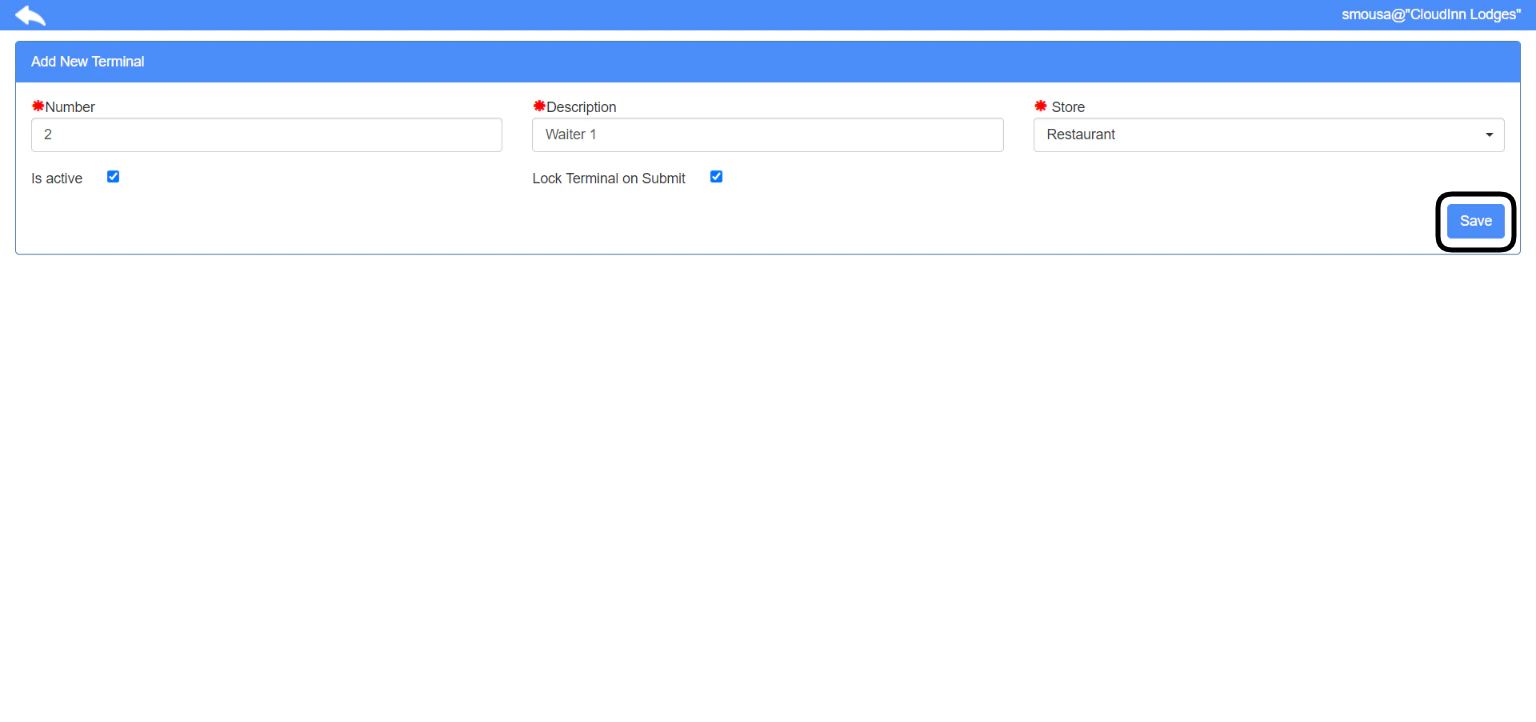
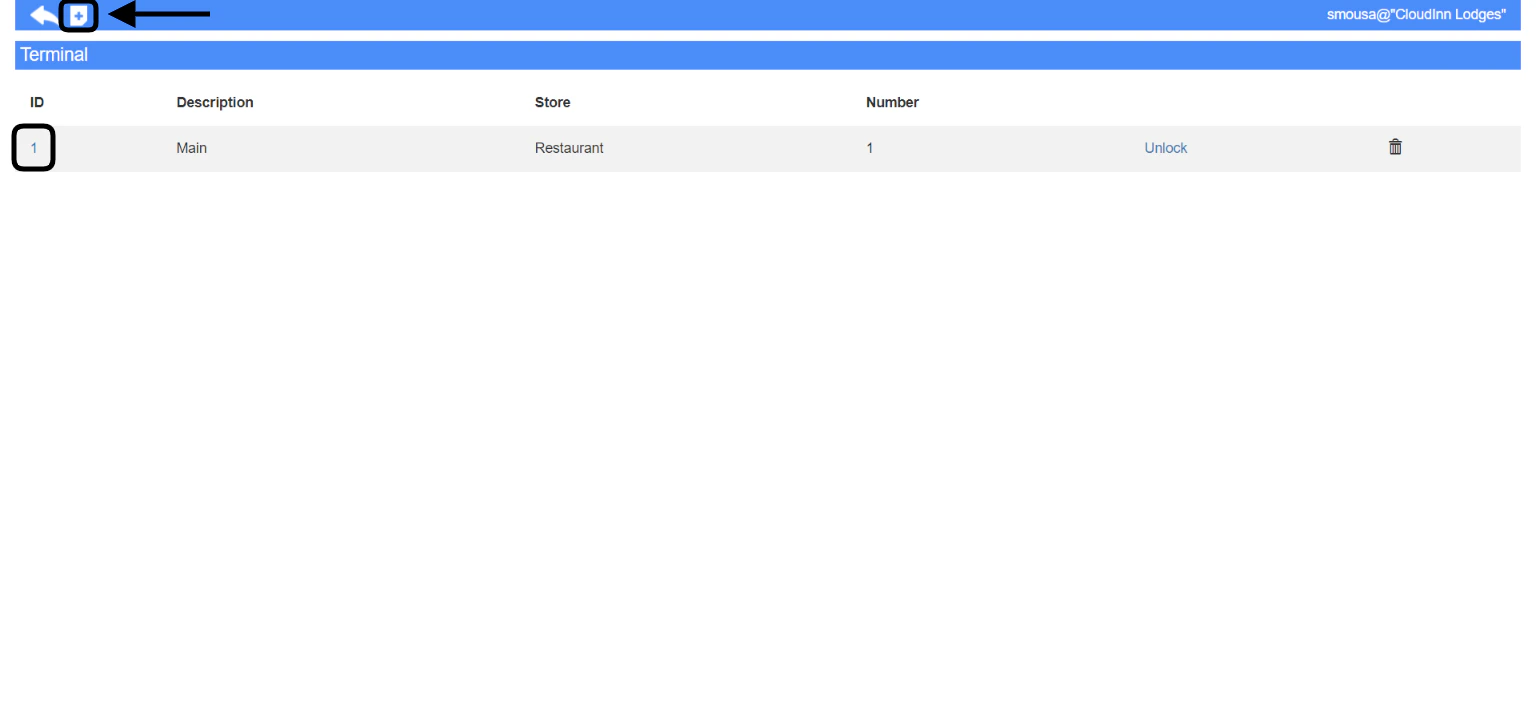
Adding a terminal to your outlet allows your waiters and cashiers to gain access and serve your guests. Having multiple outlets help you run a faster operation and have you waiters/cashiers work simultaneously. Point of Sale → Settings → Terminal You can edit the settings for any terminal by clicking on its ID as below. Click on the + sign to add a new terminal. You need to fill the below inputs in order to add a new terminal:
  1. Number: a serial number for your terminal, it also defines the first digit prefix on your POS invoices I.e 0-0000
  2. Description: a name to give to your new terminal.
  3. Store: which outlet you would like this terminal to be linked to.
  4. Is active: used when you would like to deactivate/delete a terminal.
  5. Lock Terminal on Submit: this option locks the terminal after every order that’s gets submitted to your kitchen from your waiters for security.
Using the Lock Terminal on Submit feature will drive your waiters to use the terminal with their own pin only to easily track their transactions. Click Save to add your terminal.