- Adding free or chargable items to the same menu item i.e. Extra sauces or extra fries etc.
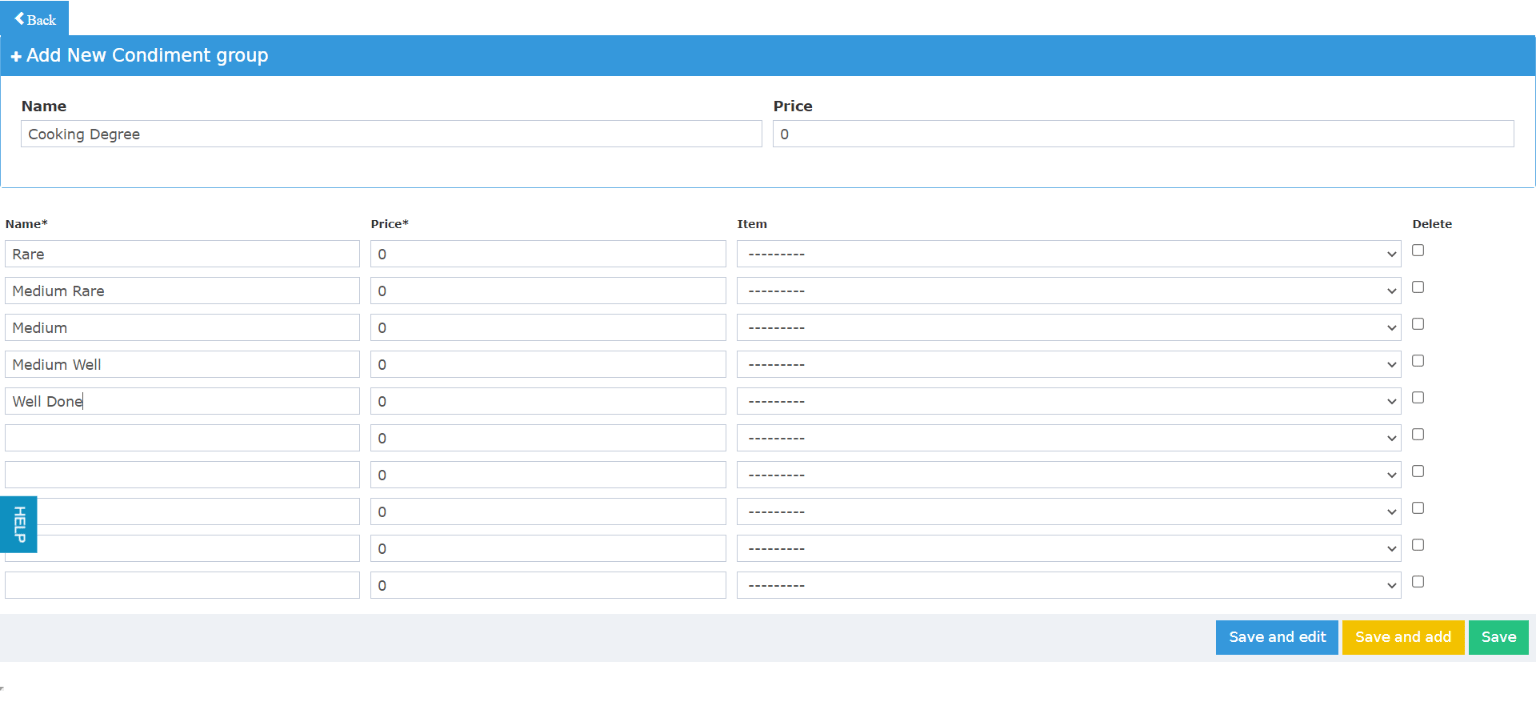
- Adding cooking degrees to certain items i.e. Steaks and burgers.
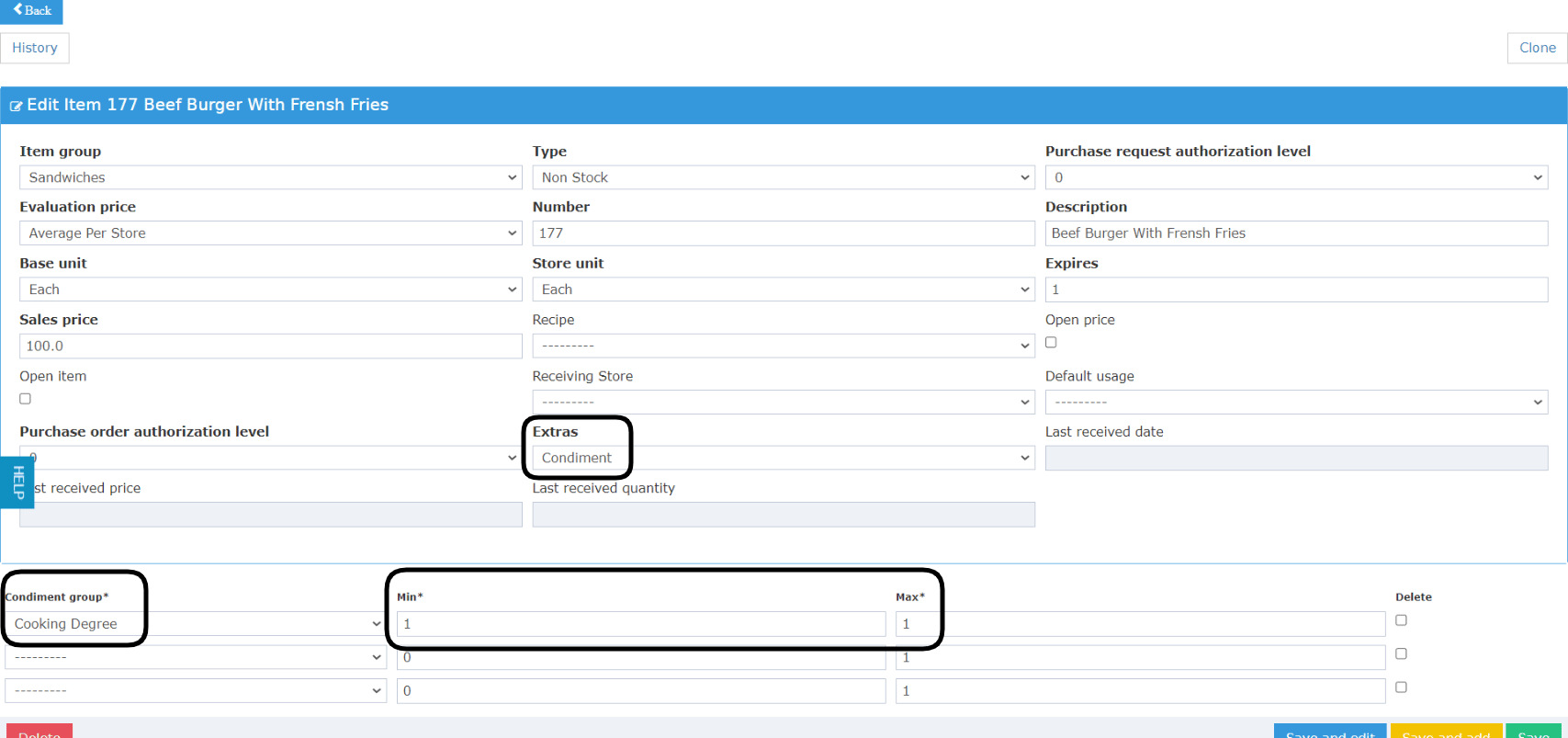
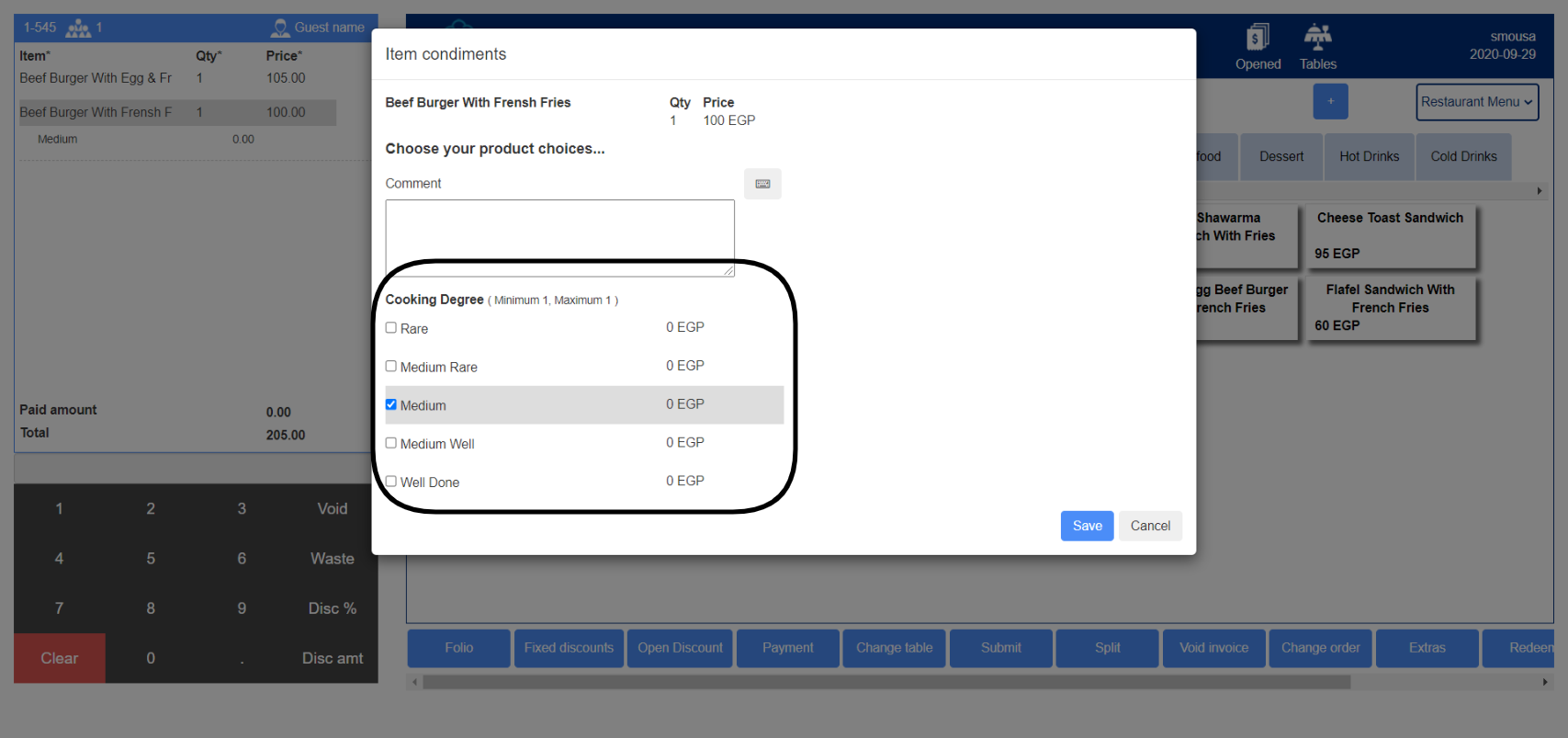 Extra Items/Sauces Scenario:
Here you get to add the extra sauce/item with a price for it or have it for free.
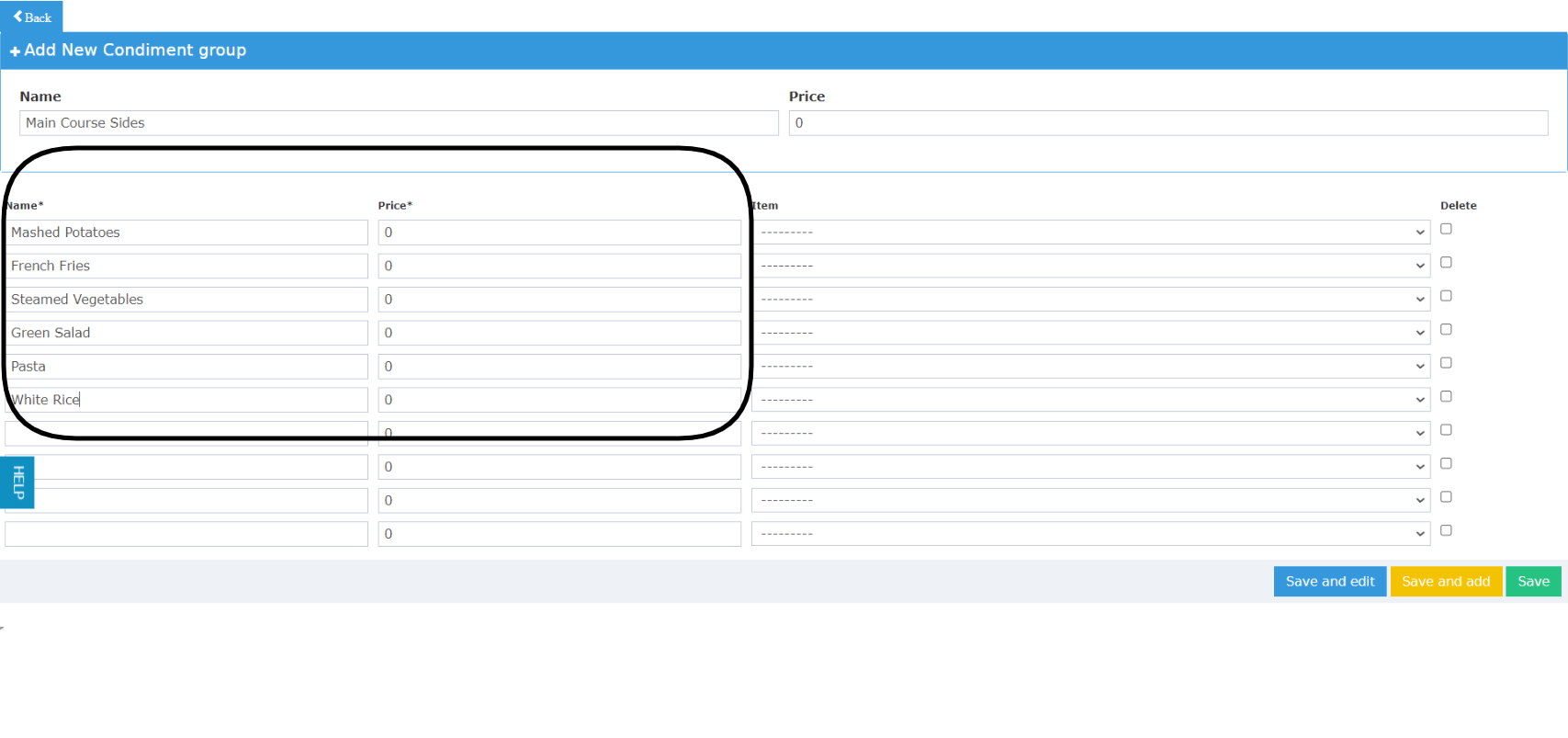
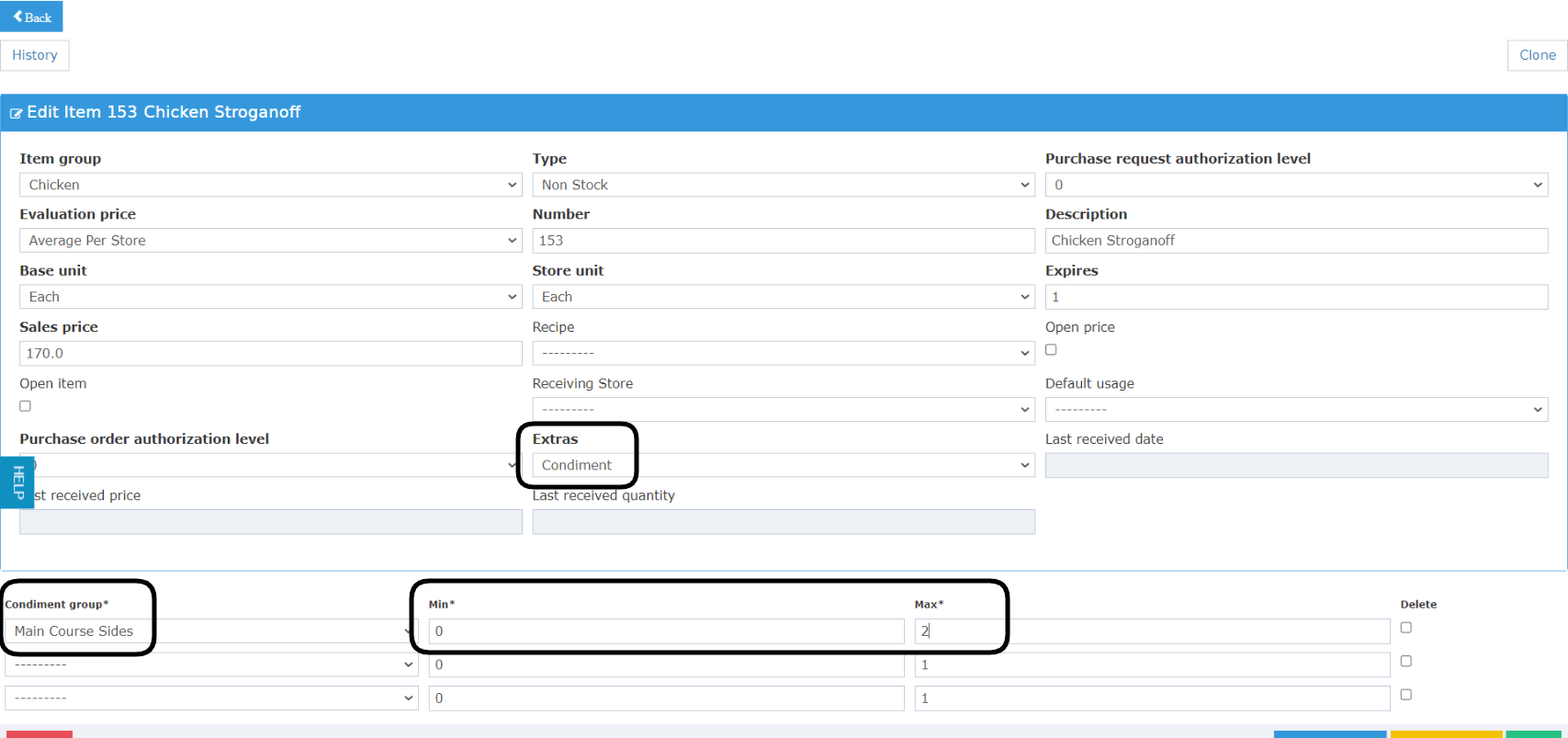
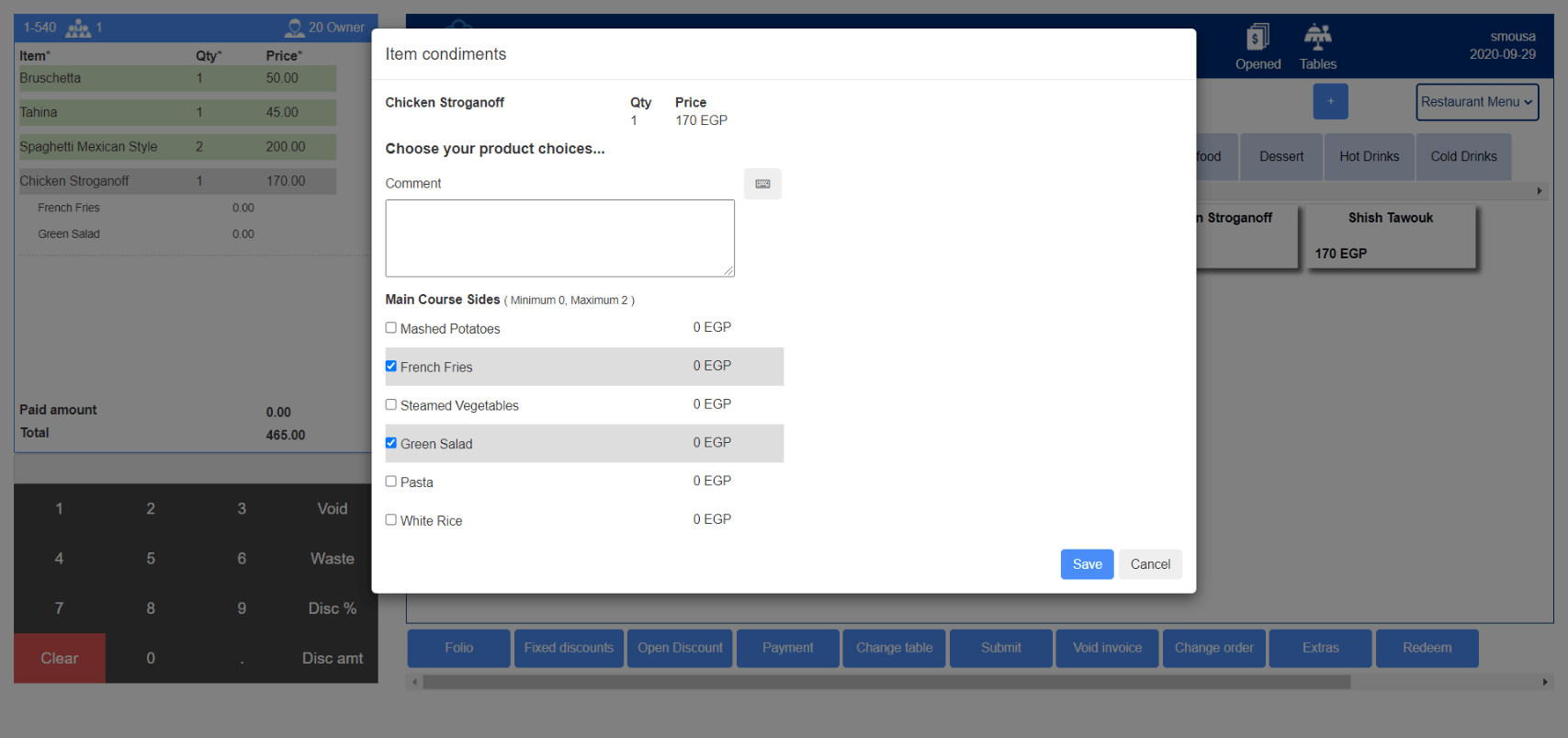
Example: the main course platters come with a choice of 2 side dishes from a variety of 6 different sides dishes and sauces.
Point of Sale → Settings → Condiment group → Add New
For a more advanced setup with Back Office, you can link this type of condiments to items from your inventory, which will result in usage creation.
Click Save so as not to lose your changes.
Extra Items/Sauces Scenario:
Here you get to add the extra sauce/item with a price for it or have it for free.
Example: the main course platters come with a choice of 2 side dishes from a variety of 6 different sides dishes and sauces.
Point of Sale → Settings → Condiment group → Add New
For a more advanced setup with Back Office, you can link this type of condiments to items from your inventory, which will result in usage creation.
Click Save so as not to lose your changes.