Documentation Index

Fetch the complete documentation index at: https://help.kwentra.com/llms.txt

Use this file to discover all available pages before exploring further.

The new feature allows the ability to create special menus with different items assigned with special prices to be used whenever it’s convenient. Outlets now have the option to add Set menus such as:
  • Weekend Special Dinner
  • Early Breakfast Offer
  • Happy Hour Menu
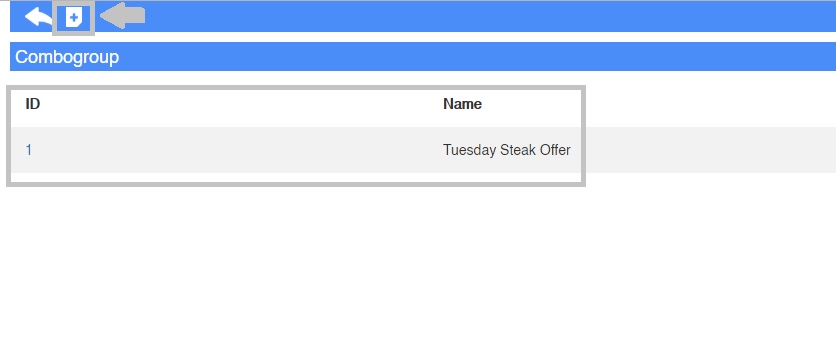
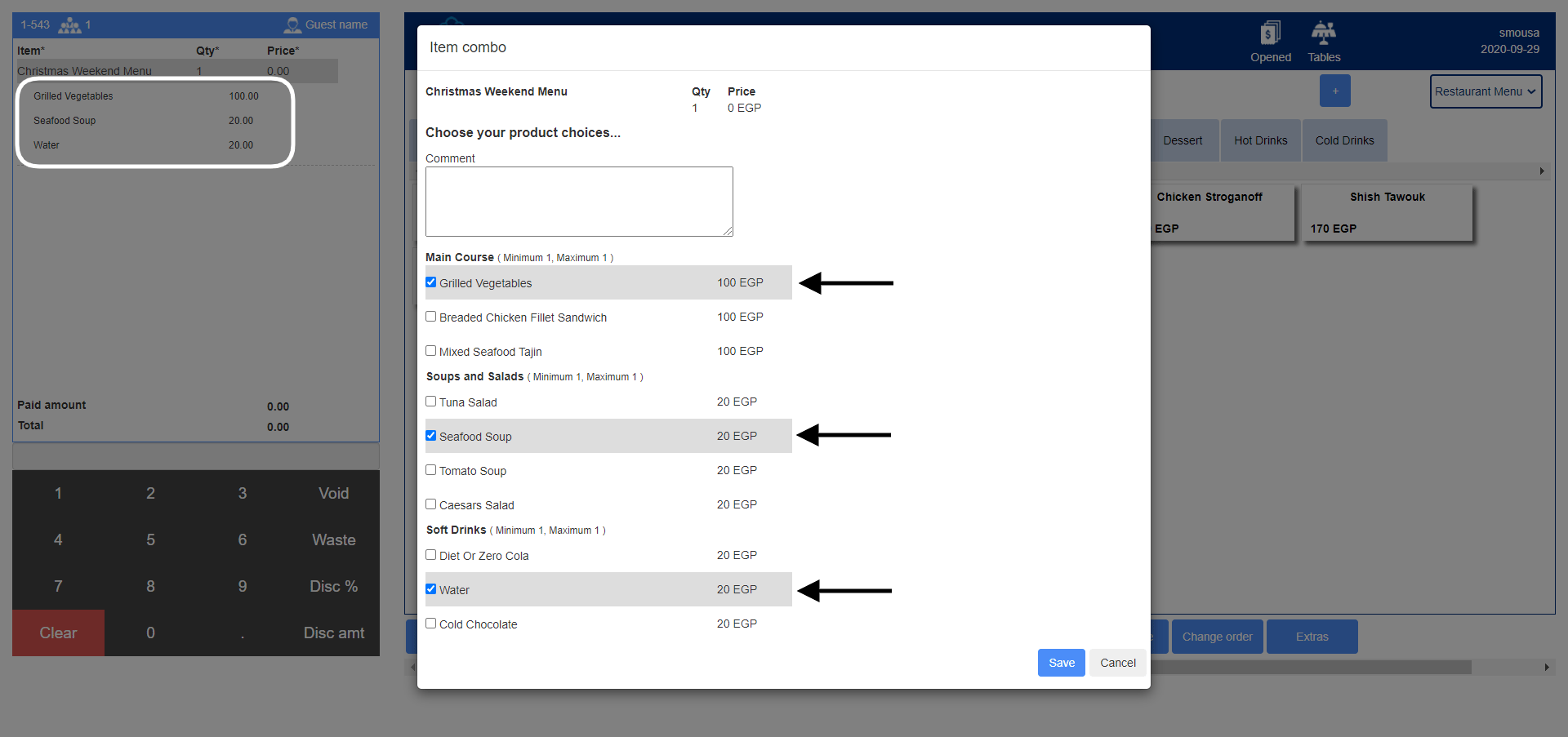
The new feature would help having Set Menus for discounts, holidays and seasonal weekends. How? First we need to understand the scenario in which we would need to have a Set Menu. Scenario: we would like to create Christmas Weekend Menu that allows the guest to choose 1 Main Course, 1 soup or salad and 1 Soft Drink and pay fixed prices. Point of Sale → Settings → Combo Group We would get the below page and we would have the list of Combo Groups alongside the option to Add new. We would get the below page in which we would add all mandatory fields for the first part of the Set Menu which is setting up a new Combo Group for the main course. Very Important: the price of the set menu is defined as per the charges you will add for each item you select inside each Combo Group.
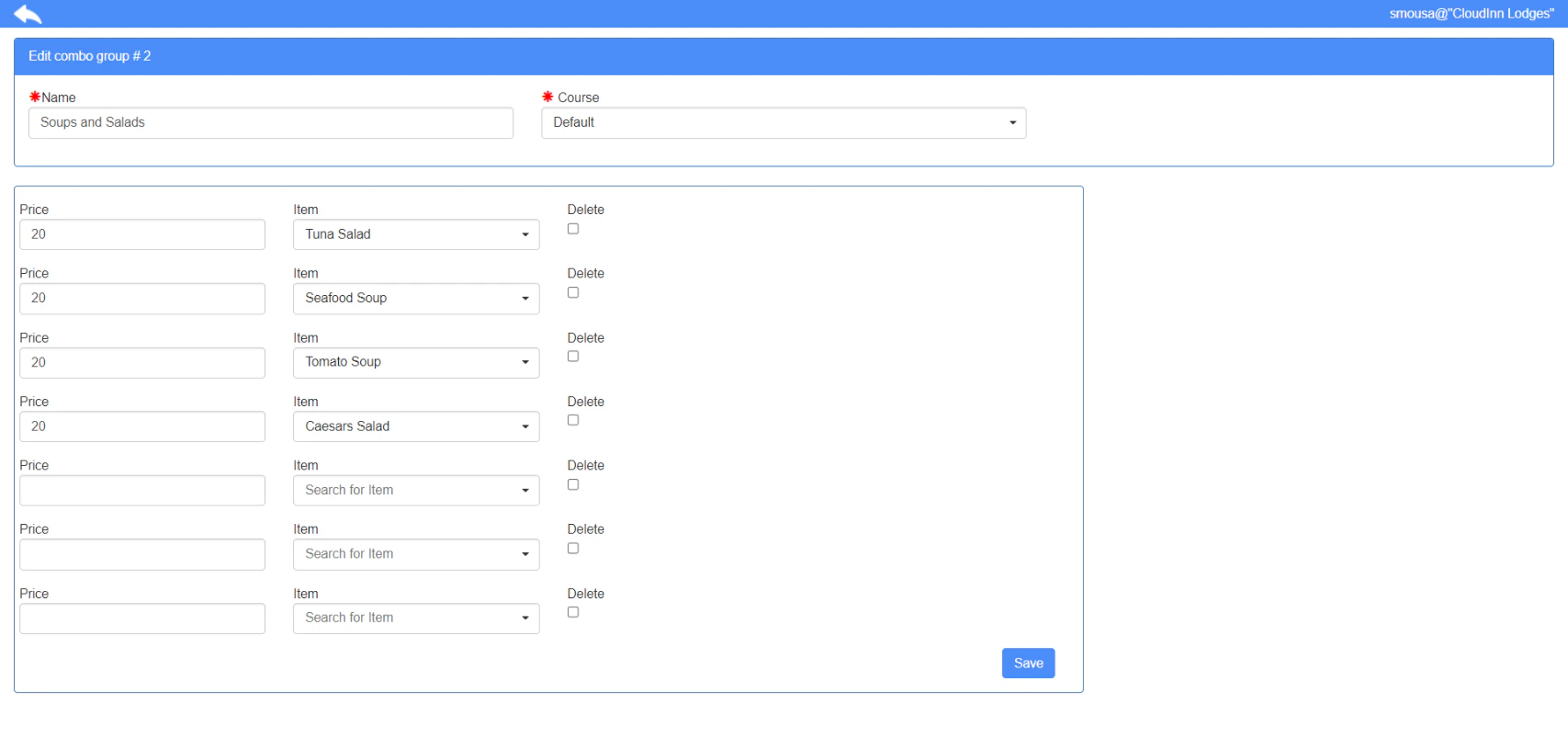
  • Name: adds the name of the combo group to make it easier for selection on the item.
  • Course: if there are pre-defined courses please select them as per the type of combo group you are creating.
  • Price: this will be the charge added on the guest’s POS invoice when the item is selected from the set menu.
  • Item: select from the dropdown menu which item to be sold for the guest regardless of its original price in the menu.
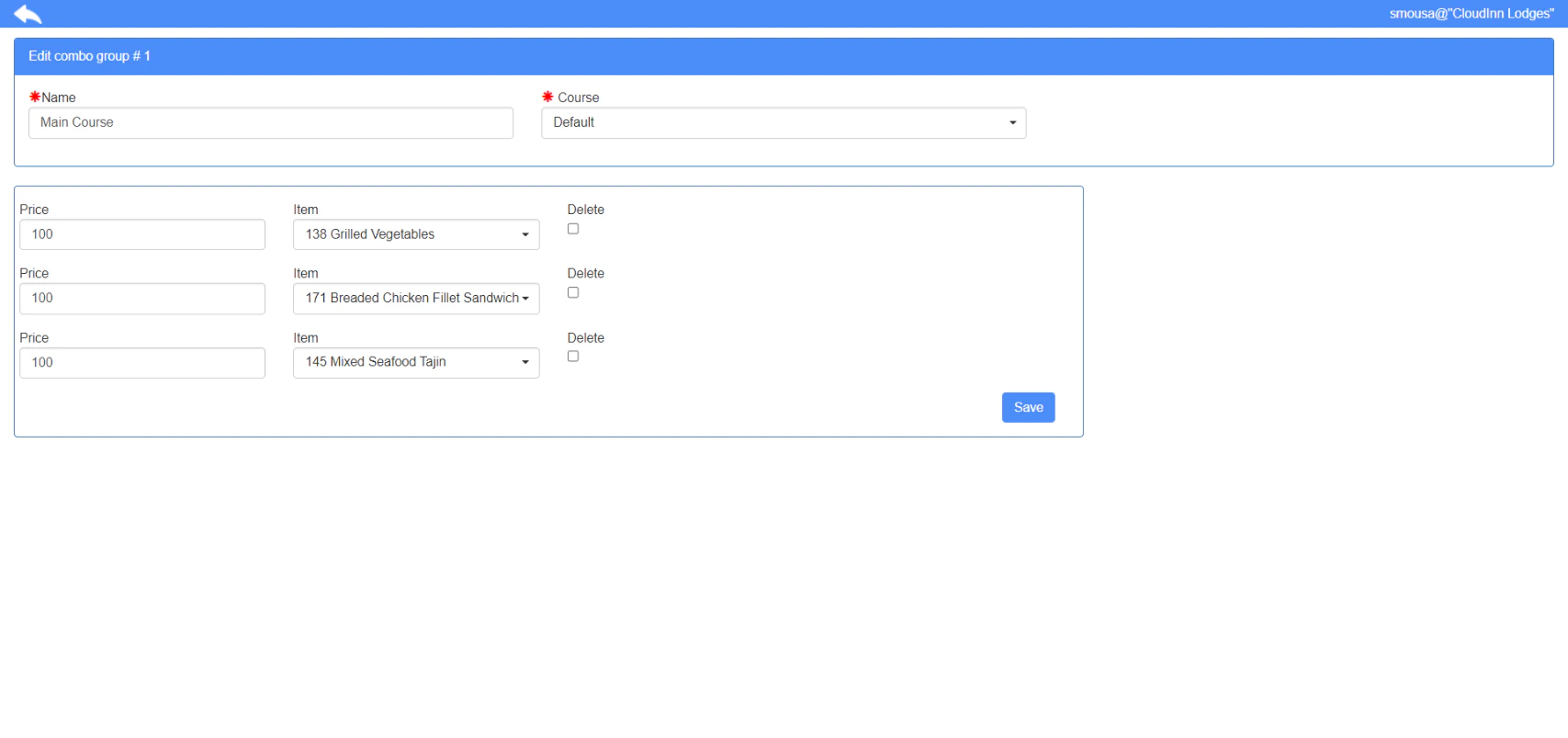
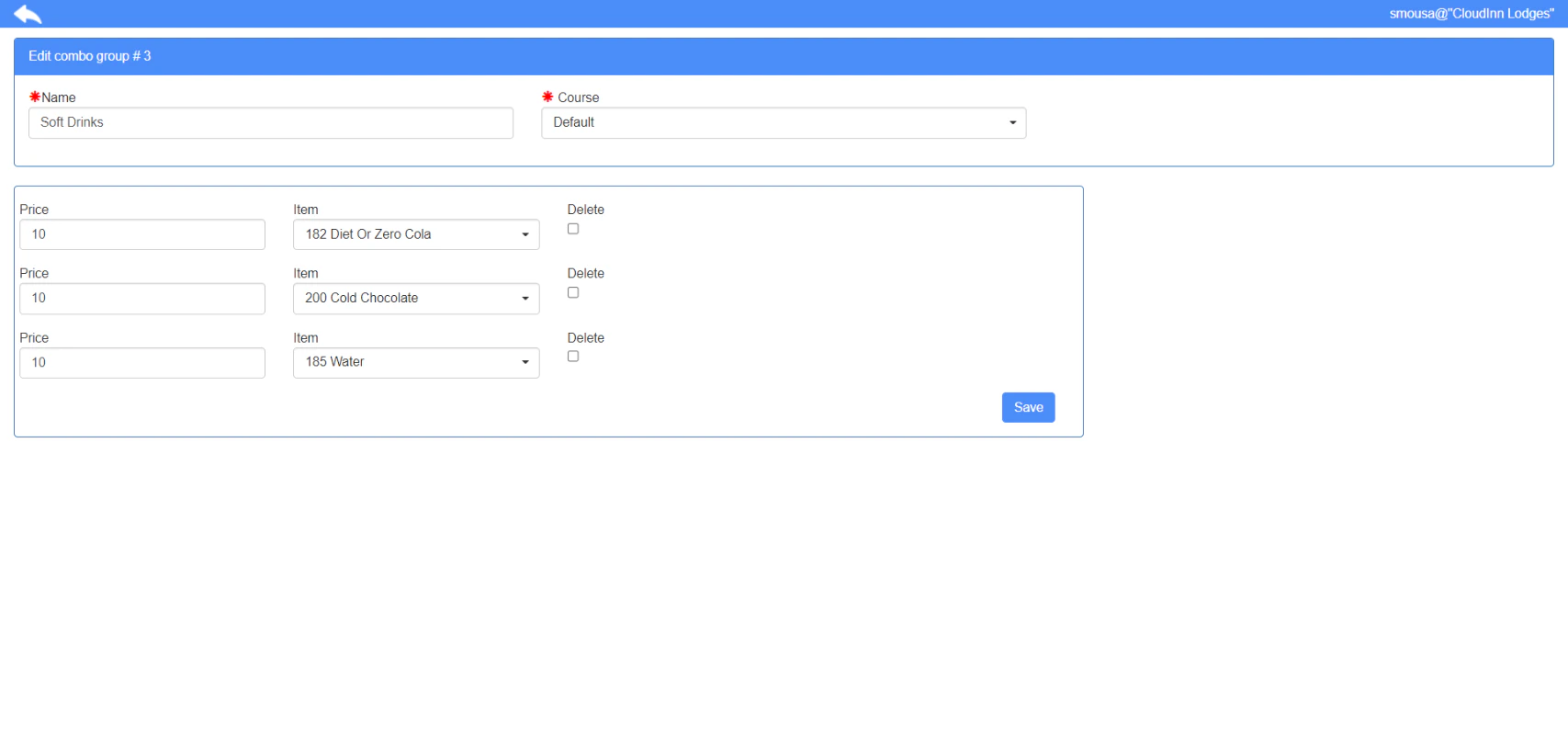
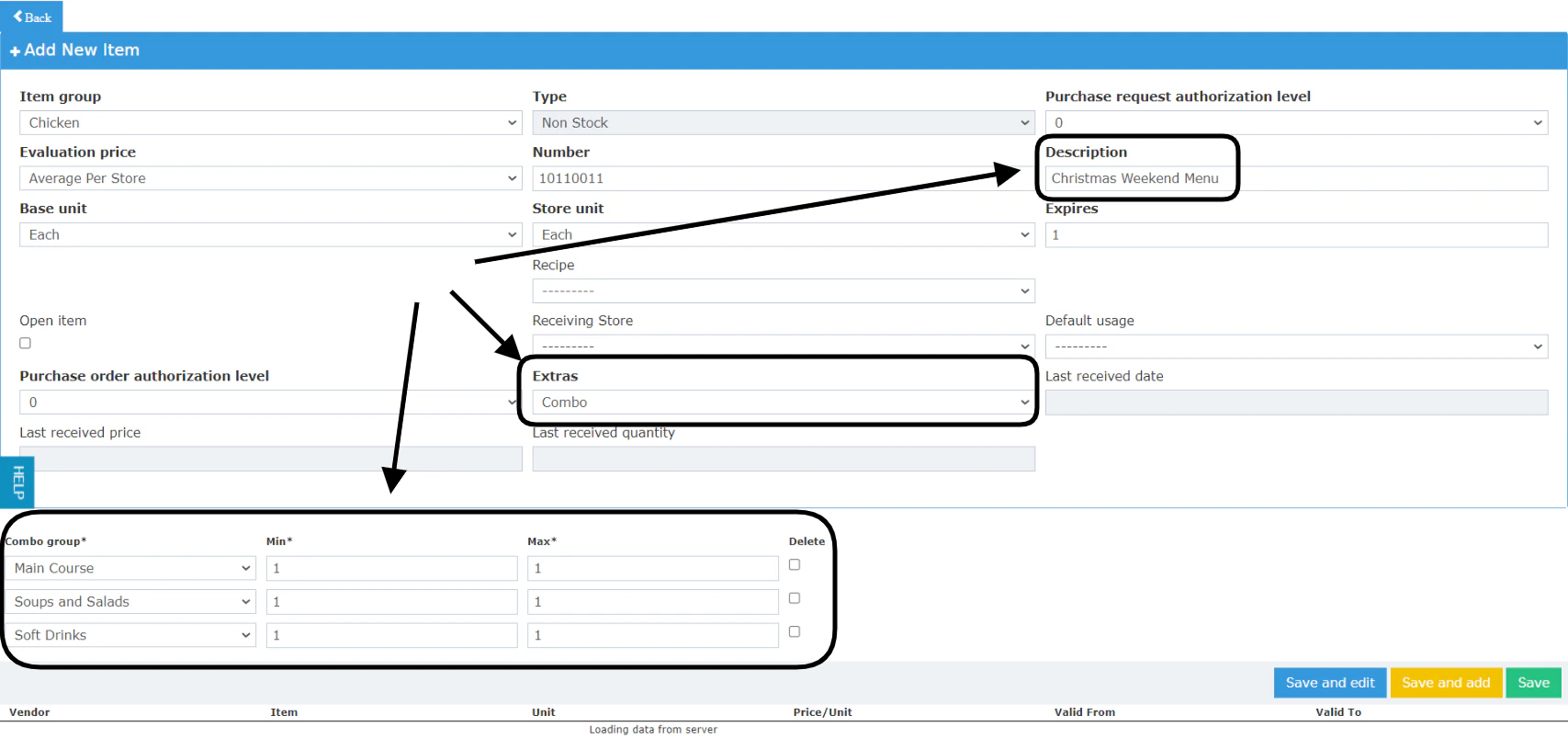
Repeat the previous step in order to set up a Combo Group for the Soups & Salads: Setting up a Combo Group for Soft Drinks: Now our Combo Groups are ready, we need to add them to a Set Menu Item. A Set Menu is considered a new item that we add, within its settings we define it as a combo item and link the combo groups to it in order to allow multiple selling with the new prices we added in the combo groups. Point of Sale → Settings → Item → Add New Here we would be adding a new Set Menu Item called Christmas Weekend Menu.
  • Notice where the set menu name should be.
  • From the Extras Field, Select Combo.
  • Add the new combo groups from the drop down menus.
  • Click Save.
As you can notice we didn’t add any price for the Christmas Weekend Menu because the charges for the items are defined from the combo groups and not from the Set Menu Item itself.
in this scenario the guest is allowed to choose one item only from each group, users can easily change this feature to allow the guest more than one item.
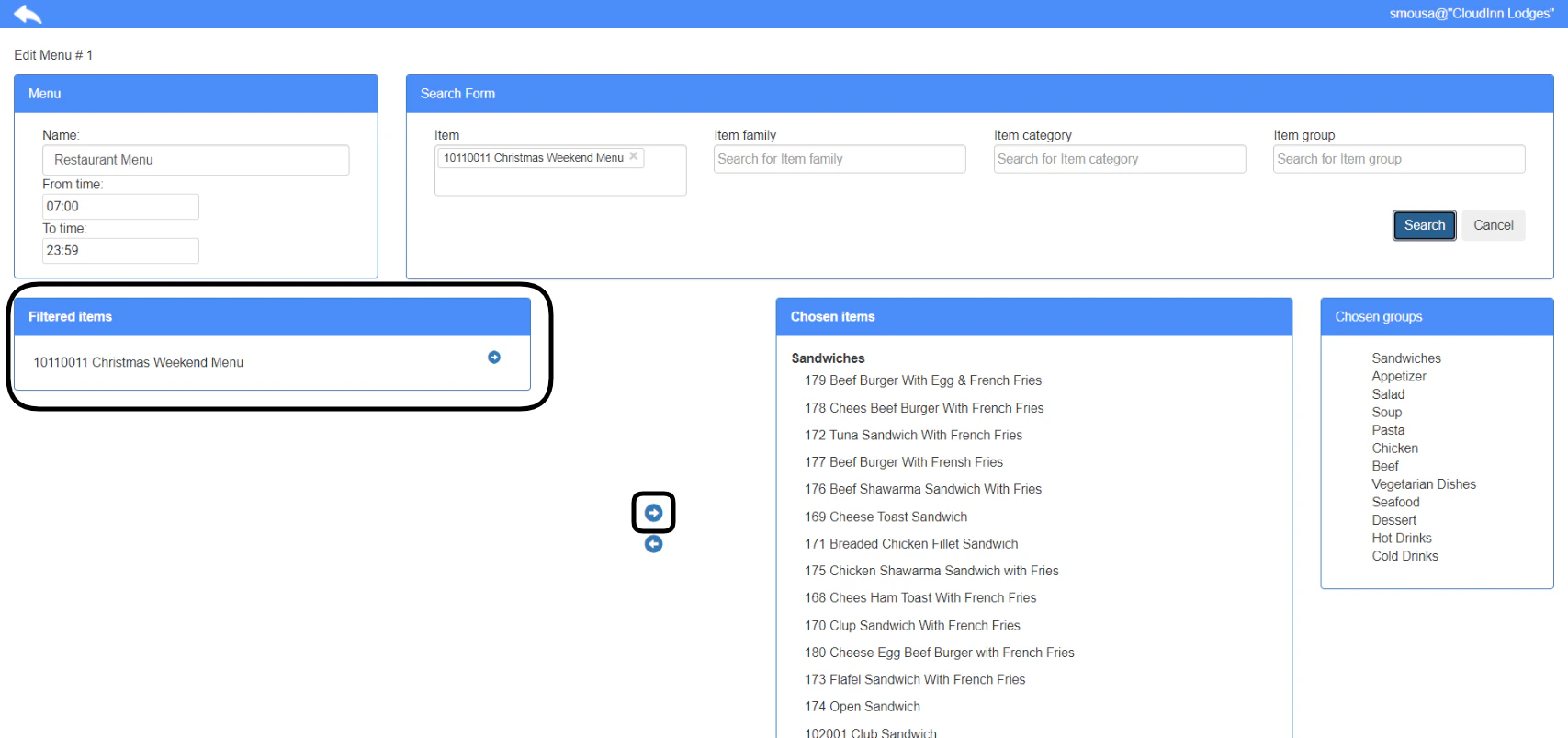
Now we need to link the new Set Menu Item to a menu that could be visible from the user’s end. Point of Sale → Settings → Menus → Select Menu Adding the items that belong into a combo group individually in the same menu that contains the new Set Menu Item is very important for the menu item configuration. Make sure to add the individual items into the same menu as well. Click Save after adding the new Set Menu Item. Very important step – Menu Item configuration –: It is very important to establish the link between the menu items and the department that should be assigned to it. Point of Sale → Settings → Menu Items → Search form → Search for menu Once we search for the menu the below page would appear in which we could assign specific actions to the Set Menu Item:
  • Assign set menu items to appear in specific stores.
  • Assign a specific revenue department for set menu items.
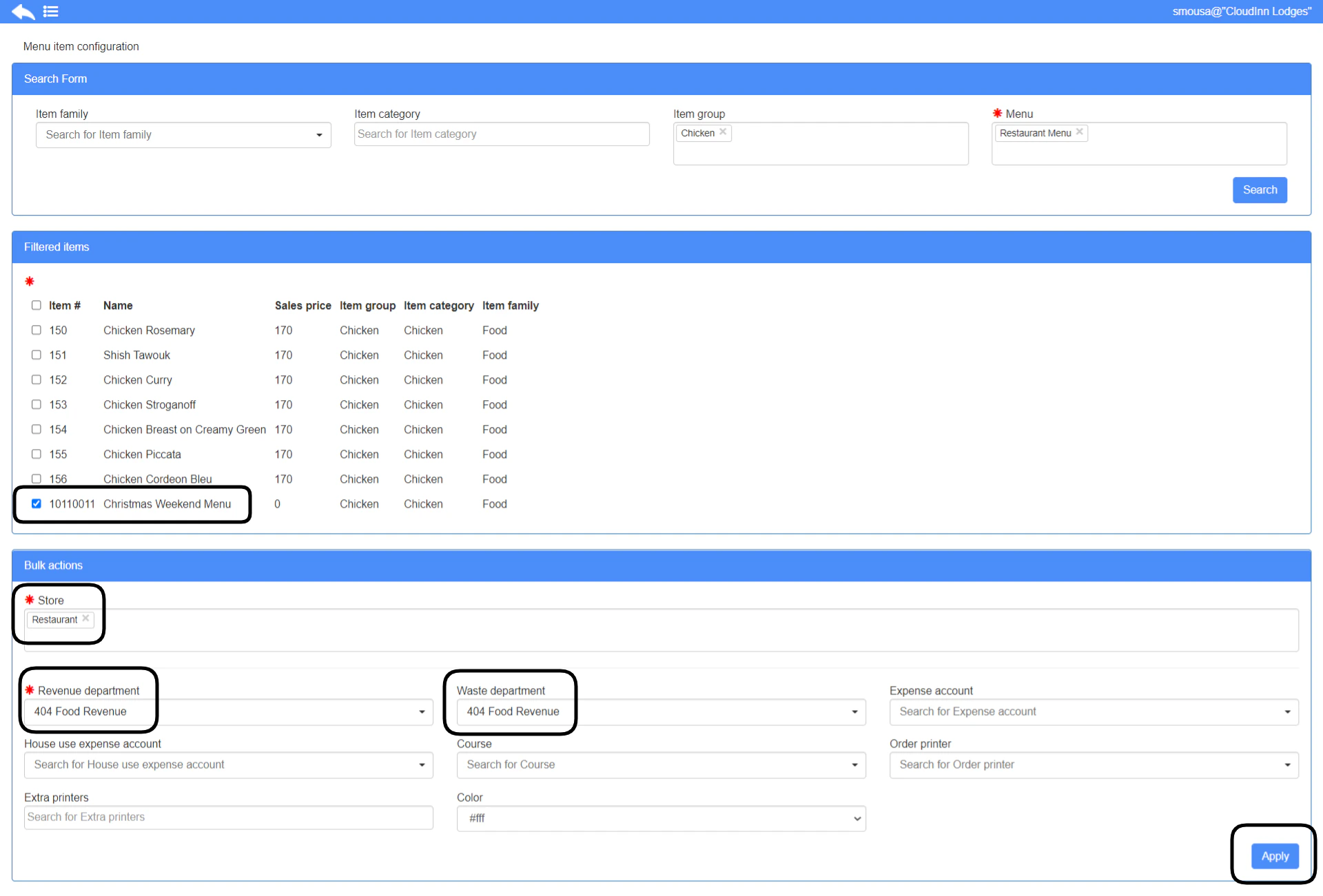
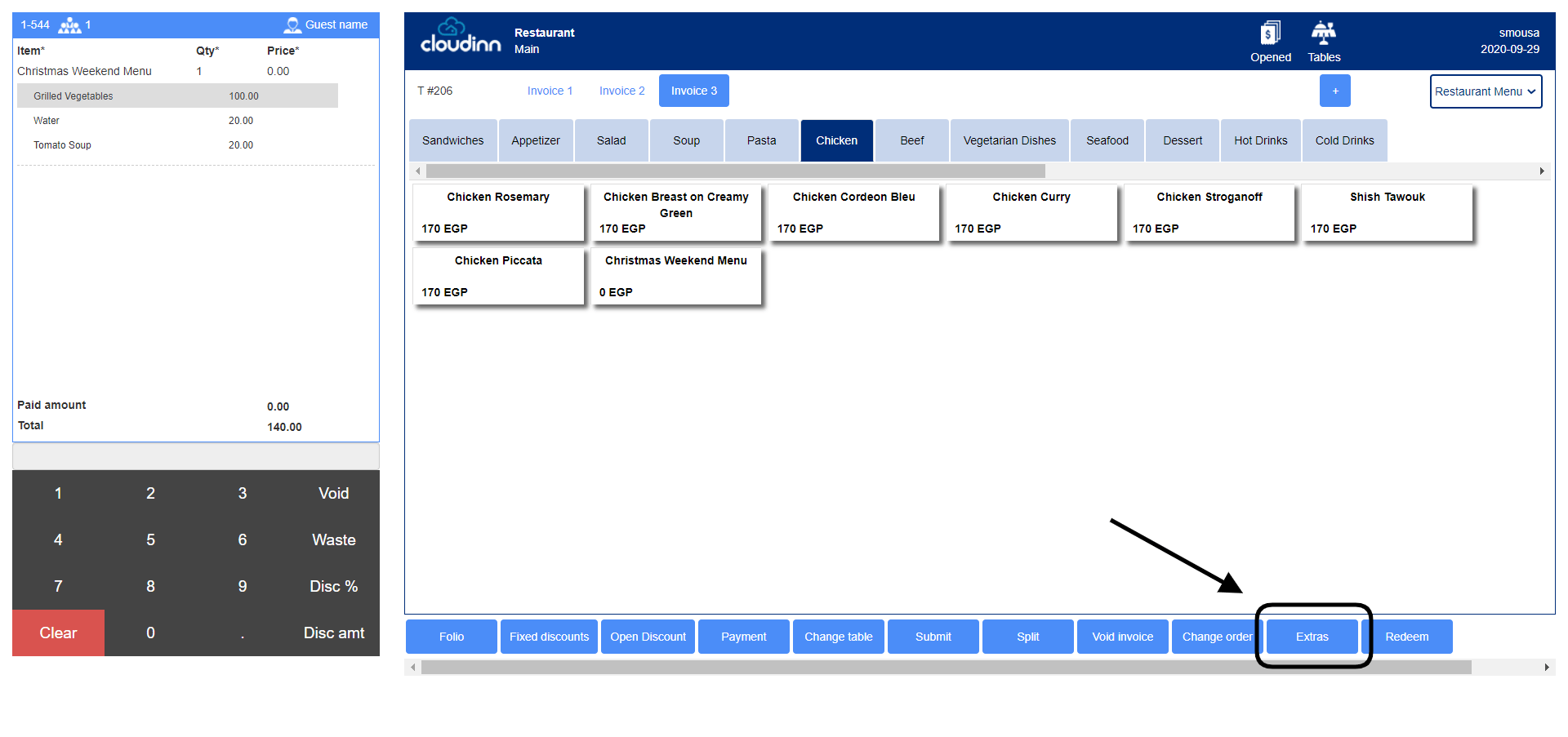
Please click apply for changes to take effect. Now we would go to Cashiering to serve the new menu for our guest. Point of Sale → Cashiering → Select Outlet → Select Terminal → Select Table Now you can select the menu Restaurant from the drop down menu on the top right. Click on the new Set Menu we created. The below page would appear wherein we could select the items we need based on the conditions. Notice the receipt page in the background calculating the invoice based on the selected items from the set menu. Click save for the addition to reflect. In order to edit your selection for your guest, it must happen before the order is submitted to the kitchen. Before the order is submitted, click on the Item from the invoice and use the Extras button to edit your selection of items.