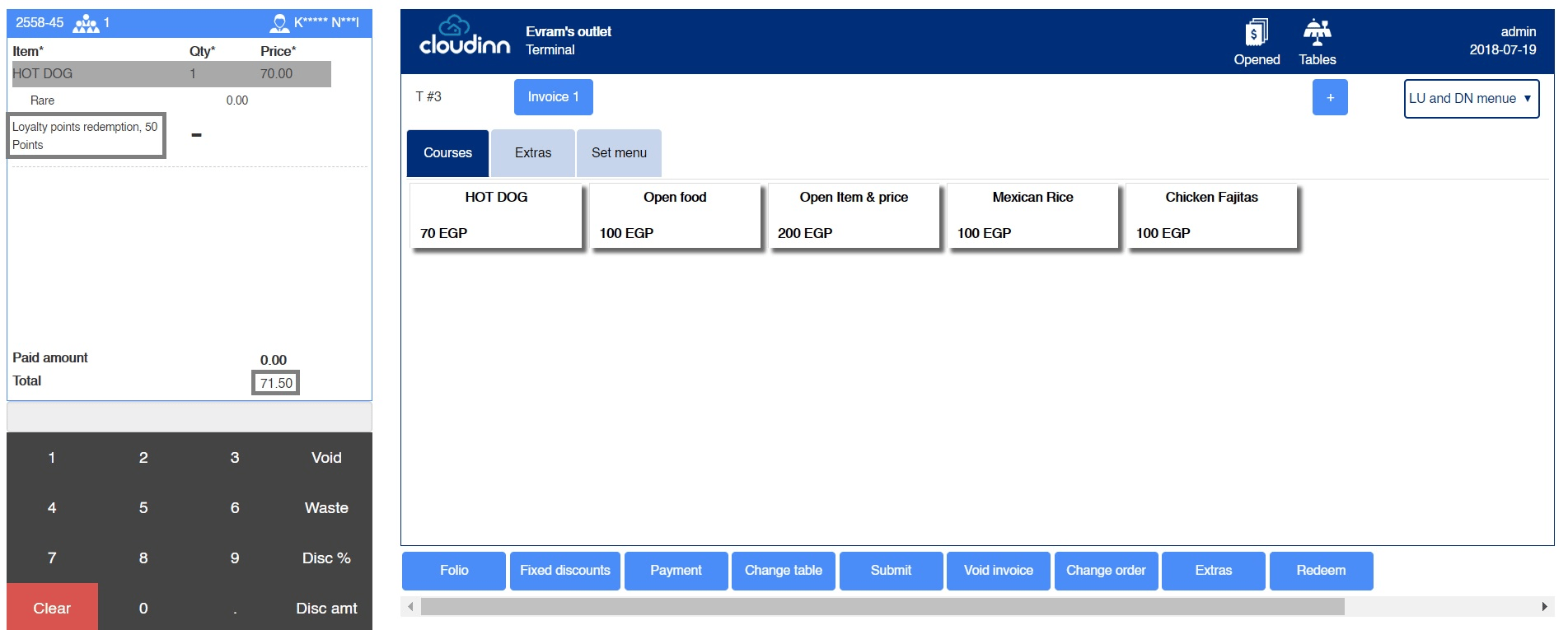
The new feature Redeem won’t be available unless both conditions below are met:
- The bill is linked to an Existing Guest that has Loyalty Points.
- There are items available in the receipt.
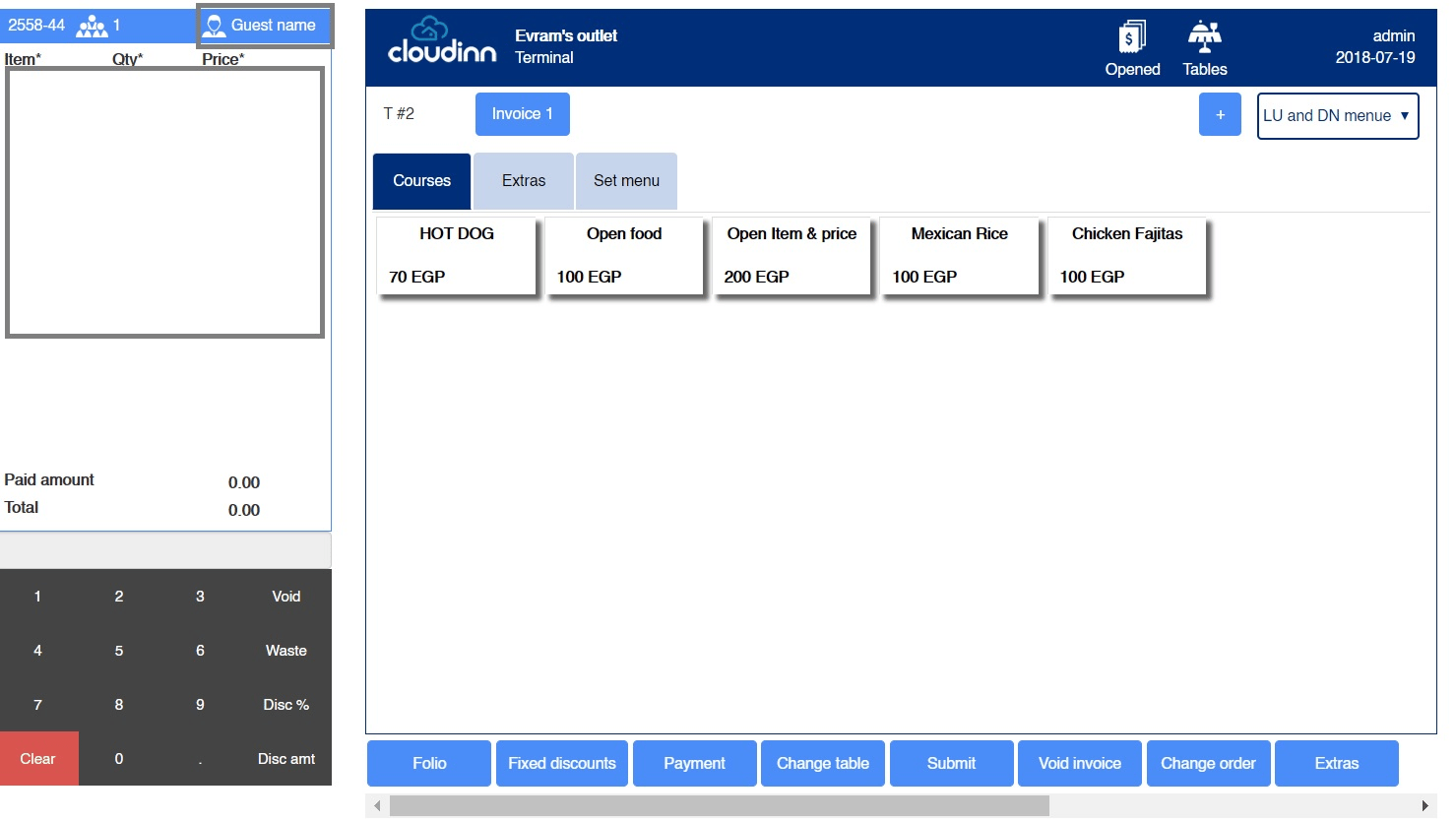
- Click on Guest Name from top left of the page.
- Room Number: adding the bill to a reserved room in the hotel.
- Walk-in Name: adding the bill to a new guest, not necessarily staying at the hotel.
- Individual Profile: linking the bill to an existing guest profile that may have Loyalty Points also works under auto-complete basis.
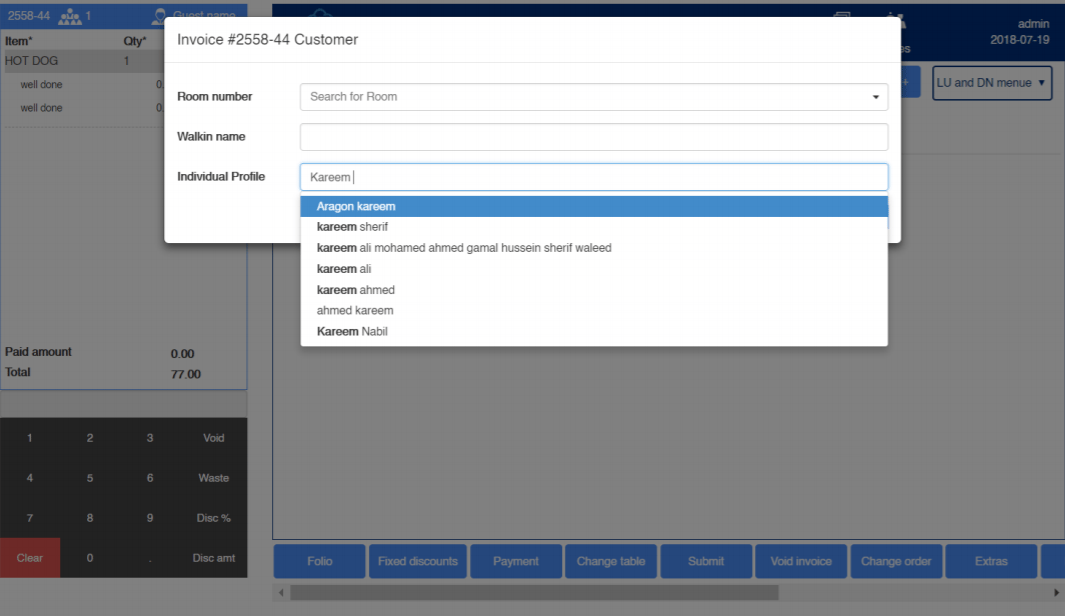
- After selecting the Individual Profile we desire and adding items to the bill as below, we can find the Redeem option available.
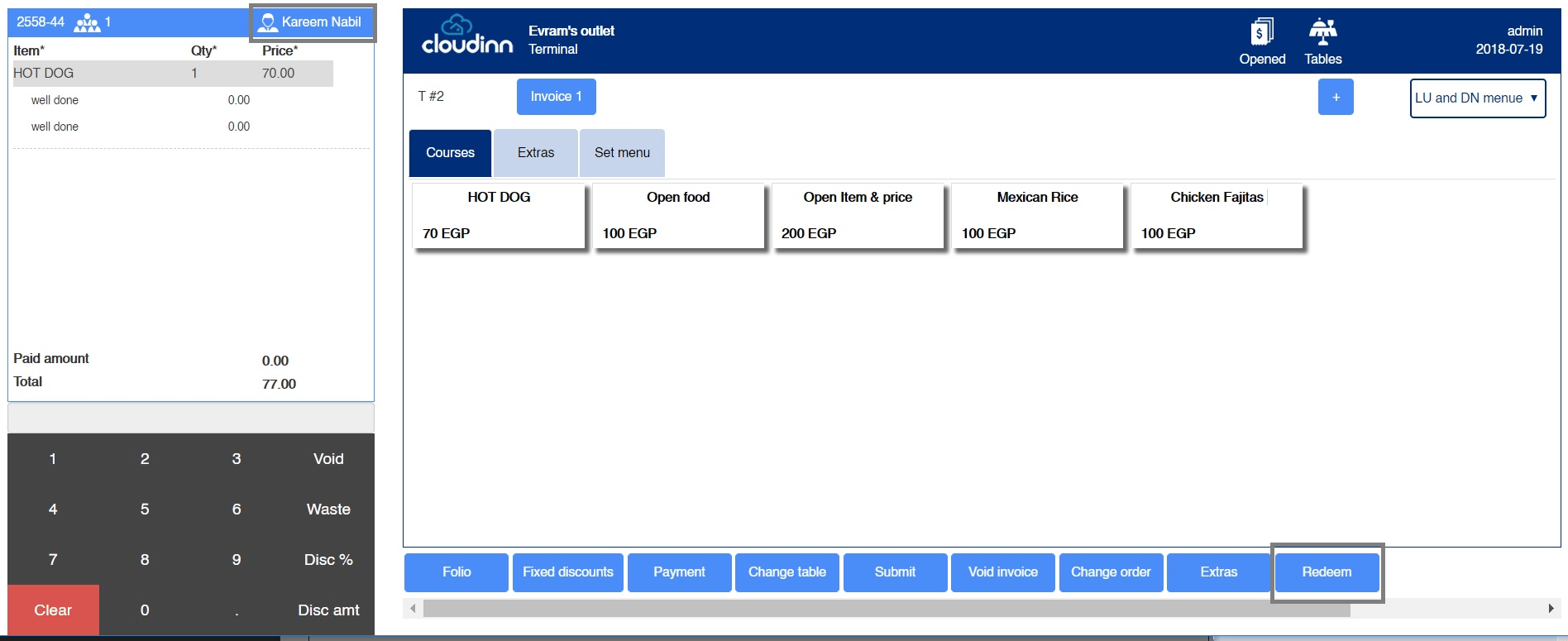
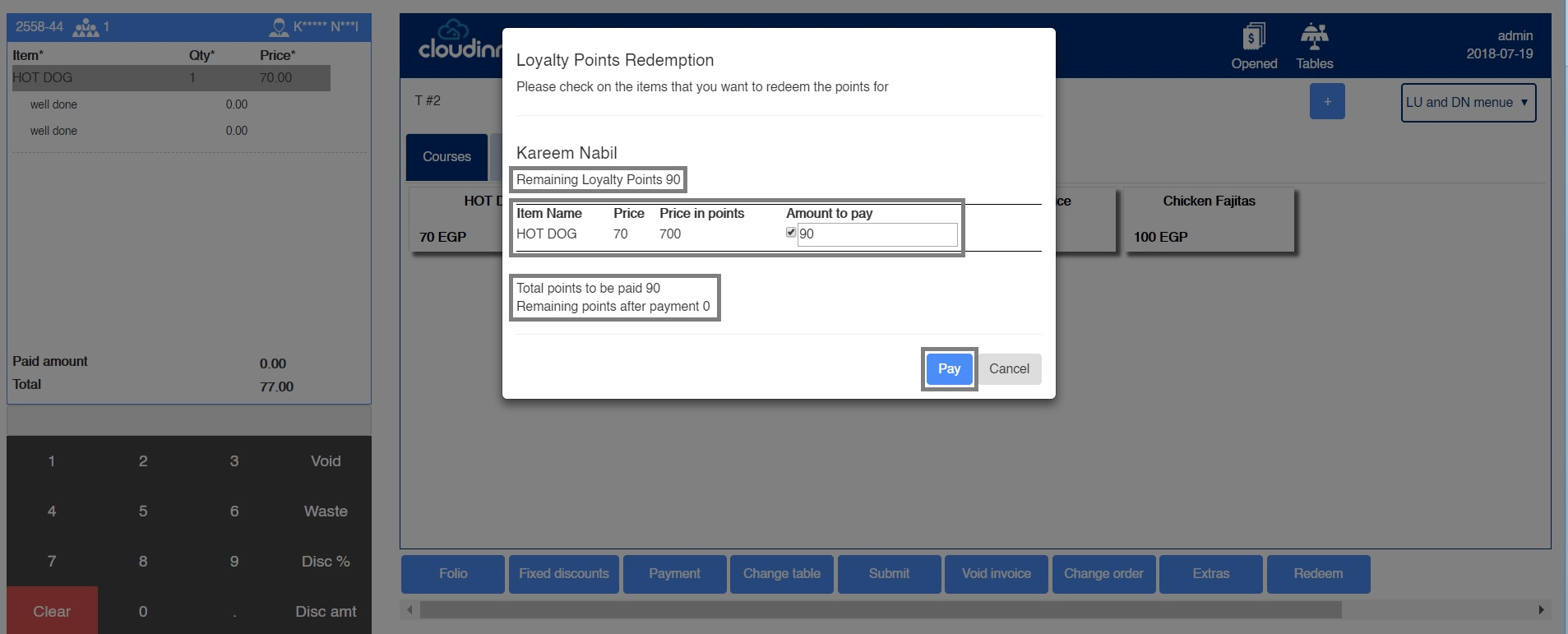
- Once we click Redeem the below pop-up appears:
- Remaining Loyalty Points: guests’ available points that they can use.
- Price: Item’s price in Money Amounts.
- Price in points: the equivalent amount of points for the item’s price.
- Amount to pay: the desired amount the guest wants to pay from his loyalty points, the guest has the liberty to pay whichever amount from his loyalty points.