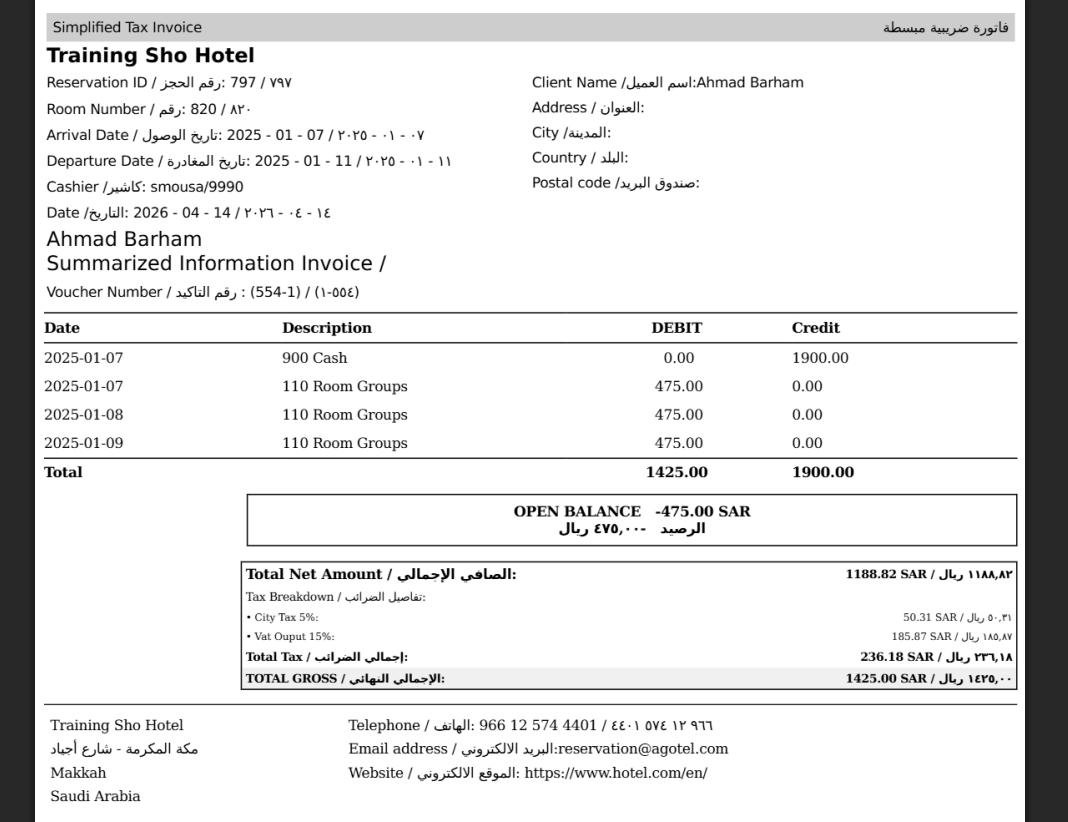
- Meets KSA ZATCA invoice requirements for summarized billing views — no need to switch to a detailed folio just for compliance.
- Works across both Individual Reservations and Paymaster billing screens.
- Template selector defaults to the standard layout — KSA Legal is opt-in, so existing workflows are not disrupted.
- QR code renders automatically based on the applicable integration (same as the existing KSA Folio Template).
- KSA hotel generates a Summarized by Date folio for a corporate guest that is fully ZATCA-compliant — VAT number and QR code included.
- Accounts team prints a Summarized by Stay invoice from Paymaster using the KSA Legal template for a group checkout.
- Front desk selects “KSA Legal” from the Template dropdown to switch a summarized folio to the KSA-compliant format before printing.
- KSA Summarized by Date — charges grouped by date, formatted to comply with KSA invoice requirements.
- KSA Summarized by Stay — charges grouped by the full stay period, formatted to comply with KSA invoice requirements.
- VAT registration number
- QR code (generated based on applicable integration, same as the existing KSA Folio Template)
- KSA-compliant tax breakdown
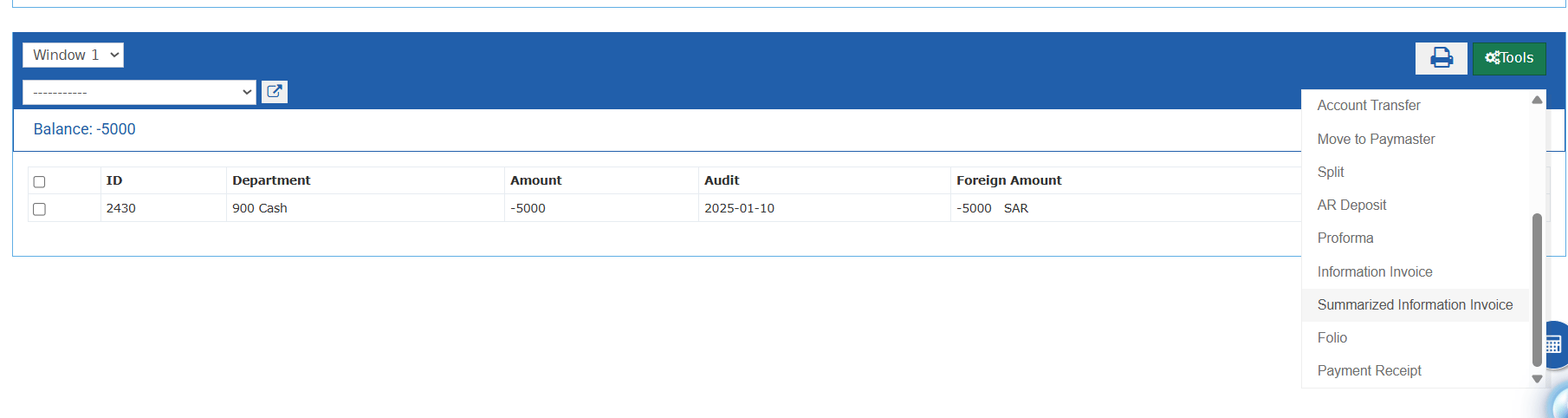

- Open a folio from Individual Reservation or Paymaster billing.
- Select either KSA Summarized by Date or KSA Summarized by Stay as the folio template.
- In the Template field, choose KSA Legal.
- Click Generate.
- Print, preview, or download the folio — it will render with VAT, QR code, and full KSA-compliant layout.