

What Is the Manager Report?
The Manager Report gives you a quick, daily snapshot of your property’s core performance metrics. It helps managers monitor occupancy, revenue, guest averages and department performance, all in one place. The report covers Room Revenue, Food & Beverage Revenue, Other Revenue, and Totals. For each, you’ll find averages per guest and per room (gross and net), as well as occupancy and RevPAR figures.Key Business Value
- One Report, Full Visibility: See your key numbers at once, and act fast if something needs attention.
- Daily Monitoring: Track trends and make daily operational decisions with confidence.
- Easy Audit & Benchmarking: Supports reporting to ownership, brand management, or auditors.
Key Calculations Explained
Below are the main equations as implemented in Kwentra’s Manager Report. These follow hospitality best practices.Room Metrics:
- Total rooms to sell: = Total Rooms – Out Of Order Rooms
- Occupied %: = (Occupied rooms / (Total rooms – OOO)) × 100
- Occ. % minus Comp: = ((Occupied rooms – Complimentary rooms) / (Total rooms – OOO)) × 100
- ADR (Average Daily Rate): = (Total Room Revenue (net) – Manual Charges) / Number of Occupied Rooms (ADR will soon be updated to: Total Room Revenue (net) / Number of Rooms Sold)
- RevPAR (Revenue Per Available Room): = (Total Room Revenue (net) – Manual Charges) / Total Available Rooms (RevPAR will soon be updated to: Total Room Revenue / Total Available Rooms)
Departmental Metrics:
For Room Revenue, F&B Revenue, Other Revenue, and Total:- Gross Avg. Guests: = Total Gross Revenue / (Inhouse Guests – House Use) (includes free child for Room & Total)
- Gross Avg. Rooms: = Total Gross Revenue / (Occupied Rooms – House Use)
- Net Avg. Guests: = Total Net Revenue / (Inhouse Guests – House Use) (includes free child for Room & Total)
- Net Avg. Rooms: = Total Net Revenue / (Occupied Rooms – House Use)
Example:
Suppose you have:- Total Rooms: 100
- Out Of Order: 5
- Occupied Rooms: 80
- Comp Rooms: 2
- Total Room Revenue (net): 40,000 SAR
- Manual Charges: 2,000 SAR
Additional Notes
- All definitions and formulas are based on leading industry standards.
- The calculations are subject to ongoing improvements and best practice updates.
Update: 19 Feb 2026
Hijri Daily Budget Import
The Manager Report now reflects Hijri daily budgets — showing accurate Day, Month, and Year budget figures for each KPI. Budget Calculation Logic — Hijri Daily Budget The Manager Report shows budget figures across Day, Month, and Year columns for each KPI. These values change when a Hijri daily budget is imported for the selected month. When only a monthly budget is imported:- Day = imported monthly budget ÷ number of days in the month
- Month = total imported monthly budget
- Year = sum of all months + days from start of year to the report date
- Day = the imported budget for that specific day
- Month = sum of all imported daily budgets for that month
- Year = cumulative sum from start of year, using Hijri daily budgets where available
Update: 15 Apr 2026
Multi-Currency Support
The Manager Report now supports generating figures in any currency configured on the system. How It Works Running the Report Where: Reports → FO → Income → Manager Report Currency Field — Single-select dropdown listing all currencies set up on the system. Defaults to the base currency. Note: The exchange rate applied is the rate at the time the report is generated, not historical rates.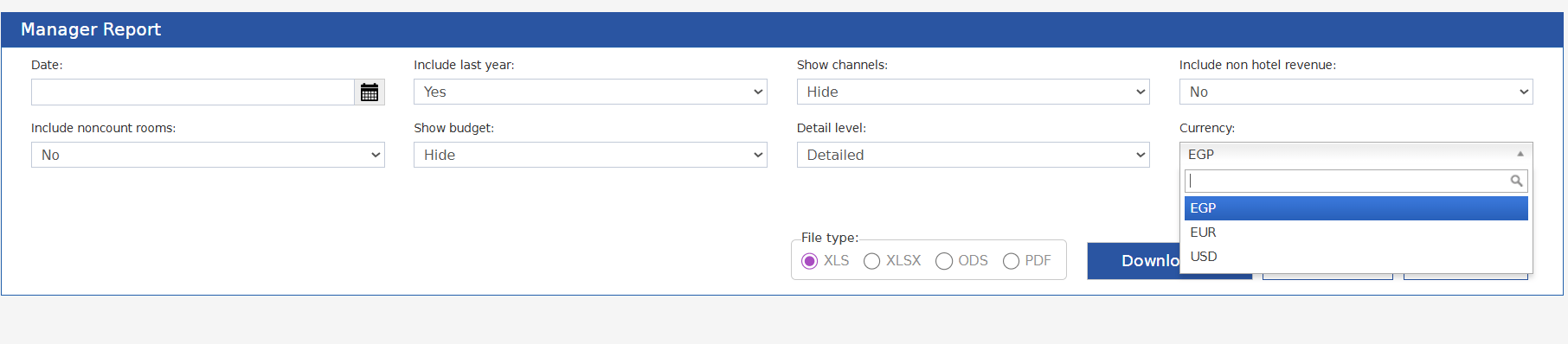
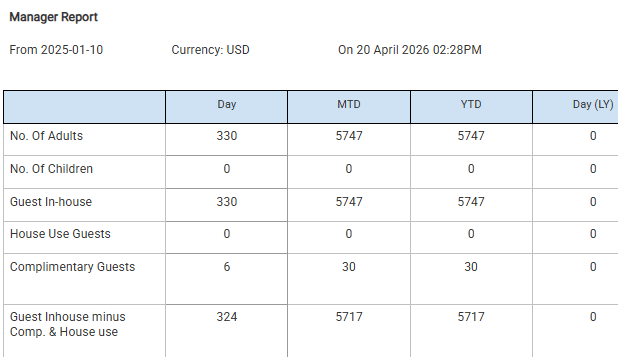
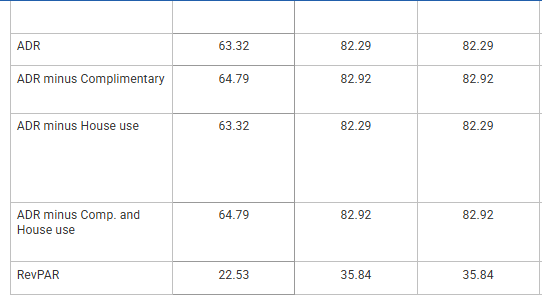
- ADR, ADR minus Complimentary, ADR minus House Use, ADR minus Comp. and House Use
- RevPAR
- Statistic Types (Gross, Net, Gross Avg. Guests, Gross Avg. Rooms, Net Avg. Guests, Net Avg. Rooms) and Totals
- Payments
- Budget: ADR, RevPAR, and Net statistics
- Currency — the currency selected when generating the report
Update: September 6, 2026
Bed Selling: Correct Total Rooms, Occupancy, Out of Order and RevPAR
For bed-selling properties, the Manager Report now counts child rooms as the sellable units. What Changed Total Rooms used to count a parent room and its child rooms as separate units. Occupied, Out Of Order, Complimentary and House Use each counted one per room. So a block on a parent room counted as 1, even though it took every child room out of sale. With month-to-date and year-to-date columns, the error grew across the period. This applies only to properties with bed selling on. Others see no change. The Room Set- Independent room — its room type is neither a parent nor a child type.
- Parent room — its room type contains child room types. It is never sellable.
- Child room — sits inside a parent room. These are the sellable units.
- Total Rooms — independent rooms plus child rooms.
A child room is counted only once. This is true even if its parent room is also marked.
For an occupied parent room, the system counts the child rooms under the assigned room number. With no room assigned, it counts the units on the room type.
Monetary Figures
- ADR does not change. It stays Room Revenue ÷ rooms sold. A family room sold at 200 reports an ADR of 200.
- RevPAR does change. It is Room Revenue ÷ Rooms To Sell, and that capacity is being corrected.
- Room revenue, arrivals, departures and guest counts are unchanged.
Need more info?
Contact support@kwentra.com for further help.
Update: September, 2026
Occupancy Breakdown: Quad Rooms and Other Rooms
The occupancy breakdown now counts rooms with 4 or more adults.What’s New?
- A Quad Rooms line counts rooms with 4 adults.
- An Other Rooms line counts every other occupied room.
- Before, rooms with 4 or more adults matched no line. They were left out with no warning.
How It Works
The Occupancy Lines
Counting Rules
The new lines follow the same rules as the old ones:- Only adults count. A room with 2 adults and 2 children is a Double.
- House use and complimentary rooms are left out.
- Non-count rooms follow the Include non-count rooms parameter.
- Each night in the period is counted.
Where the New Lines Show
- In every column the old lines use: Day, Month-to-date and Year-to-date.
- In the last-year columns, when Include last year is Yes.
- Show budget and Detail level work the same way for the new lines.