
Documentation Index

Fetch the complete documentation index at: https://help.kwentra.com/llms.txt

Use this file to discover all available pages before exploring further.

Track daily room pickup against contracted block allocations across all market segments for any date range. Business Value
  • Monitor how many rooms from each block are picked up vs. total allocated — by day.
  • Identify underperforming blocks before arrival date and take corrective action.
  • Compare pickup pace across all contracted blocks in a single view.
  • Support tour operator performance reviews with date-range data.
Use Cases
  • Revenue manager checks daily pickup and contacts a tour operator whose block is lagging behind.
  • Front office manager prints the report before a busy week to confirm all block rooms are on track.
  • Sales team exports the report to compare which contracted blocks are performing best this season.
How It Works Running the Report Where: Reports → FO → Reservation → Block Statistics From Date: Select the start date of the reporting period. To Date: Select the end date of the reporting period. File Type: Choose the export format: XLS, XLSX, ODS, or PDF. Available actions: Download | Preview | Print Understanding the Report The report groups data by block (market segment contract). Each block appears as a column pair: “Picked Up” (rooms actually reserved from the block) and “Total” (rooms contracted/allocated). Rows represent individual dates; the final row shows totals across the full date range. Report Columns
ColumnDescriptionExample
DateThe date of each reported day.2026-04-23
[Block Name] – Picked UpNumber of rooms actually reserved from this block on this date.37
[Block Name] – TotalTotal rooms contracted/allocated in this block for this date.42
Total – Picked UpSum of all picked-up rooms across every block for this date.346
Total – TotalSum of all contracted rooms across every block for this date.731

Update: 22 Apr, 2026

Detailed View and Block Filter

The Block Statistics Report now supports a room-type breakdown per block and a block filter, giving a clearer view of pickup performance across allocations. How It Works Running the Report
Where: Reports → Reservation → Block Statistics
From Date — Start of the date range to report on. To Date — End of the date range to report on. Detailed — No (default): standard view. Yes: expands each block by room type. Block — Optional multiselect. Filter to specific blocks. Leave blank to show all non-cancelled blocks (default behaviour). Available actions: Download / Preview / Print Standard View (Detailed = No) The default view is unchanged. Each block appears as a single column pair:
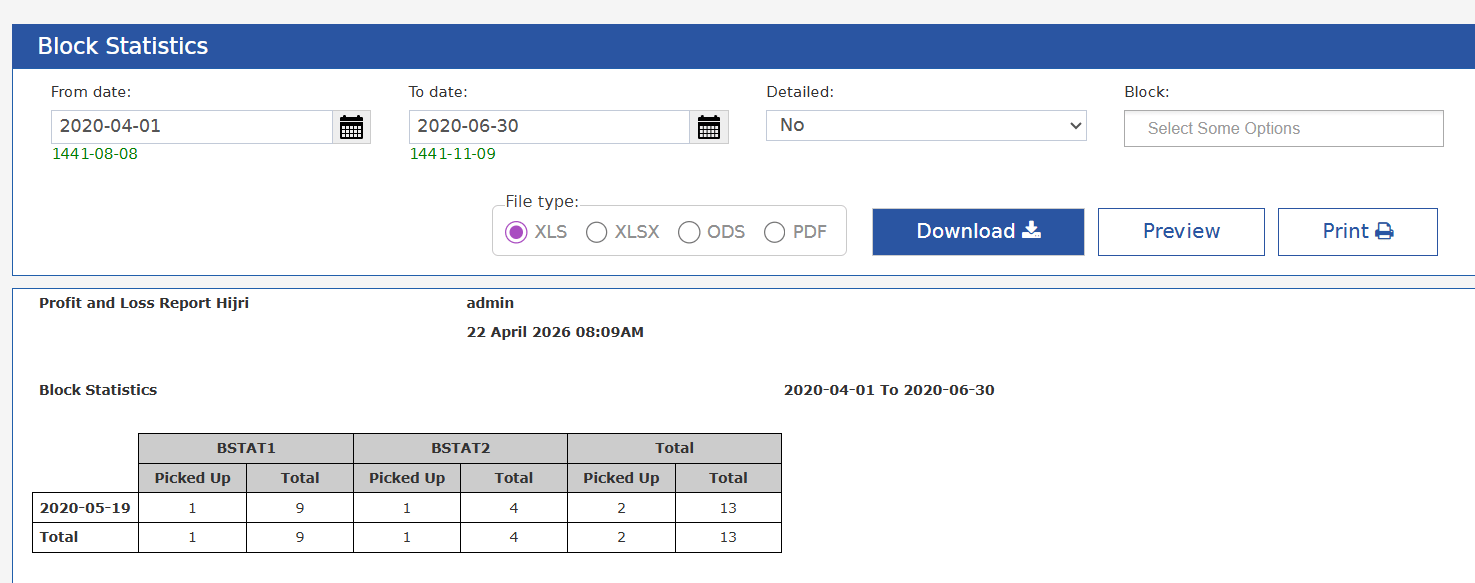
  • Picked Up — rooms picked up for that date
  • Total — total allocated rooms for that date
  • A Grand Total pair at the far right sums all blocks
  • A Total row at the bottom sums all dates
Detailed View (Detailed = Yes) When Detailed is set to Yes, each block expands into its individual room types with a 3-level column header: Level 1 — Block name: spans all room type sub-columns plus a Block Total column. Level 2 — Room type: each room type within the block gets its own column pair, followed by a Block Total pair. Level 3 — Metric: Picked Up and Allocated under each room type pair.
Note: In the detailed view the column label changes from “Total” to “Allocated” to make it explicit that the number represents allocated rooms.
The Total section at the far right mirrors the same 3-level structure — each room type’s Picked Up / Allocated summed across all blocks, followed by a Grand Total pair. Room types within each block are ordered alphabetically. Block Filter The Block parameter is a multiselect autocomplete listing all non-freesale blocks on the instance. When one or more blocks are selected, only those blocks appear as columns. When nothing is selected, all non-cancelled blocks within the date range are shown. Report Columns

Column structure varies by the Detailed parameter. The table below describes each column type.
ColumnDescriptionExample
DateEach row represents one date within the selected range.3/1/2026
Picked Up (per block or room type)Number of rooms picked up for that date under the block (or room type in detailed view).3
Total / Allocated (per block or room type)Total allocated rooms for that date. Label is “Total” in standard view and “Allocated” in detailed view.80
Block Total — Picked Up / AllocatedDetailed view only. Sums all room types within that block for the date.4 / 200
Grand Total — Picked Up / AllocatedSums all blocks (and all room types in detailed view) for the date.7 / 399
Total row (bottom)Sums all dates for every column.4 / 2,012

Update: 30th Apr, 2026

Add “Run By” option that contains Room Type and Room Type to charge

Track daily room pickup against contracted block allocations — now with the option to view pickup by actual charged room type. How It Works Run By: Choose how pickup is counted: • Room Type (default) — Pickup is counted against the room type the guest originally booked. This preserves existing report behavior. • Room to Charge — Pickup is counted against the actual room type the guest was assigned and charged for. If no room has been assigned yet (e.g. future arrival), the report falls back to the booked room type. When Run By is set to Room to Charge, the Picked Up column reflects the actual room type charged to the guest rather than the originally reserved room type.
