

Business Value
- Analyze which sales channels and market sources drive the most business.
- Compare ADR (Average Daily Rate) and occupancy rates across segments.
- Detect shifts in market mix and guest demographics.
- Support dynamic pricing and targeted promotions.
- Track actual vs. projected performance by segment.
- Quickly reconcile paymaster and channel performance.
Use Cases
- Revenue manager checks which OTA delivers highest room revenue for August.
- Sales director investigates why the “Direct” channel ADR dropped last week.
- Hotel GM monitors occupancy dips in certain markets (e.g., corporate vs. leisure).
- Front office reconciles rooms and revenue between paymasters and segments.
What’s Different from Before?
-
Two Reports:
- Market Segment DMY = old, day/month/year-based.
- Market Segment (New): Date range-based, with “Include Paymaster Charges” toggle.
-
Paymaster Logic:
- Only paymasters linked to channels are considered when enabled.
- Charges on paymasters with no channel are ignored.
-
Consistent Calculations:
- ADR and revenue now fully reflect the toggled inclusion/exclusion.
- All logic matches “Market Segment DMY” except for the date range and paymaster filter.
-
Location:
- Reports → Front Office → Market Segment
-
Report Updates:
-
Existing Report:
- The current “Market Segment” is now called “Market Segment DMY”.
-
New Market Segment Report:
-
Parameters:
- From Date / To Date
- Level of Details “single select field”
- Channels
- Sources
- Markets
-
Include Paymaster Charges
- Yes (Default): Includes revenue and ADR from paymaster charges with channels.
- No: Excludes paymaster charges from the results.
-
Parameters:
-
Existing Report:
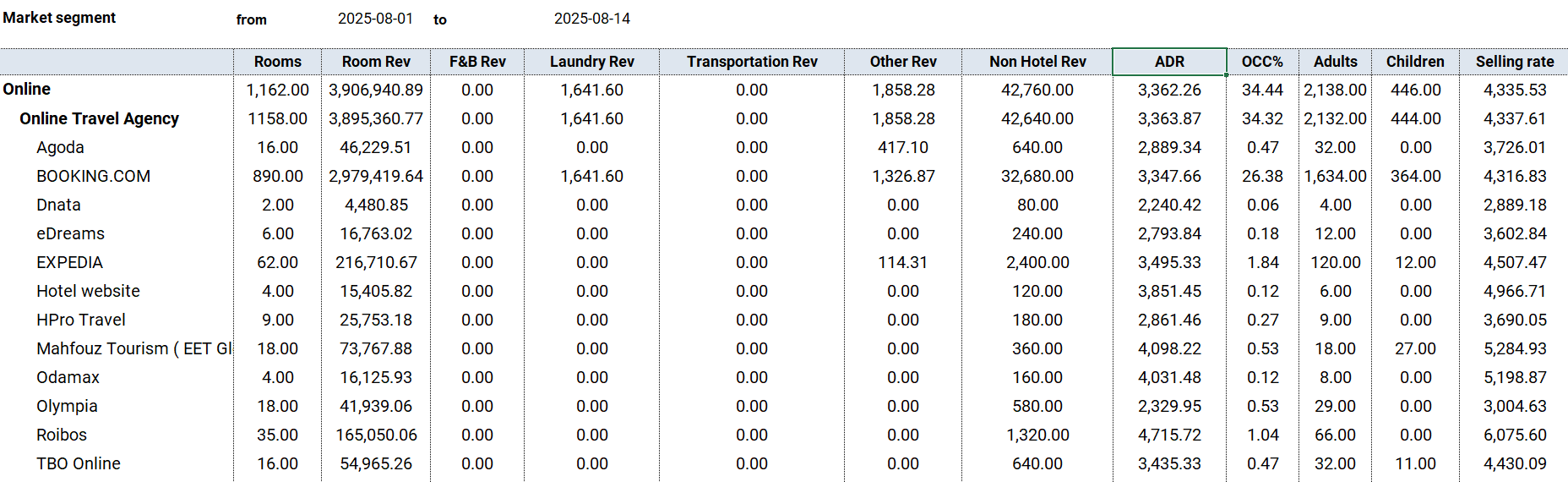
Report Columns:
Channel Breakdown Section
-
Depending on the selection in the Level of Details “single select” field, the rows will be grouped and provide totals for each grouping.
- A grand total row at the end of the report to sum up all columns.
- Rooms: Number of paid room nights sold under this channel.
-
Room Revenue: Room revenue (posted to rooms department) attributed to this channel only.
- For revenue departments to appear as columns, need to be added and linked to revenue codes.
- ADR: Average Daily Rate = Room Revenue without packages / Paid Rooms for this channel.
- OCC%: Occupancy Percentage = (Paid Rooms / Rooms To Sell) × 100 contributed from this channel.
- Adults: Number of adult guests.
- Children: Number of child guests.
- Selling Rate: = Room Revenue with packages / Paid Rooms for this channel.
Troubleshooting & Tips
- Check the “Include Paymaster Charges” setting—results will change based on this toggle.
- Make sure the correct date range is chosen for seasonal/campaign analysis.
- If a paymaster has no channel, its revenue is always excluded regardless of the setting.
- Compare results from “Market Segment DMY” for a single day against “Market Segment” for the same day for validation.

Update: 21 Apr, 2026
Grand Total Row
The Market Segment report now shows a Grand Total row summarising all channel data at the bottom. Total Row Calculations- Rooms — sum of all channel rows (displayed as whole numbers, not decimals).
- Statistic Type columns — sum of all channel rows.
- ADR — Total Room Revenue ÷ Total Occupied Rooms.
- Occ% — Total Occupied Rooms ÷ Total Available Rooms.
- Adults — sum of all channel rows.
- Children — sum of all channel rows.
- Selling Rate — Total Revenue ÷ Total Occupied Rooms.

Update: 6 May, 2026
Multi-Currency Support
The Market Segment Report now supports multi-currency — view all revenue figures in any configured currency using live exchange rates. How It Works Running the Report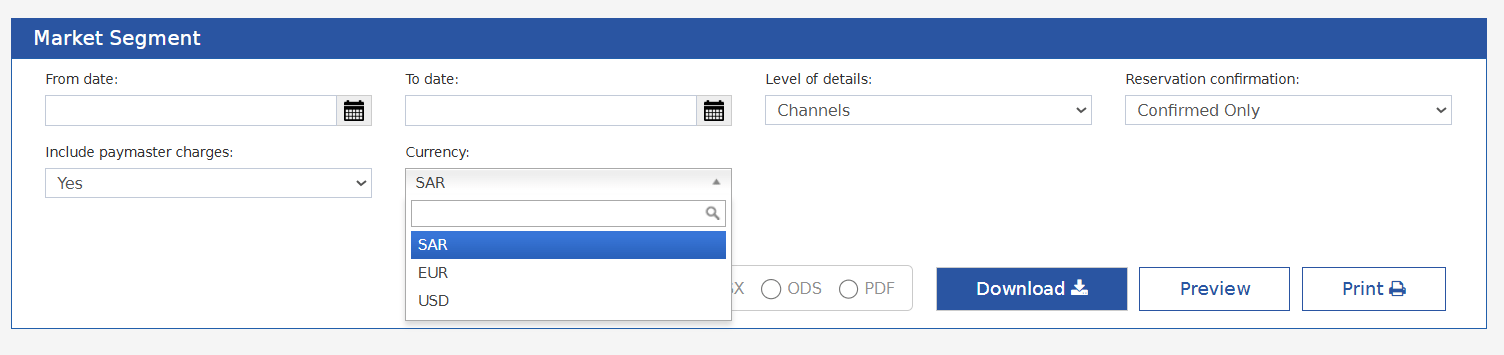
- From Date / To Date — Date range for the report.
- Level of Details — Choose: Segment, Sub-Segment, Source, Channel, or Market.
- Channels / Sources / Markets — Filter by specific values (optional).
- Include Paymaster Charges — Toggle to include or exclude paymaster charges.
- Currency — Select from all currencies configured in the system. Defaults to the base currency.
Converted Fields
When a currency other than the base is selected, the following fields are automatically converted:
- Gross Rate Amount
- Net Rate Amount (Room Revenue)
- Statistic type revenue departments
- ADR (Average Daily Rate)
- ASR (Average Selling Rate)