Documentation Index

Fetch the complete documentation index at: https://help.kwentra.com/llms.txt

Use this file to discover all available pages before exploring further.

Kwentra now supports automated Journal Voucher (JV) creation across multiple properties, linked to centralized Head Office configurations. This includes mapping departments, defining modules, and auto-generating balanced JVs based on real transactions.

Value

This update empowers hotel groups to:
  • Standardize financial entries across all properties.
  • Automate balanced JV creation per module and per property.
  • Minimize manual errors and speed up reconciliation.
  • Ensure transparent logging and control via permissions and history.

Workflow Overview

  1. Set the Head Office Property “contact support@kwentra.com
  2. Define JV Module Parameters per Hotel.
  3. Run the JV Automation Task.
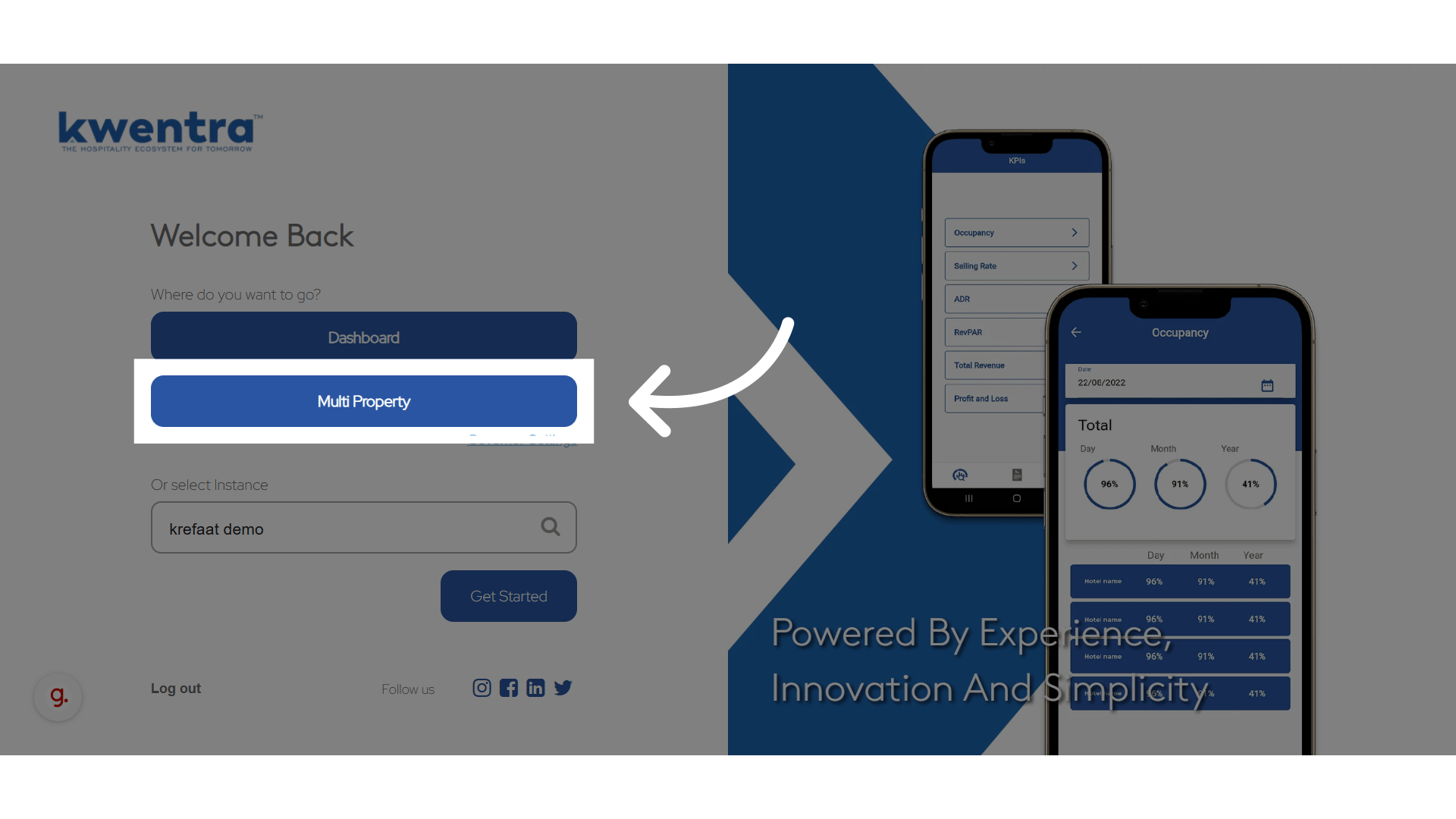
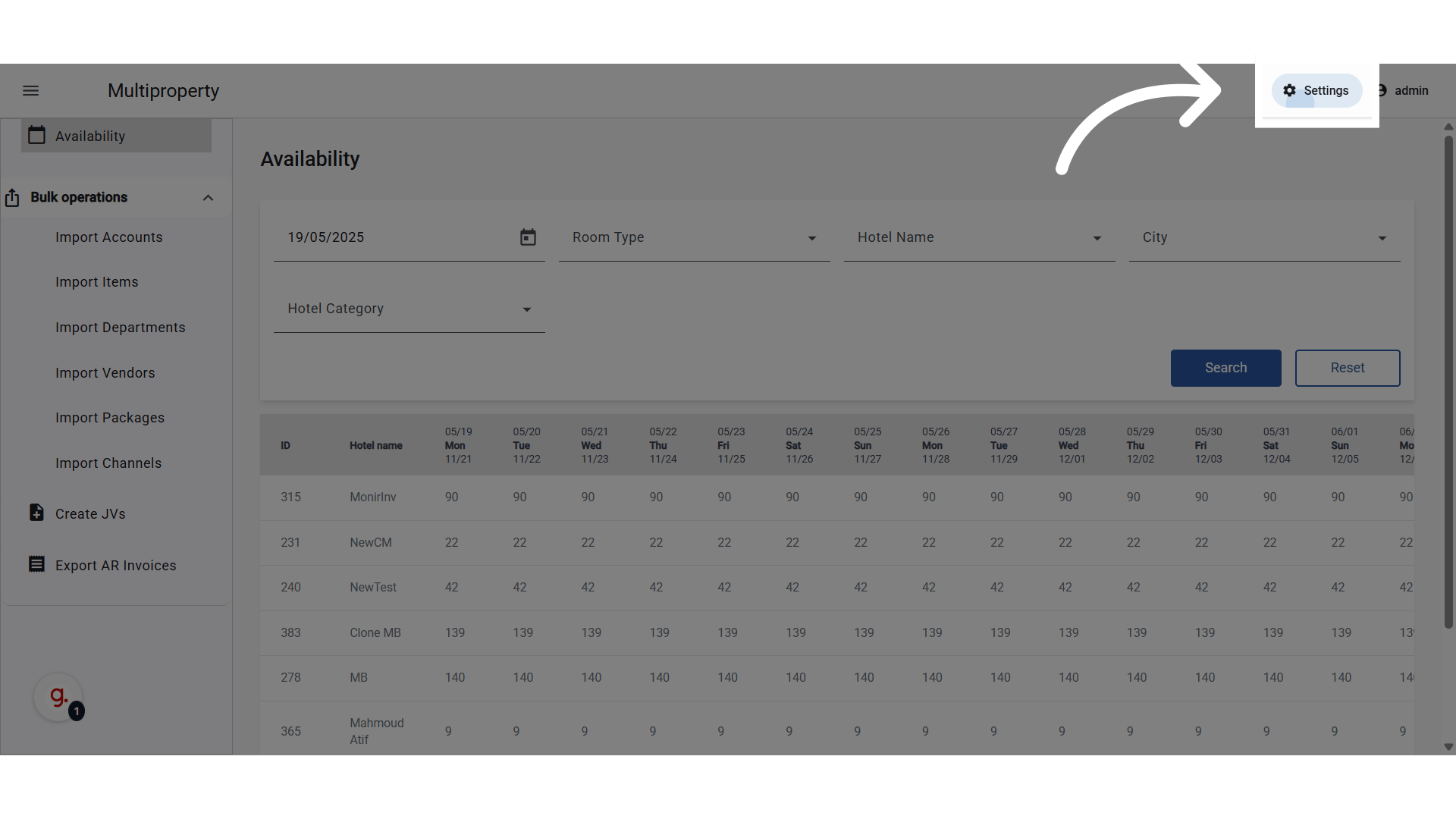
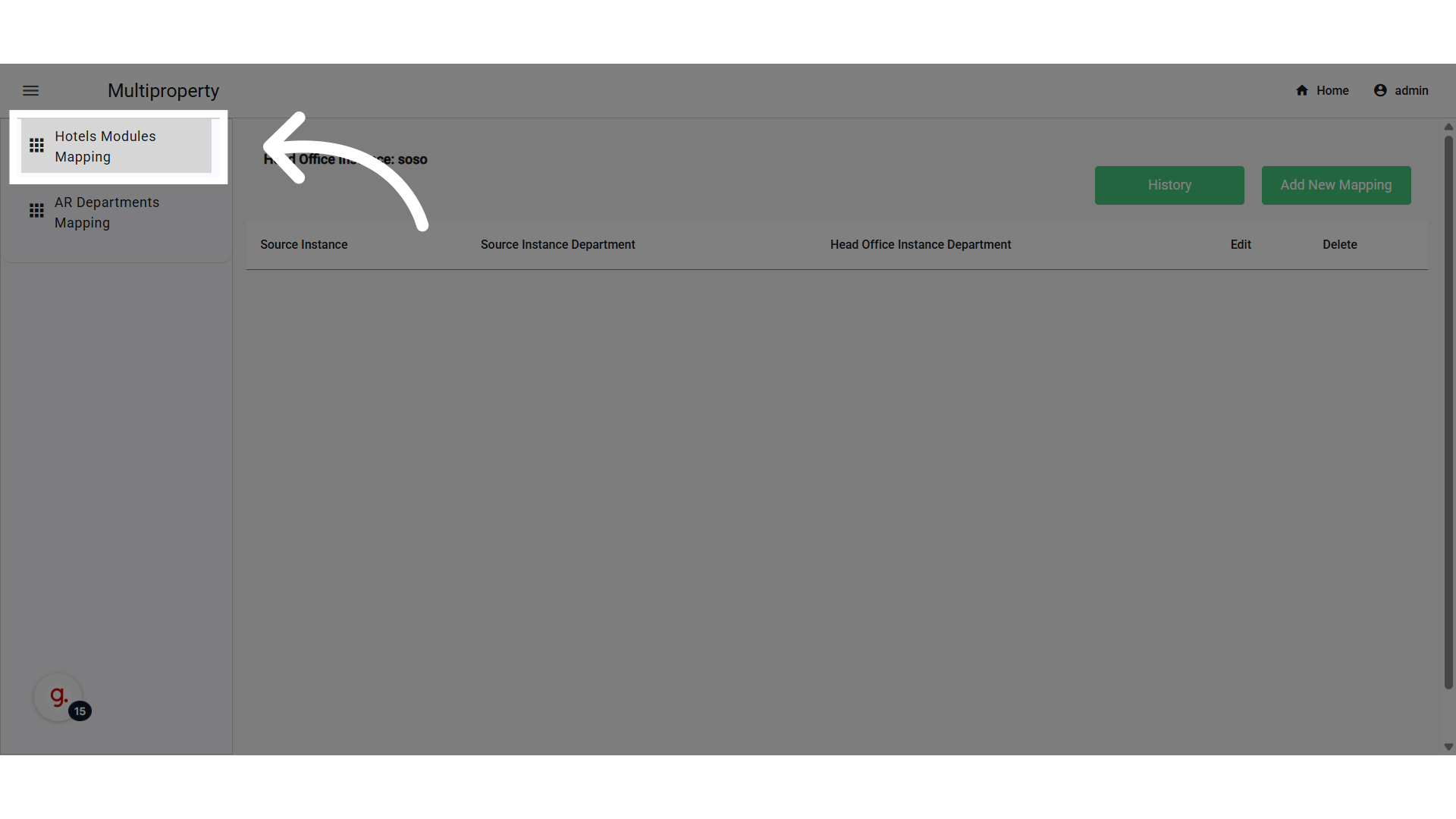
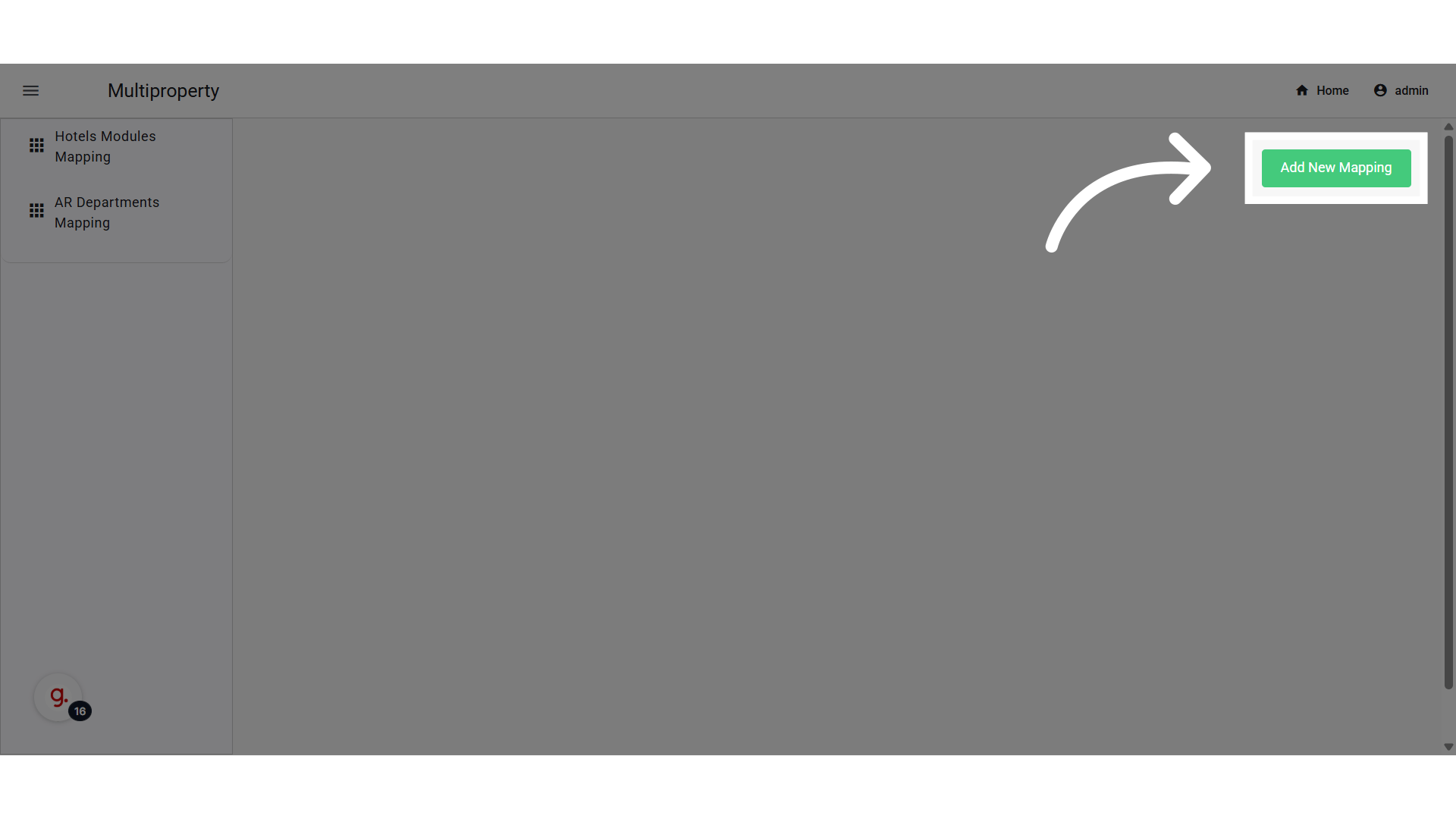
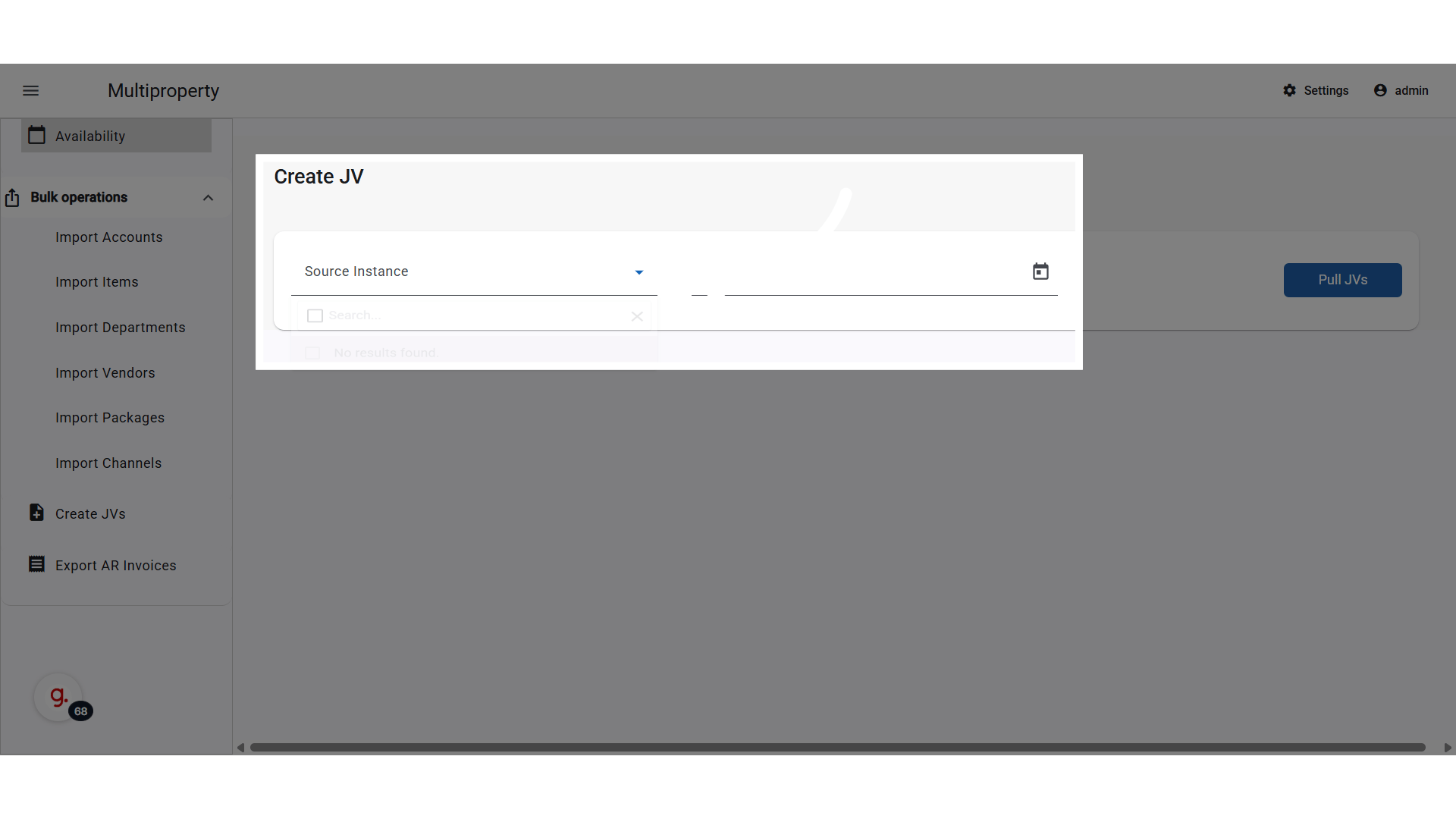
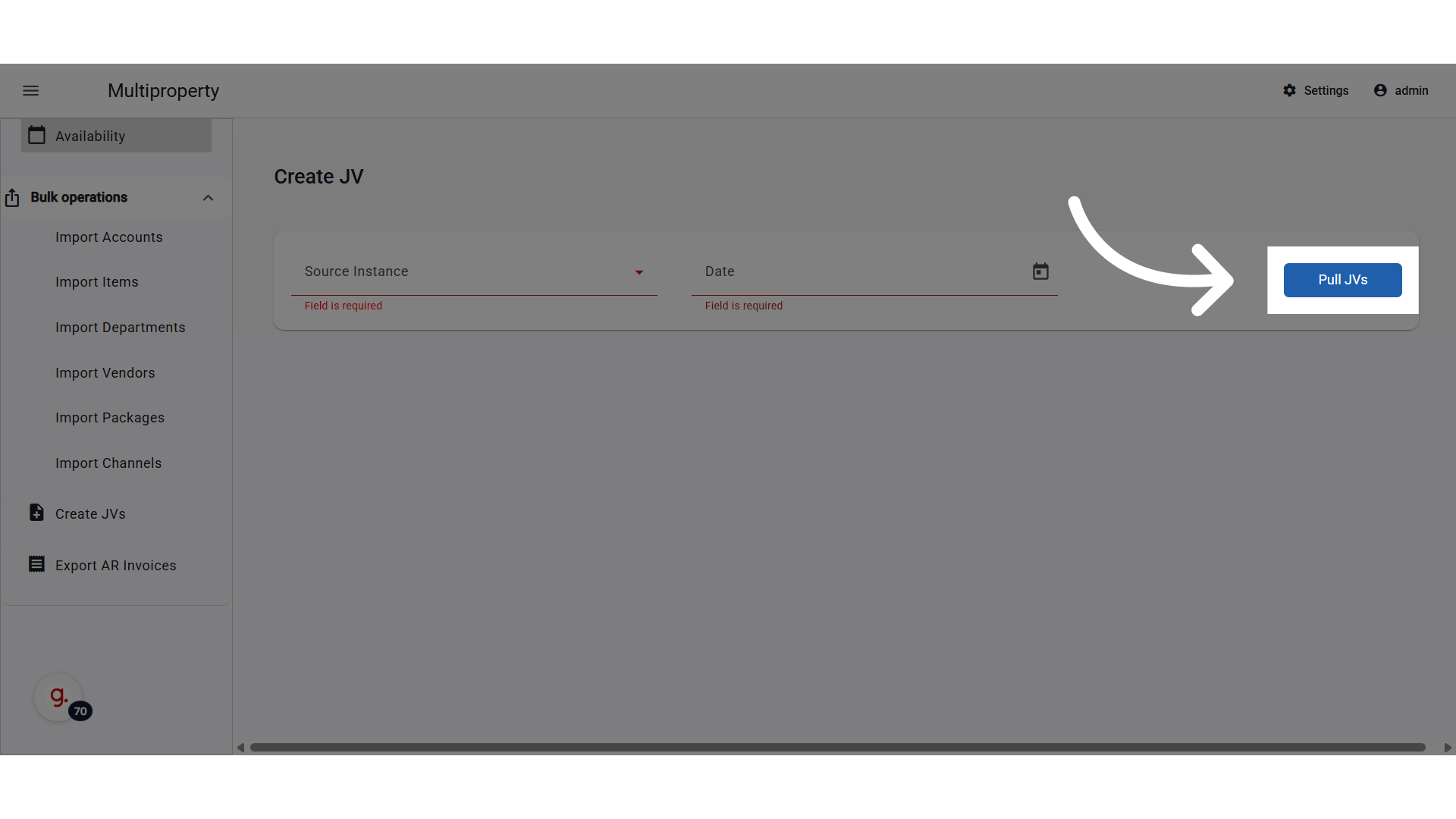
Go to manage.kwentra.com Click “Multi Property” preview Go to Settings preview Go to “Hotels Modules Mapping” preview Click “Add New Mapping” preview

Module and JV Code Settings

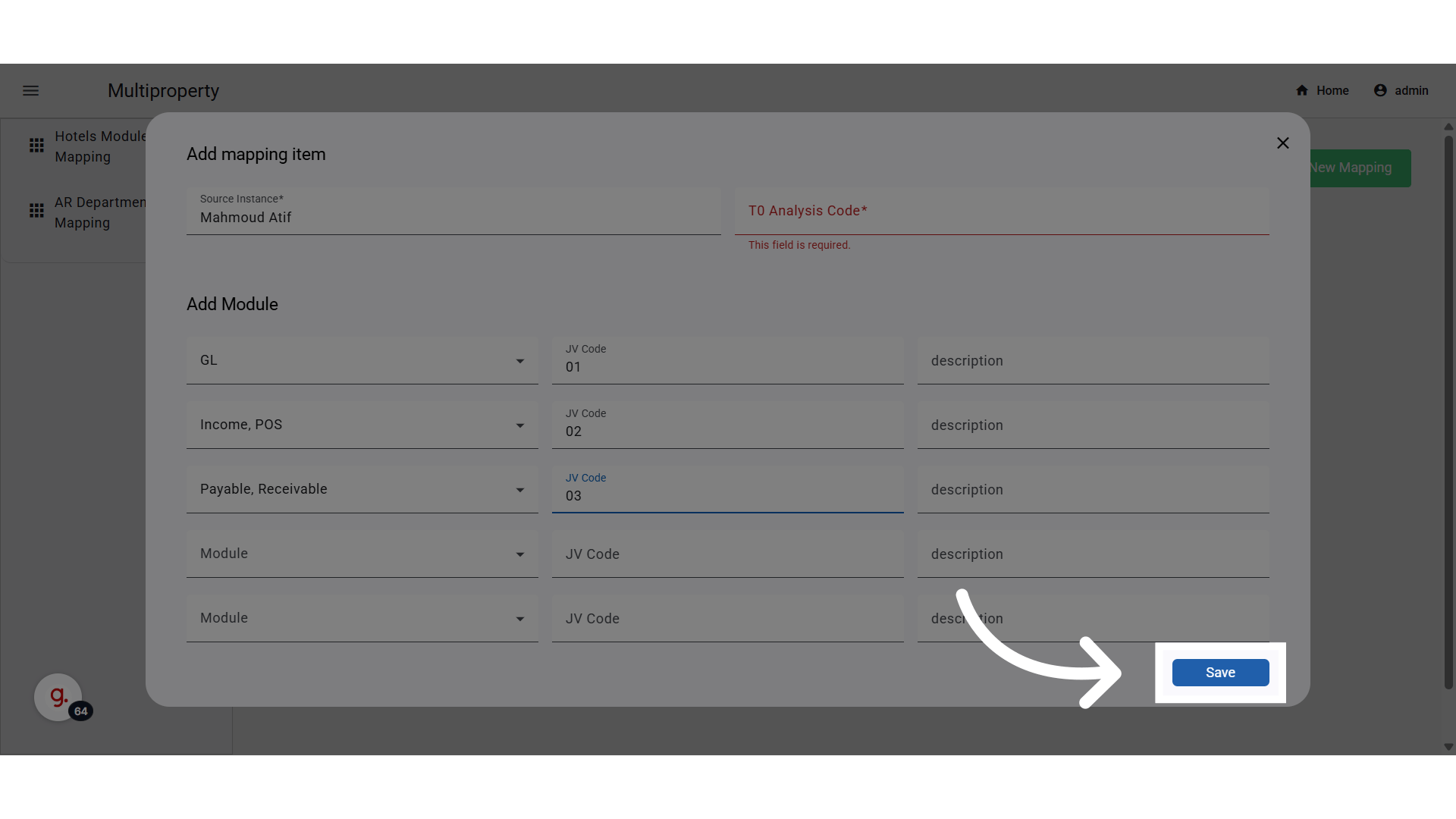
Identifying the module and the JV code pertinent to it is mandatory, as this is the info required for automating the JV creation. Each line allows configuring JV settings per property:
  • Source Instance: Any hotel instance (excludes Head Office).
  • T0 Code “Required”: pulled from Head Office T0 list.
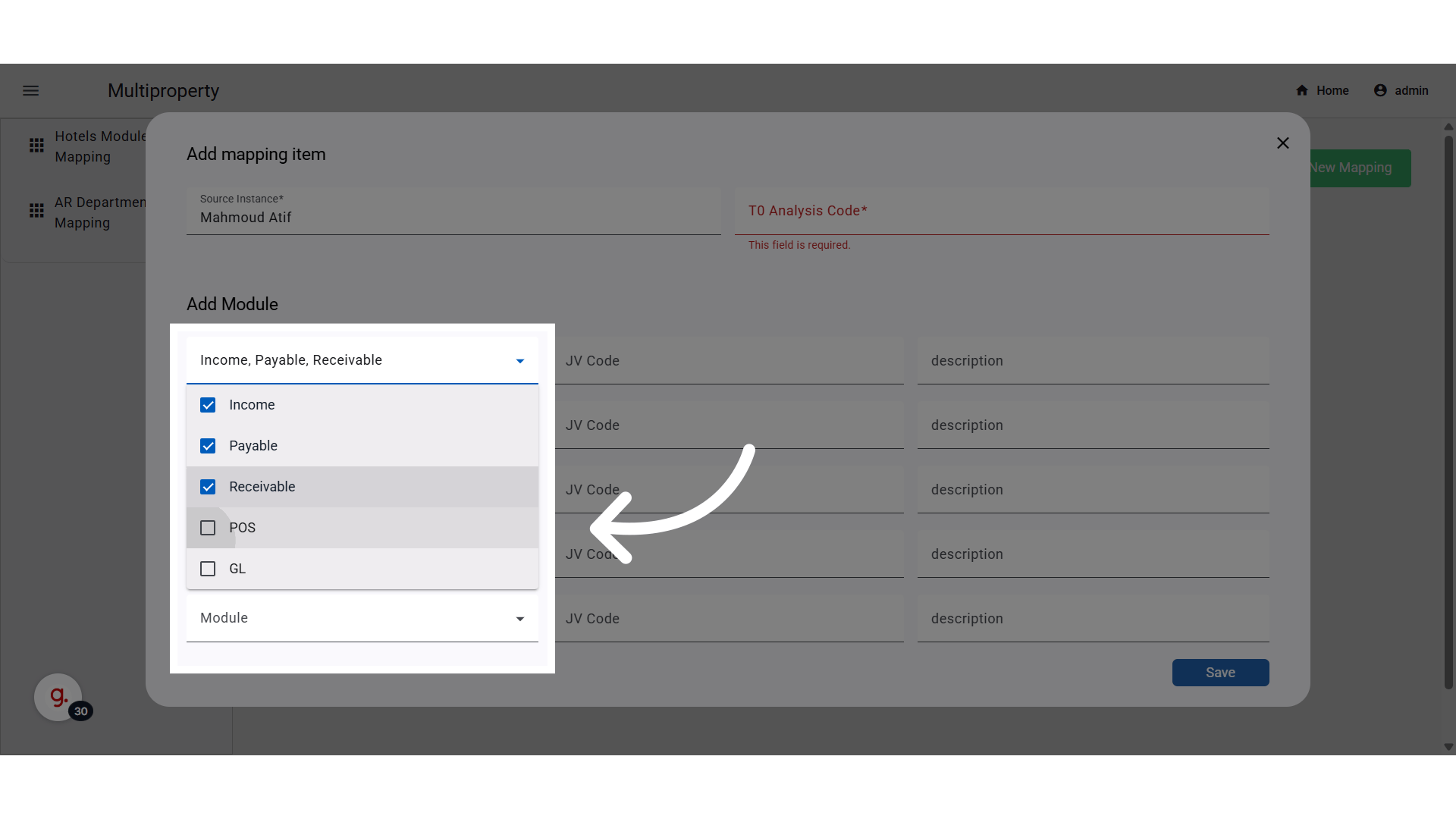
  • Modules: Multi-select: Income, Payable, Receivable, POS, GL, JV (default: All).
  • JV Code “Required”: select from the Head Office JV codes.
  • JV Description “Optional”: used when creating the JV.
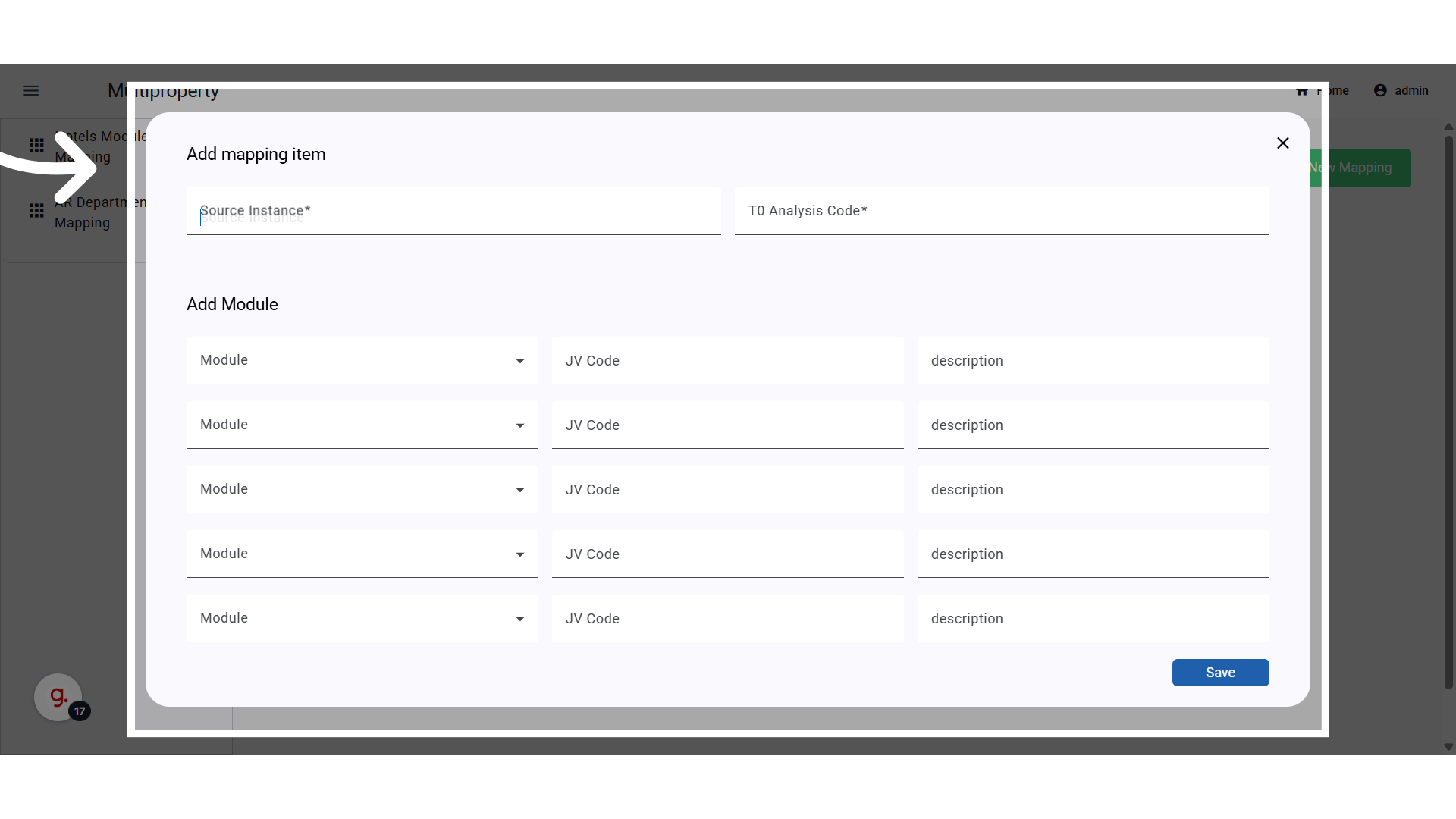
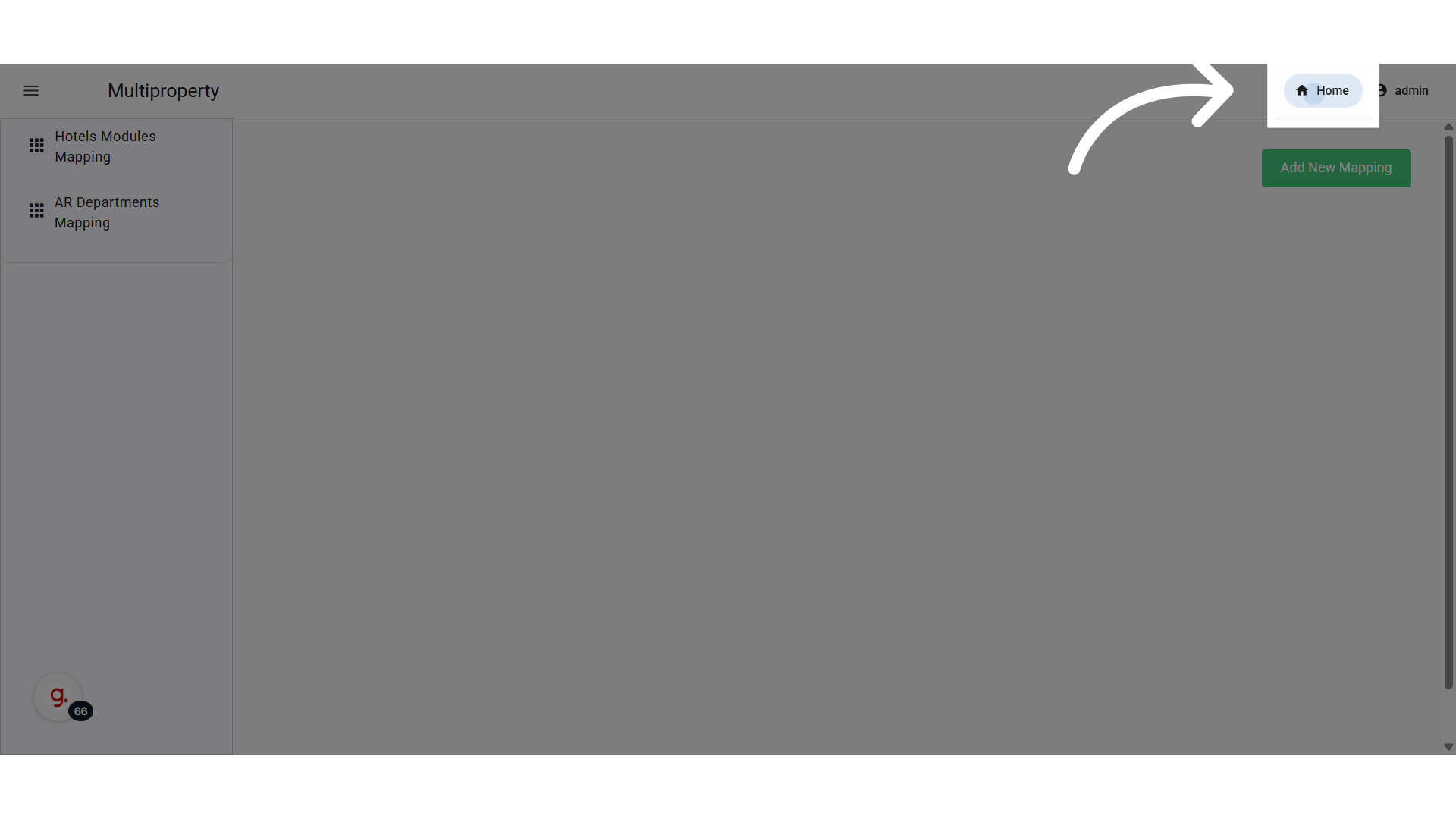
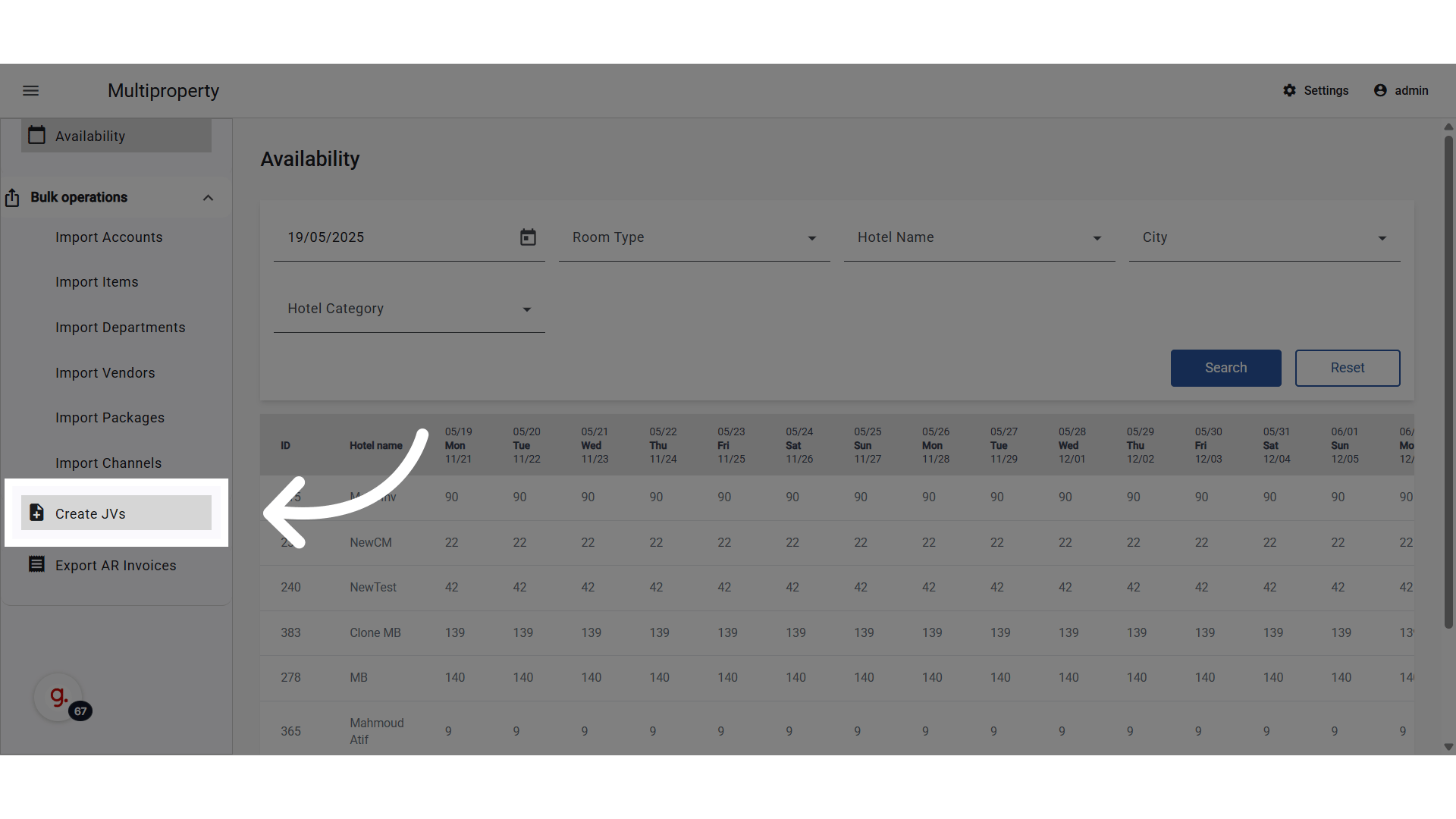
⚠️ One line per property. If “All” modules are selected, no duplicates are allowed for that property. preview One line per property. If “All” modules are selected, no duplicates are allowed for that property. Note that all JVs created from these modules will get created under the same JV code. If each module’s JVs will need to be created under a separate Journal Voucher Code, separate lines will be needed. preview Click “Save” preview Go back to Home Page preview Start the JV creation from Source Property to Head Office preview Select Source Property and Audit Date preview Click “Pull JVs” preview