

Business Value
- See every unpaid balance in one place, sorted by age.
- Chase the oldest debts first.
- Spot cash flow risk early.
- Find new or problem accounts before they grow.
- Match receivables to the Balance Sheet at month end.
Use Cases
- Finance runs the report weekly and plans collection calls.
- The GM reviews it monthly and sees which accounts are risky.
- Auditors run it at period end and check the aging.
How It Works
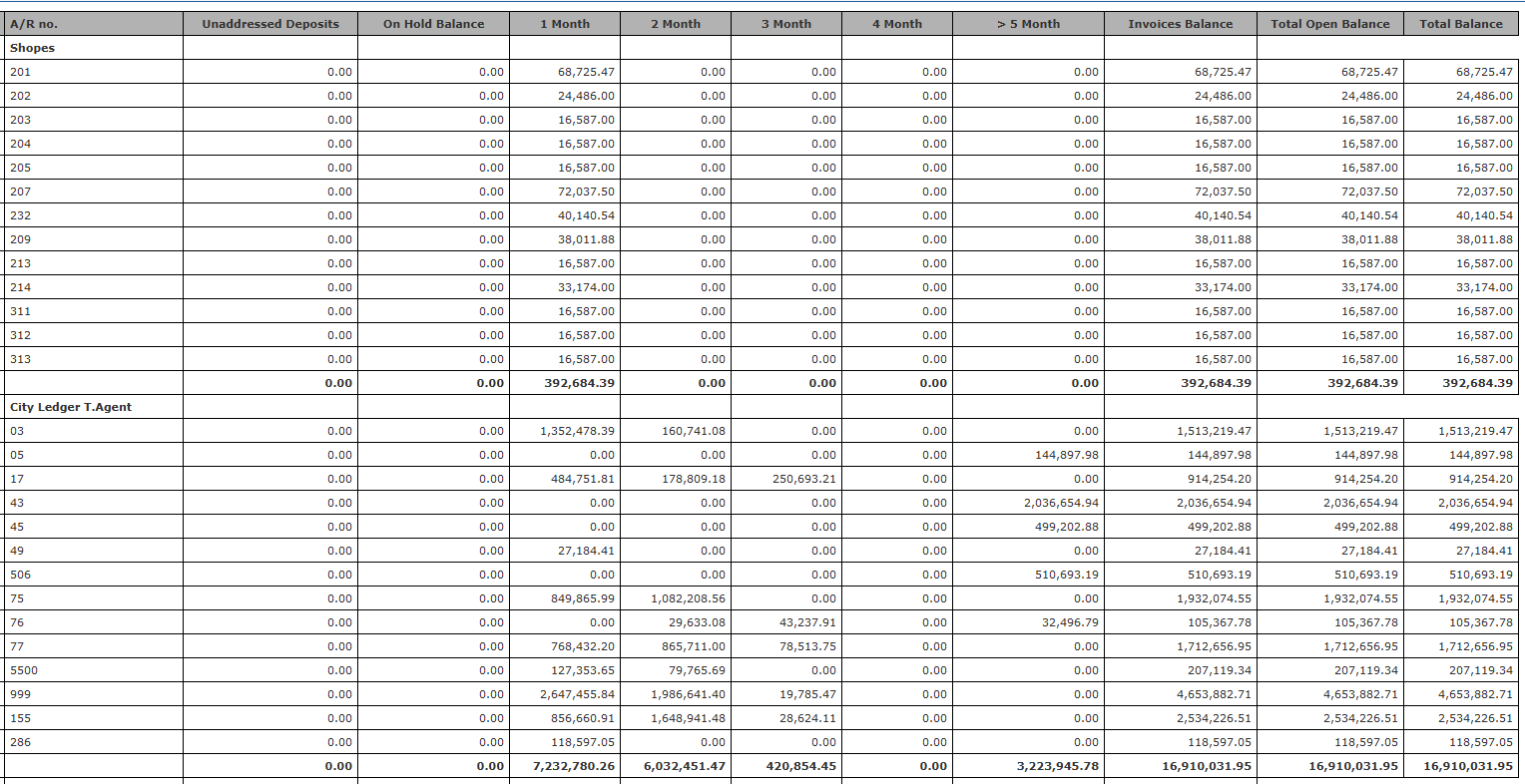
The report lists the City Ledger account and all channel AR accounts with open balances. Each balance is split into aging buckets. Accounts with no balance and no movement can be hidden.
Running the Report
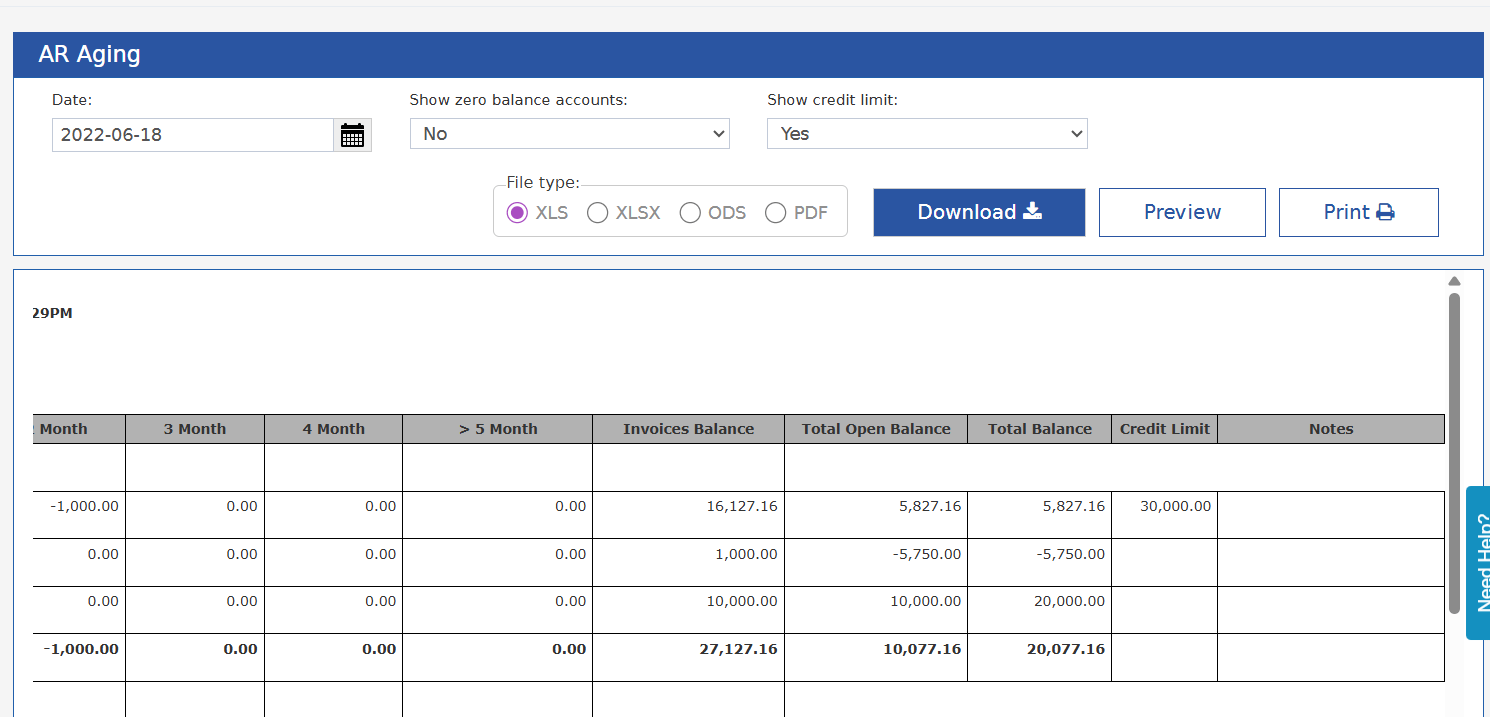
- Pick the date for the snapshot.
- Choose whether to show accounts with a zero balance.
- Choose the file type: XLS, XLSX, ODS or PDF.
- Click Download, Preview or Print.
Report Columns
How to Read the Report
- Each AR account is listed with its sub-accounts or tenants.
- Every column shows for every account, even when the balance is zero.
- Aging buckets show how overdue each part of the balance is. A 100,000 EGP debt that is 40 days old sits in 2 Month.
- Totals at the bottom show the hotel’s full exposure.
- Nothing is hidden. Open balances, on-hold amounts and unapplied deposits all show.
Reading the Results
- Balances move into older buckets: debts are not being collected.
- New accounts appear: watch them for payment reliability.
- Credit card balances jump: check the settlements with the processor.
- Compare totals with earlier periods to track exposure.
Finding Payments
The report does not show payment transactions. A payment happened if:- An account’s total balance is lower than in an earlier report.
- An account or invoice row is gone.
Matching the Balance Sheet
The grand total in the Total Balance column must match the Balance Sheet. Use the Accounts Receivable balance for the same date. Both come from the same AR subledger. On the Balance Sheet, look under Accounts Receivable / Debtors. Your chart of accounts may call it Trade Receivables or Clients – Debit. It is a current asset.If the Totals Do Not Match
- Check the dates. Run both reports as of the same date.
- Look for manual journal entries. Entries posted straight to AR accounts in the General Ledger cause gaps. Post all AR payments and adjustments through the AR module.
- Check pending transactions. Unposted batches, credit card batches and unapplied deposits may sit in one report and not the other.
- Check the filters. Show all AR accounts, zero balances and on-hold accounts included.
- Still wrong? Report it to your system admin. It may be a sync or database error.
Update: 3rd of December, 2025
Credit Limit on the Report
The report can now show the credit limit set on each AR account.New parameter: Show Credit Limit
- No (default) — the report is unchanged.
- Yes — two columns are added.
Update: June, 2026
Currency Breakdown for Unpaid Balances
The report can now split balances by currency. A foreign-currency balance shows in its own currency, next to the base-currency amount.New parameter: Show Currency Breakdown
- No (default) — balances show in the base currency only.
- Yes — each account’s aging buckets are also split per currency.
- Foreign-currency receivables show in their original currency, next to the base-currency amount.
- Aging buckets, on-hold balances and totals are split by currency for each account.
- An account with balances in more than one currency lists each currency on its own line.