Report Business Value
- See all JVs on vendor accounts in one report.
- Includes JVs the system creates, such as from receiving orders and vendor payments.
- Includes JVs users create directly on the vendor account.
Use Cases
- An AP accountant reviews one vendor’s transactions for the month.
- A finance manager checks opening and closing balances for all vendors.
- An auditor traces a vendor’s balance back to each JV.
How It Works
Running the Report
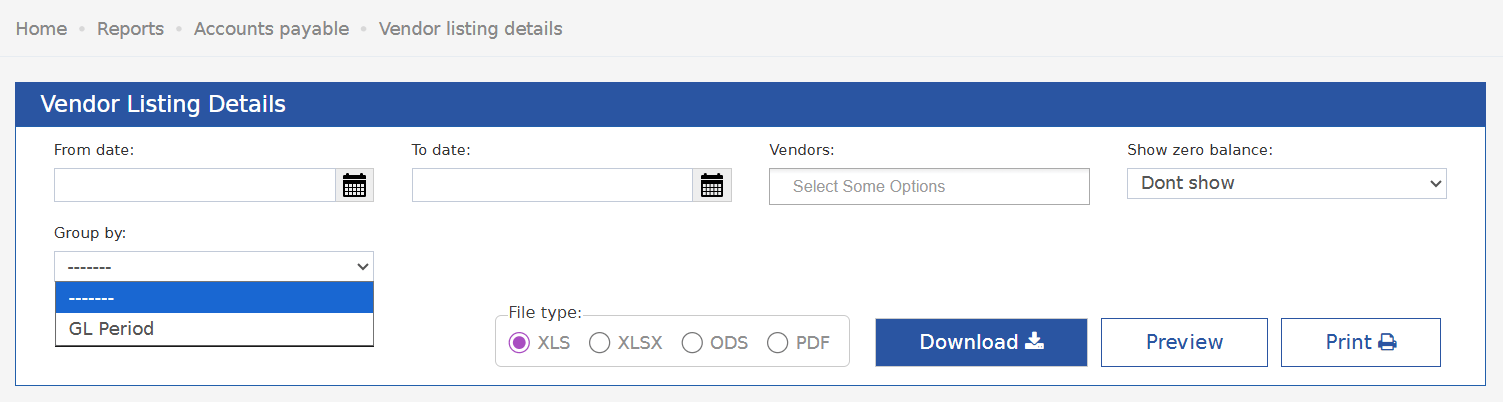
- Select the date range.
- Select the vendor accounts. Leave it empty to include all vendor accounts.
- Choose the file type: XLS, XLSX, ODS or PDF.
Report Columns
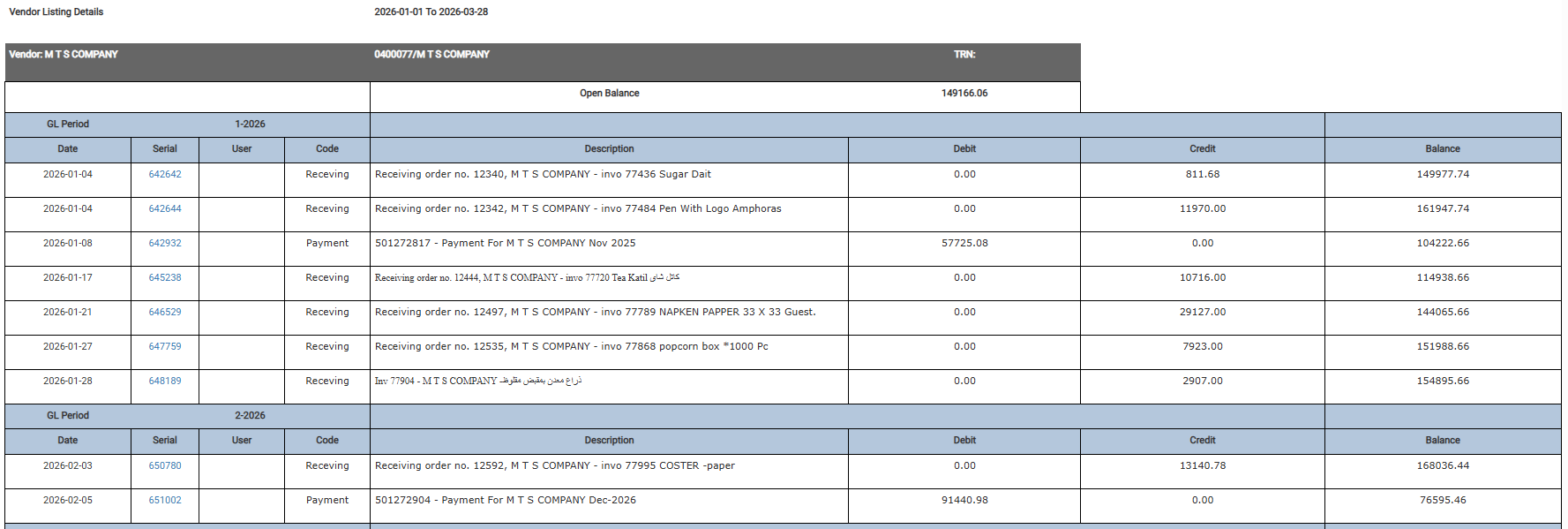
Each vendor section starts with:- Vendor Name
- Vendor Account Number
- Open balance: the account’s balance at the start of the period.
Each vendor section ends with these rows:
- Total [Account Name]: total debit and credit for the account.
- Current Postings: the sum of transactions in the selected period.
- Closing Balance: the account balance at the end of the period.
Update: 18th of March
New Group by Field And Balance Column
The report now has a Group by option and a running Balance column. Vendor reconciliation is faster.Business Value
- Switch between single transactions and GL period groups with one setting.
- See the running balance after each transaction. No manual math.
- Save time when you reconcile vendor accounts at period end.
Use Cases
- Finance reviews a vendor’s full history with a running balance to find overdue amounts.
- An AP accountant runs month-end reconciliation grouped by GL period, as before.
- An auditor uses the Balance column to see when a vendor passed the credit limit.
How It Works
Group By Parameter
The new Group by parameter has two options:- None: lists each transaction by date, with no groups. The Balance column shows the running balance after each one.
- GL Period: groups transactions by General Ledger period. This is how the report worked before.
Balance Column
The new Balance column shows the running balance after each row:- Opening Balance + Debits − Credits = running balance.
Existing Settings
- Saved report settings still work.
- Group by is GL Period by default. The report groups as before.
- Change it to None to see the running balance for each transaction.