

Business Value
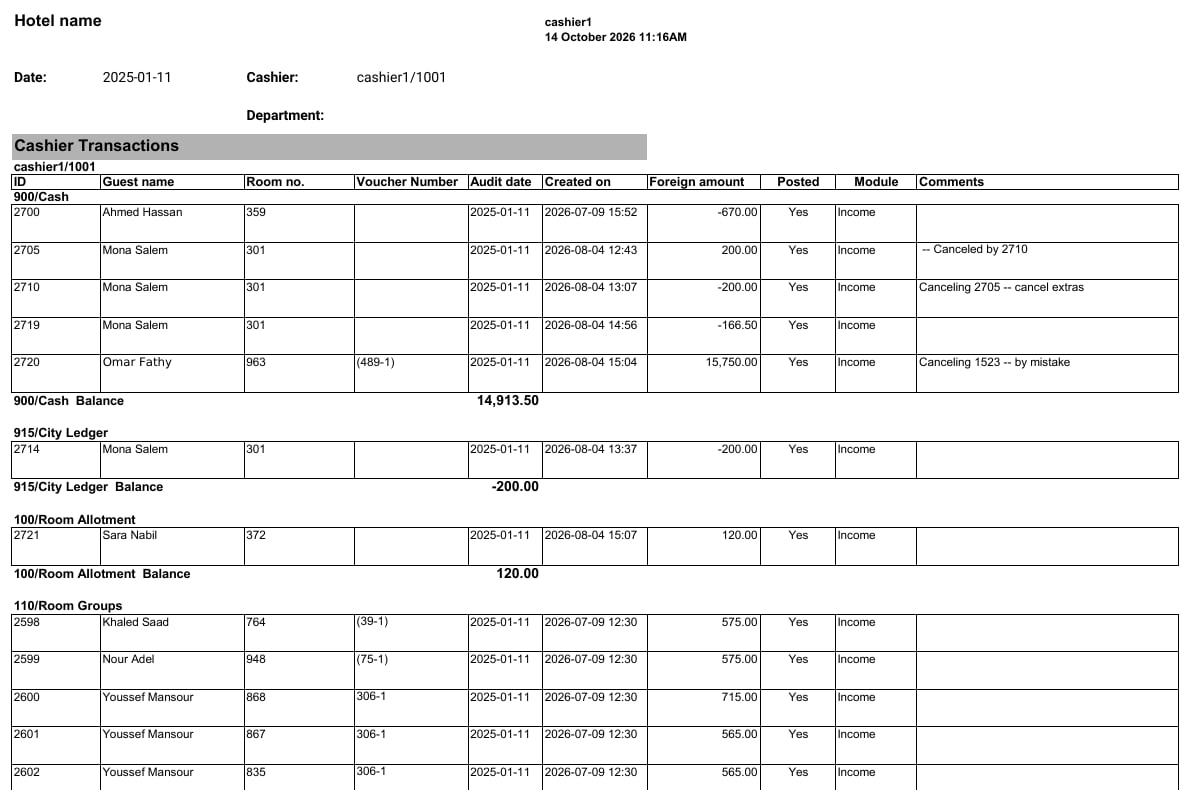
- Shows each posting with its guest, room, voucher and time.
- Groups postings by department, with a balance for each one.
- Shows which posting cancelled which, in the Comments column.
- Helps you check a cashier’s work before you close the day.
Use Cases
- A night auditor checks every posting a cashier made before closing the day.
- A front office manager filters one department to review its postings.
- An income auditor finds a cancelled posting and the posting that cancelled it.
How It Works
Running the Report
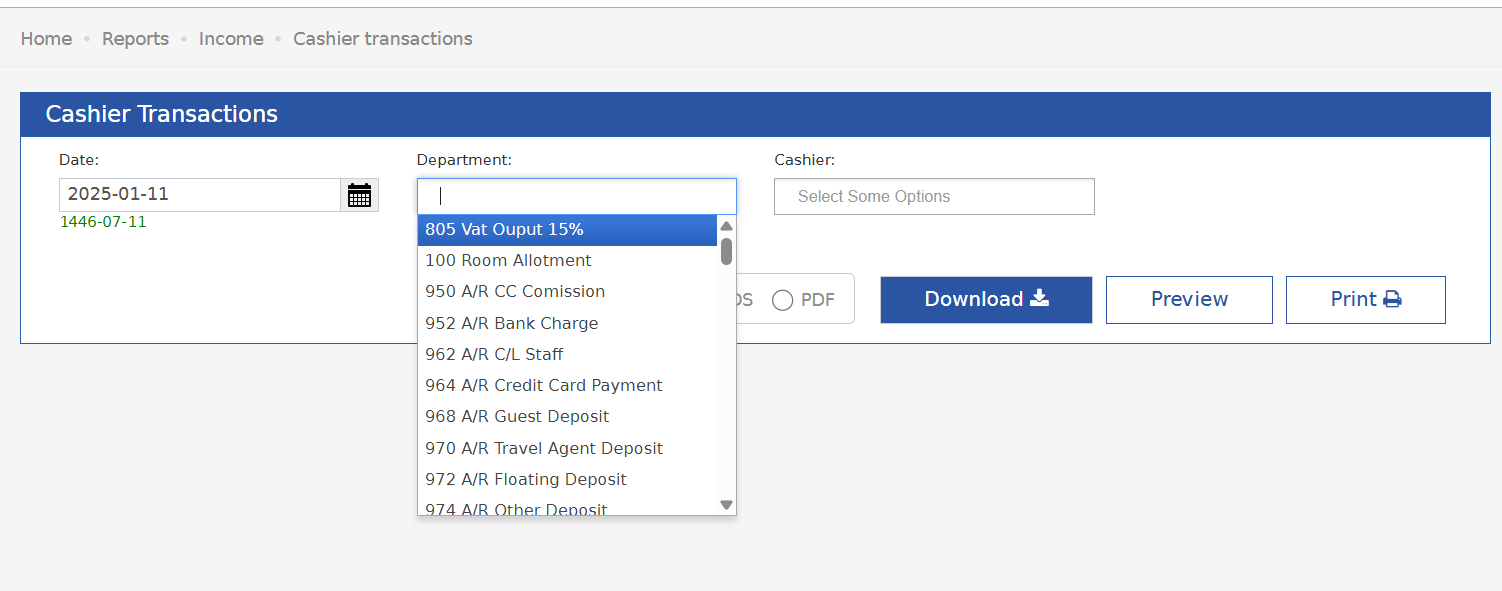
- Date: pick the audit date. The Hijri date shows under the field.
- Department: choose one or more departments. Leave it empty to see all departments.
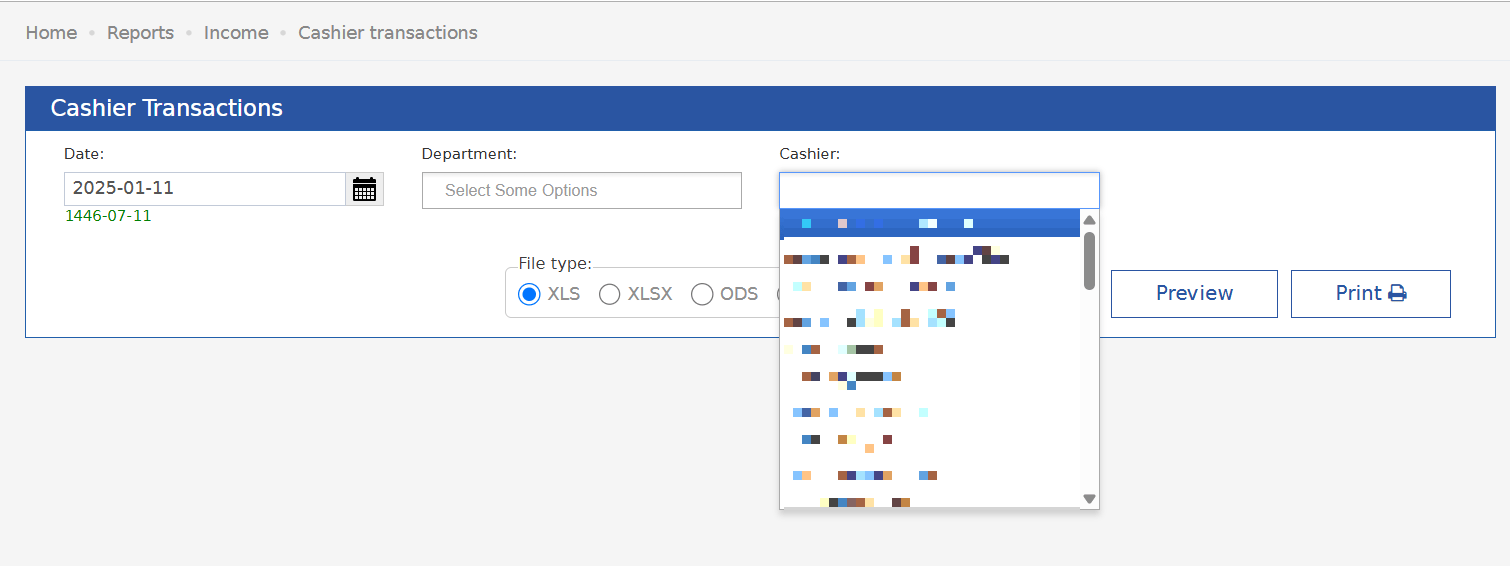
- Cashier: choose one or more cashiers. Leave it empty to see all cashiers.
- File type: XLS (the default), XLSX, ODS or PDF.
- Click Preview, Download or Print.
Report Layout
- Postings are grouped by cashier, shown as user name and ID.
- Inside each cashier, postings are grouped by department, for example 900/Cash.
- Each department ends with a Balance row. It is the total of that department’s amounts.
Report Columns
Cancelled Postings
A cancelled posting and its cancellation both stay in the report.- The original posting says Canceled by and the cancelling posting’s ID.
- The cancelling posting says Canceling and the original posting’s ID, then the reason.
- On the same audit date, the two amounts cancel each other out in the Balance.