Business Value
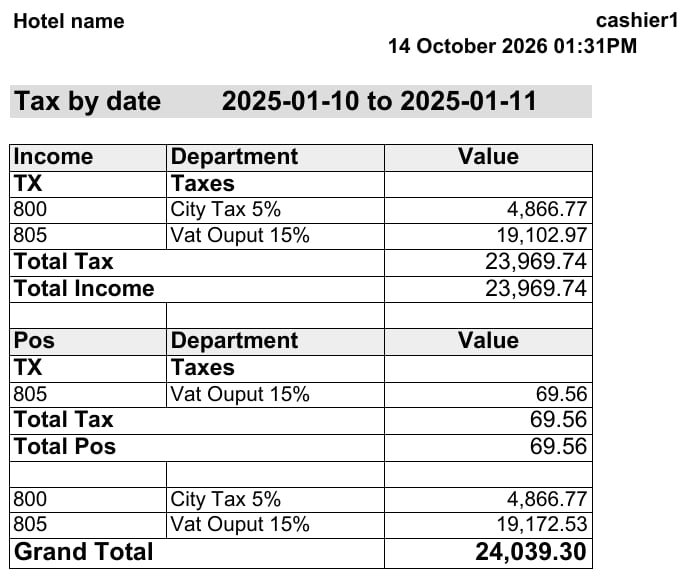
- Shows the total of each tax, such as VAT and city tax.
- Splits the tax by where it was posted: Front Office or POS.
- Adds up each tax across all modules.
- Gives one grand total for the whole period.
Use Cases
- An accountant takes the VAT total for the month for the VAT return.
- An income auditor compares Front Office tax with POS tax for the week.
- A financial controller checks the city tax collected in a date range.
How It Works
Running the Report
- From date and To date: pick the audit dates to cover. The Hijri date shows under each field.
- File type: XLS, XLSX, ODS or PDF.
- Click Preview, Download or Print.

Report Layout
The report has one section for each module the tax was posted from.- Income: tax on Front Office postings.
- Pos: tax on POS checks.
- Other modules show in their own section when they have tax in the date range.
- Total Tax: the tax in that section.
- Total + the module name, for example Total Income.