

Business Value
- Shows each issued folio with its amounts before and after tax.
- Splits the amounts by tax setup, such as VAT or municipality fees.
- Gives totals for the whole period.
- Helps you check issued folios against the tax and income reports.
Use Cases
- An income auditor checks the tax on every folio issued this month.
- An accountant compares the folio totals with the VAT return.
- An AR accountant picks Receivable and reviews only the folios issued from AR accounts.
How It Works
Running the Report
- From date and To date: pick the folio issue dates to cover. The Hijri date shows under each field.
- Module: choose which folios to show.
- All (the default): every folio.
- Income: folios issued from guest reservations and paymasters.
- Receivable: folios issued from AR accounts.
- File type: XLS (the default), XLSX, ODS or PDF.
- Click Preview, Download or Print.

Report Layout
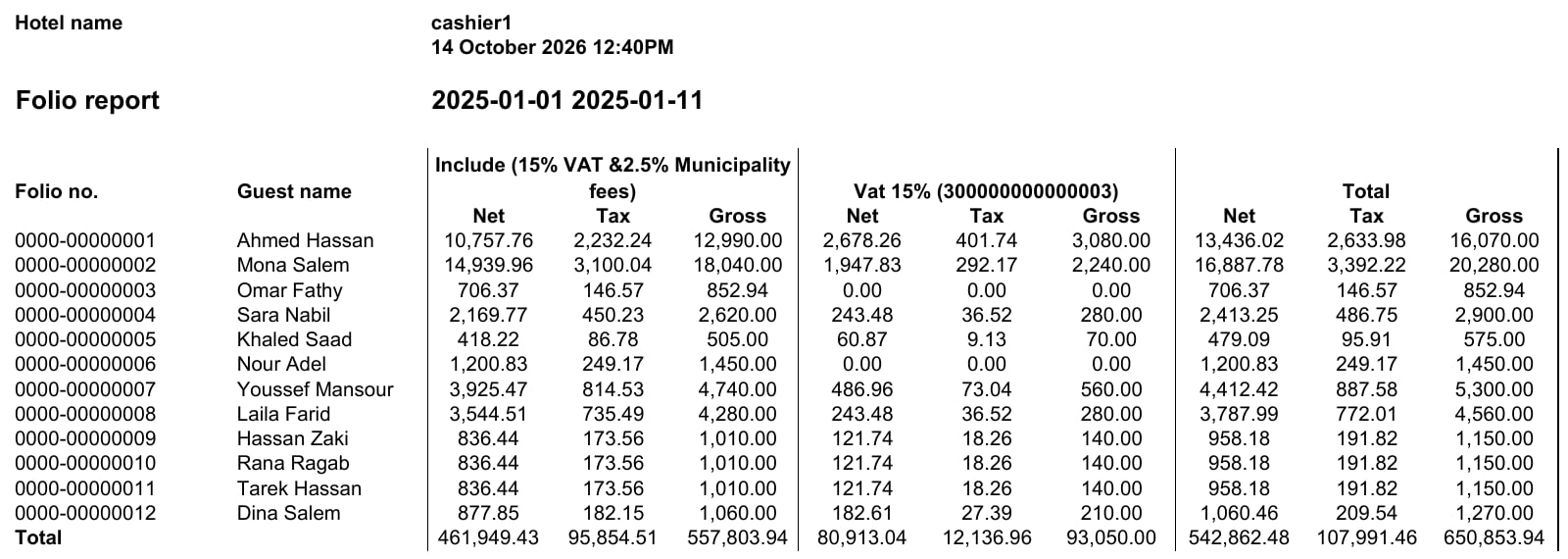
- The report shows one row for each issued folio.
- After the folio number and guest name comes one column group for each tax setup.
- Each group has Net, Tax and Gross columns.
- The Total group adds up all the tax groups for that folio.
- The last row, Total, adds up every column for the whole period.
Report Columns
Tax Group Columns
The tax group columns come from your hotel’s tax setup. They are different for each hotel.- Each group is named after a tax setup, for example Include (15% VAT & 2.5% Municipality fees).
- A number in brackets after the name is the hotel’s VAT registration number.
- A folio with no amount under a tax setup shows 0.00 in that group.