- B2C invoices from Front Office and POS are sent for reporting. They use the simplified invoice.
- B2B invoices are sent for clearance. They use the detailed tax invoice.
Simplified or Tax Invoice?
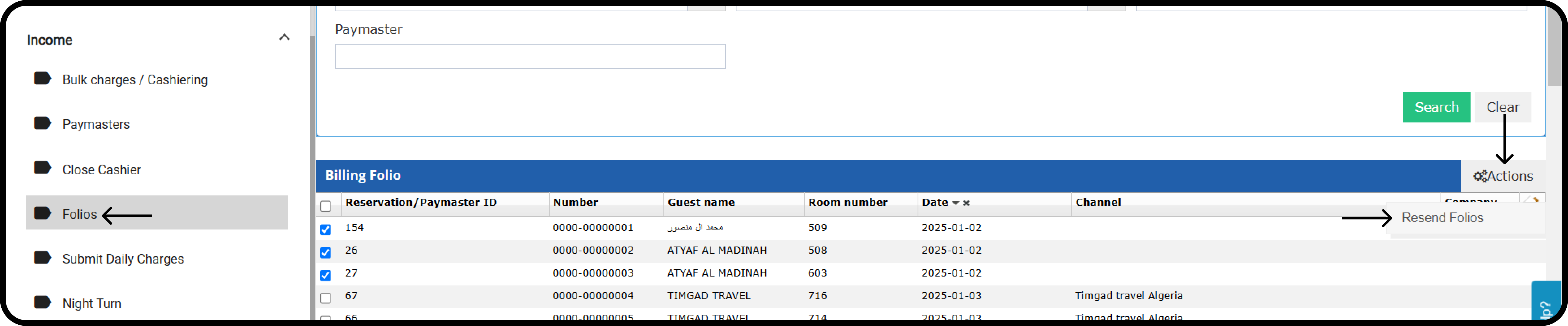
Simplified invoice (B2C)- Used when the reservation or Paymaster billing window is not linked to a channel.
- The guest profile must be complete before the invoice can be reported.
- If the guest profile is incomplete, the invoice fails to send.
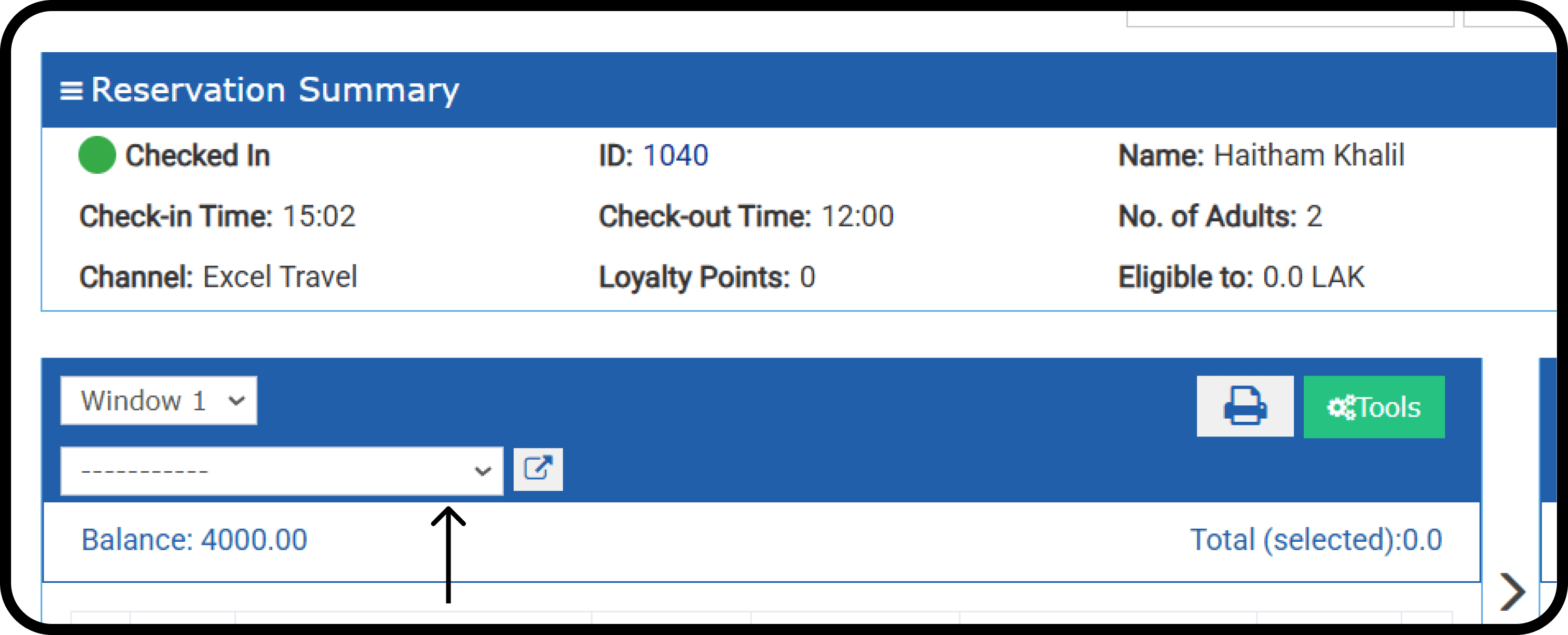
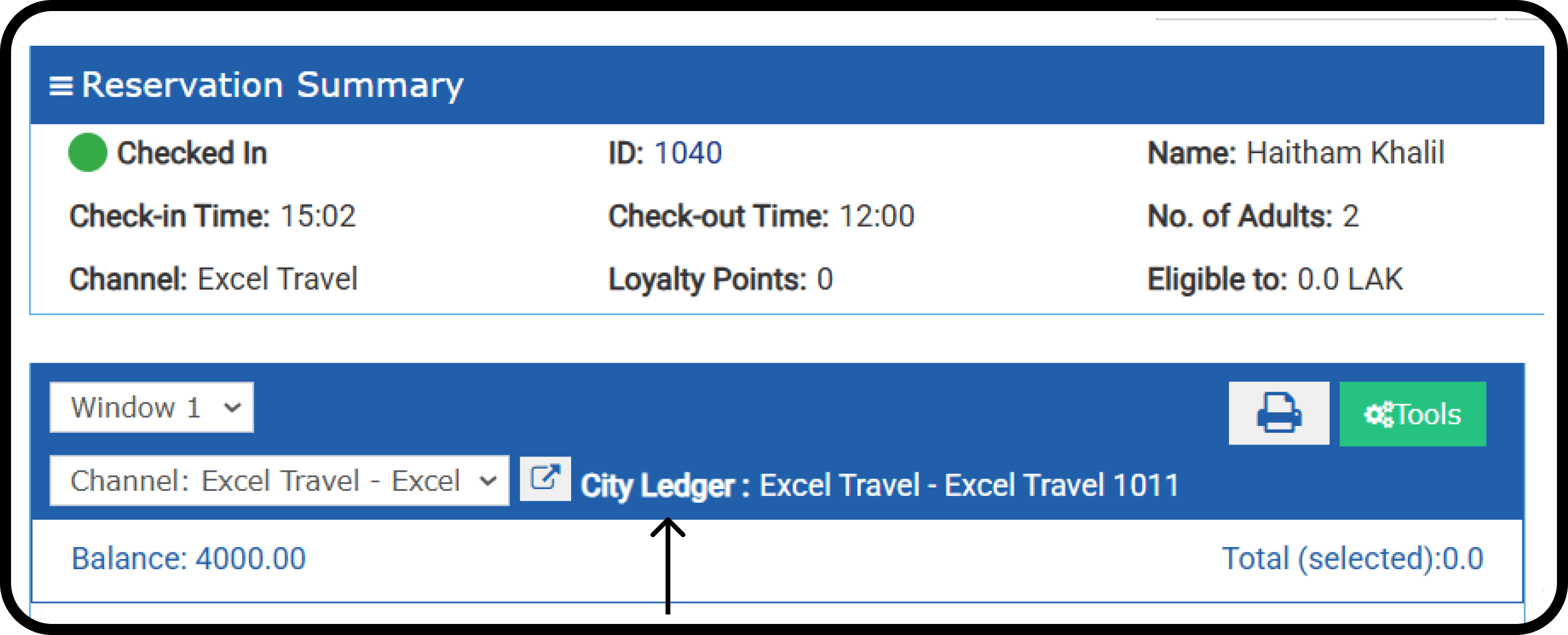
- Used when the billing window is linked to a channel’s city ledger account.
- The channel profile must be complete before the invoice can be cleared.
- If the channel profile is incomplete, the invoice fails to send.
Example: Invoice Sent, Payment Cancelled, New Charge Added
An invoice is already sent to ZATCA. Then the payment is cancelled. Then a new manual charge is added and paid. Here is what happens.1. The First Invoice Is Sent to ZATCA
- A guest pays for a service, such as a room stay, dining or spa.
- Kwentra creates an invoice.
2. The Payment Is Cancelled (Credit Note)
- The guest asks for a refund, or the payment is reversed.
- The invoice is already sent to ZATCA, so the system cannot delete it.
- Kwentra creates a credit note to reverse the amount.
- The credit note is sent to ZATCA. It is linked to the original invoice.
3. A New Manual Charge Is Added
- A new charge is added by hand to the guest folio, such as an extra service or late check-out.
- It is a new taxable sale, so it needs its own invoice.
- The system creates a new invoice for the charge.
- The new invoice is sent to ZATCA on its own.
Result: Invoices in ZATCA
- The original invoice (sent first).
- The credit note (reverses the original invoice after the cancelled payment).
- The new invoice (records the new manual charge and its payment).
Invoice Statuses
Resend Failed Invoices
- Tick the failed folios.
- Click Actions.
- Select Resend Folios.