Documentation Index

Fetch the complete documentation index at: https://help.kwentra.com/llms.txt

Use this file to discover all available pages before exploring further.

What is ETA e-invoicing Portal and what is the puprose of it? The Egyptian Tax Authority took the first step towards centralizing invoices exchange electronically in November 2020, It is a central solution for tracking all business-to-business (B2B) transactions through the instantaneous exchange of invoice data in digital format. The e-invoicing platform allows the digital capture of invoices circulating in the country, starting with business-to-business (B2B) invoices and then business-to-consumer (B2C) bills. Now all hotels are required to submit their invoices electronically on the e-invoicing portal. kwentra helps you in submitting your checked out invoices automatically from the system through a direct integration with the government, linked to your account on the e0invoicing platform. How does the integration work? Once a reservation gets checked out from the system and the final, serialized folio is generated, it is directly sent from our system to the portal in fixed intervals that you decide. Prerequisites you need to have before contacting kwentra support team:
  • You must have a registered username and password on this portal. https://invoicing.eta.gov.eg/
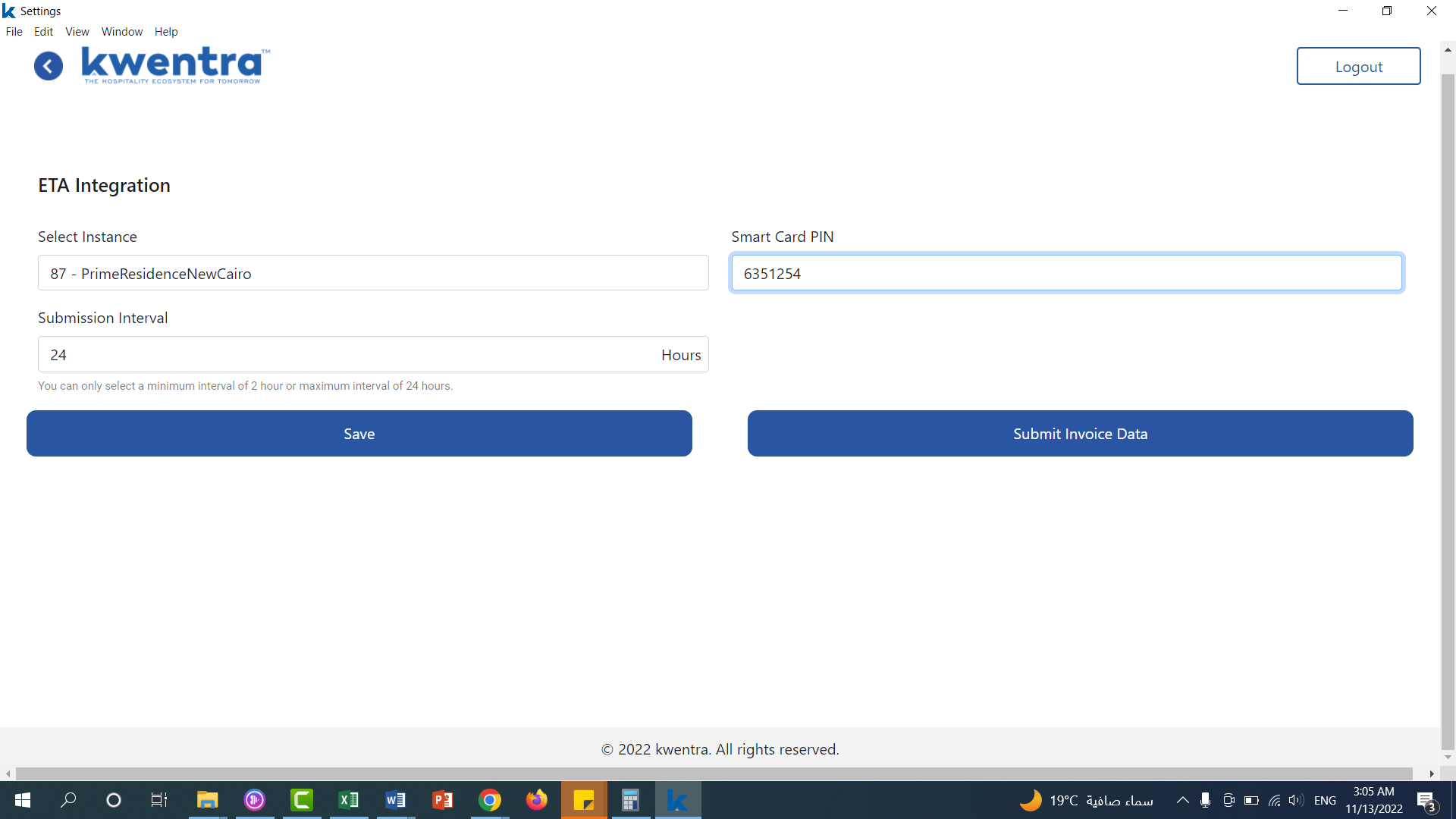
  • You must have the dongle/USB stick provided from ETA with the smart card PIN, a code that is used to electronically sign the invoices.
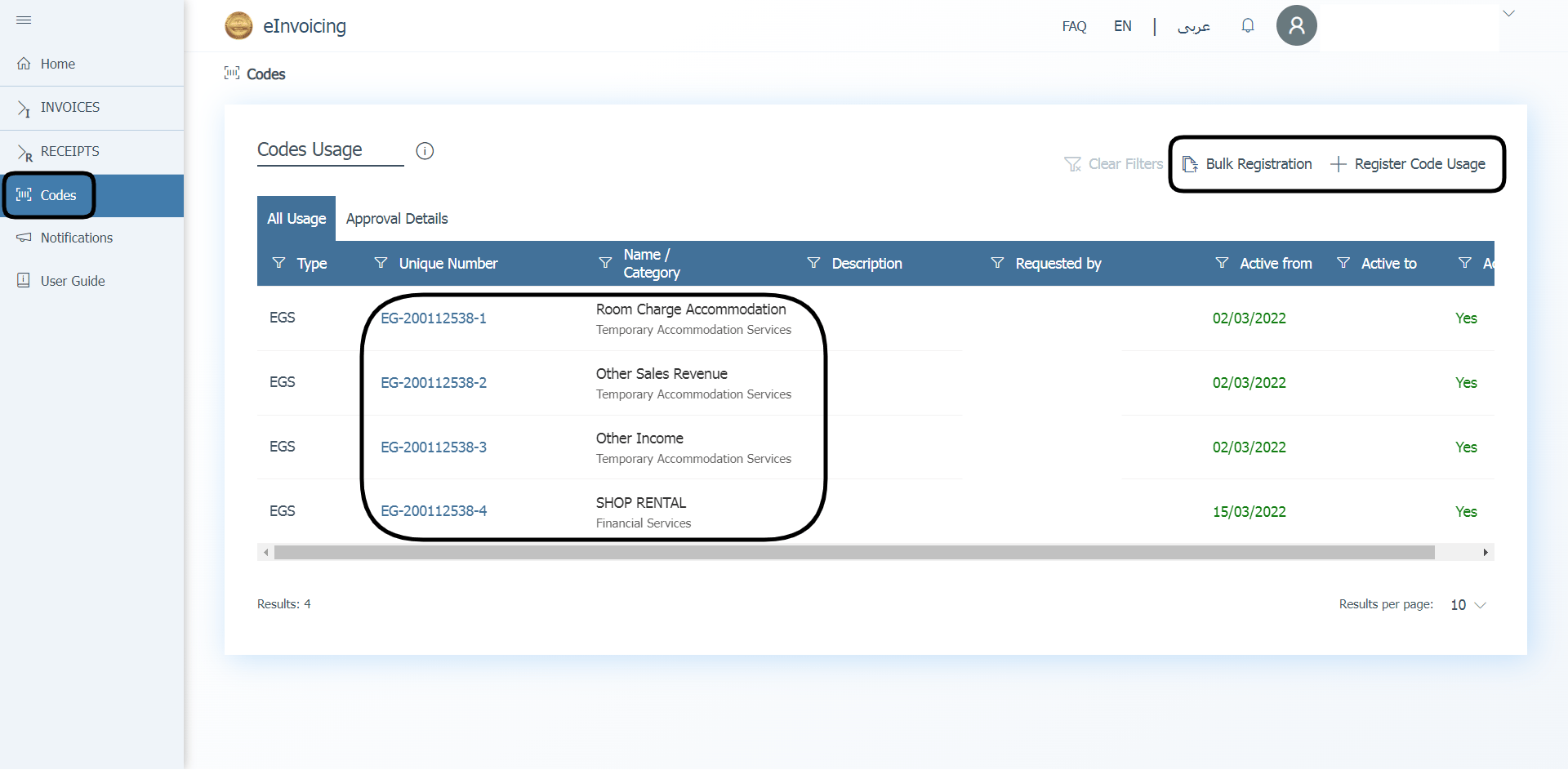
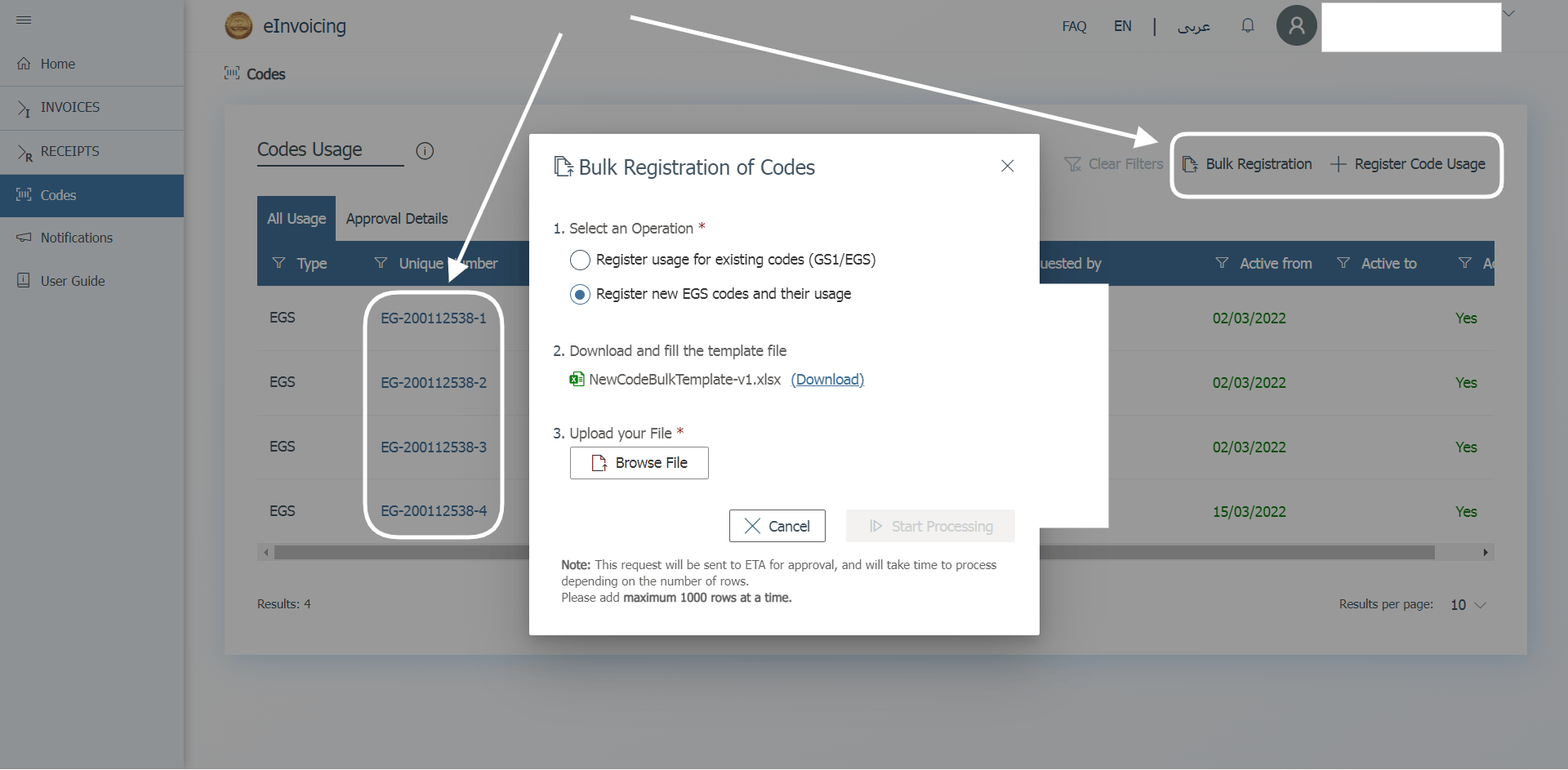
  • You must have registered your product codes on the portal from this link. https://invoicing.eta.gov.eg/codeusages
Once you click on bulk usages you would get the option to download a template and register your product codes, in the below screenshot you would see an example to how the product codes look like. Front Office → Settings Gear Sign → Integrations → ETA What should kwentra support team expect from your end to activate the integration with ETA?
  1. You must download kwentra compliance companion application on the computer you will use to upload invoices from.
  2. The username and password of the user responsible for submitting the invoices to the portal.
  3. The smart card PIN used for the e-signatures.
  4. Client ID, Client Secret 1 and 2 from your portal.
  5. Branch Code and activity code from your portal.
  6. The product codes from the portal linked with kwentra revenue departments in an excel file.
  7. Your tax registration number from the portal.
  8. Your hotel address exactly as it appears on the portal.
Once you are done with the above steps please have anydesk access on the computer that will be used to upload the invoices and have the dongle connected to it and ask the support team to be with you step by step until the integration is live. What can cause an error or failure when uploading the invoices? The below points are very important so as the invoices doesn’t fail or be invalid when sending to ETA, all reservations, front office and receivable staff should briefed on the below points: - Product Codes Mapping “kwentra Revenue Codes with ETA Product Codes”:
  • Mapping a debit department “revenue transaction code” after generating a folio will not be reflected on ETA.
  • Mapping a department to wrong product code will cause the invoice to be Invalid.
- Individual Profiles “Guests”:
  • At least 1 field in the Identification Section should be filled for folio to be generated.
  • For Egyptians we take it by order (ID Number, DriverLicence, Passport) and the ETA portal validates against the numbers to be correct.
  • For non-Egyptians we take it by order (Passport,ID Number, DriverLicence ) and the ETA portal validates against the existence of any values.
  • We have a validation that no folios can be generated without filling the Profile data, so any random data to be added will cause the folio to be INVALID.
Guest ProfilePersonal InfoFull Name
Nationality
IdentificationID Number
Passport ID
Driver’s Licence
Contact InformationAddress
City
Country
Zip Code
- Channel/Company Profiles “Tour Operators and Companies”:
  • Even if the channel’s country is not Egypt the below data needs to be filled and not empty.
  • If the country is Egypt, the VAT number should match the correct VAT number in the Egyptian Governante.
  • For folios coming from paymaster, The first branch’s data in the channel profile should be filled.
  • For folios coming from an AR account, the channel’s branch that is connected to the AR account data should be filled.
Channel ProfileBranch ProfileCountry
Address
City
VAT Number
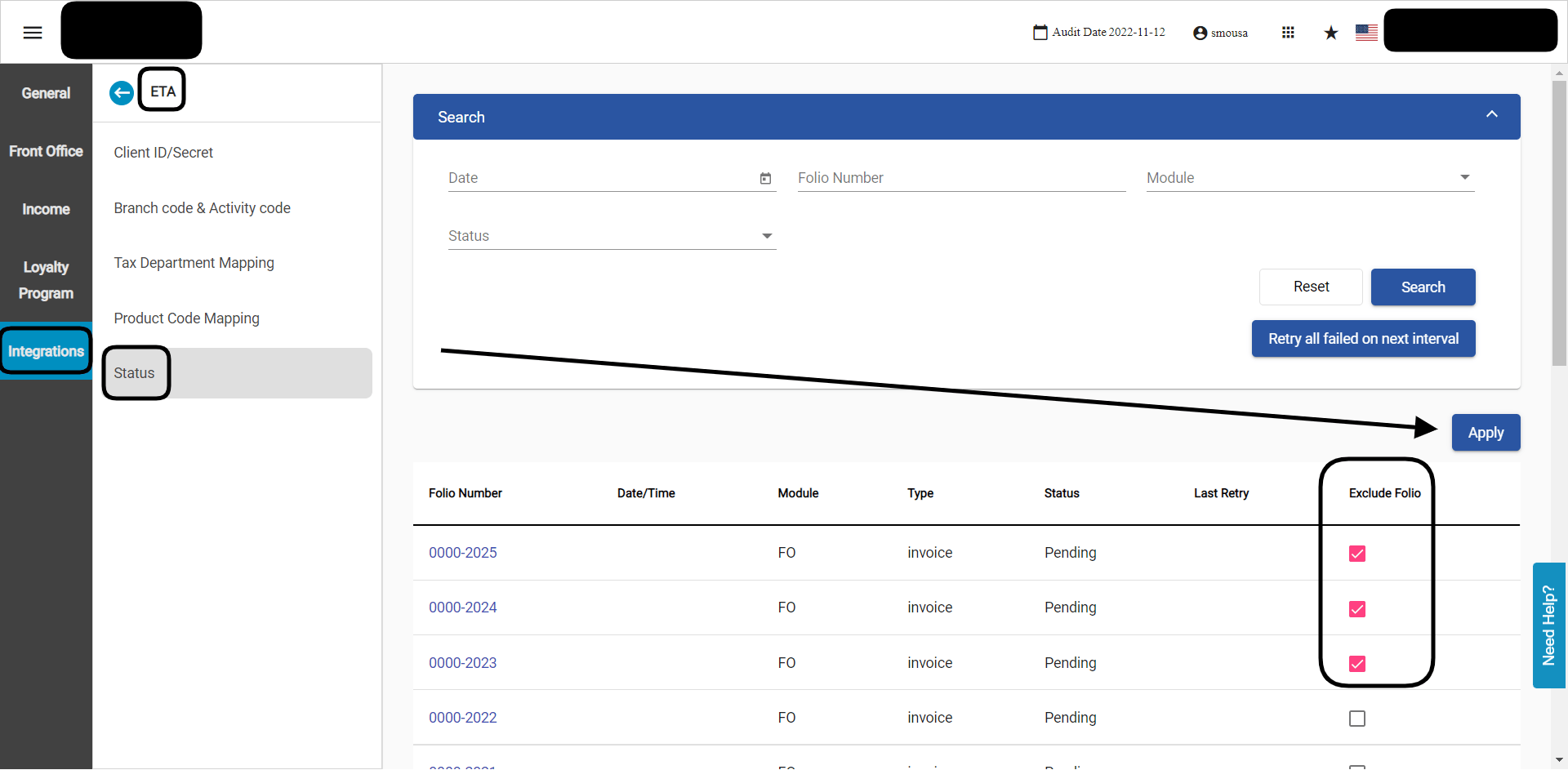
The above are requirements from ETA and missing any of the above elements will cause the invoices upload to fail Can I manually submit invoices without waiting for the next upload interval? You can use the Submit Invoice Data from kwentra compliance companion app, this will override the interval time and submit the invoices. Can I choose which invoices to send to ETA before the system automatically sends all the invoices on the next interval? Yes, you can use the Exclude Folio Feature on pending invoices that will be sent on the next interval. Front Office → Settings Gear Sign → Integrations → ETA → Status
  1. Go to any of the pending invoices.
  2. Mark on the boxes under the Exclude Folio column.
  3. Click Apply.
In that way, the system will automatically exclude the marked folios from submission on the next interval. The new status for the invoices would change from Pending to Excluded. What does the status of the invoice indicate? Each invoice status has different meaning, below is the explanation of each status:
  • Pending: the invoice has been generated from front office/accounts receivable and waiting the next interval to be submitted.
  • Submitted: the invoice has been submitted to the portal and the system is waiting for the portal’s response with its status from their end.
  • Valid: the invoice has been successfully accepted from the portal and responded to the system with its validity.
  • Invalid: the invoice is marked as invalid from the portal’s side due to an issue with the invoice’s data, you would need to check this invoice from the portal itself to know the reason.
  • Failed: the invoice failed to get submitted to the portal due to a data error from kwentra’s side, after fixing the issue you can resend it again on the next interval.
  • Retrying: this is the status that will be given to the failed invoices after re-submission, the system will keep on retrying to submit the invoice to the portal, if all attempts were exhausted the status will return to failed.
  • Cancelled: the invoice has been cancelled from the portal directly.
  • Rejected: the invoice has been rejected manually from the portal by the individual guest or by the tour operator company.
  • Excluded: the invoice has been manually excluded by a hotel staff member to be diregarded when the invoices are being sent to the ETA portal.
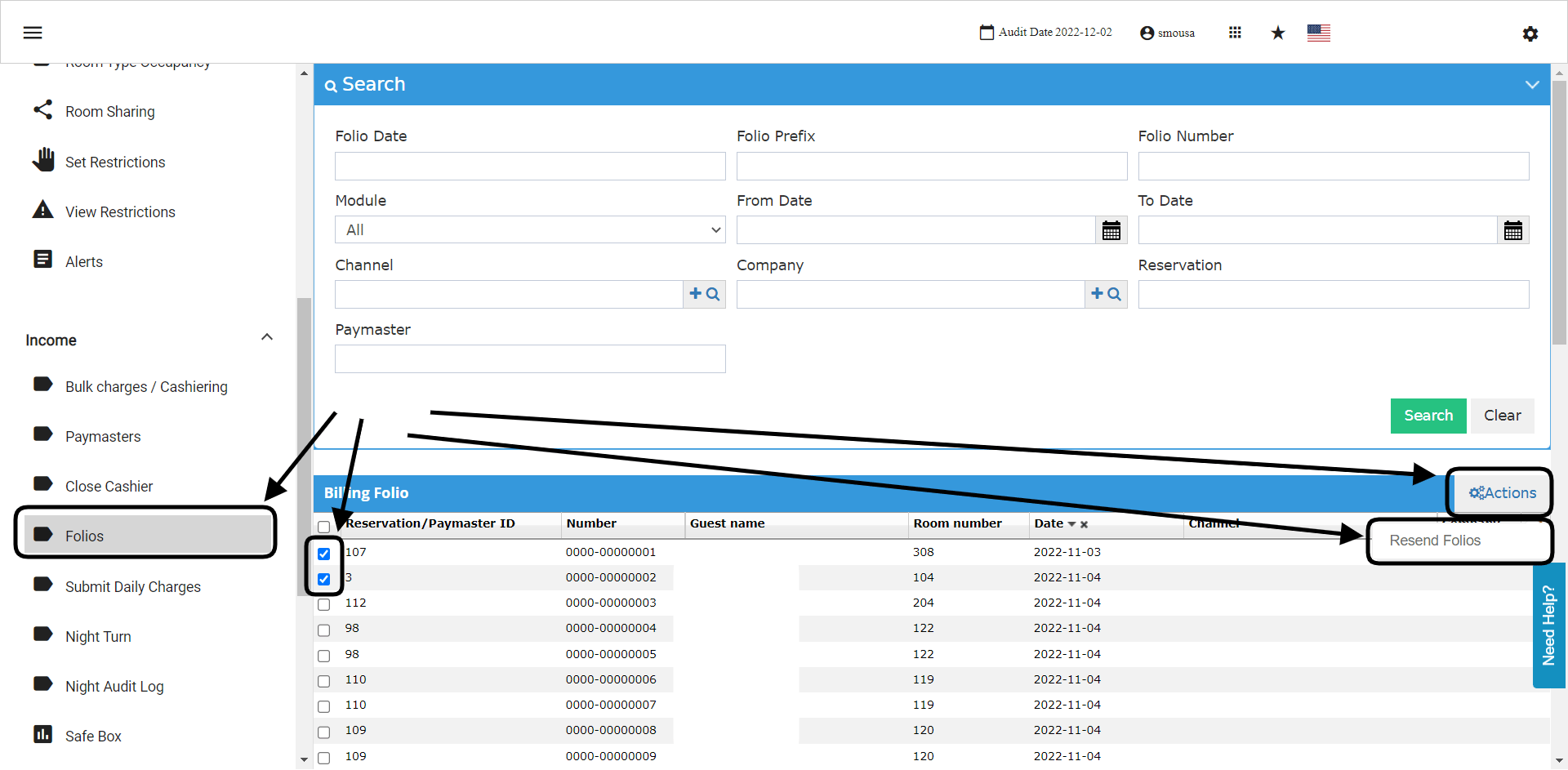
Update: 11th of December, 2022 Can I resend my failed invoices again? Which invoice states can I resend? Before considering the resend option, you should identify the issue that happened with the failed invoice and correct it before resending the invoices again. You can easily resend the invoices under the status Failed using the Retry all failed on next interval. You can easily resnd the invoices under the state Invalid or if the status field is empty. How? After making sure that the issue has been resolved on the invoice, follow the below steps: Front Office → Folios → Select Folios → Actions → Resend Folios
  1. Select the folios you would like to resend using the boxes on the left side of Reservation/Paymaster ID.
  2. Click on Actions.
  3. Click on Resend Folios.
Important Notes:
  • Trying to resend a successfully submitted invoice will return this message “Folios already submitted will be automatically excluded from selection”.
  • The above steps would only work on invoices with status Invalid or has no status “empty status”
  • The above steps won’t work unless you have resolved the initial issue of the invoice that caused it to be invalid or has an empty status.
  • The invoice generation date will not be changed when you resend, only the invoice data will get updated and the date will remain the same.
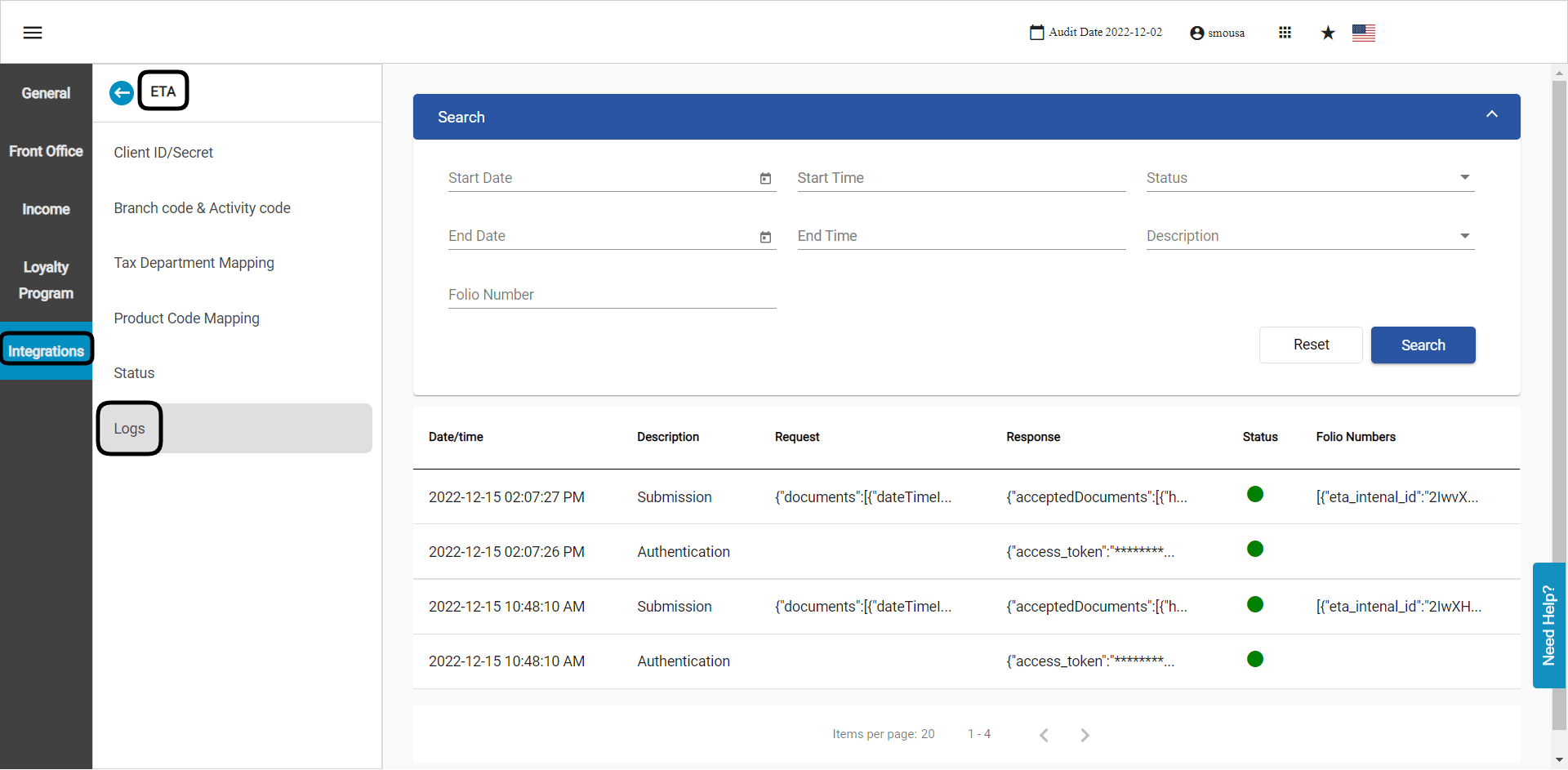
How do I know the reason why the invoice has failed or marked as invalid from ETA portal? Introducing the ETA new Logs Screen, from here you can easily identify the below:
  • Whether the invoice was accepted from ETA portal or not.
  • If the invoice was invalid, you would see the reason without the need to go to the portal.
Front Office → Settings Gear Sign → Integrations → ETA → Logs You can easily search using any of the below criteria:
  • Start/End date and time.
  • Request status “200 is a green status, any other number is an error”
  • Description: either the login authentication log entry or the submission log entry.
  • Folio number: kwentra internal folio number.
What do the columns represent?
  • Date/time: represent the time of the log entry
  • Description: represents whether its a login authentication entry or an invoice submission entry.
  • Request: returns the request sent from kwentra to ETA.
  • Response: returns the response coming from ETA, whether the invoice was accepted or invalid.
  • Status: color coded, red is an error green is valid.
  • Folio numbers: combines between ETA’s internal invoice number and kwentra’s invoice number.
What should I do to identify the reason of an invalid invoice? Whenever you receive a red submission log entry, you should always click on the response hyperlink, it will provide you with the reason of the error for this particular invoice.