What Is Paymob?
- Paymob provides payment technology to financial service providers in Africa and the Middle East.
- Its mobile wallet technology gives their customers access to finance and digital payments.
- Collect reservation payments based on your deposit policies.
- Apply your cancellation and no-show policies.
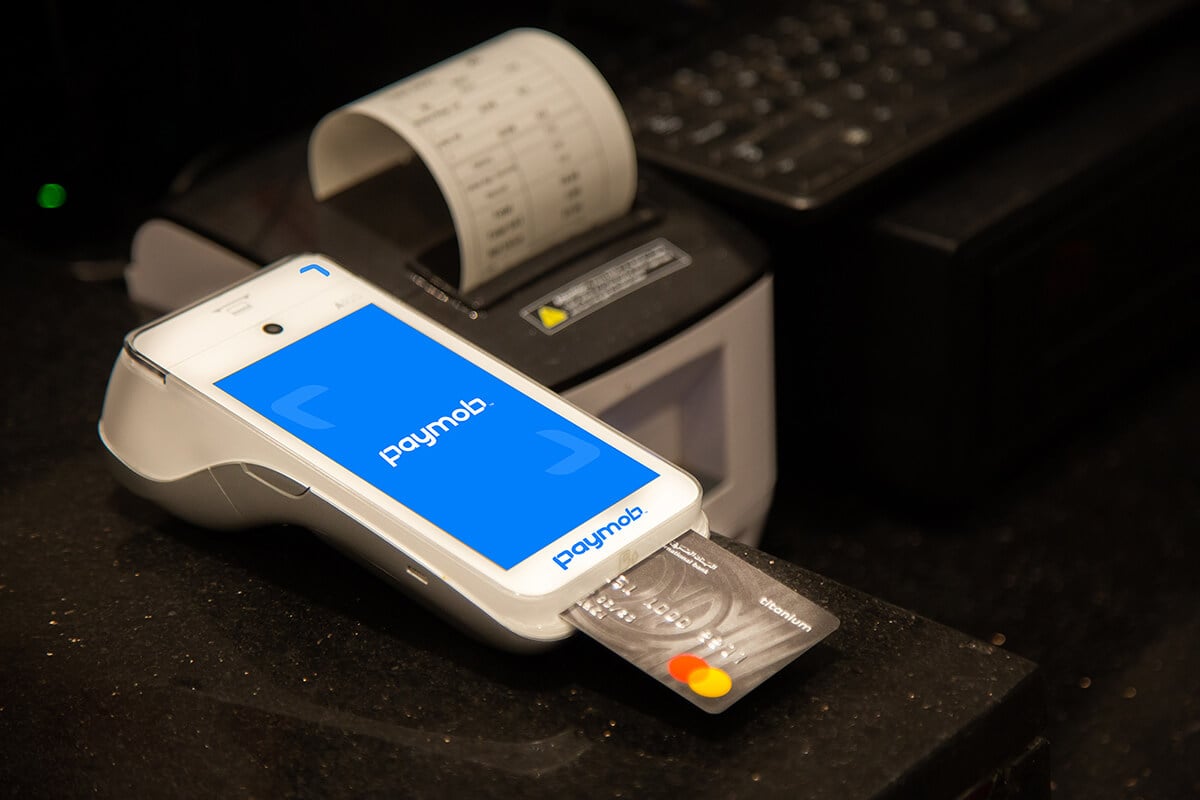
- Take payments at the front desk with a Paymob card machine.
Ways to Collect Payments
1. When Guests Book on Your Website
The reservation arrives from your website. Its payment is already recorded on the reservation’s billing screen.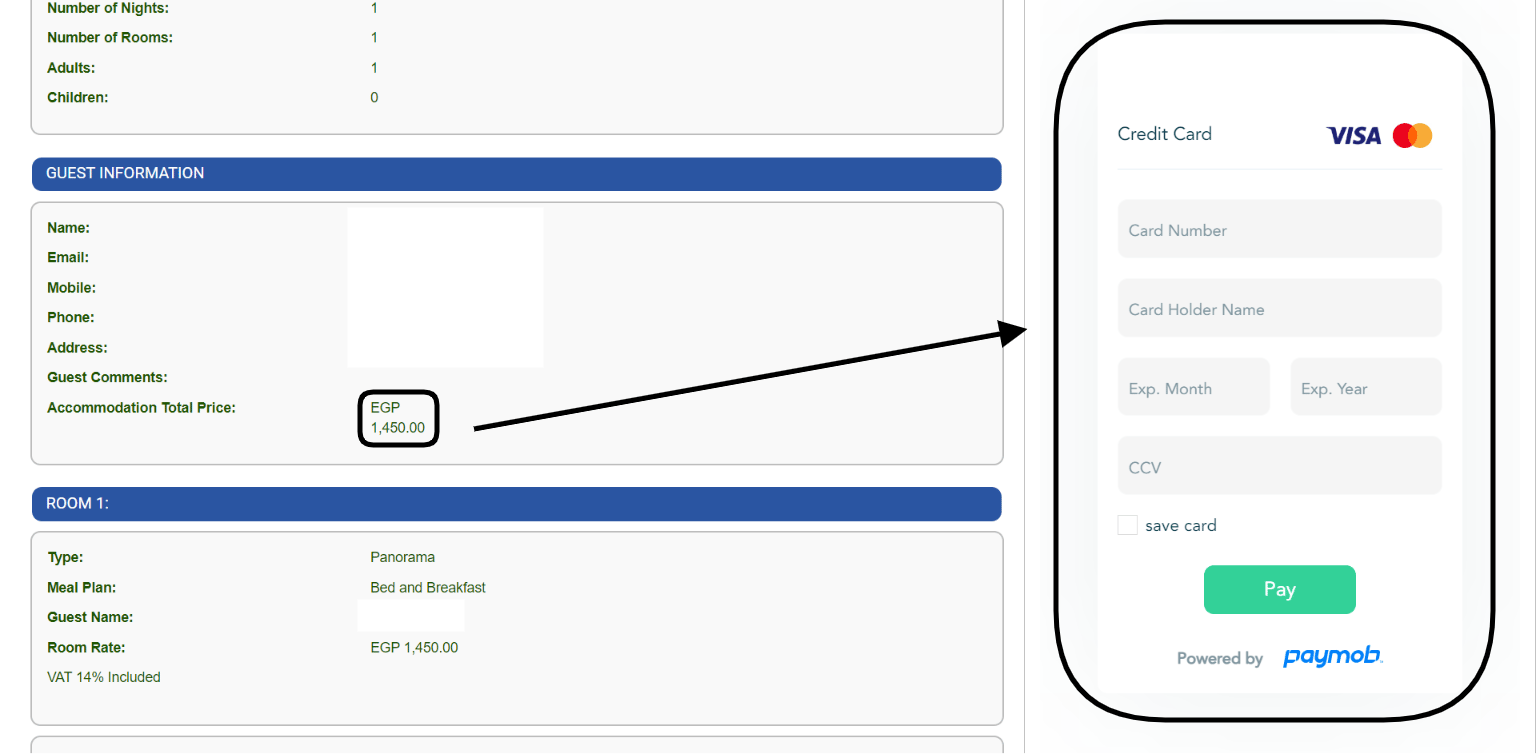
2. At the Front Desk
Choose the payment method. Then either:- Enter the credit card on the screen, or
- Swipe and charge the card on the Paymob machine.
3. With a Payment Link
Use it to collect in advance for bookings made by phone or social media.- Create a link with the amount you want.
- Copy the link.
- Send it to your guest.
How to Get Started
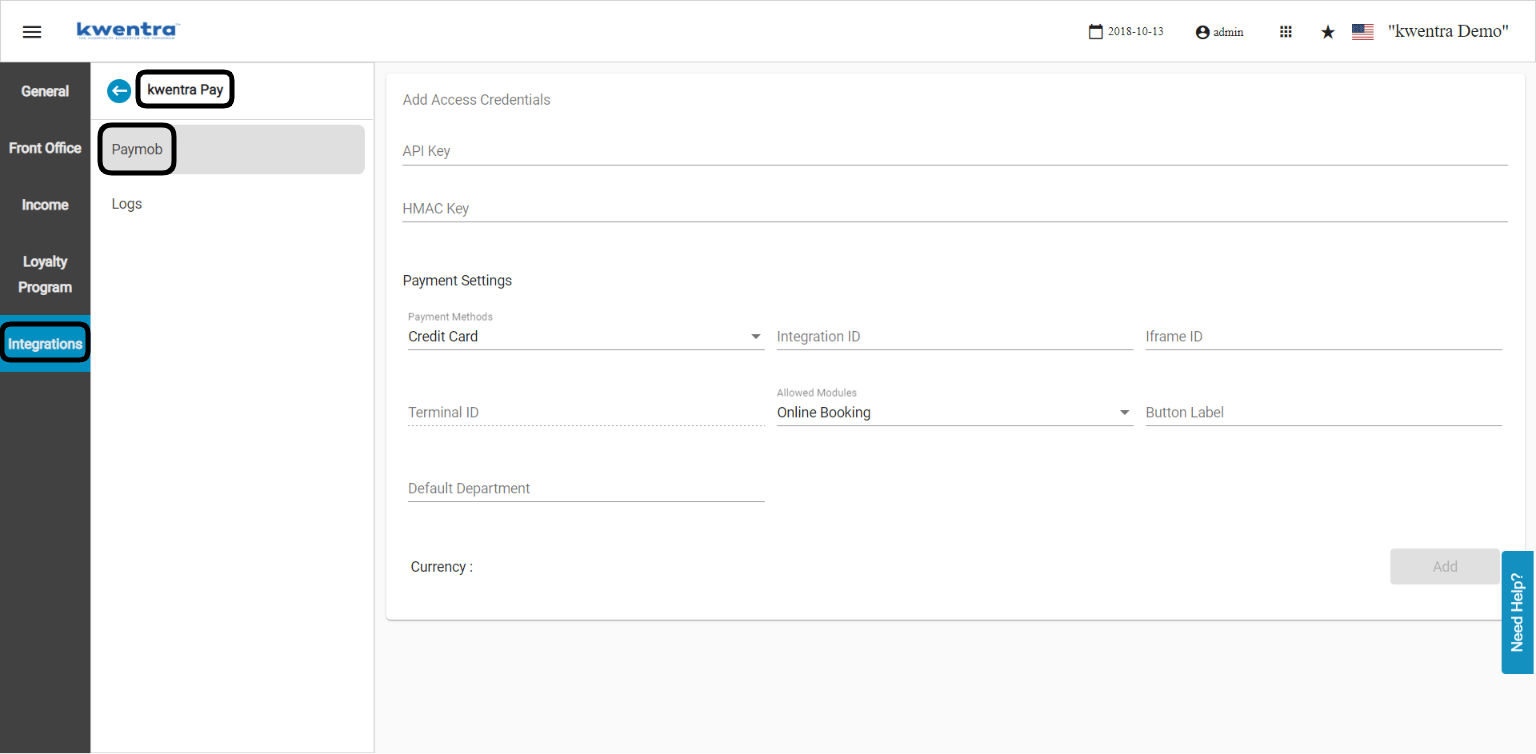
Contact support@kwentra.com and ask to turn on Kwentra Pay.- Kwentra contacts Paymob.
- Kwentra sends you the Paymob contract to sign.
- Paymob sends you and Kwentra your Paymob account credentials.
- Kwentra links your Paymob account to the payment methods (departments) you want.
Benefits
- Low transaction fees: 3% for online payments and 2% for offline payments.
- A free POS device for offline payments at your front desk.
Update: 29th of September, 2025
[NEW] Payment Link Generation & WhatsApp Sharing
Business Value
- Get paid faster with instant payments and digital receipts.
- Share payment links with guests on WhatsApp in one click.
Use Cases
- A guest books by phone or social media. Staff create a payment link and share it on WhatsApp at once.
- The guest’s mobile number is missing. Staff add it and send the payment details at once.
How It Works
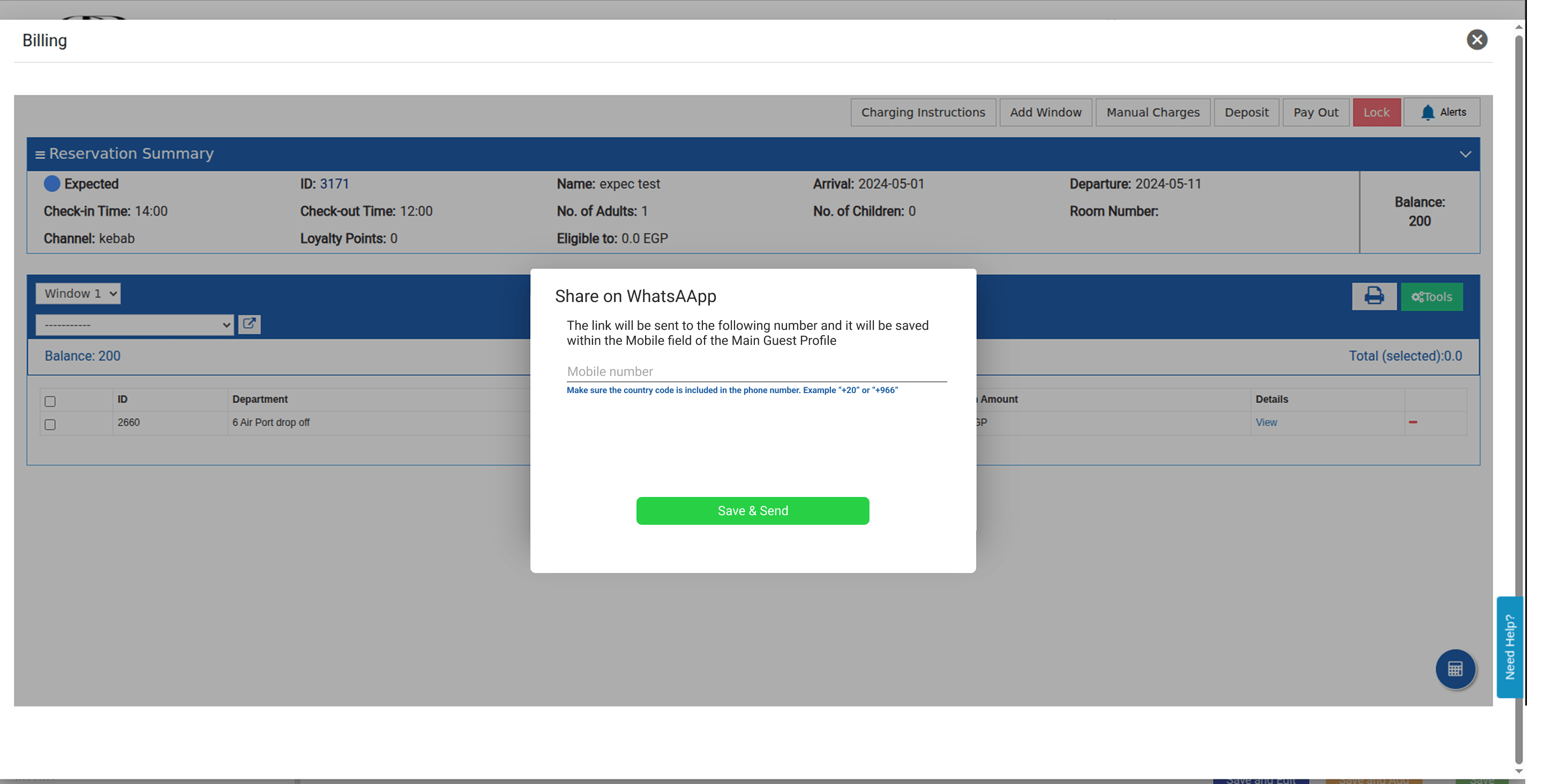
The Payment Link popup has a Share with WhatsApp button, next to Copy.
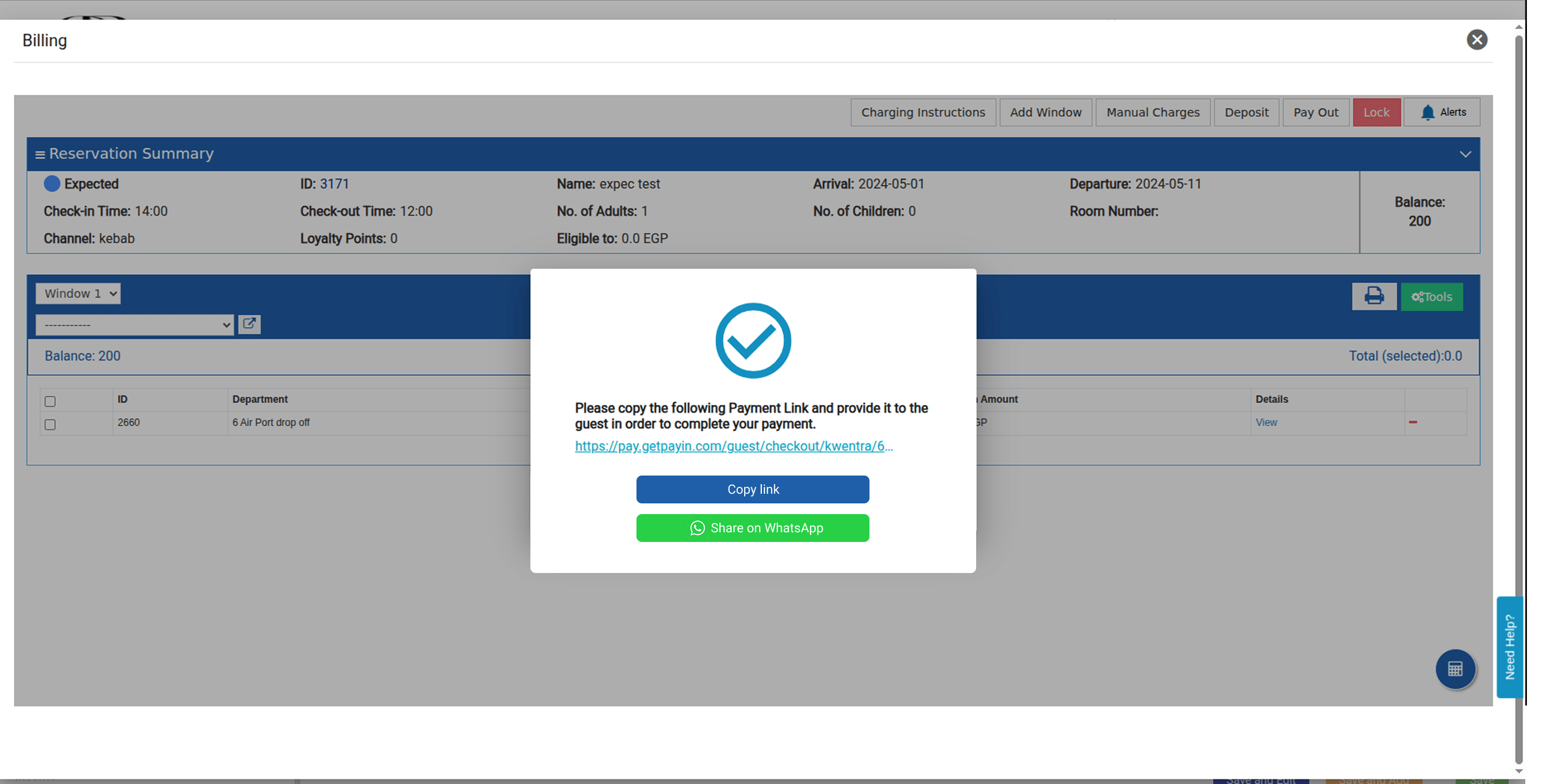
- Click the button. A Mobile Number field opens.
- It is filled from the guest profile’s Mobile. If Mobile is empty, it uses Telephone.
- If both are empty, type the number.
- Use numbers and ”+” only, up to 30 characters.
- Include the country code, such as “+20” or “+966”.
- Click Save & Send.
- If you have permission, the number is saved to the guest profile.
- If not, the number is used only to send the link.