

Business Value
- Take credit card payments inside Kwentra.
- Link each card to its own payment department.
- Use it in Front Office, Online Booking or both.
- Give guests fast and secure payments.
Use Cases
- A finance manager links each credit card to its own department to track transactions per department.
- A front office manager turns on AAIB for both Front Office and Online Booking.
- An admin sets a currency on each payment department to avoid save errors.
How It Works
1. Enter the Access Token
- Enter the Access Token you got from AAIB. It is required.
- Save to create the basic connection.
2. Add a Payment Card
Click Add. Then fill in:- Payment Department (required): pick a credit-type department.
- A department can be linked to one payment card only.
- If it is already linked, you see: “The department DEPARTMENT NAME is already configured on another payment method.”
- Currency: shows the department’s default currency.
- If the department has no currency, you cannot save.
- You see: “Cannot save the form as the department DEPARTMENT NAME does not include a currency. Please set a default currency for the department or select a different department.”
- Button Label (required): the text on the payment button.
- Allowed Modules: where the payment method appears. Pick Front Office, Online Booking or both.
3. Save
Click Save. The AAIB integration is now on.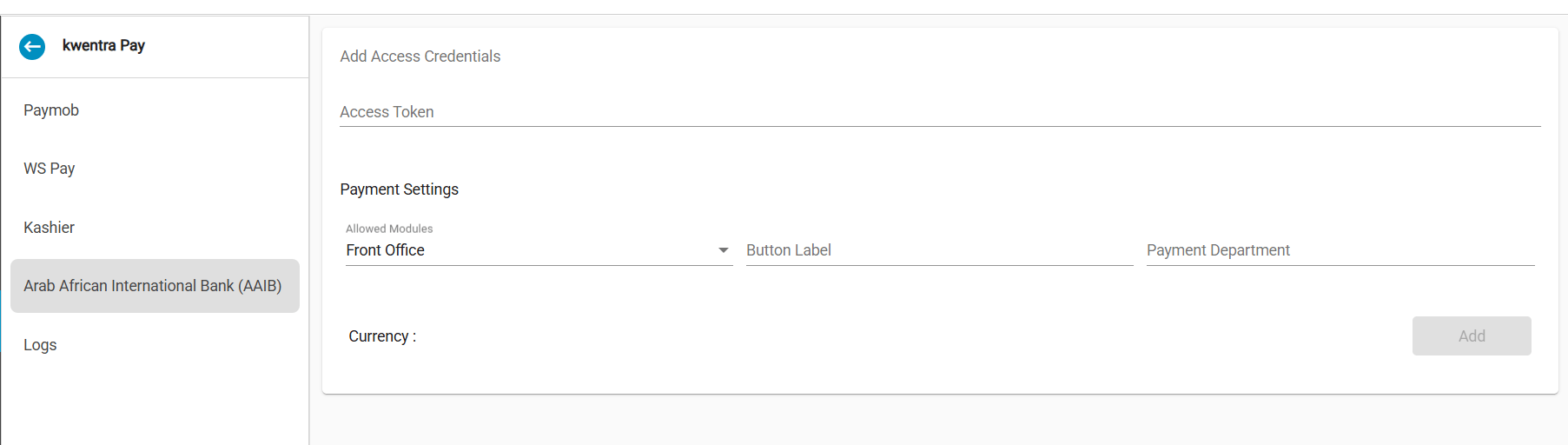
Transaction Logs
- Payment Gateway Name: the list now includes AAIB. You can pick more than one gateway.
- Details column: shows extra information AAIB returns for each transaction.
- Details filter: search transactions by keywords or references in the Details field.
- Other fields: date, amount, status and others show the values AAIB sent.
Notes & Tips
- You cannot delete the last payment method left on your account.
- If a department has no currency, set one before you link it to AAIB.
- Use the logs to settle guest disputes or check failed AAIB payments.