How It Works
- Contact support@kwentra.com to turn on GDPR settings for your system.
- Set the GDPR settings to fit your operation.
GDPR Settings
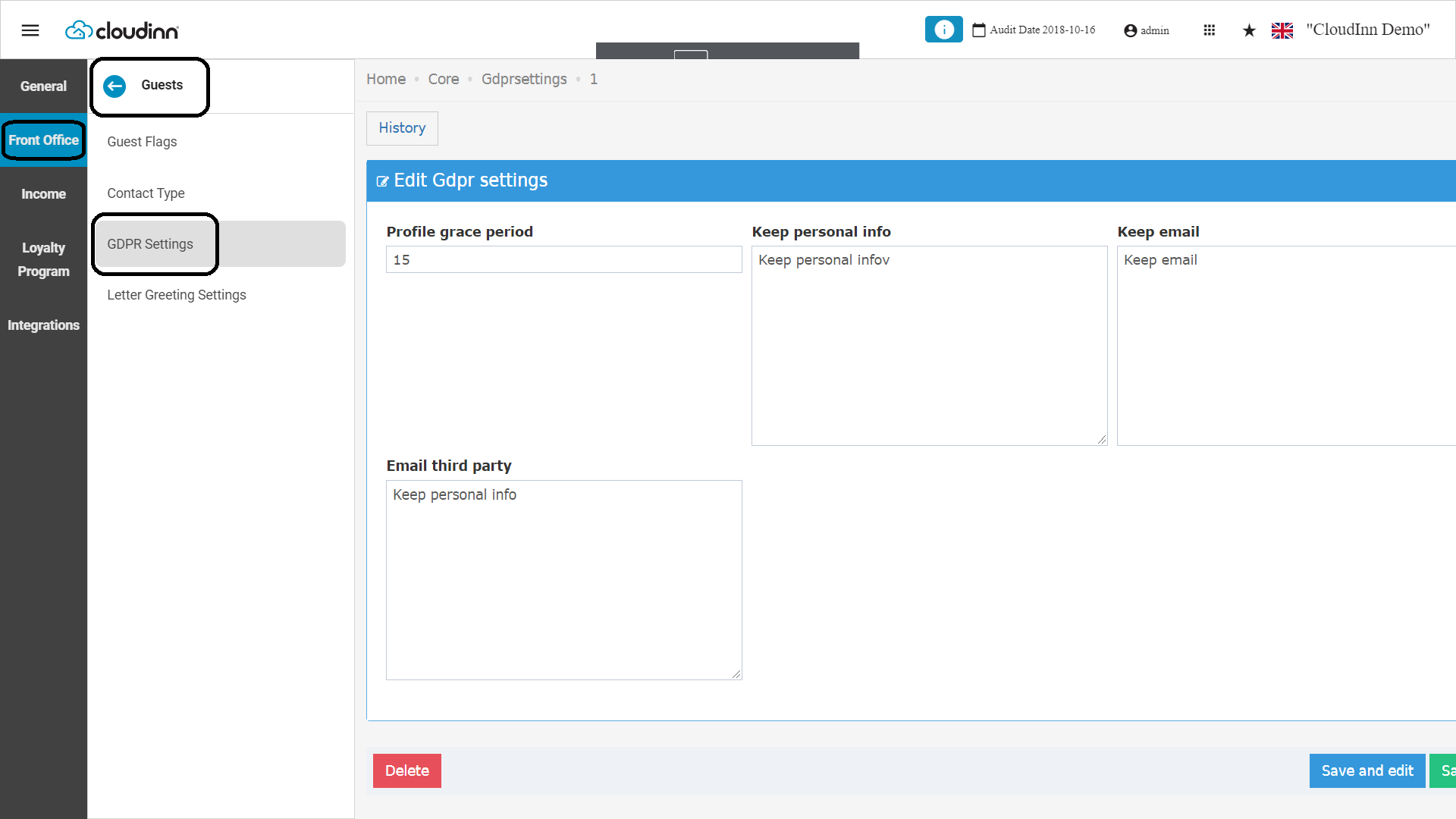
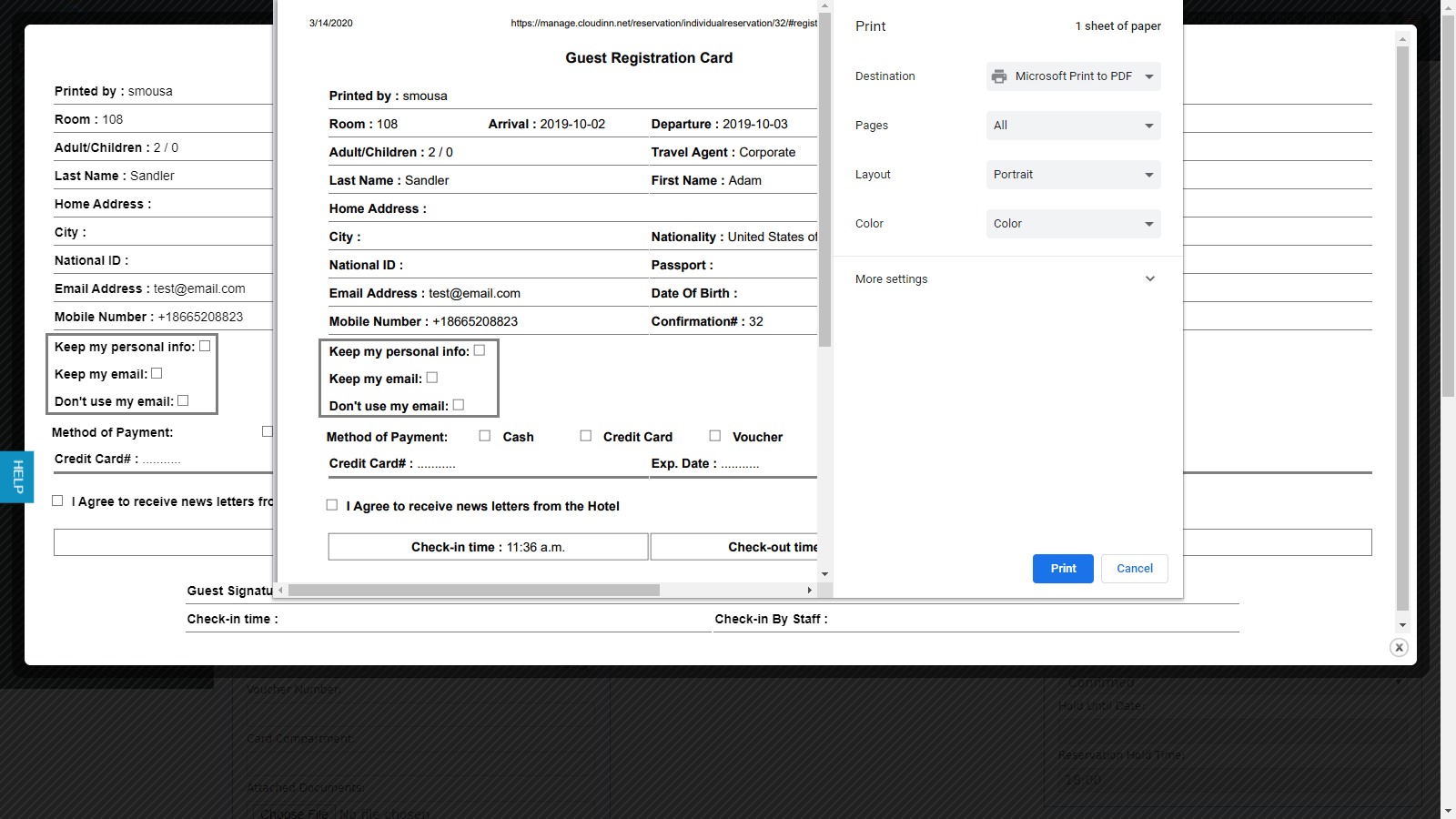
- Set the consent text for the 3 checkboxes on the guest Registration Card (RC). The guest ticks them when filling the RC.
- Set a grace period. It is the number of days after check-out before the system anonymizes the guest’s data.
Guest Profile Consent
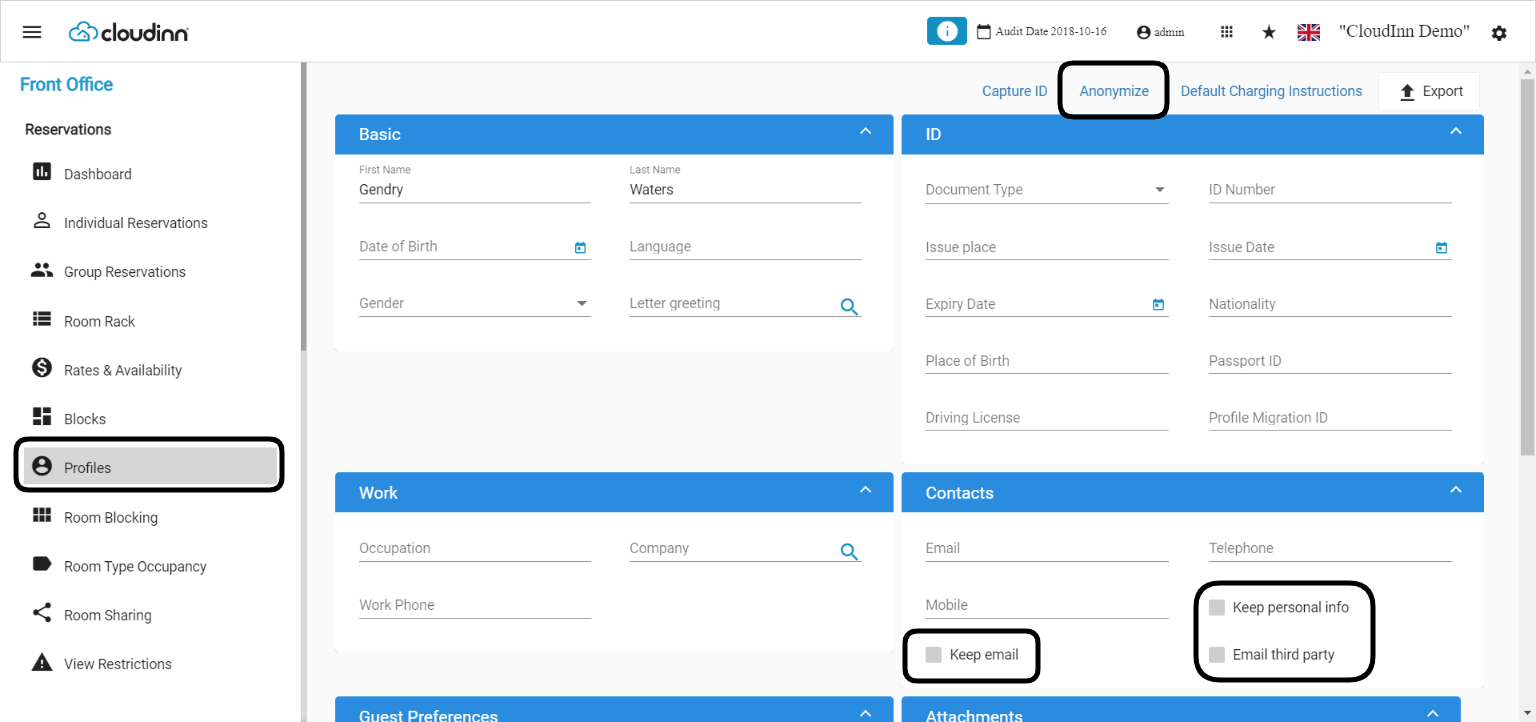
- Do not keep personal info: the system anonymizes the profile and all its data. This happens on the last day of the grace period. If this box is not ticked, the other two boxes do not matter.
- Do not keep email: only the email is anonymized.
- Email third party: controls only the data exported to third parties. It does not anonymize anything.
Anonymize Older Profiles
Profiles created before you turned on GDPR can be anonymized by hand.Update: 8th of August, 2021
Export a Guest Profile
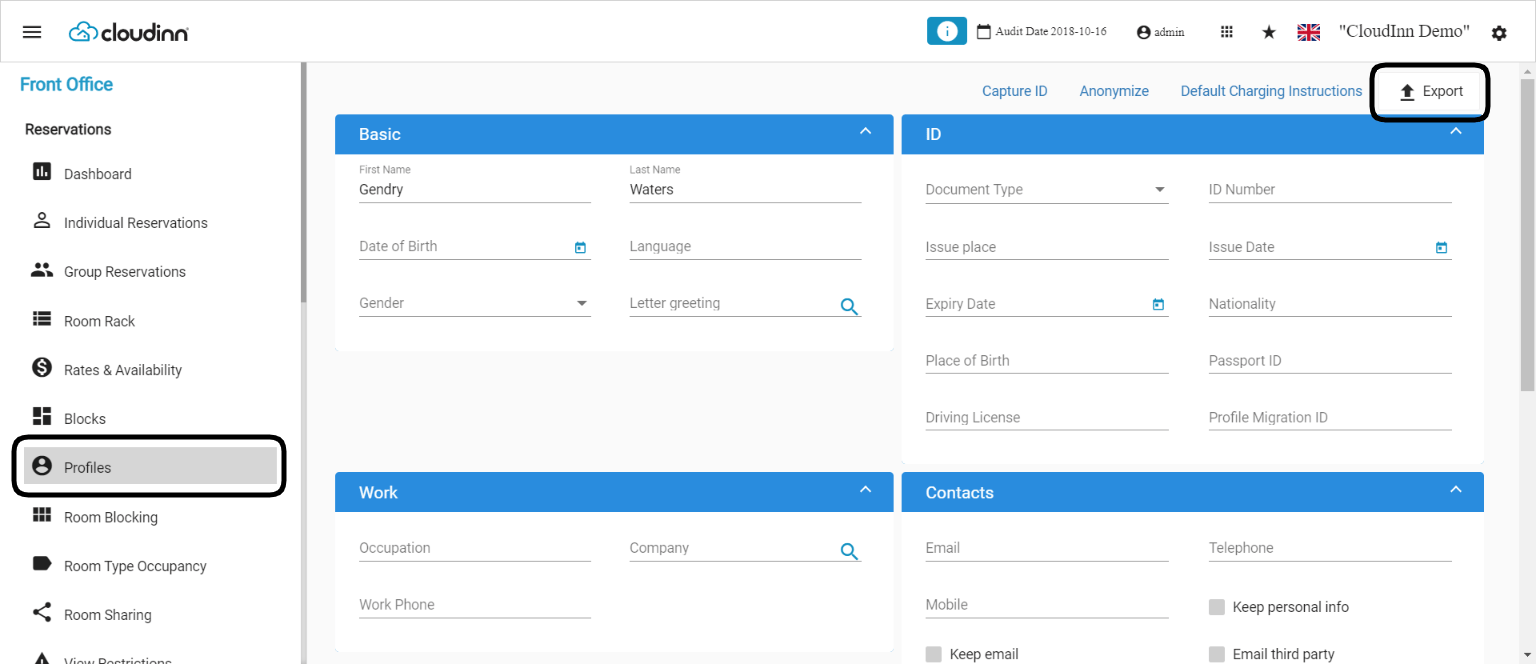
You can now export a guest profile. This option is only for systems with GDPR turned on.
The file includes:
- First Name
- Last Name
- Phone
- Mobile
- Date of Birth
- Gender
- Address 1
- Address 2
- City
- Country
- Province / State
- Postal / ZIP Code
- All additional information custom fields
- Type of guest document
- Document number
- Document issue date
- Document issuing place
- Document expiration date
- Guest preferences
- Attached documents
- Reservation history (reservation ID, arrival and departure dates)