Documentation Index

Fetch the complete documentation index at: https://help.kwentra.com/llms.txt

Use this file to discover all available pages before exploring further.

Seamlessly capture and auto-fill guest identity details in kwentra profiles using the LogicsWare passport scanner integration. LogicsWare provide customers with customized innovative electronic solutions & services – based on latest technologies. With LogicsWare’ Passport Scanner working with kwentra PMS, capturing guest profiles is much easier as there’s no manual effort in writing each field in the guest profile from the staff’s end.

Use Cases

  • Fast-tracking check-in by scanning guest documents at the front desk.
  • Ensuring guest profiles are complete and accurate with verified government data.
  • Meeting compliance needs for identity verification (national ID, passport, Iqama, etc.).
  • Reducing front office workload and guest wait time.

How does kwentra work with LogicsWare?

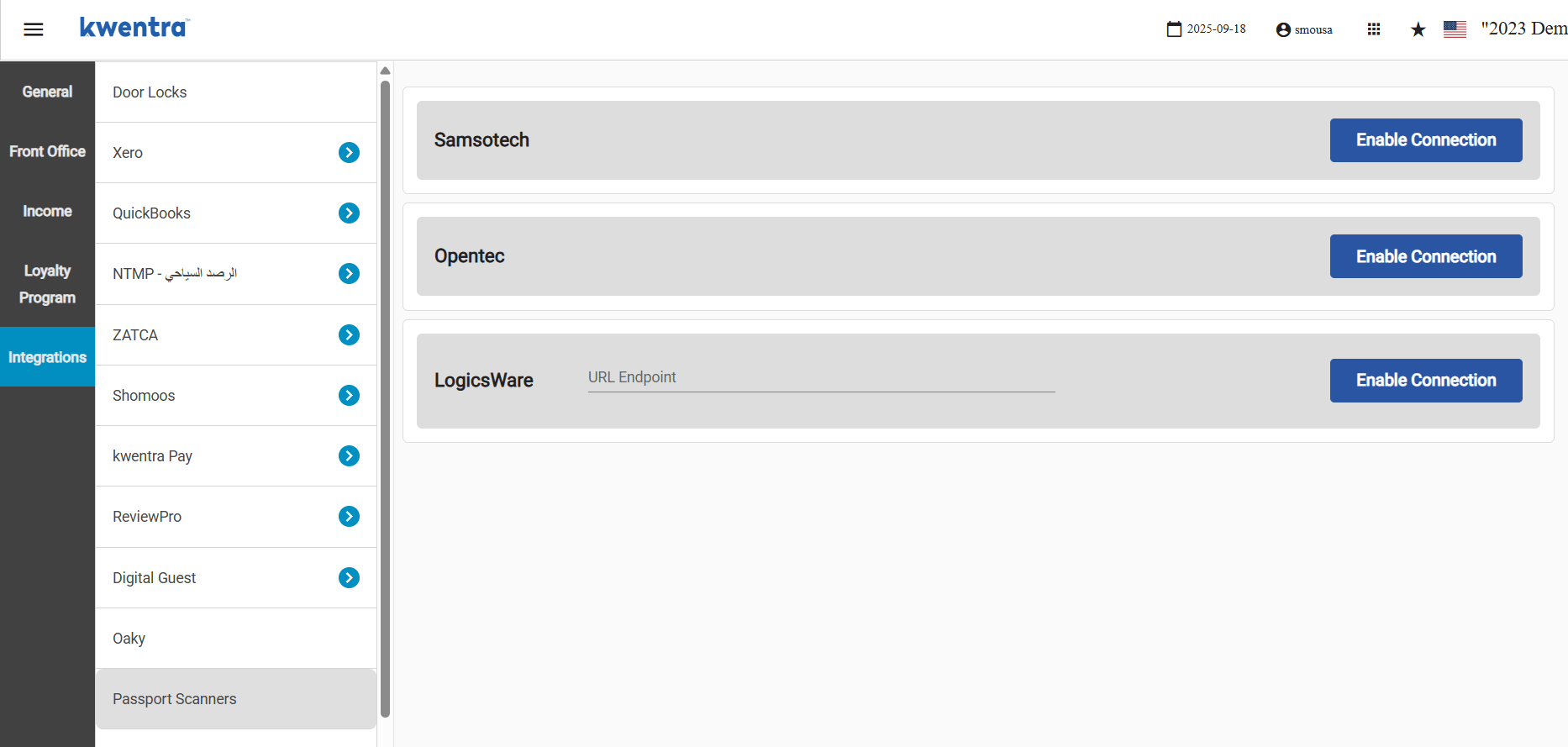
Front Office → Settings Gear Sign → Integrations → Passport Scanners
  1. Add API URL endpoint provided from LogicsWare interface
  2. Enable Connection

How the Scanning Flow Works

  • Front and Back Scanning Supported: Scan the front and/or back side of the document (e.g., ID card) as required by your local regulations.
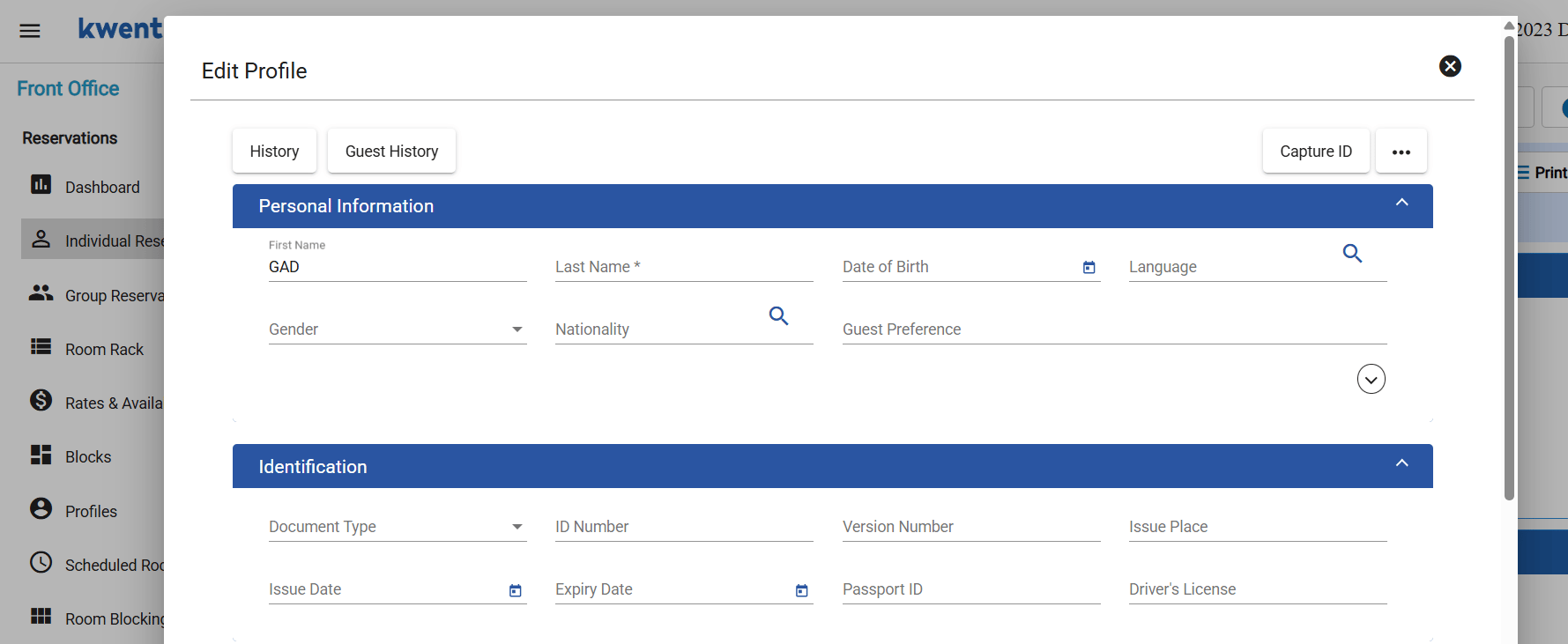
  • One-click Capture: On the Guest Profile → Capture ID to initiate the scan.
    • The scanner reads the document and returns the data.
  • Auto-fill and Save: Guest profile fields are filled automatically with no need to click “Save.”
    • Data is instantly committed and the screen refreshes.

Captured Data & Field Mapping

API ParameterMapped Kwentra FieldNotes / Mapping Rules
firstNameGuest Profile → First NameDirect mapping
lastNameGuest Profile → Last NameDirect mapping
CityGuest Profile → Address → CityDirect mapping
nationalNumberGuest Profile → ID NumberAlways reflected, regardless of document type
docNumberGuest Profile → Passport IDAlways reflected, regardless of document type
versionNumberGuest Profile → Identity Version No.Direct mapping

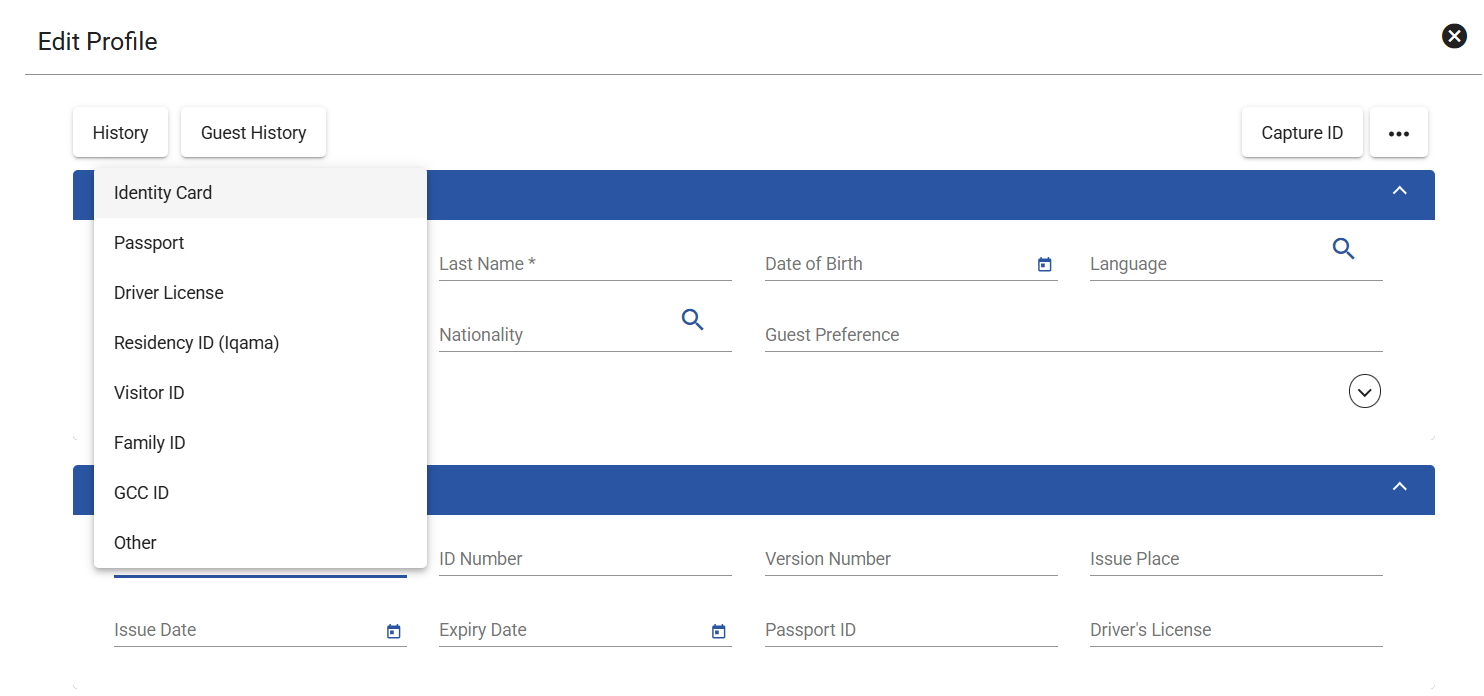
Document Type Identification

Based on the provided data from LogicsWare, the below logic to properly add the document type is applied.
API ValueMapped to Kwentra Identity Type
Face National ID CardIdentity Card
Back National ID CardIdentity Card
PassportPassport
VisaPassport
Driver LicenseDriver License
Residency IDResidency ID (Iqama)
Visitor IDVisitor ID
Family IDFamily ID
GCC IDGCC ID
Anything else / emptyOther

Special Notes & Handling

Automatic Save

  • All scanned data is saved to the guest profile automatically after each scan.
  • No need for the user to click “Save.”

Address Handling

  • If the scanner provides address data, the system updates any existing address with contact type “Main” (if present).
  • If no “Main” contact type exists, it adds the address with the first available contact type on the system.

National ID & Passport Number

  • Field nationalNumber always goes to Guest Profile → ID Number.
  • Field docNumber always goes to Guest Profile → Passport ID.

Unrecognized or Blank Document Types

  • If documentName is blank or unrecognized, the guest’s document type is set to Other.

Actual Example

  • Scan a National ID:
    • Scan → First/Last Name, City, ID Number, Identity Type (Identity Card), Address all captured and instantly saved.
  • Scan a Passport:
    • Scan → First/Last Name, Passport Number, Identity Type (Passport), Address, etc., saved automatically.
  • Scan with unrecognized doc type:
    • All fields saved; Identity Type defaults to “Other.”