

Business Value
- Protects your number from being blocked for spam.
- Sends the message from kwentra, with no new tab.
- Gives the guest a proper message with their name, not a bare link.
- Records every send in the reservation history.
- Adds the guest’s country code to local numbers.
Use Cases
- A receptionist sends the registration card and the guest gets it from the hotel’s number.
- A cashier sends a folio and sees at once whether it went out.
- A front office manager opens a reservation and checks who sent what.
How It Works
Before, Share via WhatsApp only opened WhatsApp Web with the link pasted in. A staff member then pressed Send on whatever phone was logged in on that PC. This caused three problems:
- WhatsApp blocks numbers that send many links this way. It treats them as spam.
- The guest got a bare link with no context.
- The hotel had no record of what was sent, to whom, or by whom.
- Registration Card
- Booking Confirmation (individual and group)
- Folio
- Payment Link
What Mersal Is
Mersal is an official WhatsApp Business provider. Meta does not let a hotel system send WhatsApp messages directly. Messages go through an approved provider.- The hotel has an account with Mersal. Mersal holds the hotel’s verified WhatsApp number.
- kwentra hands the message to Mersal, and Mersal sends it.
- The hotel contracts with Mersal directly and pays Mersal for the messages. kwentra does not bill or resell messages.
- Messages must use approved templates. WhatsApp lets a business start a conversation only with a template that Meta approved. Free typing is not possible. This is a Meta rule, not a kwentra limit.
Part 1: Set Up Mersal
Do these steps in Mersal before you set anything up in kwentra.1. Get a Mersal Account
Contact Mersal at chat.mersal.ai. Ask them to set up the account with the number guests should see.- Use a number the hotel controls and is happy to publish.
- Guests will reply to this number.
2. Create the Message Templates
You write templates in the Mersal dashboard, not in kwentra. Meta reviews each one, usually within a short while. Only approved templates can be used.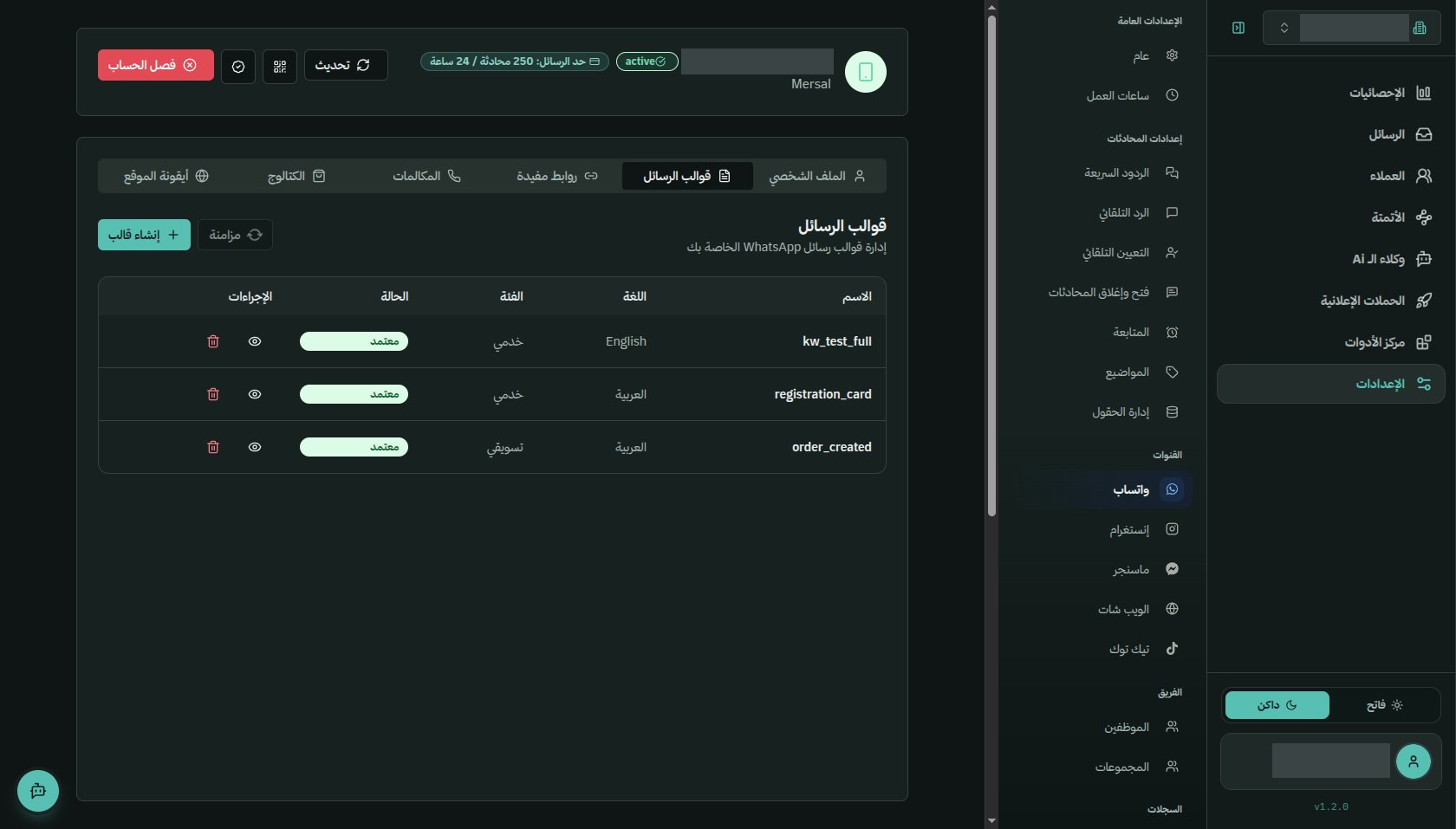
- Each template is written per language.
- The same template in English and in Arabic is two entries, with the same name and different languages. kwentra can use both.
- A template has fixed wording plus numbered blanks:
{{1}},{{2}},{{3}}. - kwentra fills the blanks when it sends. For example: the guest name, the hotel name and the document link.
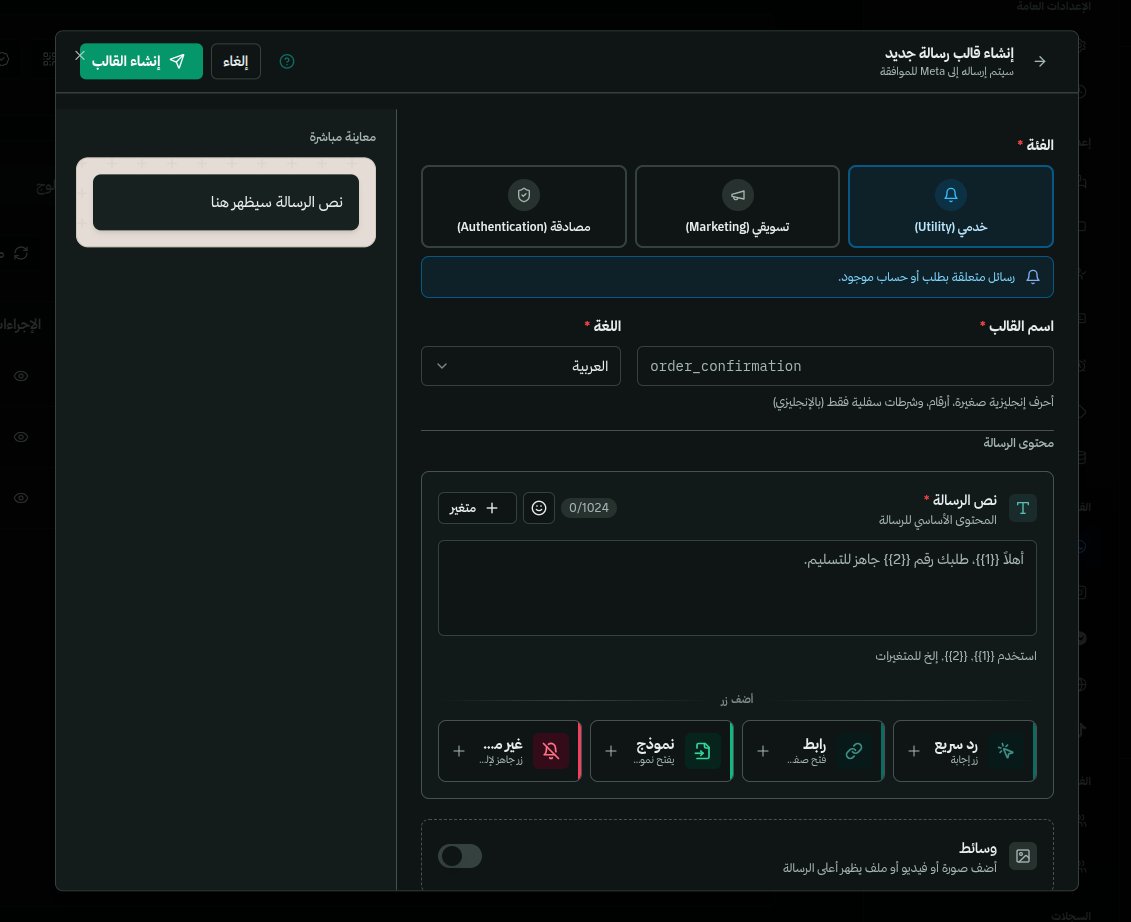
Two Meta rules cause most rejections:
- A message cannot start or end with a blank.
- A message cannot be mostly blanks. If Meta says the message “has too many variables for its length”, add more fixed wording around them.
3. Example Templates
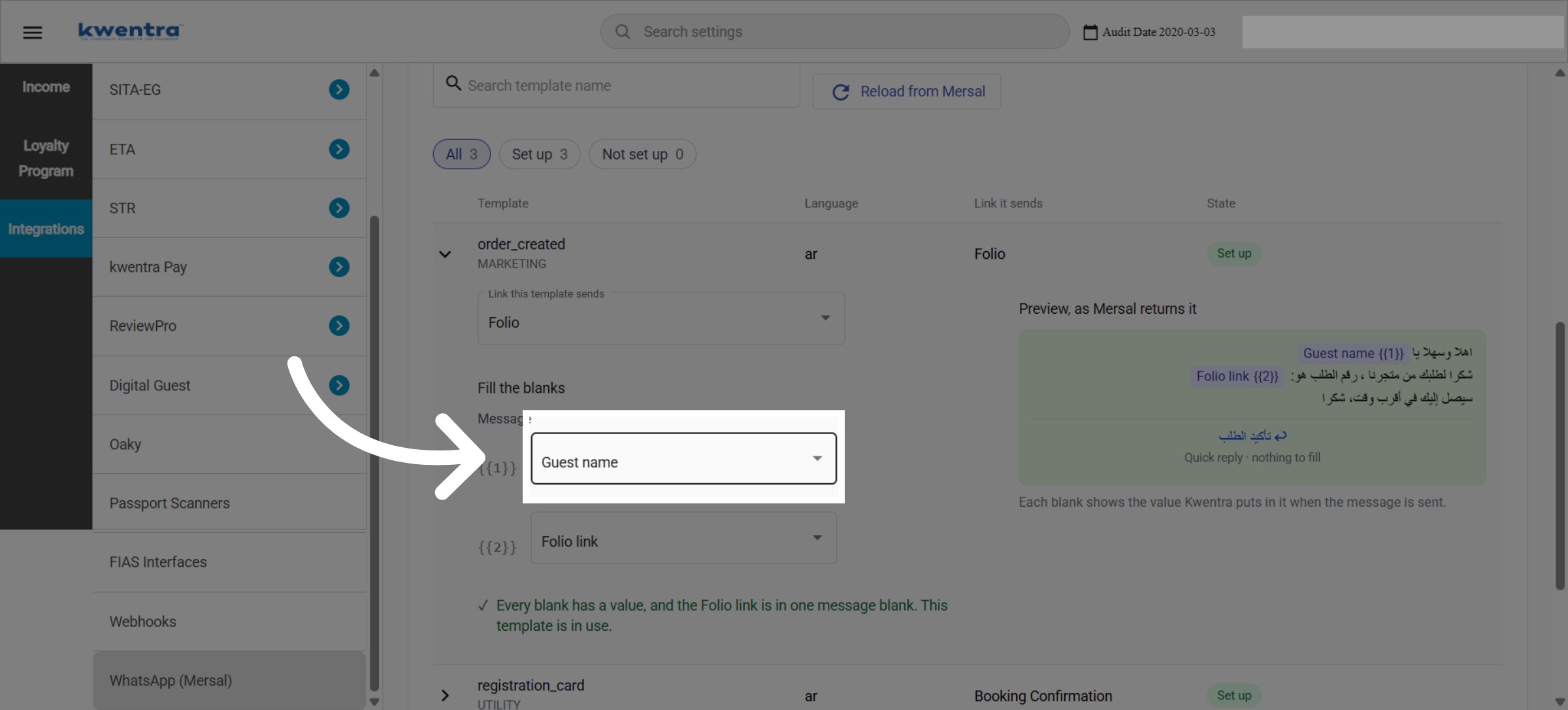
One template per document works well. Keep the blanks in this order. It is the order you will map in kwentra. Registration card:{{1}} guest name, {{2}} hotel name, {{3}} the link.
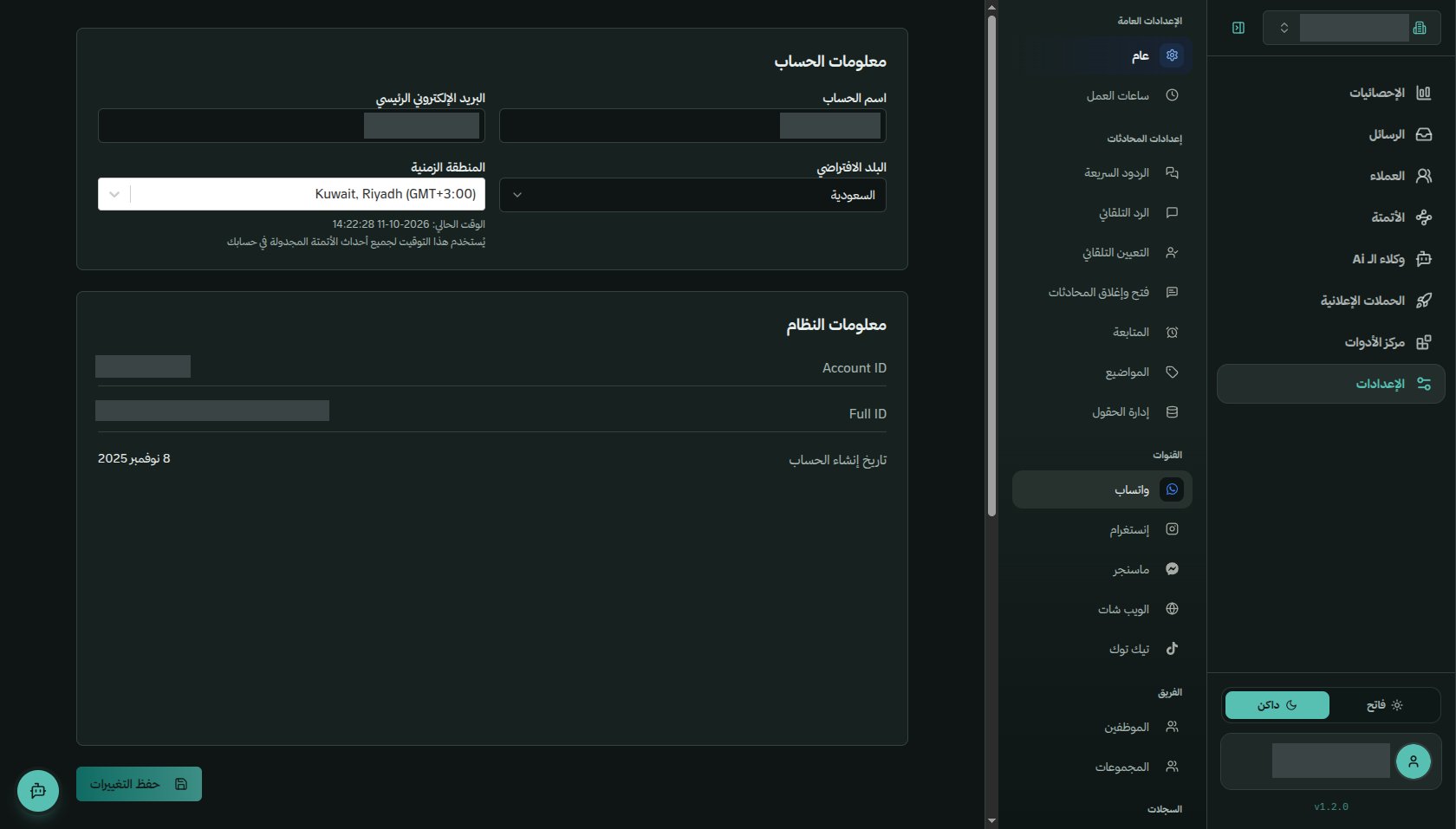
4. Create the API Key
In the Mersal dashboard, go to Settings › API and create a key. It starts withmrsl_api_.
Part 2: Set Up kwentra
Step 1: Connect the Account
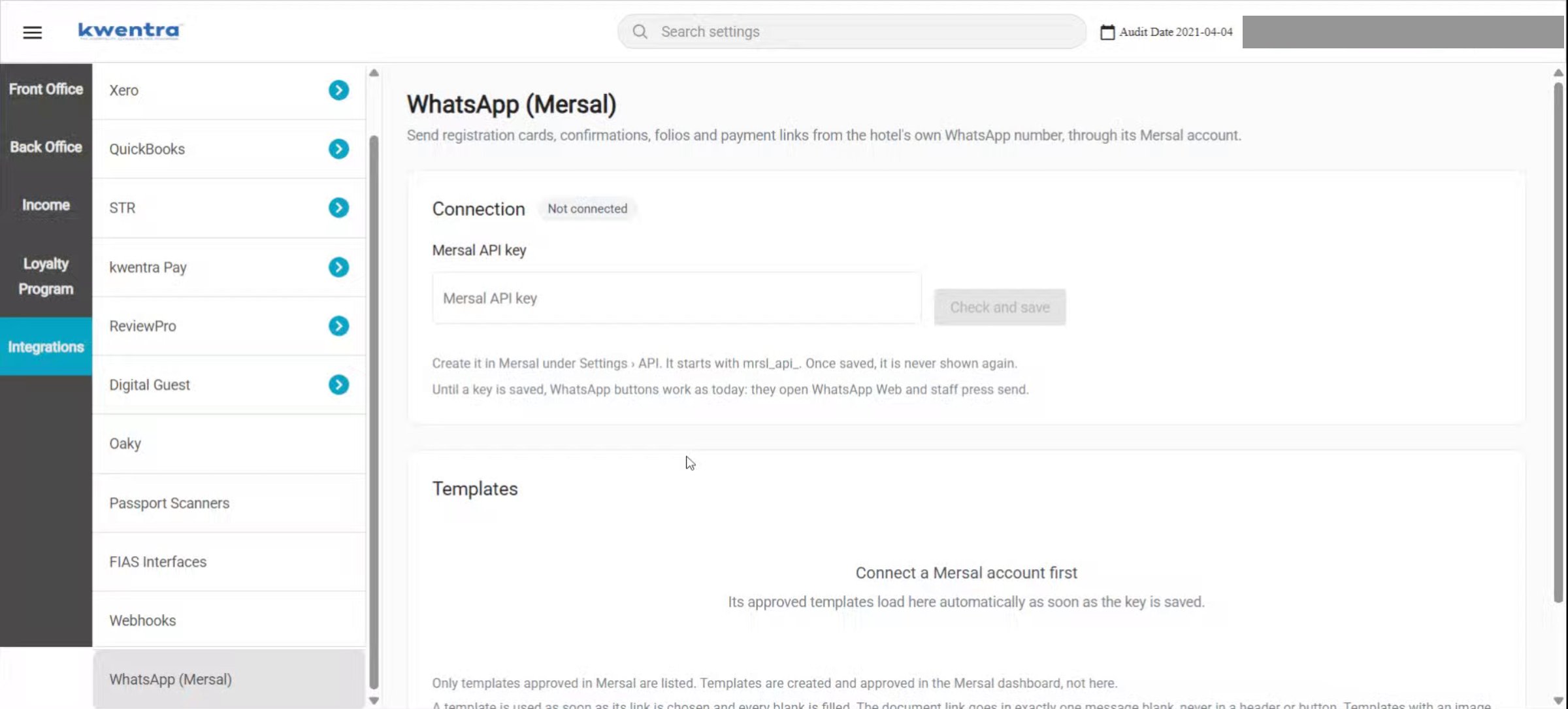
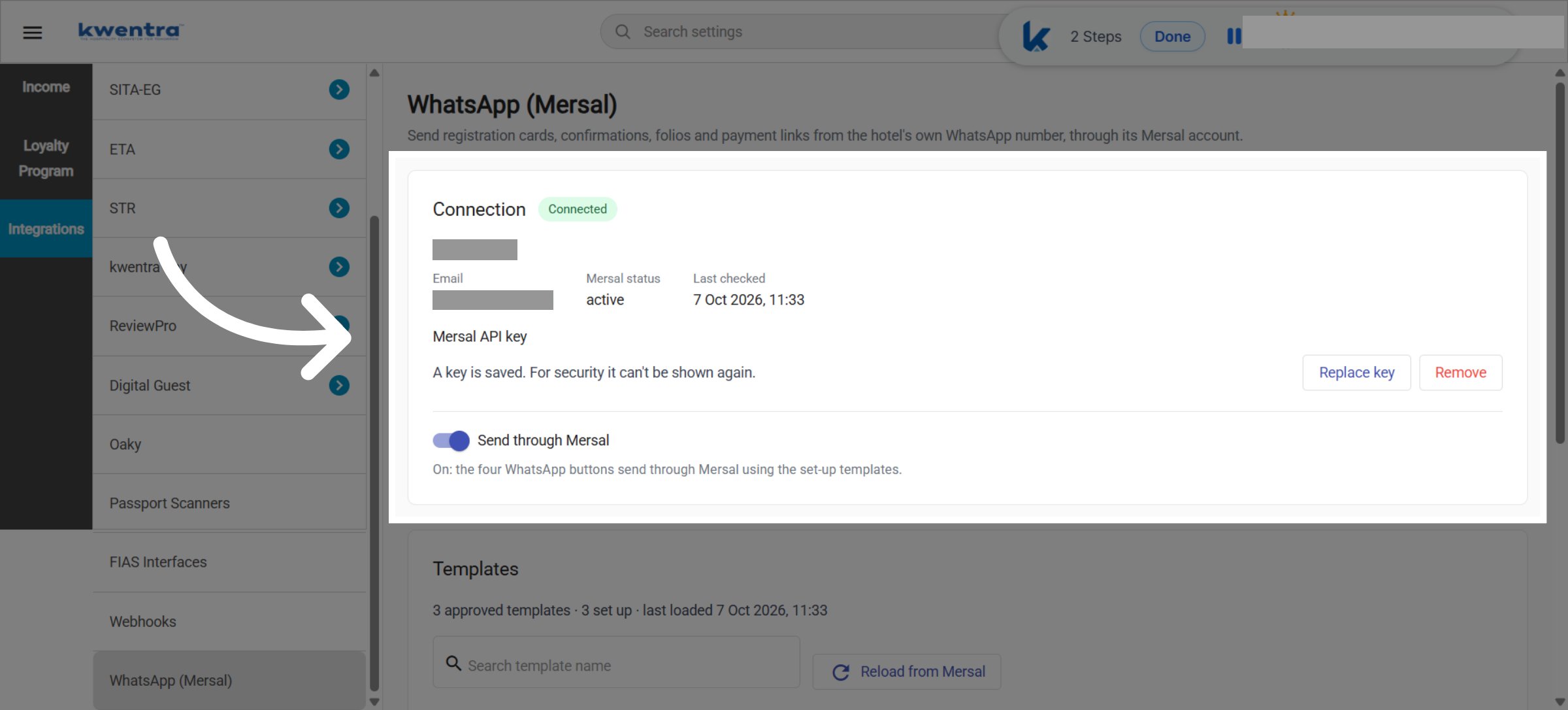
- Paste the key into Mersal API key.
- Click Check and save.
- You see the Mersal account’s name, email and status, and when it was last checked.
Step 2: Check the Templates Loaded
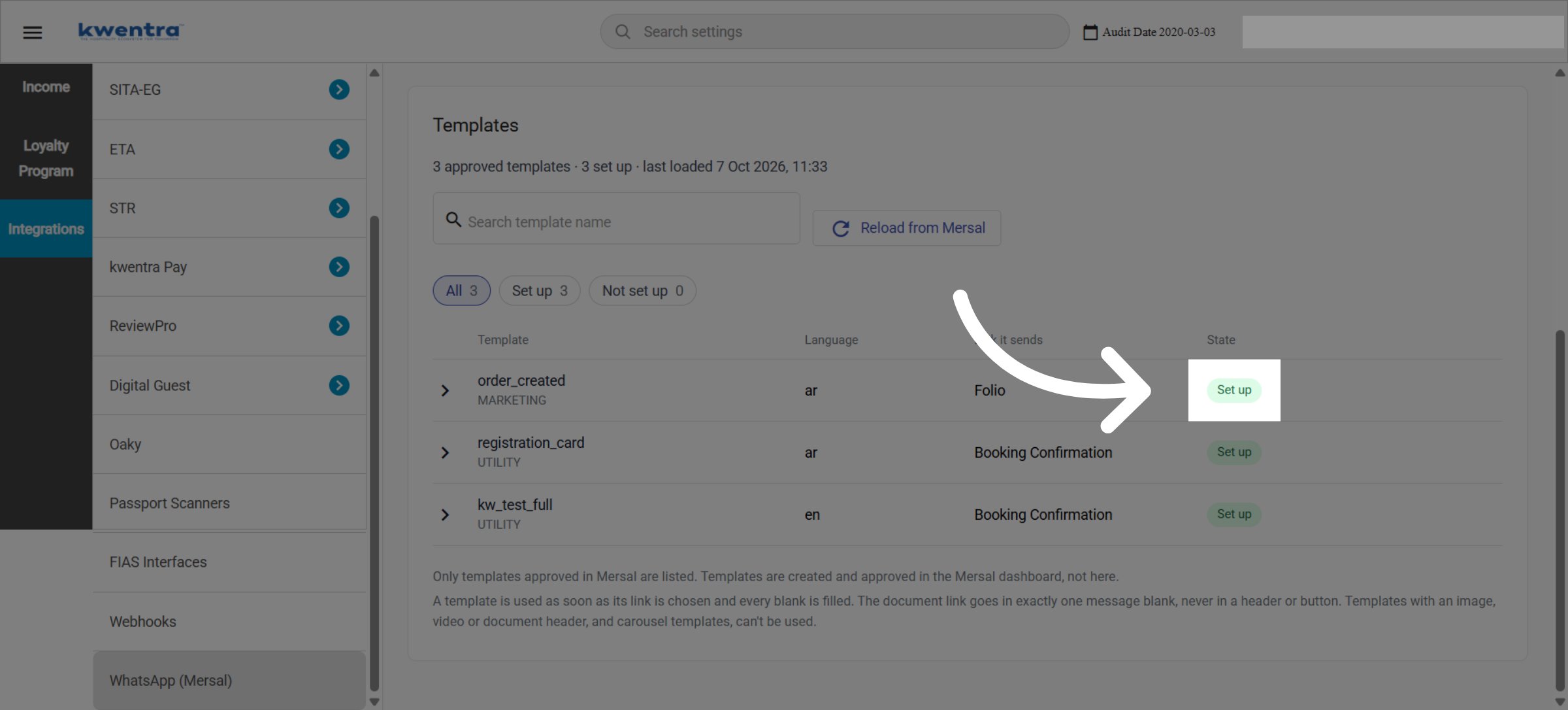
Once the key is saved, your approved templates load by themselves.- There is one row per template and language.
- The list shows how many templates loaded, and when.
- Each row shows the name, the language, the category, the link it sends and whether it is ready.
- Filter by All, Set up or Not set up, or search by name.
- The list keeps Mersal’s order. The most recently updated template comes first.
- Large accounts can take up to a minute.
- The current list stays in use until the reload finishes.
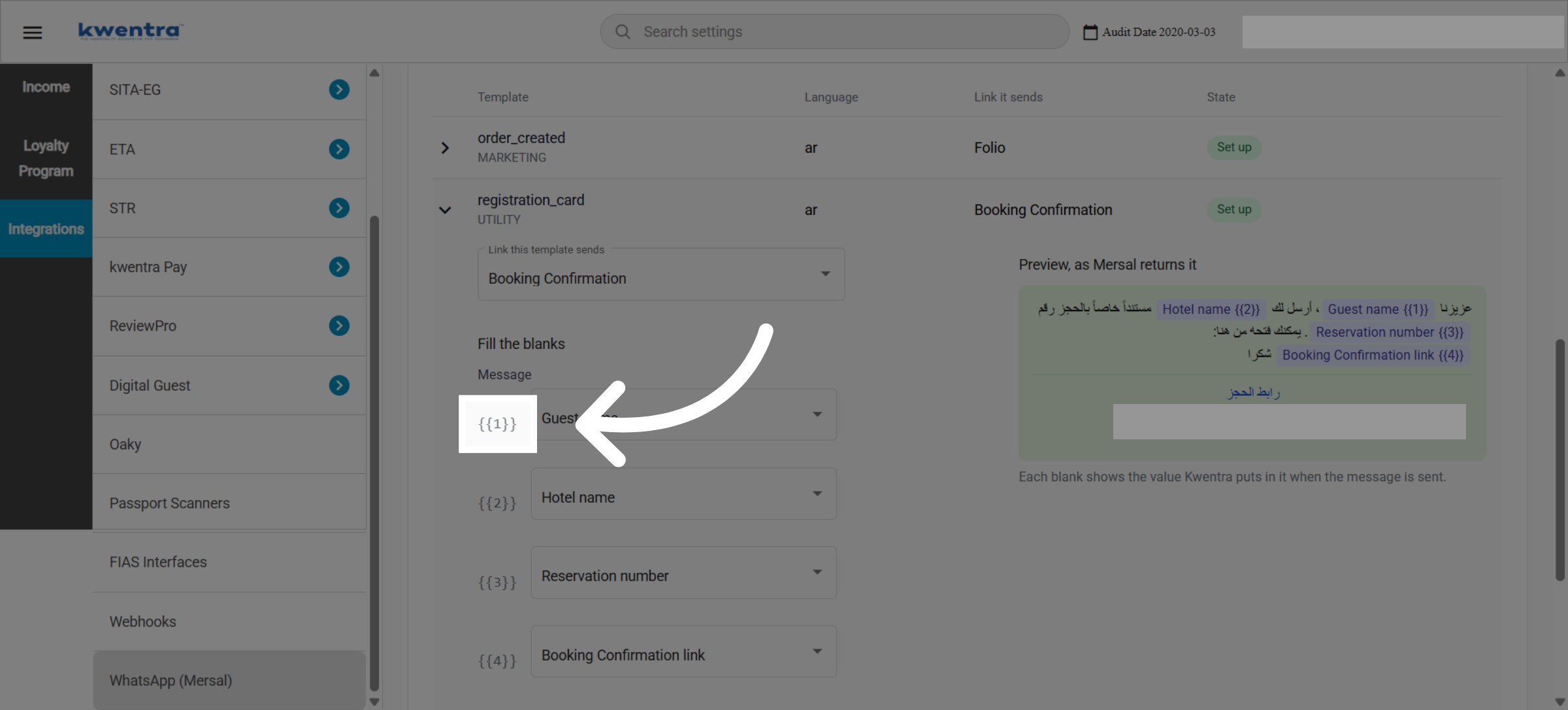
Step 3: Set Up Each Template
Open a template row and set two things:- Link this template sends. Pick Registration Card, Booking Confirmation, Folio or Payment Link.
- Fill the blanks. For each blank, pick what kwentra puts there.
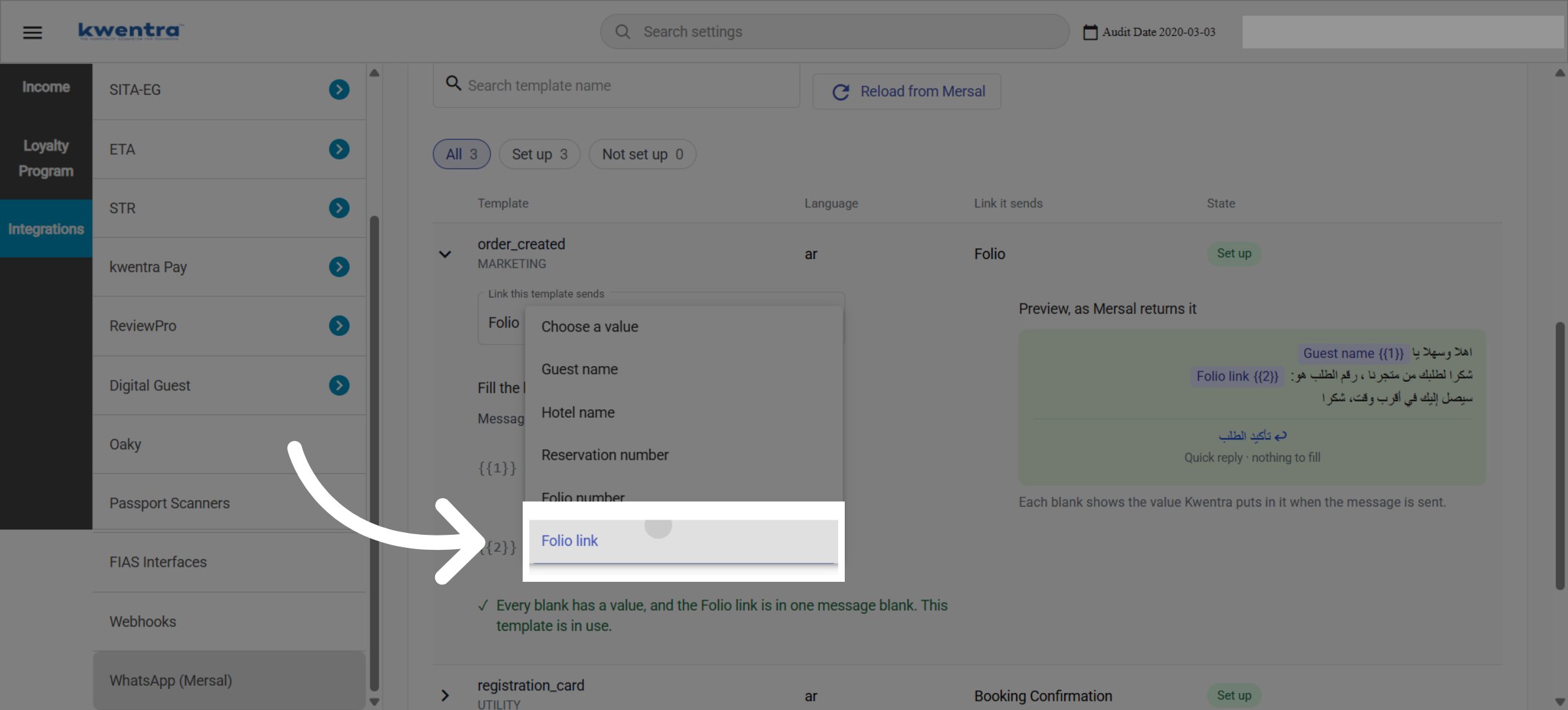
The document link itself is also on every list.
Where the document link can go:
- In a message blank only.
- In exactly one blank.
- Never in a header blank or a button blank.
A template is ready as soon as its link is picked and every blank is filled. There is no separate on/off step. Until then, the row says what is missing, for example:
- choose a link
- 1 blank is empty
- the link is in 2 blanks. Keep it in exactly one
Step 4: Turn Sending On
Switch Send through Mersal on. While it is off, every WhatsApp button works as before and opens WhatsApp Web.Part 3: Send a Document
- Open the document as usual. For example Print / Email → RC on a reservation, the confirmation, the folio, or the payment link window.
- Click Share via WhatsApp.
- The pop-up shows the guest’s mobile, partly hidden, for example
+20******44. - When more than one set-up template sends this document, the pop-up shows a Message template choice. Each option shows the name and language, for example
booking_confirmation · Arabic. The first one is picked for you. - Click Save & Send. The message goes out from the hotel’s WhatsApp number. No new tab opens.
- With only one set-up template, no choice appears. That template is used.
- The same template name in another language is a separate option. Pick the guest’s language.
- If you changed the number, it is saved to the guest profile.
When it fails, the pop-up stays open and shows the reason. You can correct the number or pick another template.
Phone Numbers
kwentra always sends the number in international form.- A number that starts with
+or00already has its country code. It is sent exactly as typed. - A number that starts with
0is local. It gets the guest’s country code. - The guest’s country comes from the guest profile. If the profile has none, it comes from the reservation.
- Your hotel’s country (Property Information) is used only when neither is set.
- Any other number is treated as international. It is sent as typed.
- The pop-up accepts digits with an optional
+at the start. Spaces and dashes are not accepted.
Record of Sends
Every send is recorded in the reservation’s History. Failed sends are recorded too. Each entry shows:- Who sent it, and when.
- The document, the template and its language.
- The number.
- Mersal’s message ID, or the error.
When WhatsApp Web Is Used Instead
The button works exactly as before, opening WhatsApp Web with the link, when:- No Mersal key is saved.
- Send through Mersal is off.
- The document has no set-up template.
Troubleshooting
Good to Know
- Who can send: anyone who can already open the document. Setting up the integration needs a settings permission.
- Languages: if a template exists in Arabic and English, both show in the pop-up. Staff pick the one that suits the guest.
- Not included yet: free-typed messages, delivery or read receipts, and sending from the guest profile. WhatsApp allows free typing only within 24 hours of the guest writing in.
- Volume: Mersal allows 60 messages a minute and 20,000 a day per key. This is far above normal front desk use.